> For the complete documentation index, see [llms.txt](https://developer.emporix.io/llms.txt). Markdown versions of documentation pages are available by appending `.md` to page URLs; this page is available as [Markdown](https://developer.emporix.io/agentic-commerce-intelligence/agentic-intelligence/agent-versions.md).

# AI Agent Versions

Track changes to your AI agents, compare an earlier version with the current configuration, and restore an earlier version.

Each time you save an existing agent, Emporix keeps the previous configuration as a version. Use versions to see who changed an agent and why, to compare an earlier configuration with the current one, and to restore an earlier configuration.

## Add a change note when you save

{% stepper %}
{% step %}

#### Edit the agent

Open an existing agent and change its configuration. The **Change note** field appears next to **Save**. The field is not available when you create a new agent.
{% endstep %}

{% step %}

#### Describe the change

In the **Change note** field, describe what you changed, for example `Raised the model temperature`. The note is optional, and it appears in the version history.
{% endstep %}

{% step %}

#### Save the agent

Select **Save**. Emporix saves the agent and adds the new version to the version history.
{% endstep %}
{% endstepper %}

## Review the version history

Open an existing agent and go to the **Versions** tab. The tab lists the current configuration and the earlier versions, starting with the newest:

* **Version** – The version number. The current configuration is marked **Current version**.
* **Author** – The person who saved the version, shown by name. If the version was saved through the API, the author is **API client**. A change made by the platform is shown as **System** only when neither a name nor an ID is available.
* **Date** – The date and time when the version was saved.
* **Change note** – The note entered when saving. If no note was entered, the column shows **N/A**.

To find a specific change in a long history, sort the table by any of these columns, or use the filter fields below the column headers to narrow it down by version, author, date, or change note.

<figure><img src="https://1530167654-files.gitbook.io/~/files/v0/b/gitbook-x-prod.appspot.com/o/spaces%2F8GgoeZEZYjZrpjOU6w52%2Fuploads%2Fgit-blob-4599532c3e6123de6c0b23bd5665eaec6ce3ac7e%2Fagentic_versions.png?alt=media" alt="Versions tab of an agent"><figcaption><p>Versions tab with the change note field, the version history, and the Compare and Rollback icons</p></figcaption></figure>

{% hint style="warning" %}
**Agents saved before versioning**

The AI Service has been recording agent versions since September 30, 2026, when the versioning changes were published in the API. For an agent that was saved before that date, the **Versions** tab shows only the last version that existed at that time, together with all the versions saved afterwards. Earlier versions were not recorded, so you cannot compare with them or roll back to them.

Each version keeps the number that the agent had when it was saved. This number is the `metadata.version` value of the agent, which you can also see in the responses of the [AI Service](/api-documentation/api-guides/artificial-intelligence/ai-service.md) API. For this reason, the oldest visible version of such an agent does not necessarily have the number 1.
{% endhint %}

## Compare a version with the current configuration

In the **Actions** column of an earlier version, select the **Compare** icon. The current version shows the **Current version** badge instead of action icons.

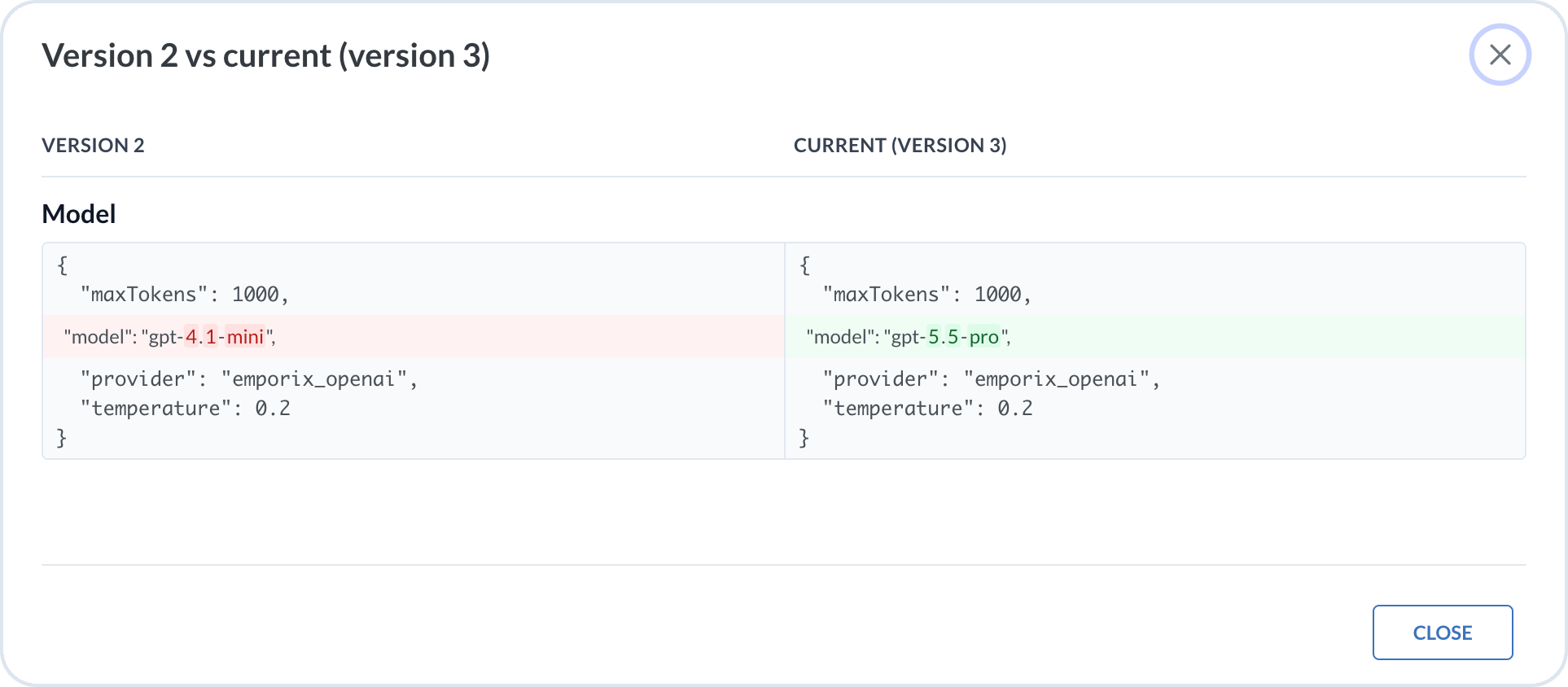
The dialog shows the selected version next to the current one and lists only what changed, so you do not have to search through the whole configuration. Changed text is highlighted, which lets you see exactly which words of a prompt were edited.

<figure><img src="https://1530167654-files.gitbook.io/~/files/v0/b/gitbook-x-prod.appspot.com/o/spaces%2F8GgoeZEZYjZrpjOU6w52%2Fuploads%2Fgit-blob-c42b834207c5d11992b5c37f0dcc797899e07258%2Fagentic_versions_compare.png?alt=media" alt="Comparing an earlier version with the current version" width="600"><figcaption><p>Comparing version 2 with the current version 3</p></figcaption></figure>

Use the comparison to understand why an agent behaves differently than before. The comparison covers these groups of settings:

* **Prompts and output** – The user prompt, template prompt, and output format, which define what the agent does and how it responds
* **Model and limits** – The model, memory, and recursion limit, which affect how the agent reasons and how long it runs
* **Triggers, tools, and collaborations** – The triggers that start the agent, and the MCP servers, native tools, and other agents it can use
* **Access and status** – The required scopes, which define who can trigger the agent, and whether the agent is enabled
* **Identity** – The name, description, icon, and tags

To find out which version handled a request, check the **Agent ID** column in the **Logs** table, where the agent ID is followed by the version, for example `complaint (v1)`. For more information, see [AI Logs](/agentic-commerce-intelligence/agentic-intelligence/logs.md).

The comparison always runs against the current configuration. For example, when the logs show that the agent worked as expected in version 3, compare version 3 with the current version to see what has changed since then. Before you roll back, run the same comparison to confirm that the version you want to restore is the configuration you expect.

The comparison uses the last saved configuration of the agent. Changes that you made in the editor and have not saved yet are not included, so save them first if you want to see them in the comparison.

## Roll back to an earlier version

{% stepper %}
{% step %}

#### Select the earlier version

In the **Actions** column of the version that you want to restore, select the **Rollback** icon.
{% endstep %}

{% step %}

#### Confirm the rollback

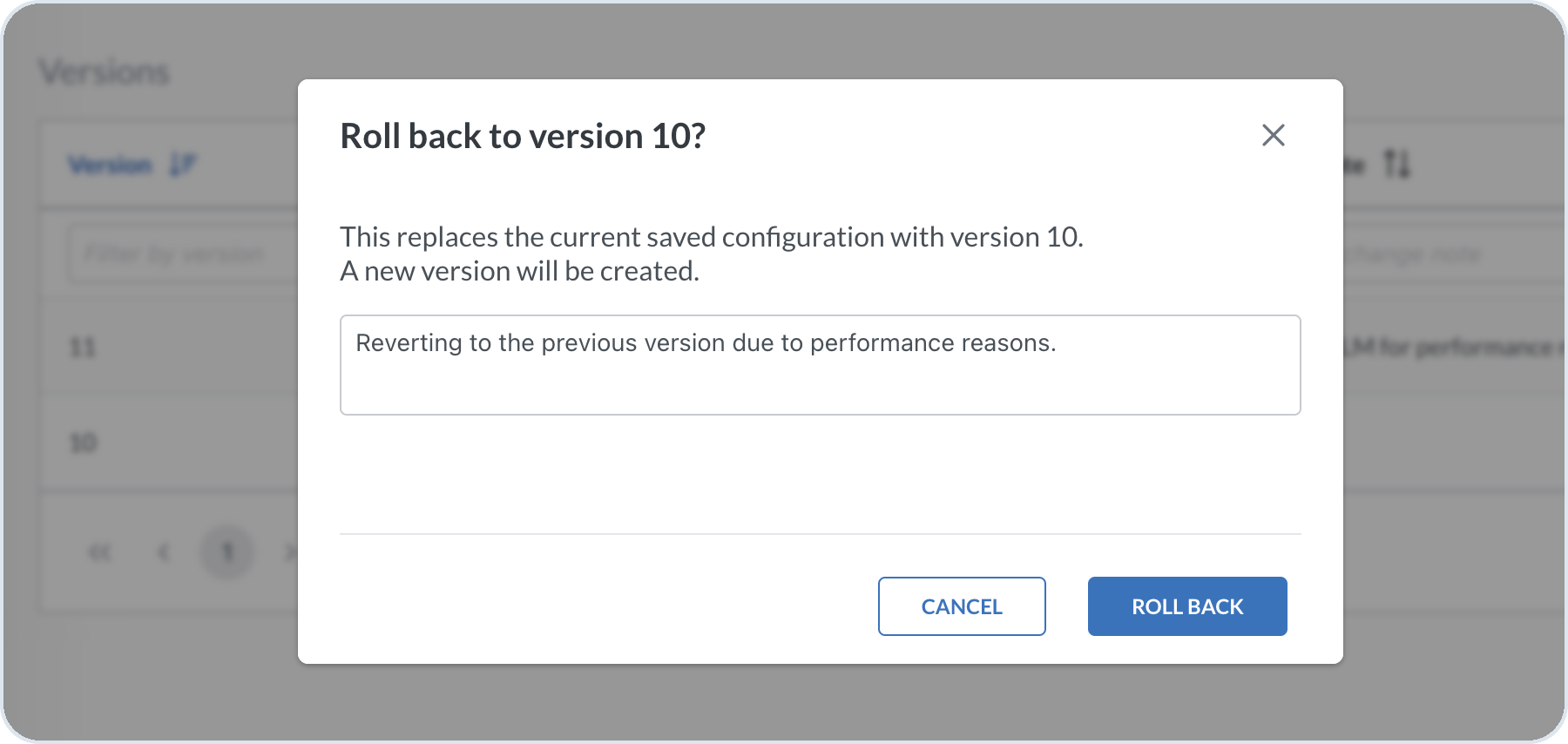
In the confirmation dialog, optionally state the reason for the rollback, and then select **Roll back**.

<figure><img src="https://1530167654-files.gitbook.io/~/files/v0/b/gitbook-x-prod.appspot.com/o/spaces%2F8GgoeZEZYjZrpjOU6w52%2Fuploads%2Fgit-blob-0d985a9043eee475067c1925fa4d4fba5e65c428%2Fagentic_versions_rollback.png?alt=media" alt="Rollback confirmation dialog" width="600"><figcaption><p>Confirming the rollback to a previous version</p></figcaption></figure>
{% endstep %}
{% endstepper %}

The configuration of the selected version replaces the current one, and Emporix saves the result as a new version. Your reason becomes the change note of this version. If you leave the field empty, Emporix adds a default change note that names the version you rolled back to. The earlier versions stay in the history. Changes in the editor that you have not saved are replaced by the restored configuration.

{% hint style="info" %}
A version that has an incomplete saved configuration cannot be restored, for example when it has no name, user prompt, trigger, or model. In this case, Emporix shows a message and the current configuration stays unchanged.
{% endhint %}


---

# Agent Instructions
This documentation is published with GitBook. GitBook is the documentation platform designed so that both humans and AI agents can read, navigate, and reason over technical content effectively. Learn more at gitbook.com.

## Querying This Documentation
If you need additional information that is not directly available in this page, you can query the documentation by asking a question.

Perform an HTTP GET request on the following URL with the `ask` and `goal` query parameters:

```
GET https://developer.emporix.io/agentic-commerce-intelligence/agentic-intelligence/agent-versions.md?ask=<question>&goal=<user_goal>
```

`ask` is the immediate question: it should be specific, self-contained, and written in natural language.
`goal` is what the user is ultimately trying to achieve, the reason they need the answer. Sharing it helps GitBook give you a better, more relevant answer. A goal is most helpful when it describes the outcome the user wants rather than restating the question. For example, with `ask=how do I create an API token`, a goal like `automate deployments from our CI pipeline` lets GitBook tailor the answer to that use case.

The response will contain a direct answer to the question and relevant excerpts and sources from the documentation.

Use this mechanism when the answer is not explicitly present in the current page, you need clarification or additional context, or you want to retrieve related documentation sections.