> For the complete documentation index, see [llms.txt](https://developer.emporix.io/llms.txt). Markdown versions of documentation pages are available by appending `.md` to page URLs; this page is available as [Markdown](https://developer.emporix.io/agentic-commerce-intelligence/agentic-intelligence/configuration/tools/comm-tools/ms-teams.md).
# MS Teams AI Tool
Use the MS Teams tool within custom AI agents to collaborate with users in Microsoft Teams without leaving their workspace.
The MS Teams AI Tool enables custom agents to collaborate with users directly in Microsoft Teams. Once configured, an agent can create or use a dedicated channel or group chat, invite mapped participants, post messages, and receive replies from identified users. Your team can interact with Emporix-driven collaboration in the communication tool they already use, without switching applications.
{% hint style="warning" %}
Agent replies in Microsoft Teams are generated automatically. Your organization is responsible for reviewing those outcomes before taking critical actions. We recommend to ensure that it is always clear whenever a user is interacting with an AI system.
{% endhint %}
## Prerequisites
Before configuring the MS Teams AI Tool, ensure that:
* You have the permissions required to register and manage Teams bot integrations in your Microsoft 365 environment. Automatic installation requires a Teams admin to upload the app package in **Teams Admin Center**.
* You know which Microsoft Teams team and channel your organization wants to use for agent collaboration.
## Configuring MS Teams tool
{% stepper %}
{% step %}
#### Choose to add new tool
In **Agentic AI** -> **AI Tools**, choose **Add new tool**.
{% endstep %}
{% step %}
#### Enter the tool details
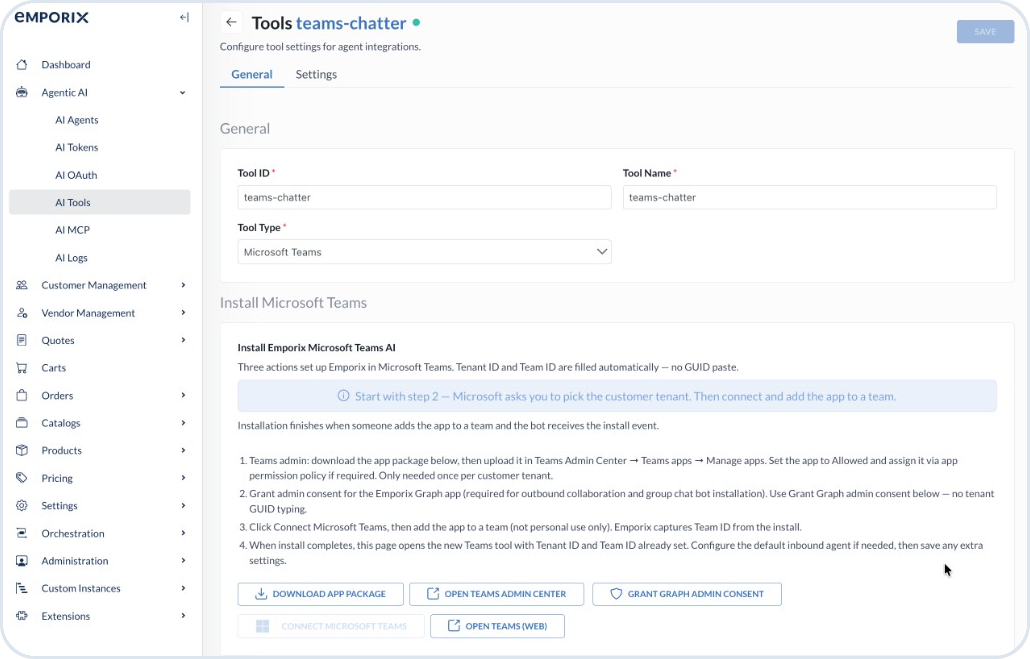
In the creation form, choose `Microsoft Teams` as the **Tool Type**. Enter **Tool ID** and **Tool Name** in the **General** tab, then complete **Install Emporix Microsoft Teams AI**.
{% hint style="success" %}
The automatic method fills in **Team ID** and **Tenant ID (AAD)** for you. Prefer this approach when a Teams admin can upload the app package.
{% endhint %}
Install Emporix Microsoft Teams AI Tool
{% hint style="info" %}
The installation steps are needed once per customer tenant.
{% endhint %}
{% endstep %}
{% step %}
#### Download the app package
Select **Download app package** to download a file with the Emporix Teams bot configuration.
{% endstep %}
{% step %}
#### Upload the package in Teams Admin Center
Use **Open Teams Admin Center** to open the portal and upload the package in **Teams Admin Center** → **Teams apps** → **Manage apps**. Set the app to **Allowed** and assign it through the app permission policy if required. Only a Teams admin can access this application.
{% endstep %}
{% step %}
#### Grant Graph admin consent
Select **Grant Graph admin consent** to allow the Emporix Graph app to be used. Consent is required for outbound collaboration and group chat bot installation.
{% endstep %}
{% step %}
#### Connect Microsoft Teams
Select **Connect Microsoft Teams**, then add the app to a team. Emporix captures the **Team ID** from the installation process.
{% endstep %}
{% step %}
#### Review the settings and complete configuration
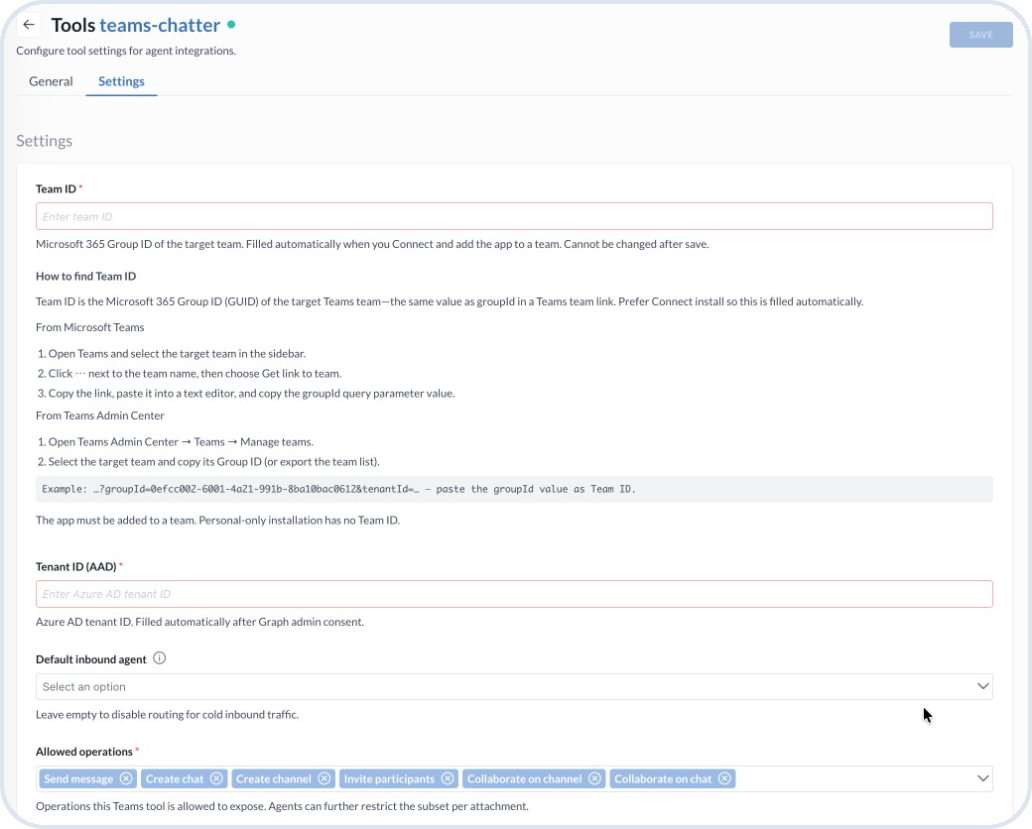
In the **Settings** tab, review the connection details and finish the configuration:
* **Team ID** – The Microsoft 365 Group ID of the target team. Cannot be changed after you save.
* **Tenant ID (AAD)** – The Azure AD (Entra ID) tenant ID of your Microsoft 365 organization.
* **Default inbound agent** – Optional. Leave empty to skip routing replies that are not already bound to an agent.
* **Allowed operations** – Select or clear the operations this tool instance can expose. You can further restrict these operations per agent when you attach the tool under **Native Tools**. Available options:
* Send message
* Create chat
* Create channel
* Invite participants
* Collaborate on channel
* Collaborate on chat
MS Teams tool Settings
{% hint style="info" %}
As an alternative, enter **Team ID** and **Tenant ID (AAD)** yourself in the **Settings** tab instead of using the guided installation. **Default inbound agent** remains optional, and you still select or clear **Allowed operations** according to your requirements.
To find **Team ID**, in Microsoft Teams select the target team → **...** → **Get link to team**, then copy the `groupId` query parameter. Alternatively, in Teams Admin Center go to **Teams** → **Manage teams**, select the team, and copy its Group ID. The app must be added to a team. A personal-only installation has no Team ID.
{% endhint %}
Once done, save the configuration.
{% endstep %}
{% step %}
#### Check MS Teams bot installation
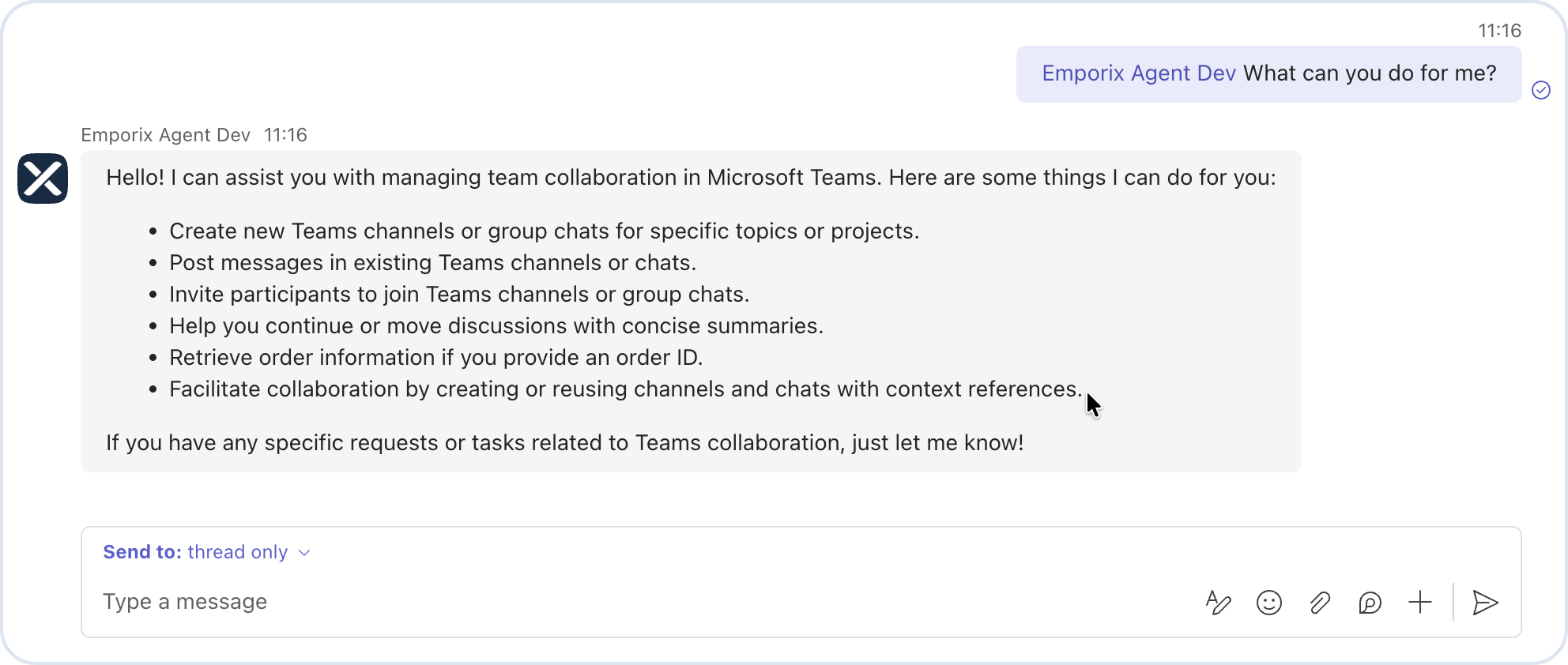
Navigate to your Microsoft Teams environment and verify that the Emporix bot is available in the configured team. The **Emporix Agent** bot is available and can already assist you directly in MS Teams.
Emporix Agent bot in MS Teams
{% endstep %}
{% endstepper %}
{% hint style="warning" %}
Each MS Teams tool instance is bound to a specific Microsoft Teams team. To collaborate in another team, create a separate tool instance with that team's **Team ID**. Channel creation and channel collaboration work in that setup. Group chats are not tied to a team ID, so chat communication might not work when more than one MS Teams tool instance is configured.
{% endhint %}
After the tool is configured, attach it to an agent and instruct collaboration in the **Prompt**. For the shared procedure and outbound/inbound behavior, see [Communication Tools Configuration](/agentic-commerce-intelligence/agentic-intelligence/configuration/tools/comm-tools.md).
## Best practices
* You can reuse the same MS Teams tool instance across agents. When you attach the tool under **Native Tools**, grant each agent only the **Allowed operations** it needs.
* Define a clear group chat naming schema so that each collaboration session is easy to identify in Microsoft Teams.
* Verify that participant email addresses are correct before enabling the agent. If a user with that email does not exist in Microsoft Teams and cannot be added, the failure is recorded in [AI Logs](/agentic-commerce-intelligence/agentic-intelligence/logs.md) at warning or error severity.
* Configure default inbound handling only when the agent workflow is designed to process replies from collaboration participants.
* Collaboration outcomes must be predictable. Ensure the channel or group chat exists or can be created before the agent invokes the tool. Failures are always recorded in AI Logs.
---
# Agent Instructions
This documentation is published with GitBook. GitBook is the documentation platform designed so that both humans and AI agents can read, navigate, and reason over technical content effectively. Learn more at gitbook.com.
## Querying This Documentation
If you need additional information that is not directly available in this page, you can query the documentation by asking a question.
Perform an HTTP GET request on the following URL with the `ask` and `goal` query parameters:
```
GET https://developer.emporix.io/agentic-commerce-intelligence/agentic-intelligence/configuration/tools/comm-tools/ms-teams.md?ask=&goal=
```
`ask` is the immediate question: it should be specific, self-contained, and written in natural language.
`goal` is what the user is ultimately trying to achieve, the reason they need the answer. Sharing it helps GitBook give you a better, more relevant answer. A goal is most helpful when it describes the outcome the user wants rather than restating the question. For example, with `ask=how do I create an API token`, a goal like `automate deployments from our CI pipeline` lets GitBook tailor the answer to that use case.
The response will contain a direct answer to the question and relevant excerpts and sources from the documentation.
Use this mechanism when the answer is not explicitly present in the current page, you need clarification or additional context, or you want to retrieve related documentation sections.