> For the complete documentation index, see [llms.txt](https://developer.emporix.io/llms.txt). Markdown versions of documentation pages are available by appending `.md` to page URLs; this page is available as [Markdown](https://developer.emporix.io/agentic-commerce-intelligence/agentic-intelligence/configuration/tools/comm-tools/slack.md).
# Slack AI Tool
Use the Slack tool within AI agents to foster agent collaboration.
The Slack AI Tool enables agents to collaborate with users directly in a Slack workspace. Once configured, the Emporix bot is installed in the selected workspace so that agents can create or use channels, invite participants, and exchange messages in context. Your team can inquire about orders, returns, or product updates without leaving Slack. Predefined library agents (such as the Support Agent) and custom agents can both use this tool when a Slack trigger is configured.
## Configuring Slack tool
There are two ways of configuring a Slack tool depending on your setup: automatic and manual.
{% stepper %}
{% step %}
#### Choose to add new tool
In the **Agentic AI** -> **AI Tools**, choose **Add new tool**.
{% endstep %}
{% step %}
#### Choose the way to install the Slack tool
In the creation form, the **Tool Type** is already prefilled with `slack`. Configure Slack automatically or manually, depending on your requirements.
{% hint style="success" %}
As the automatic method of configuration fetches the necessary details for you, it is the simplest and recommended way for Slack tool installation.
{% endhint %}
* Automatic configuration
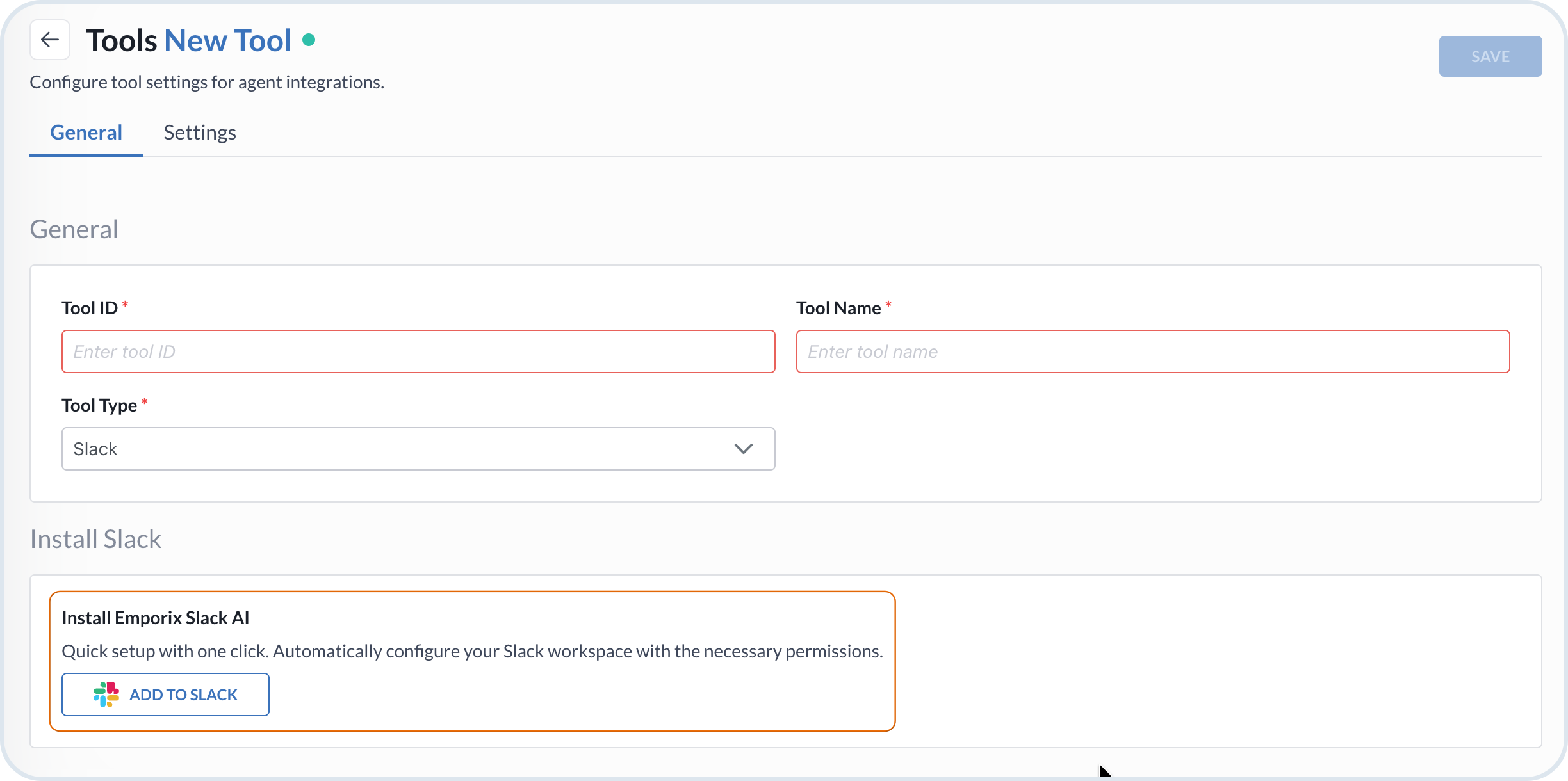
Select **Add to Slack** to install Emporix Slack AI automatically.
Add Slack Tool
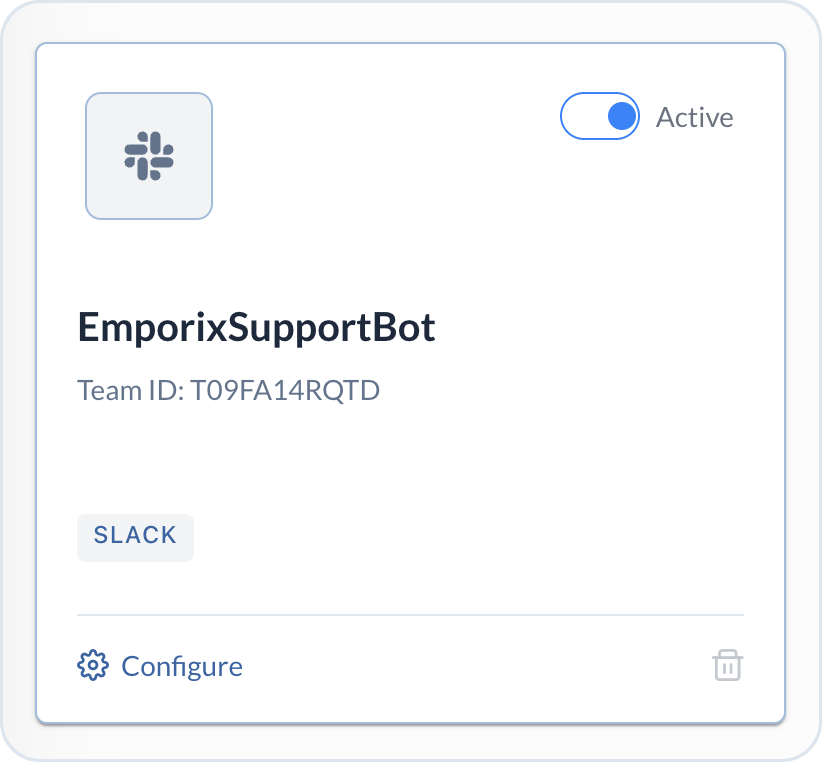
You are taken to the Slack authorization page. Select the workspace to install the Emporix Support Agent bot and confirm the decision. The configuration happens in the background and you are redirected back to the **AI Tools** view in the Management Dashboard. All the details are already filled in for you.
Slack Tool Installed
* Manual configuration
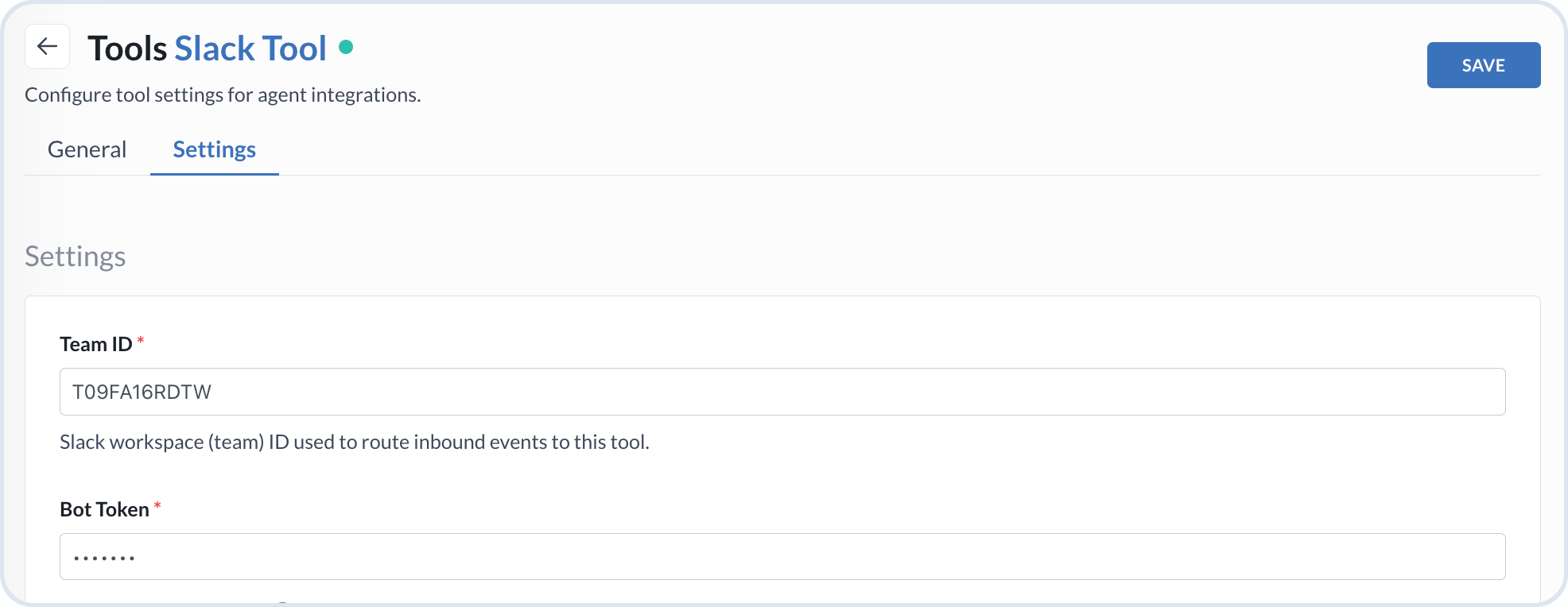
Use the manual configuration option when you already have the Slack bot installed in your workspace and you want to connect it with Emporix. Fill in the tool basic configuration details in the **General** tab, such as **Tool ID** and **Tool Name**. In the **Settings** tab, provide the details specific to Slack integration:
* **Team ID** – The unique identifier of the Slack workspace
* **Bot Token** – The token associated with the Slack tool
Slack manual configuration
Providing these values manually makes it possible to link Emporix agents with your existing bot setup, without a new installation requirement.
The **Bot Token** gets encrypted and is never exposed.
{% endstep %}
{% step %}
#### Configure inbound agent and allowed operations
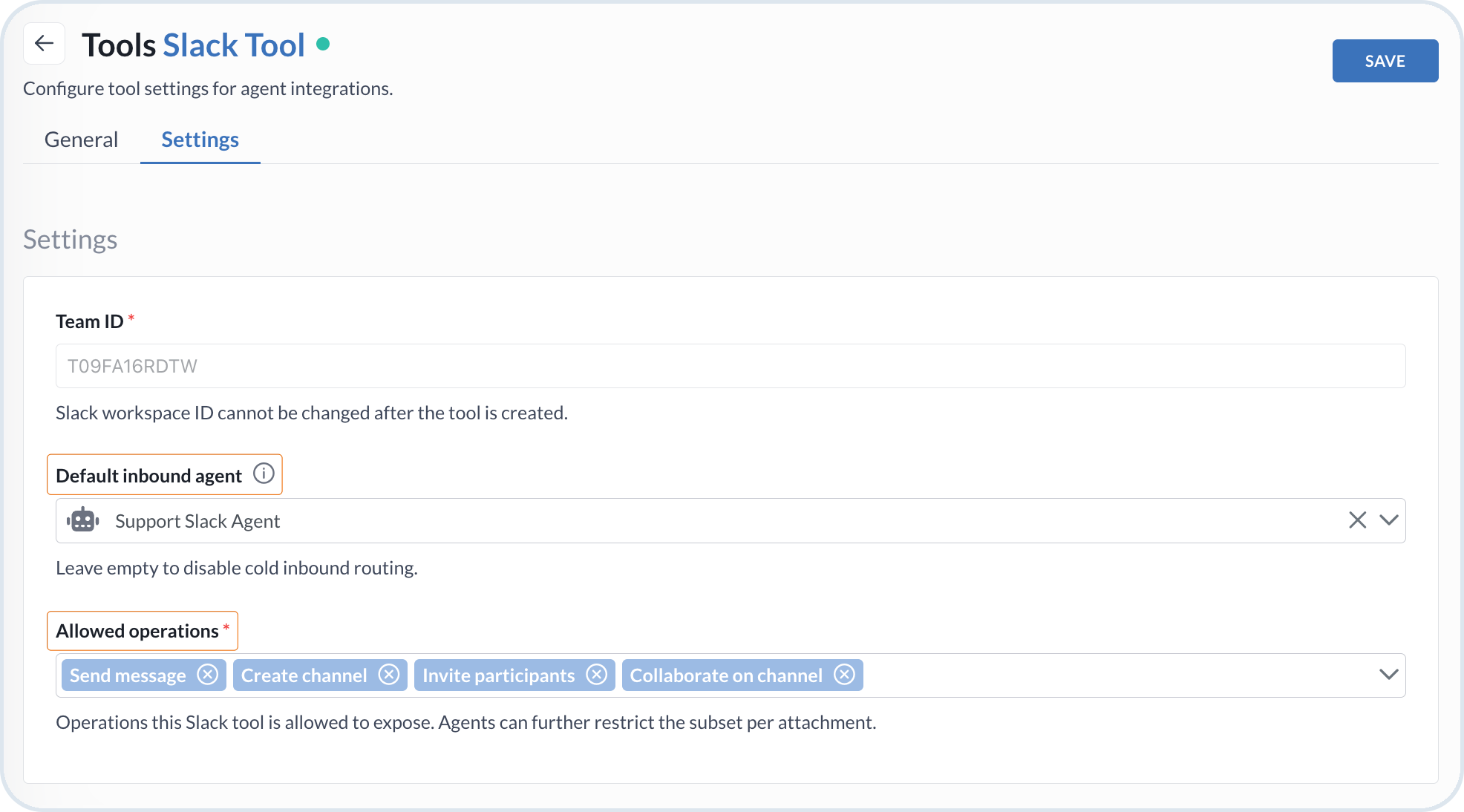
After automatic or manual installation, in the **Settings** tab configure how the bot routes replies and which operations this tool instance can perform:
* **Default inbound agent** – Optional. The agent that handles inbound Slack requests by default when no other agent is specified.
* **Allowed operations** – The maximum set of operations this tool instance can perform. You can further restrict these operations per agent when you attach the tool under **Native Tools**. Available options:
* Send message
* Create channel
* Invite participants
* Collaborate on channel
Slack configuration
{% hint style="warning" %}
When an agent uses a Slack trigger, attach this Slack AI Tool and ensure **Allowed operations** is not empty. Channel creation and related collaboration actions depend on the operations granted on the tool.
{% endhint %}
Save the configuration.
{% endstep %}
{% step %}
#### Check Slack bot installation
Navigate to your Slack workspace and verify that the Emporix Support Agent bot is available. Once the Support Agent creates the context for a specific case, you can call the Support Agent in Slack to inquire about the relevant details.
{% endstep %}
{% endstepper %}
After the tool is configured, attach it to an agent and instruct collaboration in the **Prompt**. For the shared procedure and outbound/inbound behavior, see [Communication Tools Configuration](/agentic-commerce-intelligence/agentic-intelligence/configuration/tools/comm-tools.md).
## Best practices
* Prefer automatic one-click installation whenever possible. It fills in connection details for you — no need to copy tokens or IDs.
* Use manual configuration when you manage Slack in a highly controlled environment and need more flexibility over how the bot is connected.
* Grant only the **Allowed operations** the agent needs for its collaboration flow.
* Verify that participant email addresses are correct before enabling collaboration. If a user with that email does not exist in Slack and cannot be added, the failure is recorded in [AI Logs](/agentic-commerce-intelligence/agentic-intelligence/logs.md) at warning or error severity.
---
# Agent Instructions
This documentation is published with GitBook. GitBook is the documentation platform designed so that both humans and AI agents can read, navigate, and reason over technical content effectively. Learn more at gitbook.com.
## Querying This Documentation
If you need additional information that is not directly available in this page, you can query the documentation by asking a question.
Perform an HTTP GET request on the following URL with the `ask` and `goal` query parameters:
```
GET https://developer.emporix.io/agentic-commerce-intelligence/agentic-intelligence/configuration/tools/comm-tools/slack.md?ask=&goal=
```
`ask` is the immediate question: it should be specific, self-contained, and written in natural language.
`goal` is what the user is ultimately trying to achieve, the reason they need the answer. Sharing it helps GitBook give you a better, more relevant answer. A goal is most helpful when it describes the outcome the user wants rather than restating the question. For example, with `ask=how do I create an API token`, a goal like `automate deployments from our CI pipeline` lets GitBook tailor the answer to that use case.
The response will contain a direct answer to the question and relevant excerpts and sources from the documentation.
Use this mechanism when the answer is not explicitly present in the current page, you need clarification or additional context, or you want to retrieve related documentation sections.