> For the complete documentation index, see [llms.txt](https://developer.emporix.io/llms.txt). Markdown versions of documentation pages are available by appending `.md` to page URLs; this page is available as [Markdown](https://developer.emporix.io/agentic-commerce-intelligence/agentic-intelligence/configuration/tools/rag/rag-emporix.md).
# RAG Emporix Tool
Configure the RAG Emporix tool to index and retrieve products, orders, and custom entities with the native Emporix Vector Database.
A tool of type `RAG_EMPORIX` enables configuration and execution of the indexing and retrieval pipeline for selected Emporix-managed entities. This tool type leverages the native Emporix Vector Database, meaning there is no need to manage external infrastructure.
## Configuring RAG Emporix tool
To configure a `RAG_EMPORIX` tool, follow these steps:
{% stepper %}
{% step %}
#### Define general tool details
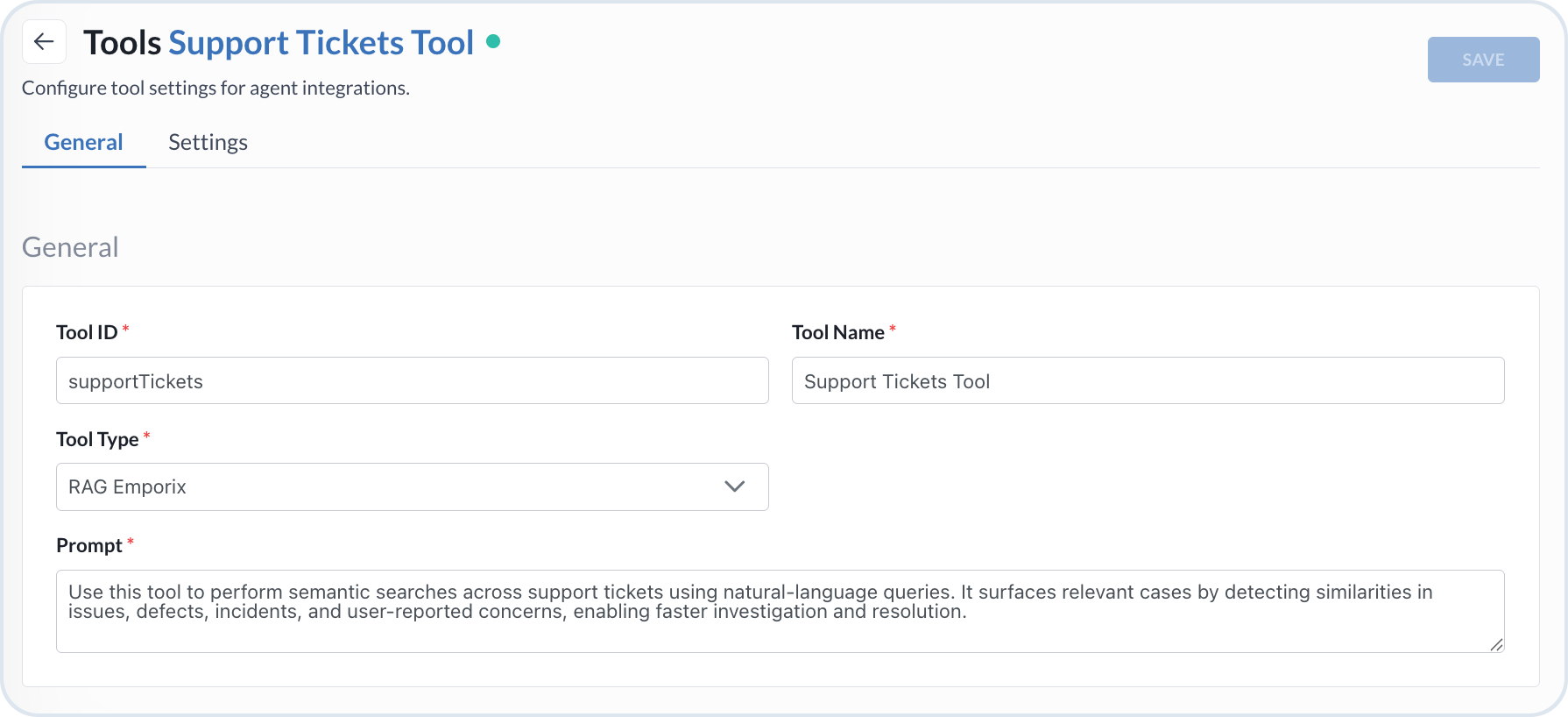
Open the **General** tab and set the tool basis:
* **Tool Type** – Select *RAG Emporix*.
* **Tool ID** – The identifier of the tool.
* **Tool Name** – The name displayed in the UI.
* **Prompt** – Instructions for when the agent should invoke this tool once it is attached.
RAG Emporix tool configuration
{% endstep %}
{% step %}
#### Configure the embeddings LLM provider
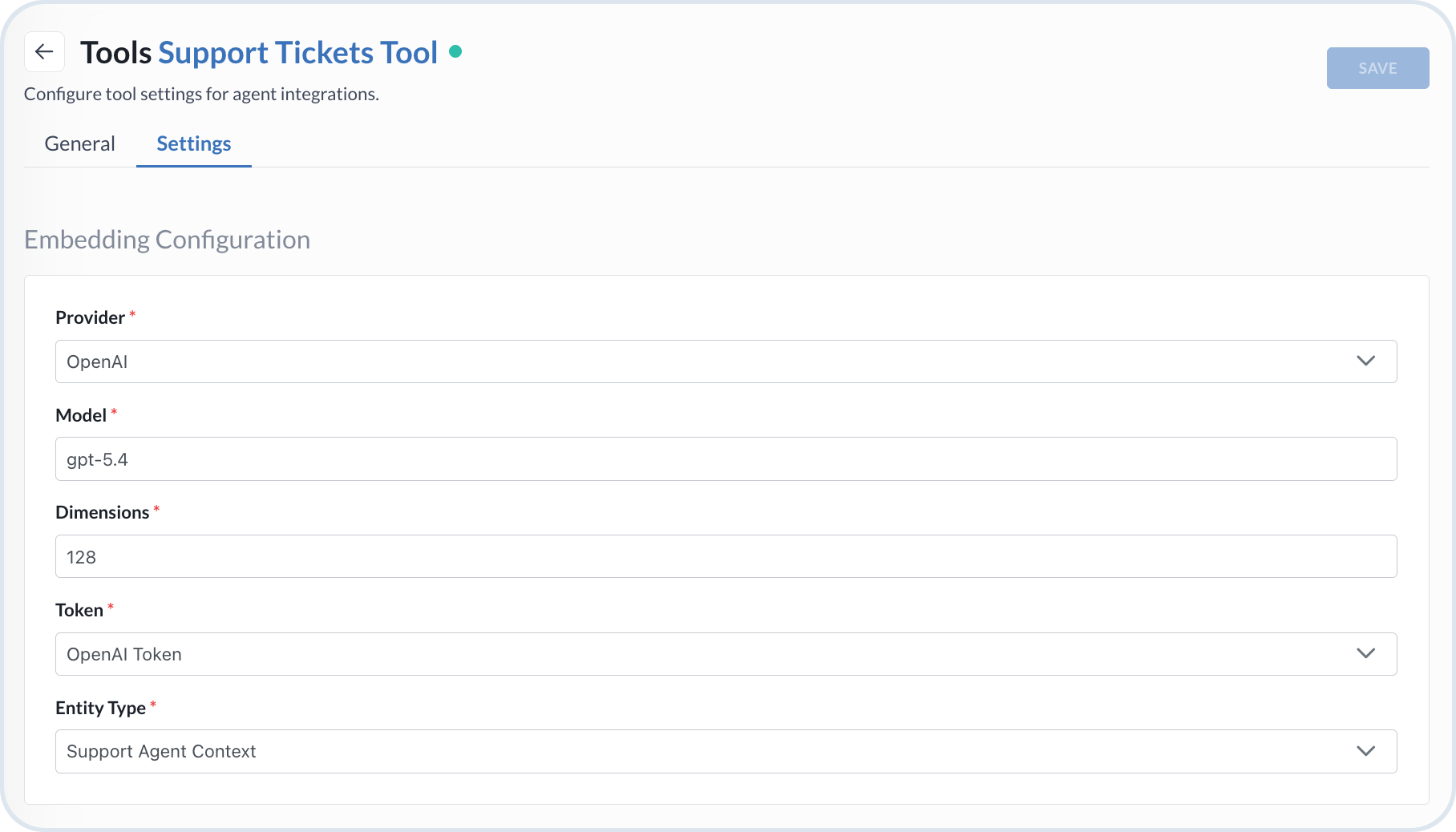
Open the **Settings** tab and configure the LLM provider used to create embeddings. See [LLM providers](#llm-providers) for provider-specific details.
* **Provider** – *OpenAI*, *Self-Hosted Ollama*, or *Emporix OpenAI*.
* **Model** – The model of the chosen LLM.
* **Dimensions** – Embeddings table size (128–4096).
* **URL** – Required for *Self-Hosted Ollama* only.
* **Token** – Authentication token for the chosen provider.
{% hint style="info" %}
Emporix OpenAI is preconfigured — no further details are required.
{% endhint %}
Configuration of RAG embeddings
{% endstep %}
{% step %}
#### Select the entity type
Choose the **Entity Type** to index and retrieve — *Product*, *Order*, or a *custom entity* defined in your tenant.
{% hint style="warning" %}
Note that removing a custom entity from the Emporix system results in automatic deletion of RAG tools that reference that entity.
{% endhint %}
{% endstep %}
{% step %}
#### Configure indexed fields
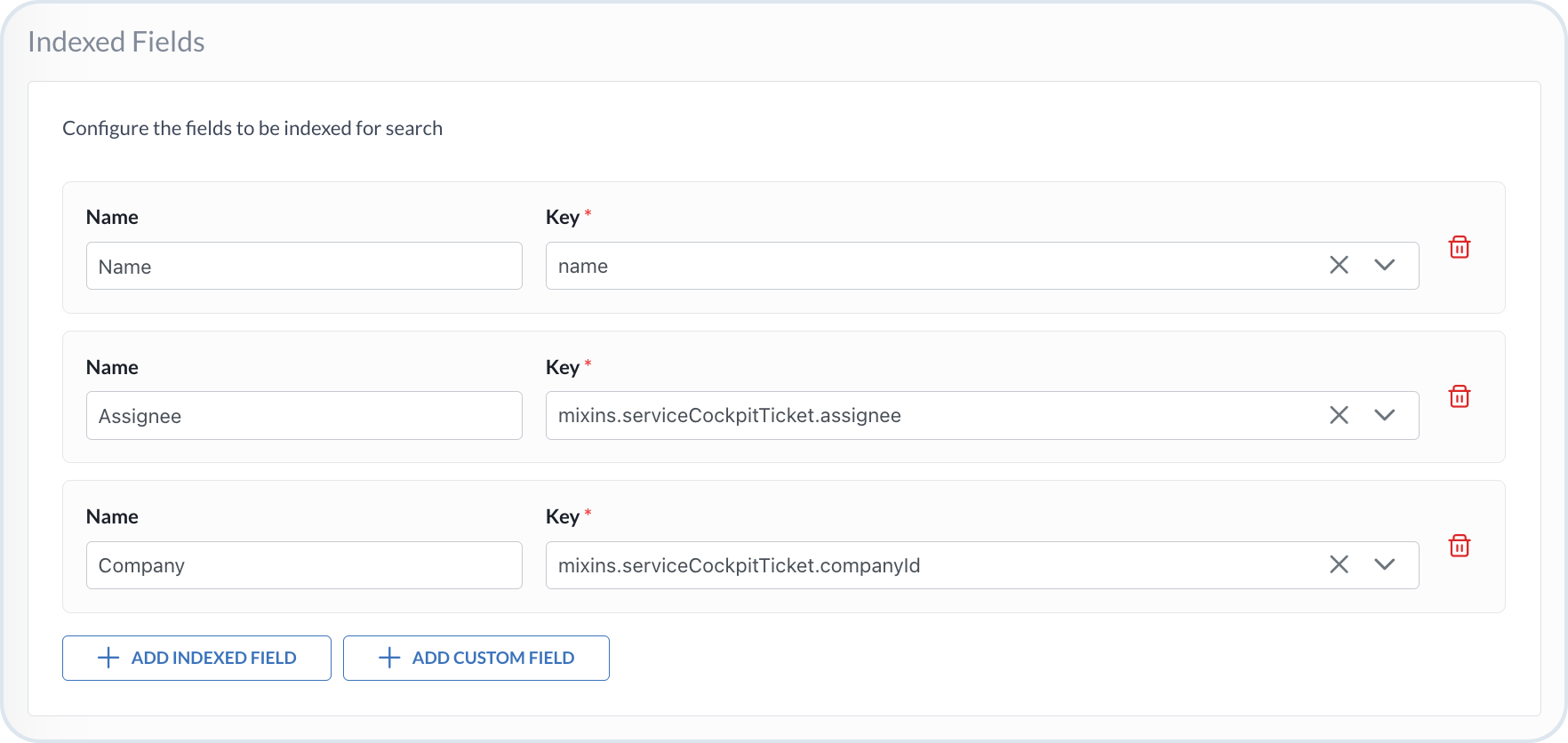
Specify which fields are included in the embedding. See the [Indexed fields](#indexed-fields).
* Add default Emporix fields or custom fields to be indexed for search (via the relevant `mixin` **Key**).
* Each field has `key` (required) and optional `name` (alias used in concatenated content).
{% hint style="warning" %}
Indexed fields can include either a parent field (for example, `brand`) or one of its child fields (for example, `brand.localizedDescription.en`), but never both at the same time. When a parent field is selected, all of its child fields are automatically included in the concatenated content.
{% endhint %}
The maximum number of indexed characters in a single entity (for example, a product or an order) is `16 000`. If the content exceeds the limit, the first `16 000` characters are embedded while the remaining characters are ignored.
Configuration of Indexed Fields for RAG Emporix tool
{% endstep %}
{% step %}
#### Configure filter fields
Specify the **Filter Fields** that can be used to refine and filter vector search results before retrieval. These fields enable the agent to constrain searches based on structured attributes, reducing irrelevant matches and improving the precision and efficiency of the retrieval process.
Configuration of Filter Fields for RAG Emporix tool
{% endstep %}
{% step %}
#### Save the tool configuration
Review the settings on the **General** and **Settings** tabs, then choose **Save** to store the tool configuration.
{% endstep %}
{% endstepper %}
### LLM providers
The configuration for creating embeddings includes choosing the relevant LLM provider. When indexing entities (such as products or orders) using a RAG tool, the system generates appropriate embeddings by making an HTTP call to the chosen LLM.
There are three supported LLM providers you can use for creating RAG embeddings:
* **Emporix OpenAI** - This provider doesn't require any further configuration on your side, as default settings are used. It uses the OpenAI `text-embedding-3-small` model with embedding dimensions set to `1536`. The number of tokens used by each operation is registered in the Emporix system, and usage is limited to the set limit. When an AI agent uses the RAG tool, the same LLM configuration is used to create embeddings for user queries to perform search operations.
* **OpenAI** - Use your own OpenAI account within the RAG tool. Provide the specific model type, dimensions, and token.
* **Self-Hosted Ollama** - Use a custom Ollama LLM provider and model. In addition to the model, dimensions, and token, you also need to provide the URL of the hosted model to enable valid HTTP communication.
### Indexed fields
The values of the indexed fields are later concatenated and converted into embeddings. Each line in this concatenated text corresponds to a single field and follows the structure: `{key}: {content}`.
For example, if you configure a Product RAG tool with `code`, `name.en`, and `description.en`, the resulting concatenated content used for embedding looks as follows:
> ```
> code: 103155592
> name.en: Precision Screwdriver
> description.en: A high-quality set of precision screwdrivers designed for industrial and professional applications, ensuring durability and precise performance.
> ```
For an Orders RAG tool, the available fields depend on the order schema (for example, order identifiers, status, customer references, legal entity identifiers, and line-item details). If fields such as `id`, `status`, and `customerId` are included, the concatenated content might look as follows:
> ```
> id: ORD-2026-00421
> status: CONFIRMED
> customerId: CUS-8891
> ```
Depending on the entity type you selected for the tool, the form fetches the list of available fields you can choose from. The indexed fields list consists of objects with two properties: `key` and `name`. The `key` property is required, while `name` is optional and can serve as the alias for the key. If you provide the `name`, it is used in place of the `key` in the content that is transformed into embeddings.
{% hint style="success" %}
If you have custom mixin fields maintained outside of the Emporix system, you can add such fields using the **Add Custom Field** option. The path of the custom field key starts with the `mixin.` prefix.
{% endhint %}
## Indexing stage
When the tool configuration is ready, the entities can be indexed. Each time you modify a product, an order, or a specified custom entity, it gets reindexed by the RAG tool and its embedding is recalculated if necessary in the background. To index all items in the database, select the `Reindex` option.
Reindex
{% hint style="danger" %}
Reindexing is a computationally expensive and time-consuming operation, especially for large catalogs or high order volumes. It may significantly increase infrastructure costs, processing time, and overall system load. For this reason, perform reindexing only when truly necessary – for example, after major configuration changes, embedding model updates, or structural schema modifications. Avoid triggering it frequently or without clear intent.
{% endhint %}
## Retrieving stage
To search for the indexed entities, you need to attach the previously defined RAG tool to an agent. The agent uses the available tool according to the specified prompt definition.
### Scoped retrieval for orders
When the entity type is **Order**, retrieval returns only orders that the agent is allowed to access based on the available scopes of the invoking user or integration. Depending on those scopes, the agent can retrieve:
* All orders per tenant
* Orders belonging to a specific legal entity (or entities)
* Orders belonging to a specific customer
* Orders belonging to legal entities available to a specific customer
Access follows the invoking context configured on the agent — for example, a [Frontend Agent](/agentic-commerce-intelligence/agentic-intelligence/agent-library/frontend-agent.md) with the **Customer** scope typically resolves to customer-level or legal-entity-via-customer access, while agents with **Employee** or **Integration** scopes can reach broader tenant or legal-entity sets when their scopes allow it. Anonymous invocations must not expose other customers' orders. Configure agent [Required scopes](/agentic-commerce-intelligence/agentic-intelligence/agents.md#define-activation-rules) accordingly. For follow-up actions on retrieved orders (updates, returns, invoices), attach the relevant [Order domain MCP tools](/agentic-commerce-intelligence/mcp-in-emporix/mcp.md#order-domain-tools).
### Impact on context window
Retrieved RAG results are injected into the agent's prompt context. Indexing and retrieval choices therefore affect token usage:
* Each indexed entity embeds at most `16 000` characters. Index only the fields needed for semantic search so embeddings stay focused and smaller.
* Every retrieved hit adds content to the agent context. Prefer lean indexed payloads and keep result counts constrained so order (or product) hits do not crowd out the rest of the conversation.
* Embedding operations with Emporix OpenAI count against the registered usage limits for indexing and for query-time embeddings.
* Agent **Max Tokens** controls response length, not how much retrieved context is loaded. See [AI Agents](/agentic-commerce-intelligence/agentic-intelligence/agents.md) for model and token configuration.
## Example `RAG_EMPORIX` AI tool flow
The flowchart represents the process flow of the `RAG_EMPORIX` tool.
```mermaid
---
config:
layout: fixed
theme: base
look: classic
themeVariables:
background: transparent
lineColor: "#9CBBE3"
arrowheadColor: "#9CBBE3"
edgeLabelBackground: "#FFC128"
edgeLabelTextColor: "#4C5359"
---
flowchart TD
subgraph subGraph0["TOOL SETUP"]
direction TB
A["Create RAG_EMPORIX tool"]
B["Configure embedding fields (code, name, description)"]
end
subgraph subGraph1["INDEXING"]
direction TB
C["Create vector search index"]
D["Trigger reindexing"]
E["Generate embeddings and save to collection"]
end
subgraph subGraph2["RETRIEVAL"]
direction TB
F["Attach tool to frontend agent"]
G["User query from storefront"]
H["RAG search for matching entities"]
I["Display results to user"]
end
A --> B
B -->|"index"| C
C --> D --> E
E -->|"retrieve"| F
F --> G --> H --> I
style A fill:#3B73BB,stroke:#4C5359,color:#FFFFFF
style B fill:#DDE6EE,stroke:#4C5359
style C fill:#3B73BB,stroke:#4C5359,color:#FFFFFF
style D fill:#DDE6EE,stroke:#4C5359
style E fill:#DDE6EE,stroke:#4C5359
style F fill:#3B73BB,stroke:#4C5359,color:#FFFFFF
style G fill:#DDE6EE,stroke:#4C5359
style H fill:#DDE6EE,stroke:#4C5359
style I fill:#F2F6FA,stroke:#4C5359
classDef Class_01 stroke-width:1px,stroke-dasharray:0,stroke:#A1BDDC,fill:#DDE6EE
class subGraph0 Class_01
class subGraph1 Class_01
class subGraph2 Class_01
style subGraph0 color:#4C5359
style subGraph1 color:#4C5359
style subGraph2 color:#4C5359
A@{ shape: rounded}
B@{ shape: rounded}
C@{ shape: rounded}
D@{ shape: rounded}
E@{ shape: rounded}
F@{ shape: rounded}
G@{ shape: rounded}
H@{ shape: rounded}
I@{ shape: rounded}
```
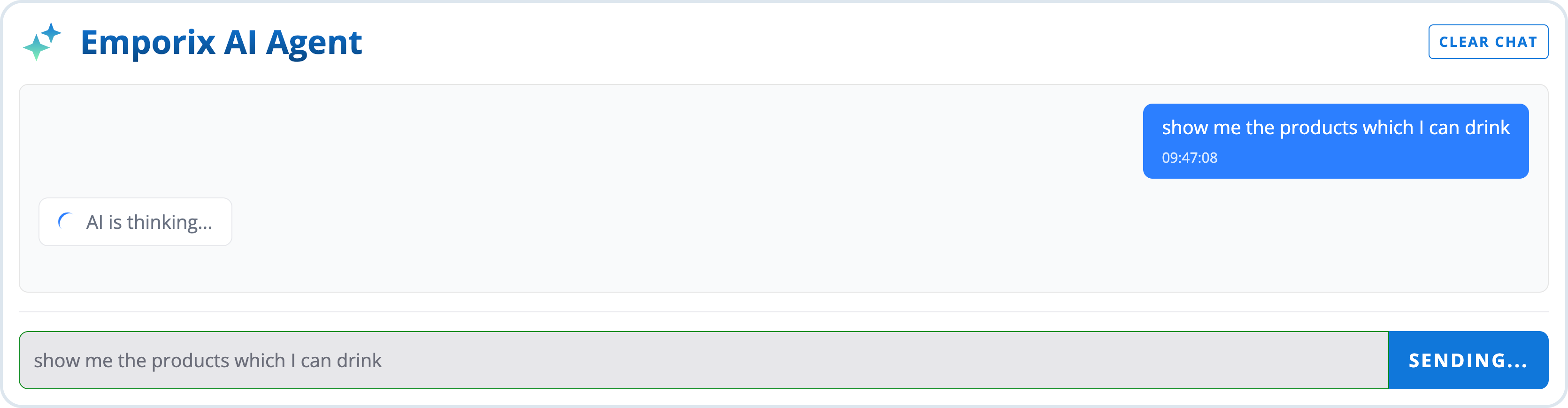
When you apply a Product RAG tool in an agent available at the storefront, a user might, for example, query about products of interest using natural language. In the background, the agent triggers the RAG tool to enhance the search outcomes with RAG embeddings, match the query, and return all available matches to the user.
User query
Agent response
With an Orders RAG tool attached, the same pattern applies to order discovery. A customer might ask "Show my open solar orders and delays" or "Has my order been confirmed?" The agent uses Orders RAG to find semantically matching orders within the access allowed by available scopes, then can use Order MCP tools for exact details or follow-up actions.
---
# Agent Instructions
This documentation is published with GitBook. GitBook is the documentation platform designed so that both humans and AI agents can read, navigate, and reason over technical content effectively. Learn more at gitbook.com.
## Querying This Documentation
If you need additional information that is not directly available in this page, you can query the documentation dynamically by asking a question.
Perform an HTTP GET request on the current page URL with the `ask` query parameter, and the optional `goal` query parameter:
```
GET https://developer.emporix.io/agentic-commerce-intelligence/agentic-intelligence/configuration/tools/rag/rag-emporix.md?ask=&goal=
```
`ask` is the immediate question: it should be specific, self-contained, and written in natural language.
`goal` is optional and describes the broader end goal you are ultimately trying to accomplish on behalf of the user. GitBook uses it to tailor the answer towards what is most useful for that goal.
The response will contain a direct answer to the question and relevant excerpts and sources from the documentation.
Use this mechanism when the answer is not explicitly present in the current page, you need clarification or additional context, or you want to retrieve related documentation sections.