> For the complete documentation index, see [llms.txt](https://developer.emporix.io/llms.txt). Markdown versions of documentation pages are available by appending `.md` to page URLs; this page is available as [Markdown](https://developer.emporix.io/user-guides/extensibility-and-integrations/add-ons/storyblok.md).
# Emporix Storyblok App
Learn about integration possible with the Emporix Storyblok app.
Emporix partners with [Storyblok](https://www.storyblok.com/) which is a headless CMS that combines developer flexibility with an intuitive visual editor, making it easy to create and deliver content across any digital platform. The integration between Emporix and Storyblok is established with the [field plugin](https://www.storyblok.com/docs/plugins/field-plugins/introduction). This plugin connects to the Emporix Commerce API to retrieve products and categories that are later displayed for the customers.
The key features are:
* **Product Search** – finding products by name
* **Category Filtering** – narrowing search results by category
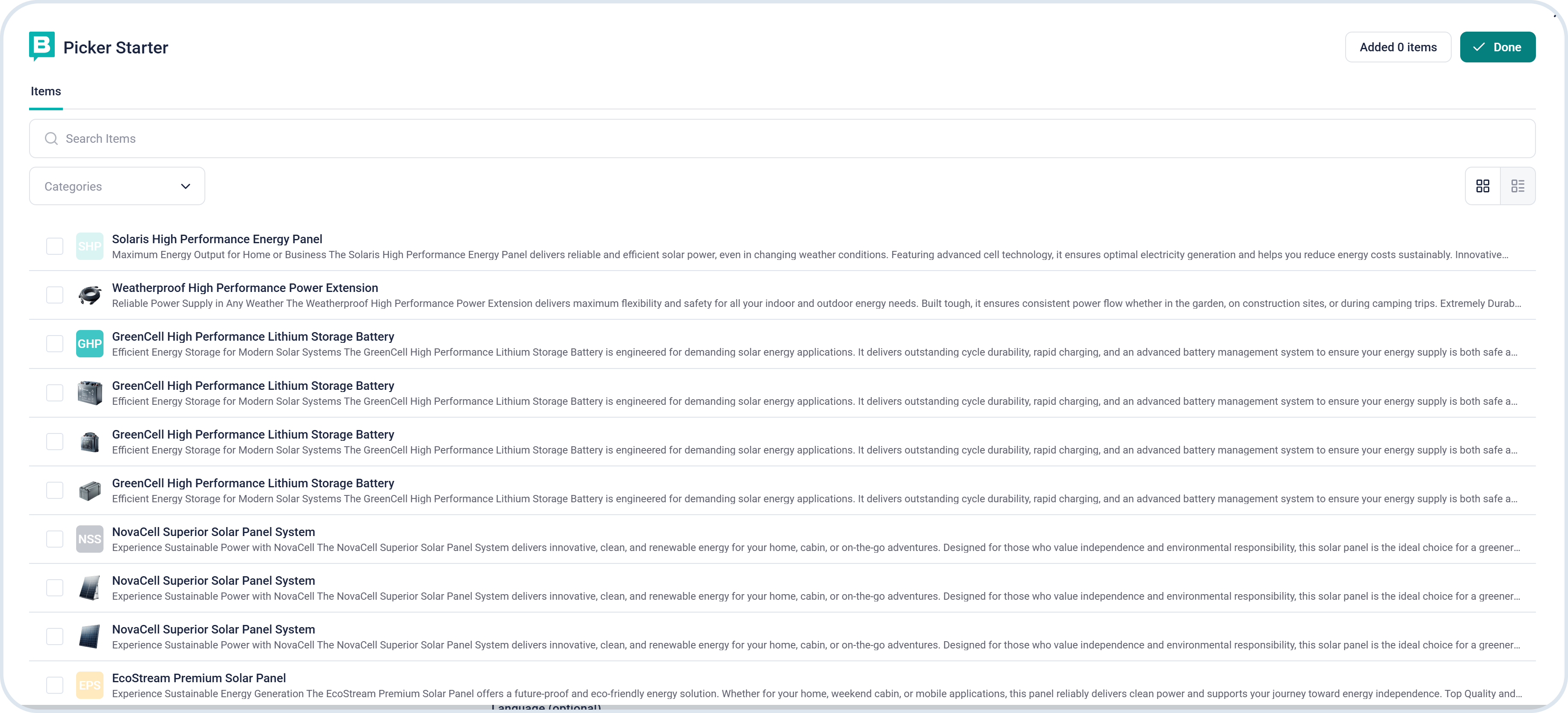
When adding items to the story through the field plugin, you can browse through products and categories using either a list view or grid:
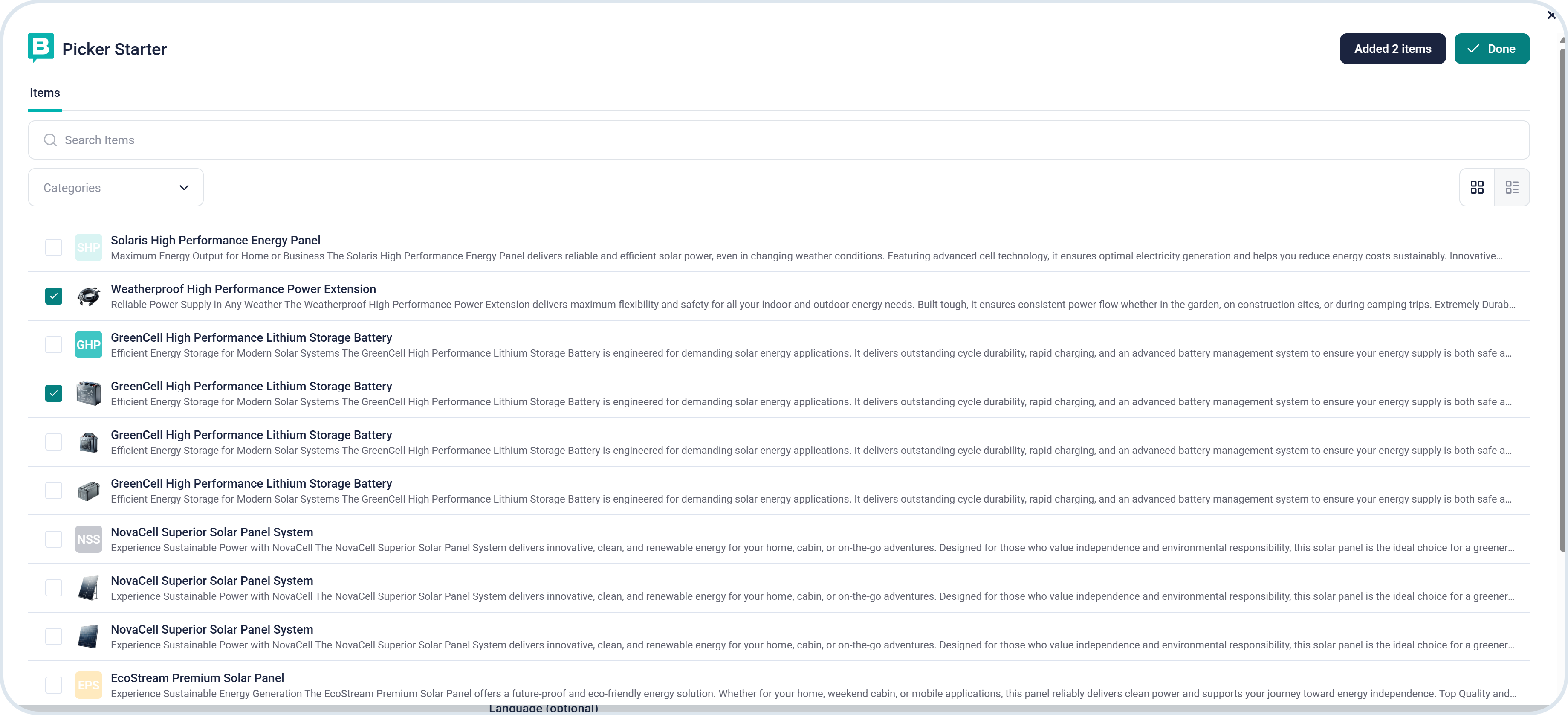
If you want to filter the results, you can narrow the search by categories:
## Configuration
The Storyblok integration setup requires different steps that need to be combined between the customer and Emporix support team.
### Preparation steps
To start your integration between Storyblok and Emporix, as a customer go through the following steps:
{% stepper %}
{% step %}
#### Add Emporix user to your Storyblok account
Log in to your Storyblok account and add **** as a user.
{% hint style="info" %}
To learn how to add a new user, see the [Adding new team members](https://www.storyblok.com/faq/add-new-team-members) Storyblok documentation.
{% endhint %}
{% endstep %}
{% step %}
#### Contact Emporix about the integration
Inform the [Emporix Support Team](mailto:support@emporix.com) that **** has been added as a user to your Storyblok account.
Once notified, the Emporix team completes the installation steps on their side.\
After the installation is finished, the Emporix Support Team will notify you about the completion.
{% hint style="success" %}
When contacting the Emporix Support Team, also provide the **name** and **region** of your Storyblok Space. This is needed for the installation process.
{% endhint %}
{% endstep %}
{% step %}
#### Remove the Emporix user
When the previous steps are done, you can remove **** from your Storyblok account.\
Then, continue with the next steps to configure the field plugin.
{% endstep %}
{% endstepper %}
### Field plugin configuration
The Storyblok field plugin requires the following details to connect to the Emporix API:
* `tenant` - Your Emporix tenant identifier
* `clientId` - Client ID for API authentication
* `clientSecret` - Client secret for API authentication
* `baseUrl` - Emporix API base URL, the default is
You can find all the data in your Emporix developer portal in the [Manage API Keys](/user-guides/getting-started/developer-portal/manage-apikeys.md) section.
When you have the data, these values are configured using **Storyblok UI** when adding the field plugin in Storyblok:
{% stepper %}
{% step %}
#### Create a new field plugin
Go to the field plugin design in your Storyblok account.
{% endstep %}
{% step %}
#### Define values in the field configuration
Enter the `tenant`, `clientID`, `clientSecret` and `baseUrl` values as **Options** in the **Settings** section.
{% endstep %}
{% step %}
#### Add the items
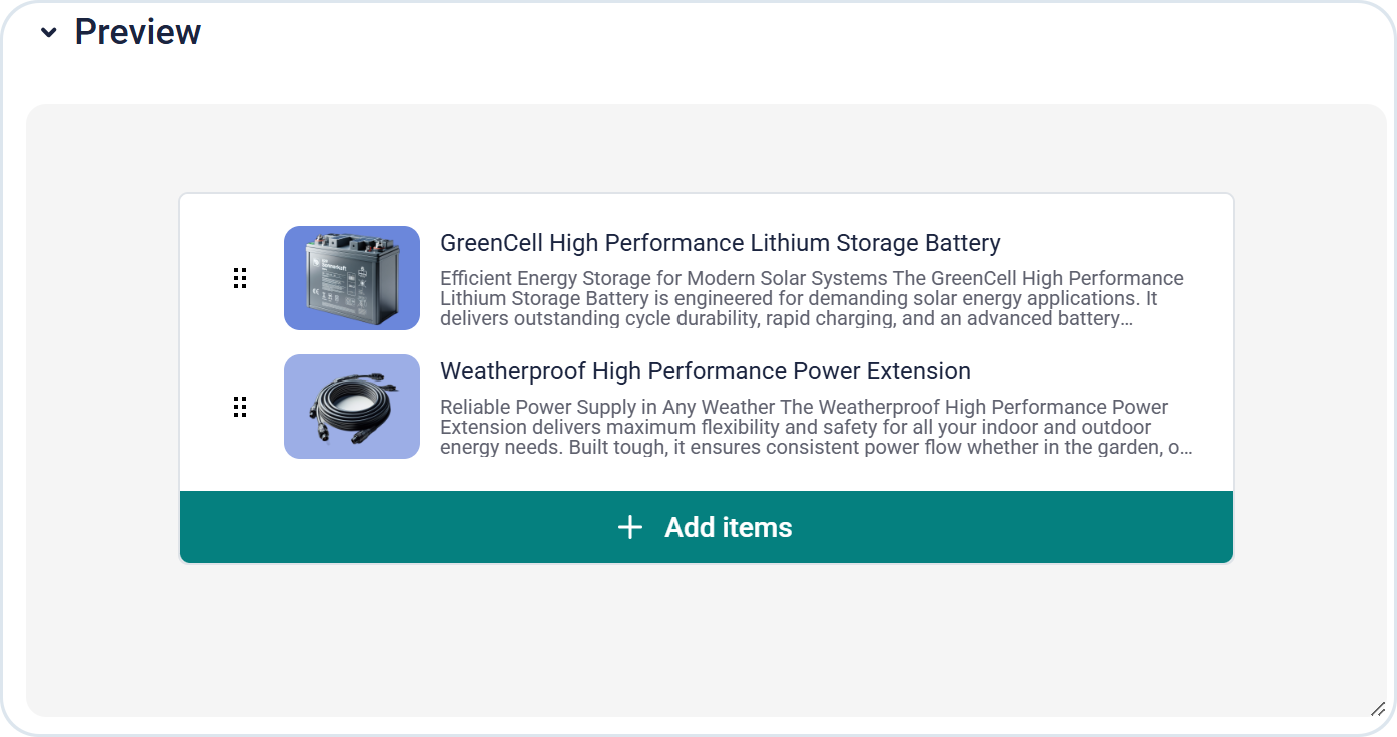
When the values are defined, use the **Add items** in the **Preview** block within the field plugin UI editor and select the products or categories that you want to have displayed. When you select the products for your story, they are later visible in the preview list:
{% endstep %}
{% step %}
#### Save the story
After you save the story, you can review it and check if everything is displayed correctly.
{% endstep %}
{% endstepper %}
---
# Agent Instructions
This documentation is published with GitBook. GitBook is the documentation platform designed so that both humans and AI agents can read, navigate, and reason over technical content effectively. Learn more at gitbook.com.
## Querying This Documentation
If you need additional information that is not directly available in this page, you can query the documentation by asking a question.
Perform an HTTP GET request on the following URL with the `ask` and `goal` query parameters:
```
GET https://developer.emporix.io/user-guides/extensibility-and-integrations/add-ons/storyblok.md?ask=&goal=
```
`ask` is the immediate question: it should be specific, self-contained, and written in natural language.
`goal` is what the user is ultimately trying to achieve, the reason they need the answer. Sharing it helps GitBook give you a better, more relevant answer. A goal is most helpful when it describes the outcome the user wants rather than restating the question. For example, with `ask=how do I create an API token`, a goal like `automate deployments from our CI pipeline` lets GitBook tailor the answer to that use case.
The response will contain a direct answer to the question and relevant excerpts and sources from the documentation.
Use this mechanism when the answer is not explicitly present in the current page, you need clarification or additional context, or you want to retrieve related documentation sections.