> For the complete documentation index, see [llms.txt](https://developer.emporix.io/llms.txt). Markdown versions of documentation pages are available by appending `.md` to page URLs; this page is available as [Markdown](https://developer.emporix.io/document-intake-cockpit/cockpit-views/dashboard.md).
# Dashboard
The Dashboard shows document workflow and email inbox health across your tenant. Open assigned work and customize or publish the widget layout.
Use the **Dashboard** view to check document workflow and email inbox health for your tenant. Open **Inbox** → **Dashboard** in the side menu.
{% hint style="info" %}
[Access Configuration](/document-intake-cockpit/configuration/access-configuration.md) can hide or disable **Dashboard** under **Inbox**.
{% endhint %}
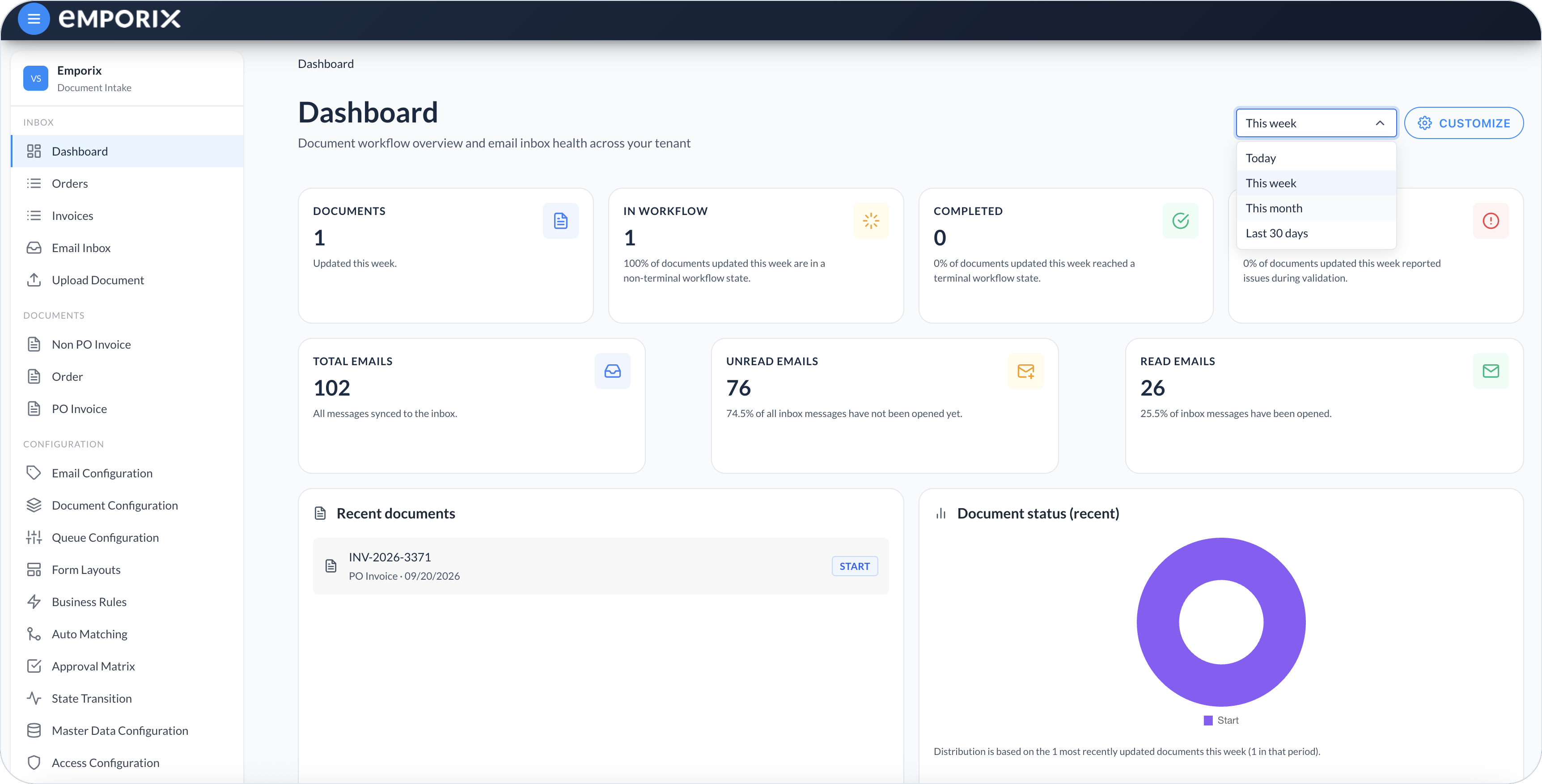
The dashboard displays data for a selected period. Choose **Today**, **This week**, **This month**, or **Last 30 days**. The default is **This week**. The selected period changes the document KPI cards and the documents included in **Document status (recent)**. It does not change the email KPI cards or **Requires my attention**.
Document Intake Dashboard with reporting periods menu
## Default widgets
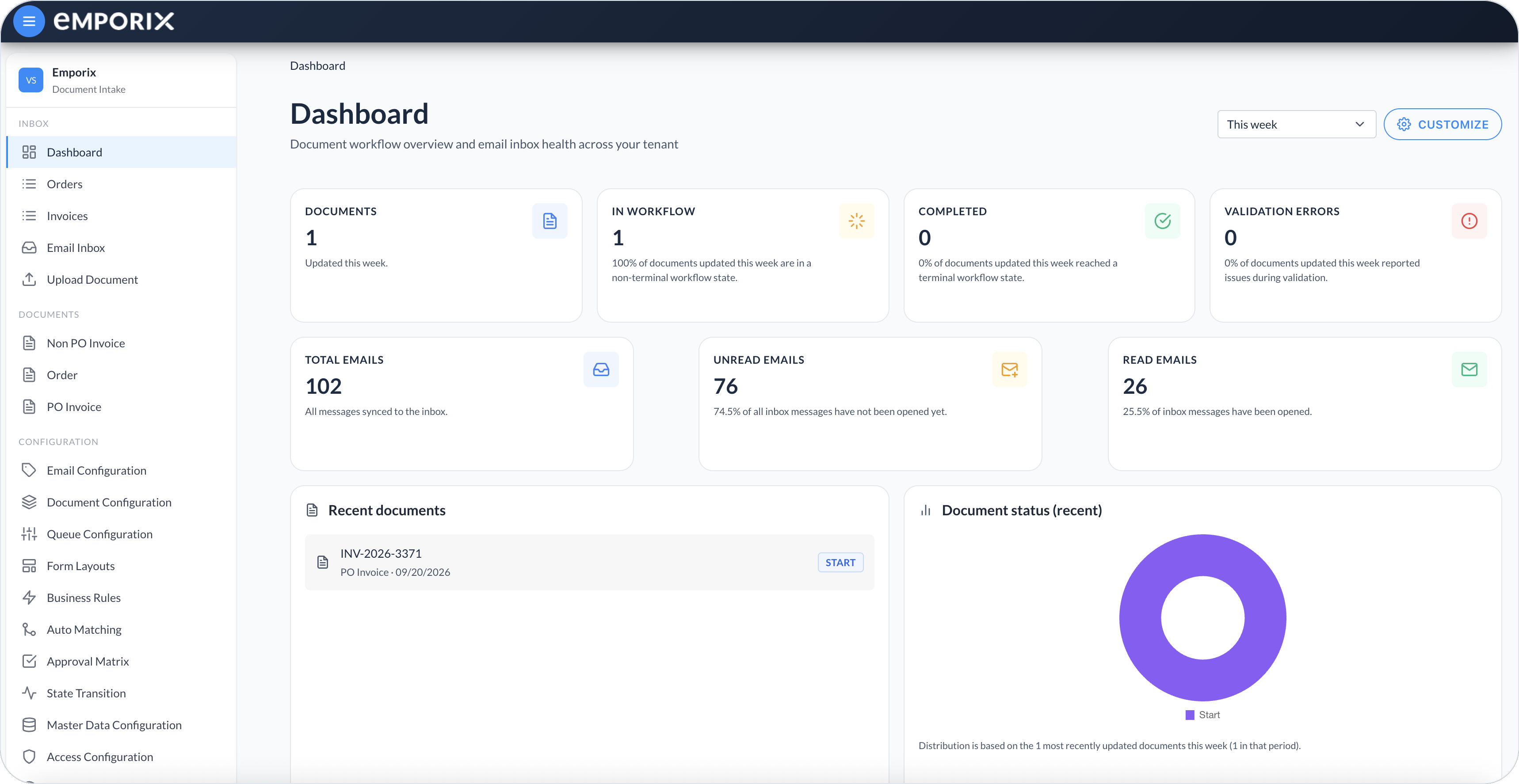
The built-in layout includes these widgets:
* **Documents** – number of updated documents
* **In workflow** – number of updated documents that remained in a non-terminal workflow status, plus their share of updated documents
* **Completed** – number of updated documents that reached a terminal workflow status, plus their share of updated documents
* **Validation errors** – number of updated documents that had validation issues, plus their share of updated documents
* **Total emails** – number of inbox messages
* **Unread emails** – number of inbox messages that have not been opened, plus their share of inbox messages
* **Read emails** – number of inbox messages that have been opened, plus their share of inbox messages
* **Requires my attention** – documents assigned to you or your groups, plus documents you cover through [Substitutions](/document-intake-cockpit/configuration/substitutions.md)
* **Document status (recent)** – a sample of recently updated documents grouped by current workflow status; the note below the chart shows the sample size and total number of updated documents
**In workflow** and **Completed** follow the **Terminal** setting in [State Transition](/document-intake-cockpit/configuration/state-transition.md). Every terminal status counts toward **Completed**, including outcomes such as **Rejected**.
Example Dashboard
## Requires my attention
**Requires my attention** lists documents assigned to you or your groups, across document types. It also includes work you cover through [Substitutions](/document-intake-cockpit/configuration/substitutions.md). When the substitution **User** is a person, that means the person's direct assignments, not that person's group assignments. When the substitution **User** is a **Group**, that means documents assigned to that group. When workflow statuses exist, the list includes only non-terminal statuses.
Select a row to open the document. When at least one such document is in the widget, select **View all assigned to me**. That opens [Documents](/document-intake-cockpit/cockpit-views/documents.md) with the **Assigned to me** filter and the first configured document type selected. The **Documents** view is scoped to one document type and is not filtered by status, so the list can differ from the widget.
{% hint style="info" %}
This widget is not the same as the **Requires my attention** tab on the document validation panel. That tab lists validation issues on a single document. See [Managing Documents](/document-intake-cockpit/cockpit-views/managing-a-document.md).
{% endhint %}
## Customizing the layout
{% hint style="info" %}
**Customize** is available on desktop. On mobile, widgets stack automatically and the layout cannot be rearranged.
{% endhint %}
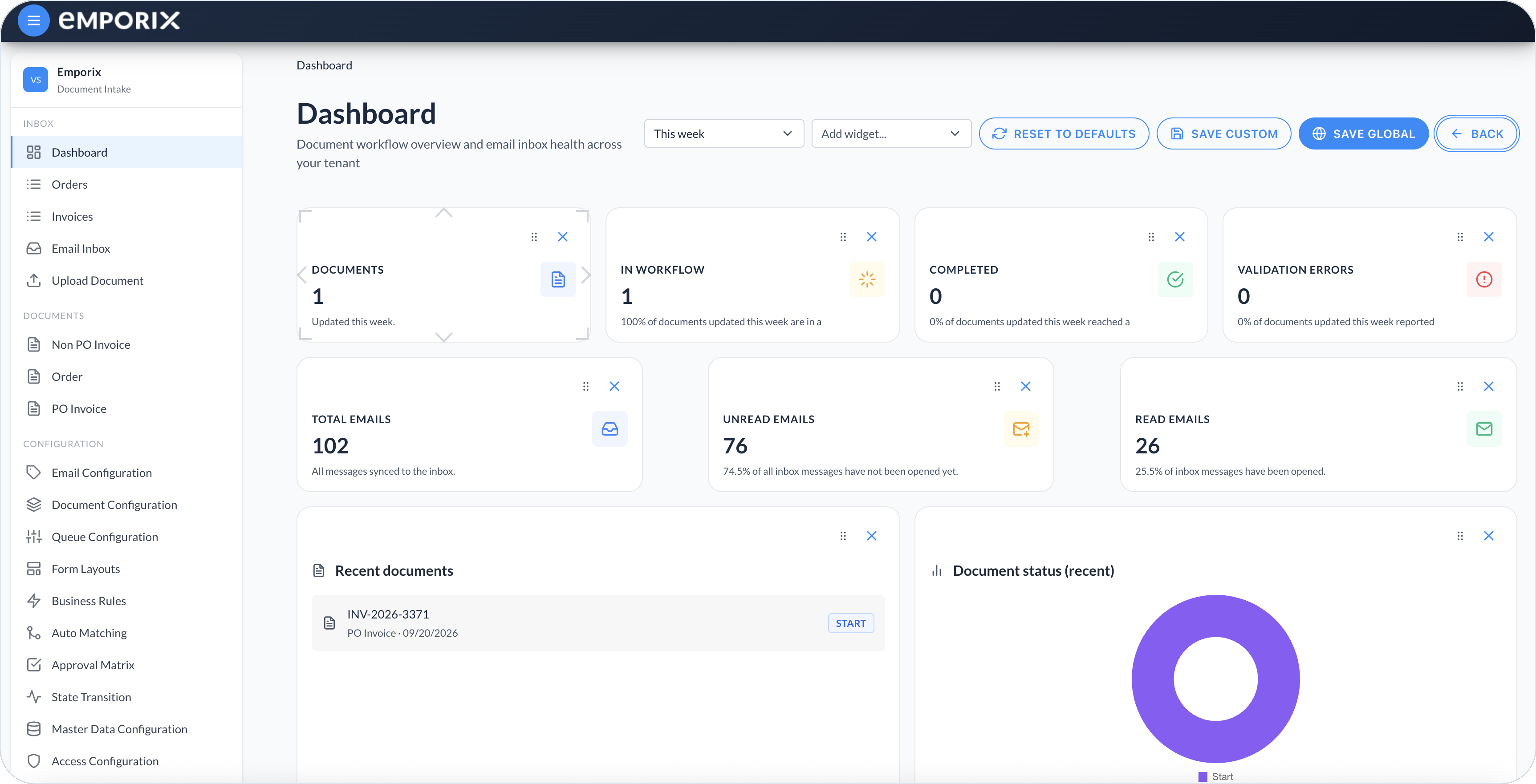
In the **Dashboard**, select **Customize** to change which widgets appear and how they are arranged. Select **Add widget...** to add a widget, including **Recent documents**, or use the remove control to remove one. Drag widgets to move them, and resize them as needed. A layout saved in the browser overrides the tenant layout.
**Recent documents** is not part of the built-in layout. After you add it, select one of its rows to open the document.
When you finish arranging widgets, choose how to apply the layout:
* **Save custom** – Save the layout in this browser.
* **Save global** – Publish the layout for the tenant when this action is visible.
* **Reset to defaults** – Immediately remove the browser-local layout and show the built-in layout.
Select **Back** to leave customize mode without saving or reverting the current arrangement. Unsaved changes remain while you stay on **Dashboard** and are discarded after you navigate away.
{% hint style="warning" %}
**Reset to defaults** takes effect without confirmation. If **Save global** is visible, reset also immediately publishes the built-in layout for the tenant. Without this permission, reset removes only your local override, so the tenant layout may appear again when you revisit **Dashboard**.
{% endhint %}
If dashboard data or a layout fails to load, select **Retry** when offered. If saving a layout fails, dismiss the error message and try saving the layout again.
Dashboard customize mode
---
# Agent Instructions
This documentation is published with GitBook. GitBook is the documentation platform designed so that both humans and AI agents can read, navigate, and reason over technical content effectively. Learn more at gitbook.com.
## Querying This Documentation
If you need additional information that is not directly available in this page, you can query the documentation by asking a question.
Perform an HTTP GET request on the following URL with the `ask` and `goal` query parameters:
```
GET https://developer.emporix.io/document-intake-cockpit/cockpit-views/dashboard.md?ask=&goal=
```
`ask` is the immediate question: it should be specific, self-contained, and written in natural language.
`goal` is what the user is ultimately trying to achieve, the reason they need the answer. Sharing it helps GitBook give you a better, more relevant answer. A goal is most helpful when it describes the outcome the user wants rather than restating the question. For example, with `ask=how do I create an API token`, a goal like `automate deployments from our CI pipeline` lets GitBook tailor the answer to that use case.
The response will contain a direct answer to the question and relevant excerpts and sources from the documentation.
Use this mechanism when the answer is not explicitly present in the current page, you need clarification or additional context, or you want to retrieve related documentation sections.