> For the complete documentation index, see [llms.txt](https://developer.emporix.io/llms.txt). Markdown versions of documentation pages are available by appending `.md` to page URLs; this page is available as [Markdown](https://developer.emporix.io/document-intake-cockpit/cockpit-views/documents.md).

# Documents

The Documents section lets you browse documents by type, filter by status and assignee, and open a document for review.

Use this view to browse documents of one configured type, filter the list, and open a document for review with **Manage**. Documents come from inbound [Email Inbox](/document-intake-cockpit/cockpit-views/email-inbox.md) or [Upload Document](/document-intake-cockpit/cockpit-views/upload-document.md).

## Document types

Open a type under **Documents** in the side menu. Each type configured in [Document Configuration](/document-intake-cockpit/configuration/document-configuration.md) is its own side-menu item. If no types exist, the menu shows a single **Documents** item. Manage visibility of each type in [Access Configuration](/document-intake-cockpit/configuration/access-configuration.md).

{% hint style="info" %}
Use this view to browse documents of one type. Use [Inbox Queues](/document-intake-cockpit/cockpit-views/inbox-queue.md) when you want an Inbox table with tabs, rather than cards for a single type.
{% endhint %}

## Filters and cards

Filter the documents to narrow down the list:

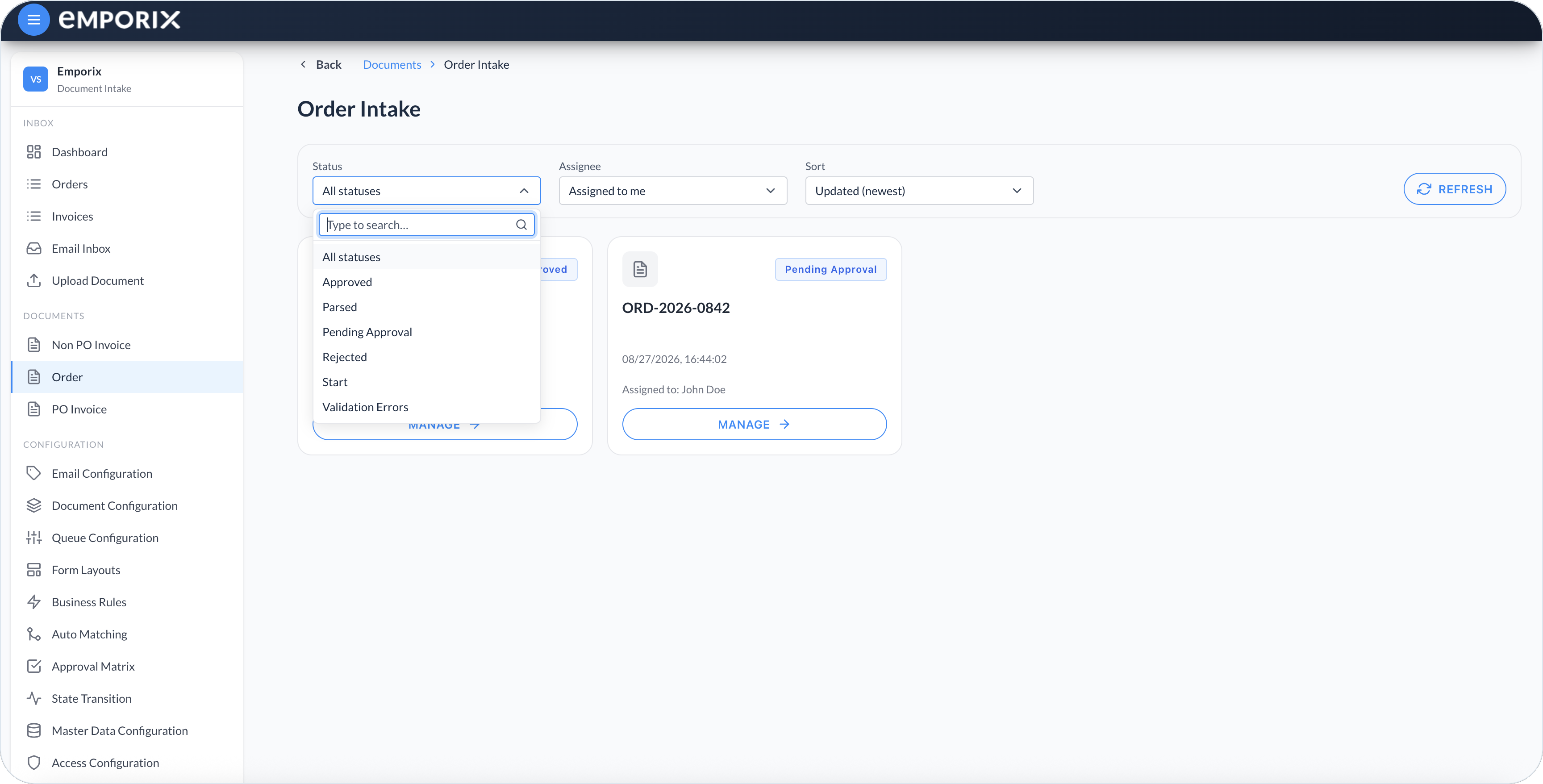
* **Status** – **All statuses**, or search for one of that type's [State Transition](/document-intake-cockpit/configuration/state-transition.md) names
* **Assignee**
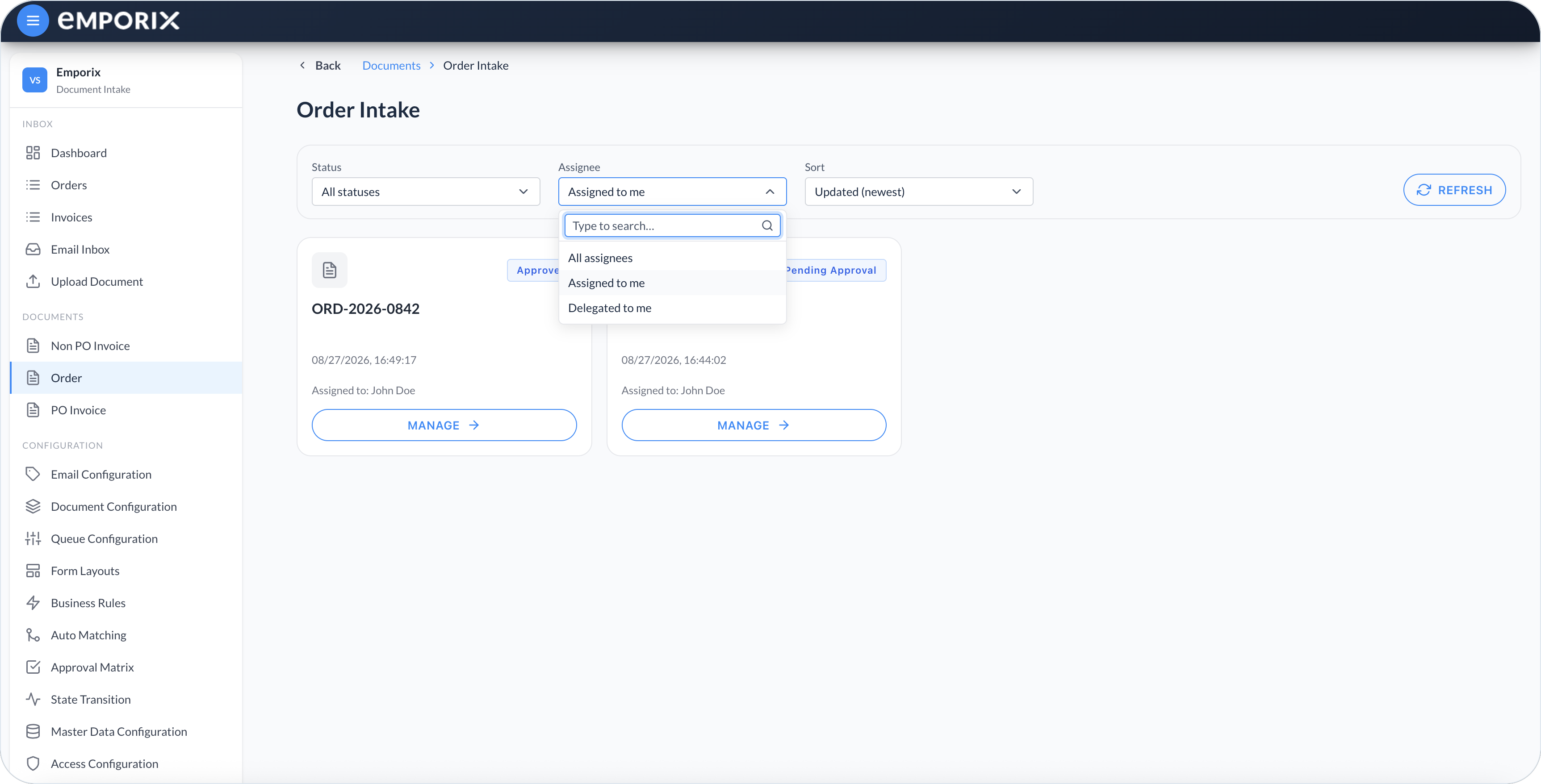
  * **Assigned to me** – documents assigned to you or your groups, plus the direct assignments of people you currently cover through [Substitutions](/document-intake-cockpit/configuration/substitutions.md) (default)
  * **Delegated to me** – documents you cover through [Substitutions](/document-intake-cockpit/configuration/substitutions.md)
  * **All assignees** – documents of this type, regardless of assignee

Use the **Sort** option to order the documents the way you want to display them – **Updated (newest)**, **Updated (oldest)**, **Created (newest)**, or **Created (oldest)**. The default is **Updated (newest)**.

<figure><img src="https://1808414410-files.gitbook.io/~/files/v0/b/gitbook-x-prod.appspot.com/o/spaces%2FPBaf05o2vgbdikMFDTyz%2Fuploads%2Fgit-blob-8c328e9d21933876643072dbd88c00ad689bedd7%2Fdocument_intake_cockpit_documents_assignee.png?alt=media" alt="Assignee filter with All assignees, Assigned to me, and Delegated to me"><figcaption><p>Assignee filter with Assigned to me, Delegated to me, and All assignees</p></figcaption></figure>

<figure><img src="https://1808414410-files.gitbook.io/~/files/v0/b/gitbook-x-prod.appspot.com/o/spaces%2FPBaf05o2vgbdikMFDTyz%2Fuploads%2Fgit-blob-054f5dce080a2c8959b316302e52a9c8ff8c6d47%2Fdocument_intake_cockpit_documents_status.png?alt=media" alt="Status filter with All statuses and workflow statuses"><figcaption><p>Status filter with All statuses and this type's workflow statuses</p></figcaption></figure>

{% hint style="info" %}
The list opens on **Assigned to me**, including documents in any status for that assignee. Select **All assignees** to see the full type list.
{% endhint %}

Search the **Assignee** filter to find a person or group. Select **Refresh** to retrieve current documents, and use the pagination controls to move through longer lists.

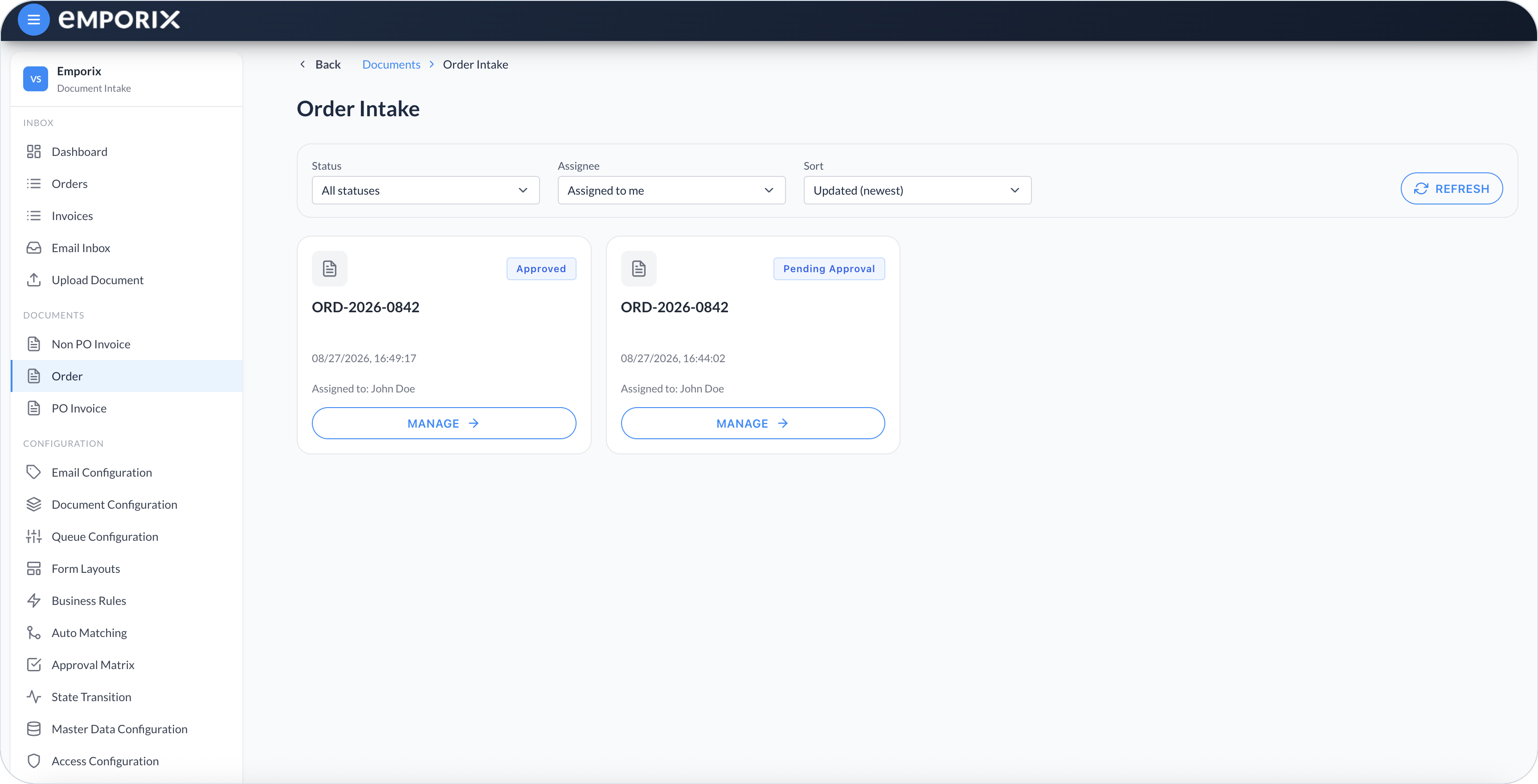
Each document card shows the following:

* The document name or ID
* The last updated date and time
* The assignee, which can be a person, a group, or **Unassigned**
* An optional **Substituting for** badge with the covered person's name
* A status badge using that type's [State Transition](/document-intake-cockpit/configuration/state-transition.md) label
* **Manage** to open the document

A loading indicator appears while documents are retrieved. If no documents match, change the filters or select **All assignees**. If loading fails, select **Refresh** to retry.

<figure><img src="https://1808414410-files.gitbook.io/~/files/v0/b/gitbook-x-prod.appspot.com/o/spaces%2FPBaf05o2vgbdikMFDTyz%2Fuploads%2Fgit-blob-acfde577ff97c8b10b519708f2b30c712e80bc37%2Fdocument_intake_cockpit_documents.png?alt=media" alt="Order Intake cards with filters, statuses, assignees, and Manage"><figcaption><p>Order Intake list with Assigned to me, Updated (newest), and Manage on each card</p></figcaption></figure>

## Managing a document

Select **Manage** on a card to open the review workspace. For instructions on reviewing extracted data, fixing validation issues, using automatic matching, and approving or rejecting documents, see [Managing Documents](/document-intake-cockpit/cockpit-views/managing-a-document.md).


---

# Agent Instructions
This documentation is published with GitBook. GitBook is the documentation platform designed so that both humans and AI agents can read, navigate, and reason over technical content effectively. Learn more at gitbook.com.

## Querying This Documentation
If you need additional information that is not directly available in this page, you can query the documentation dynamically by asking a question.

Perform an HTTP GET request on the current page URL with the `ask` query parameter, and the optional `goal` query parameter:

```
GET https://developer.emporix.io/document-intake-cockpit/cockpit-views/documents.md?ask=<question>&goal=<endgoal>
```

`ask` is the immediate question: it should be specific, self-contained, and written in natural language.
`goal` is optional and describes the broader end goal you are ultimately trying to accomplish on behalf of the user. GitBook uses it to tailor the answer towards what is most useful for that goal.

The response will contain a direct answer to the question and relevant excerpts and sources from the documentation.

Use this mechanism when the answer is not explicitly present in the current page, you need clarification or additional context, or you want to retrieve related documentation sections.