> For the complete documentation index, see [llms.txt](https://developer.emporix.io/llms.txt). Markdown versions of documentation pages are available by appending `.md` to page URLs; this page is available as [Markdown](https://developer.emporix.io/document-intake-cockpit/cockpit-views/email-inbox.md).
# Email Inbox
Use Email Inbox to browse email and uploaded items, follow attachment outcomes, open linked documents, and send or reply.
Open **Inbox** → **Email Inbox** to organize conversations, review attachment outcomes, and open linked documents.
Configure folders, categories, labels, and active email templates in [Email Configuration](/document-intake-cockpit/configuration/email-configuration.md).
{% hint style="info" %}
[Access Configuration](/document-intake-cockpit/configuration/access-configuration.md) can hide or disable **Email Inbox** under **Inbox**.
{% endhint %}
## Browsing email
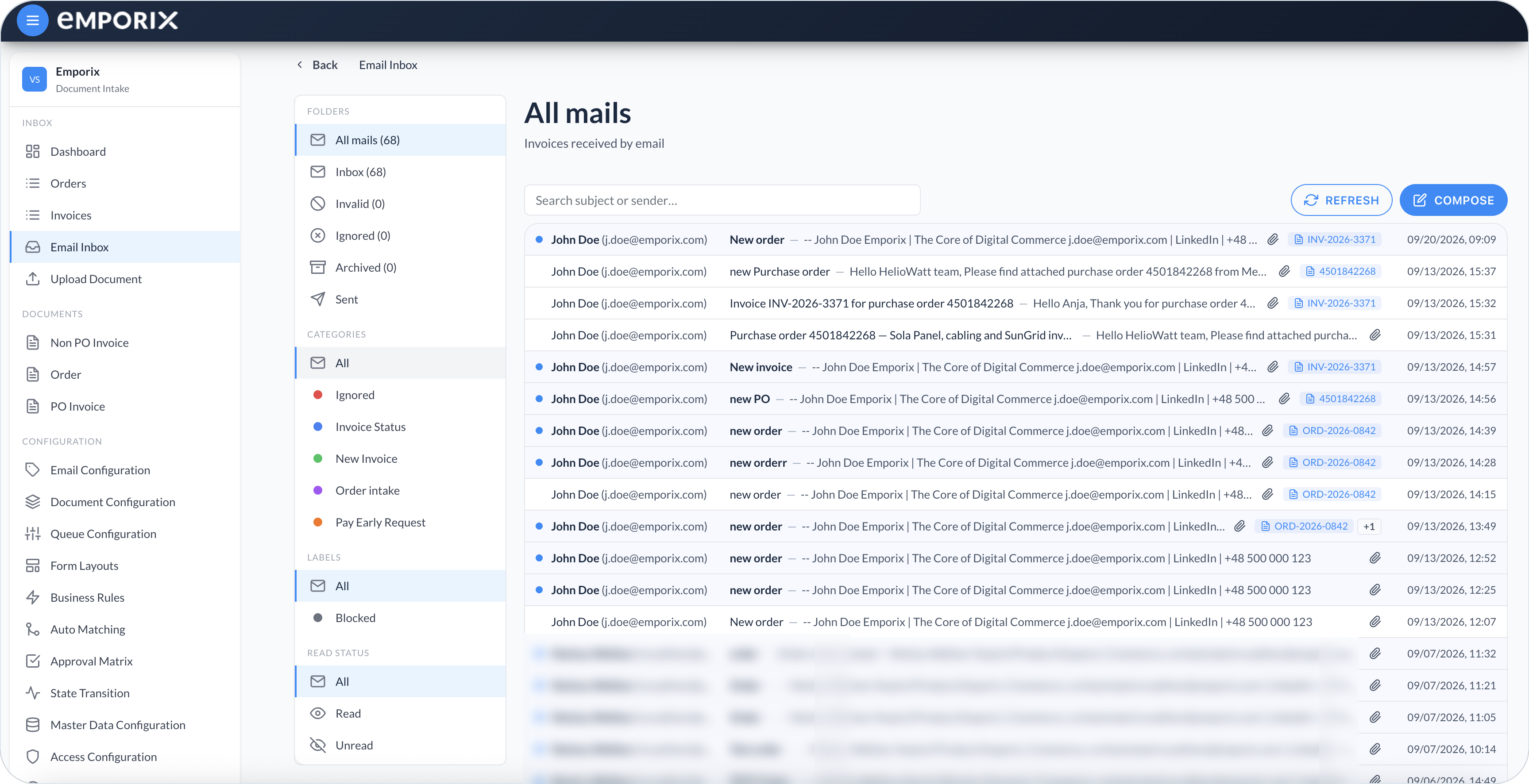
Use **Email Inbox** to find inbound and sent messages, open conversations, and move mail into tenant folders.
Search with **Search subject or sender…**. Narrow the list with **Folders**, **Categories**, **Labels**, and **Read status**. Open **Sent** to review outbound mail; filter by **Type** (**Replied**, **Forwarded**, **Composed**, and so on) and search with **Search subject or recipient…**.
Drag an inbound row onto a tenant folder to move it. You cannot drag onto **All mails** or **Sent**. Select a row to open the conversation. From **Sent**, a row with an inbound response opens the conversation; otherwise it opens a read-only sent detail.
All mails
## Managing email details
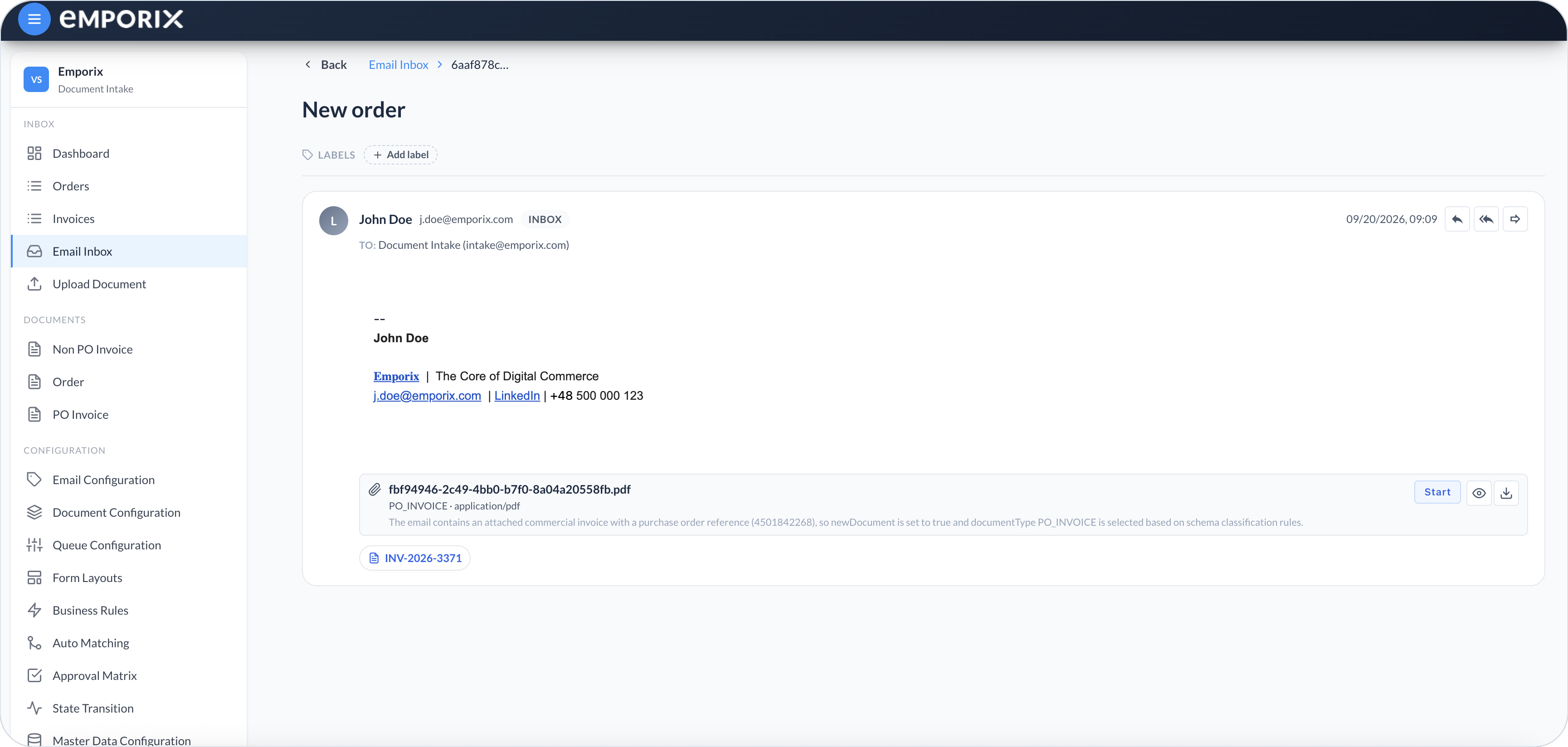
Open an email row to review the related conversation. Messages appear in chronological order and can be expanded or collapsed. The latest message expands by default. Opening an unread email marks it as read. From an inbound message, you can also select **Reply**, **Reply all**, or **Forward**.
### Add email labels
The **Labels** bar shows labels applied to the opened email record.
{% stepper %}
{% step %}
#### Find or create a label
Select **Add label**, then search with **Find or create label…**. Select an existing label, or enter a new name and select **Create**.
{% endstep %}
{% step %}
#### Confirm the label
The selected label is applied to the opened email. Creating one also adds a tenant label with an uppercase, underscore-separated ID. Rename or delete it in [Email Configuration](/document-intake-cockpit/configuration/email-configuration.md#email-labels) under **Configuration**.
To remove a label from the email, select **X** on the label.
{% endstep %}
{% endstepper %}
### Change email category
{% stepper %}
{% step %}
#### Review classifier results
For an inbound message, select its category to open **Change category**. The choices are this email's classifier results, ordered by confidence score.
{% endstep %}
{% step %}
#### Save the category
Select the category that matches best and select **Save category**. This does not move the email to another folder. When earlier changes exist, **Change history** shows the previous and new category, who made the change, and when.
{% endstep %}
{% endstepper %}
### Review attachments and linked documents
Select **Preview** for images, PDF, text, and JSON files, or select **Download**.
A created document appears as a **document chip** below the attachment. Select the chip to open [Managing Documents](/document-intake-cockpit/cockpit-views/managing-a-document.md).
**Email Detail** reports the processing outcome for each attachment and refreshes it automatically:
* **Processing** – Processing is still active.
* **Draft created** or the created document's workflow status, such as **Start** – A linked draft is ready to open.
* **No draft** – Processing completed without creating a document.
* **Failed** – Processing did not complete.
Select **Retry** for an attachment with **No draft** or **Failed**. Attachments process independently, so retrying one does not restart the others. See [Document Intake Process](/document-intake-cockpit/document-intake-process.md).
Email detail
## Using a template
You can choose to use a template from **New email**, **Reply**, **Reply all**, or **Forward**.
{% stepper %}
{% step %}
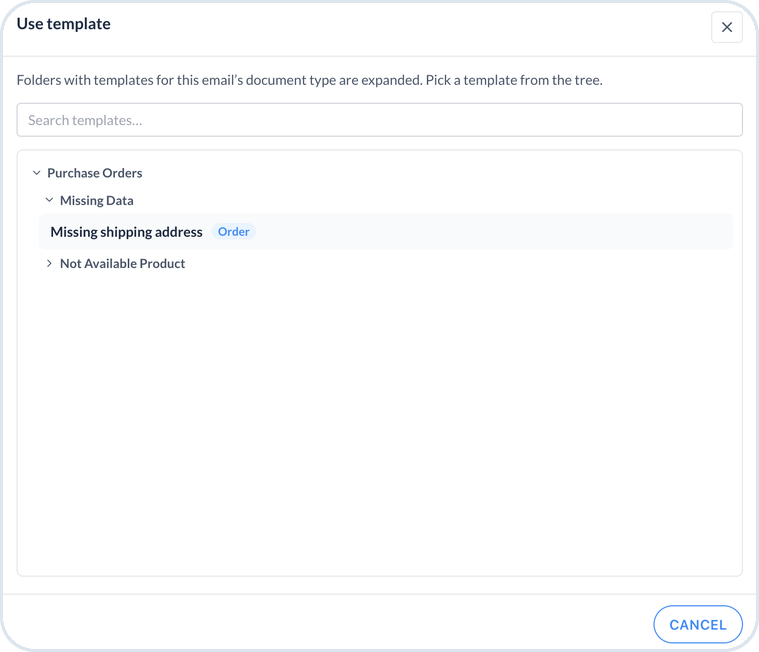
#### Select a template
Select **Use template**, then browse or search with **Search templates…** and choose a template.
Use template dialog
{% endstep %}
{% step %}
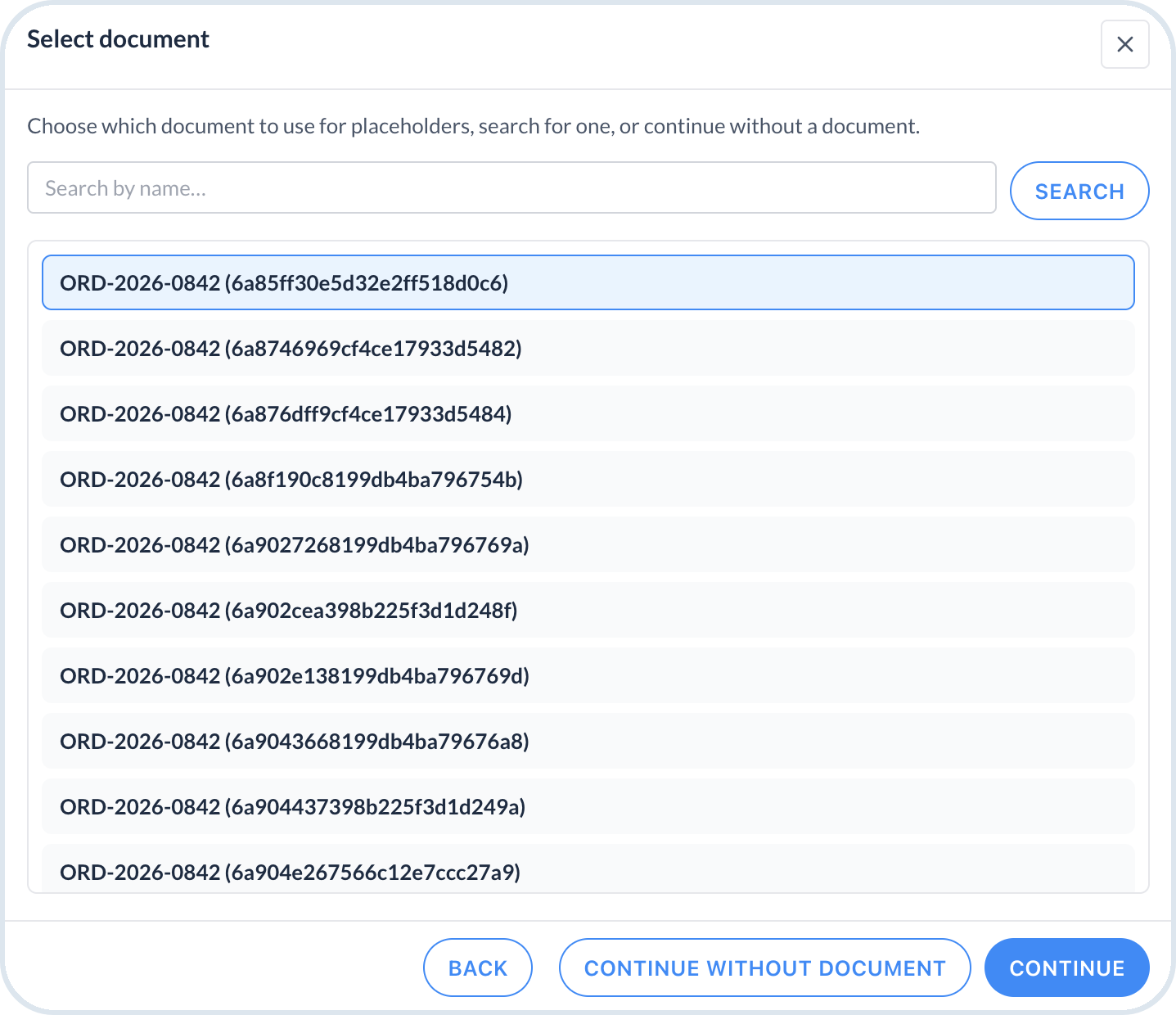
#### Select a document
In **Select document**, the cockpit selects the document automatically when one is available. Choose the document when several are available. You can also search for a document, select it, and then select **Continue**, or select **Continue without document**.
Select document
{% endstep %}
{% step %}
#### Resolve data sources
In **Resolve data sources**, a source that needs a value shows **Not resolved**. These are the [Email Templates](/document-intake-cockpit/configuration/email-configuration.md#email-templates) data sources that could not be resolved from the document. Search for and select the record, then select **Continue**.
{% endstep %}
{% step %}
#### Apply the template
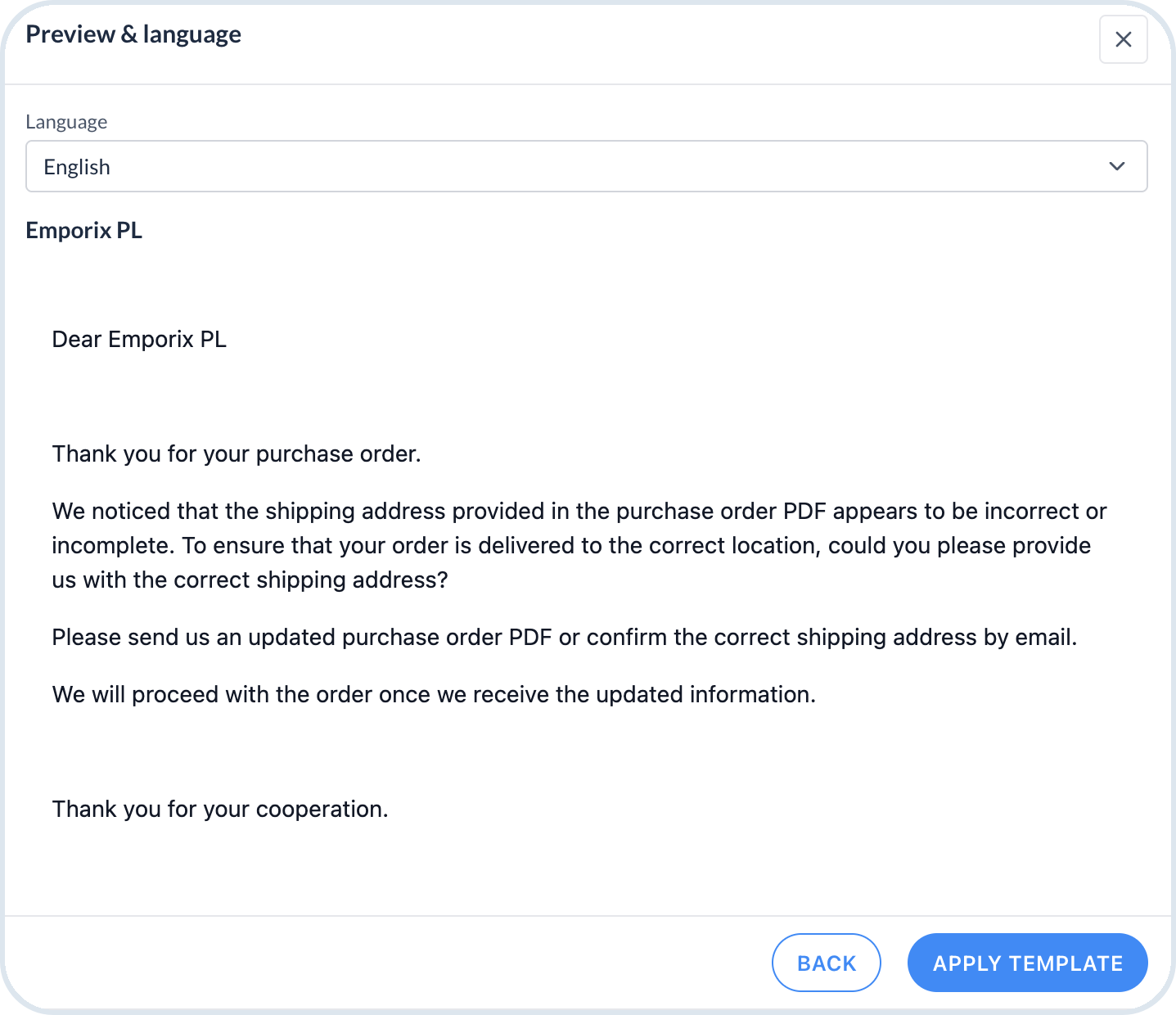
In **Preview & language**, select **Language**, review the content, and select **Apply template**.
Preview and language
{% endstep %}
{% endstepper %}
If you apply a template after editing the message, **Replace draft?** asks you to confirm before replacing the draft.
{% hint style="warning" %}
Preview the draft before sending. Unresolved placeholders are highlighted in the draft preview and removed when the message is sent.
{% endhint %}
## Sending a new email
{% stepper %}
{% step %}
#### Open Compose
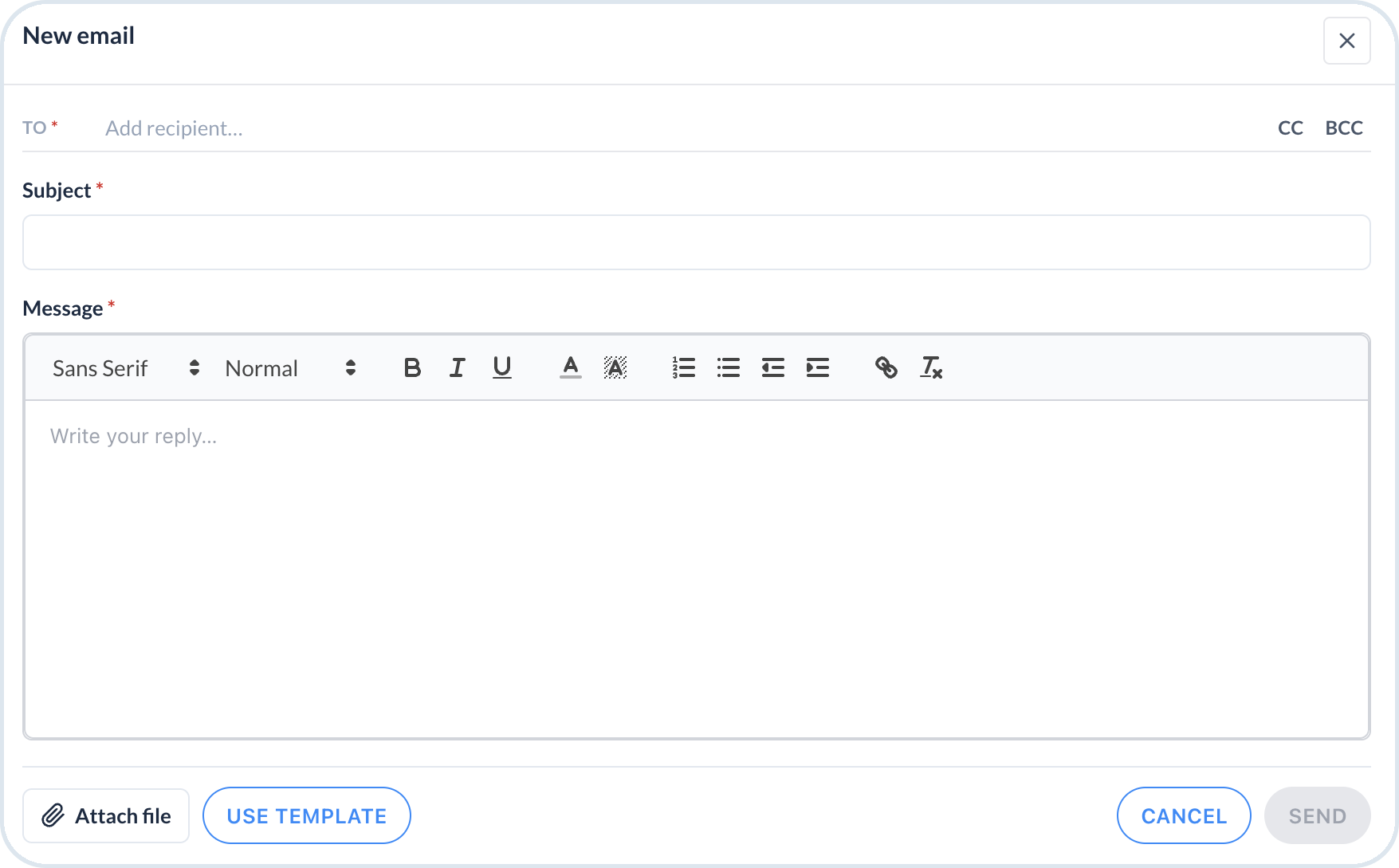
From the **Inbox**, select **Compose** to write a message. Providing **To**, **Subject**, and **Message** is required, while **Cc** and **Bcc** are optional. Select the **Cc** or **Bcc** link to show that field. **From** uses the configured mailbox identities. A single identity appears as text, while multiple identities appear in a dropdown. You can send the email without selecting a sender. To start with reusable content, follow [Using a template](#using-a-template).
{% endstep %}
{% step %}
#### Attach files and send
Select **Attach file** if you need attachments. You can attach up to 10 files, 10 MB each, and 25 MB in total. The cockpit blocks `exe`, `bat`, `cmd`, `com`, `msi`, `scr`, and `js` files.
For a new email, **Send** becomes available when **To** contains a valid recipient and **Subject** and **Message** are not empty. An invalid recipient blocks sending. Select **Send**.
On success, the dialog closes. Select **Sent** to verify that the message is listed. If sending fails, the draft and dialog remain open so you can retry.
{% endstep %}
{% endstepper %}
New email composer
## Replying and forwarding
{% stepper %}
{% step %}
#### Start the response
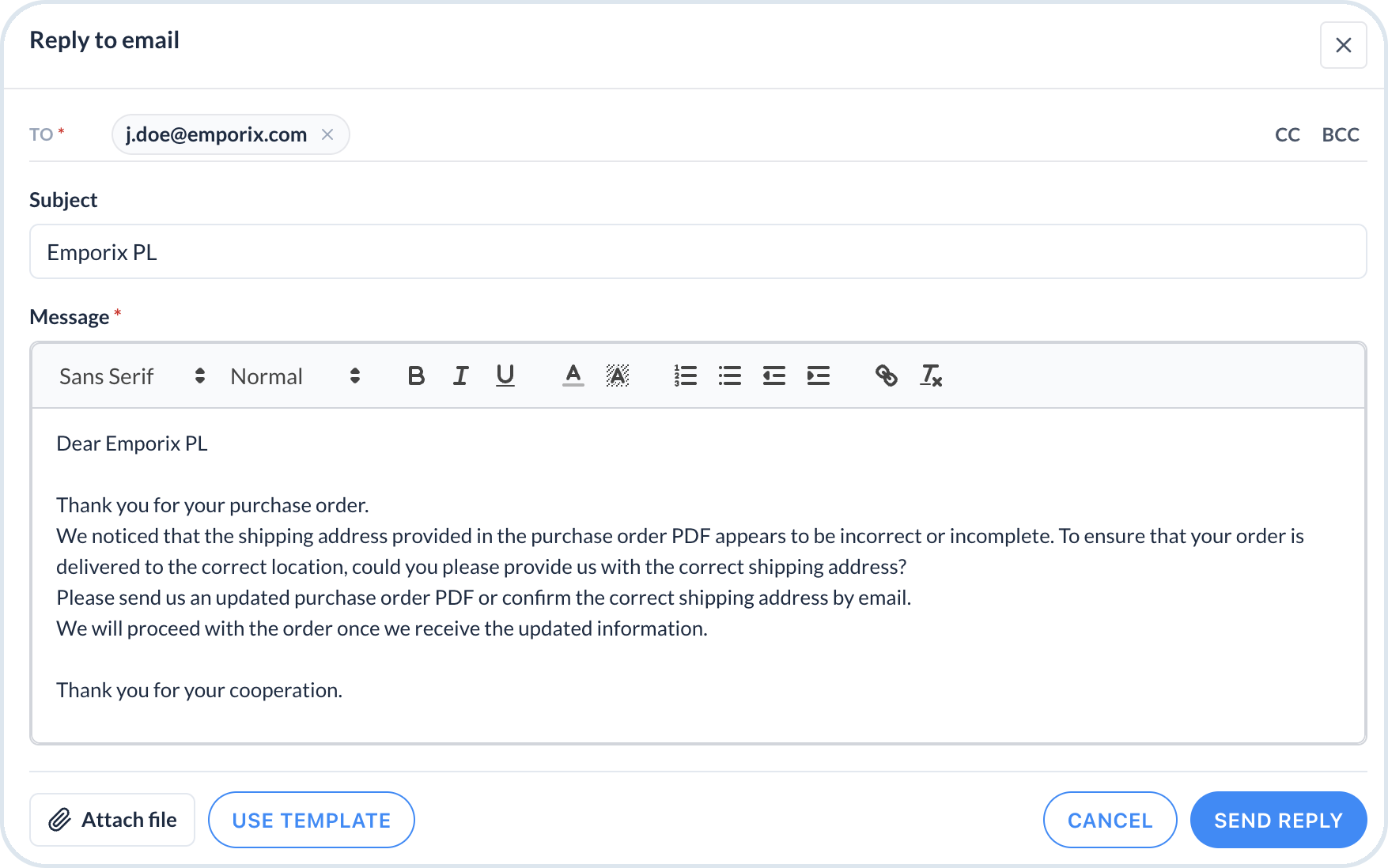
On an inbound message, select **Reply**, **Reply all**, or **Forward**. Replies open **Reply to email**, while forwards open **Forward email**. The draft inherits documents related to the conversation or thread.
{% endstep %}
{% step %}
#### Prepare the message
Recipients and attachments use the same fields and limits as a new email. To add reusable content, follow [Using a template](#using-a-template). Manage templates in [Email Configuration](/document-intake-cockpit/configuration/email-configuration.md#email-templates) under **Configuration**.
{% endstep %}
{% step %}
#### Send the response
Preview the draft, then select **Send reply** for a reply or **Send** for a forward.
On success, the dialog closes and the outbound item is added to the conversation. This confirms the cockpit action, not delivery to the recipient. If sending fails, the dialog remains open so you can retry.
{% endstep %}
{% endstepper %}
Reply to email
---
# Agent Instructions
This documentation is published with GitBook. GitBook is the documentation platform designed so that both humans and AI agents can read, navigate, and reason over technical content effectively. Learn more at gitbook.com.
## Querying This Documentation
If you need additional information that is not directly available in this page, you can query the documentation dynamically by asking a question.
Perform an HTTP GET request on the current page URL with the `ask` query parameter, and the optional `goal` query parameter:
```
GET https://developer.emporix.io/document-intake-cockpit/cockpit-views/email-inbox.md?ask=&goal=
```
`ask` is the immediate question: it should be specific, self-contained, and written in natural language.
`goal` is optional and describes the broader end goal you are ultimately trying to accomplish on behalf of the user. GitBook uses it to tailor the answer towards what is most useful for that goal.
The response will contain a direct answer to the question and relevant excerpts and sources from the documentation.
Use this mechanism when the answer is not explicitly present in the current page, you need clarification or additional context, or you want to retrieve related documentation sections.