> For the complete documentation index, see [llms.txt](https://developer.emporix.io/llms.txt). Markdown versions of documentation pages are available by appending `.md` to page URLs; this page is available as [Markdown](https://developer.emporix.io/document-intake-cockpit/cockpit-views/managing-a-document.md).

# Managing Documents

Work with a document that was already uploaded or received by email. Open it to review details beside the source, fix validation issues, and complete configured actions.

Open a document of any configured type to review its details beside the source, check extracted data, amend values, fix validation issues, apply matching, complete configured actions such as **Save** or **Approval**, and manage attachments.

You can open a document from:

* [Documents](/document-intake-cockpit/cockpit-views/documents.md) – select **Manage** on a document card
* [Inbox Queues](/document-intake-cockpit/cockpit-views/inbox-queue.md) – select the **Document** link on a row
* [Email Inbox](/document-intake-cockpit/cockpit-views/email-inbox.md) – select a document chip on an attachment
* [Dashboard](/document-intake-cockpit/cockpit-views/dashboard.md) – select a row in **Requires my attention** or **Recent documents** when that widget is present

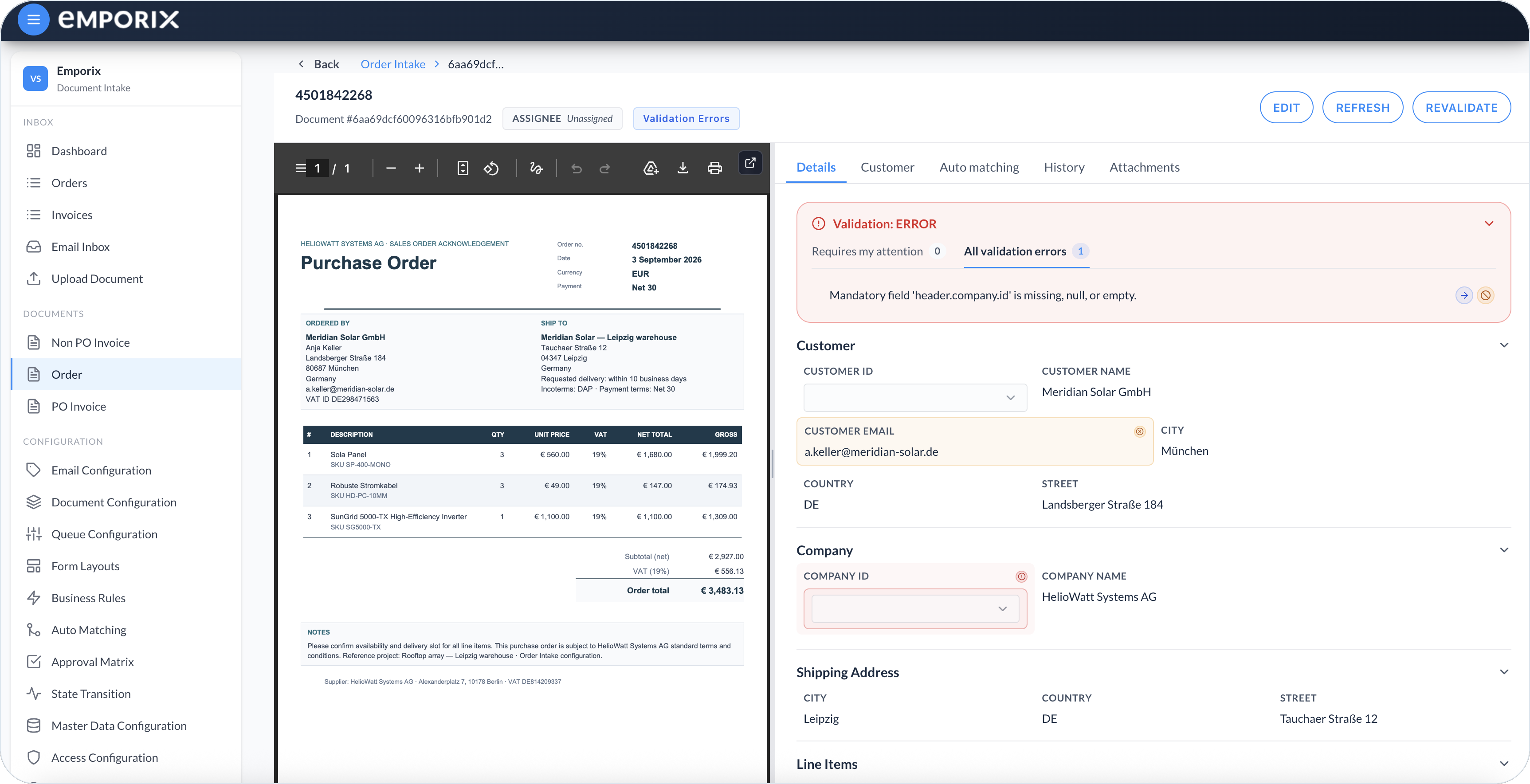
Any of these paths opens the document view. On the left you see the source document; on the right you work with tabs such as **Details**. Drag the divider to resize the source preview and the form, or open the source document in a new tab.

<figure><img src="https://1808414410-files.gitbook.io/~/files/v0/b/gitbook-x-prod.appspot.com/o/spaces%2FPBaf05o2vgbdikMFDTyz%2Fuploads%2Fgit-blob-330a55ff972e695d76b4329443e42ffa3b360014%2Fdocument_intake_cockpit_document_manage.png?alt=media" alt="Document view with source preview beside extracted Details fields"><figcaption><p>Document view with the source document and extracted data on Details</p></figcaption></figure>

## Document header

The header shows the document title (for example, an invoice number), **Document #** plus the document ID, **Assignee** as **User** or **Group** chips or **Unassigned**, and a workflow status badge. The badge uses the name from [State Transition](/document-intake-cockpit/configuration/state-transition.md), such as **Validation Errors**. You cannot change the status from this header. Status updates when your tenant's workflow runs after intake or after an action such as **Save**, **Revalidate**, or **Approval**.

Header actions come from [Document Actions](/document-intake-cockpit/configuration/form-layouts/form-layout-actions.md) on the form layout. You see only the buttons configured on that tab. If the tab is empty, no header buttons appear.

The document opens for viewing first. Select **Edit** when you need to change fields, and **Cancel** to leave editing without saving. Select **Refresh** to reload the document from the server.

{% hint style="info" %}
Other header buttons depend on your tenant's form layout. Common examples are **Save** (store your changes), **Revalidate** (run checks again), **Approval**, **Transform document**, **Cloud function**, and **Open modal**. Configure each button label in [Document Actions](/document-intake-cockpit/configuration/form-layouts/form-layout-actions.md) under **Configuration**.
{% endhint %}

{% hint style="success" %}
If the document was created as the wrong type, correct it with **Transform document** when that action is available. Save your corrections first, select **Target document type**, optionally enter **Additional information**, then select **Transform**. The cockpit maps the saved values to a replacement document of the selected type and opens it with status `START`. Transformation does not rerun parsing, auto matching, business rules, validation, state transitions, or approval. Review the mapped values on the replacement, then use its configured actions to continue processing. For details and recovery outcomes, see [Document lifecycle](/document-intake-cockpit/document-intake-process.md#document-lifecycle).
{% endhint %}

If more actions are configured than fit in the header, the rest appear under **More**. A button can be inactive when you lack permission or when the document state does not allow that action. For example, **Edit** stays inactive on a fully processed document. While an action runs, its button shows progress and the cockpit blocks other interaction until it finishes.

You can see the following tabs:

* [Details](#details) – always available; extracted form fields, validation issues, match badges, and field edits
* [Related tabs](#related-tabs) – optional read-only views of linked records; labels such as **Customer**, **Purchase Order**, or **Vendor** come from the [Form Layouts](/document-intake-cockpit/configuration/form-layouts.md). Configure them in [Related Tabs and AI Insight](/document-intake-cockpit/configuration/form-layouts/form-layout-related-tabs.md) under **Configuration**.
* [Auto matching](#auto-matching) – overall and per-configuration match results after matching has run, including a **No match** result; set this up in [Auto Matching](/document-intake-cockpit/configuration/auto-matching.md) under **Configuration**.
* [History](#history) – always available; status, assignment, comment, approval, rejection, and validation history.
* [Attachments](#attachments) – always available; upload, preview, and delete files associated with the document (not the source file in the preview).

{% hint style="warning" %}
If **Auto matching** is hidden, matching has not run yet. For new incoming documents, matching runs after parsing. Wait for intake to finish, or ask an administrator to check [Auto Matching](/document-intake-cockpit/configuration/auto-matching.md) for that type.
{% endhint %}

## Details

On the **Details** tab, review and amend the extracted form. Fix values, resolve validation issues and errors, and apply matching suggestions. Fields, lookups, tables, and totals come from the form layout. Percentage fields show a `%` suffix.

### Validation errors

Use the validation panel to see which checks failed on this document and to work through those issues. It shows the overall validation status, such as **ERROR** when issues remain or **SUCCESS** when checks pass. Open issues stay listed until you fix them or skip them where allowed and select **Save**.

Switch between:

* **Requires my attention** – issues assigned to you
* **All validation errors** – every issue on this document

<figure><img src="https://1808414410-files.gitbook.io/~/files/v0/b/gitbook-x-prod.appspot.com/o/spaces%2FPBaf05o2vgbdikMFDTyz%2Fuploads%2Fgit-blob-f00773f553ca552f755ff3b20f05f3b269082fbc%2Fdocument_intake_cockpit_document_errors.png?alt=media" alt="Document Details with Validation ERROR and All validation errors"><figcaption><p>Details showing Validation: ERROR with Requires my attention and All validation errors</p></figcaption></figure>

Each validation issue appears once in the panel. Fields linked to the issue show an error indicator on the form. Select the **Go to field** icon to move to a linked field. When an issue links to several visible fields, for example, the same missing value on two line items, select the icon again to move to the next field. After the last field, the next selection returns to the first one.

If none of the linked fields is visible on the form, a warning indicates that the field is not shown on this screen. An issue that is not linked to a field still appears in the panel, but does not show the **Go to field** icon. Issue badges are:

* **Error** – The check failed and still needs a fix or an allowed skip.
* **Resolved** – The check no longer fails.
* **Skipped** – An allowed skip was saved for this check.

Some errors from [Business Rules](/document-intake-cockpit/configuration/business-rules.md) are skippable. On a skippable error, a skip control appears on the issue row (**Skip this validation error** tooltip). It does not appear on non-skippable errors. The skip stays local until you select **Save**. After saving, those issues appear as **Skipped**.

### Errors

The red **Errors** panel shows failure messages from a configured document field as plain text. The heading is the layout **Box name**, or **Errors** when no name is set. Use it to read what failed. You cannot skip a message, jump to a field, or fix the messages from this panel.

The panel uses the same position as the validation box at the top of **Details**, or above every tab. It is independent of the **Validation** panel. It can appear when validation shows **Validation: SUCCESS**, or when that panel is hidden because the layout uses **Hide when validation is successful**.

The panel is hidden when **Error field** is not set, the field has no messages, or its configured **Visibility condition** evaluates to false. Configure the panel in [Form Layouts](/document-intake-cockpit/configuration/form-layouts.md) under **Configuration**.

### Match badges

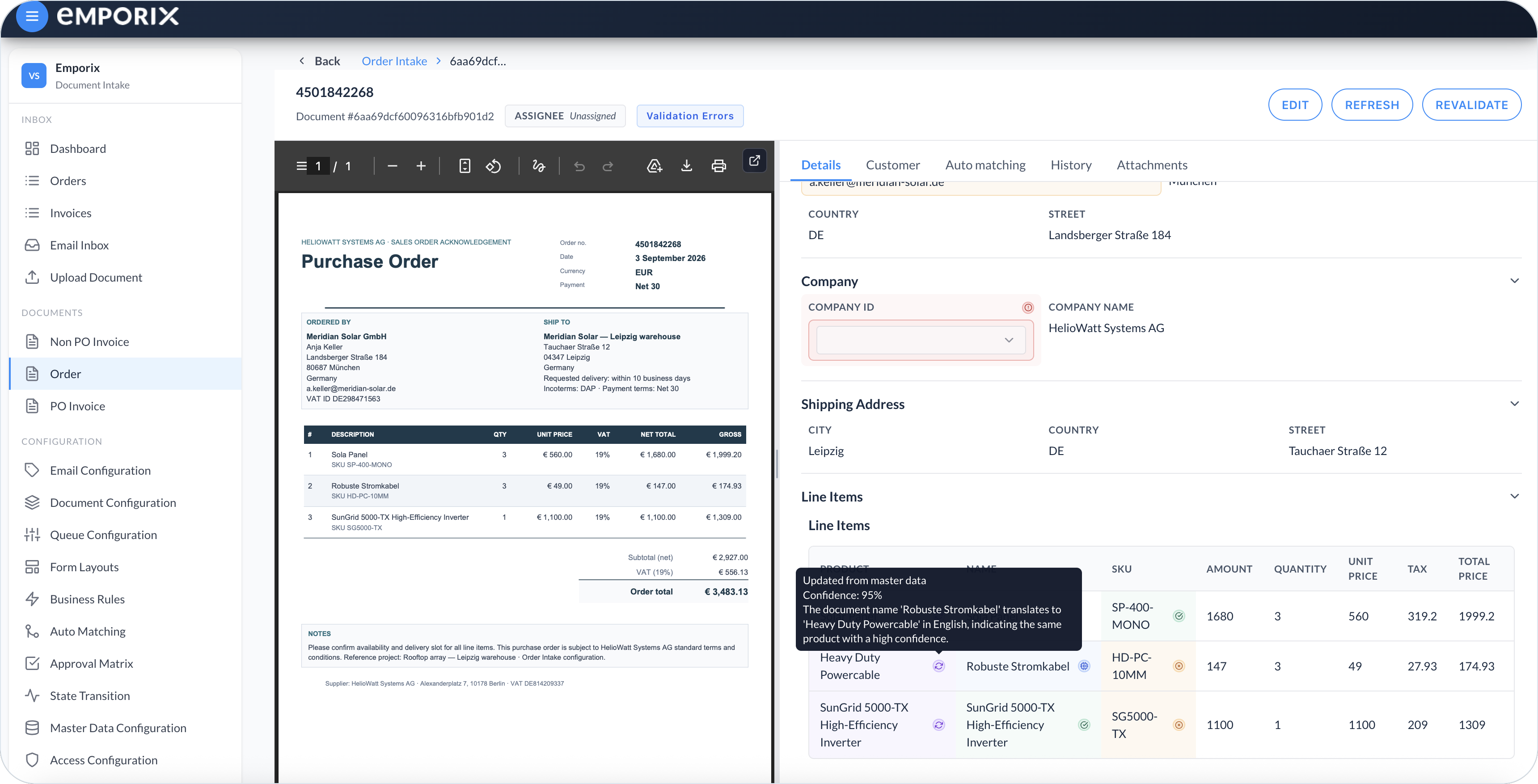
When matching has run, a badge next to a field or line shows how that value compared to master data. Hover the badge to read the match confidence, reasoning, or a suggested change when included.

* **Exact match** – The extracted value matches master data exactly.
* **Fuzzy match** – The value is close to master data but not identical.
* **AI match** – Matching uses language understanding. It can include confidence and a suggestion you can apply.
* **Derived** – A matching step calculates the value. It is not compared directly to a master-data field.
* **No match** – Matching finds no master data for this field.
* **Updated from master data** – Matching fills or overwrites the field from the matched record (can appear together with another badge).

If a badge includes a suggested change, apply it from the badge. Applying a row suggestion can reorder, insert, or remove lines so the document follows the matched record.

### Related fields and calculated values

A dropdown or lookup can also fill related fields when the layout uses **Populate from selection**. For example, choosing a vendor can populate name and address fields. Configure those mappings in [Lookups and Dropdowns](/document-intake-cockpit/configuration/form-layouts/form-layout-lookups.md) under **Configuration**.

Changing a field can also update other values on the page. For example, changing a line price can recalculate the line amount and the document total. Table summary rows add up number and currency columns as you edit.

{% hint style="info" %}
Edits stay local until you select **Save**. If you leave **Details** with unsaved changes, **Discard unsaved changes?** asks you to confirm that you want to drop those edits.
{% endhint %}

The **AI Insight Box** appears on this side-by-side view when the layout includes it and `mixins.process.aiRecommendation.recommendation` has text. It shows a title, the recommendation, and the configured buttons. Configure the box in [Related Tabs and AI Insight](/document-intake-cockpit/configuration/form-layouts/form-layout-related-tabs.md) under **Configuration**.

## Related tabs

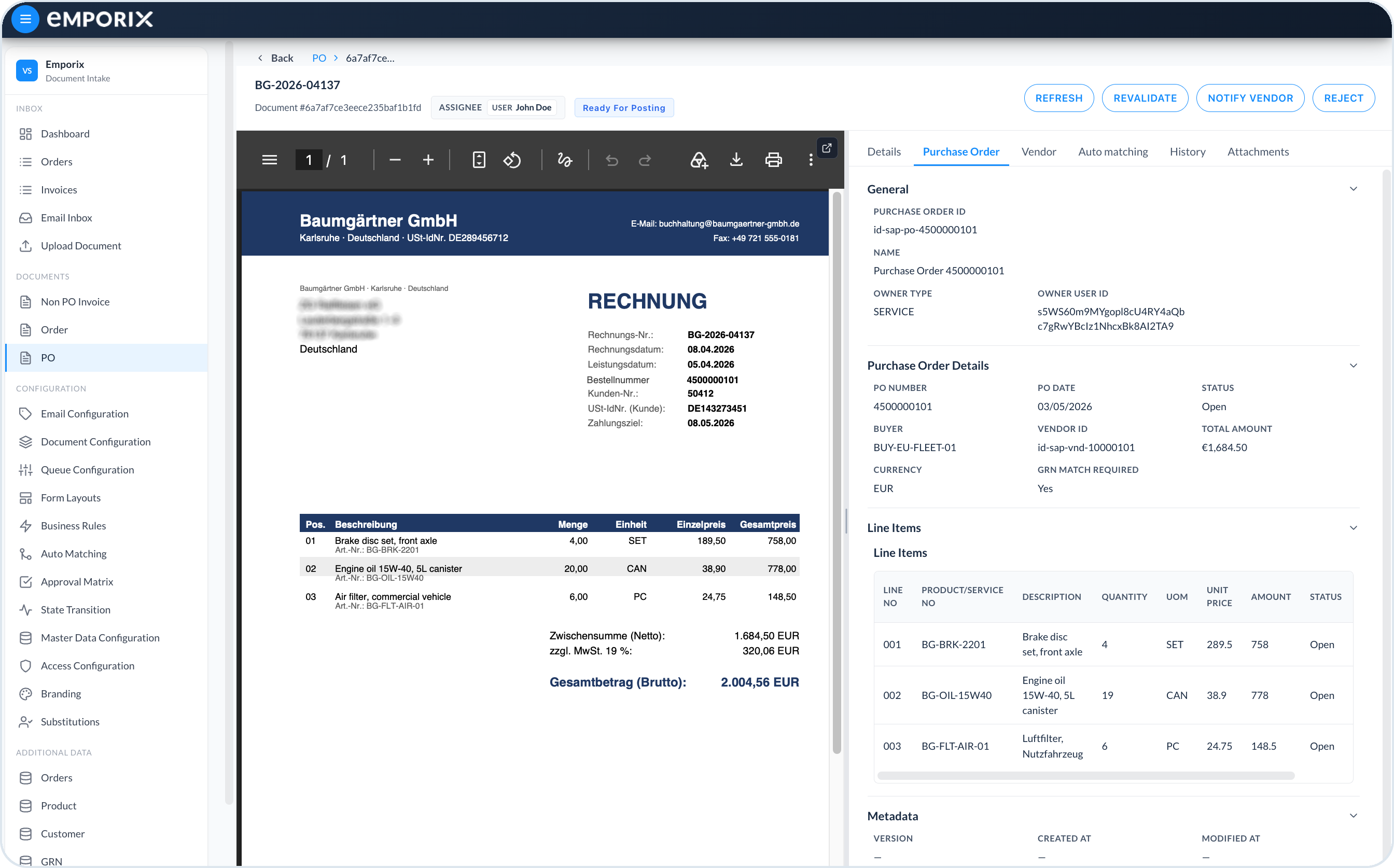
You can add extra tabs in [Related Tabs and AI Insight](/document-intake-cockpit/configuration/form-layouts/form-layout-related-tabs.md) under **Configuration**. Each tab shows a linked record identified from the document, for example, a matched purchase order or vendor, as a read-only form. The tabs that appear and their labels come from that layout setup.

<figure><img src="https://1808414410-files.gitbook.io/~/files/v0/b/gitbook-x-prod.appspot.com/o/spaces%2FPBaf05o2vgbdikMFDTyz%2Fuploads%2Fgit-blob-85e55f059b305ae99f6a28d07eff7e73c3759bb1%2Fdocument_intake_cockpit_document_related.png?alt=media" alt="Purchase Order related tab beside the source document"><figcaption><p>Related tab example Purchase Order (different document type than the other figures on this page)</p></figcaption></figure>

## Auto matching

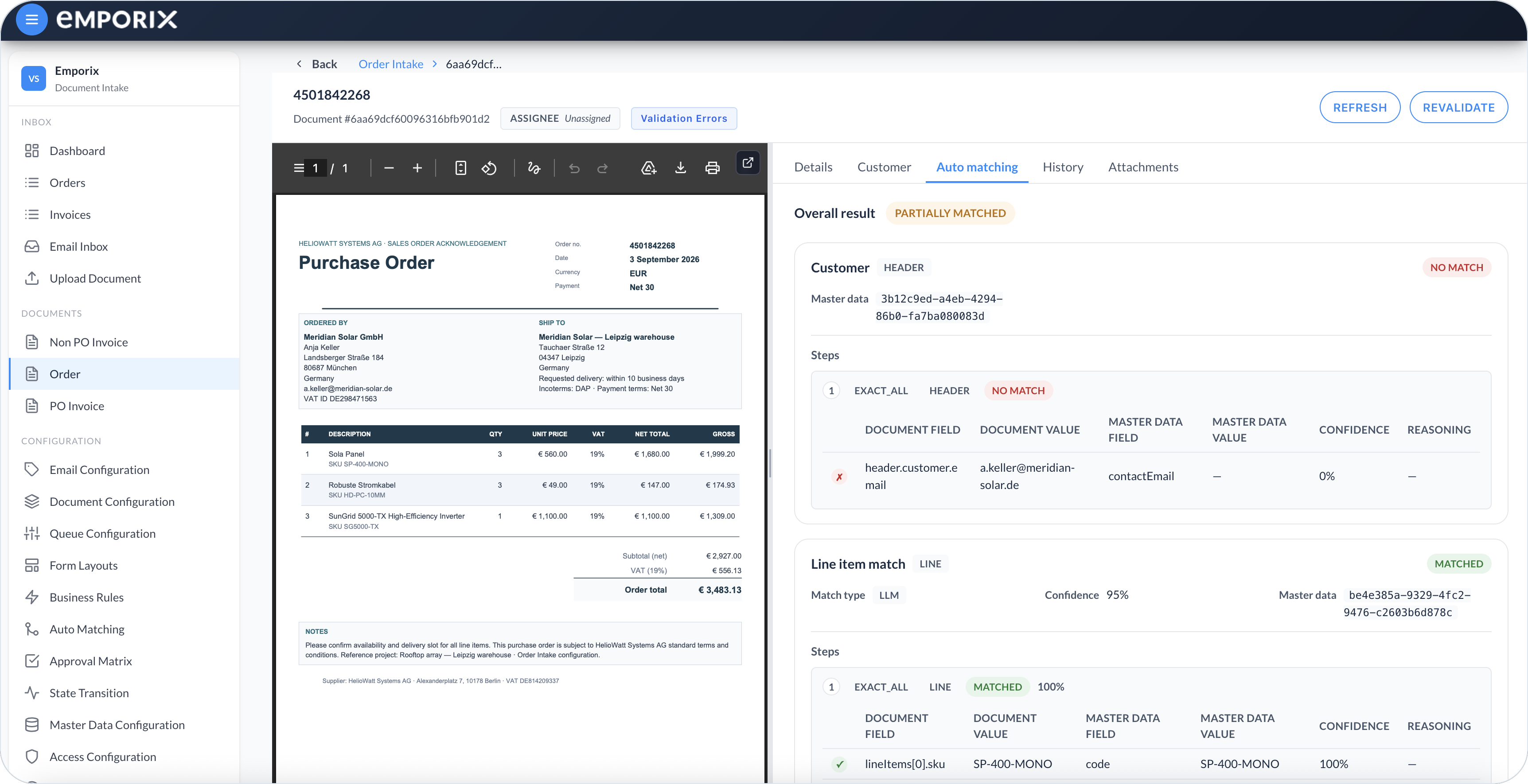
Use the **Auto matching** tab to review how extracted values were matched to master data. The **Overall result** can be **Matched**, **Partially matched**, or **No match**.

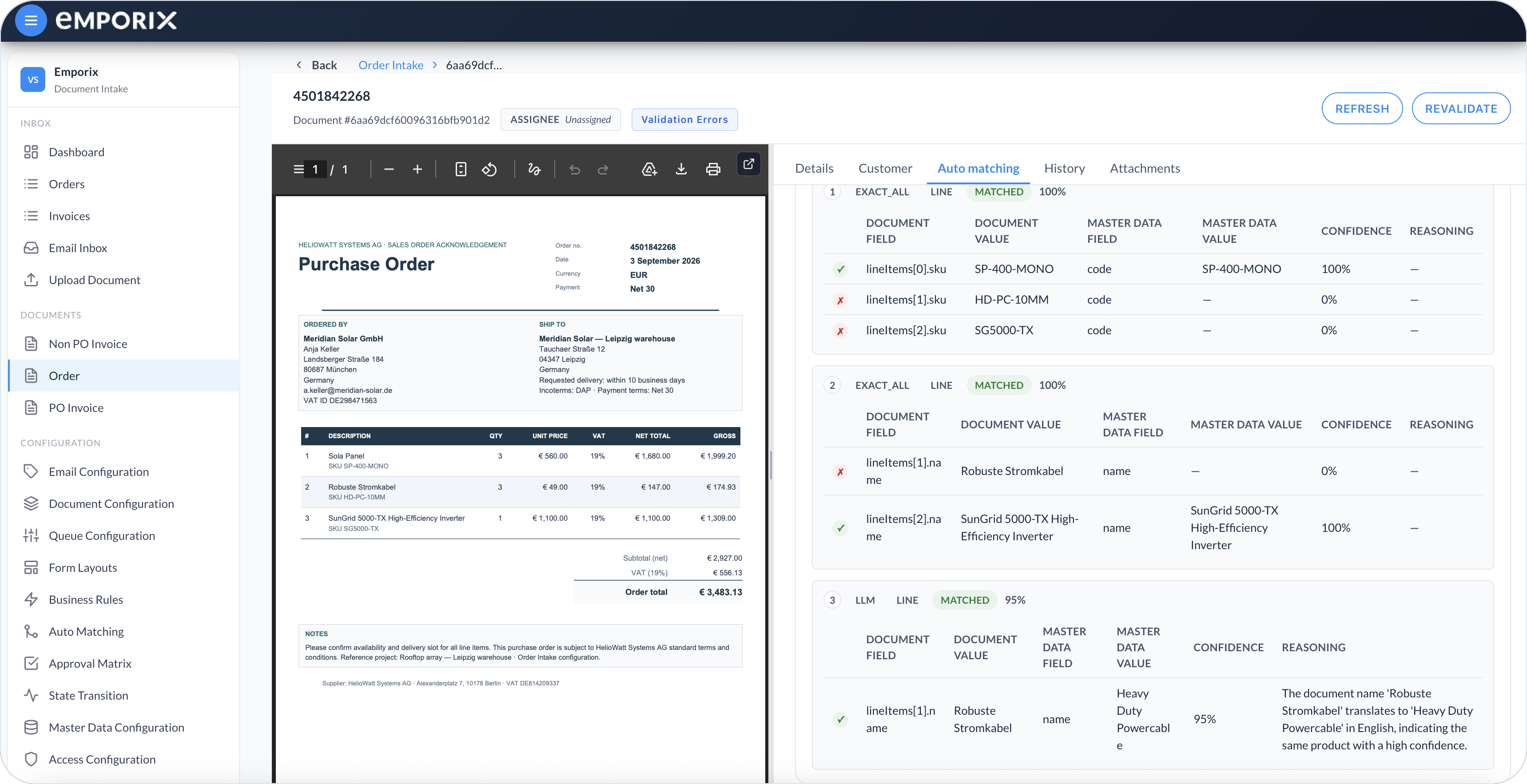
Each configuration that ran appears as a card. The card shows the configuration name, **Match type**, **Matched record**, **Confidence**, and **Master data**. Open **Steps** to compare document fields with master-data fields, including any confidence score or reasoning shown for a step.

One configuration can try several matching steps in sequence. For example, a product match can look up by SKU first, then by name with AI if the SKU is missing or no record is found. On this tab those steps can show labels such as **EXACT\_ALL** and **LLM**. That sequence helps when the document has typos or uses another language. Configure the steps in [Auto Matching](/document-intake-cockpit/configuration/auto-matching.md) under **Configuration**.

<figure><img src="https://1808414410-files.gitbook.io/~/files/v0/b/gitbook-x-prod.appspot.com/o/spaces%2FPBaf05o2vgbdikMFDTyz%2Fuploads%2Fgit-blob-09d9f7275726a909fa4b16c07224e9c12a64c38d%2Fdocument_intake_cockpit_document_matching.png?alt=media" alt="Auto matching tab with Partially matched overall result"><figcaption><p>Auto matching with Overall result Partially matched, Customer No match, and line item Matched</p></figcaption></figure>

<figure><img src="https://1808414410-files.gitbook.io/~/files/v0/b/gitbook-x-prod.appspot.com/o/spaces%2FPBaf05o2vgbdikMFDTyz%2Fuploads%2Fgit-blob-1ac1c3f97ac1ab8203b58481163eceb750dc2d7f%2Fdocument_intake_cockpit_document_matching_steps.png?alt=media" alt="Auto matching steps comparing document and master-data fields"><figcaption><p>Auto matching steps EXACT_ALL and LLM with field comparisons, confidence, and reasoning</p></figcaption></figure>

## History

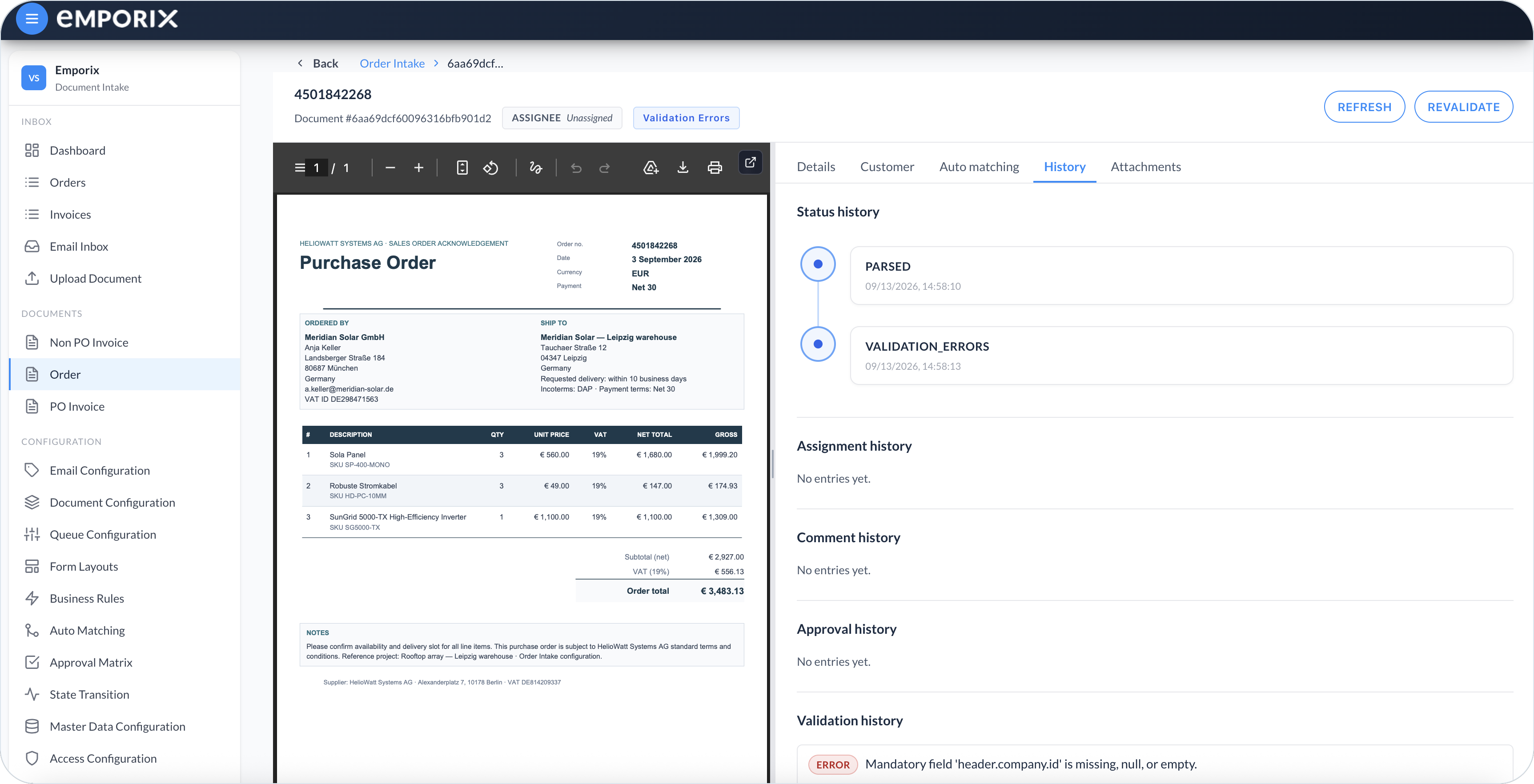
Use the **History** tab to review what happened on the document. It always lists **Status history**, **Assignment history**, **Comment history**, **Approval history**, and **Validation history**. Empty sections stay visible so you can see which events have not occurred yet.

**Approval history** records **Approved**, **Rejected**, or **Pending** decisions from the [Approval Matrix](/document-intake-cockpit/configuration/approval-matrix.md). **Rejection history** appears only when someone rejected the document manually before approval, for example when an invoice has too many problems and the vendor must send it again. Those entries are separate from rejections in the approval chain.

<figure><img src="https://1808414410-files.gitbook.io/~/files/v0/b/gitbook-x-prod.appspot.com/o/spaces%2FPBaf05o2vgbdikMFDTyz%2Fuploads%2Fgit-blob-dc0c9b644fa47d0f3b0b8595c816d8e9ef55554c%2Fdocument_intake_cockpit_document_history.png?alt=media" alt="History tab with status, assignment, comment, approval, and validation"><figcaption><p>History with Status history and Validation history, and empty assignment, comment, and approval sections</p></figcaption></figure>

## Attachments

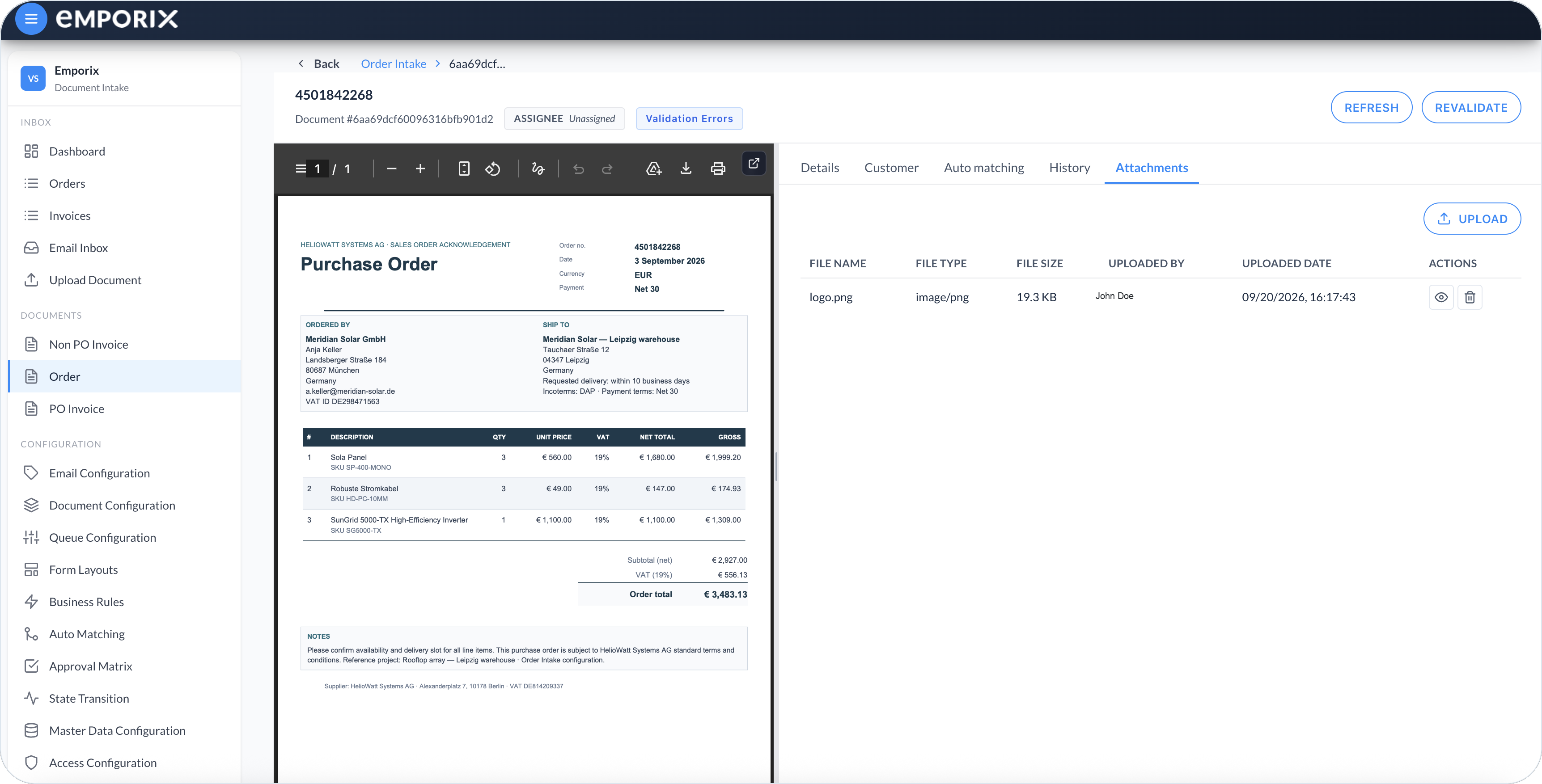
Use **Attachments** to add and manage files associated with the document. The source document remains in the preview and is not listed as an attachment. Manage email attachments in [Email Inbox](/document-intake-cockpit/cockpit-views/email-inbox.md).

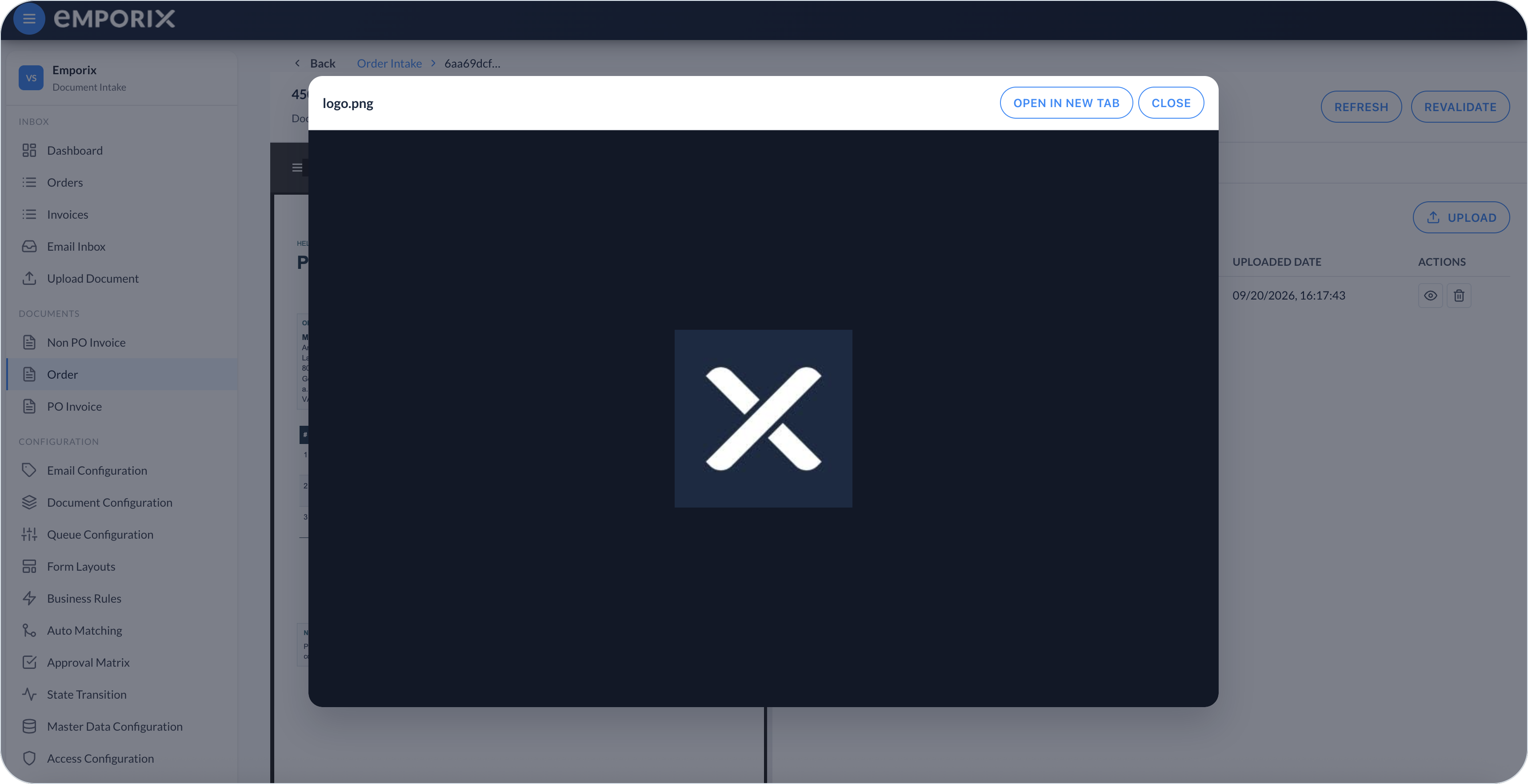
Select **Upload** and choose a file. You can add one file up to 10 MB at a time. Executable files are not supported. Use the action icons to preview or delete attachments. Preview opens PDF, image, and text files, while other formats are downloaded.

<figure><img src="https://1808414410-files.gitbook.io/~/files/v0/b/gitbook-x-prod.appspot.com/o/spaces%2FPBaf05o2vgbdikMFDTyz%2Fuploads%2Fgit-blob-4865b25d34defeab5323e8fd88029558b071e628%2Fdocument_intake_cockpit_document_attachments.png?alt=media" alt="Attachments tab with a file beside the source preview"><figcaption><p>Attachments with an uploaded file, Open, and Delete</p></figcaption></figure>

<figure><img src="https://1808414410-files.gitbook.io/~/files/v0/b/gitbook-x-prod.appspot.com/o/spaces%2FPBaf05o2vgbdikMFDTyz%2Fuploads%2Fgit-blob-e580ae8ad657778c6f3b96eb25c95bb020d784b6%2Fdocument_intake_cockpit_document_attachment_preview.png?alt=media" alt="Attachment preview dialog with Open in new tab and Close"><figcaption><p>Attachment preview with Open in new tab and Close</p></figcaption></figure>

## Completing review

Clear validation first, then record an approval decision when the document is waiting for you.

{% stepper %}
{% step %}

#### Save your corrections

Correct required fields, resolve or skip validation as allowed, and apply useful matching suggestions. Select **Save** to store field changes and skips. **Save** does not run checks again.
{% endstep %}

{% step %}

#### Revalidate when available

Run checks again with the layout's revalidation action when it exists; tenants often label that button **Revalidate**. If revalidation is not on the layout, remaining validation **Error** badges stay. Those badges are not the red **Errors** panel. Ask an administrator to add that action in [Document Actions](/document-intake-cockpit/configuration/form-layouts/form-layout-actions.md). Do not treat other header actions as a substitute for revalidation.
{% endstep %}

{% step %}

#### Approve or reject

When validation is clear, approve or reject if you are the named next approver in the [Approval Matrix](/document-intake-cockpit/configuration/approval-matrix.md), or if you cover that person with a **User** → **User** substitution in [Substitutions](/document-intake-cockpit/configuration/substitutions.md). Select the header **Approval** action to open the **Approval** dialog. Choose **Approve** or **Reject** when both are offered, add an optional **Message**, select a **Rejection reason** when rejecting and the document type defines reasons, then select **Submit**.
{% endstep %}
{% endstepper %}

{% hint style="warning" %}
If **Approval** is missing or inactive, check the following:

* Validation still shows open **Error** issues – Finish [Validation errors](#validation-errors) and **Save**, then **Revalidate** when that action exists.
* You are not the next approver – Check **Approval history** on [History](#history), or ask who is named in the [Approval Matrix](/document-intake-cockpit/configuration/approval-matrix.md).
* You need coverage – Set up a **User** → **User** substitution in [Substitutions](/document-intake-cockpit/configuration/substitutions.md) for the named approver.
* The form layout has no **Approval** action – Add it in [Document Actions](/document-intake-cockpit/configuration/form-layouts/form-layout-actions.md) under **Configuration**.
  {% endhint %}


---

# Agent Instructions
This documentation is published with GitBook. GitBook is the documentation platform designed so that both humans and AI agents can read, navigate, and reason over technical content effectively. Learn more at gitbook.com.

## Querying This Documentation
If you need additional information that is not directly available in this page, you can query the documentation dynamically by asking a question.

Perform an HTTP GET request on the current page URL with the `ask` query parameter, and the optional `goal` query parameter:

```
GET https://developer.emporix.io/document-intake-cockpit/cockpit-views/managing-a-document.md?ask=<question>&goal=<endgoal>
```

`ask` is the immediate question: it should be specific, self-contained, and written in natural language.
`goal` is optional and describes the broader end goal you are ultimately trying to accomplish on behalf of the user. GitBook uses it to tailor the answer towards what is most useful for that goal.

The response will contain a direct answer to the question and relevant excerpts and sources from the documentation.

Use this mechanism when the answer is not explicitly present in the current page, you need clarification or additional context, or you want to retrieve related documentation sections.