> For the complete documentation index, see [llms.txt](https://developer.emporix.io/llms.txt). Markdown versions of documentation pages are available by appending `.md` to page URLs; this page is available as [Markdown](https://developer.emporix.io/document-intake-cockpit/cockpit-views/upload-document.md).
# Uploading Documents
Upload files directly so Document Intake can process them as attachments and link any created documents to an inbox item.
Use **Upload Document** to add files directly to Document Intake without waiting for an email. Open **Inbox** → **Upload Document**.
{% hint style="info" %}
[Access Configuration](/document-intake-cockpit/configuration/access-configuration.md) can hide or disable **Upload Document** under **Inbox**.
{% endhint %}
## Upload files
{% stepper %}
{% step %}
#### Add files
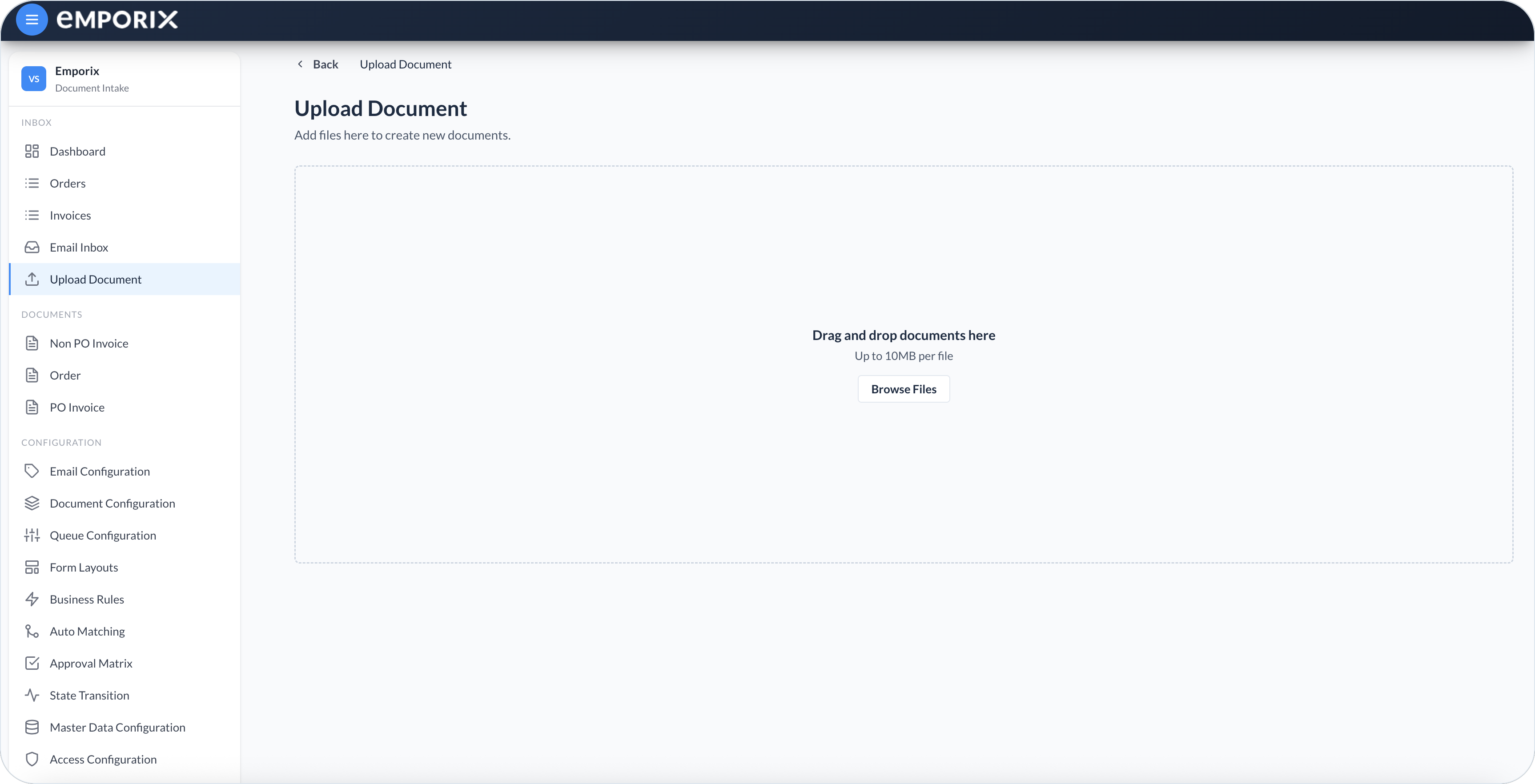
Drag files onto **Drag and drop documents here**, or select **Browse Files**. You can stage several files before uploading them.
Upload document empty drop zone
{% endstep %}
{% step %}
#### Review the staged files
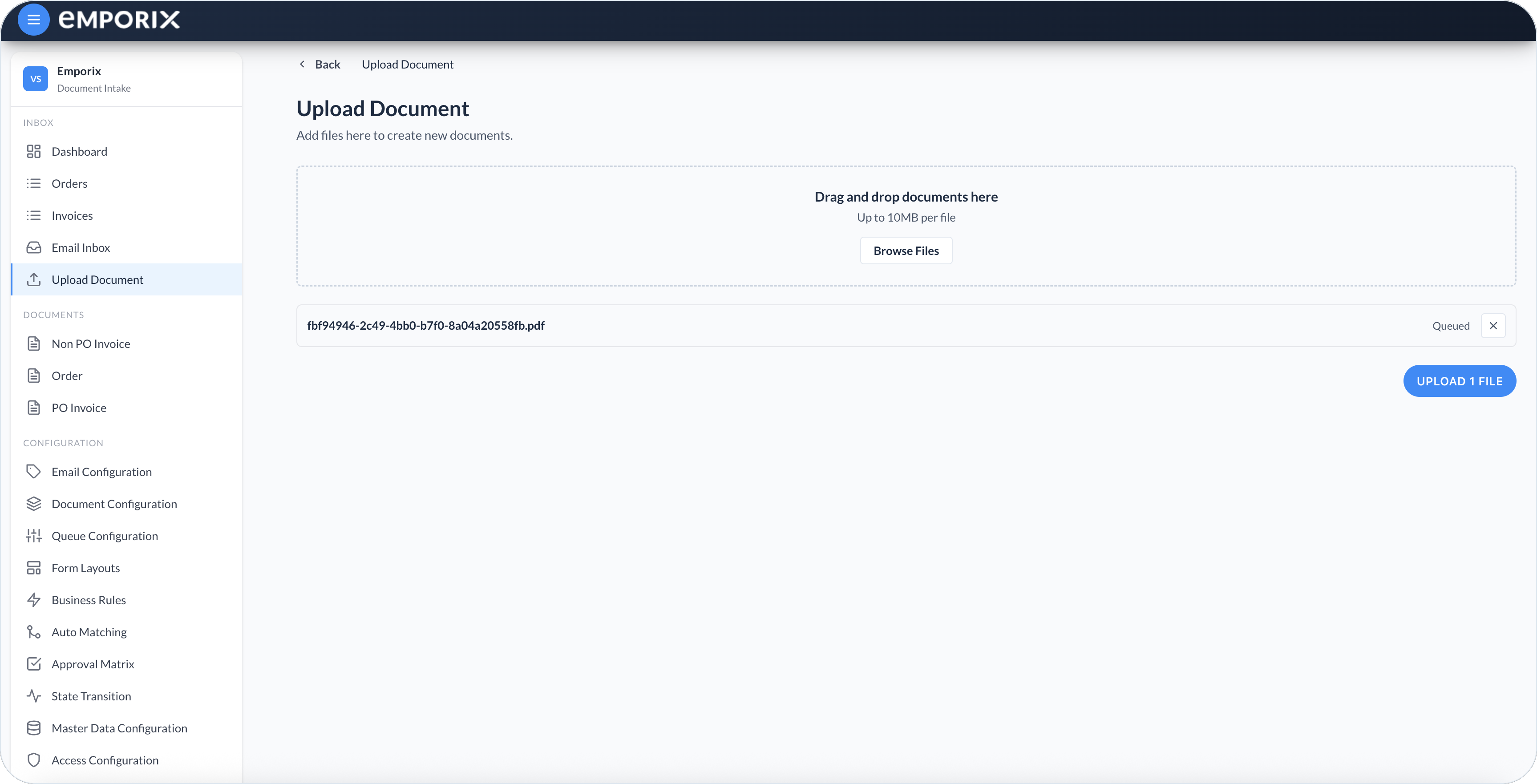
Check each row and select **X** to remove any file that you do not want to submit. A staged file shows **Queued** until you upload it. The page validates each file independently, so a rejected file does not prevent accepted files in the same batch from being uploaded.
Each file can be up to 10 MB. The final extension cannot be `.exe`, `.bat`, `.cmd`, `.com`, `.msi`, `.scr`, or `.js`, regardless of letter case. PDF files and saved emails (`.eml`) also receive integrity checks, and duplicate content in the batch is rejected. You can submit other file types within the size limit, but a successful submission does not guarantee that Document Intake creates a document.
One file staged as queued
{% endstep %}
{% step %}
#### Start processing
Select **Upload N file** or **Upload N files**, depending on the number of accepted files. The upload creates one Email Inbox item for the accepted attachments and opens **Email Detail**.
{% endstep %}
{% endstepper %}
## Follow the results
Attachments process independently. A saved email (`.eml`) that contains PDF or image attachments is listed as those extracted files. A saved email with no PDF or image to extract is listed as the original email file.
**Email Detail** refreshes each attachment's processing outcome automatically. An attachment shows **Processing**, **Draft created**, **No draft**, **Failed**, or the created document's workflow status. Each attachment has its own outcome and retry behavior. Created documents appear as a **document chip** below the attachment list.
* Created document workflow status or **Draft created** – select the **document chip** to open it.
* **No draft** or **Failed** – select **Retry** to process that attachment again.
For more about attachment outcomes and linked documents, see [Email Inbox](/document-intake-cockpit/cockpit-views/email-inbox.md).
---
# Agent Instructions
This documentation is published with GitBook. GitBook is the documentation platform designed so that both humans and AI agents can read, navigate, and reason over technical content effectively. Learn more at gitbook.com.
## Querying This Documentation
If you need additional information that is not directly available in this page, you can query the documentation by asking a question.
Perform an HTTP GET request on the following URL with the `ask` and `goal` query parameters:
```
GET https://developer.emporix.io/document-intake-cockpit/cockpit-views/upload-document.md?ask=&goal=
```
`ask` is the immediate question: it should be specific, self-contained, and written in natural language.
`goal` is what the user is ultimately trying to achieve, the reason they need the answer. Sharing it helps GitBook give you a better, more relevant answer. A goal is most helpful when it describes the outcome the user wants rather than restating the question. For example, with `ask=how do I create an API token`, a goal like `automate deployments from our CI pipeline` lets GitBook tailor the answer to that use case.
The response will contain a direct answer to the question and relevant excerpts and sources from the documentation.
Use this mechanism when the answer is not explicitly present in the current page, you need clarification or additional context, or you want to retrieve related documentation sections.