> For the complete documentation index, see [llms.txt](https://developer.emporix.io/llms.txt). Markdown versions of documentation pages are available by appending `.md` to page URLs; this page is available as [Markdown](https://developer.emporix.io/document-intake-cockpit/configuration-examples/order-intake/approval.md).

# Approval and Rejection

Bind Order approval to Company ID and Total, create a working approval matrix, and add a product-not-available rejection reason.

Configure how an order selects an approval matrix, who approves it, and which reason is recorded when an approver rejects it.

{% hint style="info" %}
For the general UI procedures, see [Document Configuration](/document-intake-cockpit/configuration/document-configuration.md) and [Approval Matrix](/document-intake-cockpit/configuration/approval-matrix.md).
{% endhint %}

## Prerequisites

Before you start, complete the configuration of the [Document Type](/document-intake-cockpit/configuration-examples/order-intake/document-type.md) and [Business Rules](/document-intake-cockpit/configuration-examples/order-intake/business-rules.md). You also need the following:

* At least one employee who can approve the test order.
* A deployed `invoice-approval-engine` function.
* The approved `approval-matrix-rule` source supplied by the team that provisions your tenant.

## Configuring approval and rejection

{% stepper %}
{% step %}

#### Add the matching field

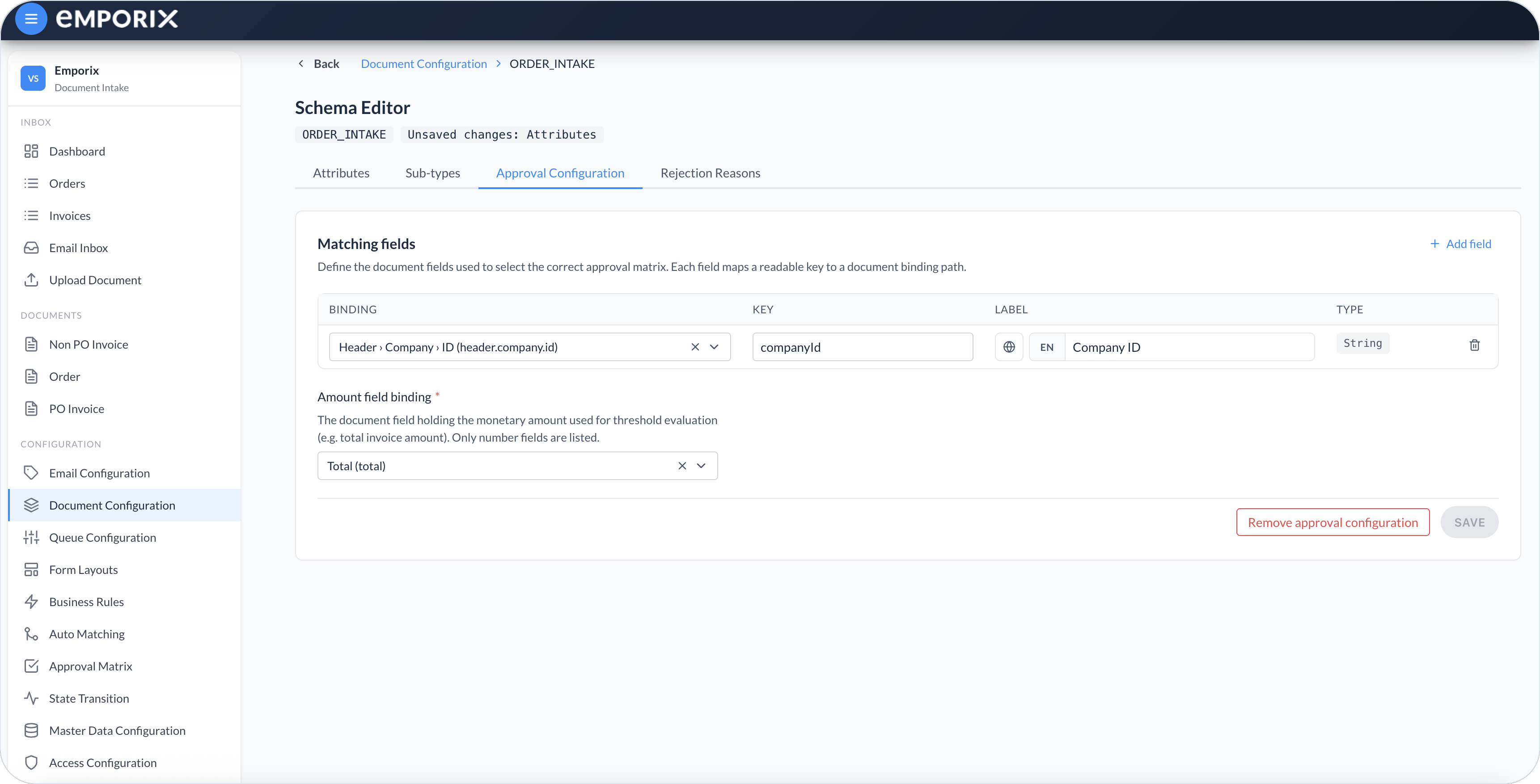
In **Configuration** → **Document Configuration**, open **Configure schema** for **Order**, then open **Approval Configuration**. Select **Add field**. Set **Binding** to **Header › Company › ID**, **Key** to `companyId`, **Label** to **Company ID**, and **Type** to **String**.
{% endstep %}

{% step %}

#### Bind the amount

Set **Amount field binding** to **Total**. A small order and a large order can need different people, depending on the limits you set on the matrix.
{% endstep %}

{% step %}

#### Save approval configuration

Select **Save**. [Approval Matrix](/document-intake-cockpit/configuration/approval-matrix.md) lists **Order** only after this tab is complete.

<figure><img src="https://1808414410-files.gitbook.io/~/files/v0/b/gitbook-x-prod.appspot.com/o/spaces%2FPBaf05o2vgbdikMFDTyz%2Fuploads%2Fgit-blob-7bc0dcf91d01abac5e447e05783a3c90ca0627ec%2Fdocument_configuration_approval.png?alt=media" alt="Approval Configuration with matching fields and amount field binding"><figcaption><p>Approval Configuration with Company ID matching field and amount binding</p></figcaption></figure>
{% endstep %}

{% step %}

#### Add the rejection reason

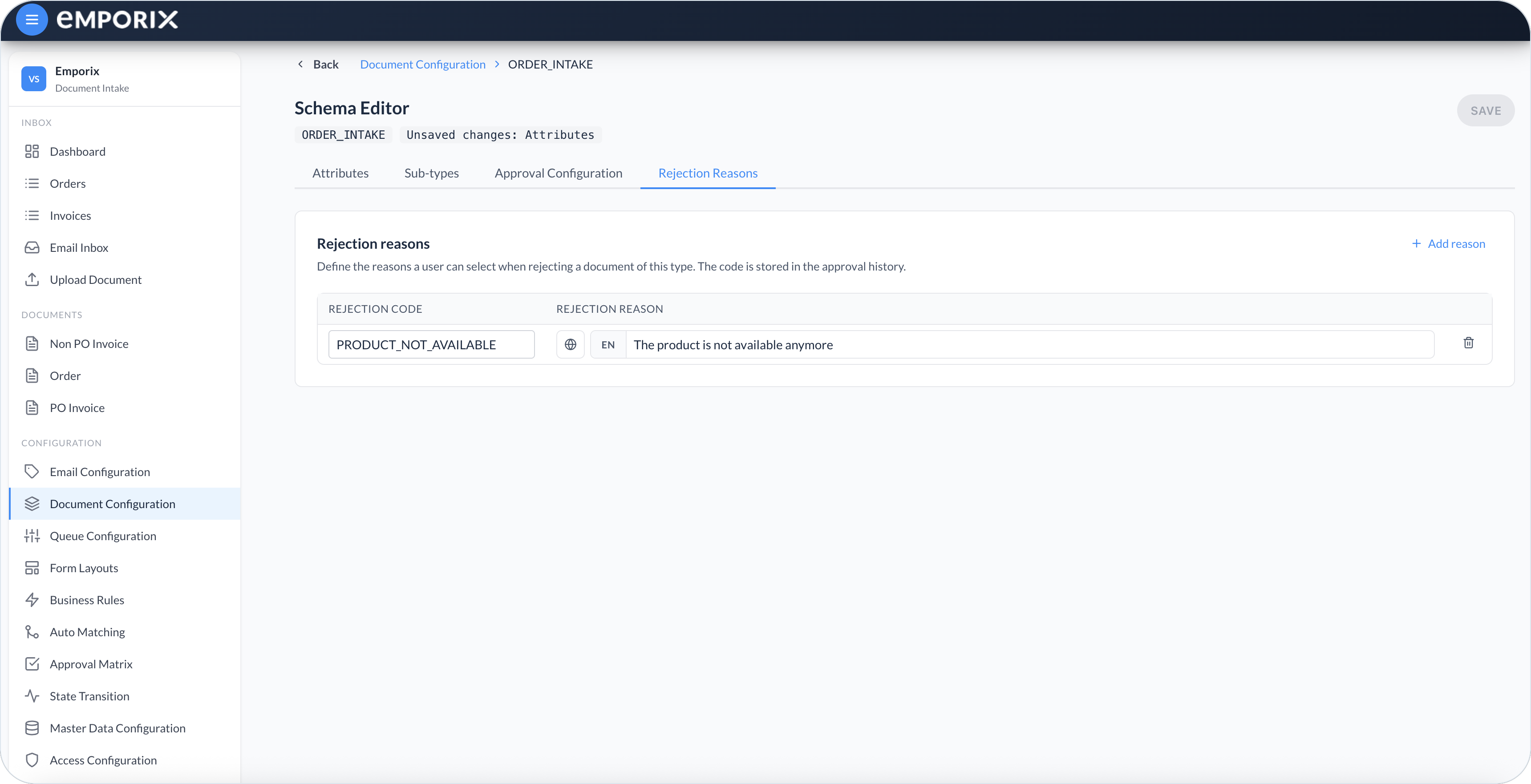
Open **Rejection Reasons**. Select **Add reason**. Set **Rejection Code** to `PRODUCT_NOT_AVAILABLE` and **Rejection Reason** to **The product is not available anymore**. The approver picks the reason when rejecting the order. The code is stored in history. Select **Save**.

<figure><img src="https://1808414410-files.gitbook.io/~/files/v0/b/gitbook-x-prod.appspot.com/o/spaces%2FPBaf05o2vgbdikMFDTyz%2Fuploads%2Fgit-blob-f0806bf123ebf9e9c2bbcc83e3763983f73b6813%2Fdocument_configuration_rejection.png?alt=media" alt="Rejection Reasons with Rejection Code and localized Rejection Reason"><figcaption><p>Rejection Reasons</p></figcaption></figure>
{% endstep %}
{% endstepper %}

## Creating a test approval matrix

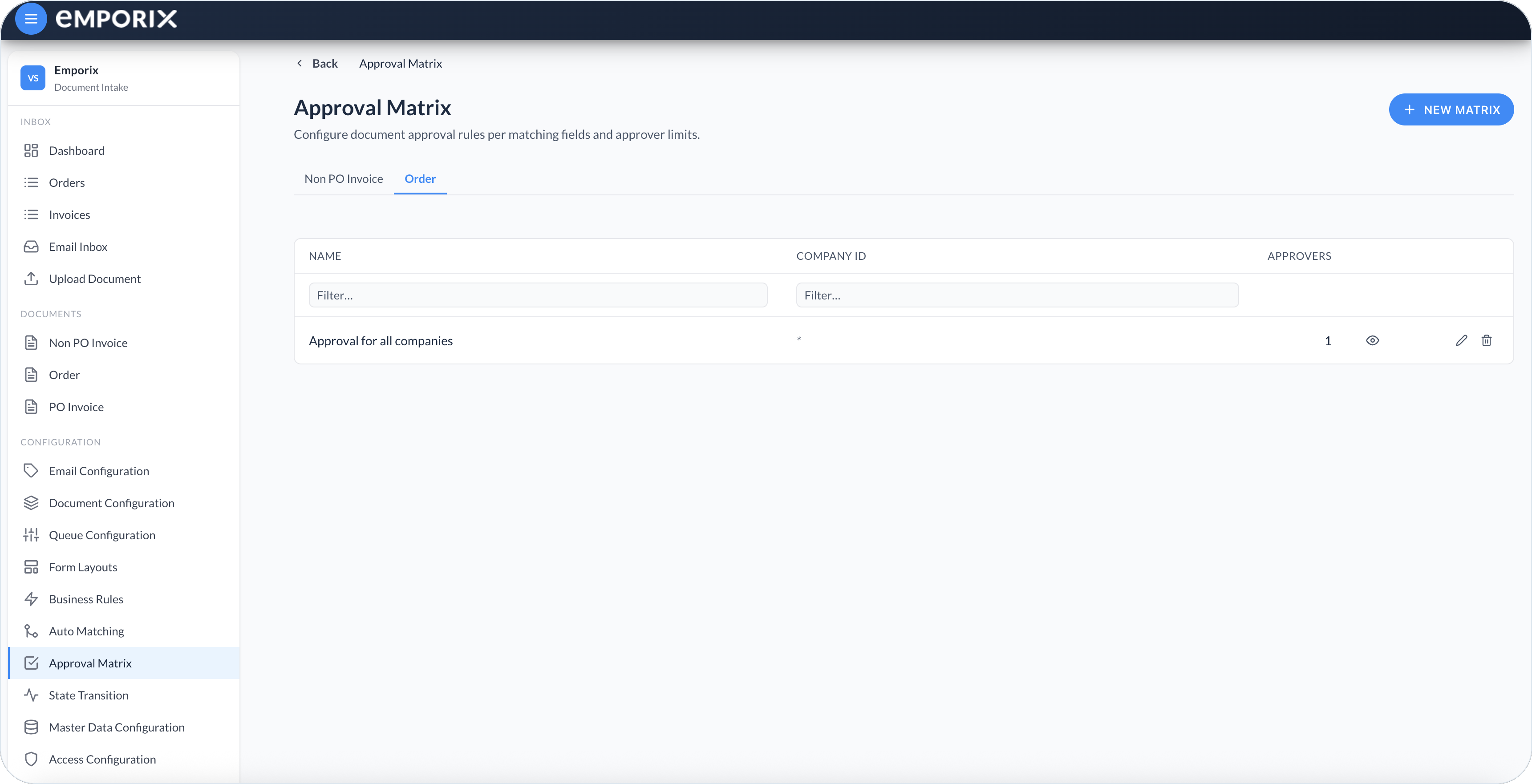
Open **Configuration** → **Approval Matrix** and select the **Order** tab. The tab appears only after you save a complete approval configuration.

{% stepper %}
{% step %}

#### Create the matrix

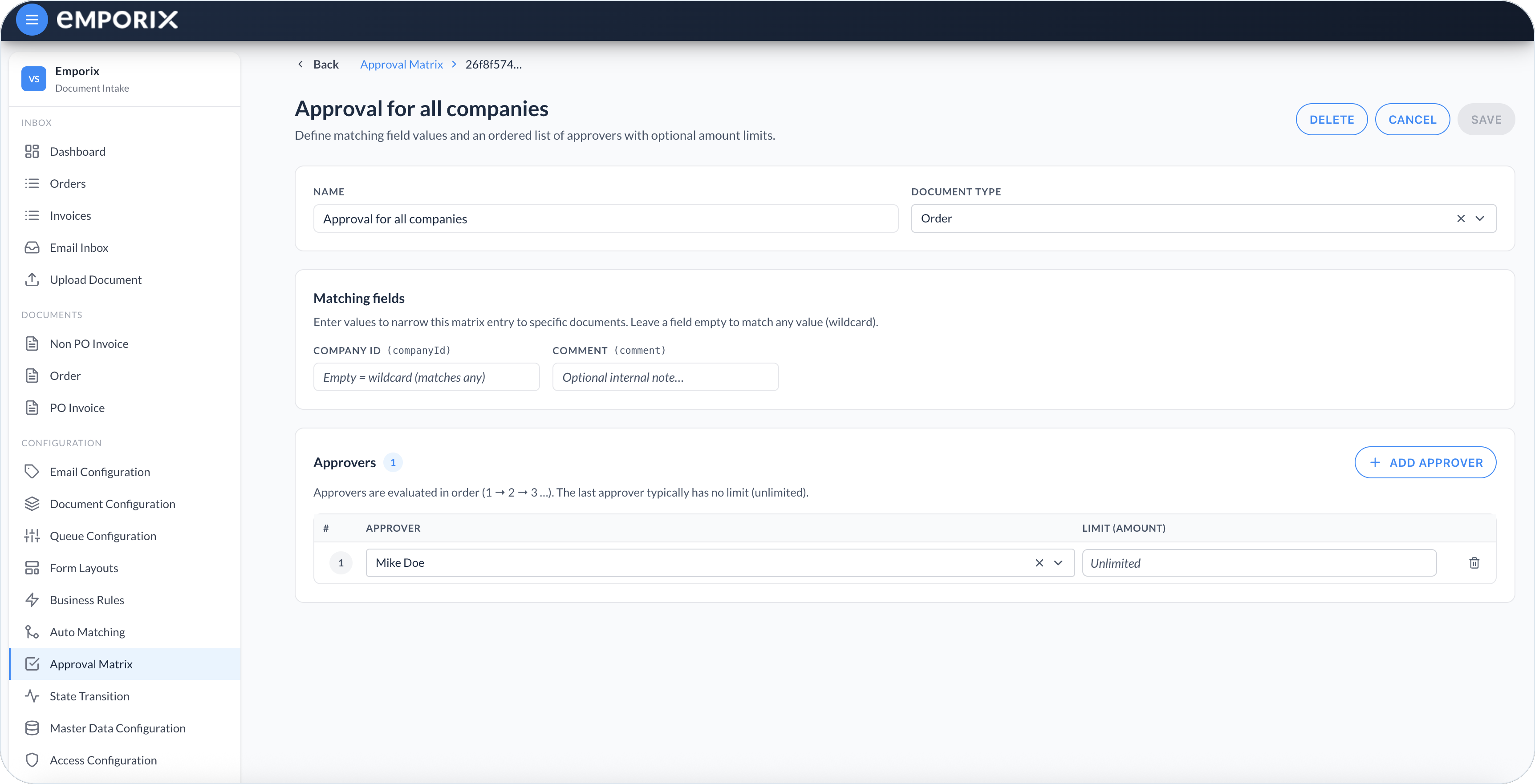
Select **New matrix**. Set **Name** to **Default Order Approval**.
{% endstep %}

{% step %}

#### Set the company match

For the first test, leave **Company ID** empty. An empty matching value is a wildcard, so the matrix can process any company ID. After the workflow works, create company-specific matrices and remove overlapping wildcard entries.
{% endstep %}

{% step %}

#### Add the approver

Select **Add approver** and choose the employee who will run the test. Leave **Limit (amount)** empty so the final step is **Unlimited**.
{% endstep %}

{% step %}

#### Save and preview

Select **Save**. On the matrix list, select **Preview approval flow** and confirm that the employee is the only step and has an **Unlimited** limit.
{% endstep %}
{% endstepper %}

<figure><img src="https://1808414410-files.gitbook.io/~/files/v0/b/gitbook-x-prod.appspot.com/o/spaces%2FPBaf05o2vgbdikMFDTyz%2Fuploads%2Fgit-blob-e78486a282b6234aa591d18fc0184d47e65f3948%2Fapproval_matrix.png?alt=media" alt="Approval Matrix list on the Order tab with Company ID wildcard and one approver"><figcaption><p>Approval Matrix on the Order tab with a Company ID wildcard. In this walkthrough, name the matrix Default Order Approval.</p></figcaption></figure>

<figure><img src="https://1808414410-files.gitbook.io/~/files/v0/b/gitbook-x-prod.appspot.com/o/spaces%2FPBaf05o2vgbdikMFDTyz%2Fuploads%2Fgit-blob-927a6ae23b7d13a10f8f899a41f96ad3626b7213%2Fapproval_matrix_edit.png?alt=media" alt="Edit matrix with Company ID wildcard and one Unlimited approver"><figcaption><p>Edit matrix with empty Company ID wildcard and Unlimited approver</p></figcaption></figure>

{% hint style="warning" %}
Two matrices with the same specificity can both match the same order and cause validation to fail. For the baseline test, keep one wildcard matrix only. See [Approval Matrix](/document-intake-cockpit/configuration/approval-matrix.md#matching-and-amount-limits) before adding company-specific matrices.
{% endhint %}

## Deploying the matrix-selection rule

The supervisor does not select an approval matrix by itself. Add a validation rule that calls `invoice-approval-engine` during **Revalidate**.

{% stepper %}
{% step %}

#### Create the rule

Open **Configuration** → **Business Rules** → **Order** and select **New rule**. Set:

| Field                              | Value                      |
| ---------------------------------- | -------------------------- |
| **Rule name**                      | **Select approval matrix** |
| **Document type**                  | **Order**                  |
| **Applies to sub-types**           | Empty                      |
| **Rule type**                      | **Validation**             |
| **Execution order**                | `20`                       |
| **Stop on validation failure**     | On                         |
| **Run when other rules succeeded** | On                         |
| **Active**                         | On                         |
| **Skippable**                      | Off                        |
| {% endstep %}                      |                            |

{% step %}

#### Add the function parameter

On **Parameters**, select **Add parameter**. Set **ID** to `approvalEngineFunctionId`, **Name** to **Approval engine**, **Type** to **Cloud function**, and turn **Required** on. Select `invoice-approval-engine` as the parameter value.
{% endstep %}

{% step %}

#### Add and deploy the source

On **Code**, paste the approved `approval-matrix-rule` source supplied with your tenant implementation. Select **Save**, then **Deploy**. If you change the source later, select **Redeploy**.
{% endstep %}
{% endstepper %}

During **Revalidate**, `business-rules-supervisor` runs the deployed rule. The rule asks `invoice-approval-engine` to select the best matching matrix, store its snapshot, and assign the first approver. If no matrix matches, two matrices tie, or the first approver is invalid, validation fails until you correct the setup and revalidate.

## Checkpoint

Approval is not ready for a test order until **Order** has a matching matrix and a deployed selection rule. Later **Revalidate** uses both to store the matrix snapshot and assign the first approver. Without them, validation cannot move the document to **Pending Approval**.

Open **Configuration** → **Approval Matrix** → **Order**, then **Business Rules** → **Order**, and confirm:

* The **Order** tab is listed. It appears only after you save Approval Configuration.
* **Default Order Approval** previews one employee with an **Unlimited** limit, and it is the only wildcard matrix on that tab.
* **Select approval matrix** is **Active** and **Deployed**. Do not continue while it is **Draft** or **Not deployed**.
* `invoice-approval-engine` appears in cloud-function selectors. This rule uses it now; the form **Approval** action uses the same function later.

Next, create the [State Transitions](/document-intake-cockpit/configuration-examples/order-intake/state-transitions.md).


---

# Agent Instructions
This documentation is published with GitBook. GitBook is the documentation platform designed so that both humans and AI agents can read, navigate, and reason over technical content effectively. Learn more at gitbook.com.

## Querying This Documentation
If you need additional information that is not directly available in this page, you can query the documentation dynamically by asking a question.

Perform an HTTP GET request on the current page URL with the `ask` query parameter, and the optional `goal` query parameter:

```
GET https://developer.emporix.io/document-intake-cockpit/configuration-examples/order-intake/approval.md?ask=<question>&goal=<endgoal>
```

`ask` is the immediate question: it should be specific, self-contained, and written in natural language.
`goal` is optional and describes the broader end goal you are ultimately trying to accomplish on behalf of the user. GitBook uses it to tailor the answer towards what is most useful for that goal.

The response will contain a direct answer to the question and relevant excerpts and sources from the documentation.

Use this mechanism when the answer is not explicitly present in the current page, you need clarification or additional context, or you want to retrieve related documentation sections.