> For the complete documentation index, see [llms.txt](https://developer.emporix.io/llms.txt). Markdown versions of documentation pages are available by appending `.md` to page URLs; this page is available as [Markdown](https://developer.emporix.io/document-intake-cockpit/configuration-examples/order-intake/auto-matching.md).

# Auto Matching

Match Order customers by email and line items to Product records by SKU, exact name, or an AI-assisted multilingual name fallback.

Configure two active matching jobs for **Order** (`ORDER_INTAKE`):

1. **Customer** identifies the customer by email and writes the customer record ID to the order.
2. **Line item match** identifies each product by SKU, exact name, or an AI-assisted name comparison.

Lower execution-order values run first. Within the line-item pipeline, each later step receives only rows that earlier steps did not match.

{% hint style="info" %}
For an explanation of matching concepts and modes, see [Auto Matching](/document-intake-cockpit/configuration/auto-matching.md). The Order tab, Customer settings, Header pipeline, Line item pipeline, and LLM step screens on that page are the same editors this walkthrough uses.
{% endhint %}

## Prerequisites

Before you start, complete the [Document Type](/document-intake-cockpit/configuration-examples/order-intake/document-type.md).

* Confirm that the Order schema contains the following:
  * `header.customer.email`
  * `header.customer.id`
  * `lineItems[].id`
  * `lineItems[].name`
  * `lineItems[].sku`
* A **Customer** master data configuration whose records expose `id` and `contactEmail`.
* A **Product** master data configuration whose records expose `id`, `code`, and `name`.
* The Auto Matching supervisor and Exact-all-fields matcher cloud functions deployed in the tenant.
* The LLM matcher cloud function, AI agent, and Product RAG tool described in [AI fallback prerequisites](#ai-fallback-prerequisites) if you want the multilingual name fallback.
* A post-parse Value Stream that invokes the Auto Matching supervisor.

Confirm that the supervisor's `MATCHER_EXACT_ALL_FUNCTION_ID` and `MATCHER_LLM_FUNCTION_ID` environment settings point to the deployed matcher functions. Function IDs are tenant-specific and are not copied from this example.

{% hint style="warning" %}
Field names are case-sensitive. Test both master data connections before creating these configurations. If your sources use different field paths, replace the example paths consistently.
{% endhint %}

## Configuring customer matching

{% stepper %}
{% step %}

#### Open a customer configuration

Open **Configuration** → **Auto Matching**, select the **Order** tab, and select **New configuration**.
{% endstep %}

{% step %}

#### Enter the customer settings

Name the job that matches the order customer, and run it before line-item matching. Leave it inactive until the pipeline is saved:

| Field                    | Value        |
| ------------------------ | ------------ |
| **Name (EN)**            | **Customer** |
| **Document type**        | **Order**    |
| **Applies to sub-types** | Empty        |
| **Execution order**      | `10`         |
| **Master data type**     | **Customer** |
| **Master data ID field** | Empty        |
| **Active**               | Off          |

The ID field stays empty because this is a header-only configuration. The pipeline's **Rewrite field** stores the matched customer ID in `header.customer.id`.
{% endstep %}

{% step %}

#### Add the customer pipeline

Add one step:

| Setting           | Value                                                   |
| ----------------- | ------------------------------------------------------- |
| **Scope**         | **Header**                                              |
| **Match mode**    | **Exact – all fields**                                  |
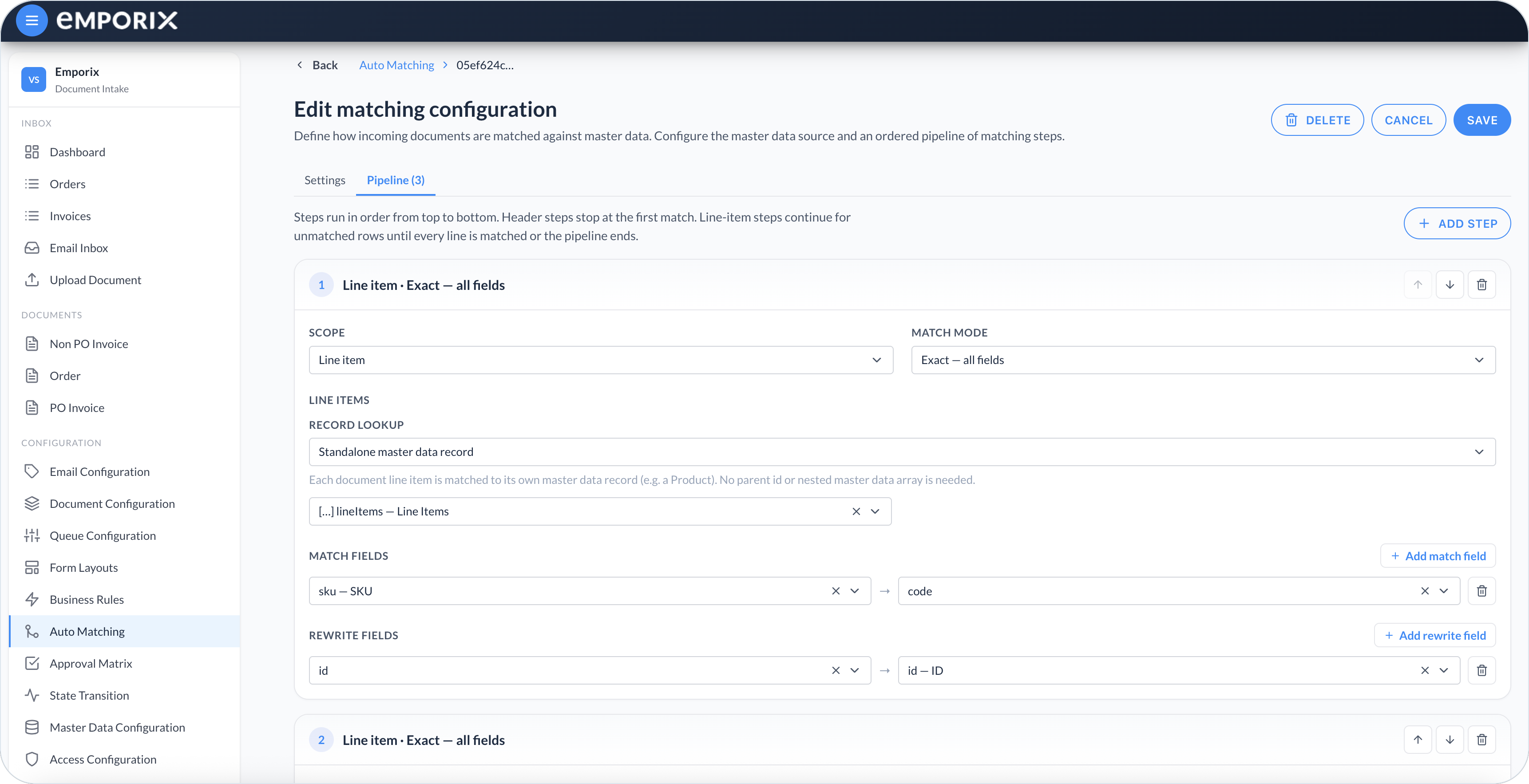
| **Match field**   | Order `header.customer.email` → Customer `contactEmail` |
| **Rewrite field** | Customer `id` → Order `header.customer.id`              |

This step queries the Customer source by `contactEmail` using the extracted email. The source API determines casing and whitespace behavior, so test representative email variants. After a match, the step stores that record's `id` on the order.

<figure><img src="https://1808414410-files.gitbook.io/~/files/v0/b/gitbook-x-prod.appspot.com/o/spaces%2FPBaf05o2vgbdikMFDTyz%2Fuploads%2Fgit-blob-115a5da27df601c28f4952a9d7d5adb96e746c72%2Fauto_matching_pipeline_header.png?alt=media" alt="Pipeline Header step with Exact all fields, match fields, and rewrite fields"><figcaption><p>Customer pipeline with Header and Exact all fields (this walkthrough matches email and rewrites customer ID)</p></figcaption></figure>
{% endstep %}

{% step %}

#### Save the customer configuration

Select **Save** to store the configuration as **Draft**.
{% endstep %}
{% endstepper %}

## Configuring line-item matching

{% stepper %}
{% step %}

#### Open a line-item configuration

Return to the **Order** tab and select **New configuration**.
{% endstep %}

{% step %}

#### Enter the line-item settings

Set:

| Field                    | Value               |
| ------------------------ | ------------------- |
| **Name (EN)**            | **Line item match** |
| **Document type**        | **Order**           |
| **Applies to sub-types** | Empty               |
| **Execution order**      | `20`                |
| **Master data type**     | **Product**         |
| **Master data ID field** | Empty               |
| **Active**               | Off                 |

The ID field stays empty because every order line is matched to its own standalone Product record. This setup does not load one parent record.

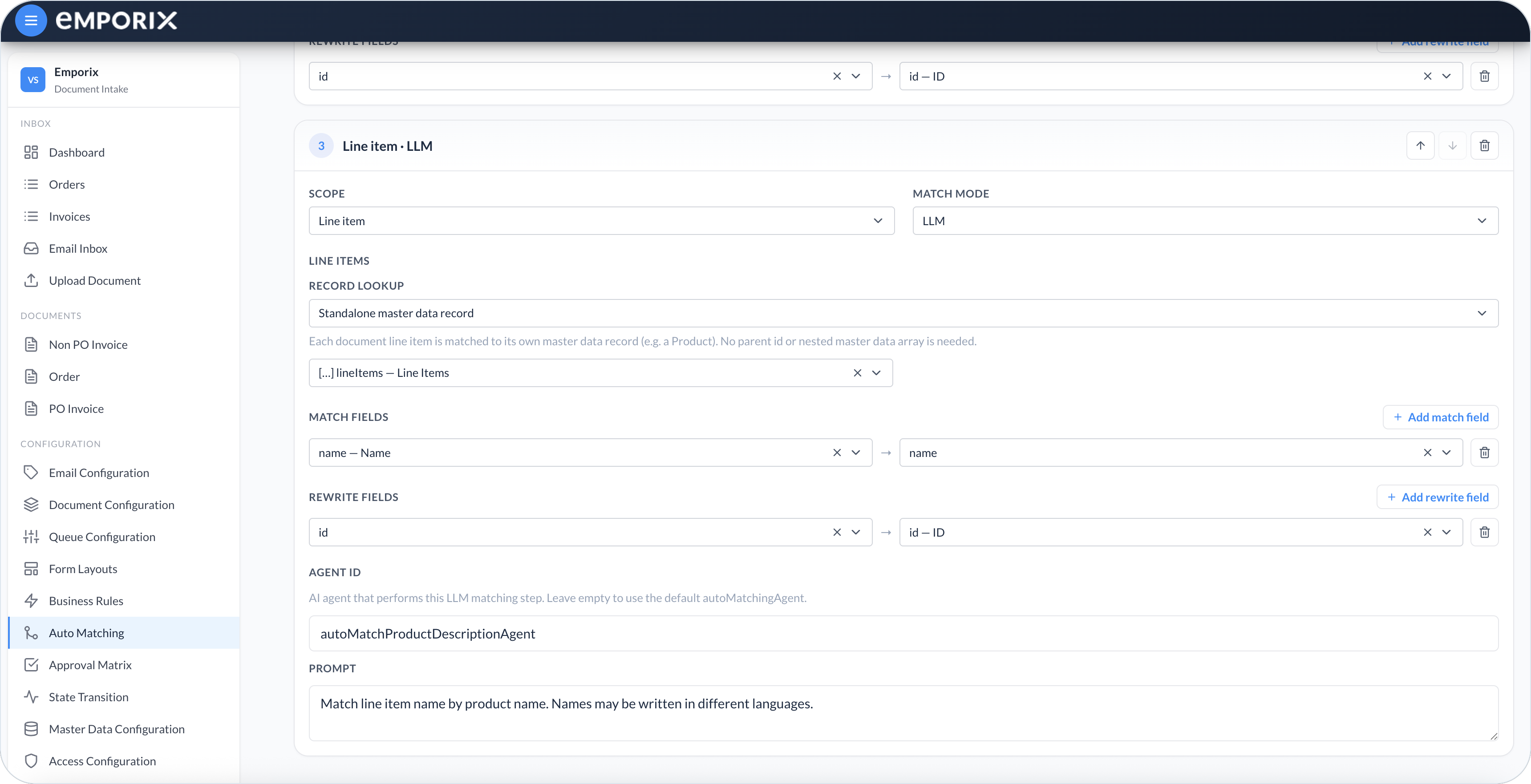
<figure><img src="https://1808414410-files.gitbook.io/~/files/v0/b/gitbook-x-prod.appspot.com/o/spaces%2FPBaf05o2vgbdikMFDTyz%2Fuploads%2Fgit-blob-eab3f7893c7590f24921add93ce764180b70251e%2Fauto_matching_pipeline.png?alt=media" alt="Line item step with Exact all fields and Standalone master data record lookup"><figcaption><p>Line-item pipeline with Standalone master data record</p></figcaption></figure>
{% endstep %}

{% step %}

#### Add the fallback pipeline

Add these steps in order. For every step, set **Scope** to **Line item**, **Record lookup** to **Standalone master data record**, and **Line items** to `lineItems`.

| Step | Match mode             | Match field                        | Rewrite field                  | Additional settings                                                                                                                                |
| ---- | ---------------------- | ---------------------------------- | ------------------------------ | -------------------------------------------------------------------------------------------------------------------------------------------------- |
| 1    | **Exact – all fields** | Order line `sku` → Product `code`  | Product `id` → Order line `id` | None                                                                                                                                               |
| 2    | **Exact – all fields** | Order line `name` → Product `name` | Product `id` → Order line `id` | None                                                                                                                                               |
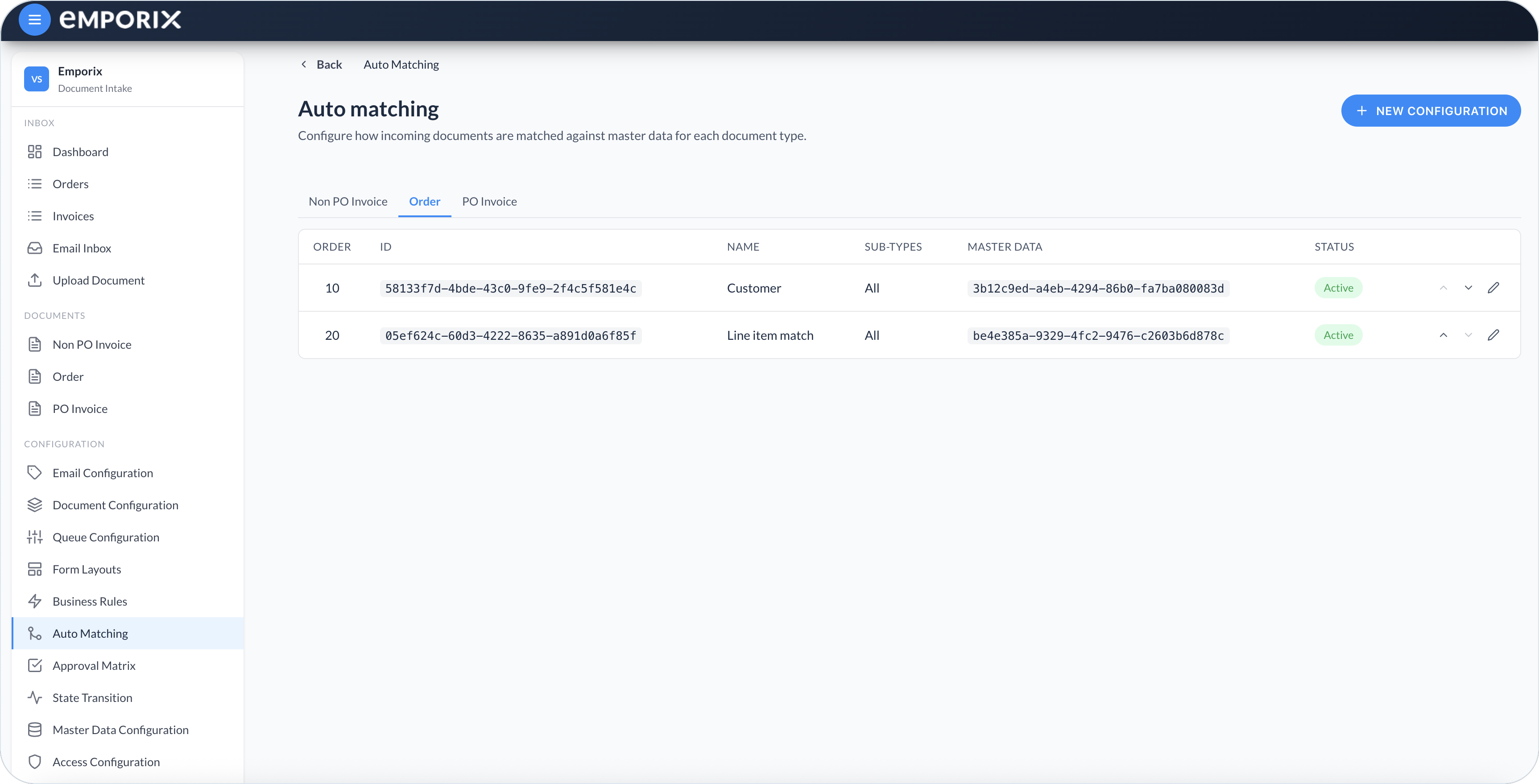
| 3    | **LLM**                | Order line `name` → Product `name` | Product `id` → Order line `id` | **Agent ID:** `autoMatchProductDescriptionAgent`; **Prompt:** `Match line item name by product name. Names may be written in different languages.` |

The pipeline uses the least expensive and most deterministic comparisons first:

1. A matching SKU finishes that row.
2. If SKU does not match, an exact product-name match is attempted.
3. Only the remaining rows use the LLM and Product RAG search.

<figure><img src="https://1808414410-files.gitbook.io/~/files/v0/b/gitbook-x-prod.appspot.com/o/spaces%2FPBaf05o2vgbdikMFDTyz%2Fuploads%2Fgit-blob-cee8f4992776bf846c3de15e6559465a8f4e5020%2Fauto_matching_pipeline_llm.png?alt=media" alt="Line item LLM step with Agent ID autoMatchProductDescriptionAgent and Prompt"><figcaption><p>Line-item pipeline with LLM fallback</p></figcaption></figure>

With **Standalone master data record**, rewrite values automatically come from the matched Product record. The editor does not show a separate source selector.
{% endstep %}

{% step %}

#### Save the line-item configuration

Select **Save** to store the configuration as **Draft**.
{% endstep %}
{% endstepper %}

## AI fallback prerequisites

The third pipeline step uses the LLM matcher only for line items that SKU and exact name did not match. Before you turn that fallback on, provision and test these items in the tenant:

* An enabled AI agent with ID `autoMatchProductDescriptionAgent`
* An enabled Product RAG tool with ID `products`, attached to that agent
* Product records indexed by the RAG tool
* The exact User Prompt and Output Format expected by the LLM matcher

Follow [Product Matching Agent](/document-intake-cockpit/configuration-examples/order-intake/auto-matching/auto-matching-agent.md) to create and test all four prerequisites.

{% hint style="info" %}
Although this is a **Line item** step in the cockpit, **Standalone master data record** makes the LLM matcher search Product RAG separately for each still-unmatched row. The agent therefore uses the RAG-based single-record response with `matchedEntityId`.
{% endhint %}

## Checkpoint

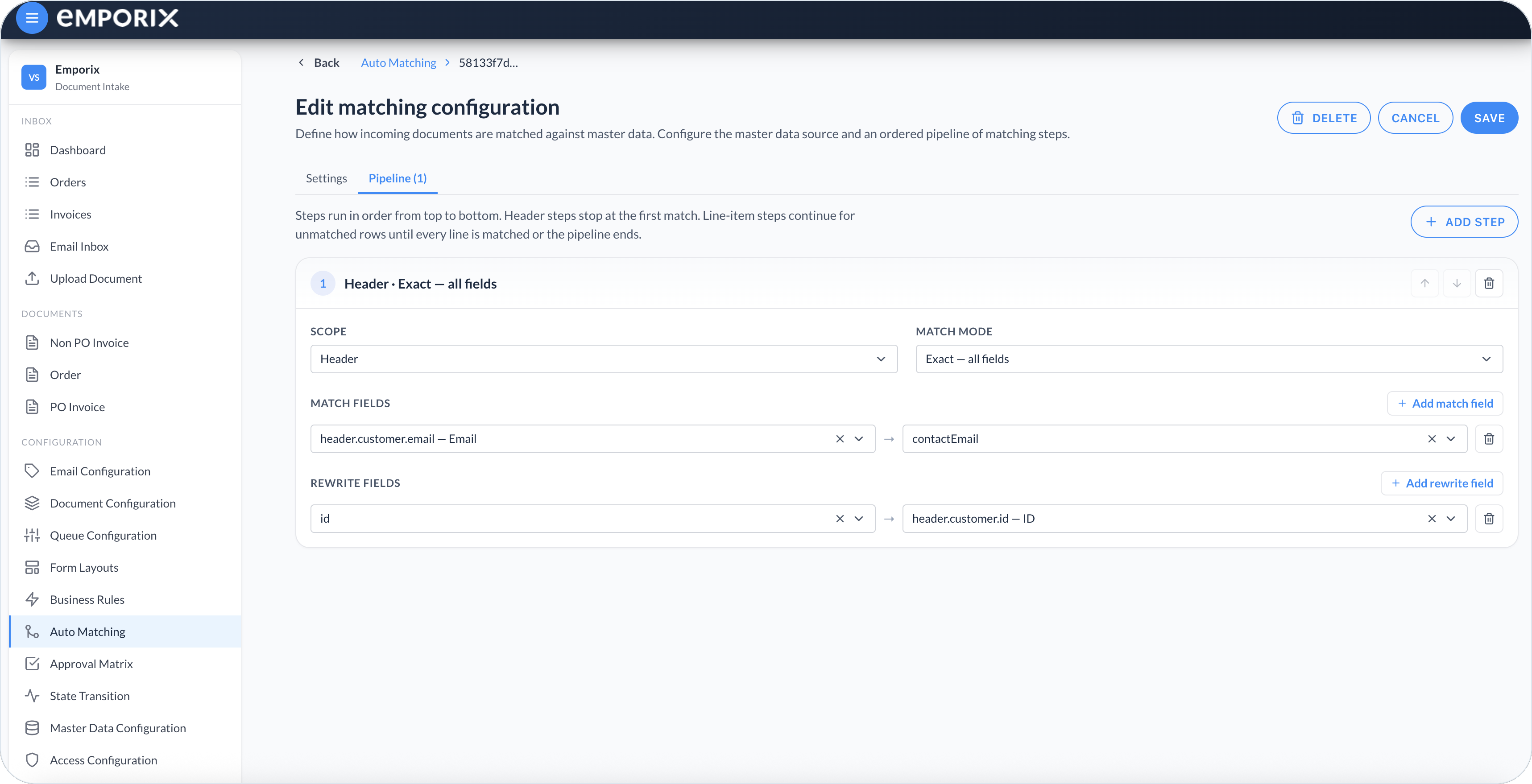
Return to **Configuration** → **Auto Matching** → **Order**. Open **Customer**, turn **Active** on, and select **Save**. Repeat for **Line item match** immediately before the controlled test.

<figure><img src="https://1808414410-files.gitbook.io/~/files/v0/b/gitbook-x-prod.appspot.com/o/spaces%2FPBaf05o2vgbdikMFDTyz%2Fuploads%2Fgit-blob-41db8c4415d03f4a305b1838761886b9e7edd59a%2Fauto_matching.png?alt=media" alt="Auto Matching list on the Order tab with Customer and Line item match configurations"><figcaption><p>Auto Matching on the Order tab with Customer, then Line item match</p></figcaption></figure>

On the **Order** tab, check the following:

* **Customer** is **Active** with order `10`.
* **Line item match** is **Active** with order `20`.
* **Customer** has one pipeline step.
* **Line item match** has three pipeline steps in the documented order.

Send a new order through the intake that exercises every line-item match path:

* A customer email that exists as `contactEmail`
* One line with a matching product `code`
* One line whose SKU does not match but whose name exactly matches a product
* One line whose name is a translated or slightly different version of a product name

Open the document's **Auto matching** tab. Confirm that Customer ID and all matched Product IDs were written. If **Details** is not available yet, wait until the [Form Layout](/document-intake-cockpit/configuration-examples/order-intake/form-layout.md) exists, or ask for a tenant test document that already has a layout.

Expand the **LLM** step to review its confidence and reasoning. A visible matched field on **Details** shows an **AI match** badge. A row with no credible product must remain unmatched and must not receive a Product ID.

Check every line. A configuration can report a match when at least one row matched, so the overall result alone does not prove that all Product IDs were populated.

Next, create the [Business Rules](/document-intake-cockpit/configuration-examples/order-intake/business-rules.md).


---

# Agent Instructions
This documentation is published with GitBook. GitBook is the documentation platform designed so that both humans and AI agents can read, navigate, and reason over technical content effectively. Learn more at gitbook.com.

## Querying This Documentation
If you need additional information that is not directly available in this page, you can query the documentation dynamically by asking a question.

Perform an HTTP GET request on the current page URL with the `ask` query parameter, and the optional `goal` query parameter:

```
GET https://developer.emporix.io/document-intake-cockpit/configuration-examples/order-intake/auto-matching.md?ask=<question>&goal=<endgoal>
```

`ask` is the immediate question: it should be specific, self-contained, and written in natural language.
`goal` is optional and describes the broader end goal you are ultimately trying to accomplish on behalf of the user. GitBook uses it to tailor the answer towards what is most useful for that goal.

The response will contain a direct answer to the question and relevant excerpts and sources from the documentation.

Use this mechanism when the answer is not explicitly present in the current page, you need clarification or additional context, or you want to retrieve related documentation sections.