> For the complete documentation index, see [llms.txt](https://developer.emporix.io/llms.txt). Markdown versions of documentation pages are available by appending `.md` to page URLs; this page is available as [Markdown](https://developer.emporix.io/document-intake-cockpit/configuration-examples/order-intake/form-layout.md).

# Form Layout

Create a complete Order review form with editable fields, totals, validation, revalidation, and approval actions.

Create the form used to compare an order with its PDF, correct extracted values, revalidate the document, and complete approval.

{% hint style="info" %}
For the general UI procedures, see [Form Layouts](/document-intake-cockpit/configuration/form-layouts.md), [Form Layout Sections](/document-intake-cockpit/configuration/form-layouts/form-layout-sections.md), [Lookups and Dropdowns](/document-intake-cockpit/configuration/form-layouts/form-layout-lookups.md), [Document Actions](/document-intake-cockpit/configuration/form-layouts/form-layout-actions.md), and [Related Tabs and AI Insight](/document-intake-cockpit/configuration/form-layouts/form-layout-related-tabs.md).
{% endhint %}

## Prerequisites

Before you start, complete the [Document Type](/document-intake-cockpit/configuration-examples/order-intake/document-type.md), [Business Rules](/document-intake-cockpit/configuration-examples/order-intake/business-rules.md), [Approval and Rejection](/document-intake-cockpit/configuration-examples/order-intake/approval.md), and [State Transitions](/document-intake-cockpit/configuration-examples/order-intake/state-transitions.md). Confirm that `invoice-save-action`, `business-rules-supervisor`, `invoice-approval-engine`, and `document-status-state-machine` appear in cloud-function selectors.

## Creating the layout

{% stepper %}
{% step %}

#### Open Form Layouts

In the Document Intake Cockpit, open **Configuration** → **Form Layouts**. Select **New layout**.
{% endstep %}

{% step %}

#### Enter layout details

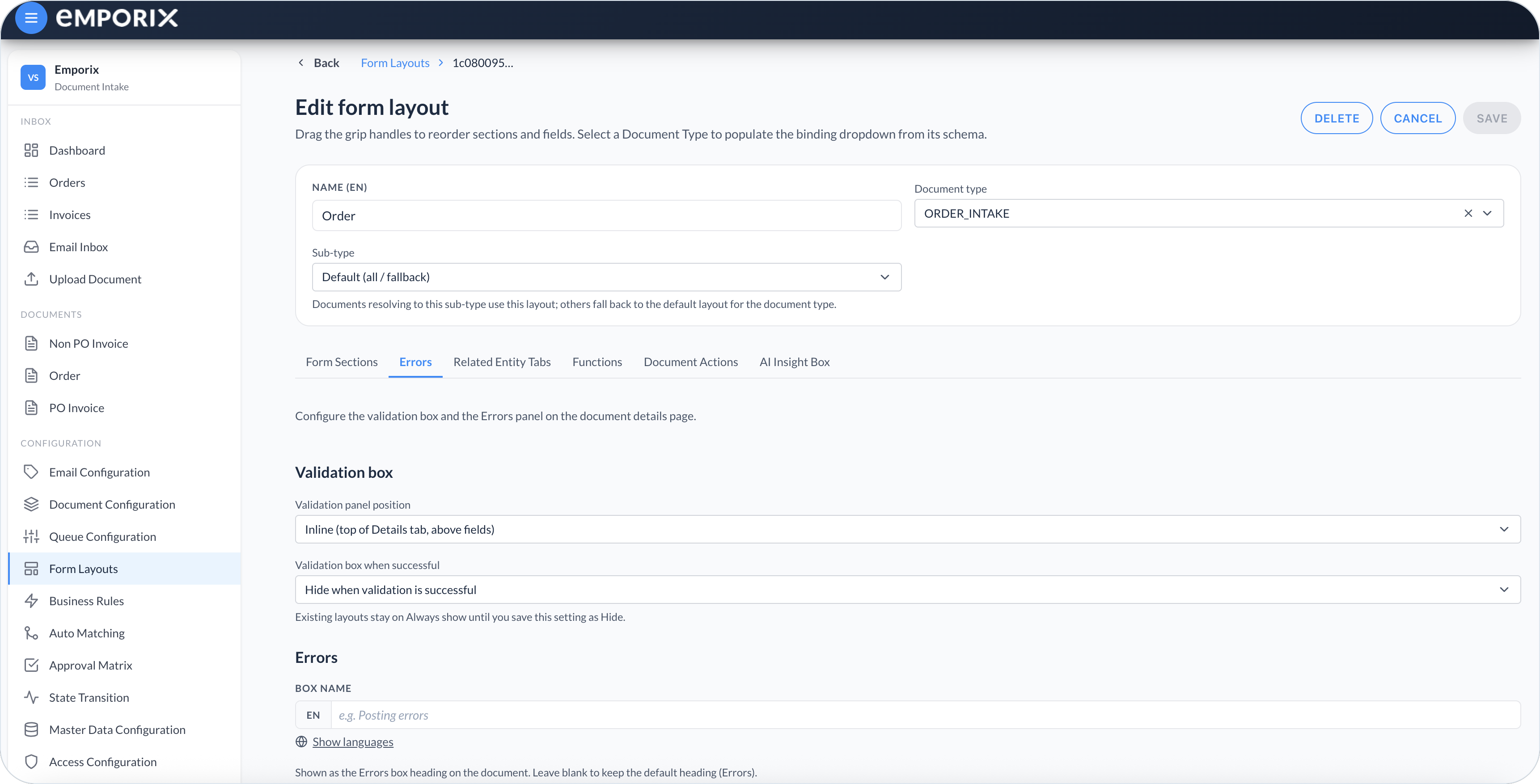
Set **Name (EN)** to **Order** and **Document type** to `ORDER_INTAKE`.

<figure><img src="https://1808414410-files.gitbook.io/~/files/v0/b/gitbook-x-prod.appspot.com/o/spaces%2FPBaf05o2vgbdikMFDTyz%2Fuploads%2Fgit-blob-4430619627d13aa3a78d18c8af8555a18884015a%2Fform_layouts_new.png?alt=media" alt="New form layout with Name (EN), Document type, Sub-type, and empty Form Sections"><figcaption><p>New form layout with name and document type</p></figcaption></figure>
{% endstep %}

{% step %}

#### Configure Errors

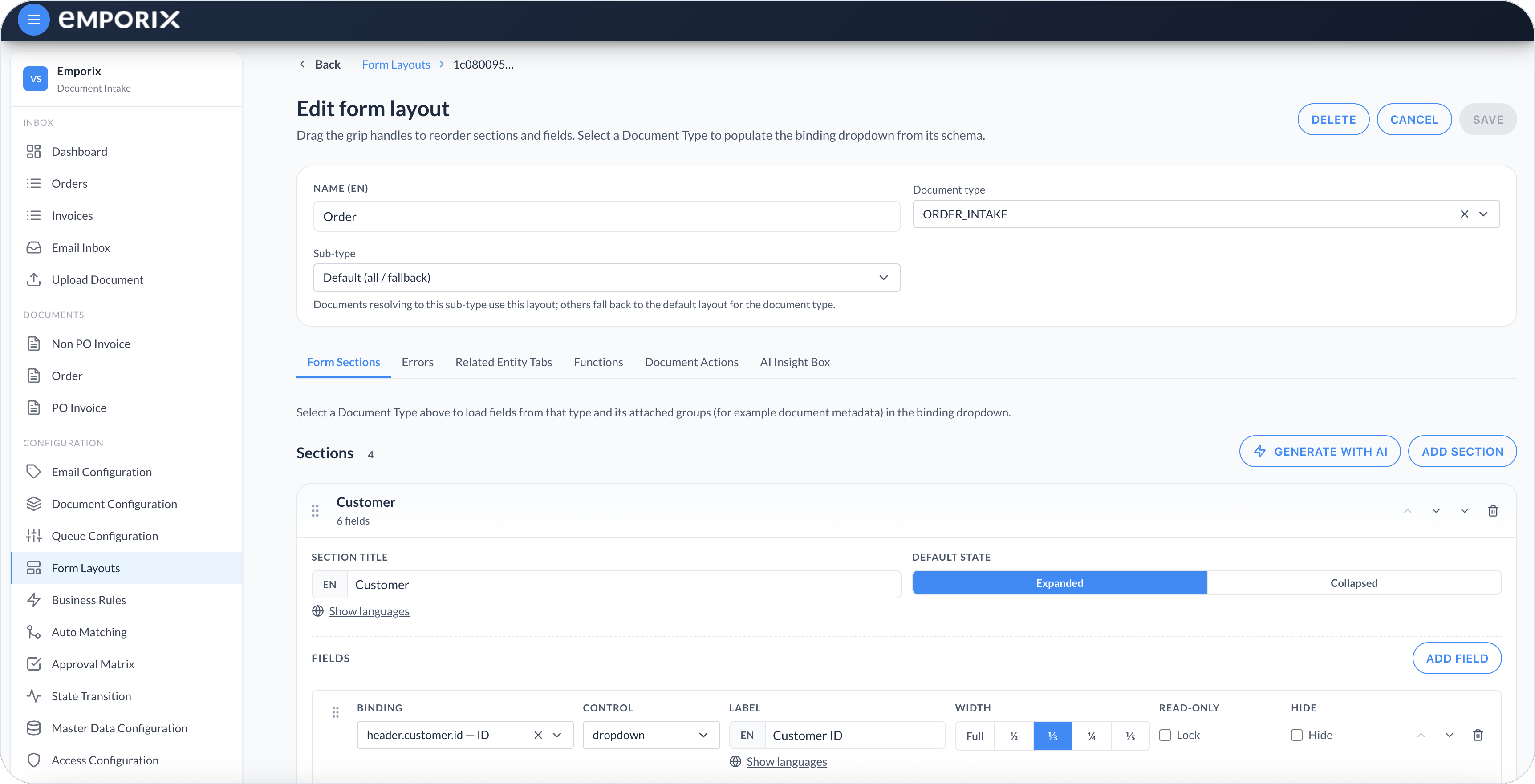
Open **Errors**. Set **Validation panel position** to **Inline (top of Details tab, above fields)** and **Validation box when successful** to **Hide when validation is successful**.

Leave **Error field** empty for the baseline flow. The required-company rule appears in the validation panel. Configure a separate red **Errors** panel only when your implementation writes process messages to a schema field.

<figure><img src="https://1808414410-files.gitbook.io/~/files/v0/b/gitbook-x-prod.appspot.com/o/spaces%2FPBaf05o2vgbdikMFDTyz%2Fuploads%2Fgit-blob-18a5e015445b80688660ae4ccf316db30238f5c0%2Fform_layouts_validation_box.png?alt=media" alt="Errors tab Validation box with panel position and hide when successful"><figcaption><p>Errors with Validation box position</p></figcaption></figure>
{% endstep %}

{% step %}

#### Build form sections

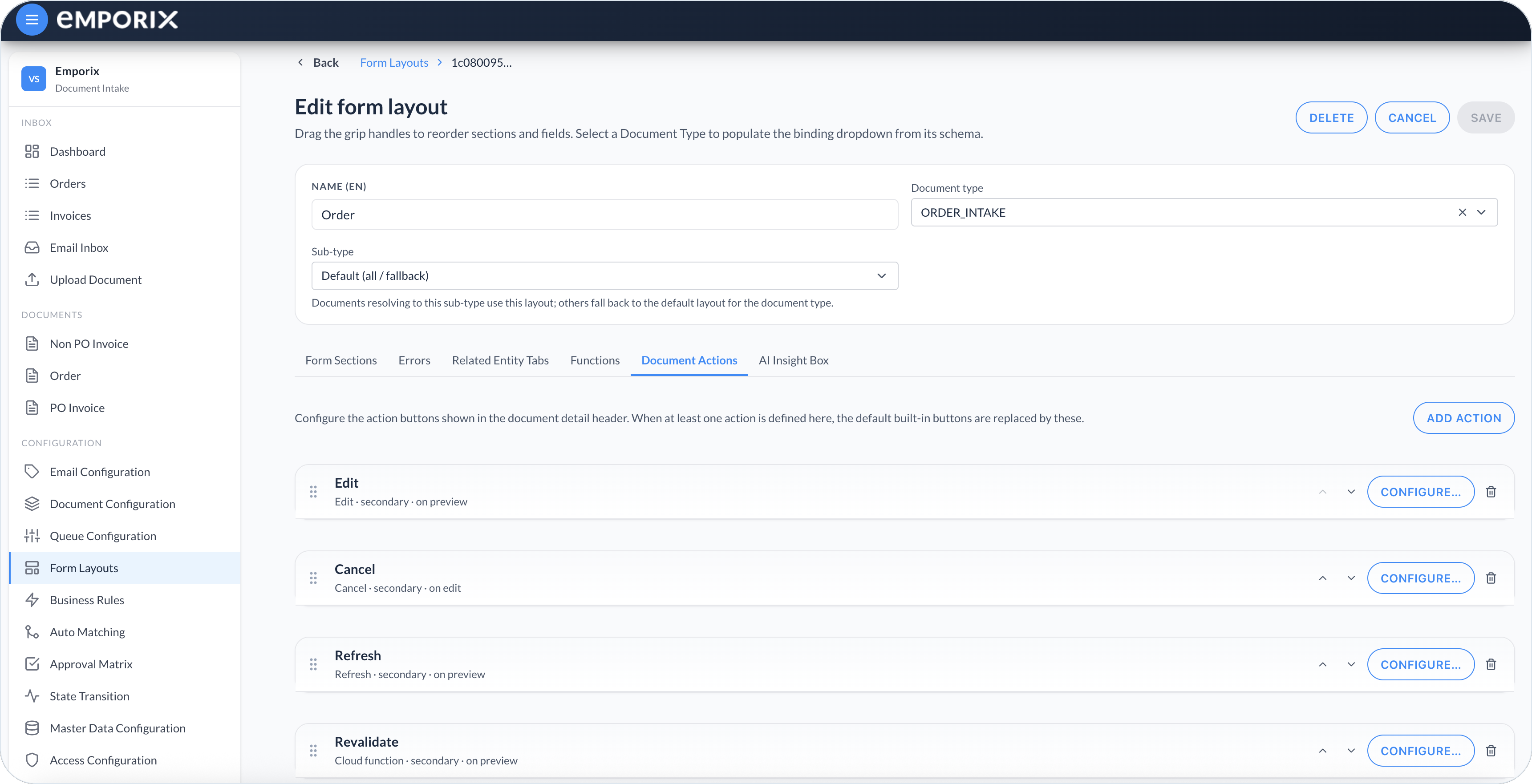
On **Form Sections**, add the five sections and fields from [Form field configuration](#form-field-configuration). Keep all sections **Expanded** for the first test.

<figure><img src="https://1808414410-files.gitbook.io/~/files/v0/b/gitbook-x-prod.appspot.com/o/spaces%2FPBaf05o2vgbdikMFDTyz%2Fuploads%2Fgit-blob-a30b1599e6d4d64d5e670347f912f94ca7c79d5f%2Fform_layouts_edit.png?alt=media" alt="Edit form layout Form Sections with Name, Document type, and a Customer section"><figcaption><p>Form Sections editor. This walkthrough uses text controls first. Replace them with dropdowns only in Optional reference lookups.</p></figcaption></figure>
{% endstep %}

{% step %}

#### Add document actions

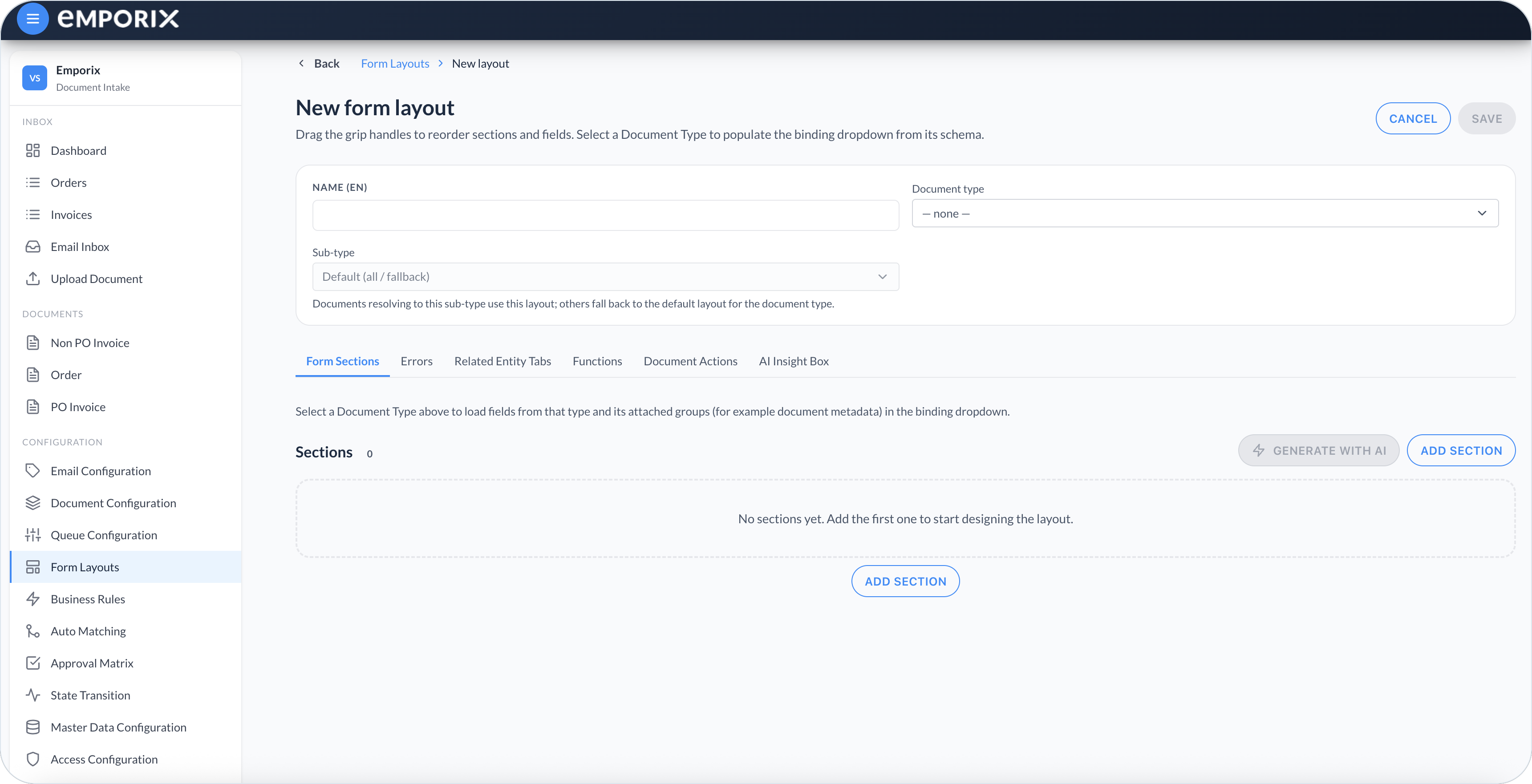
On **Document Actions**, add the six actions from [Action configuration](#action-configuration). The **Save** cloud-function action stores edits. **Revalidate** is separate because saving does not rerun business rules.

<figure><img src="https://1808414410-files.gitbook.io/~/files/v0/b/gitbook-x-prod.appspot.com/o/spaces%2FPBaf05o2vgbdikMFDTyz%2Fuploads%2Fgit-blob-972d918f92739d8c6e4a858bf4aac4603ce64d09%2Fform_layouts_actions.png?alt=media" alt="Document Actions list with Edit, Cancel, Refresh, Revalidate, and Configure"><figcaption><p>Document Actions editor. Add all six actions from the table, including Save and Approval.</p></figcaption></figure>
{% endstep %}

{% step %}

#### Save the layout

Select **Save**.
{% endstep %}
{% endstepper %}

## Form field configuration

Add these scalar fields:

| Section              | Binding                           | Control      | Label              | Width    |
| -------------------- | --------------------------------- | ------------ | ------------------ | -------- |
| **Customer**         | `header.customer.id`              | **text**     | **Customer ID**    | **½**    |
| **Customer**         | `header.customer.name`            | **text**     | **Customer Name**  | **½**    |
| **Customer**         | `header.customer.email`           | **email**    | **Customer Email** | **Full** |
| **Customer**         | `header.customer.address.street`  | **text**     | **Street**         | **Full** |
| **Customer**         | `header.customer.address.city`    | **text**     | **City**           | **½**    |
| **Customer**         | `header.customer.address.country` | **text**     | **Country**        | **½**    |
| **Company**          | `header.company.id`               | **text**     | **Company ID**     | **½**    |
| **Company**          | `header.company.name`             | **text**     | **Company Name**   | **½**    |
| **Shipping Address** | `shippingAddress.street`          | **text**     | **Street**         | **Full** |
| **Shipping Address** | `shippingAddress.city`            | **text**     | **City**           | **½**    |
| **Shipping Address** | `shippingAddress.country`         | **text**     | **Country**        | **½**    |
| **Totals**           | `header.currency`                 | **text**     | **Currency**       | **½**    |
| **Totals**           | `total`                           | **currency** | **Order Total**    | **½**    |

For **Order Total**, set **Currency field** to `header.currency`.

In **Line Items**, add one field bound to `lineItems` with control **table** and label **Line Items**. Add these table columns:

| Field path   | Header label    | Type       |
| ------------ | --------------- | ---------- |
| `id`         | **Product ID**  | **text**   |
| `name`       | **Name**        | **text**   |
| `sku`        | **SKU**         | **text**   |
| `quantity`   | **Quantity**    | **number** |
| `unitPrice`  | **Unit Price**  | **number** |
| `tax`        | **Tax**         | **number** |
| `amount`     | **Net Amount**  | **number** |
| `totalPrice` | **Total Price** | **number** |

Enable **Show summary row** to help compare line totals with **Order Total**. The summary does not write a value to `total`. Table-column currency bindings resolve inside each line-item row, so this baseline uses **number** for line amounts and formats only the top-level **Order Total** as currency.

## Action configuration

Add actions in this order:

| Action type        | Label          | Visibility            | Additional configuration                                                                                                                       |
| ------------------ | -------------- | --------------------- | ---------------------------------------------------------------------------------------------------------------------------------------------- |
| **Edit**           | Default        | **Preview mode only** | **Secondary**                                                                                                                                  |
| **Cancel**         | Default        | **Edit mode only**    | **Secondary**                                                                                                                                  |
| **Cloud function** | **Save**       | **Edit mode only**    | Select `invoice-save-action`; enable **Refresh document after execution** and **Switch to preview mode after execution**; use **Primary**      |
| **Refresh**        | Default        | **Preview mode only** | **Secondary**                                                                                                                                  |
| **Cloud function** | **Revalidate** | **Preview mode only** | Add `business-rules-supervisor`, then `document-status-state-machine`; enable **Refresh document after execution**                             |
| **Approval**       | Default        | **Preview mode only** | Add `invoice-approval-engine`, then `document-status-state-machine`; choose **Approve or reject**; enable **Refresh document after execution** |

For **Approval**, set **Visibility condition** to:

`document.mixins.documentMetadata.status == 'PENDING_APPROVAL'`

This hides approval until validation succeeds and the document enters **Pending Approval**.

{% hint style="warning" %}
Configure **Save** as a **Cloud function** action that uses `invoice-save-action`. Do not select the **Save** action type. Keep `business-rules-supervisor` on the separate **Revalidate** action.
{% endhint %}

## Optional reference lookups

The text controls above make the baseline workflow testable without another data source. After it works, replace:

* **Customer ID** with a **dropdown** that stores the customer ID and populates name, email, and address.
* **Company ID** with a **dropdown** that stores the company ID and populates company name.
* **Product ID** with a **lookupModal** table column that stores the product ID and populates SKU and name.

Configure and test each source URL as described in [Lookups and Dropdowns](/document-intake-cockpit/configuration/form-layouts/form-layout-lookups.md). Add a **Customer** related tab only after `header.customer.id` reliably contains the ID used by its fetch URL.

## Checkpoint

After you open **Manage** on an **Order**, check that the form, validation, and approval match this example:

* The five sections and all fields appear beside the source document.
* **Edit** opens editable controls; **Cancel** discards changes; **Save** stores changes and returns to preview.
* **Revalidate** is available in preview.
* **Approval** is hidden until the status is **Pending Approval**.
* **Revalidate** advances a parsed document to **Validation Errors** or **Pending Approval**, based on the saved validation result.
* After successful validation, **Pending Approval** appears as the status and the selected matrix's first approver appears as **Assignee**.
* **Approval** advances **Pending Approval** to **Approved** or **Rejected**, based on the saved decision.

Next, create the [Orders Queue](/document-intake-cockpit/configuration-examples/order-intake/queue.md).


---

# Agent Instructions
This documentation is published with GitBook. GitBook is the documentation platform designed so that both humans and AI agents can read, navigate, and reason over technical content effectively. Learn more at gitbook.com.

## Querying This Documentation
If you need additional information that is not directly available in this page, you can query the documentation dynamically by asking a question.

Perform an HTTP GET request on the current page URL with the `ask` query parameter, and the optional `goal` query parameter:

```
GET https://developer.emporix.io/document-intake-cockpit/configuration-examples/order-intake/form-layout.md?ask=<question>&goal=<endgoal>
```

`ask` is the immediate question: it should be specific, self-contained, and written in natural language.
`goal` is optional and describes the broader end goal you are ultimately trying to accomplish on behalf of the user. GitBook uses it to tailor the answer towards what is most useful for that goal.

The response will contain a direct answer to the question and relevant excerpts and sources from the documentation.

Use this mechanism when the answer is not explicitly present in the current page, you need clarification or additional context, or you want to retrieve related documentation sections.