> For the complete documentation index, see [llms.txt](https://developer.emporix.io/llms.txt). Markdown versions of documentation pages are available by appending `.md` to page URLs; this page is available as [Markdown](https://developer.emporix.io/document-intake-cockpit/configuration-examples/order-intake/queue.md).
# Orders Queue
Create an Orders queue whose Needs attention and All documents tabs show only Order documents.
Create the **Orders** queue used to find active and completed order documents.
{% hint style="info" %}
For the general UI procedure, see [Queue Configuration](/document-intake-cockpit/configuration/queue-configuration.md).
{% endhint %}
## Prerequisites
Before you start, complete the [Document Type](/document-intake-cockpit/configuration-examples/order-intake/document-type.md), [State Transitions](/document-intake-cockpit/configuration-examples/order-intake/state-transitions.md), and [Form Layout](/document-intake-cockpit/configuration-examples/order-intake/form-layout.md).
{% stepper %}
{% step %}
#### Open Queue Configuration
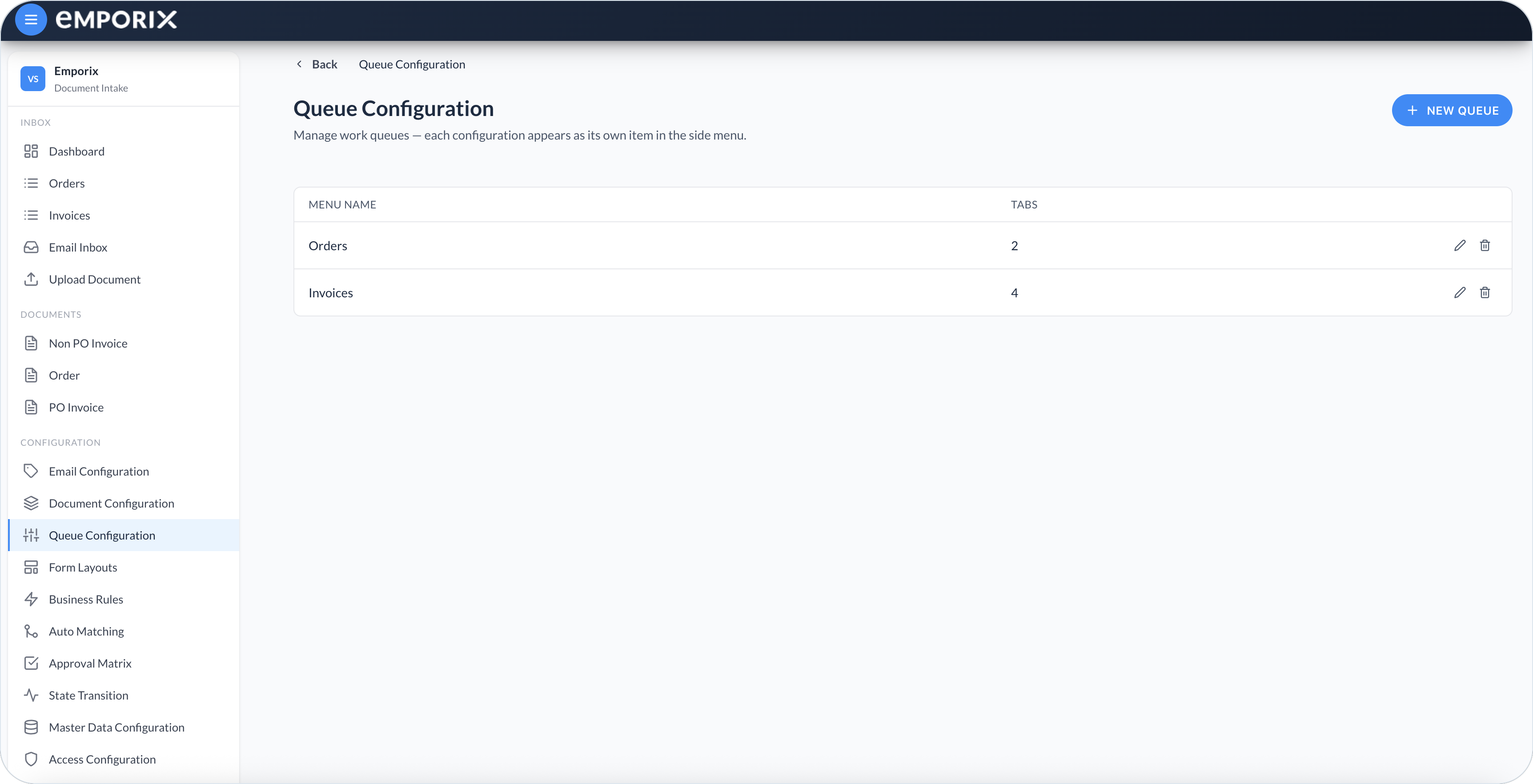
In the Document Intake Cockpit, open **Configuration** → **Queue Configuration**. Select **New queue**.
{% endstep %}
{% step %}
#### Enter the menu name
Set **Menu name** to **Orders**. This becomes the page name and its entry under **Inbox**.
Queue Configuration with saved queues
{% endstep %}
{% step %}
#### Configure Needs attention
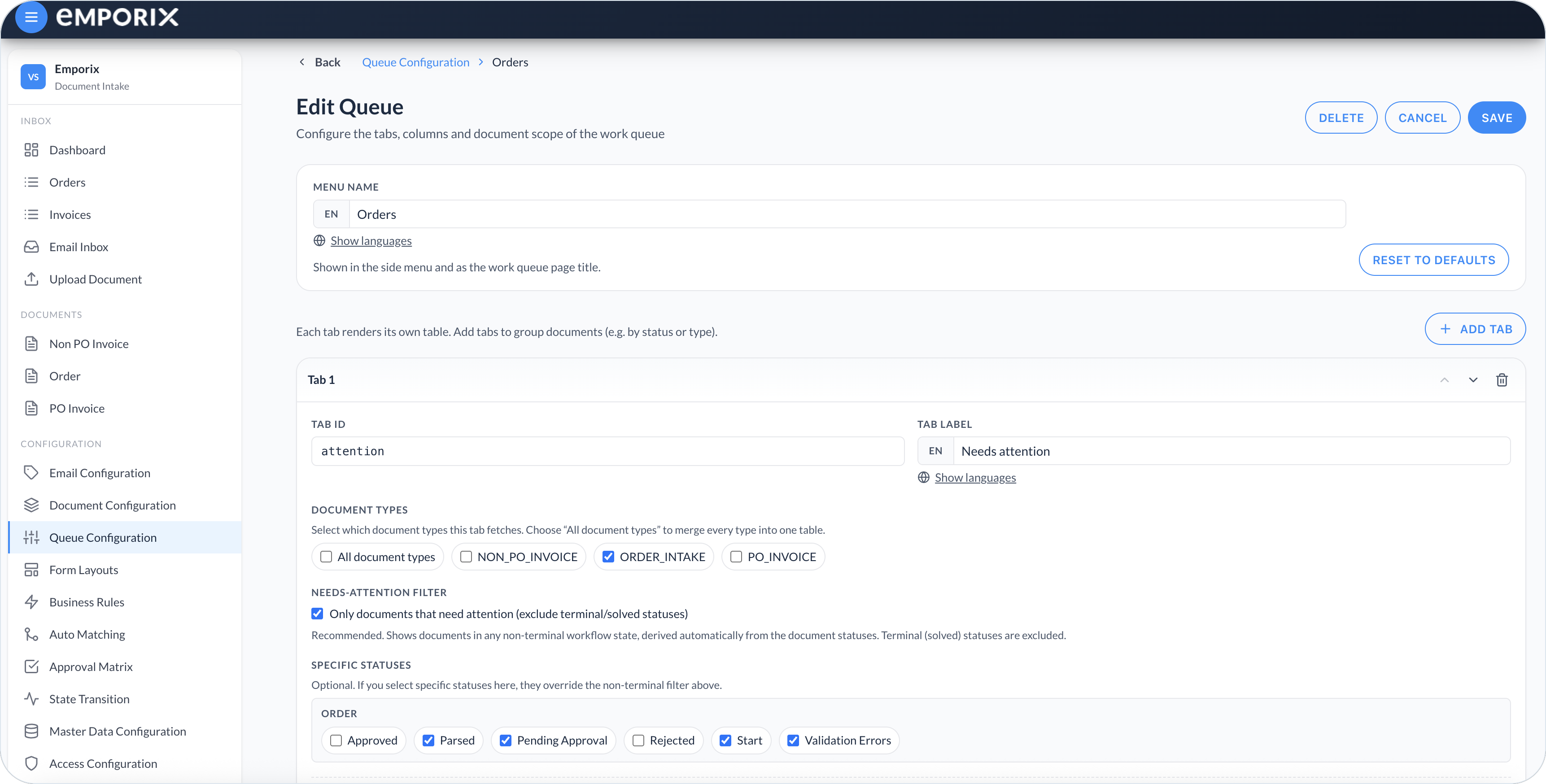
Open the built-in **Needs attention** tab. Keep **Tab ID** as `attention` and **Tab label** as **Needs attention**. Select document type **Order** (`ORDER_INTAKE`) only. Turn on **Only documents that need attention (exclude terminal/solved statuses)**.
Leave **Specific statuses** empty. The queue then follows the terminal settings from [Order statuses](/document-intake-cockpit/configuration-examples/order-intake/state-transitions.md#order-statuses) and automatically includes any non-terminal status you add later.
Edit Queue for Orders. This walkthrough leaves Specific statuses empty even if a recaptured tenant lists statuses.
{% endstep %}
{% step %}
#### Configure All documents
Open the built-in **All documents** tab. Keep **Tab ID** as `all` and **Tab label** as **All documents**. Select document type **Order** only. Turn off the needs-attention filter and leave **Specific statuses** empty. This tab includes active, approved, and rejected orders.
{% endstep %}
{% step %}
#### Review the columns
Keep the default columns: **#**, **Document**, **Type**, **Progress**, **Status**, **Updated**, and **Assignee**. Make sure **Document** uses type **Link (to detail)** and **Link to side-by-side detail view** is enabled.
{% endstep %}
{% step %}
#### Save the queue
Select **Save**. Refresh the cockpit if **Orders** does not immediately appear under **Inbox**.
{% endstep %}
{% endstepper %}
## Checkpoint
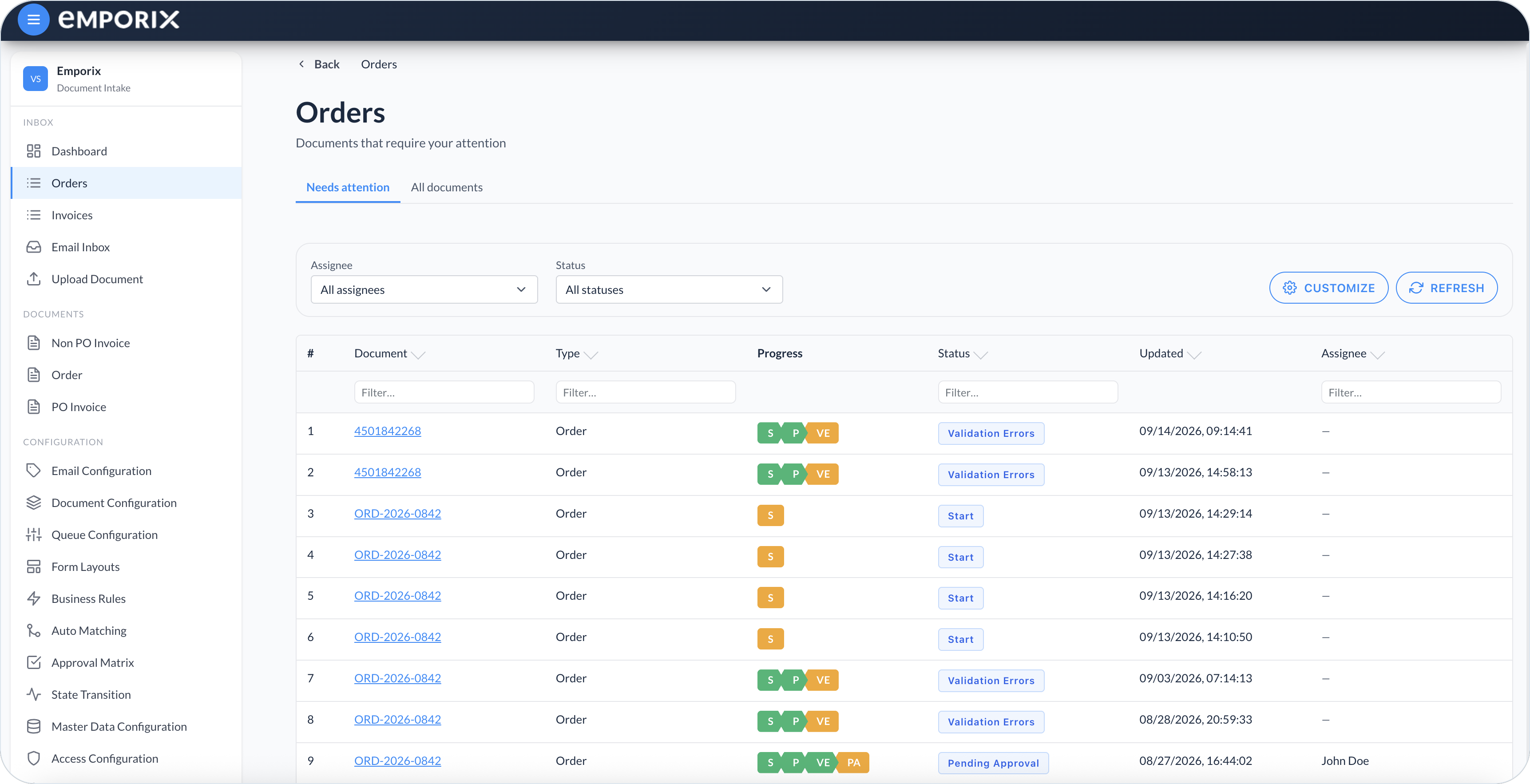
After you open **Inbox** → **Orders**, check that **Needs attention** holds orders still in progress, **All documents** includes finished orders, and a document link opens the review page:
Orders queue on Needs attention
* **Needs attention** shows orders in **Start**, **Parsed**, **Validation Errors**, or **Pending Approval**.
* **Needs attention** does not show **Approved** or **Rejected** orders.
* **All documents** shows only **Order** documents, including terminal ones.
* Selecting **Document** opens the side-by-side review page.
Return to [Configure Order Intake](/document-intake-cockpit/configuration-examples/order-intake.md) and run the end-to-end verification.
---
# Agent Instructions
This documentation is published with GitBook. GitBook is the documentation platform designed so that both humans and AI agents can read, navigate, and reason over technical content effectively. Learn more at gitbook.com.
## Querying This Documentation
If you need additional information that is not directly available in this page, you can query the documentation by asking a question.
Perform an HTTP GET request on the following URL with the `ask` and `goal` query parameters:
```
GET https://developer.emporix.io/document-intake-cockpit/configuration-examples/order-intake/queue.md?ask=&goal=
```
`ask` is the immediate question: it should be specific, self-contained, and written in natural language.
`goal` is what the user is ultimately trying to achieve, the reason they need the answer. Sharing it helps GitBook give you a better, more relevant answer. A goal is most helpful when it describes the outcome the user wants rather than restating the question. For example, with `ask=how do I create an API token`, a goal like `automate deployments from our CI pipeline` lets GitBook tailor the answer to that use case.
The response will contain a direct answer to the question and relevant excerpts and sources from the documentation.
Use this mechanism when the answer is not explicitly present in the current page, you need clarification or additional context, or you want to retrieve related documentation sections.