> For the complete documentation index, see [llms.txt](https://developer.emporix.io/llms.txt). Markdown versions of documentation pages are available by appending `.md` to page URLs; this page is available as [Markdown](https://developer.emporix.io/document-intake-cockpit/configuration/approval-matrix.md).
# Approval Matrix
Use Approval Matrix to define who must approve a document, in which order, and each approver's amount limit.
Use **Approval Matrix** to configure document approval rules based on matching fields and approver limits. Each matrix belongs to a document type. The cockpit selects it from the matching-field values on the document.
Open **Configuration** → **Approval Matrix** in the side menu.
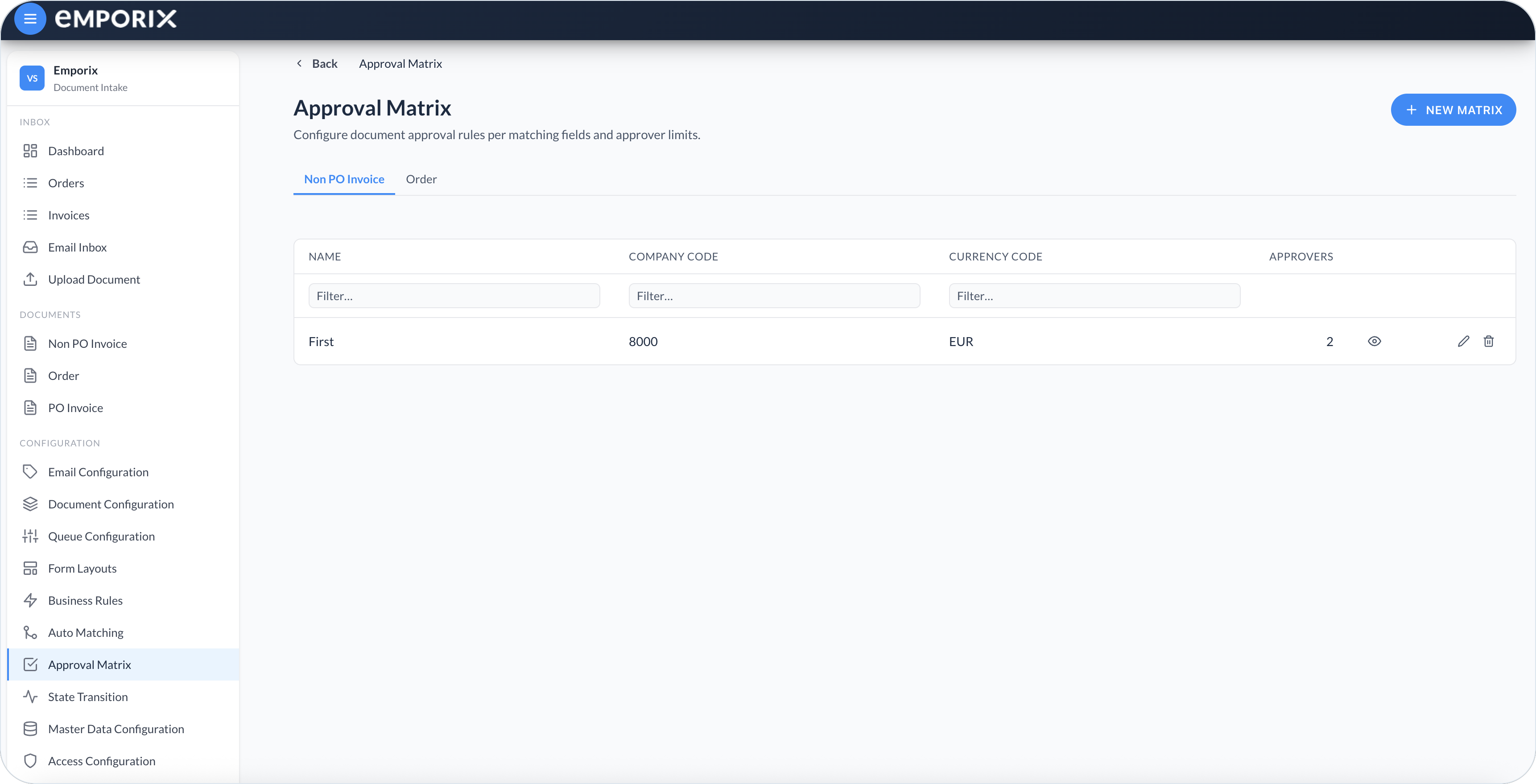
Approval Matrix on the Non PO Invoice tab
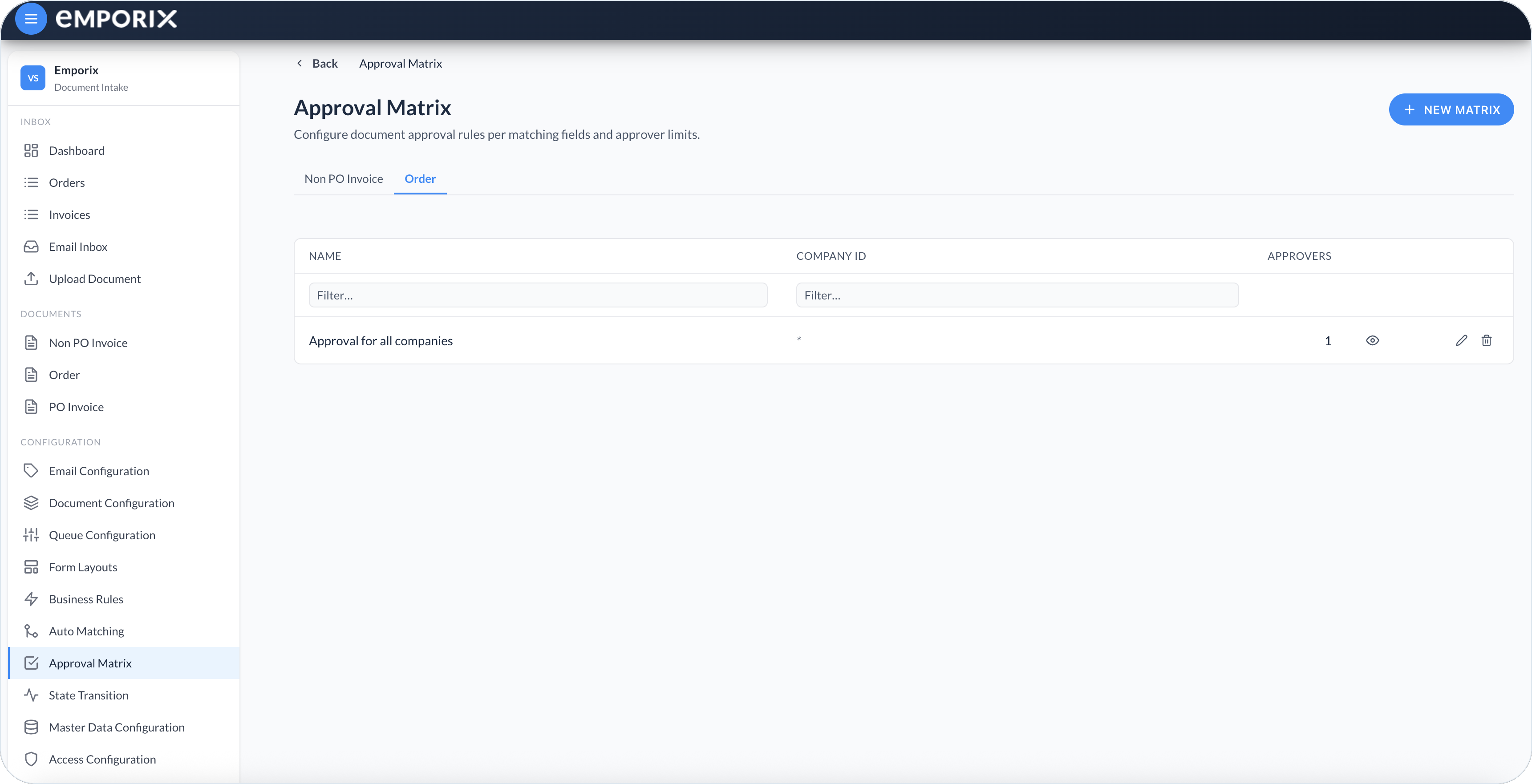
Approval Matrix on the Order tab
## Prerequisites
The page shows a tab only for document types with a complete **Approval Configuration** in [Document Configuration](/document-intake-cockpit/configuration/document-configuration.md):
* At least one matching field
* An **Amount field binding**
Matching-field **Label** values become the columns on the matrix list. Examples include **Company Code** and **Currency Code**; the set is tenant-defined.
## Matrices list
Each document type has its own matrices. A matrix shows the matching values it covers and how many approvers are in the chain:
* **Name** – Label for the matrix
* One column per matching-field **Label** – The value this entry targets, or `*` when the field is empty (wildcard)
* **Approvers** – Number of approvers in the chain
Matching columns include a **Filter…** field. At the end of each row, **Preview approval flow**, **Edit**, and **Delete** actions are available. Select **New matrix** to create an entry for the active type.
{% hint style="warning" %}
Before deleting a matrix, confirm that future documents still have unambiguous approval coverage. Active approval chains keep their frozen snapshot, but future validation and selection may choose another matrix, find no match, or become ambiguous. The cockpit does not block deletion when a matrix is in use.
{% endhint %}
## Creating a matrix
{% stepper %}
{% step %}
#### Open the matrix editor
Select **New matrix** on the active document type tab.
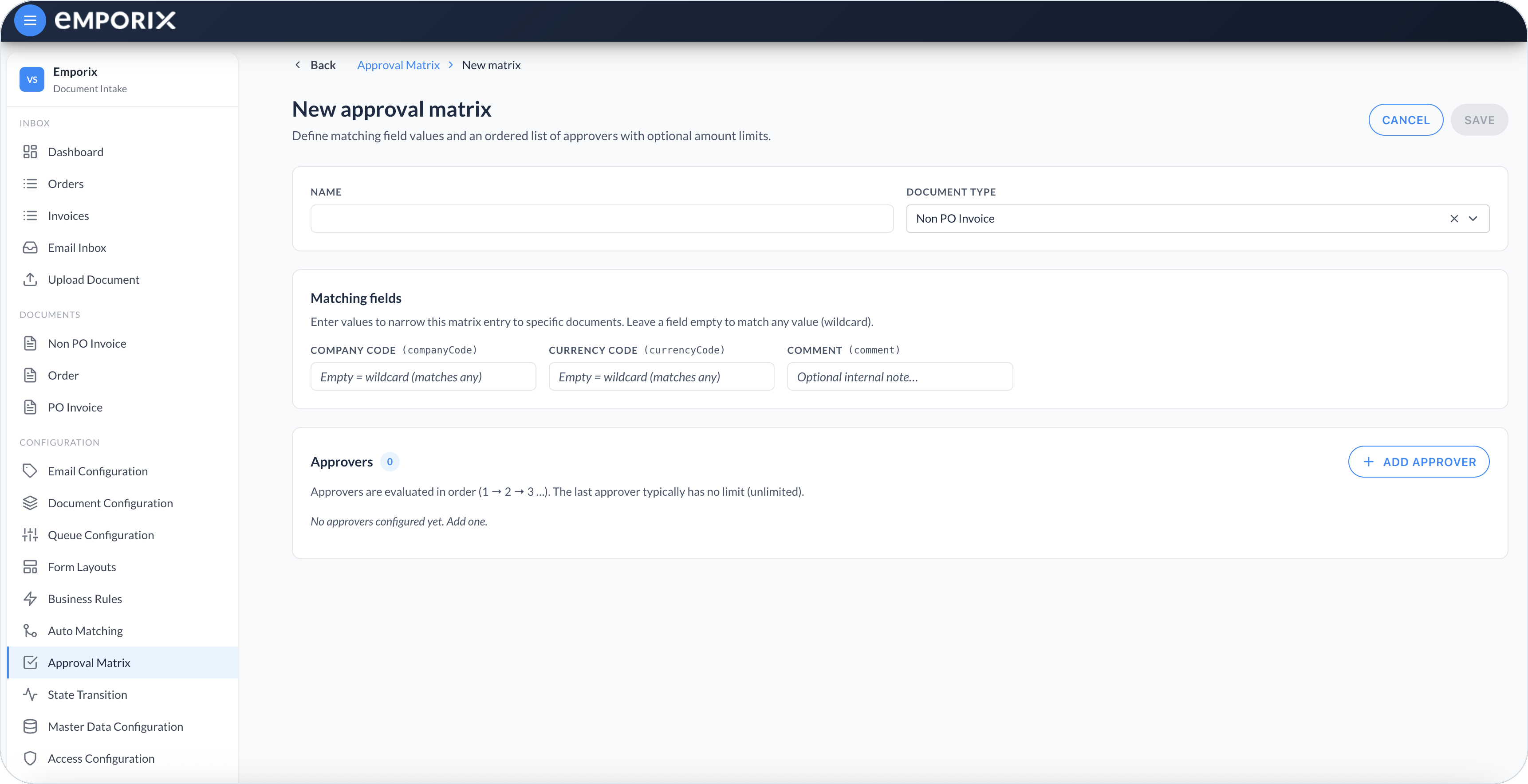
New approval matrix with matching fields and approvers
{% endstep %}
{% step %}
#### Set name and document type
Enter a **Name**. The cockpit sets **Document type** from that tab. Changing it clears matching-field values so they stay aligned with that type's configuration.
{% endstep %}
{% step %}
#### Set matching-field values
Under **Matching fields**, enter the values that select this matrix. Leave a field empty to treat it as a wildcard that matches any document value. **Comment** is an optional internal note; it does not select the matrix.
{% endstep %}
{% step %}
#### Add ordered approvers and limits
Under **Approvers**, select **Add approver** for each step. **Approver** is one tenant employee per step, not a group or role. After you add an approver, the table shows **#**, **Approver**, and **Limit (amount)**. Leave the limit empty for **Unlimited**. Approvers run in the order shown in the **#** column.
{% endstep %}
{% step %}
#### Save the matrix
Select **Save**. The row appears on that type's tab.
{% endstep %}
{% endstepper %}
## Editing a matrix
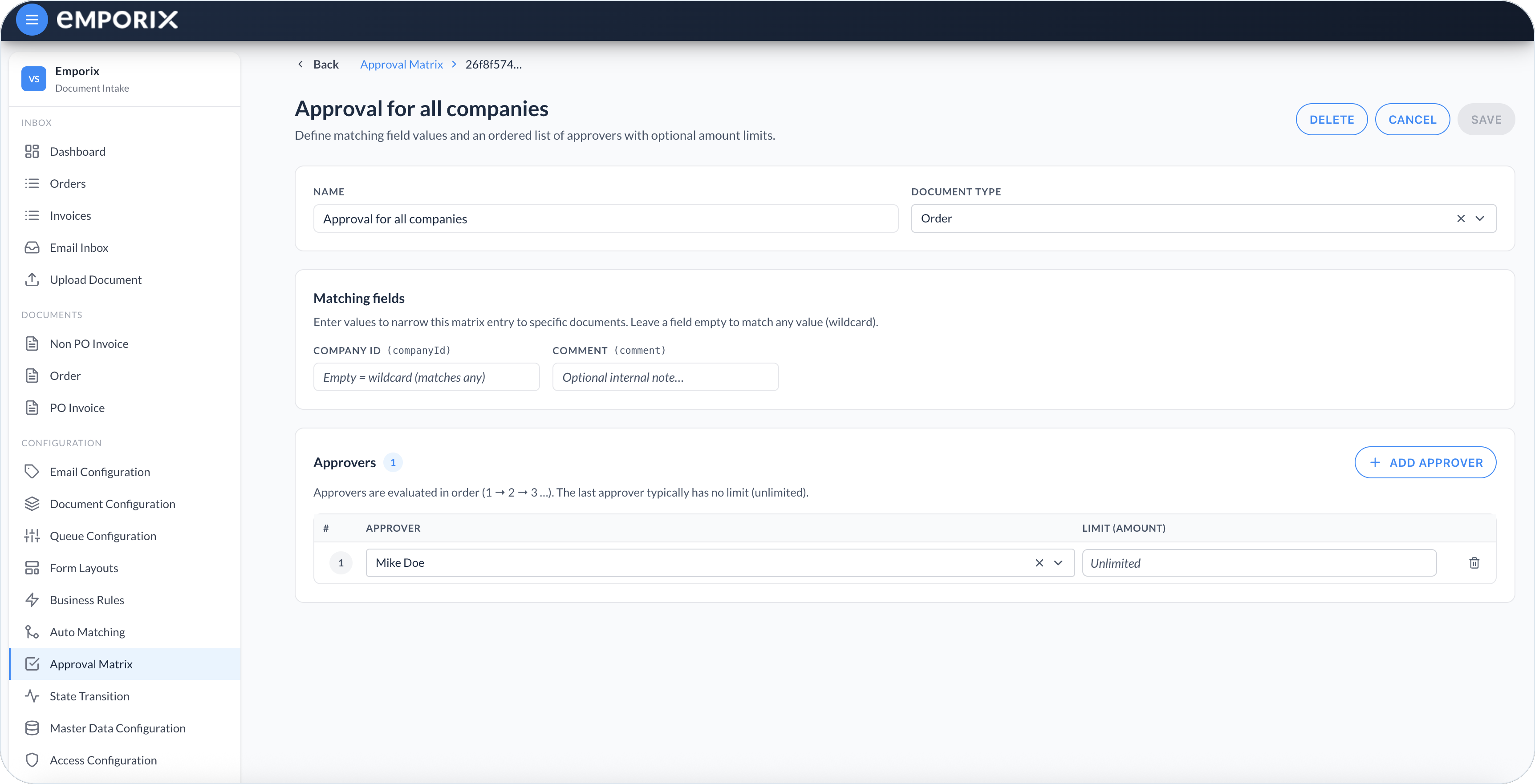
Select **Edit** on a list row to change matching values or the approver chain. Select **Save** to keep the changes, **Cancel** to discard them, or **Delete** to remove the matrix.
The figure shows the saved Order matrix **Approval for all companies** – the same row as the Order list – with an empty **Company ID** wildcard and one **Unlimited** approver.
Edit Approval for all companies with matching fields, comment, and approvers
## Matching and amount limits
When a document enters approval, the cockpit picks the matrix for its type as follows:
1. It compares each non-empty matrix value with the corresponding document field. Empty values act as wildcards.
2. It keeps the matrices whose configured values all match.
3. It selects the most specific matrix, which has the greatest number of matching values filled in.
Amount limits use the document type's **Amount field binding**. After an approver selects **Approve**:
* If the amount is less than or equal to that approver's limit, or the limit is **Unlimited**, the chain finishes at that step.
* If the amount is greater than the limit, the document escalates to the next approver.
If the last approver has a numeric limit and the amount is still higher, the cockpit blocks approval. Give that last step **Unlimited**, or add another approver, then revalidate the document.
**Example:** Approver 1 has limit `1000`, Approver 2 is **Unlimited**. An invoice of `800` finishes the chain after Approver 1. An invoice of `2500` needs Approver 1, then Approver 2.
{% hint style="info" %}
Leave the last approver's limit empty (**Unlimited**) so high amounts can still complete the chain.
{% endhint %}
## Troubleshooting matrix selection
When approval configuration fails, check the following:
| Issue | What to do |
| -------------------------------------------- | ---------------------------------------------------------------------------------------------------------------------------------------------------------------------------------------------------- |
| **No matching matrix** | Add a matrix or widen an existing one so the document values match, then revalidate the document. |
| **Equally specific matrices** | Overlapping candidates with the same specificity create an ambiguity, so no matrix or approval chain is selected. Make one matrix more specific or remove the overlap, then revalidate the document. |
| **Stale matching fields** | Compare the matrix columns with the current **Approval Configuration** and update entries that still use earlier fields. |
| **Incompatible field schemas** | Confirm that each matching value uses the field type configured for the document type. |
| **Missing schema or approval configuration** | Restore the document type schema and complete its matching fields and **Amount field binding** before using the matrix. |
Revalidation is available only when the active form layout provides a configured **Cloud function** action for it. If the document has no such action, ask an administrator to add one in [Document Actions](/document-intake-cockpit/configuration/form-layouts/form-layout-actions.md).
## Previewing the approval flow
Select **Preview approval flow** on a list row to see the ordered chain and each limit (or **Unlimited**) without opening the editor.
## Approving or rejecting
Open the document as described in [Managing Documents](/document-intake-cockpit/cockpit-views/managing-a-document.md). When the layout includes an **Approval** action, select it. You can approve or reject when you are the named next approver, or when you cover that person with a **User** → **User** substitution.
In the **Approval** dialog, add an optional **Message**. When you select **Reject**, select a **Rejection reason** if the document type defines reasons. Select **Submit** to record the decision. Selecting **Approve** can finish the chain. If the amount exceeds the current limit, the document escalates to the next approver. **Reject** ends the approval chain. **Approval history** records **Rejected**. A manual rejection before approval is different; it appears under **Rejection history**. See [History](/document-intake-cockpit/cockpit-views/managing-a-document.md#history).
## Substitutions when an approver is away
A **User** → **User** substitution lets a colleague **Approve** or **Reject** for the named next approver. Set this up in [Substitutions](/document-intake-cockpit/configuration/substitutions.md). Substitutions do not rewrite the matrix.
{% hint style="info" %}
See the [Order Intake Example](/document-intake-cockpit/configuration-examples/order-intake.md) for a worked tenant configuration in this cockpit.
{% endhint %}
---
# Agent Instructions
This documentation is published with GitBook. GitBook is the documentation platform designed so that both humans and AI agents can read, navigate, and reason over technical content effectively. Learn more at gitbook.com.
## Querying This Documentation
If you need additional information that is not directly available in this page, you can query the documentation by asking a question.
Perform an HTTP GET request on the following URL with the `ask` and `goal` query parameters:
```
GET https://developer.emporix.io/document-intake-cockpit/configuration/approval-matrix.md?ask=&goal=
```
`ask` is the immediate question: it should be specific, self-contained, and written in natural language.
`goal` is what the user is ultimately trying to achieve, the reason they need the answer. Sharing it helps GitBook give you a better, more relevant answer. A goal is most helpful when it describes the outcome the user wants rather than restating the question. For example, with `ask=how do I create an API token`, a goal like `automate deployments from our CI pipeline` lets GitBook tailor the answer to that use case.
The response will contain a direct answer to the question and relevant excerpts and sources from the documentation.
Use this mechanism when the answer is not explicitly present in the current page, you need clarification or additional context, or you want to retrieve related documentation sections.