> For the complete documentation index, see [llms.txt](https://developer.emporix.io/llms.txt). Markdown versions of documentation pages are available by appending `.md` to page URLs; this page is available as [Markdown](https://developer.emporix.io/document-intake-cockpit/configuration/auto-matching.md).

# Auto Matching

Configure how incoming documents match master data such as customers or purchase orders. Match results appear on the document instead of looking up records manually.

Use **Auto Matching** to compare incoming documents to [Master Data](/document-intake-cockpit/configuration/master-data.md). When matching runs, the cockpit links document fields to reference records and can copy values back onto the document.

Open **Configuration** → **Auto Matching** in the side menu.

## Prerequisites

Before you start, prepare the following:

* A document type in [Document Configuration](/document-intake-cockpit/configuration/document-configuration.md) with every primary-schema field used by matching or rewrites
* A tested [Master Data](/document-intake-cockpit/configuration/master-data.md) configuration for each source
* The auto-matching supervisor and the matcher cloud functions required by your selected modes
* Tenant environment settings that map the supervisor to those matcher functions
* A post-parse workflow, such as a value stream, that invokes the supervisor
* An AI agent and indexed RAG source when you use **LLM**

Ask the team that provisions your tenant to confirm the runtime functions and workflow. Completing the cockpit configuration does not trigger matching by itself.

## Matching configurations

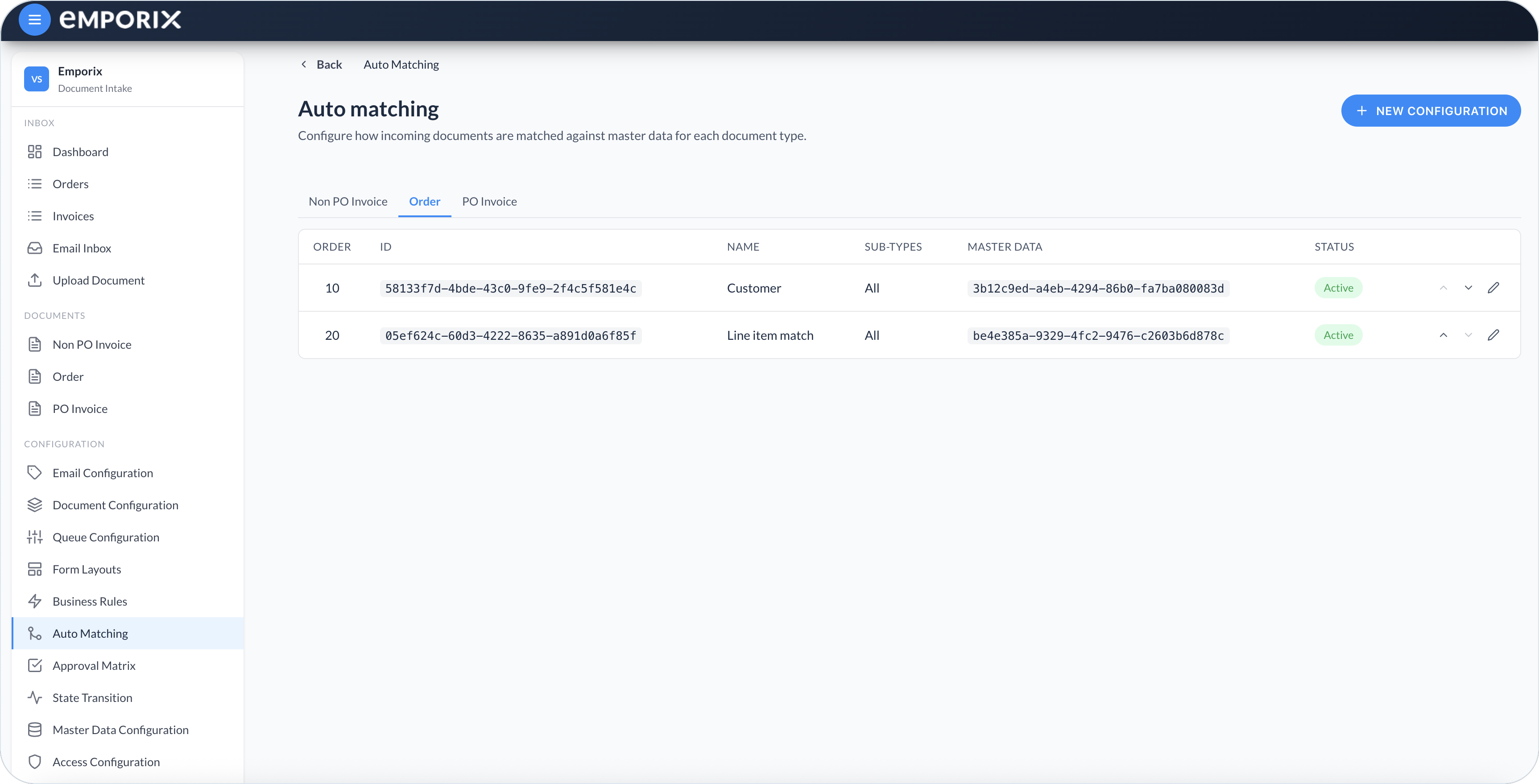
Configurations are grouped by document type in [Document Configuration](/document-intake-cockpit/configuration/document-configuration.md). Select a tab such as **Non PO Invoice**, **Order**, or **PO Invoice**. Each row shows the following:

* **Order** – Same sequence as **Execution order** on **Settings**, with lower numbers first
* **ID** – Configuration identifier
* **Name** – Display name of the configuration
* **Sub-types** – Selected sub-types, or **All** when the configuration is not limited
* **Master data** – Identifier of the selected Master Data configuration
* **Status** – **Active** (applied to incoming documents) or **Draft** (not applied)

Select **New configuration** to create one, or use a row's edit action to open **Edit matching configuration**. Use a row's move controls to reorder configurations; the new order is saved automatically. To remove an existing configuration, open it and select **Delete**.

Moving a row renumbers the configurations for that document type in steps of 10, starting at `10` (`10`, `20`, ...). When you enter **Execution order** manually, use a unique positive whole number. If two configurations have the same value, runtime order falls back to configuration ID and does not express a business priority.

<figure><img src="https://1808414410-files.gitbook.io/~/files/v0/b/gitbook-x-prod.appspot.com/o/spaces%2FPBaf05o2vgbdikMFDTyz%2Fuploads%2Fgit-blob-41db8c4415d03f4a305b1838761886b9e7edd59a%2Fauto_matching.png?alt=media" alt="Auto Matching list on the Order tab with Customer and Line item match configurations"><figcaption><p>Auto Matching on the Order tab with Customer, then Line item match</p></figcaption></figure>

## Creating a matching configuration

{% stepper %}
{% step %}

#### Open the editor

Select **New configuration** to create a configuration, or use a row's edit action to change an existing one.
{% endstep %}

{% step %}

#### Set general details

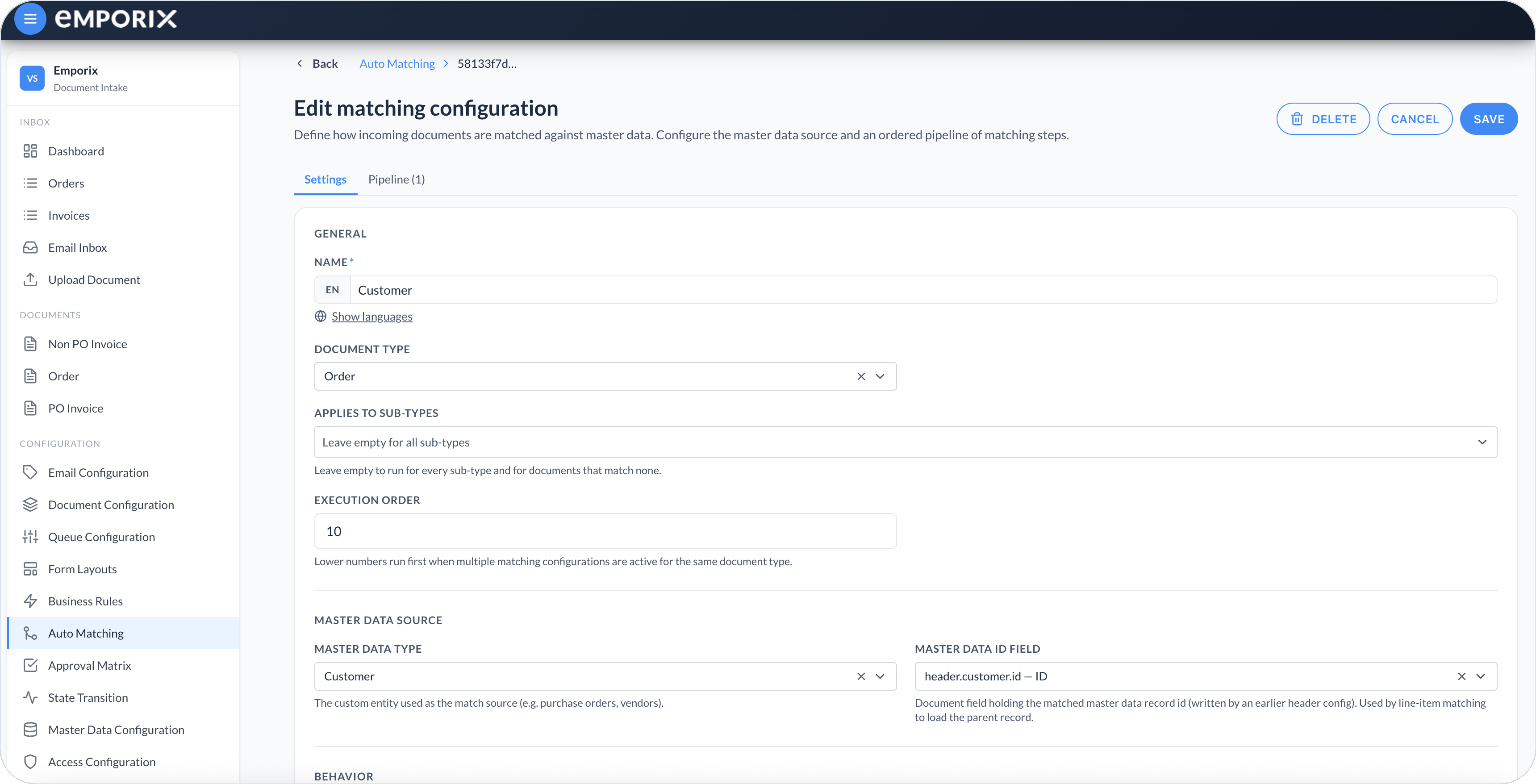
On **Settings**, under **General**, provide a localized **Name**, **Document type**, and **Execution order**.

Use **Applies to sub-types** to limit the configuration to selected [Sub-types](/document-intake-cockpit/configuration/document-configuration.md#sub-types). Leave **Applies to sub-types** empty to include all sub-types and documents that do not resolve to a sub-type.

When **Applies to sub-types** lists one or more values, the configuration runs only for a document whose resolved sub-type is one of those values. The supervisor resolves the sub-type once before the ordered configurations start. Later configurations in that run still follow that resolved sub-type, even after an earlier configuration rewrites it.

<figure><img src="https://1808414410-files.gitbook.io/~/files/v0/b/gitbook-x-prod.appspot.com/o/spaces%2FPBaf05o2vgbdikMFDTyz%2Fuploads%2Fgit-blob-84e9daef04b2424b0dc610d26095986bf3ad6f86%2Fauto_matching_edit.png?alt=media" alt="Edit matching configuration Settings with Name Customer, Document type Order, Execution order 10, and Master data ID field header.customer.id"><figcaption><p>Edit matching configuration with settings (Customer example)</p></figcaption></figure>
{% endstep %}

{% step %}

#### Choose the master data source

Under **Master data source**, set **Master data type** by selecting the [Master Data](/document-intake-cockpit/configuration/master-data.md) configuration by name. Its source can be a custom entity or an Emporix core service. The configurations list shows the stored master-data configuration ID.

Set **Master data ID field** only when this configuration contains a **Line item** step with **Single parent record (by id)**. It identifies the document field from which that step reads the parent record ID. Leave it empty for header-only, **Search across records**, **Standalone master data record**, and cloud-function-only configurations. A header **Rewrite field**, not **Master data ID field**, controls where a matched header record ID is stored.

Under **Behavior**, leave **Active** off while you build and review the configuration.

{% hint style="info" %}
Document paths in **Master data ID field**, **Match fields**, **Rewrite fields**, **Input fields**, and **Response mapping** must belong to the document type's primary schema. Fields from attached mixins are not available to matching steps.
{% endhint %}

{% hint style="warning" %}
If the selected **Master data type** cannot be resolved, a configuration with master-data matching steps reports **No match** without running its pipeline. A cloud-function-only configuration can run without a master data source.
{% endhint %}
{% endstep %}

{% step %}

#### Build the matching pipeline

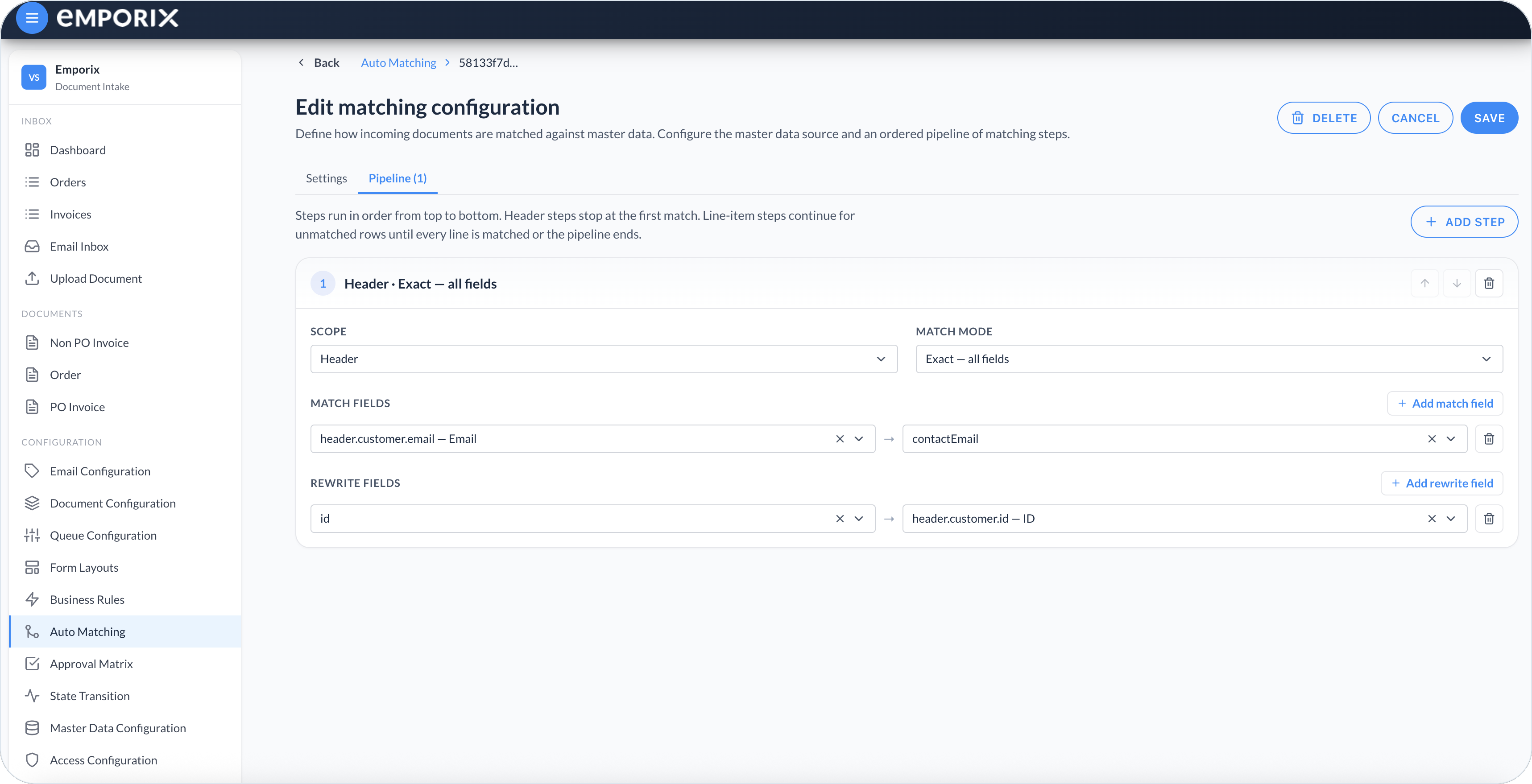
Open **Pipeline**. Select **Add step**, then configure the step for this job:

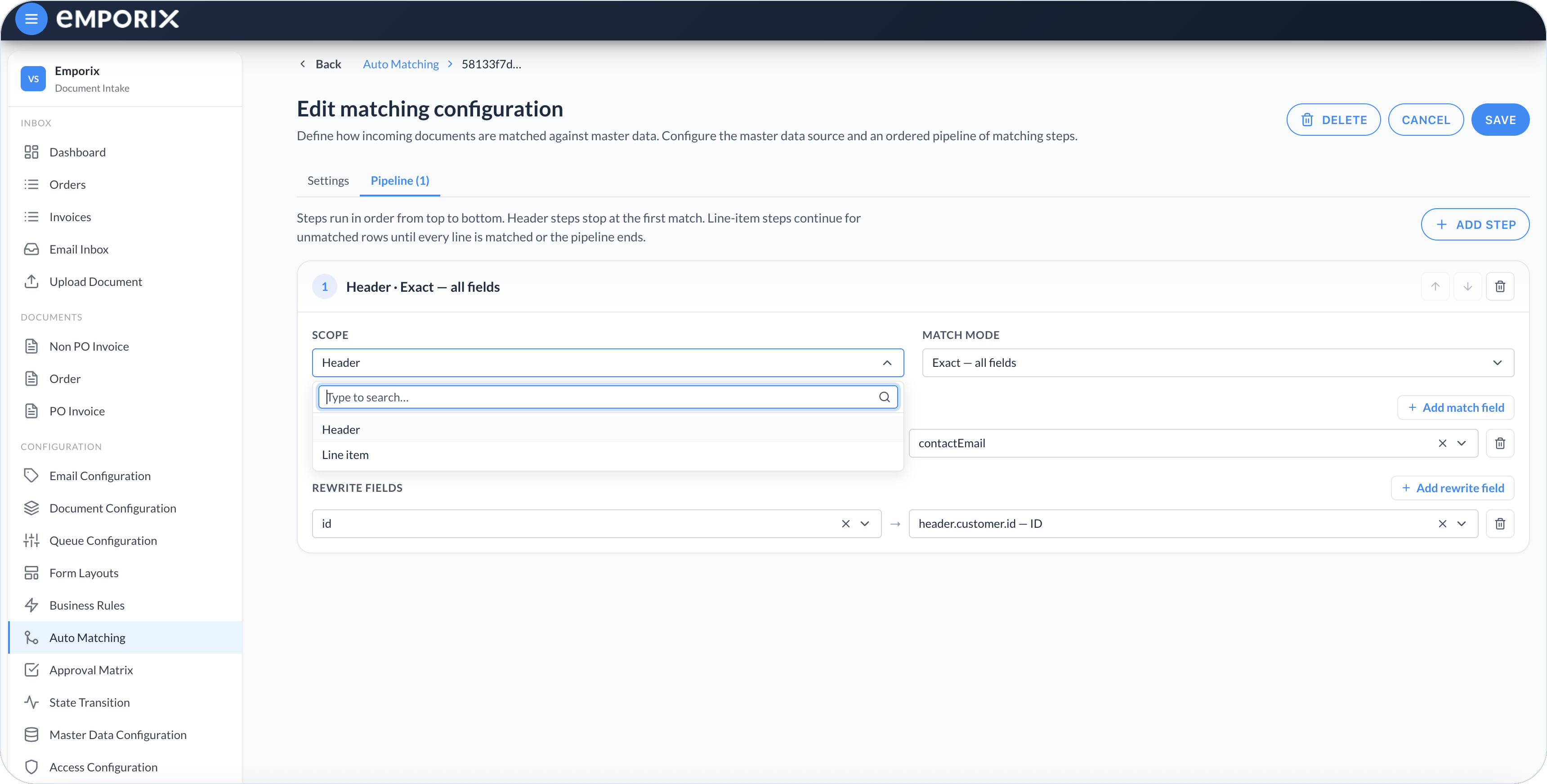
* **Scope** – **Header** or **Line item**.
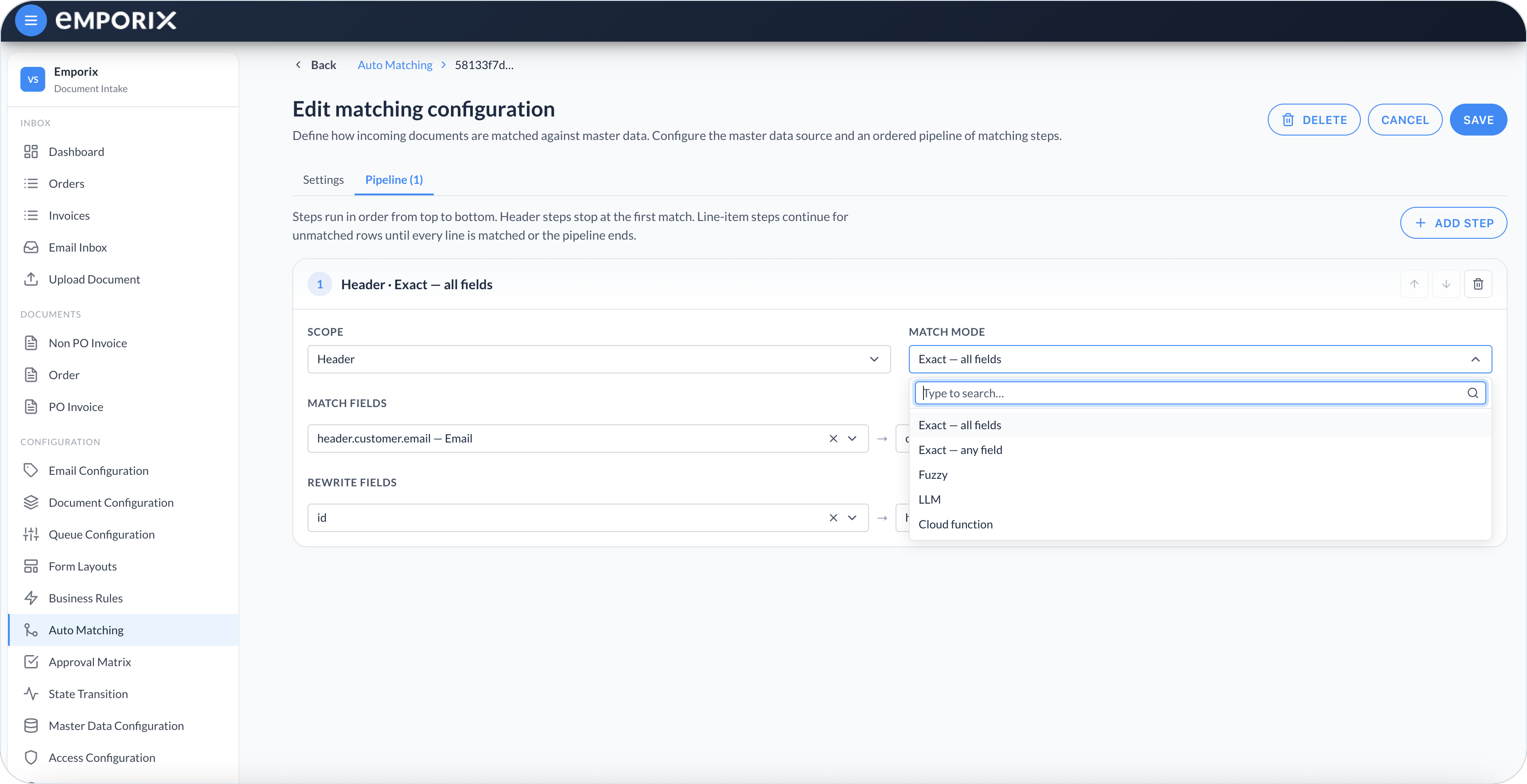
* **Match mode** – How fields are compared. See [Match modes](#match-modes).
* **Match fields** – Document fields paired with master data fields.
* **Rewrite fields** – Optional mappings that copy matched values back onto the document.

Steps run from top to bottom. A header step that matches ends the remaining header steps. Line-item steps continue for unmatched rows until every line is matched or the pipeline ends.

<figure><img src="https://1808414410-files.gitbook.io/~/files/v0/b/gitbook-x-prod.appspot.com/o/spaces%2FPBaf05o2vgbdikMFDTyz%2Fuploads%2Fgit-blob-115a5da27df601c28f4952a9d7d5adb96e746c72%2Fauto_matching_pipeline_header.png?alt=media" alt="Pipeline Header step with Exact all fields, match fields, and rewrite fields"><figcaption><p>Pipeline header step with exact all fields</p></figcaption></figure>

<figure><img src="https://1808414410-files.gitbook.io/~/files/v0/b/gitbook-x-prod.appspot.com/o/spaces%2FPBaf05o2vgbdikMFDTyz%2Fuploads%2Fgit-blob-252c8aa6f52475b2eea20e1bcc78983ddf79106c%2Fauto_matching_pipeline_scope.png?alt=media" alt="Pipeline Scope dropdown with Header and Line item"><figcaption><p>Pipeline scope with header or line item</p></figcaption></figure>

<figure><img src="https://1808414410-files.gitbook.io/~/files/v0/b/gitbook-x-prod.appspot.com/o/spaces%2FPBaf05o2vgbdikMFDTyz%2Fuploads%2Fgit-blob-384d40689851625870766dcb67432e33bb5961db%2Fauto_matching_pipeline_mode.png?alt=media" alt="Pipeline Match mode dropdown with Exact all fields, Exact any field, Fuzzy, LLM, and Cloud function"><figcaption><p>Pipeline match mode</p></figcaption></figure>

For **Line item** scope, also choose **Record lookup**:

* **Single parent record (by id)** – Loads one parent from **Master data ID field**.
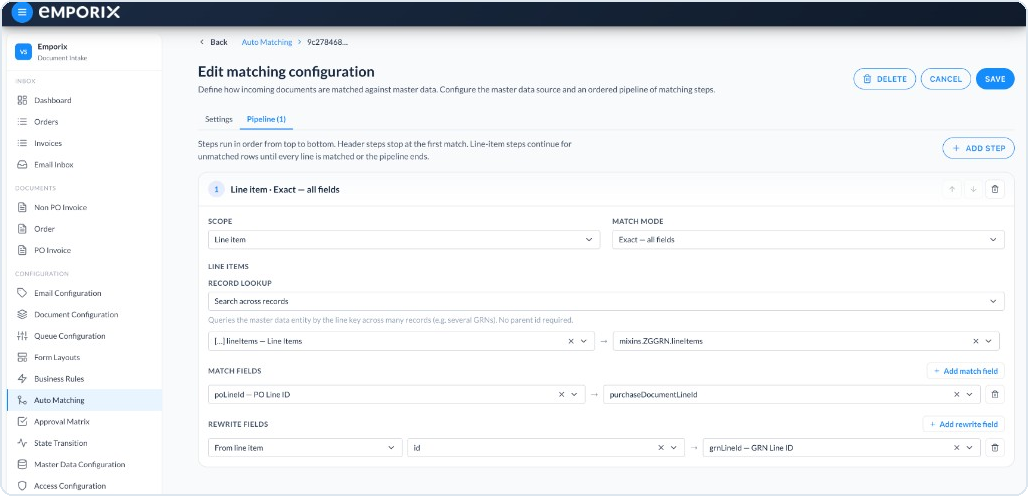
* **Search across records** – Queries master data across many records.
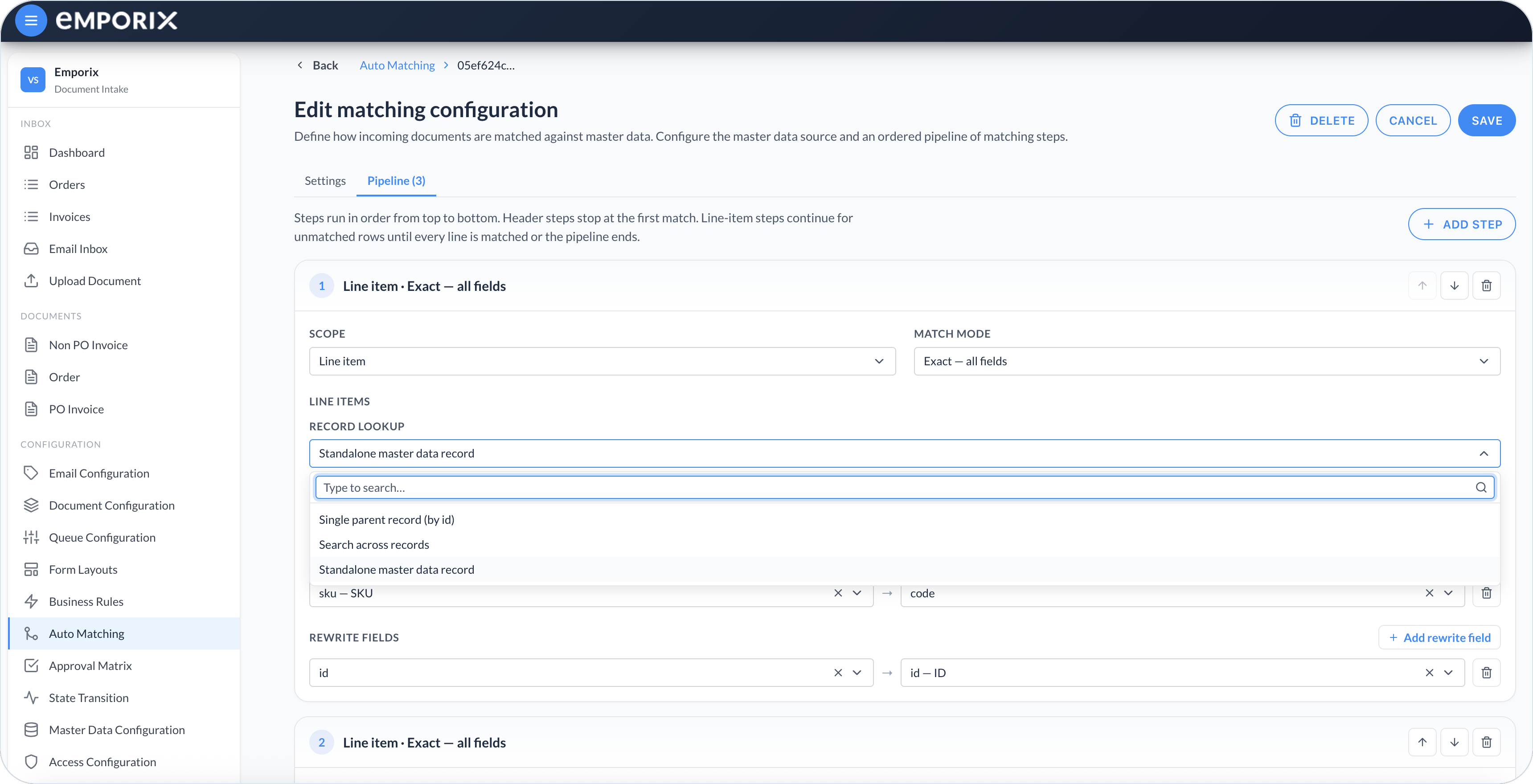
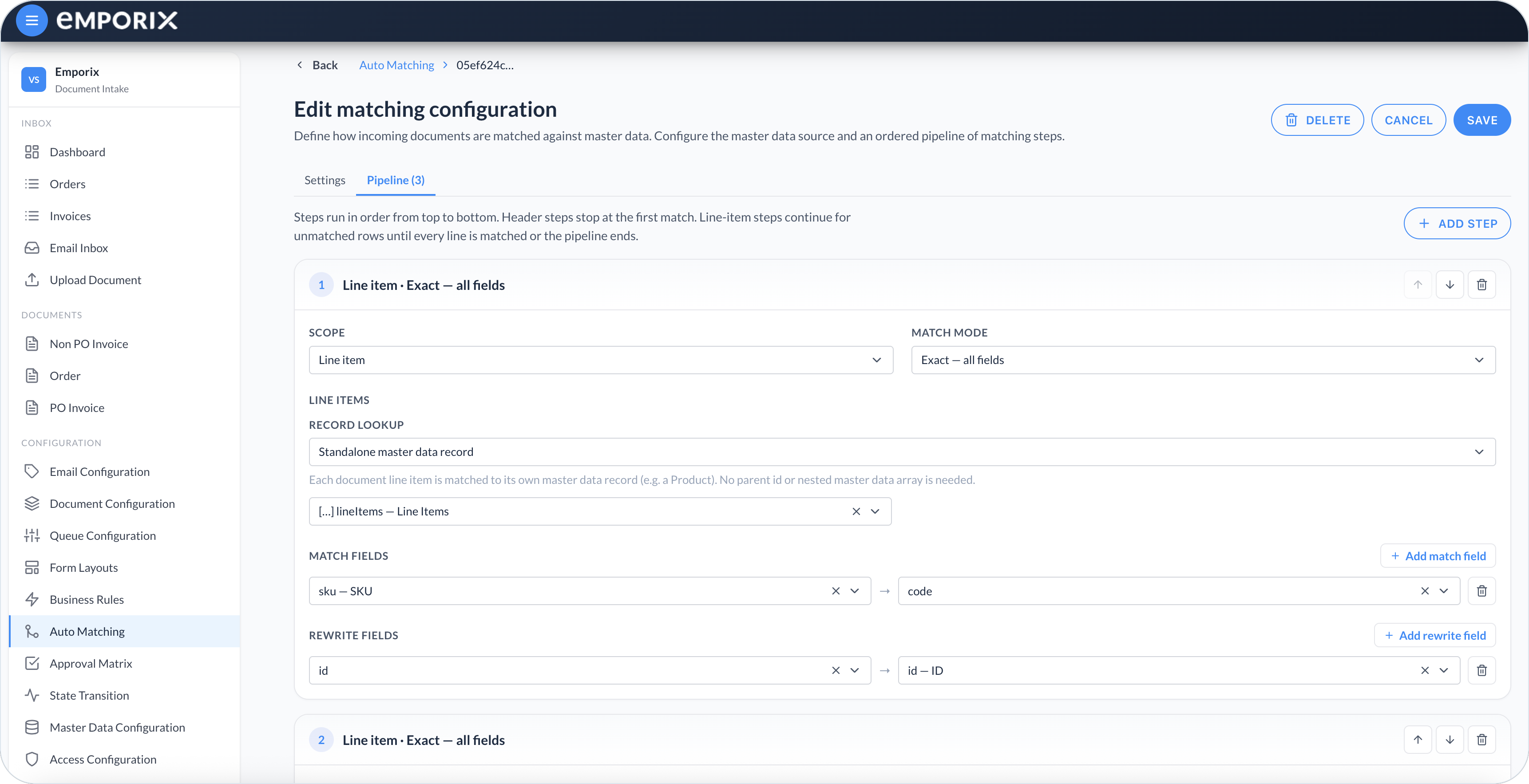
* **Standalone master data record** – Matches every document row to its own record, such as a Product. It needs no parent ID or nested master data array.

<figure><img src="https://1808414410-files.gitbook.io/~/files/v0/b/gitbook-x-prod.appspot.com/o/spaces%2FPBaf05o2vgbdikMFDTyz%2Fuploads%2Fgit-blob-9eac9f0b2fcdace6a3f78f6d2e6bcd5c307edfc2%2Fauto_matching_pipeline_lookup.png?alt=media" alt="Pipeline Record lookup dropdown with Single parent record, Search across records, and Standalone master data record"><figcaption><p>Pipeline Record lookup</p></figcaption></figure>

Select the document line array (**Line items** in the standalone example, bound to `lineItems`) before adding line-item mappings. For **Single parent record (by id)** and **Search across records**, also select the **Master data array field**. The item-level fields become available after you set the required arrays.

Choose the lookup from the master-data shape:

* Use **Single parent record (by id)** when a document field identifies one record such as a purchase order whose `lines` array contains every candidate.
* Use **Search across records** when several parent records each contain a candidate array such as `lines`, and there is no parent ID on the document.
* Use **Standalone master data record** when each document row matches one top-level record such as `{ "id": "product-1", "code": "SKU-1" }`.

Add more steps in the same configuration as fallbacks for the same job. Header steps stop after the first match. Line-item steps stop separately for each row: later steps receive only rows that remain unmatched.

{% hint style="warning" %}
An **LLM** line-item step supports **Single parent record (by id)** and **Standalone master data record**. Use **Search across records** only with **Exact – all fields**, **Exact – any field**, or **Fuzzy**.
{% endhint %}

{% hint style="info" %}
**Search across records** first queries master data with exact values from the document line, then applies the configured mode to the returned candidates. **Fuzzy** therefore still needs a stable exact field for candidate discovery. Use **Single parent record (by id)** when fuzzy values must drive the comparison inside one known parent.
{% endhint %}

<figure><img src="https://1808414410-files.gitbook.io/~/files/v0/b/gitbook-x-prod.appspot.com/o/spaces%2FPBaf05o2vgbdikMFDTyz%2Fuploads%2Fgit-blob-eab3f7893c7590f24921add93ce764180b70251e%2Fauto_matching_pipeline.png?alt=media" alt="Line item step with exact all fields and standalone master data record lookup"><figcaption><p>Pipeline line item with standalone master data record</p></figcaption></figure>

<figure><img src="https://1808414410-files.gitbook.io/~/files/v0/b/gitbook-x-prod.appspot.com/o/spaces%2FPBaf05o2vgbdikMFDTyz%2Fuploads%2Fgit-blob-3addcbd63d67a66ae95122c014a8898b660fd8fe%2Fauto_matching_pipeline_search.png?alt=media" alt="Matching pipeline step with line item scope and search across records lookup"><figcaption><p>Matching pipeline with line item and search across records</p></figcaption></figure>
{% endstep %}

{% step %}

#### Save the configuration

Leave **Active** off and select **Save** when you want to store the configuration as **Draft** for later review. When it is ready, turn **Active** on and save again. If you have already reviewed the complete configuration, you can turn **Active** on before the first save. Auto matching has no separate deployment or editor test step.

Validate it in a controlled tenant with a representative new incoming document and review the [Auto matching results](/document-intake-cockpit/cockpit-views/managing-a-document.md#auto-matching). If the outcome is wrong, turn **Active** off and save before processing more documents.

Deactivation does not undo rewrites on documents already processed. Correct or discard the test document according to your tenant's operating procedure, update the configuration, and use a new document for the next test. Saving a configuration does not rerun matching on existing documents, and the cockpit has no built-in rerun action.
{% endstep %}
{% endstepper %}

## Typical setup

Use two configurations when one job depends on another, such as matching a header customer and then the lines. Extra steps inside one configuration are fallbacks for the same job, not a second configuration.

A typical header-then-line setup uses two **Active** configurations. The one with the lower **Order** runs first, and a later configuration can use values rewritten by an earlier one.

In the list example, **Customer** (order 10) matches the document header and rewrites the parent ID onto a path such as `header.customer.id`. The **Line item match** (order 20) pipeline uses **Standalone master data record**, so each order line matches its own master data record (for example a Product by SKU). A purchase-order style setup can instead set **Master data ID field** to the rewritten parent path and use **Single parent record (by id)** so each line loads that parent.

Use **Search across records** when lines can come from several records and no parent ID is available.

On a **Line item** step, **Rewrite fields** can copy **From line item** (a field on the matched line) or **From record** (a field on the master data record that owns that line). For example, copy the matched line `id` onto the document field `grnLineId`. **From record** still applies when you use **Search across records**: the parent is the record that contains the matched line.

Use **Standalone master data record** when each document row identifies an independent record. For example, match every order line to a Product by code, then use exact name and LLM name matching only for rows whose code did not match. See the worked [Order Auto Matching](/document-intake-cockpit/configuration-examples/order-intake/auto-matching.md) setup.

## Match modes

| Mode                   | What it does                                                                                                                                                                                     |
| ---------------------- | ------------------------------------------------------------------------------------------------------------------------------------------------------------------------------------------------ |
| **Exact – all fields** | Use when every participating identifier must agree. Empty-value and comparison behavior depends on the scope, as described below.                                                                |
| **Exact – any field**  | Use when any one of several alternative identifiers can establish the match.                                                                                                                     |
| **Fuzzy**              | Uses normalized containment rather than an edit-distance threshold. Every participating field must match.                                                                                        |
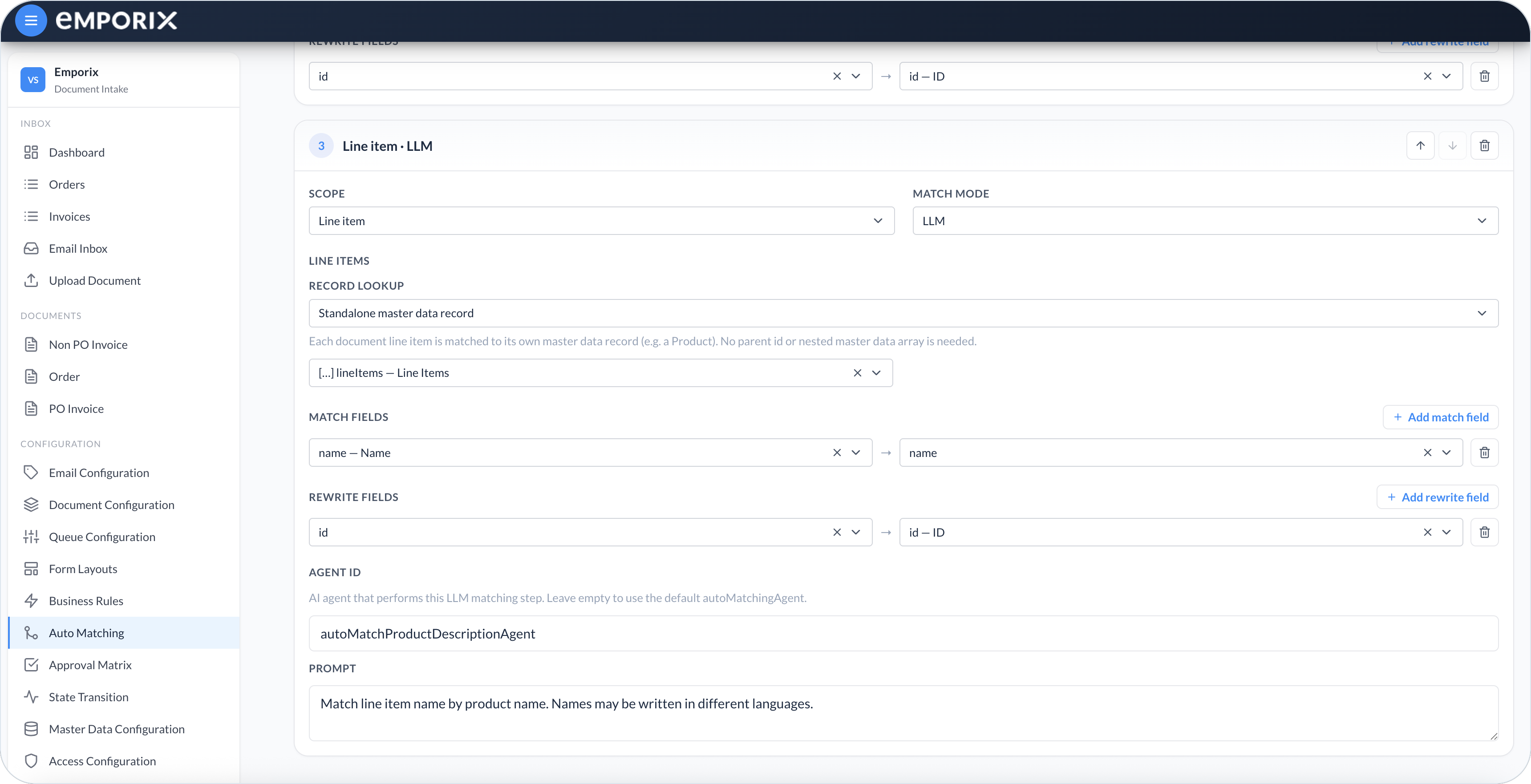
| **LLM**                | Uses AI with **Agent ID** (leave empty for the default `autoMatchingAgent`) and **Prompt**. The matching results show an **LLM** step; matched fields show an **AI match** badge on **Details**. |
| **Cloud function**     | Runs at **Header** scope, sends **Input fields** to a tenant function, and writes returned values through **Response mapping**. It derives values without comparing master data.                 |

Use exact modes when identifiers are stable. Use **Fuzzy** or **LLM** when values vary. Exact and Fuzzy matching do not rank candidates by business priority.

At **Header** scope, **Exact – all fields**, **Exact – any field**, and **Fuzzy** ignore mappings whose document value is empty. If every configured value is empty, the step does not match. Header and standalone-record matching use the source API's query behavior.

At **Line item** scope, an empty row value still counts as an unmatched mapping for **Exact – all fields** and **Fuzzy**, so the row does not match. **Exact – any field** can still match another non-empty mapping. For comparisons against loaded line candidates, exact modes trim surrounding whitespace and compare text case-sensitively. If master data contains localized text, they prefer a localized value equal to the document text, then English, then the first non-empty localized value.

When more than one candidate qualifies, **Exact – any field** at Header scope tries match fields in their configured order. API-backed matching then uses the first qualifying API result. **Single parent record (by id)** uses line-array order. **Search across records** uses API parent-record order and then nested-array order. Do not rely on these tie-breakers as business prioritization; add identifying fields that make the match unique.

{% hint style="warning" %}
For an Emporix core-service source, **LLM** searches at **Header** scope or with **Standalone master data record** support Product only. An **LLM** line-item step with **Single parent record (by id)** can use another core-service source because it matches against the lines loaded from that parent.
{% endhint %}

For **LLM**, **Prompt** describes how the model matches this step. Leave **Prompt** empty to use the default `autoMatchingAgent`.

<figure><img src="https://1808414410-files.gitbook.io/~/files/v0/b/gitbook-x-prod.appspot.com/o/spaces%2FPBaf05o2vgbdikMFDTyz%2Fuploads%2Fgit-blob-cee8f4992776bf846c3de15e6559465a8f4e5020%2Fauto_matching_pipeline_llm.png?alt=media" alt="Line item LLM step with Agent ID autoMatchProductDescriptionAgent and Prompt"><figcaption><p>Pipeline Line item LLM (example Agent ID, not the empty default)</p></figcaption></figure>

For **Cloud function**, **Input fields** send document values as parameters, and **Response mapping** writes response values back onto the document. Mapped cloud-function values appear with a **Derived** badge instead of a master-data match badge.

## Cloud function step contract

Set **Match mode** to **Cloud function**, then select the tenant **Cloud function**. Each **Input field** maps a document path to a parameter name under `inputs`. For example, mapping `header.vendor.id` to `vendorId` sends:

```json
{
  "scope": "HEADER",
  "mode": "CLOUD_FUNCTION",
  "inputs": {
    "vendorId": "vendor-123"
  },
  "document": {
    "id": "document-123"
  },
  "context": {
    "documentType": "INVOICE",
    "documentId": "document-123"
  }
}
```

The actual `document` contains the complete current entity. Map a response path to each target document field. For example, response:

```json
{
  "matched": true,
  "risk": {
    "code": "HIGH"
  }
}
```

can map `risk.code` to `header.riskCode`.

A Cloud function step reports a match when the function returns `matched: true`, or when `matched` is omitted and at least one **Response mapping** writes a value. An explicit `matched: false` shows **No match**, but mappings whose response paths exist are still written. A missing response path leaves its target unchanged and marks that mapping as not matched. A function that updates the document itself and uses no response mapping must return `matched: true`.

## Results in the cockpit

The **Auto Matching** tab appears after the supervisor has run on the document. If the tab is missing, matching has not run yet. When no **Active** configuration applies, **Overall result** shows **Unknown** and the page states **No matching configurations were run.** This differs from **No match**, where at least one configuration ran but none matched.

After one or more configurations run, the document shows an **Overall result** of **Matched**, **Partially matched**, or **No match**:

* **Matched** – Every configuration that ran reported at least one match. For a line-item configuration, some rows can still be unmatched, so inspect its step and row results.
* **Partially matched** – Some configurations reported a match and others did not.
* **No match** – No configuration reported a match.

Within a configuration, a step can show **Skipped** when no matcher or cloud function is configured, or **Error** when its call fails. A skipped or failed step does not count as a match. The pipeline continues when possible; a successful later fallback can still make the configuration **Matched**. If every step is skipped or fails, the configuration shows **No match** and contributes to **No match** or **Partially matched** overall.

Open each step to review field or row results, confidence, and reasoning when the matcher provides them. Rewrite outcomes appear on **Details** when the target field is visible, often with **Updated from master data** or **Derived**. To verify a hidden rewrite during setup, temporarily add that target to the form layout as a read-only field.

For how to review those results, see [Managing Documents](/document-intake-cockpit/cockpit-views/managing-a-document.md).

{% hint style="info" %}
Configure [Master Data](/document-intake-cockpit/configuration/master-data.md) before Auto Matching. Use [Document Configuration](/document-intake-cockpit/configuration/document-configuration.md) **Attributes** paths for **Match fields** and **Rewrite fields** (not **Matching fields** on **Approval Configuration**, which belong to the approval matrix). See the [Order Intake Example](/document-intake-cockpit/configuration-examples/order-intake.md) for a worked tenant configuration in this cockpit.
{% endhint %}


---

# Agent Instructions
This documentation is published with GitBook. GitBook is the documentation platform designed so that both humans and AI agents can read, navigate, and reason over technical content effectively. Learn more at gitbook.com.

## Querying This Documentation
If you need additional information that is not directly available in this page, you can query the documentation dynamically by asking a question.

Perform an HTTP GET request on the current page URL with the `ask` query parameter, and the optional `goal` query parameter:

```
GET https://developer.emporix.io/document-intake-cockpit/configuration/auto-matching.md?ask=<question>&goal=<endgoal>
```

`ask` is the immediate question: it should be specific, self-contained, and written in natural language.
`goal` is optional and describes the broader end goal you are ultimately trying to accomplish on behalf of the user. GitBook uses it to tailor the answer towards what is most useful for that goal.

The response will contain a direct answer to the question and relevant excerpts and sources from the documentation.

Use this mechanism when the answer is not explicitly present in the current page, you need clarification or additional context, or you want to retrieve related documentation sections.