> For the complete documentation index, see [llms.txt](https://developer.emporix.io/llms.txt). Markdown versions of documentation pages are available by appending `.md` to page URLs; this page is available as [Markdown](https://developer.emporix.io/document-intake-cockpit/configuration/branding.md).
# Branding
Set this tenant's brand text, logos, theme colors, and document-detail typography so the cockpit matches your organization.
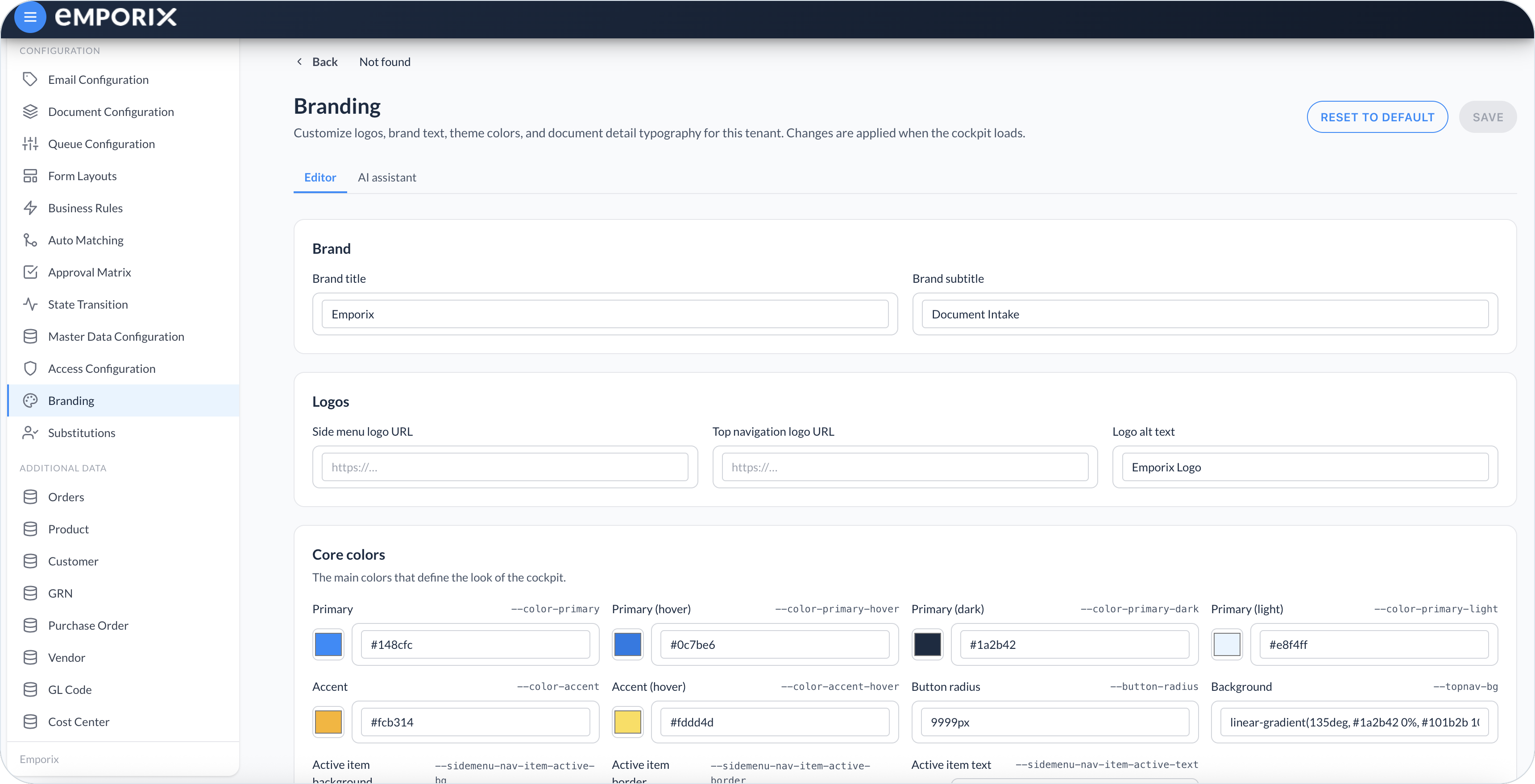
Use **Branding** to match the Document Intake Cockpit to your organization. Set the side-menu names, logos, theme colors, and typography on the document detail screen.
Open **Configuration** → **Branding** in the side menu.
Saved branding applies the next time the cockpit loads, including for other users.
Set the brand directly, or generate it from a description:
* **Editor** – Change brand text, logos, colors, and document-detail typography.
* **AI assistant** – Describe the look you want. Use **Generate** to fill the **Editor** with a suggestion.
Branding editor
## Brand text
In **Brand**, name the product in the side menu:
* **Brand title** – Main product name. An empty field uses **Document Intake**.
* **Brand subtitle** – Secondary label under the title. An empty field uses **Cockpit**.
## Logos
In **Logos**, set the images and the text that describes them:
* **Side menu logo URL** – Logo in the side menu brand area.
* **Top navigation logo URL** – Logo in the top navigation bar.
* **Logo alt text** – Alternative text for the logo images.
When you set a logo URL, a preview appears under the field.
{% hint style="info" %}
Use a publicly reachable image URL. If the preview does not appear, check that the URL is correct and that the image is accessible.
{% endhint %}
## Core colors
**Core colors** are the main values that define the cockpit look. Adjust these first. Leave a field empty to keep the **Default** value for that setting. Each color shows a swatch, a hex value, and a CSS variable name as a label. Open a swatch to pick a color.
Color picker
## Document detail
**Document detail** sets typography on the forms in [Managing Documents](/document-intake-cockpit/cockpit-views/managing-a-document.md). It does not style **Auto matching** or **History**.
* **Section titles** – Section headings on the **Details** form and on related-entity tabs.
* **Field titles** – Labels of those form fields in preview and **Edit**.
* **Field values** – The values in preview on those forms.
Use the same type settings for section titles, field titles, and field values. On **Field titles**, also set the letter case and the space between letters. An empty **Text style** uses uppercase.
Document detail
## Advanced colors
Open **Advanced colors** for extra control after you set **Core colors**. The groups include **Primary & accent**, **Surface & text**, **Controls & inputs**, and **Top navigation**.
Advanced colors
## Using the AI assistant
Use **Generate** to fill the current draft from a plain-language description. Returned values replace what is already in the **Editor**, and fields the suggestion leaves out stay as they are. Select **Save** to keep the result.
{% stepper %}
{% step %}
#### Open the AI assistant
On the **Branding** page, select the **AI assistant** tab.
{% endstep %}
{% step %}
#### Describe the look you want
Enter a short description in **Describe the look you want**. Sample prompts under the field fill it with a starting description. You can also press **Cmd/Ctrl + Enter** to generate.
{% endstep %}
{% step %}
#### Generate the suggestion
Select **Generate**. When the suggestion is ready, the cockpit fills the **Editor** and switches you to that tab.
{% endstep %}
{% step %}
#### Review and save
Review **Brand**, **Logos**, **Core colors**, **Document detail**, and **Advanced colors**. Any of those can change. Adjust what you need, then select **Save**.
{% endstep %}
{% endstepper %}
Branding AI assistant
## Saving and resetting
* **Save** – Stores the branding for the tenant and updates the look in your current session.
* **Reset to default** – Restores the default branding in the editor only. Select **Save** to apply those defaults for the tenant.
{% hint style="info" %}
Unsaved changes stay in the editor only. If you leave the page without saving, your edits are not applied.
{% endhint %}
---
# Agent Instructions
This documentation is published with GitBook. GitBook is the documentation platform designed so that both humans and AI agents can read, navigate, and reason over technical content effectively. Learn more at gitbook.com.
## Querying This Documentation
If you need additional information that is not directly available in this page, you can query the documentation dynamically by asking a question.
Perform an HTTP GET request on the current page URL with the `ask` query parameter, and the optional `goal` query parameter:
```
GET https://developer.emporix.io/document-intake-cockpit/configuration/branding.md?ask=&goal=
```
`ask` is the immediate question: it should be specific, self-contained, and written in natural language.
`goal` is optional and describes the broader end goal you are ultimately trying to accomplish on behalf of the user. GitBook uses it to tailor the answer towards what is most useful for that goal.
The response will contain a direct answer to the question and relevant excerpts and sources from the documentation.
Use this mechanism when the answer is not explicitly present in the current page, you need clarification or additional context, or you want to retrieve related documentation sections.