> For the complete documentation index, see [llms.txt](https://developer.emporix.io/llms.txt). Markdown versions of documentation pages are available by appending `.md` to page URLs; this page is available as [Markdown](https://developer.emporix.io/document-intake-cockpit/configuration/business-rules.md).

# Business Rules

Use this view to create AI-assisted validation checks that flag issues and assign a resolver when a check fails.

Use **Business Rules** to design, save, and deploy AI-assisted validation checks that run after intake. Each rule becomes an executable cloud function. When a check fails, the cockpit flags the issue and can assign a resolver so the right person sees it.

Open **Configuration** → **Business Rules** in the side menu.

Rules are grouped by document type in [Document Configuration](/document-intake-cockpit/configuration/document-configuration.md). Select a document type tab to review its rules, create a new one, or change execution order.

Key behavior:

* **Scope** – A rule can apply to selected [Sub-types](/document-intake-cockpit/configuration/document-configuration.md#sub-types) or to the full document type.
* **Order** – Lower **Execution order** values run first.
* **State** – Save and deploy a rule before you turn **Active** on.
* **Failure** – A failed rule creates a validation issue and can assign a resolver.

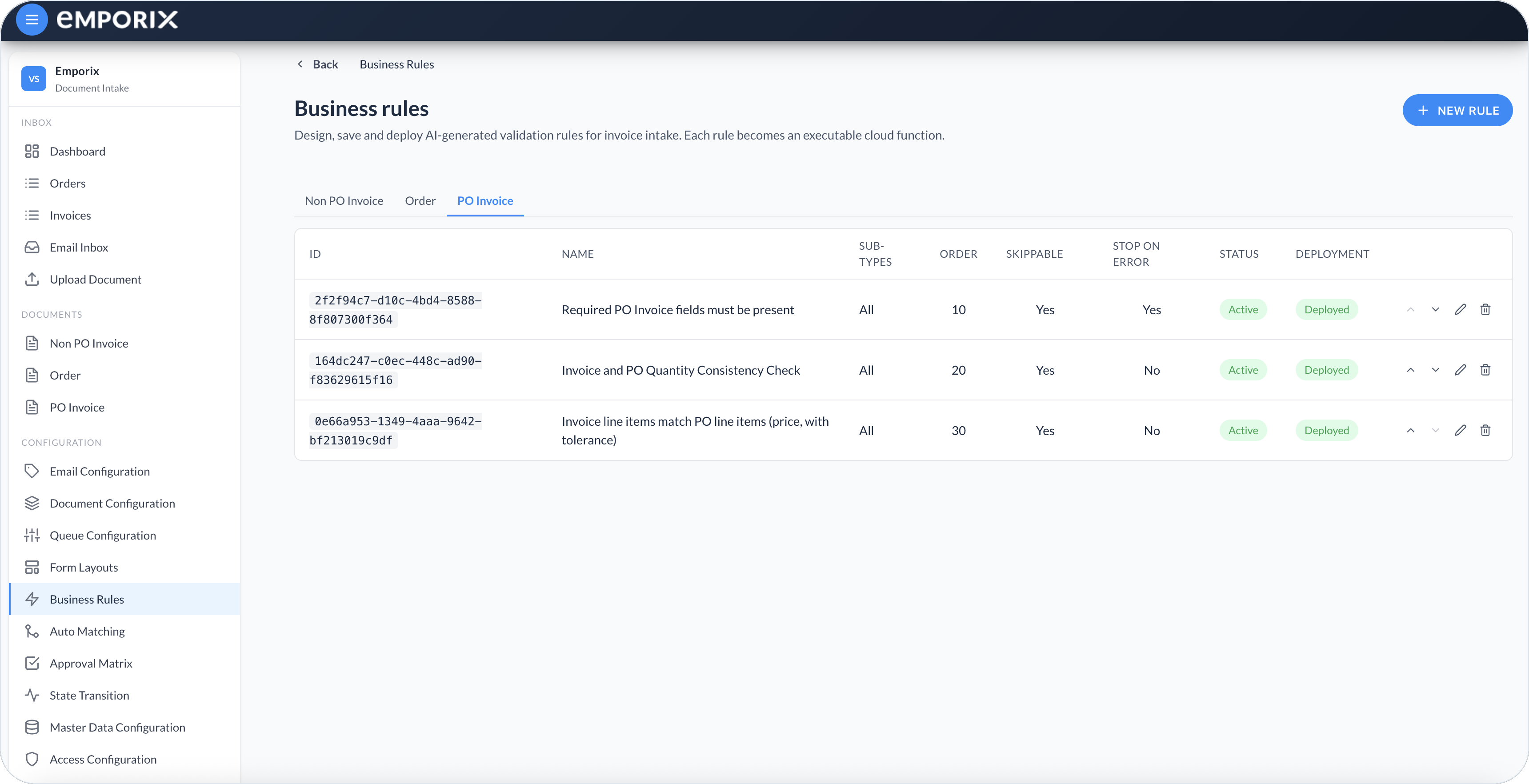
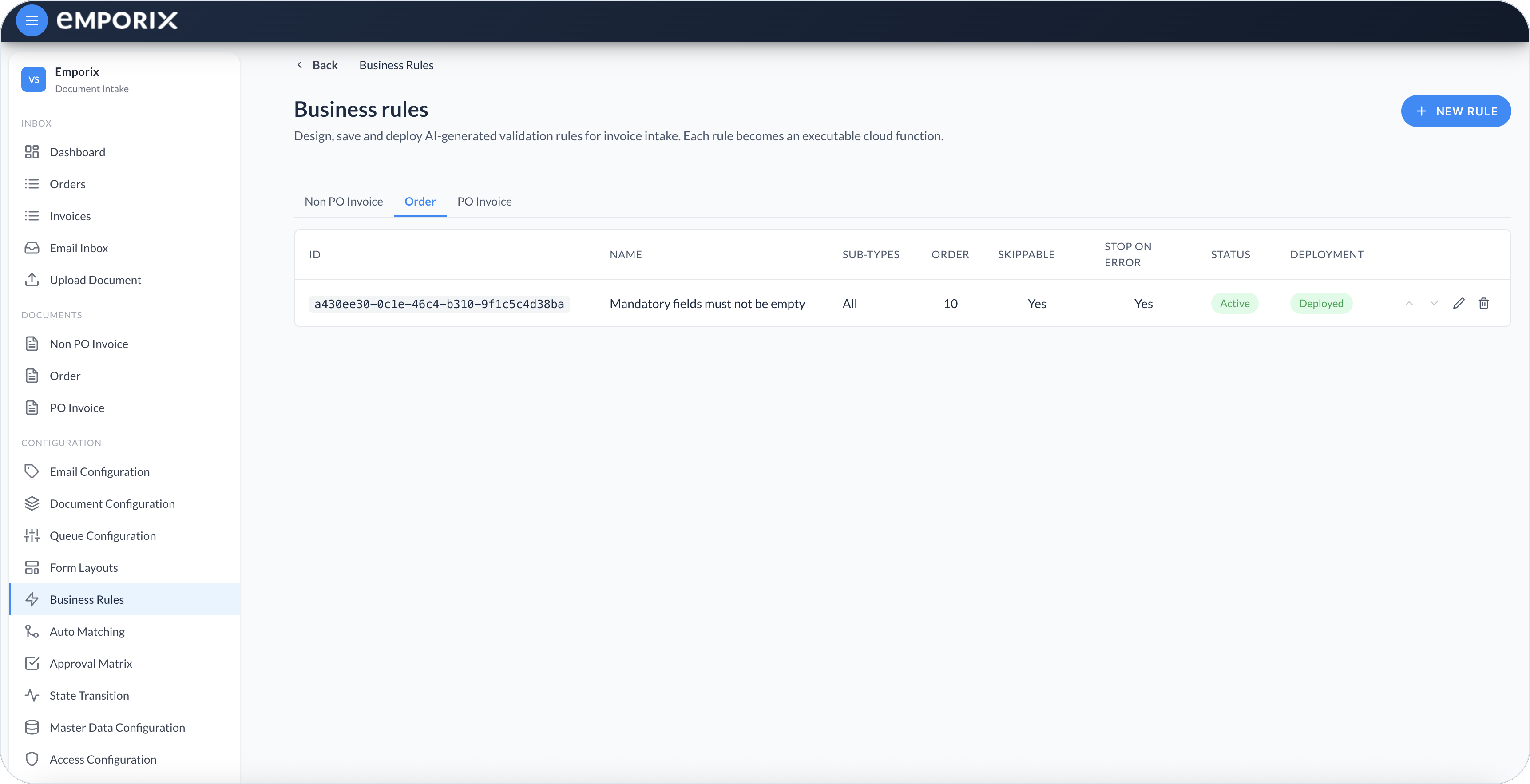
<figure><img src="https://1808414410-files.gitbook.io/~/files/v0/b/gitbook-x-prod.appspot.com/o/spaces%2FPBaf05o2vgbdikMFDTyz%2Fuploads%2Fgit-blob-21f19b06eeef48d6672a3312a6a856ee54981bde%2Fbusiness_rules.png?alt=media" alt="Business Rules list on the Order tab with ID, Name, Sub-types, Order, Skippable, Stop on error, Status, and Deployment"><figcaption><p>Business Rules on the Order tab</p></figcaption></figure>

## Rules list

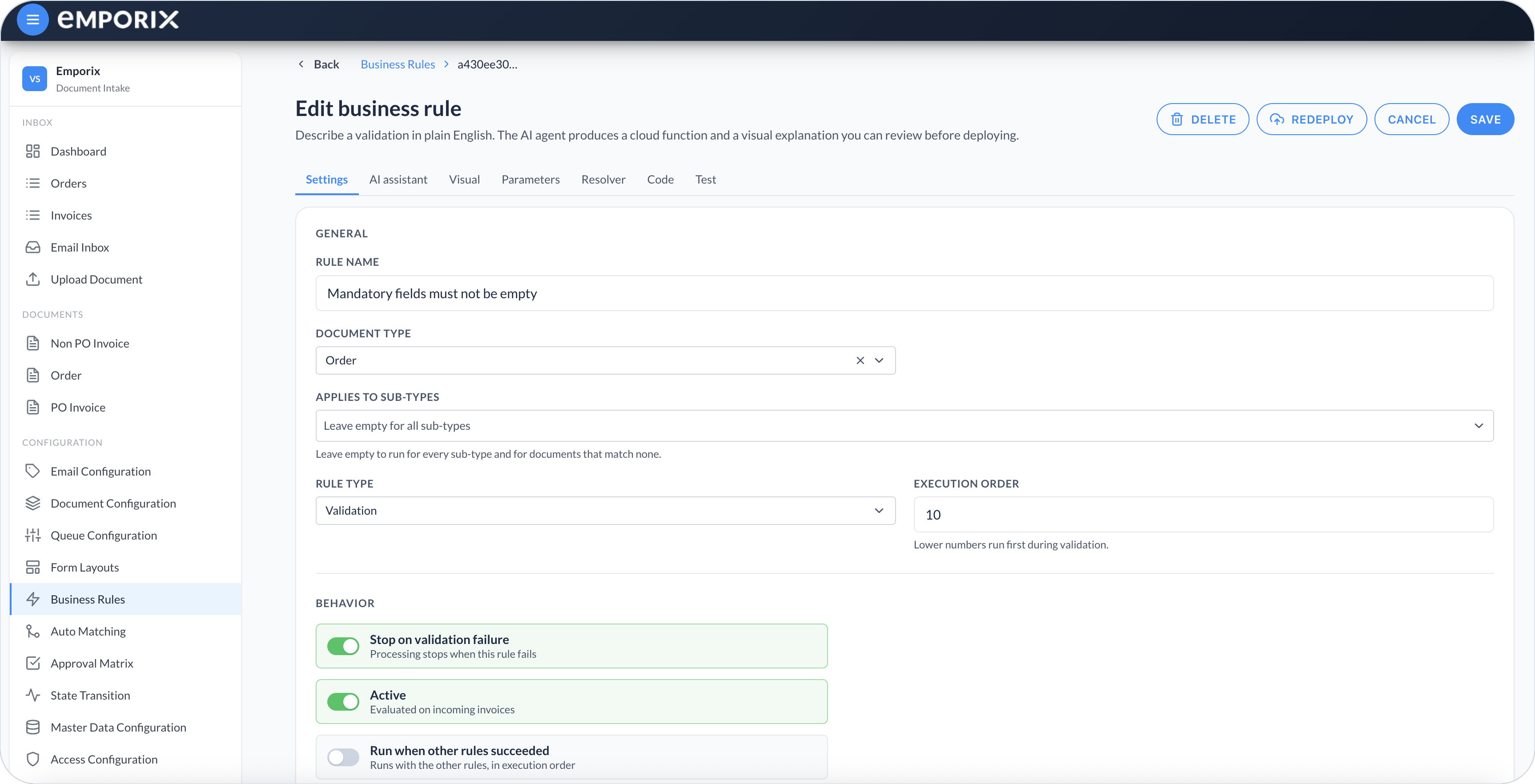
On the selected document type tab, each rule row shows these columns:

* **ID** – Rule identifier
* **Name** – Label shown in the list and when reviewing the rule
* **Sub-types** – Selected sub-types, or **All** when the rule is not limited
* **Order** – Same as **Execution order** on **Settings**, with lower numbers first
* **Skippable** – Whether the error from the rule can be skipped on the document
* **Stop on error** – Same as **Stop on validation failure** on **Settings**, including whether a failure stops later rules in the same validation pass
* **Status** – **Active** (on; evaluated only when also **Deployed**) or **Draft** (not evaluated)
* **Deployment** – **Deployed** or **Not deployed**

Select **New rule** to create a rule, or use a row's edit action to open **Edit business rule**. Use a row's move controls to reorder rules; the new order is saved automatically. Use a row's delete action to remove a rule you no longer need.

<figure><img src="https://1808414410-files.gitbook.io/~/files/v0/b/gitbook-x-prod.appspot.com/o/spaces%2FPBaf05o2vgbdikMFDTyz%2Fuploads%2Fgit-blob-daaf01effe94dbfa93f8867354b584a3e01c5436%2Fbusiness_rules_po_invoice.png?alt=media" alt="Business Rules list on the PO Invoice tab with three deployed rules"><figcaption><p>Business Rules on the PO Invoice tab with multiple rules</p></figcaption></figure>

{% hint style="warning" %}
When you deactivate or delete a rule, it no longer runs. Deleting a rule removes the definition in the cockpit. A deployed cloud function can remain; that leftover does not keep the check running.
{% endhint %}

{% hint style="info" %}
A **Deployed** and **Active** rule is ready for production validation. **Draft** rules stay in the list for design and testing only. Editing a rule does not update existing documents automatically.
{% endhint %}

## Creating a rule with AI

{% stepper %}
{% step %}

#### Start a new rule

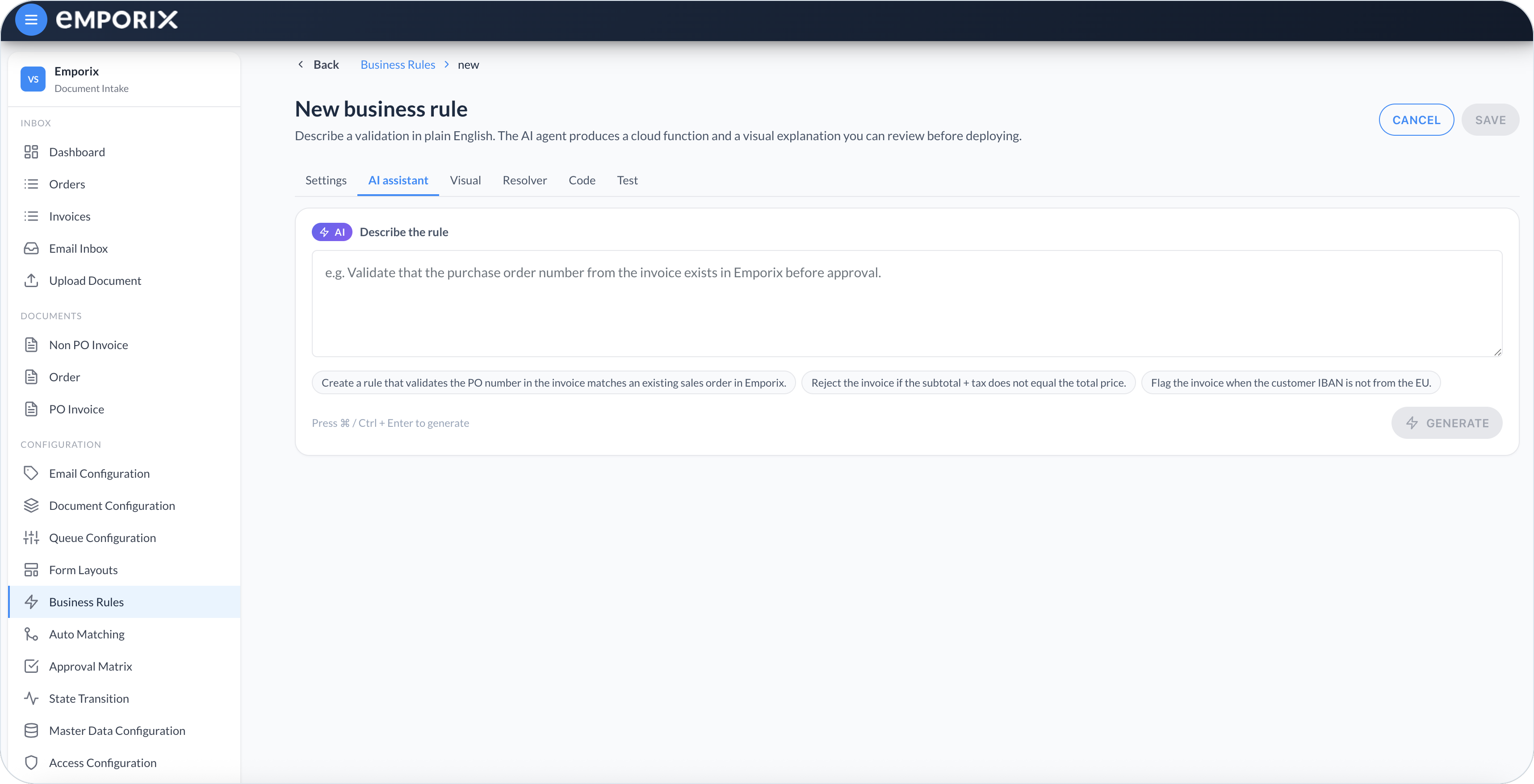
Select **New rule**. The editor opens **New business rule**. On the **Settings** tab, enter a **Rule name**. The cockpit sets **Document type** to the tab you were on; you can change it. **Rule type** is **Validation**. Set **Execution order** so lower numbers run first.

Use **Applies to sub-types** to limit the rule to selected sub-types. Leave **Applies to sub-types** empty to include every sub-type and documents that do not resolve to a sub-type.

When **Applies to sub-types** lists one or more values, the rule runs only for a document whose resolved sub-type is one of those values.

<figure><img src="https://1808414410-files.gitbook.io/~/files/v0/b/gitbook-x-prod.appspot.com/o/spaces%2FPBaf05o2vgbdikMFDTyz%2Fuploads%2Fgit-blob-419b5ac5d5a0412a26677b739d93379169cef164%2Fbusiness_rules_edit.png?alt=media" alt="Edit business rule Settings with Rule name, Document type, Applies to sub-types, Rule type, Execution order, and Behavior"><figcaption><p>Edit business rule with settings</p></figcaption></figure>
{% endstep %}

{% step %}

#### Describe the check and generate

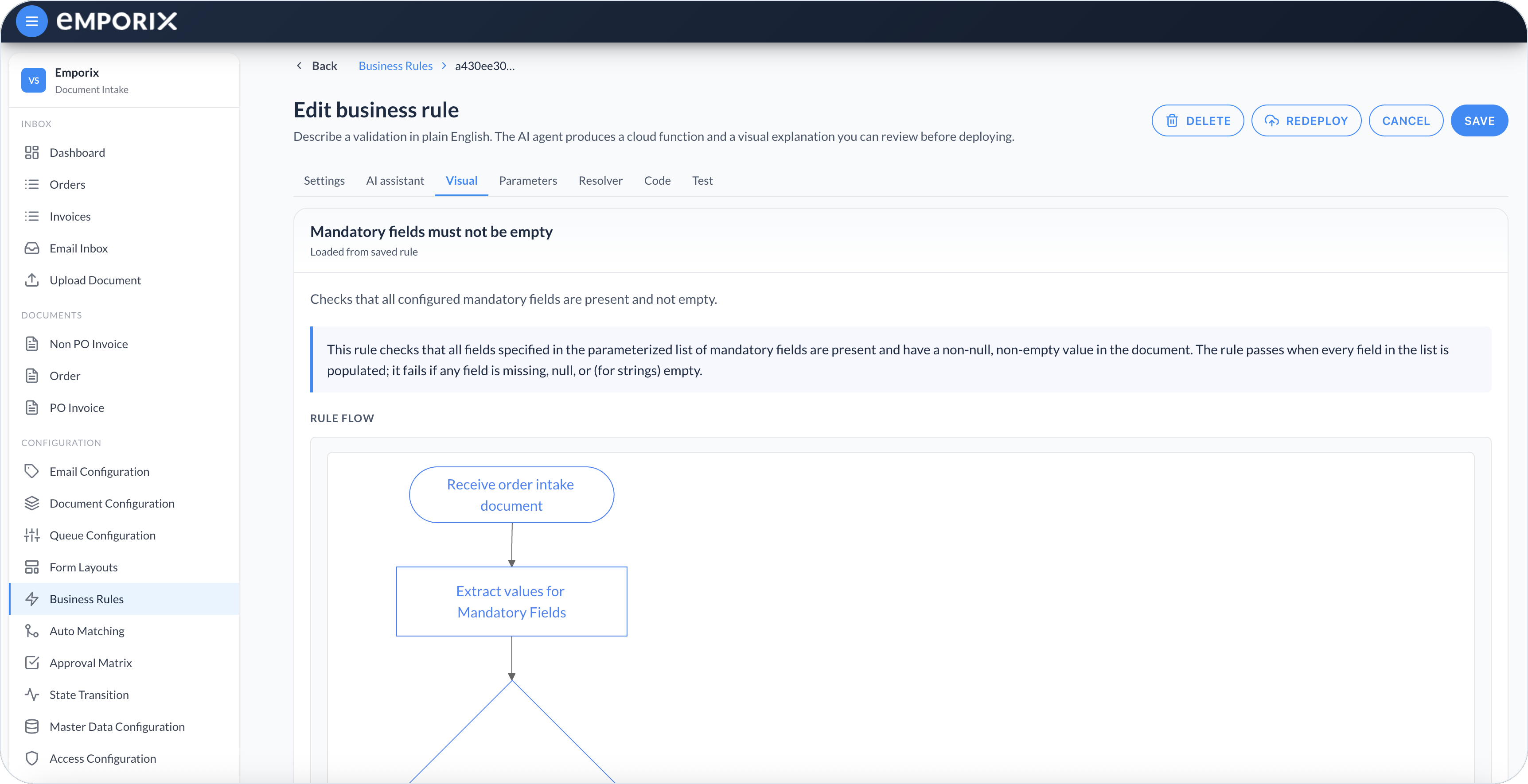
Open the **AI assistant** tab. In **Describe the rule**, write the intent in plain language, or pick a sample prompt. Select **Generate**, or use ⌘ / Ctrl + Enter. The AI assistant produces a cloud function and a visual explanation.

<figure><img src="https://1808414410-files.gitbook.io/~/files/v0/b/gitbook-x-prod.appspot.com/o/spaces%2FPBaf05o2vgbdikMFDTyz%2Fuploads%2Fgit-blob-02cf67fe715edfba75f5b883659137347ae112bc%2Fbusiness_rules_ai.png?alt=media" alt="New business rule AI assistant with Describe the rule, sample prompts, and Generate"><figcaption><p>New business rule with AI assistant</p></figcaption></figure>

{% hint style="success" %}
Example intents:

* Flag if the tax amount does not match line totals
* Flag if subtotal plus tax does not equal the total
* Validate that the purchase order number exists before approval
* Flag the invoice when the customer IBAN is not from the EU
  {% endhint %}
  {% endstep %}

{% step %}

#### Review the generated rule

Use the result tabs to confirm the rule is correct:

* **Visual** – Explanation of what the rule checks, plus **Rule flow**.
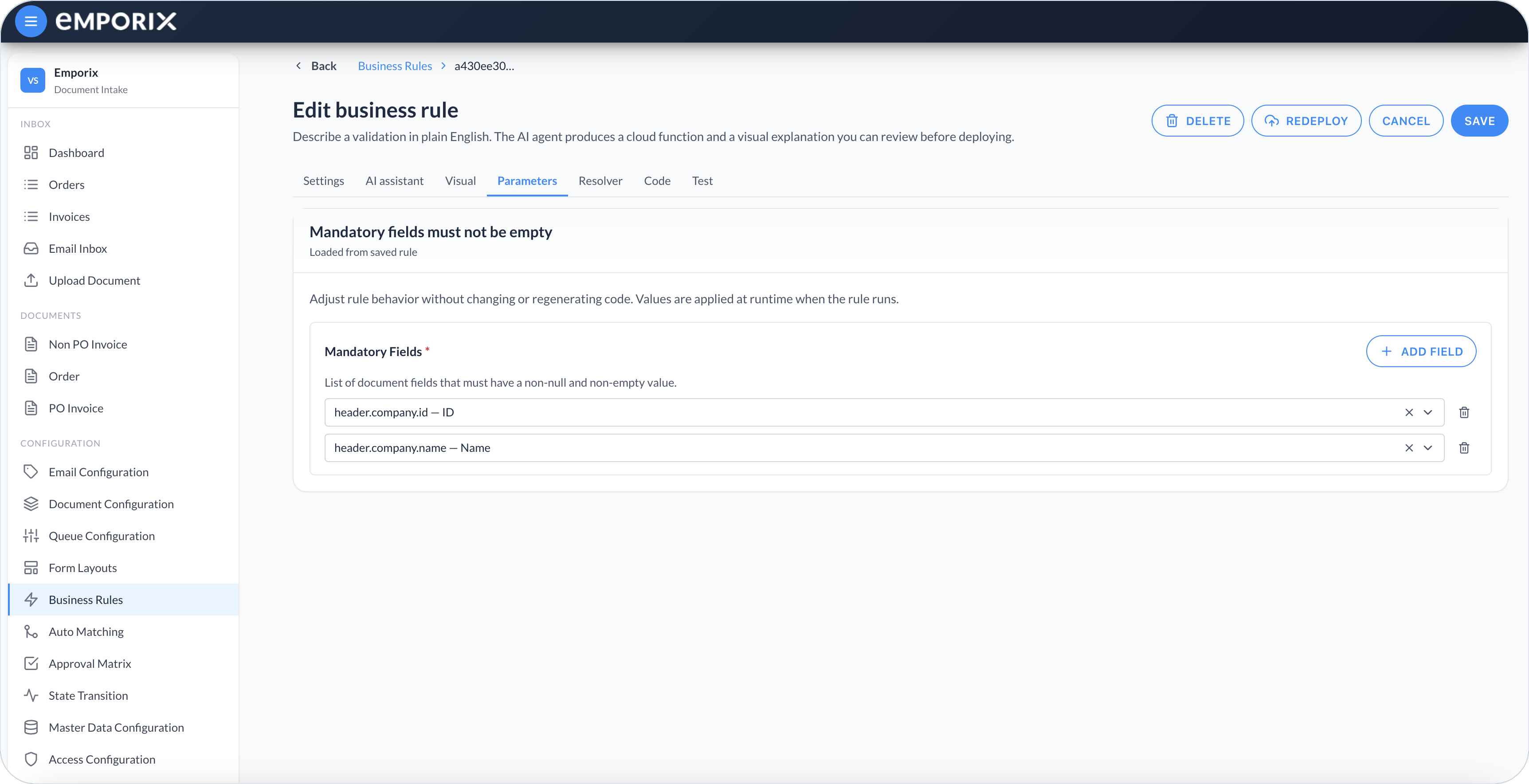
* **Parameters** – Runtime values you can change without regenerating code. This tab appears when the generated rule defines parameters.
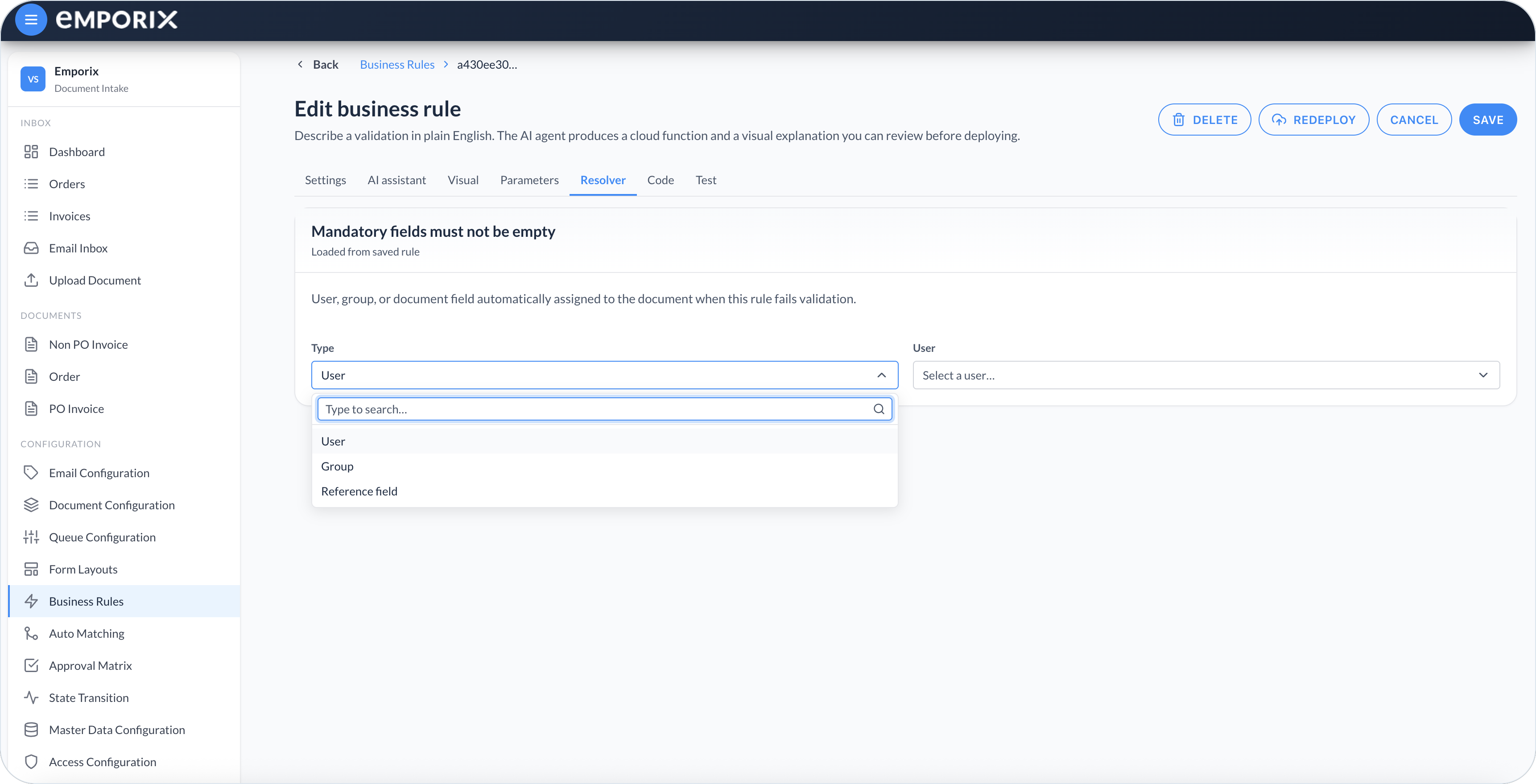
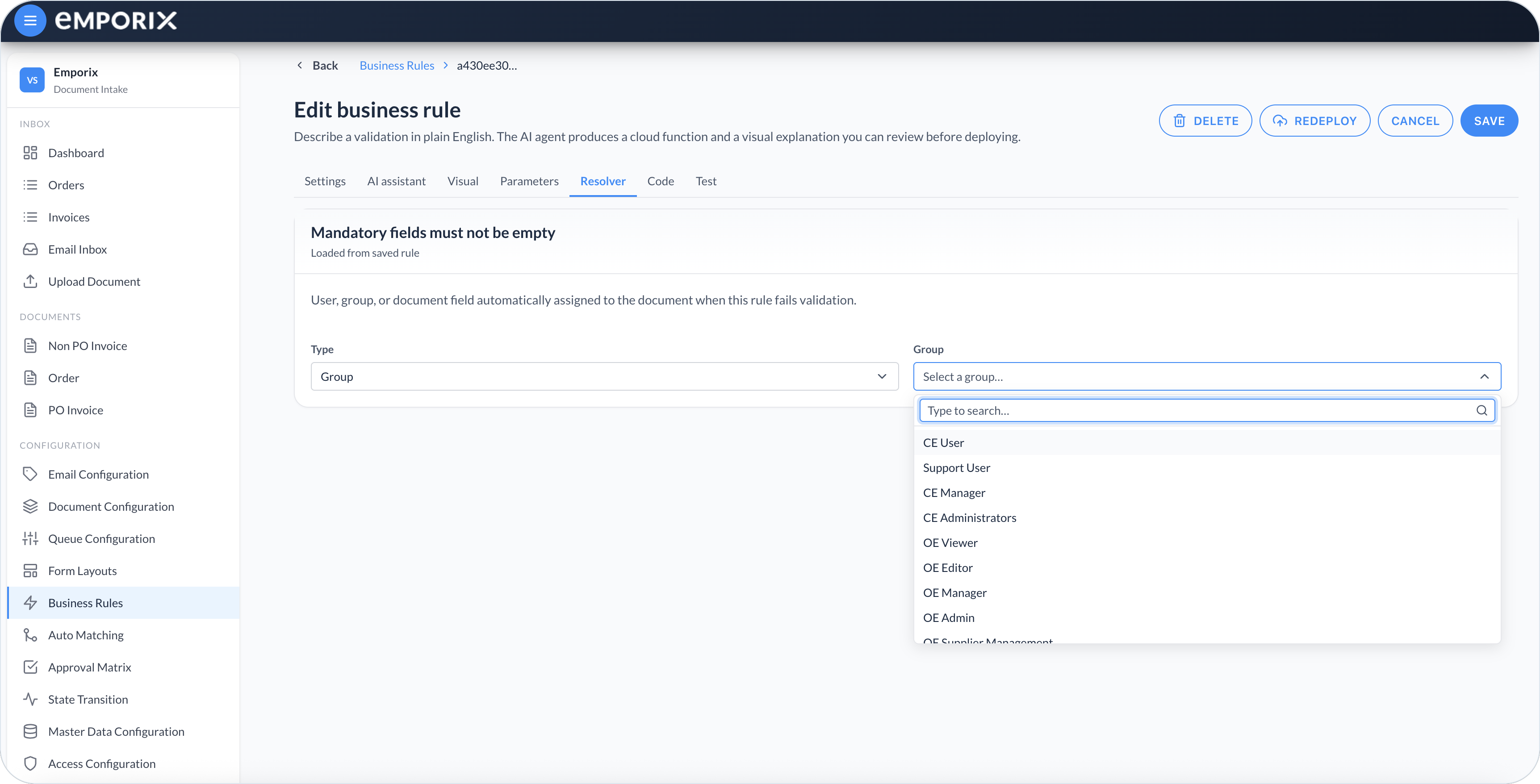
* **Resolver** – **User**, **Group**, or **Reference field** assigned when the rule fails.
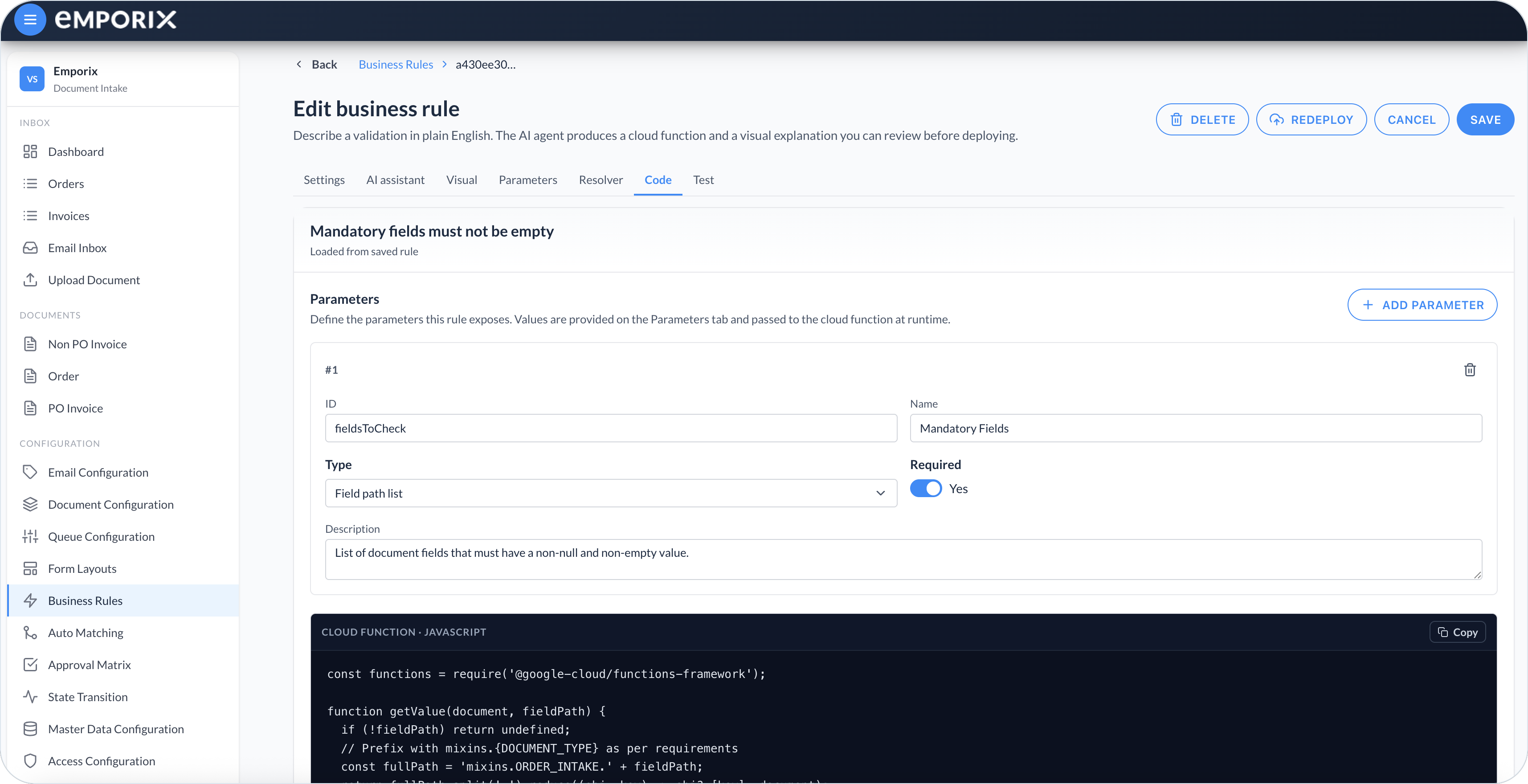
* **Code** – Parameter definitions the rule exposes, plus cloud function source for technical review.
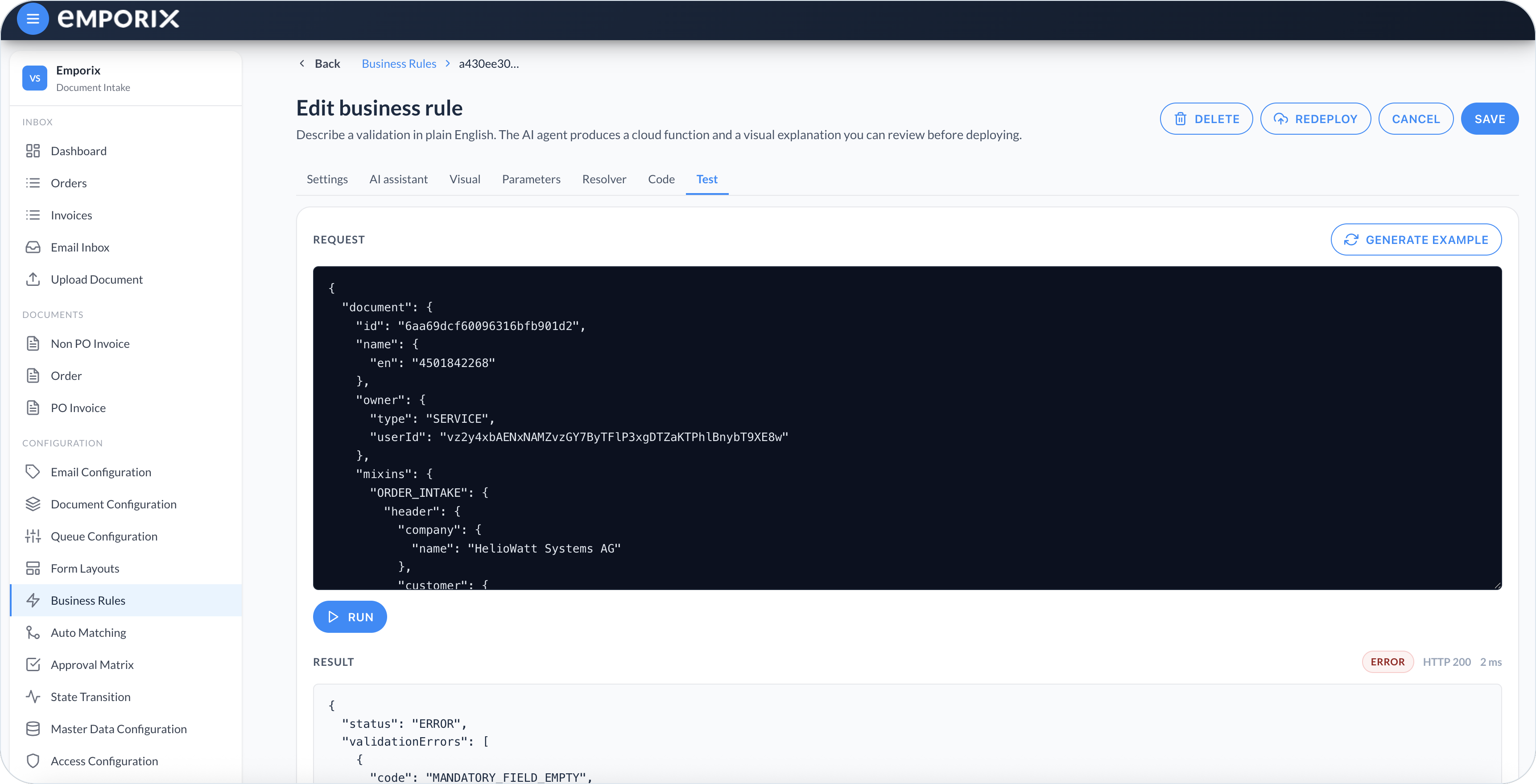
* **Test** – **Generate example**, **Run**, and **Result**.

<figure><img src="https://1808414410-files.gitbook.io/~/files/v0/b/gitbook-x-prod.appspot.com/o/spaces%2FPBaf05o2vgbdikMFDTyz%2Fuploads%2Fgit-blob-46b65718871535900c6b7f82daf90cbf9692d76c%2Fbusiness_rules_visual.png?alt=media" alt="Visual tab with rule explanation and Rule flow"><figcaption><p>Edit business rule with Visual and Rule flow</p></figcaption></figure>

<figure><img src="https://1808414410-files.gitbook.io/~/files/v0/b/gitbook-x-prod.appspot.com/o/spaces%2FPBaf05o2vgbdikMFDTyz%2Fuploads%2Fgit-blob-f22adb253f79bc25b666164eba474f021bdb7fea%2Fbusiness_rules_parameters.png?alt=media" alt="Parameters tab with Mandatory Fields and Add field"><figcaption><p>Edit business rule with Parameters</p></figcaption></figure>

In the example, **Mandatory Fields** is the parameter you edit on this page. Select **Add field** to choose a schema path such as `header.company.id`.

<figure><img src="https://1808414410-files.gitbook.io/~/files/v0/b/gitbook-x-prod.appspot.com/o/spaces%2FPBaf05o2vgbdikMFDTyz%2Fuploads%2Fgit-blob-42aefd35e9b42c0a79c12bac52a20eaf30610a54%2Fbusiness_rules_resolver.png?alt=media" alt="Resolver tab with Type User, Group, or Reference field"><figcaption><p>Edit business rule with Resolver type</p></figcaption></figure>

<figure><img src="https://1808414410-files.gitbook.io/~/files/v0/b/gitbook-x-prod.appspot.com/o/spaces%2FPBaf05o2vgbdikMFDTyz%2Fuploads%2Fgit-blob-b118f095f18ff17c22dafddfb3d15cbc8070d98c%2Fbusiness_rules_resolver_group.png?alt=media" alt="Resolver tab with Type Group and a group picker"><figcaption><p>Edit business rule with Resolver group</p></figcaption></figure>

<figure><img src="https://1808414410-files.gitbook.io/~/files/v0/b/gitbook-x-prod.appspot.com/o/spaces%2FPBaf05o2vgbdikMFDTyz%2Fuploads%2Fgit-blob-c914ef7e25e89d0bd5ba3ba781eade84cb8c3867%2Fbusiness_rules_code.png?alt=media" alt="Code tab with parameter definitions and cloud function JavaScript"><figcaption><p>Edit business rule with Code</p></figcaption></figure>

**Test** runs the current editor code in the cockpit without saving or deploying it. Before deployment, run representative successful and failing examples, then review the HTTP status, **Result**, and **Logs**. A successful editor test does not replace testing the deployed rule on a representative document.

<figure><img src="https://1808414410-files.gitbook.io/~/files/v0/b/gitbook-x-prod.appspot.com/o/spaces%2FPBaf05o2vgbdikMFDTyz%2Fuploads%2Fgit-blob-e516ca23b1cf97ad65f99b57e00ee045e616cbf8%2Fbusiness_rules_test.png?alt=media" alt="Test tab with Request, Generate example, Run, and Result"><figcaption><p>Edit business rule with Test</p></figcaption></figure>

The Test figure shows a failing example: **Result** is **ERROR** while the HTTP status is 200. That means the editor ran the function; the rule flagged the sample payload.
{% endstep %}

{% step %}

#### Save, deploy, and activate

Select **Save** to store the definition. Save is available after the rule has a name, generated code, and valid required parameters. Each rule for a document type must have a unique **Execution order**.

After the first save, select **Deploy**, or **Redeploy** after changing an already deployed rule. The header of an already deployed rule shows **Redeploy**. Deployment starts a cloud-function build. Keep **Active** off until the rule shows **Deployed**. Then turn **Active** on and select **Save** so production validation can use it.

To verify the deployed rule, use a representative document that you know must fail the check, then run the document's configured revalidation action. Confirm that the expected message appears in the validation panel. After you correct the value and revalidate again, the issue becomes **Resolved** in **Validation history**, or the document shows **Validation: SUCCESS** when no other issues remain. The absence of an issue on an untested document does not prove that the rule ran.
{% endstep %}
{% endstepper %}

After a rule exists, open **AI assistant** and use **Refine the rule** to adjust the intent, then select **Regenerate**. **Start over** clears the generated rule so you can describe a new check.

## Behavior options

On the **Settings** tab, **Behavior** sets when the rule runs and how a failure affects later rules and the document:

* **Stop on validation failure** – Enabled by default for a new rule. When on, later business rules in the same validation pass do not run after an unskipped failure. When off, later rules still run.
* **Active** – When on, the rule can be evaluated on incoming documents if it is also **Deployed**. When off, it stays **Draft** and is not evaluated.
* **Run when other rules succeeded** – Delays the rule until the other applicable rules that do not use this setting have succeeded or their errors have been skipped. Delayed rules then run in execution order.
* **Skippable** – When enabled, errors from this rule can be skipped on the document. When off, those errors cannot be skipped.

On the **Resolver** tab, assign a **User** or **Group** (a fixed person or group), or a **Reference field**. The cockpit assigns that user, group, or document field when the rule fails validation. A reference field must contain a valid IAM user ID. If it is empty when the rule runs, the issue has no resolver. An issue with a matching resolver appears under **Requires my attention** for that user or group.

## Linking validation issues to fields

Use `fieldPath` on each `validationErrors` entry to link an issue to fields on the document form. The cockpit supports these forms:

| Use                                 | Supported `fieldPath` value                                                                                                                                  |
| ----------------------------------- | ------------------------------------------------------------------------------------------------------------------------------------------------------------ |
| One field                           | A string, for example, `"fieldPath": "header.company.id"`                                                                                                    |
| Several fields                      | An array of strings, for example, `"fieldPath": ["lineItems[0].costCenter.id", "lineItems[1].costCenter.id"]`                                                |
| Several fields in a legacy response | One comma-separated string, for example, `"fieldPath": "mixins.NON_PO_INVOICE.lineItems[0].costCenter.id, mixins.NON_PO_INVOICE.lineItems[1].costCenter.id"` |
| No specific field                   | `null` or an omitted `fieldPath` property                                                                                                                    |

Use an array for several fields in new rules. For backward compatibility, the cockpit also accepts a comma-separated string when every segment resembles a field path by containing `.` or `[`. The order of paths determines the order in which **Go to field** moves through visible fields.

The following response creates one validation issue linked to two line-item fields:

```json
{
  "status": "ERROR",
  "validationErrors": [
    {
      "code": "COST_CENTER_MISSING",
      "message": "Cost center is required.",
      "fieldPath": [
        "lineItems[0].costCenter.id",
        "lineItems[1].costCenter.id"
      ]
    }
  ]
}
```

Use paths that match fields in the document's form layout. A path can be relative to the document-type mixin, such as `lineItems[0].costCenter.id`, or include the mixin prefix, such as `mixins.NON_PO_INVOICE.lineItems[0].costCenter.id`.

## Rule failures in documents

When a rule fails, the issue appears in the validation panel on a document. Each `validationErrors` entry appears as one issue, even when its `fieldPath` links it to several fields. Linked fields show an error indicator. **Go to field** moves through the linked fields that are visible on the form.

* **Requires my attention** – Issues assigned to you (your user or a group you belong to).
* **All validation errors** – The full list on the document.

**Save** on the document does not run checks again. To run checks again after you fix fields, use the header **Cloud function** action on the document. Tenants often label it **Revalidate**. That document action is not the executable cloud function the rule becomes when you deploy it.

{% hint style="info" %}
See the [Order Intake Example](/document-intake-cockpit/configuration-examples/order-intake.md) for a worked tenant configuration in this cockpit.
{% endhint %}


---

# Agent Instructions
This documentation is published with GitBook. GitBook is the documentation platform designed so that both humans and AI agents can read, navigate, and reason over technical content effectively. Learn more at gitbook.com.

## Querying This Documentation
If you need additional information that is not directly available in this page, you can query the documentation dynamically by asking a question.

Perform an HTTP GET request on the current page URL with the `ask` query parameter, and the optional `goal` query parameter:

```
GET https://developer.emporix.io/document-intake-cockpit/configuration/business-rules.md?ask=<question>&goal=<endgoal>
```

`ask` is the immediate question: it should be specific, self-contained, and written in natural language.
`goal` is optional and describes the broader end goal you are ultimately trying to accomplish on behalf of the user. GitBook uses it to tailor the answer towards what is most useful for that goal.

The response will contain a direct answer to the question and relevant excerpts and sources from the documentation.

Use this mechanism when the answer is not explicitly present in the current page, you need clarification or additional context, or you want to retrieve related documentation sections.