> For the complete documentation index, see [llms.txt](https://developer.emporix.io/llms.txt). Markdown versions of documentation pages are available by appending `.md` to page URLs; this page is available as [Markdown](https://developer.emporix.io/document-intake-cockpit/configuration/email-configuration.md).

# Email Configuration

Configure folders, classification categories, labels, and reusable email templates for the Document Intake Cockpit.

Use **Email Configuration** to define folders, classification categories, labels, and reusable templates for the [Email Inbox](/document-intake-cockpit/cockpit-views/email-inbox.md).

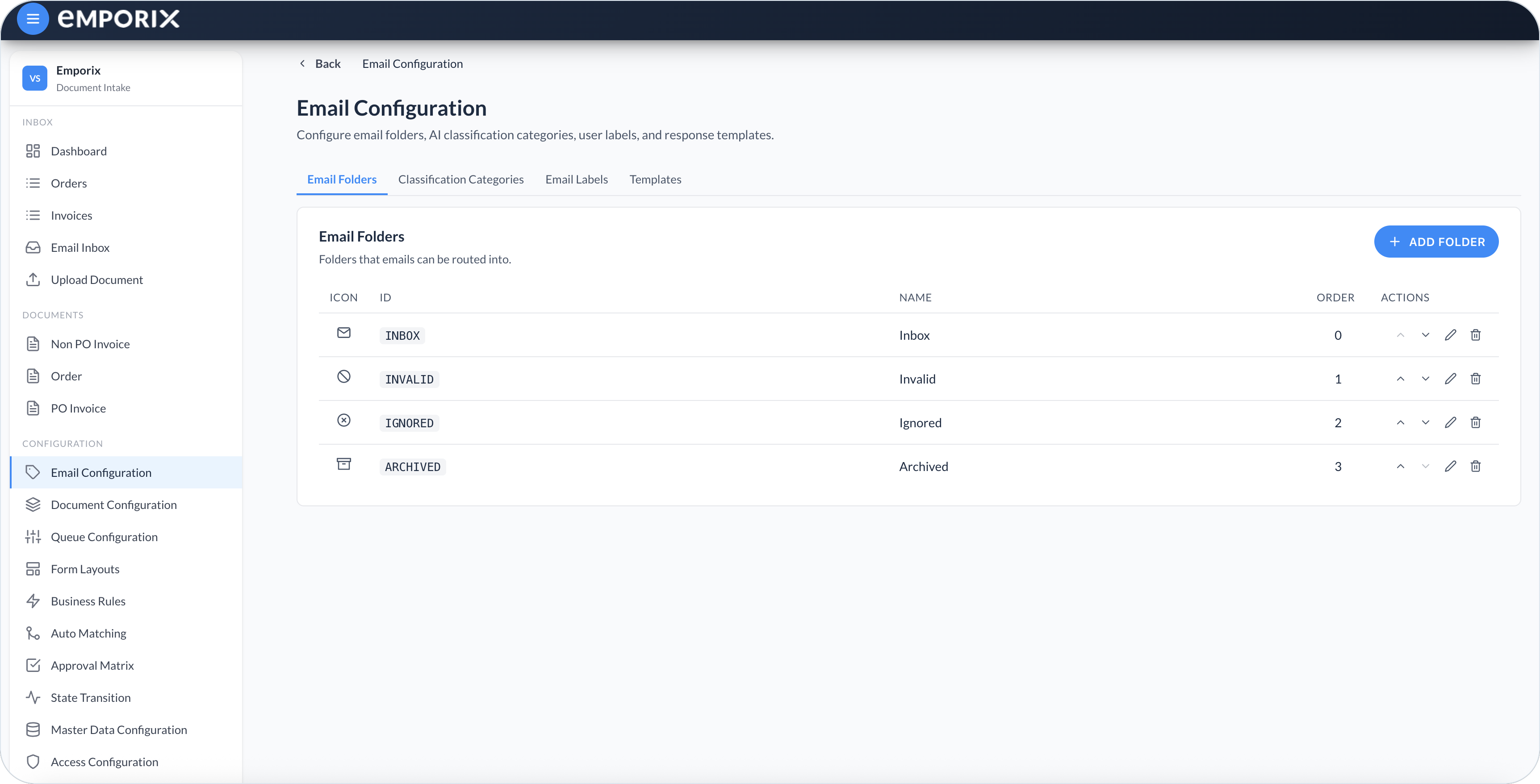
Open **Configuration** → **Email Configuration** in the side menu. The view divides what you can configure into tabs:

* **Email Folders** – Folders in the Inbox sidebar.
* **Classification Categories** – Categories the AI can apply to incoming mail, optionally mapped to a folder.
* **Email Labels** – Labels available on emails in the Inbox.
* **Templates** – Reusable, localized content for composing and replying.

<figure><img src="https://1808414410-files.gitbook.io/~/files/v0/b/gitbook-x-prod.appspot.com/o/spaces%2FPBaf05o2vgbdikMFDTyz%2Fuploads%2Fgit-blob-e07343844a5247206a3d2df9fef2edbba396b7e3%2Femail_configuration.png?alt=media" alt="Email Configuration, Email Folders tab with Inbox, Invalid, Ignored, and Archived"><figcaption><p>Email Configuration on Email Folders with Inbox, Invalid, Ignored, and Archived</p></figcaption></figure>

{% hint style="warning" %}
Before you delete a folder, remove it from category mappings and existing emails. Before you delete a category or label, remove it from existing emails. After confirmation, deletion removes the configuration entry only. The cockpit does not clean up dependencies. A deleted label can appear as its raw ID on an existing email.
{% endhint %}

## Email folders

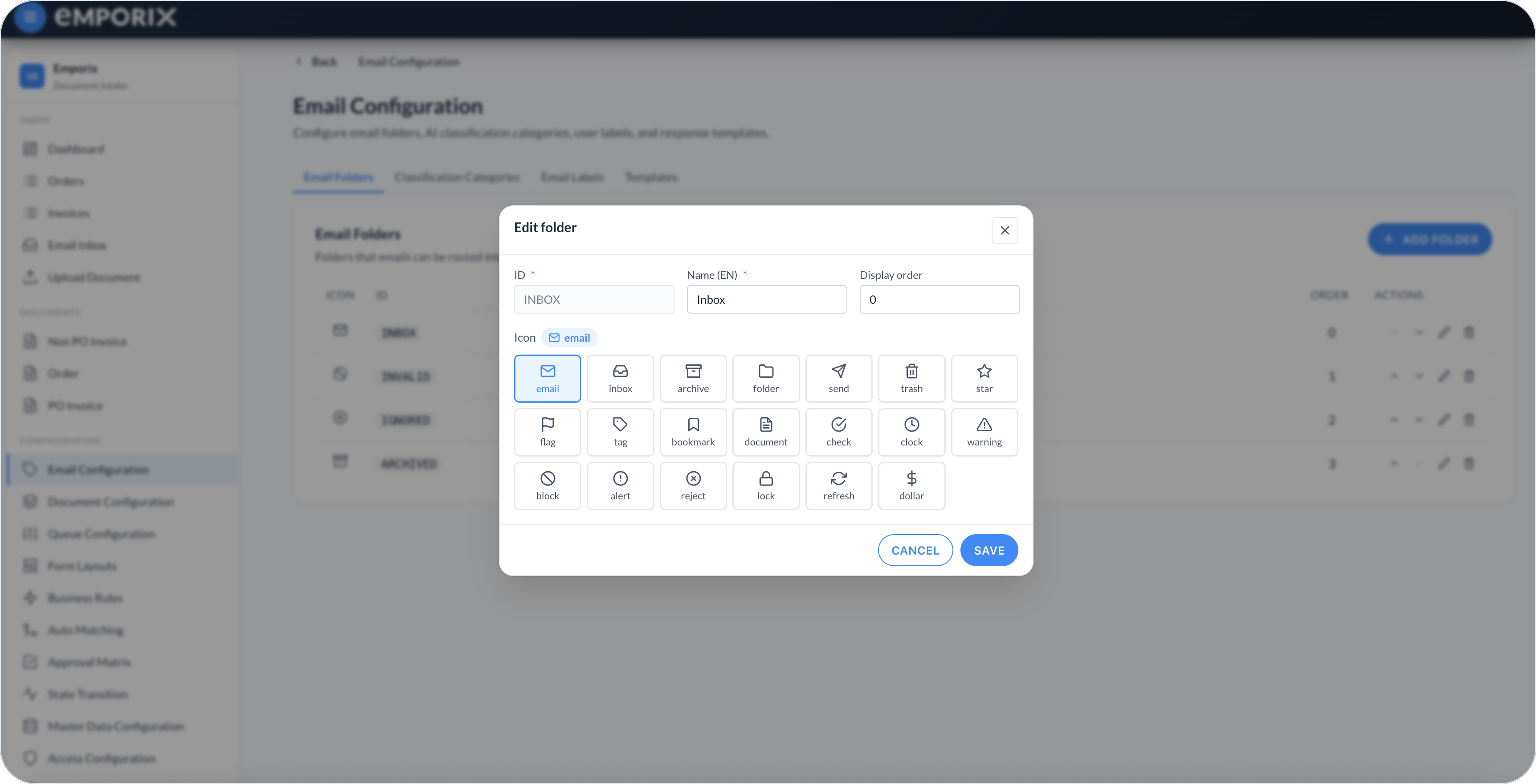
On **Email Folders**, select **Add folder**. Set **ID** (locked after you save), **Name (EN)**, **Display order**, and **Icon**, then select **Save**. **Display order** is a number; lower numbers appear first in the Inbox sidebar. Use **Edit** or **Delete** on a row to change or remove a folder. Move a folder up or down to change that list order; the new **Display order** values are saved automatically.

<figure><img src="https://1808414410-files.gitbook.io/~/files/v0/b/gitbook-x-prod.appspot.com/o/spaces%2FPBaf05o2vgbdikMFDTyz%2Fuploads%2Fgit-blob-5a8b78a31f859a1e21f2767b6e7c1102a14edda9%2Femail_classification_folder.png?alt=media" alt="Edit folder dialog with ID, Name (EN), Display order, and icon gallery"><figcaption><p>Edit folder with ID, name (EN), display order, and icon</p></figcaption></figure>

{% hint style="info" %}
Create folders before you map categories to them.
{% endhint %}

## Classification categories

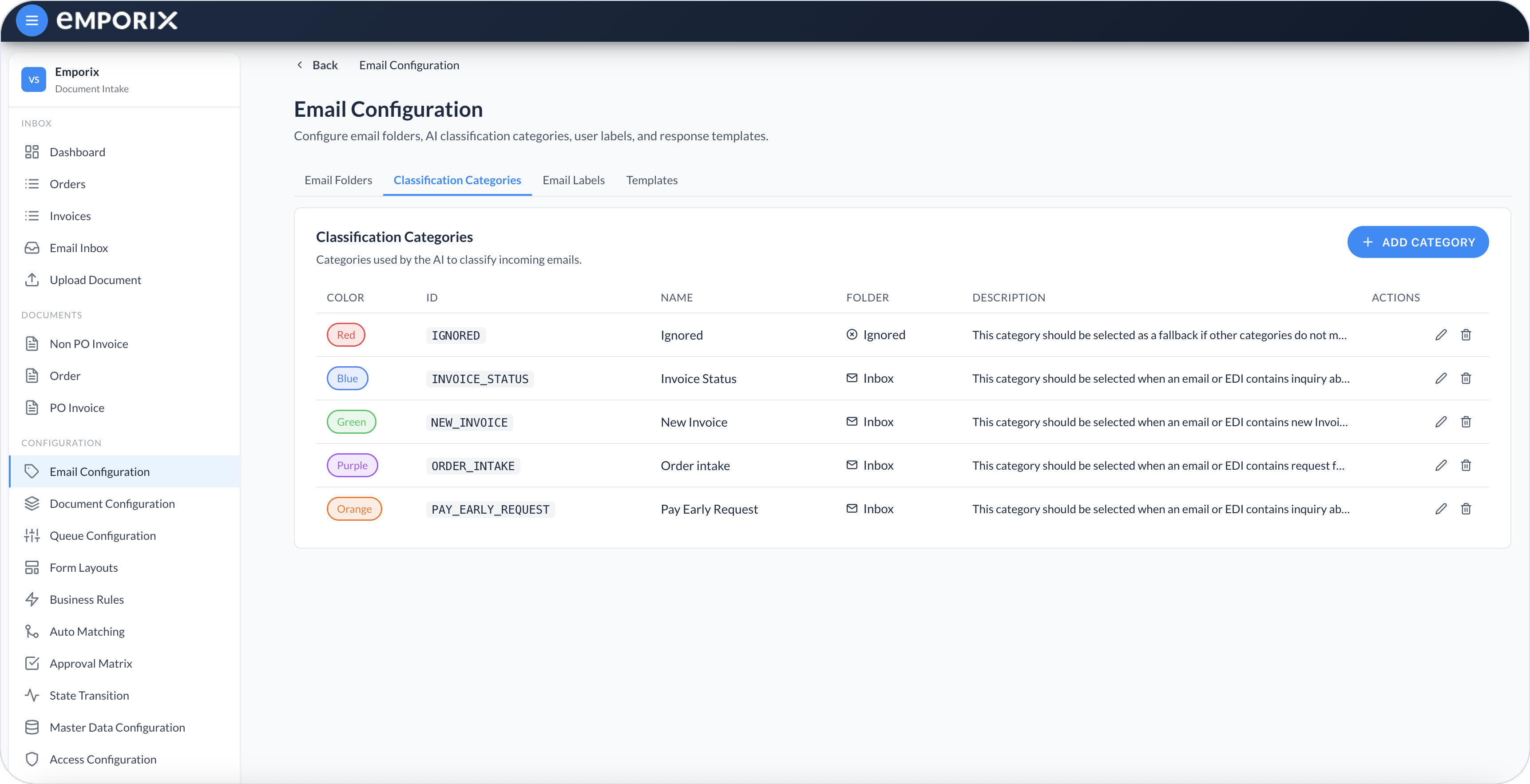
Use **Classification Categories** so the AI can tag incoming mail by purpose, for example, invoice, order, query, or spam. Categories appear as filters in the [Email Inbox](/document-intake-cockpit/cockpit-views/email-inbox.md). You can also map a category to a folder so classified mail is filed automatically.

<figure><img src="https://1808414410-files.gitbook.io/~/files/v0/b/gitbook-x-prod.appspot.com/o/spaces%2FPBaf05o2vgbdikMFDTyz%2Fuploads%2Fgit-blob-463c6b95e246a11822b3022f9ad278d81c81f4a2%2Femail_classification_categories.png?alt=media" alt="Classification Categories list with color, ID, name, folder, and description"><figcaption><p>Classification Categories with color, ID, name, folder, and description</p></figcaption></figure>

{% stepper %}
{% step %}

#### Open the category editor

Select **Add category**, or use a row's **Edit** action for an existing category.
{% endstep %}

{% step %}

#### Set the category fields

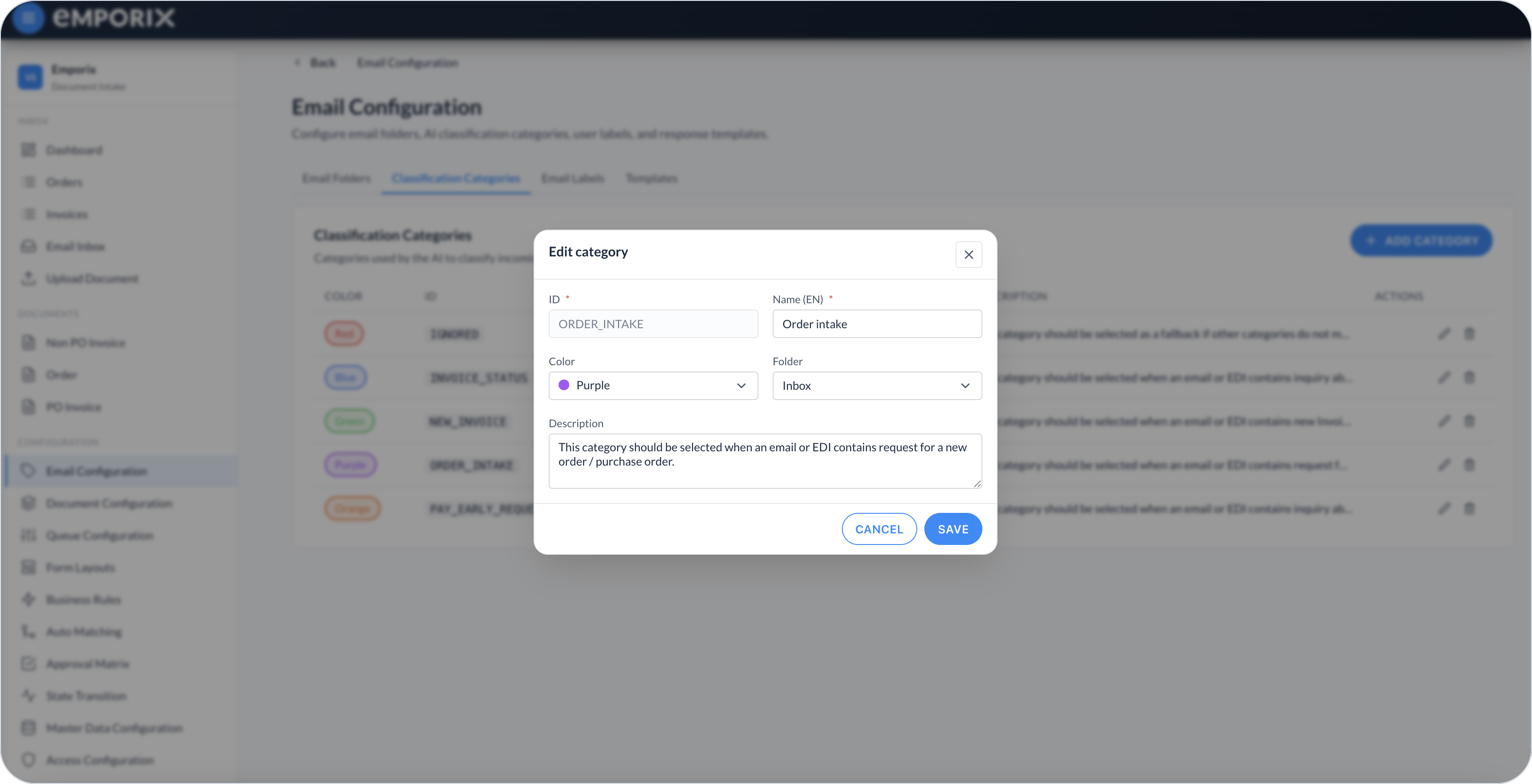
Set **ID** (locked after you save), **Name (EN)**, and a **Color**. Optionally map the category to a **Folder**, or leave **Folder** set to **– None –**. In **Description**, write the instruction the classifier uses to choose this category. That text is for the AI, not a display note in the Inbox.
{% endstep %}

{% step %}

#### Save the category

Select **Save**. Use **Delete** on a row to remove a category you no longer need.
{% endstep %}
{% endstepper %}

<figure><img src="https://1808414410-files.gitbook.io/~/files/v0/b/gitbook-x-prod.appspot.com/o/spaces%2FPBaf05o2vgbdikMFDTyz%2Fuploads%2Fgit-blob-4a0bf43f6997f87a2b1477182c8e8dda85e77f15%2Femail_classification_category.png?alt=media" alt="Edit category dialog with ID, name, color, folder, and description"><figcaption><p>Edit category with ID, name (EN), color, folder, and description</p></figcaption></figure>

{% hint style="info" %}
When incoming mail is classified into a category, it is filed in the **Folder** mapped to that category. Leave **Folder** set to **– None –** if you only need the category name and color. Selecting **Save category** on a message in the [Email Inbox](/document-intake-cockpit/cockpit-views/email-inbox.md) changes the category but leaves the message in its current folder. Drag a message onto a folder to move it.
{% endhint %}

## Email labels

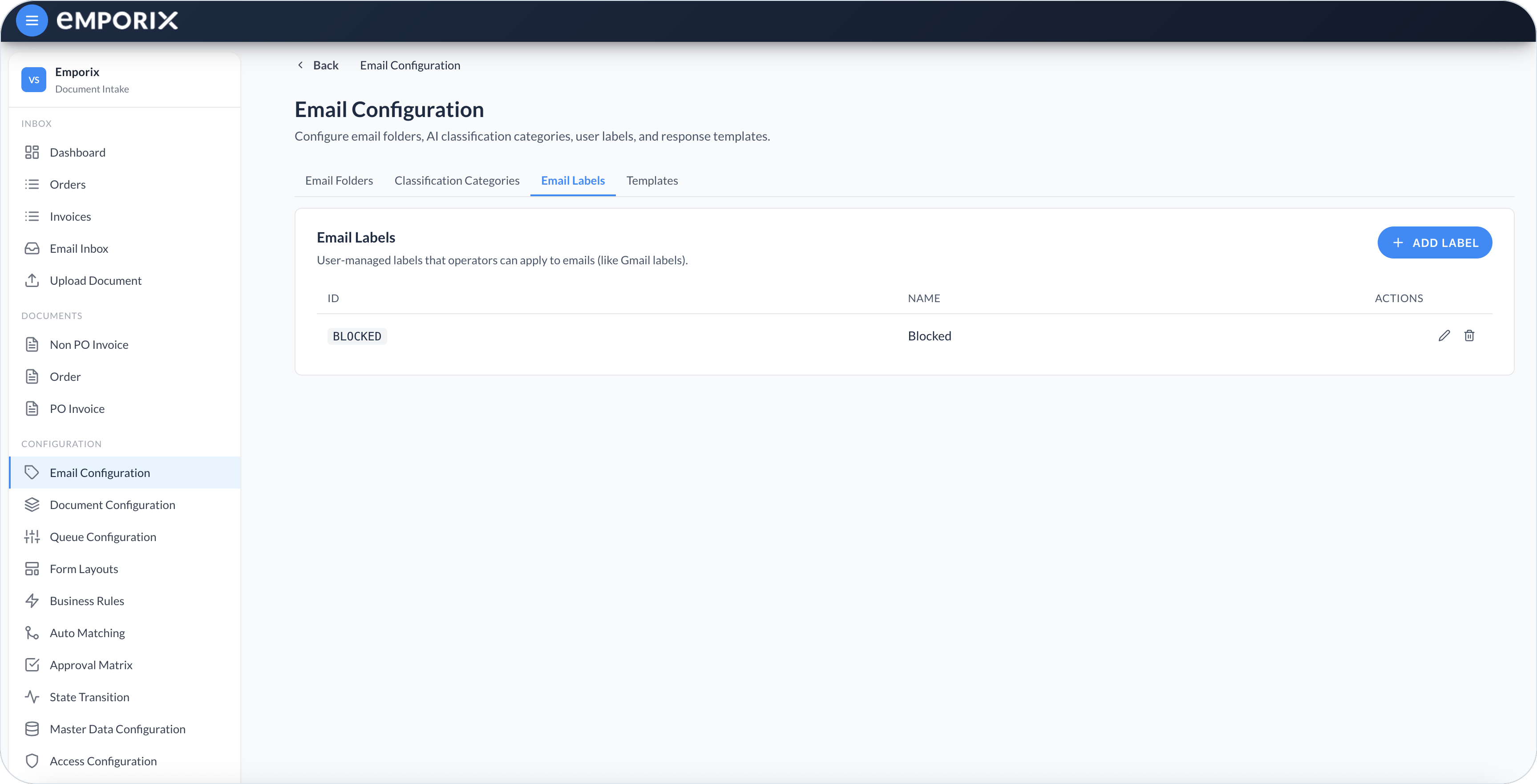
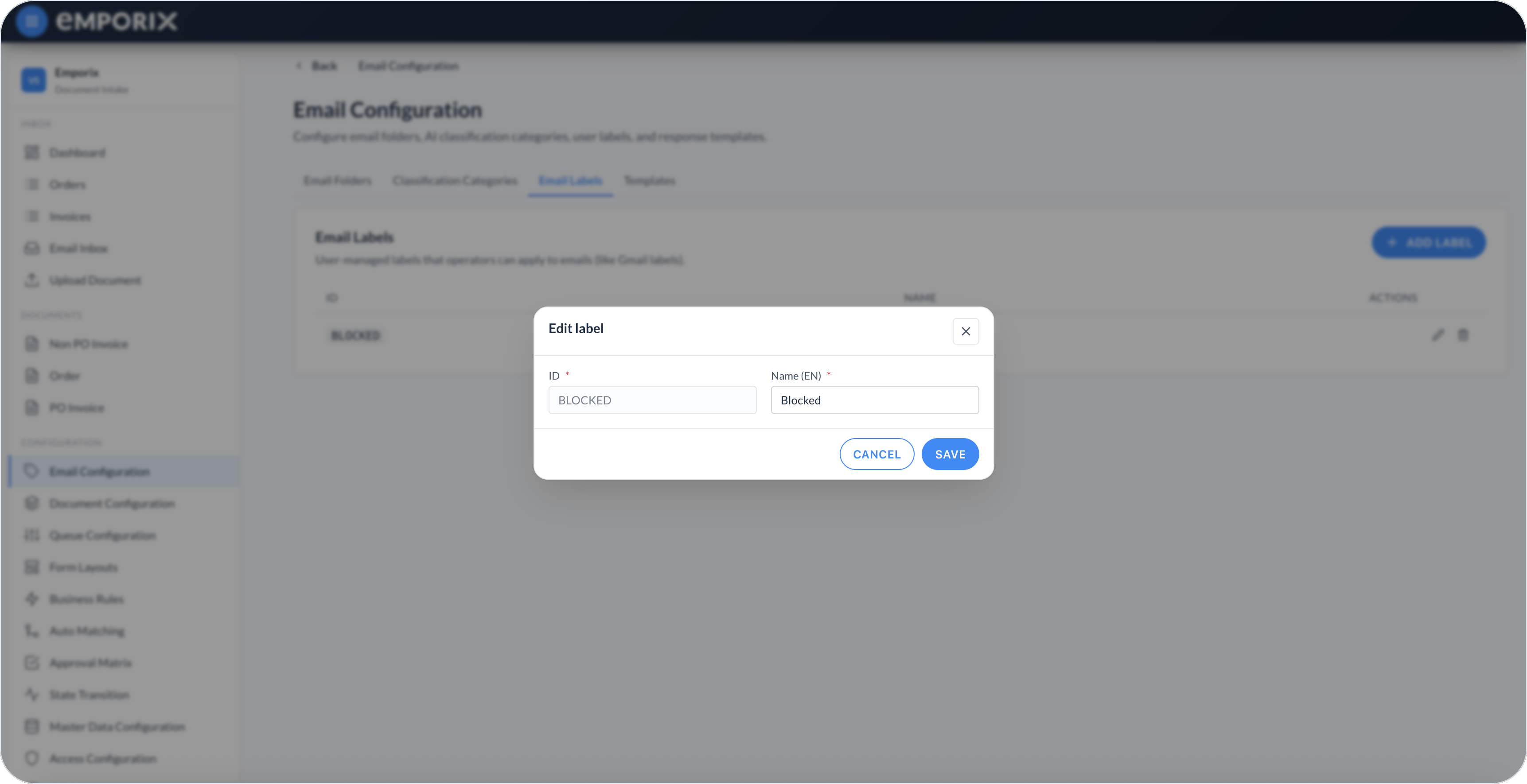
On **Email Labels**, select **Add label**. Set **ID** (locked after you save) and **Name (EN)**, then select **Save**. Use **Edit** or **Delete** on a row to change or remove a label. Labels are separate from classification categories. You can also create a label from conversation detail in the [Email Inbox](/document-intake-cockpit/cockpit-views/email-inbox.md).

<figure><img src="https://1808414410-files.gitbook.io/~/files/v0/b/gitbook-x-prod.appspot.com/o/spaces%2FPBaf05o2vgbdikMFDTyz%2Fuploads%2Fgit-blob-bda5064414134a5dea994fb3edbc59c8f93c9852%2Femail_classification_labels.png?alt=media" alt="Email Labels list with ID, name, and actions"><figcaption><p>Email Labels with ID, name, and actions</p></figcaption></figure>

<figure><img src="https://1808414410-files.gitbook.io/~/files/v0/b/gitbook-x-prod.appspot.com/o/spaces%2FPBaf05o2vgbdikMFDTyz%2Fuploads%2Fgit-blob-fa2592678dbb369e7f9cb8dfdbb92e4249071a97%2Femail_classification_label.png?alt=media" alt="Edit label dialog with ID and Name (EN)"><figcaption><p>Edit label with ID and name (EN)</p></figcaption></figure>

## Email templates

On **Templates**, organize reusable messages in groups and make approved content available in the Inbox.

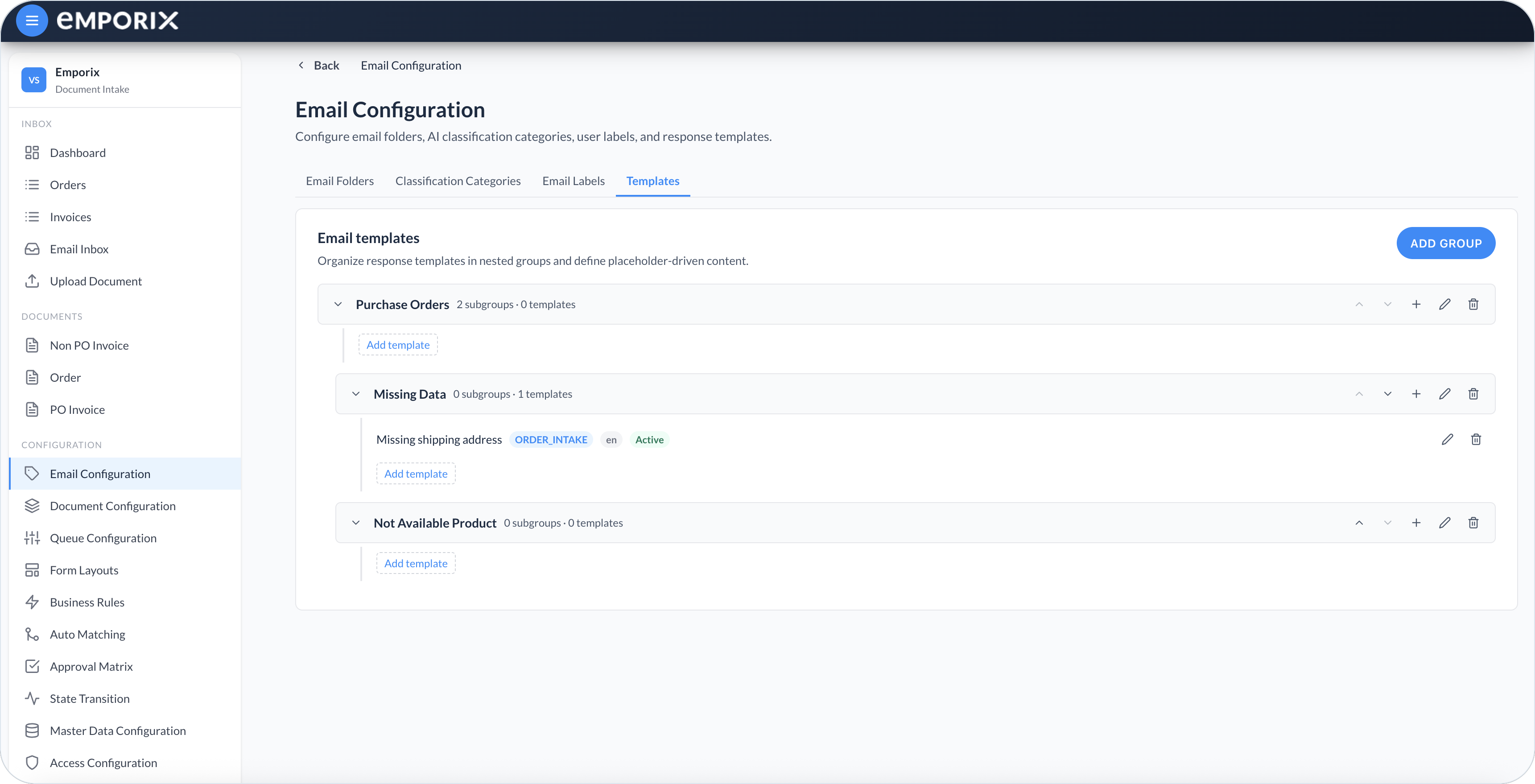
<figure><img src="https://1808414410-files.gitbook.io/~/files/v0/b/gitbook-x-prod.appspot.com/o/spaces%2FPBaf05o2vgbdikMFDTyz%2Fuploads%2Fgit-blob-46609f2f4dd2aca21274a51e805911d927d49991%2Femail_templates_groups.png?alt=media" alt="Email Templates groups with nested groups and templates"><figcaption><p>Email Templates with groups and Missing shipping address marked Active</p></figcaption></figure>

{% stepper %}
{% step %}

#### Create the group structure

Select **Add group**, enter a **Name** in at least one language, optionally select a **Parent group**, and set the **Display order**. Select **Save**. To create another level, use a group's **Add subgroup** action. You cannot delete a group until you remove its subgroups and templates.
{% endstep %}

{% step %}

#### Configure the template

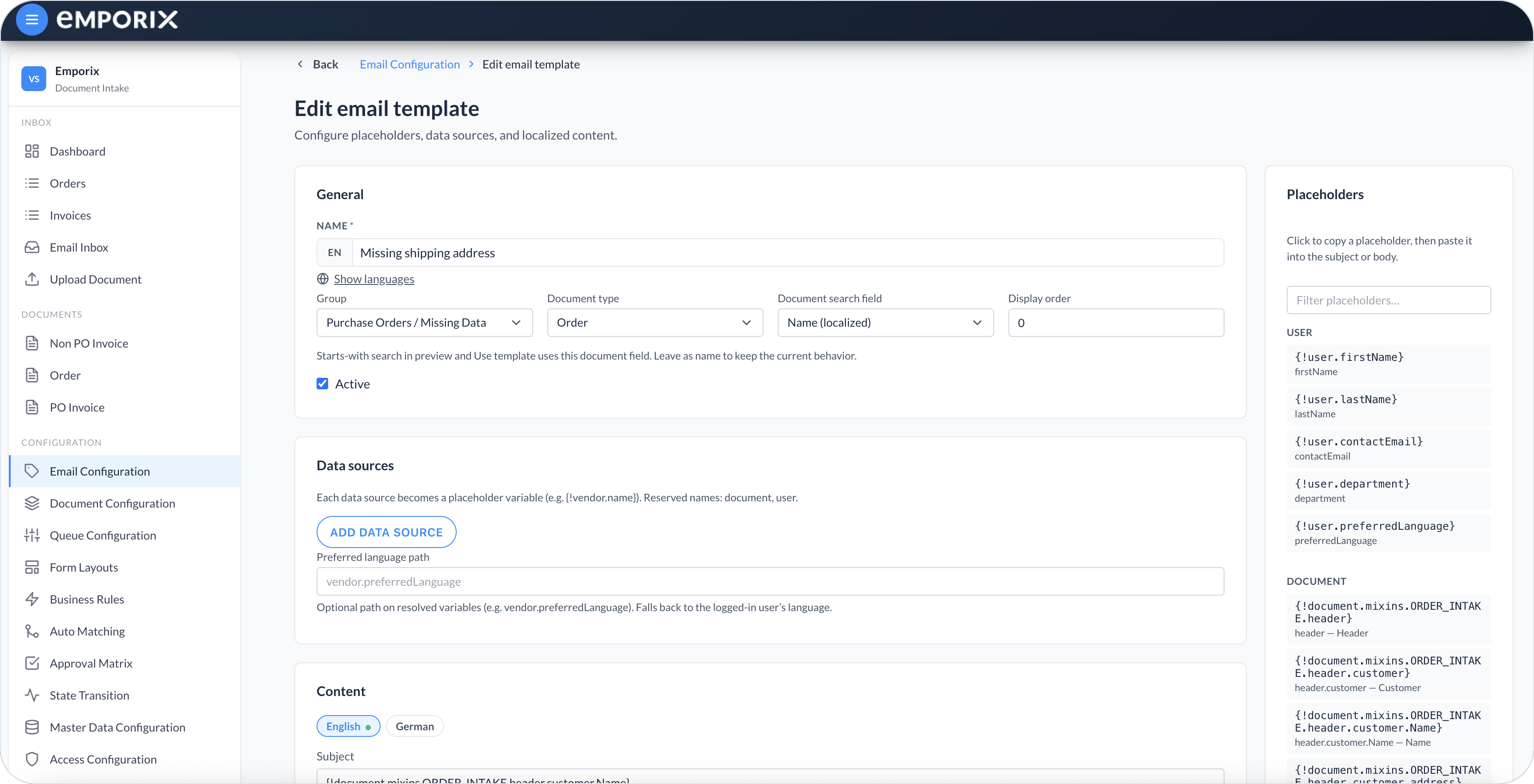
Under a group, select **Add template**. Enter a localized **Name**, confirm the **Group**, and set the **Display order**. You can optionally select a **Document type** to influence which templates the cockpit suggests; this scope does not strictly prevent use with other document types. Provide a localized **Subject** and **Body**. Use the visual editor for formatted content, or switch to HTML mode when you need to edit the markup.
{% endstep %}

{% step %}

#### Add dynamic content

Insert document, related-source, or master-data values with placeholders in the form `{!variable.path}`. The reserved variables `document` and `user` are available for document and current-user values, for example `{!document.id}`.

For a master-data value, select **Add data source**, enter a **Variable name**, and select the **Master data entity type** and **Id field**. If the template has a **Document type**, select **Related to document** and choose the **Document field path** that identifies the record. A data source named `vendor` makes fields available as placeholders such as `{!vendor.name}`. When the record cannot be resolved from the document, it can be selected while applying the template.

Custom variable names must start with a letter, can then contain letters, digits, and underscores, and must be unique. The editor reports invalid, duplicate, or reserved custom names inline.

For localized values, set **Preferred language path** to a path such as `vendor.preferredLanguage`. The template uses the language code found there and falls back to the current user's language.

<figure><img src="https://1808414410-files.gitbook.io/~/files/v0/b/gitbook-x-prod.appspot.com/o/spaces%2FPBaf05o2vgbdikMFDTyz%2Fuploads%2Fgit-blob-f5e5710ca658c3a6a64910d94ed8e108f4114514%2Femail_template_edit.png?alt=media" alt="Edit email template with General settings, data sources, and placeholders"><figcaption><p>Edit email template with general, data sources, and placeholders</p></figcaption></figure>
{% endstep %}

{% step %}

#### Preview and activate

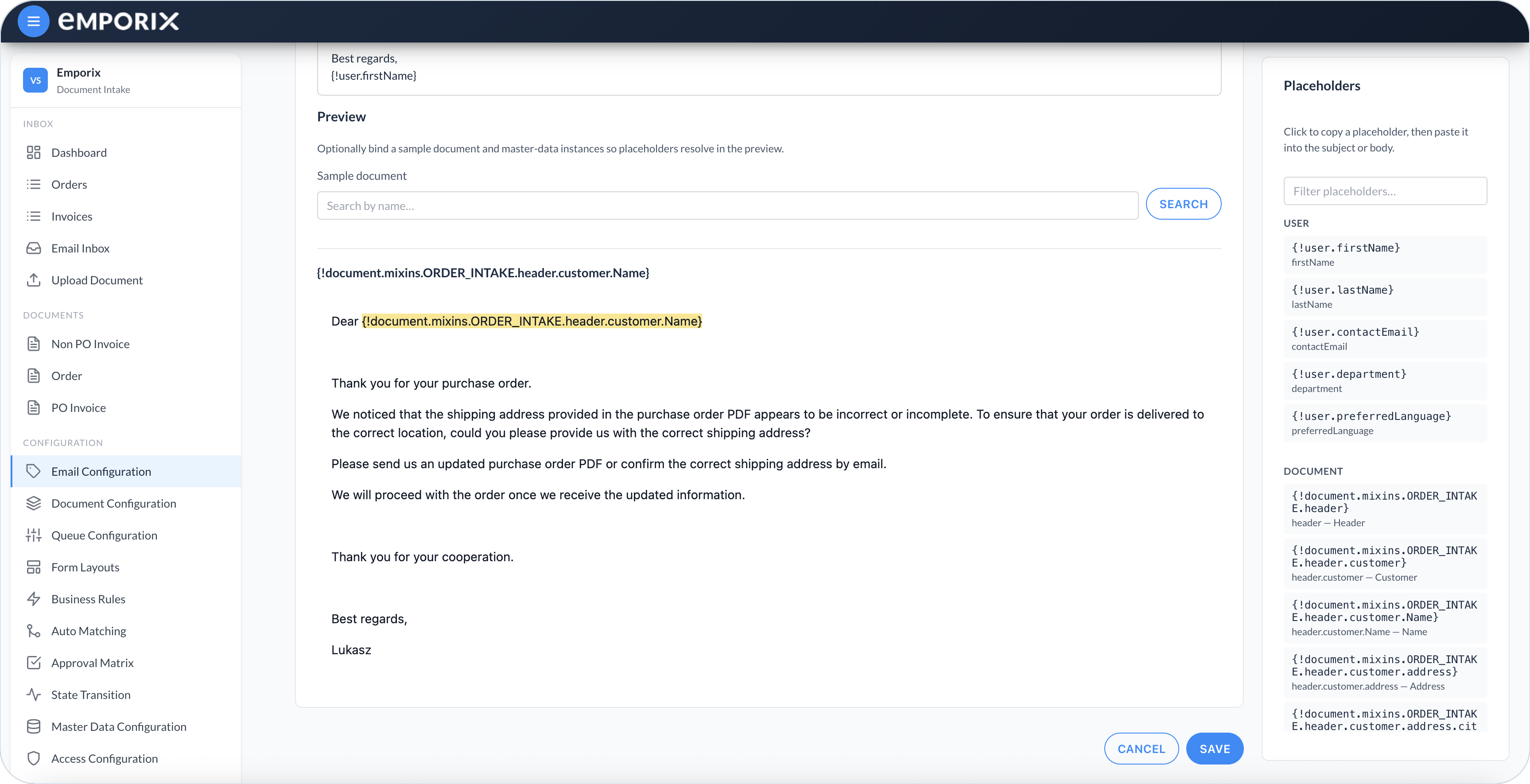
Until you bind a sample document, document placeholders stay highlighted in **Preview**. Placeholders from `user` can resolve from the signed-in account. Select a sample document, then check the rendered subject and body. Select **Active** in **General** when the content is approved and ready for use in the Inbox, then select **Save**.

<figure><img src="https://1808414410-files.gitbook.io/~/files/v0/b/gitbook-x-prod.appspot.com/o/spaces%2FPBaf05o2vgbdikMFDTyz%2Fuploads%2Fgit-blob-28d3dafa10ce18f1360a51f33894ca4d4d82922d%2Femail_template_preview.png?alt=media" alt="Email template Preview with unresolved placeholders highlighted"><figcaption><p>Email template preview with unresolved placeholders highlighted</p></figcaption></figure>
{% endstep %}
{% endstepper %}

Active templates that contain content are offered when composing a message or reply in the [Email Inbox](/document-intake-cockpit/cockpit-views/email-inbox.md). Keep inactive templates for drafting or review.

## Email inbox

These settings drive the [Email Inbox](/document-intake-cockpit/cockpit-views/email-inbox.md). The sidebar lists your folders plus built-in **All mails** and **Sent**, and filters by category and label. Drag a message onto a configured folder to move it. You cannot drag a message onto **All mails** or **Sent**.

## Suggested setup pattern

Use one shared folder list in the [Email Inbox](/document-intake-cockpit/cockpit-views/email-inbox.md), no matter which [document types](/document-intake-cockpit/configuration/document-configuration.md) you process (for example invoices, orders, quotes, or returns). A practical starting pattern:

| Folder  | Typical use                          |
| ------- | ------------------------------------ |
| Working | New mail that still needs attention  |
| Invalid | Incomplete or unreadable mail        |
| Spam    | Unrelated or marketing mail          |
| Queries | Questions about an existing document |
| Archive | Mail that no longer needs attention  |

Example labels: `FOLLOW_UP`, `NEEDS_REVIEW`.

If mail is often misclassified, make each category **Description** more specific so the categories stay distinct.

You can control who can open **Email Configuration** in [Access Configuration](/document-intake-cockpit/configuration/access-configuration.md).

{% hint style="info" %}
See the [Order Intake Example](/document-intake-cockpit/configuration-examples/order-intake.md) for a worked tenant configuration in this cockpit.
{% endhint %}


---

# Agent Instructions
This documentation is published with GitBook. GitBook is the documentation platform designed so that both humans and AI agents can read, navigate, and reason over technical content effectively. Learn more at gitbook.com.

## Querying This Documentation
If you need additional information that is not directly available in this page, you can query the documentation dynamically by asking a question.

Perform an HTTP GET request on the current page URL with the `ask` query parameter, and the optional `goal` query parameter:

```
GET https://developer.emporix.io/document-intake-cockpit/configuration/email-configuration.md?ask=<question>&goal=<endgoal>
```

`ask` is the immediate question: it should be specific, self-contained, and written in natural language.
`goal` is optional and describes the broader end goal you are ultimately trying to accomplish on behalf of the user. GitBook uses it to tailor the answer towards what is most useful for that goal.

The response will contain a direct answer to the question and relevant excerpts and sources from the documentation.

Use this mechanism when the answer is not explicitly present in the current page, you need clarification or additional context, or you want to retrieve related documentation sections.