> For the complete documentation index, see [llms.txt](https://developer.emporix.io/llms.txt). Markdown versions of documentation pages are available by appending `.md` to page URLs; this page is available as [Markdown](https://developer.emporix.io/document-intake-cockpit/configuration/form-layouts.md).

# Form Layouts

Design a side-by-side review form for each document type and optional sub-type. Configure sections, errors, functions, actions, and related views.

Use **Form Layouts** to design what reviewers see and edit beside the source document in [Managing Documents](/document-intake-cockpit/cockpit-views/managing-a-document.md). A layout can target a document type or one of its [Sub-types](/document-intake-cockpit/configuration/document-configuration.md#sub-types).

Open **Configuration** → **Form Layouts** in the side menu.

{% hint style="info" %}
Layouts bind to fields from the document type schema. Create or update the schema first in [Document Configuration](/document-intake-cockpit/configuration/document-configuration.md), then design the form used during review.
{% endhint %}

## Prerequisites

Before you start, prepare the following:

* The document type schema and any [Sub-types](/document-intake-cockpit/configuration/document-configuration.md#sub-types) the layout targets
* Tenant cloud functions used by field hooks or [Document Actions](/document-intake-cockpit/configuration/form-layouts/form-layout-actions.md)
* Access controls used to restrict actions
* Representative documents for the default type and each sub-type you configure
* Working API endpoints and sample records for dynamic [Lookups and Dropdowns](/document-intake-cockpit/configuration/form-layouts/form-layout-lookups.md)

## Layouts list

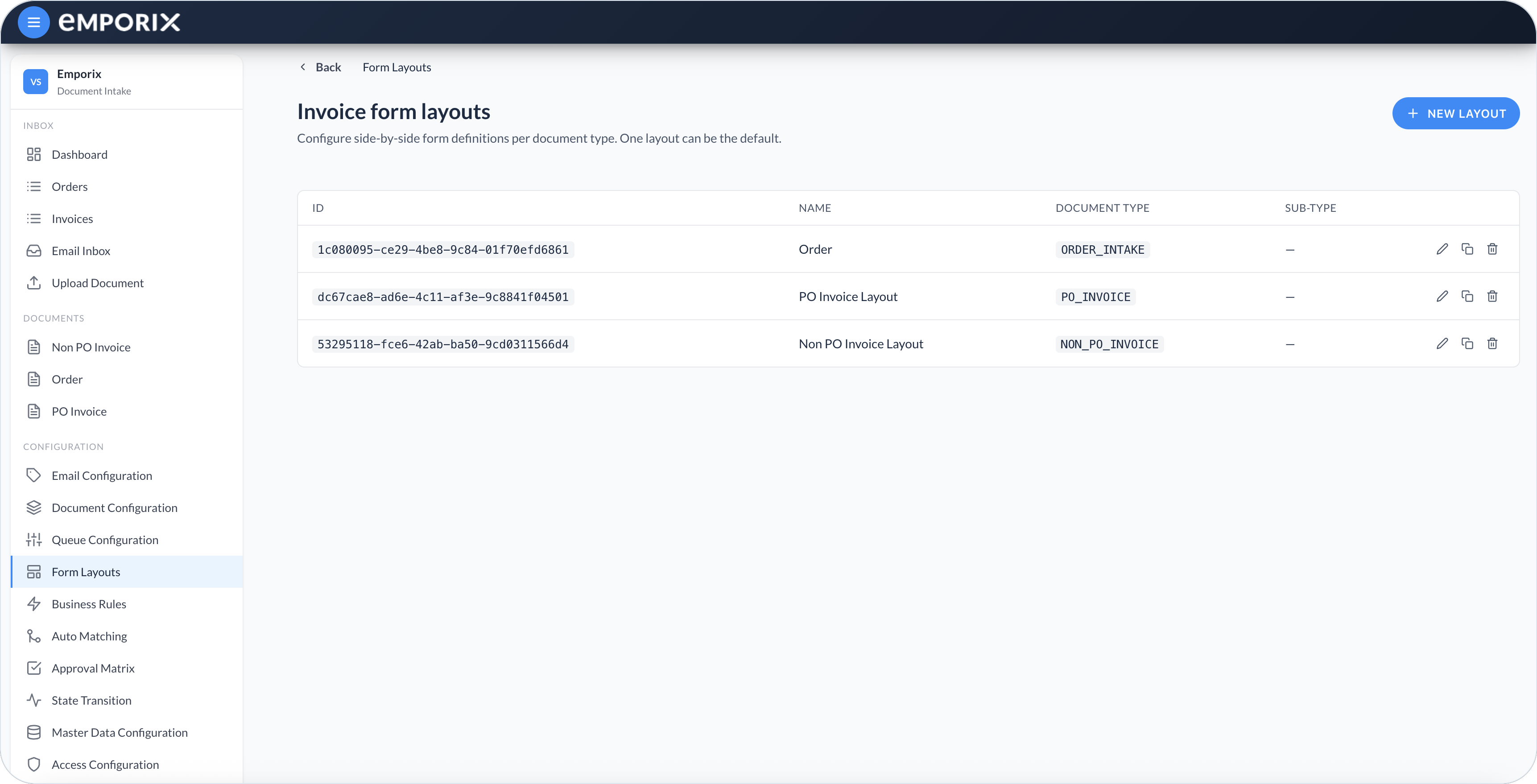
The list shows each form layout with its **ID**, **Name**, **Document type**, and **Sub-type**. The **ID** is a generated, read-only UUID. You can create only one layout for each document-type/sub-type pair. The **Sub-type** column shows **–** for the fallback layout, which the editor labels **Default (all / fallback)**.

When the cockpit opens a document, it first looks for a layout that matches the resolved sub-type. If no sub-type-specific layout exists, it uses the default layout for the document type. A document cannot be edited when neither layout exists.

Select **New layout** to create a layout. Use a row's edit action to open **Edit form layout**, clone to start from an existing layout for another type or sub-type, or delete a layout you no longer need.

<figure><img src="https://1808414410-files.gitbook.io/~/files/v0/b/gitbook-x-prod.appspot.com/o/spaces%2FPBaf05o2vgbdikMFDTyz%2Fuploads%2Fgit-blob-6e3e17adb1b06f97cce878d828684554d510ffb5%2Fform_layouts.png?alt=media" alt="Form Layouts list with ID, Name, Document type, Sub-type, edit, clone, and delete"><figcaption><p>Form Layouts with ID, name, document type, and sub-type</p></figcaption></figure>

Use the layout editor to configure how the forms are displayed:

* **Form Sections** – Titled blocks and fields reviewed beside the document preview. See [Form Layout Sections](/document-intake-cockpit/configuration/form-layouts/form-layout-sections.md).
* **Errors** – Validation panel position and the red **Errors** panel that shows messages from a document field.
* **Related Entity Tabs** – Read-only tabs for linked records such as a customer or vendor. See [Related Tabs and AI Insight](/document-intake-cockpit/configuration/form-layouts/form-layout-related-tabs.md).
* **Functions** – Shared JavaScript reused by [field hooks](/document-intake-cockpit/configuration/form-layouts/form-layout-sections.md#shared-functions-and-field-hooks).
* **Document Actions** – Header buttons for edit, save, approval, and other workflows. See [Document Actions](/document-intake-cockpit/configuration/form-layouts/form-layout-actions.md).
* **AI Insight Box** – Optional recommendation panel and its action buttons. See [Related Tabs and AI Insight](/document-intake-cockpit/configuration/form-layouts/form-layout-related-tabs.md#ai-insight-box).

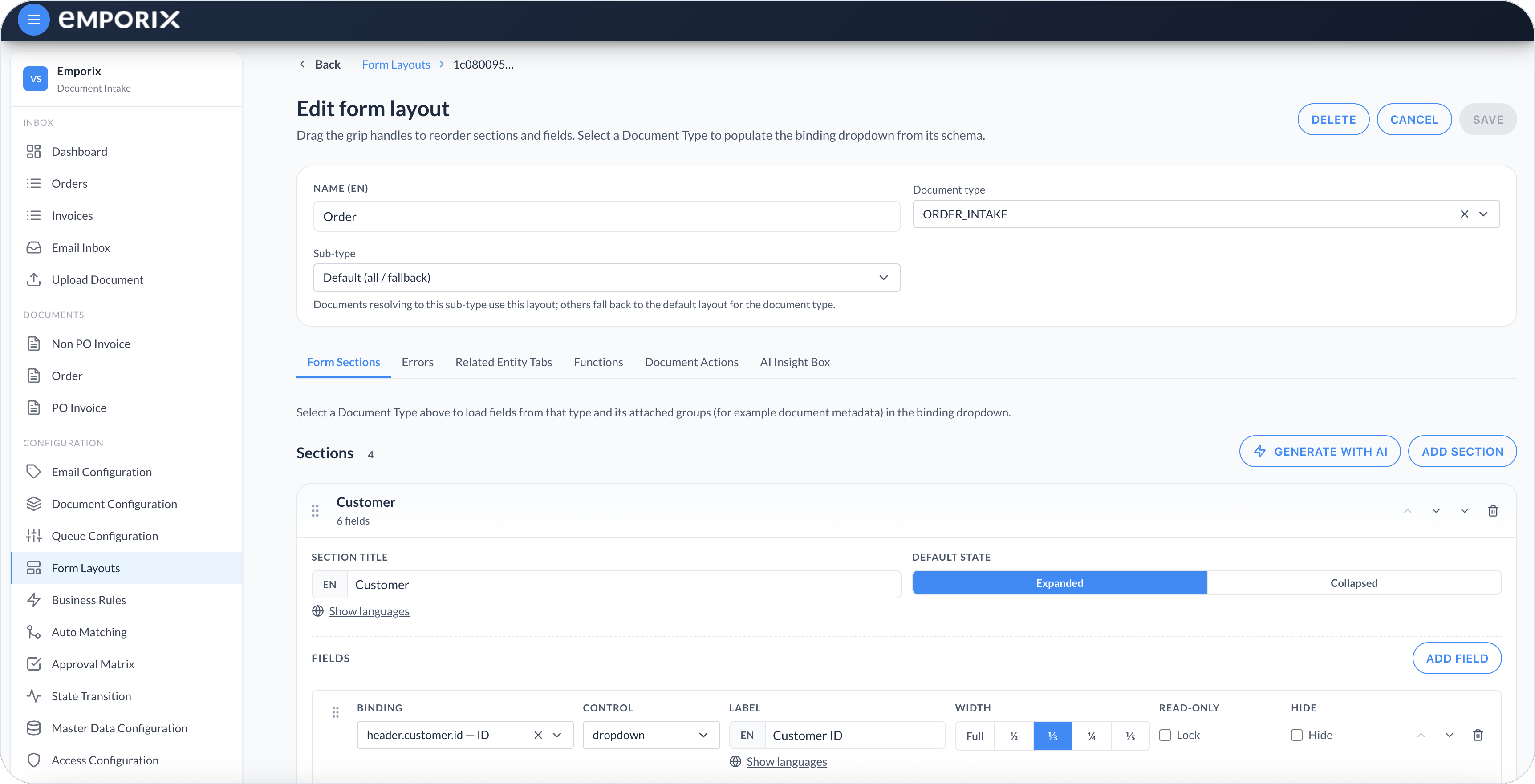
<figure><img src="https://1808414410-files.gitbook.io/~/files/v0/b/gitbook-x-prod.appspot.com/o/spaces%2FPBaf05o2vgbdikMFDTyz%2Fuploads%2Fgit-blob-a30b1599e6d4d64d5e670347f912f94ca7c79d5f%2Fform_layouts_edit.png?alt=media" alt="Edit form layout Form Sections with Name, Document type, Customer section, and a dropdown field"><figcaption><p>Edit form layout with Form Sections and a Customer dropdown field</p></figcaption></figure>

## Creating or editing a layout

{% stepper %}
{% step %}

#### Start a new layout or open an existing one

Select **New layout**, or use a row's edit action for an existing layout. Enter a clear **Name (EN)** so administrators can recognize the layout in the list.

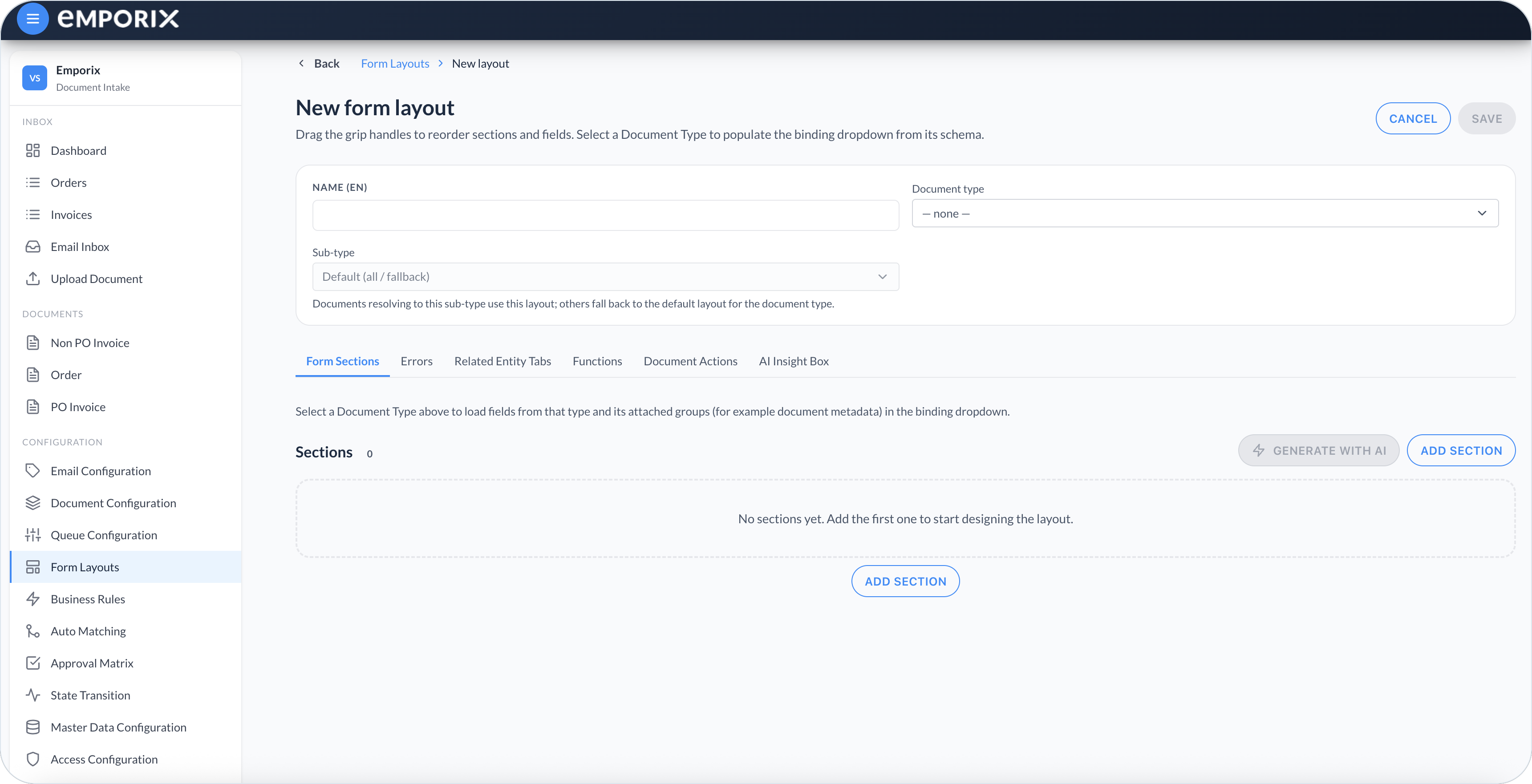
<figure><img src="https://1808414410-files.gitbook.io/~/files/v0/b/gitbook-x-prod.appspot.com/o/spaces%2FPBaf05o2vgbdikMFDTyz%2Fuploads%2Fgit-blob-4430619627d13aa3a78d18c8af8555a18884015a%2Fform_layouts_new.png?alt=media" alt="New form layout with Name (EN), Document type, Sub-type, and empty Form Sections"><figcaption><p>New form layout with name (EN), document type, and sub-type</p></figcaption></figure>
{% endstep %}

{% step %}

#### Select the scope

Select a **Sub-type** first when you are creating a variant-specific layout. The sub-type determines its document type. To create the fallback layout, leave **Sub-type** set to **Default (all / fallback)** and select the **Document type**. The cockpit loads schema field paths into the **Binding** dropdown so every field maps to extracted document data.
{% endstep %}

{% step %}

#### Configure the validation panel

Open the **Errors** tab. This tab defines two independent areas: the **Validation Box** and the **Errors** panel. They do not show the same messages.

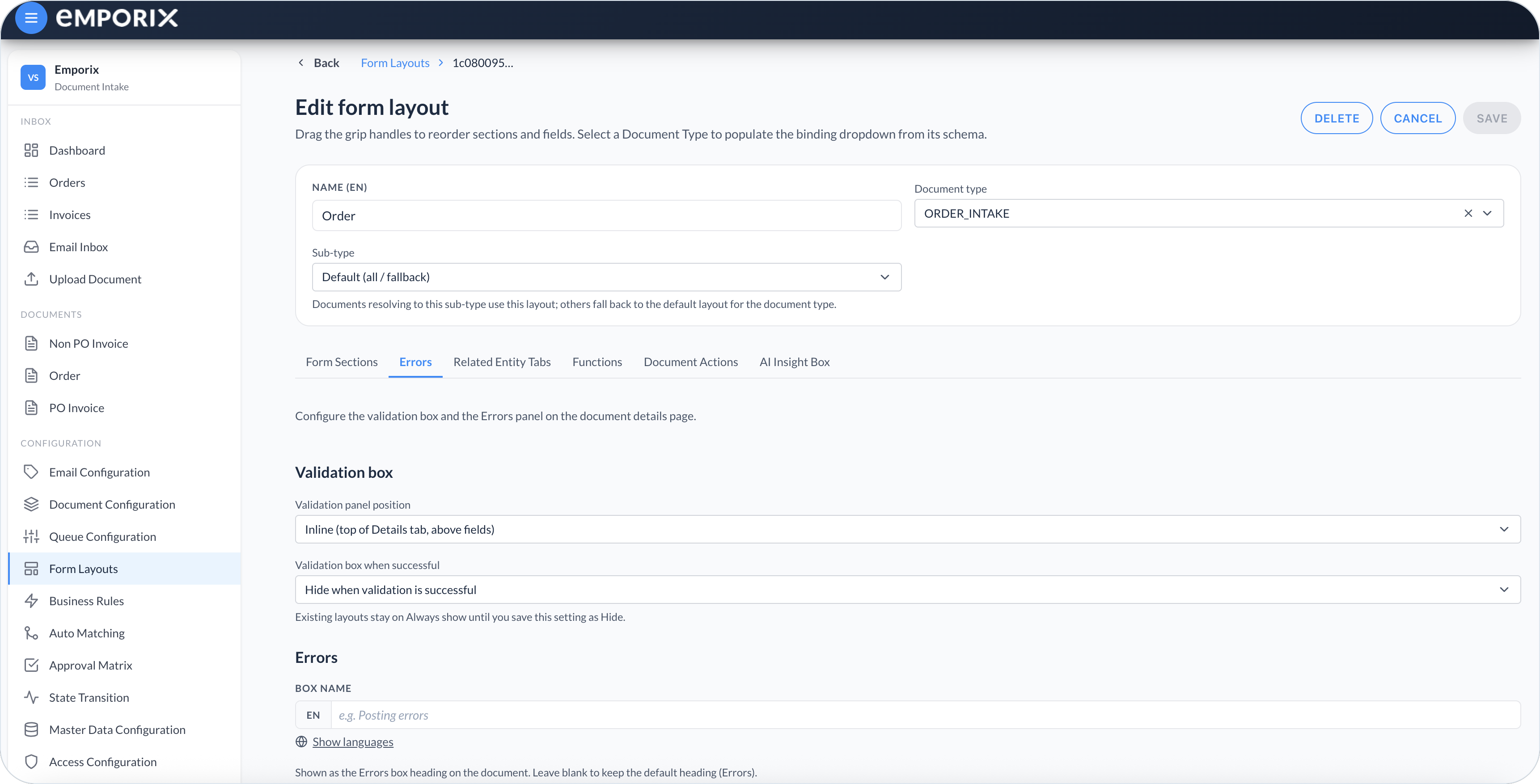
Set **Validation panel position** to **Inline (top of Details tab, above fields)** or **Above tabs (stays visible on every tab)**.

Set **Validation box when successful** to **Always show** (default) or **Hide when validation is successful**.

* **Always show** – Keeps the validation panel when the result is **Validation: SUCCESS** and there are no issues.
* **Hide when validation is successful** – Hides that panel when validation succeeds. It still appears when validation has issues, or when an error was skipped and **Save** has not run yet.

The setting applies for both panel positions. Existing layouts stay on **Always show** until you save **Hide when validation is successful**.

<figure><img src="https://1808414410-files.gitbook.io/~/files/v0/b/gitbook-x-prod.appspot.com/o/spaces%2FPBaf05o2vgbdikMFDTyz%2Fuploads%2Fgit-blob-18a5e015445b80688660ae4ccf316db30238f5c0%2Fform_layouts_validation_box.png?alt=media" alt="Errors tab Validation box with panel position and hide when successful"><figcaption><p>Errors with validation box position and hide-when-successful</p></figcaption></figure>
{% endstep %}

{% step %}

#### Configure the Errors panel

For the red **Errors** panel, optionally enter a localized **Box name**, then select **Error field**. Choose the document field that already holds the messages. An empty box name uses **Errors**.

* If the field is a string, its value is the message line.
* If the field is a list of objects, **Message field** appears so you can choose the item property used as each line. It defaults to `message` when that property exists.

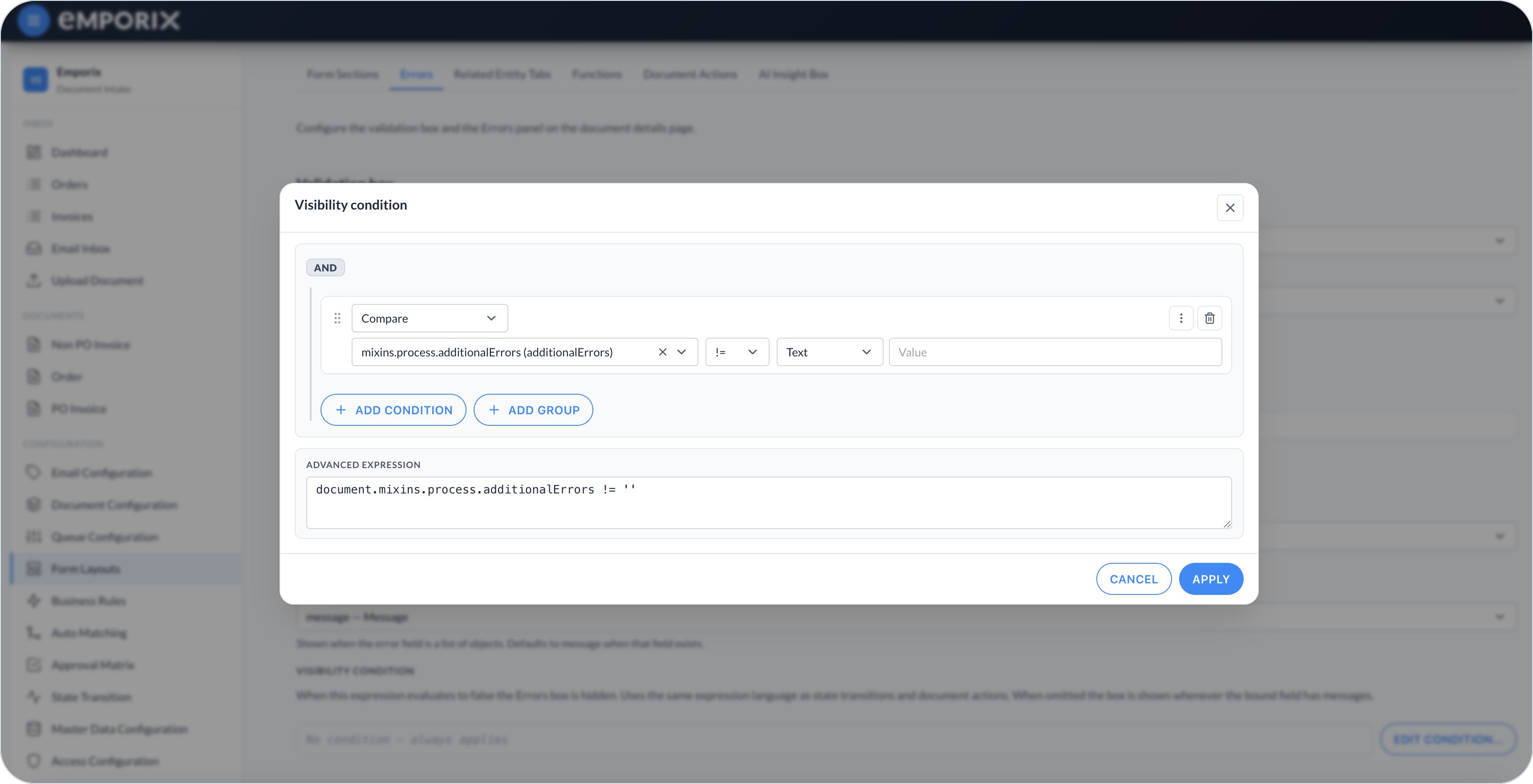
The **Errors** panel appears when **Error field** is set and that field has at least one message. Add a **Visibility condition** when the panel must also depend on document data or runtime context. If the condition evaluates to false, or **Error field** is not set, the panel stays hidden. Select **Edit condition…** to build the expression.

<figure><img src="https://1808414410-files.gitbook.io/~/files/v0/b/gitbook-x-prod.appspot.com/o/spaces%2FPBaf05o2vgbdikMFDTyz%2Fuploads%2Fgit-blob-ce1c1ced7415a322cb6b006cb41b51982f7e53fa%2Fdocument_intake_cockpit_form_layout_errors.png?alt=media" alt="Errors tab with Box name, Error field, Message field, and Visibility condition"><figcaption><p>Errors with box name, error field, message field, and visibility condition</p></figcaption></figure>

<figure><img src="https://1808414410-files.gitbook.io/~/files/v0/b/gitbook-x-prod.appspot.com/o/spaces%2FPBaf05o2vgbdikMFDTyz%2Fuploads%2Fgit-blob-1ca87f460bb93b2fd0b5ee03c230094ca536bcce%2Fform_layouts_errors_visibility.png?alt=media" alt="Visibility condition dialog with Compare, AND group, and Advanced expression"><figcaption><p>Visibility condition with compare, groups, and advanced expression</p></figcaption></figure>
{% endstep %}

{% step %}

#### Build sections

On the **Form Sections** tab, add the sections and fields reviewed beside the document preview. See [Form Layout Sections](/document-intake-cockpit/configuration/form-layouts/form-layout-sections.md).
{% endstep %}

{% step %}

#### Configure related tabs, functions, actions, and AI insight

Use the other editor tabs as needed:

* **Related Entity Tabs** and **AI Insight Box** – See [Related Tabs and AI Insight](/document-intake-cockpit/configuration/form-layouts/form-layout-related-tabs.md).
* **Functions** – Define shared JavaScript for [field hooks](/document-intake-cockpit/configuration/form-layouts/form-layout-sections.md#shared-functions-and-field-hooks).
* **Document Actions** – See [Document Actions](/document-intake-cockpit/configuration/form-layouts/form-layout-actions.md).
  {% endstep %}

{% step %}

#### Save and confirm in review

Select **Save**. Open a document of that type and choose **Manage** to confirm the layout beside the document preview.
{% endstep %}
{% endstepper %}

## Generate with AI

On **Form Sections**, select **Generate with AI** after you choose a document type or sub-type. The assistant proposes sections, labels, controls, and widths from the schema. Review the result and adjust bindings or lookups as needed.

{% hint style="info" %}
**Generate with AI** needs a document type so it can read the schema. It can refine an existing layout. Always review dropdown and lookup configuration before you make the layout available for document review.
{% endhint %}

## Layout checks

Before you use the layout for document review, check the following:

* Open representative default and sub-type documents and confirm each document resolves to the intended layout.
* Check field order, widths, hidden fields, read-only fields, table columns, and summaries with realistic values.
* Trigger validation and configured errors, including conditions that show or hide the error box.
* Test dropdowns, lookups, populate mappings, related tabs, and field hooks with real records.
* Test every action in each applicable mode and confirm it is unavailable in excluded modes. Repeat with permitted and denied users, and with documents that pass and fail its conditions.
* For an **Open modal** action, test required inputs, bound responses, successful and failed functions, refresh behavior, and the resulting document state.
* Save, reopen the layout, and repeat the main review workflow in [Managing Documents](/document-intake-cockpit/cockpit-views/managing-a-document.md).

## Layout in documents

When a document is opened, the sub-type-specific layout is used when one matches. Otherwise, the default layout for the document type is used. **Details**, configured header actions, and related-entity tabs (when you add them) come from that layout. The **AI Insight Box** appears when you configure it and the document has recommendation text. The configured error box appears when its field contains a message and its optional visibility condition passes. The **Attachments** tab is available by default and is not configured in the form layout. See [Attachments](/document-intake-cockpit/cockpit-views/managing-a-document.md#attachments).

{% hint style="info" %}
Access to **Form Layouts** is controlled in [Access Configuration](/document-intake-cockpit/configuration/access-configuration.md). Schema fields must exist in [Document Configuration](/document-intake-cockpit/configuration/document-configuration.md) before you can bind them here. See the [Order Intake Example](/document-intake-cockpit/configuration-examples/order-intake.md) for a worked tenant configuration in this cockpit.
{% endhint %}


---

# Agent Instructions
This documentation is published with GitBook. GitBook is the documentation platform designed so that both humans and AI agents can read, navigate, and reason over technical content effectively. Learn more at gitbook.com.

## Querying This Documentation
If you need additional information that is not directly available in this page, you can query the documentation dynamically by asking a question.

Perform an HTTP GET request on the current page URL with the `ask` query parameter, and the optional `goal` query parameter:

```
GET https://developer.emporix.io/document-intake-cockpit/configuration/form-layouts.md?ask=<question>&goal=<endgoal>
```

`ask` is the immediate question: it should be specific, self-contained, and written in natural language.
`goal` is optional and describes the broader end goal you are ultimately trying to accomplish on behalf of the user. GitBook uses it to tailor the answer towards what is most useful for that goal.

The response will contain a direct answer to the question and relevant excerpts and sources from the documentation.

Use this mechanism when the answer is not explicitly present in the current page, you need clarification or additional context, or you want to retrieve related documentation sections.