> For the complete documentation index, see [llms.txt](https://developer.emporix.io/llms.txt). Markdown versions of documentation pages are available by appending `.md` to page URLs; this page is available as [Markdown](https://developer.emporix.io/document-intake-cockpit/configuration/form-layouts/form-layout-actions.md).

# Document Actions

Configure the header buttons shown when managing a document. Add actions for editing, approval, transformation, and tenant workflows.

Use **Document Actions** to add the header buttons reviewers use in [Managing Documents](/document-intake-cockpit/cockpit-views/managing-a-document.md) for editing, approval, transformation, tenant functions, and guided dialogs.

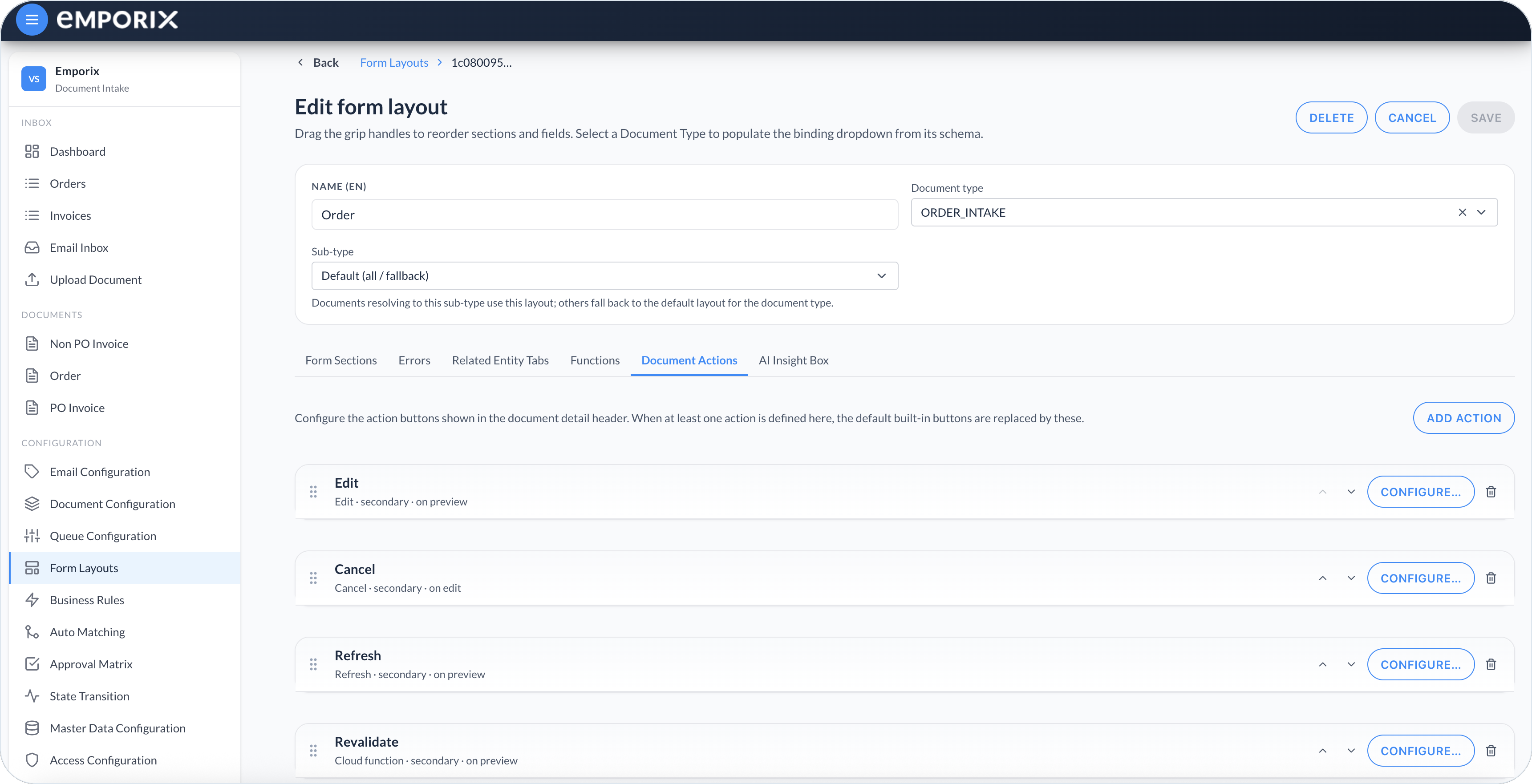
On the [Form Layouts](/document-intake-cockpit/configuration/form-layouts.md) editor, open **Document Actions** and select **Add action**. Use the move controls or drag handles to set the button order. When at least one action is defined here, these buttons replace the default built-in header buttons.

<figure><img src="https://1808414410-files.gitbook.io/~/files/v0/b/gitbook-x-prod.appspot.com/o/spaces%2FPBaf05o2vgbdikMFDTyz%2Fuploads%2Fgit-blob-972d918f92739d8c6e4a858bf4aac4603ce64d09%2Fform_layouts_actions.png?alt=media" alt="Document Actions list with Edit, Cancel, Refresh, Revalidate, and Configure"><figcaption><p>Document Actions with header buttons and configure</p></figcaption></figure>

## Action types

Select an **Action type**:

* **Edit** – Starts edit mode.
* **Cancel** – Ends edit mode and discards unsaved field changes.
* **Refresh** – Reloads the current document.
* **Approval** – Opens the approval dialog and runs the configured cloud functions.
* **Transform document** – Creates a replacement document of another type.
* **Cloud function** – Runs one or more tenant functions.
* **Open modal** – Opens a configurable dialog that can display data, collect input, and run functions.

For **Approval**, choose whether the dialog offers **Approve only**, **Approve or reject**, or **Reject only**. When the document type has rejection reasons, the approver must choose one before rejecting. See [Approval Matrix](/document-intake-cockpit/configuration/approval-matrix.md).

For **Transform document**, select the transformation cloud function. The action maps the saved values to a replacement of the target type and opens it with status `START`. It does not rerun parsing, Auto Matching, Business Rules, validation, state transitions, or approval. See [Document Intake Process](/document-intake-cockpit/document-intake-process.md#document-lifecycle).

{% hint style="info" %}
A common editable layout starts with **Edit** in preview mode, **Cancel** in edit mode, and a **Cloud function** action in edit mode whose tenant function persists the draft. Label that function action **Save**, and enable **Refresh document after execution** and **Switch to preview mode after execution** when the stored result must appear immediately. Add a separate revalidation action when saving does not run checks. Confirm the persistence and revalidation functions with the team that provisions your tenant.
{% endhint %}

## Configuring an action

The **Configure action** dialog always has **General** and **Access & visibility**. **Settings** appears for **Cloud function**, **Approval**, and **Transform document**. **Builder** appears for **Open modal**.

{% stepper %}
{% step %}

#### Set the action identity

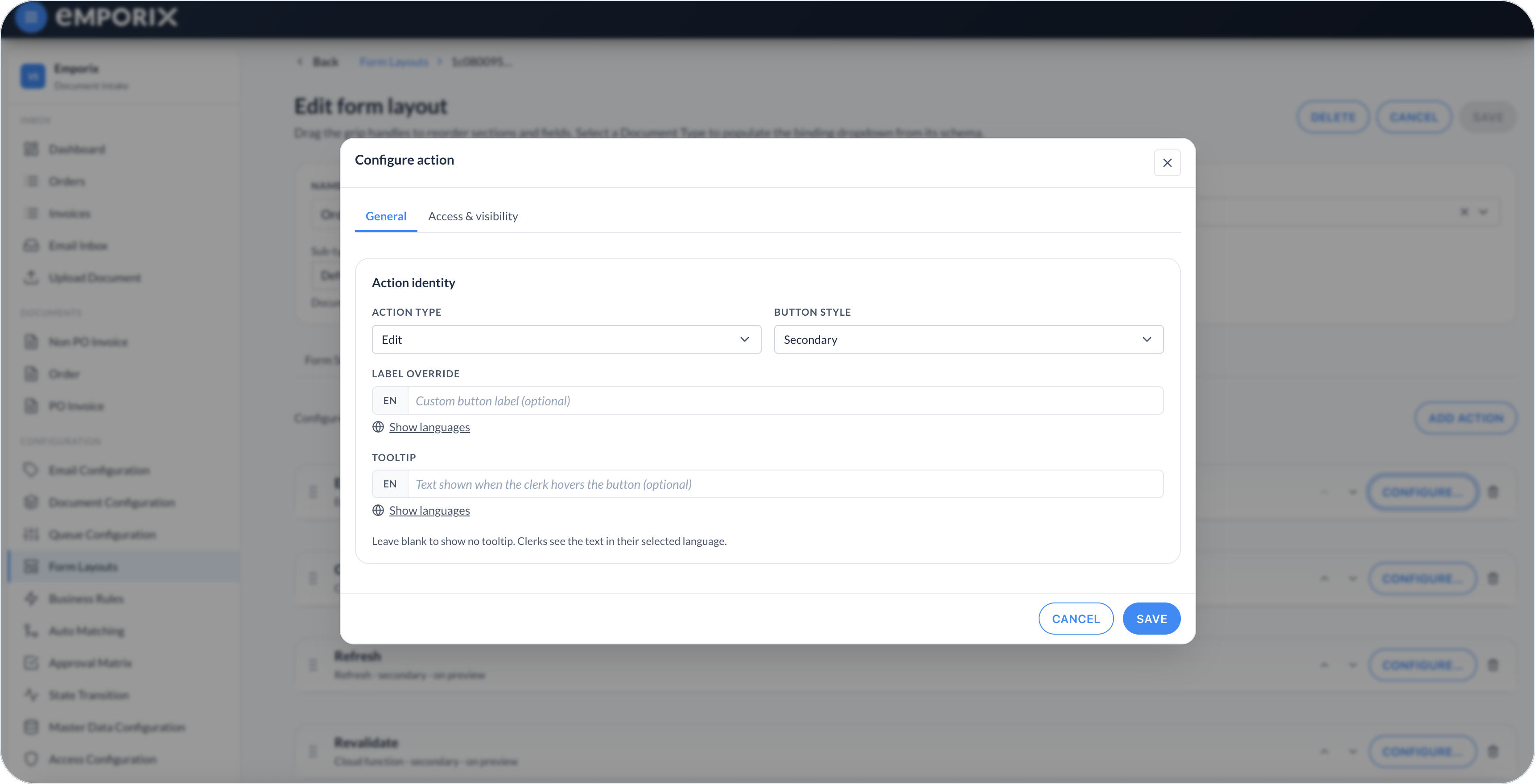
On **General**, select the **Action type** and **Button style**. Optionally enter a localized **Label override** and **Tooltip**. Without an override, the cockpit uses the action type as the label.

<figure><img src="https://1808414410-files.gitbook.io/~/files/v0/b/gitbook-x-prod.appspot.com/o/spaces%2FPBaf05o2vgbdikMFDTyz%2Fuploads%2Fgit-blob-6f5d4c91b0549d4e4613d88e99fc5c265c429620%2Fform_layouts_action_general.png?alt=media" alt="Configure action General with Action type, Button style, Label override, and Tooltip"><figcaption><p>General with action type, button style, label override, and tooltip</p></figcaption></figure>
{% endstep %}

{% step %}

#### Control access and visibility

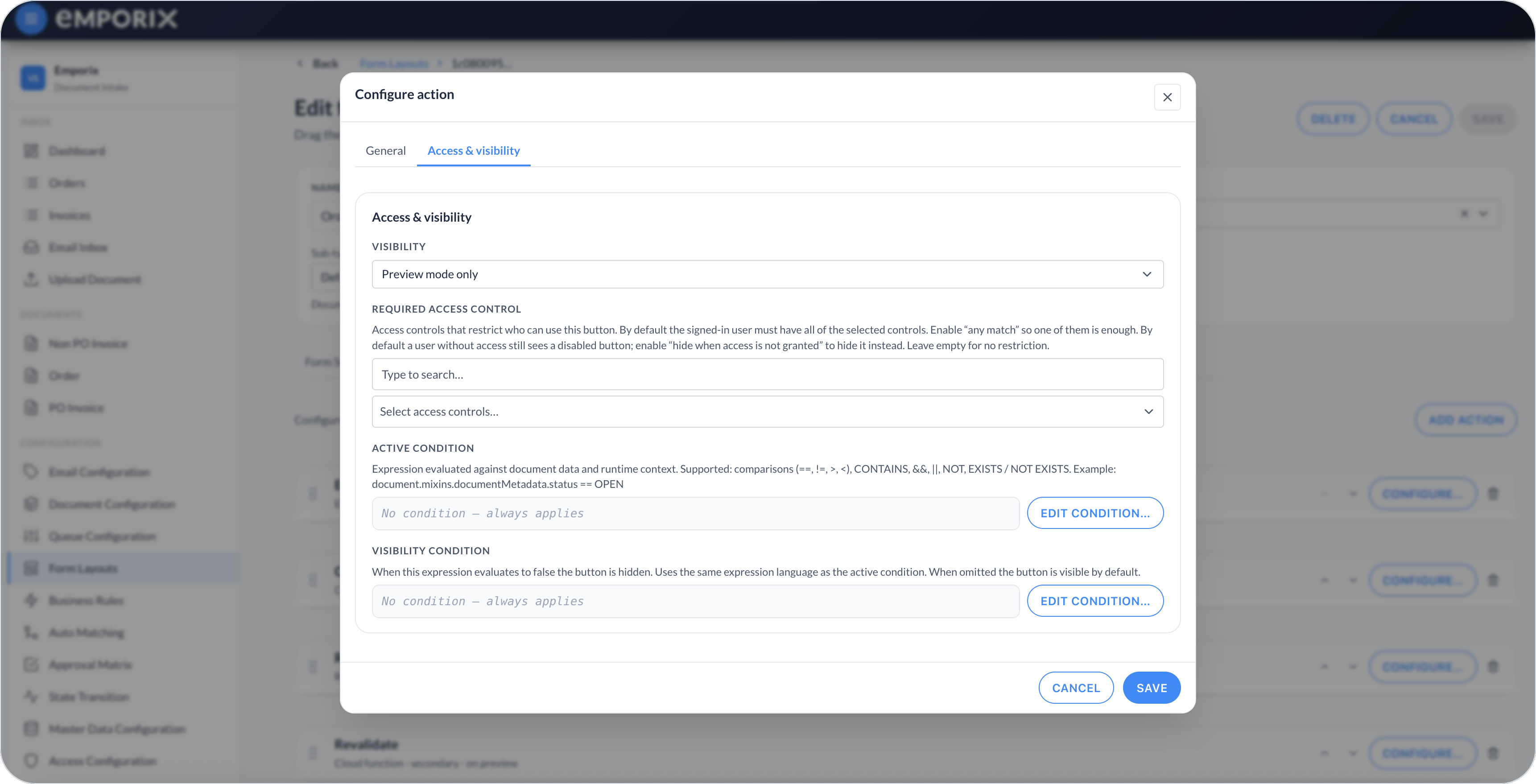
On **Access & visibility**, choose whether the button appears **Always**, in **Preview mode only**, or in **Edit mode only**.

Use **Required access control** to restrict the action. By default, the action requires all selected controls. Enable **any match** when one selected control is enough. Without access, the button is disabled unless you select **Hide button when access is not granted**.

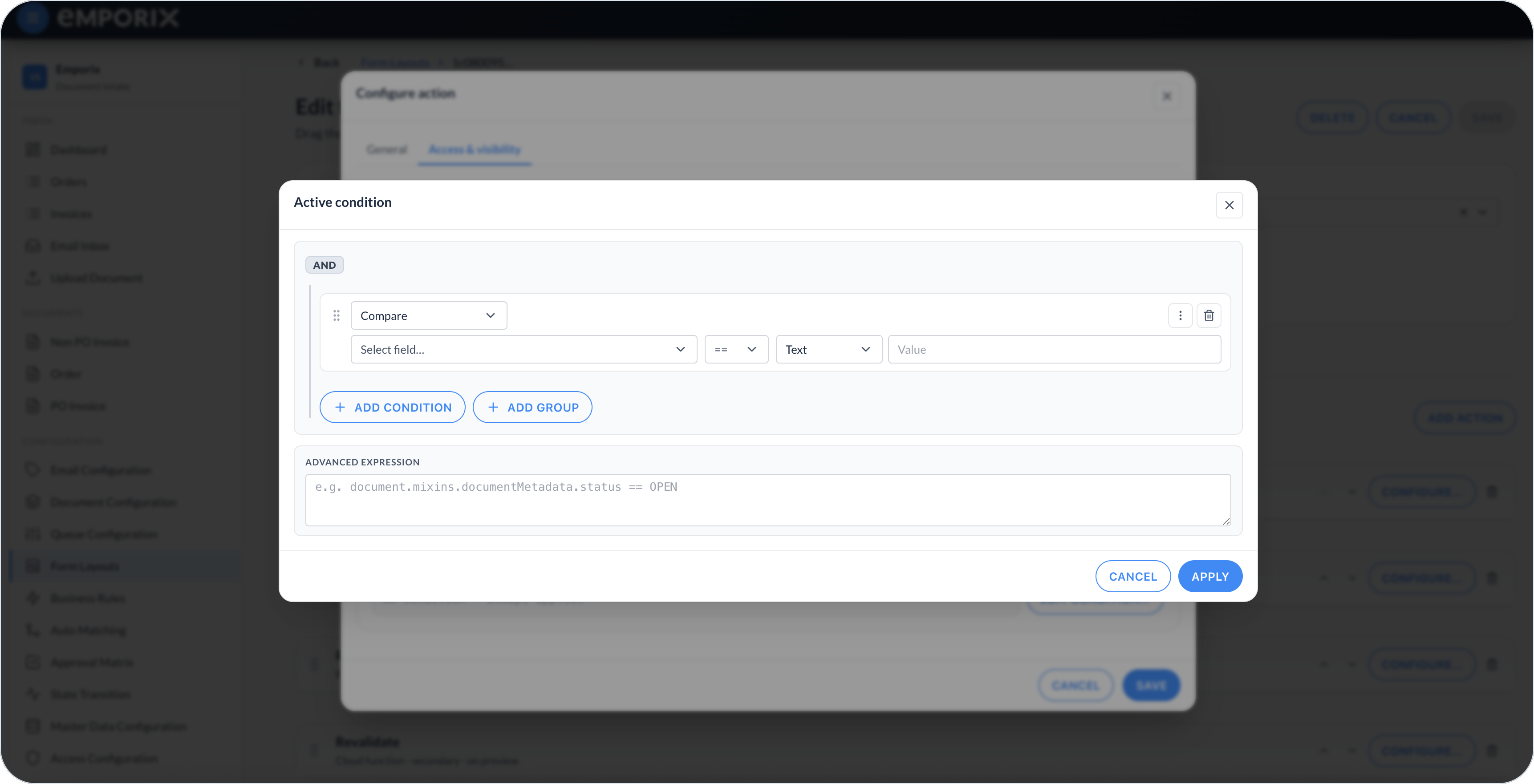
An **Active condition** that evaluates to false disables the button. A **Visibility condition** that evaluates to false hides it. Select **Edit condition…** to build expressions with comparisons, **CONTAINS**, **EXISTS** / **NOT EXISTS**, and **AND** / **OR** groups. Conditions can use document fields and runtime context, including `context.user.id` and `context.user.groups`.

<figure><img src="https://1808414410-files.gitbook.io/~/files/v0/b/gitbook-x-prod.appspot.com/o/spaces%2FPBaf05o2vgbdikMFDTyz%2Fuploads%2Fgit-blob-e5702ba55d7a60b90554394977e2874ad3e4256c%2Fform_layouts_action_access_visibility.png?alt=media" alt="Configure action Access and visibility with Visibility, Required access control, Active condition, and Visibility condition"><figcaption><p>Access and visibility for when the action is visible and usable</p></figcaption></figure>

<figure><img src="https://1808414410-files.gitbook.io/~/files/v0/b/gitbook-x-prod.appspot.com/o/spaces%2FPBaf05o2vgbdikMFDTyz%2Fuploads%2Fgit-blob-7d1aff367eafb82fff19acdc077cfb17d06ddbe6%2Fform_layouts_action_condition.png?alt=media" alt="Active condition dialog with Compare, AND group, and Advanced expression"><figcaption><p>Active condition with compare, groups, and advanced expression</p></figcaption></figure>
{% endstep %}

{% step %}

#### Configure action-specific settings

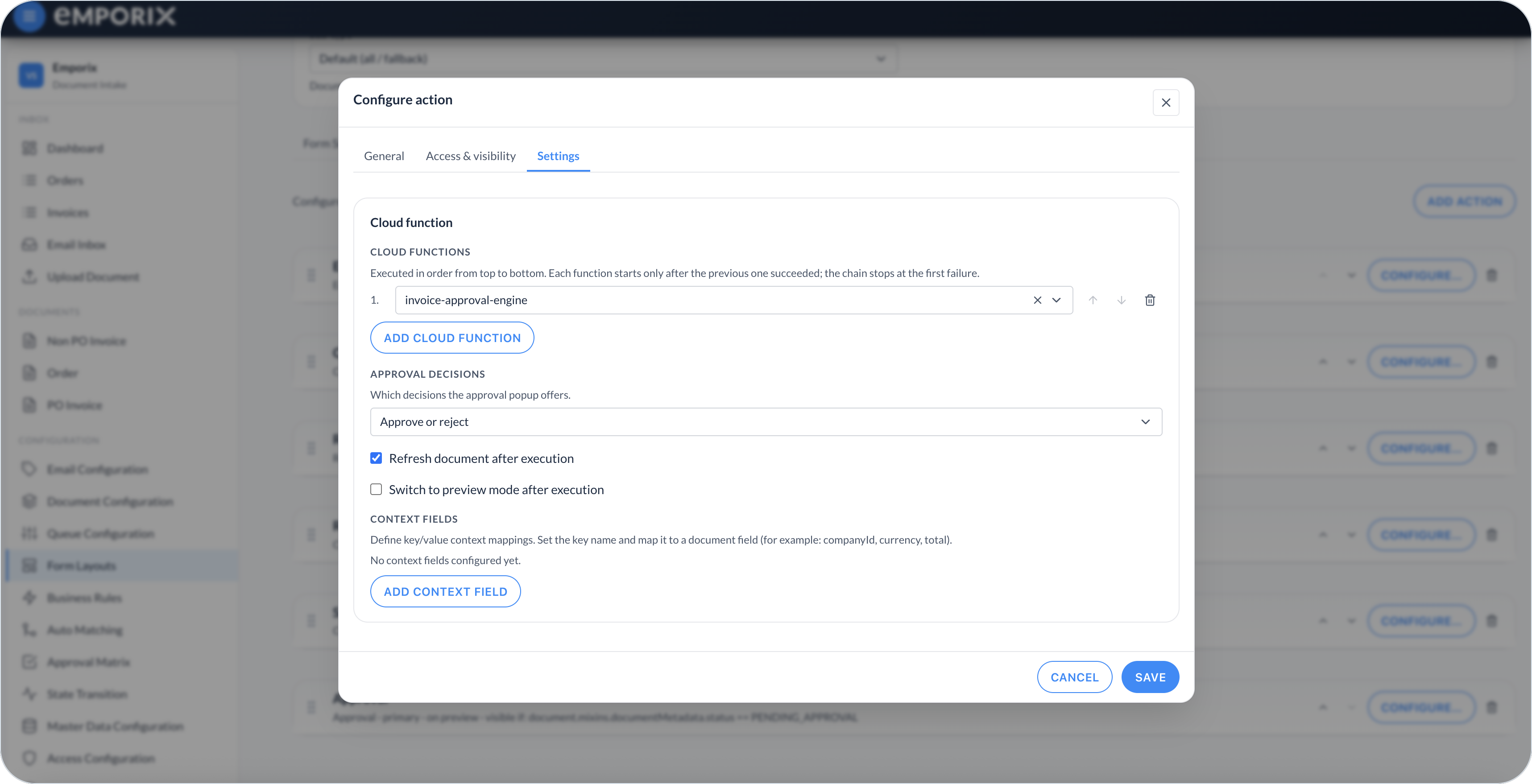
For **Cloud function** and **Approval**, add one or more **Cloud functions** in execution order. Each function starts after the previous one succeeds; the chain stops at the first failure. A later function receives the document after the preceding function's changes have been loaded.

Use **Refresh document after execution** to show persisted changes immediately. Use **Switch to preview mode after execution** when a successful action needs to end editing. Under **Context fields**, map a **Context key** to a document field for values a Cloud function, Approval, or Transform document action needs. Without a configured function, the action remains inactive.

The selected function defines the outcome. For example, label a **Cloud function** action **Save** when its function persists the edited document, or **Revalidate** when it reruns tenant validation.

For **Approval**, also set **Approval decisions**. For **Transform document**, select its single transformation function.

<figure><img src="https://1808414410-files.gitbook.io/~/files/v0/b/gitbook-x-prod.appspot.com/o/spaces%2FPBaf05o2vgbdikMFDTyz%2Fuploads%2Fgit-blob-5559f1e464b1b1cd6923de8e32eab7f76185fc1a%2Fform_layouts_action_settings.png?alt=media" alt="Configure action Settings with Cloud functions, Approval decisions, refresh options, and Context fields"><figcaption><p>Settings with cloud functions, approval decisions, and post-execution behavior</p></figcaption></figure>
{% endstep %}

{% step %}

#### Save the action and layout

Select **Save** in **Configure action**, then select **Save** on the form layout. Open a representative document and verify the action with the access controls, modes, and document states used during review.
{% endstep %}
{% endstepper %}

## Building an Open modal action

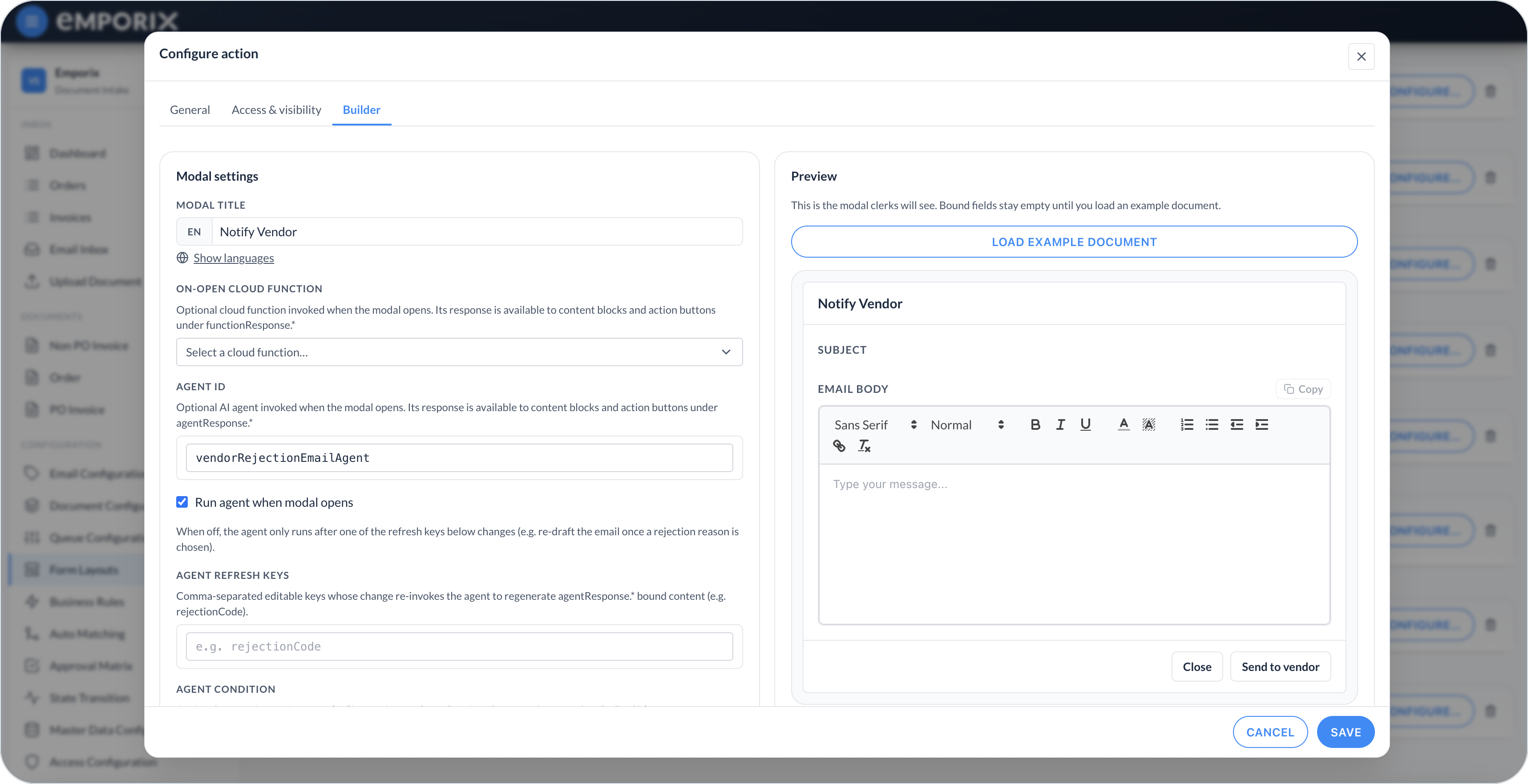
Use **Open modal** when a guided dialog is needed before a workflow function runs. The **Builder** combines modal settings, ordered content blocks, footer buttons, and a live preview.

<figure><img src="https://1808414410-files.gitbook.io/~/files/v0/b/gitbook-x-prod.appspot.com/o/spaces%2FPBaf05o2vgbdikMFDTyz%2Fuploads%2Fgit-blob-39f3443e63e1c8a5a6661931207d57dce834fa39%2Fform_layouts_action_modal_builder.png?alt=media" alt="Open modal Builder with Modal title, Agent ID, Run agent when modal opens, and Preview"><figcaption><p>Builder with modal settings, agent, and preview</p></figcaption></figure>

{% stepper %}
{% step %}

#### Load data into the modal

Set a localized **Modal title**. Optionally select an **On-open cloud function** or enter an **Agent ID**. The agent must already exist in the tenant's AI service; ask the team that provisions agents for its ID. The on-open function and agent can be configured together. The function starts when the modal opens. The agent starts at that time only when **Run agent when modal opens** is enabled. Their results become available to blocks as `functionResponse.*` and `agentResponse.*`; document values use `document.*`.

Enable **Run agent when modal opens** to generate the first response immediately. When it is cleared, the agent waits until a configured refresh key changes. Under **Agent refresh keys**, enter the **Editable key** of each input that triggers regeneration. The agent runs after a key changes only when **Agent condition** passes. A rerun updates untouched blocks bound to `agentResponse.*` but does not overwrite values already edited in the dialog.
{% endstep %}

{% step %}

#### Add content blocks

Select **Add content block** and choose:

* **Heading** or **Static text** – Adds localized explanatory content.
* **Value** – Displays a bound value.
* **Editable text** – Provides a rich-text editor.
* **Dropdown** – Selects from static values or a bound response array.
* **Checkbox**, **Text input**, or **Text area** – Collects a response.

For a bound block, set **Value binding**. For an input block, set a unique **Editable key**; the cloud-function button receives the entered value under that key. **Required** blocks must contain a value before the function can run. **Visible when** conditionally shows a block; a hidden input is not sent.

A **Dropdown** can use localized static value rows or an **Options binding**. Use `rejectionReasons` as the options binding when the approver must choose from the reasons configured for the document type; map `code` as the option value and `reason` as the label. A **Text input** can collect chips and validate each value as an email address.

Select **Done** after configuring a content block to return to the builder.

<figure><img src="https://1808414410-files.gitbook.io/~/files/v0/b/gitbook-x-prod.appspot.com/o/spaces%2FPBaf05o2vgbdikMFDTyz%2Fuploads%2Fgit-blob-f506d37fc998f58bdb2cf2a7cf381a76a14e36c9%2Fform_layouts_action_modal_content_block.png?alt=media" alt="Edit content block with Block type, Label, Value binding, Editable key, Required, and Visible when"><figcaption><p>Edit content block binding displayed data and submitted values</p></figcaption></figure>
{% endstep %}

{% step %}

#### Add modal buttons

Select **Add modal button**, then choose **Close modal** or **Cloud function**. Set its button style and optional localized label and tooltip. A cloud-function button can run an ordered function chain with the document, on-open responses, and visible edited values as context. It can refresh the document, switch to preview mode, or close the modal after successful execution.

The function receives the current document plus a context object. For example:

```json
{
  "documentType": "INVOICE",
  "currentState": "START",
  "document": {
    "id": "document-123",
    "mixins": {}
  },
  "context": {
    "documentType": "INVOICE",
    "documentId": "document-123",
    "functionResponse": {
      "subject": "Invoice requires review"
    },
    "agentResponse": {
      "body": "Proposed message"
    },
    "emailBody": "<p>Edited message</p>"
  }
}
```

In this example, `emailBody` is the editable key. Blocks can initialize values from `functionResponse.subject` or `agentResponse.body`, and the edited value is sent as `context.emailBody`.

Select **Done** after configuring the button.
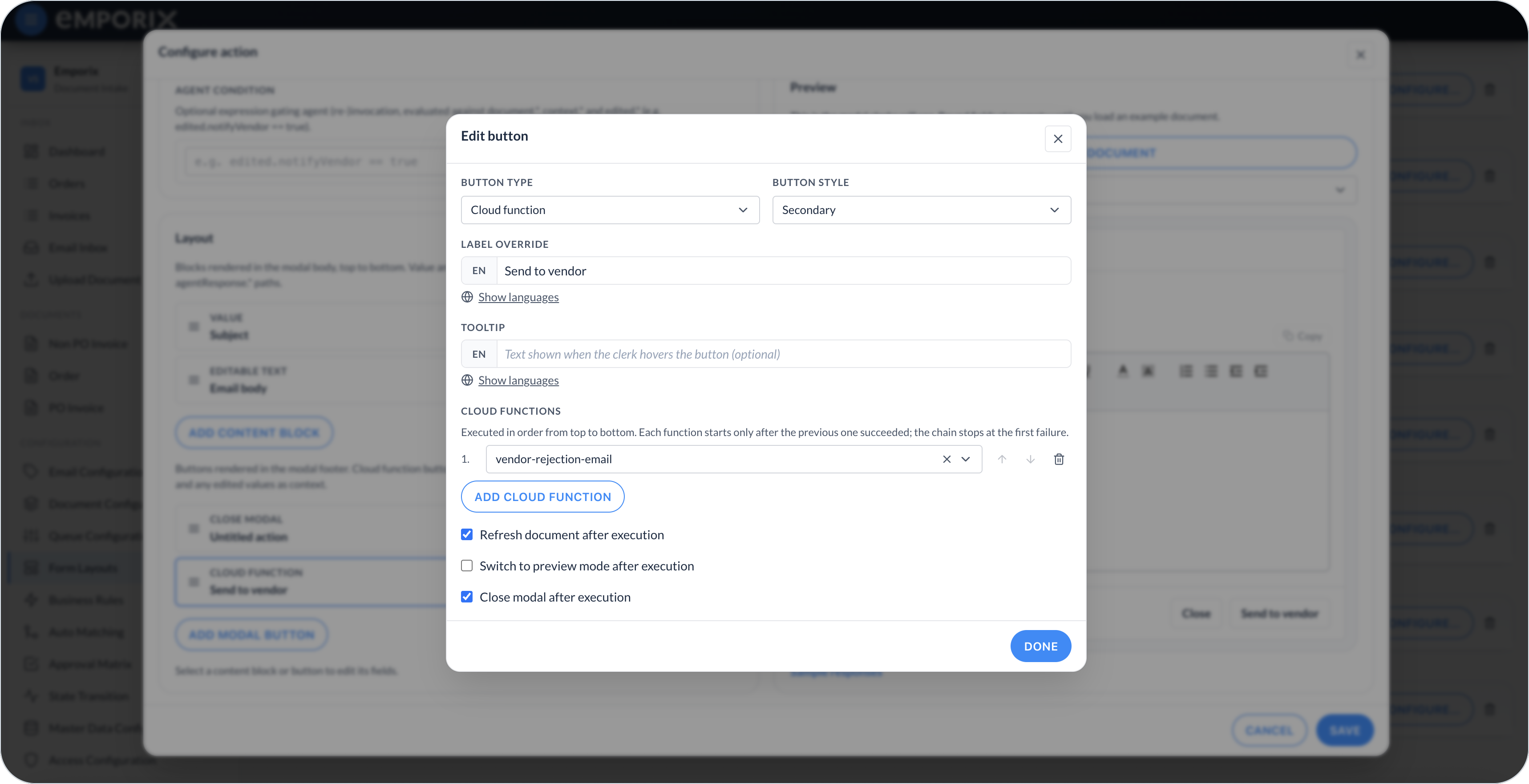
<figure><img src="https://1808414410-files.gitbook.io/~/files/v0/b/gitbook-x-prod.appspot.com/o/spaces%2FPBaf05o2vgbdikMFDTyz%2Fuploads%2Fgit-blob-31724fa9919d94fb5eebafb7eed2ac1501c82405%2Fform_layouts_action_modal_buttons.png?alt=media" alt="Edit button with Button type Cloud function, Label override, cloud functions, and Close modal after execution"><figcaption><p>Edit button with cloud function, refresh, and close-after-execution</p></figcaption></figure>
{% endstep %}

{% step %}

#### Preview and resolve warnings

Select **Load example document** to populate document bindings in the preview. Expand **Sample responses** to enter example `functionResponse` and `agentResponse` JSON for blocks that depend on runtime output.

Resolve **Configuration warnings** before saving. The builder reports missing editable keys, duplicate keys, dropdowns without options, cloud-function buttons without a function, and an empty modal.
{% endstep %}

{% step %}

#### Save and test the action

Select **Save** in **Configure action**, then select **Save** on the form layout. Open a representative document and test required fields, conditional blocks, response bindings, function success and failure, and post-execution behavior.
{% endstep %}
{% endstepper %}


---

# Agent Instructions
This documentation is published with GitBook. GitBook is the documentation platform designed so that both humans and AI agents can read, navigate, and reason over technical content effectively. Learn more at gitbook.com.

## Querying This Documentation
If you need additional information that is not directly available in this page, you can query the documentation dynamically by asking a question.

Perform an HTTP GET request on the current page URL with the `ask` query parameter, and the optional `goal` query parameter:

```
GET https://developer.emporix.io/document-intake-cockpit/configuration/form-layouts/form-layout-actions.md?ask=<question>&goal=<endgoal>
```

`ask` is the immediate question: it should be specific, self-contained, and written in natural language.
`goal` is optional and describes the broader end goal you are ultimately trying to accomplish on behalf of the user. GitBook uses it to tailor the answer towards what is most useful for that goal.

The response will contain a direct answer to the question and relevant excerpts and sources from the documentation.

Use this mechanism when the answer is not explicitly present in the current page, you need clarification or additional context, or you want to retrieve related documentation sections.