> For the complete documentation index, see [llms.txt](https://developer.emporix.io/llms.txt). Markdown versions of documentation pages are available by appending `.md` to page URLs; this page is available as [Markdown](https://developer.emporix.io/document-intake-cockpit/configuration/form-layouts/form-layout-sections.md).

# Form Layout Sections

Group the Details form into titled sections that can be scanned beside the document preview.

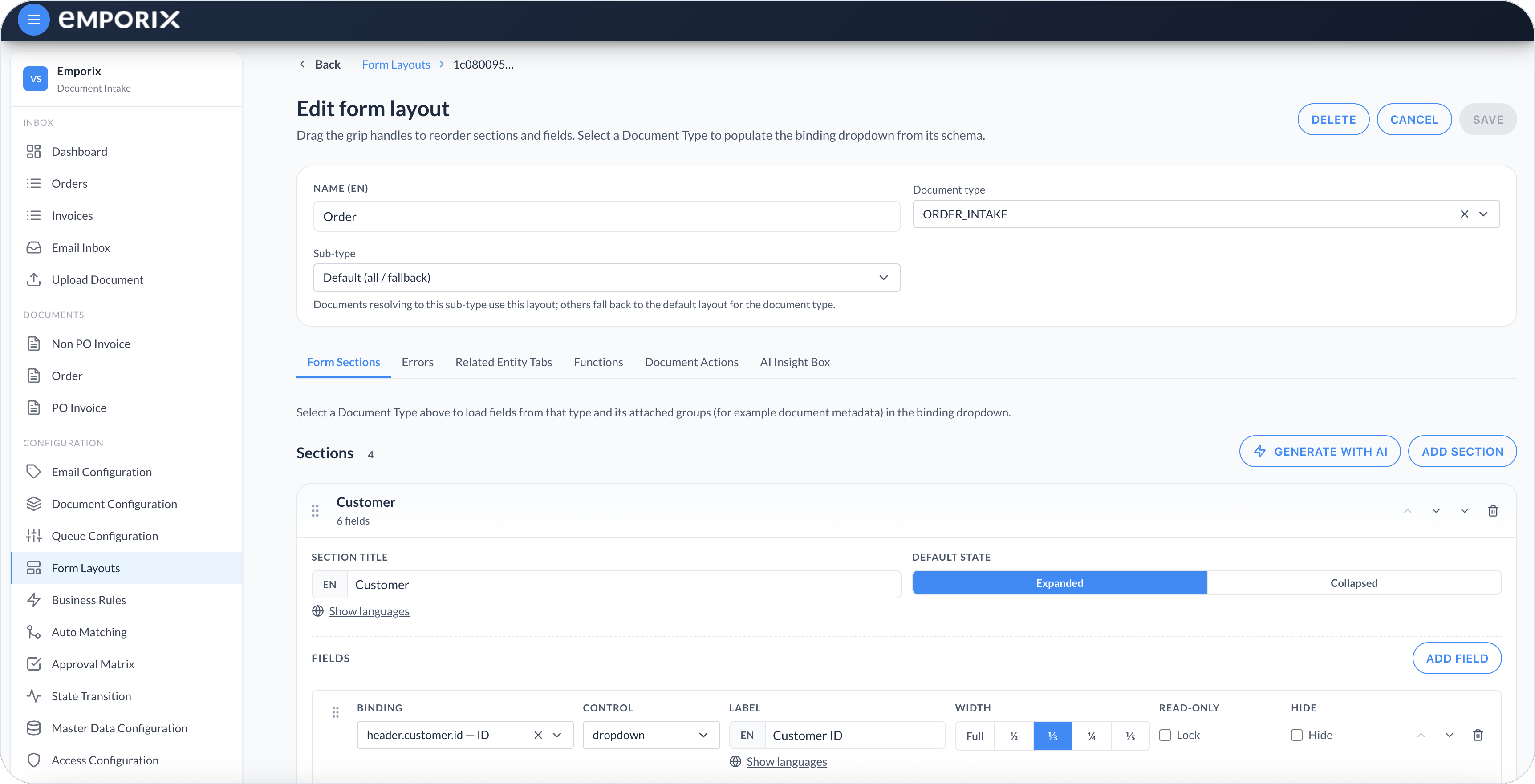
Use **Form Sections** to group the **Details** form into titled blocks scanned beside the document preview. Open a layout from [Form Layouts](/document-intake-cockpit/configuration/form-layouts.md), then work on the **Form Sections** tab.

{% stepper %}
{% step %}

#### Add a section

Select **Add section**. Enter a **Section title** and set **Default state** to **Expanded** or **Collapsed**.
{% endstep %}

{% step %}

#### Add and arrange fields

Select **Add field** for each value to review. Set **Binding**, **Control**, **Label**, and **Width**. Drag the grip handles to reorder sections or move fields within and between sections.
{% endstep %}

{% step %}

#### Save

Select **Save** on the layout, then confirm the form in [Managing Documents](/document-intake-cockpit/cockpit-views/managing-a-document.md).
{% endstep %}
{% endstepper %}

<figure><img src="https://1808414410-files.gitbook.io/~/files/v0/b/gitbook-x-prod.appspot.com/o/spaces%2FPBaf05o2vgbdikMFDTyz%2Fuploads%2Fgit-blob-a30b1599e6d4d64d5e670347f912f94ca7c79d5f%2Fform_layouts_edit.png?alt=media" alt="Form Sections with Customer section, Binding, Control, Label, Width, Read-only, and Hide"><figcaption><p>Form Sections with section title, default state, and field settings</p></figcaption></figure>

## Field settings

For each field, set:

* **Binding** – Stores the value at a schema path such as `header.vendor.id`.
* **Control** – Sets how the value is entered or shown.
* **Label** – Sets the localized name on the form.
* **Width** – Sets the field to **Full**, **½**, **⅓**, **¼**, or **⅕** of the form row.
* **Read-only** – Locks the field so it stays visible but not editable in edit mode.
* **Hide** – Removes the field from the Details form while keeping its configuration and validation.

Choose a **Control** for how the value is entered or shown:

* **text**, **textarea**, **email**, **tel**, and **number** – Single-value entry
* **boolean** – Yes or no
* **date** and **datetime** – Date values
* **percent** – Rates stored as percentage points and shown with a `%` suffix (`20` displays as `20%`)
* **currency** – Money amounts, with **Currency field** set to the schema field that holds the ISO currency code
* **enum** – A fixed list of **Value** rows under **Enum options**
* **table** – A configurable table with **Table Columns**
* **lineItems** – A fixed **Description** / **Item ID** / **Qty** / **Unit price** / **Amount** table
* **prices** – A **Subtotal** / **Tax** / **Total** group
* **dropdown** or **lookupModal** – Searchable reference values (see [Lookups and Dropdowns](/document-intake-cockpit/configuration/form-layouts/form-layout-lookups.md))

Use **table** when you want the schema array to show the columns you define. Use **lineItems** only when you want that fixed five-column table.

The controls that display several child values require these schema shapes:

* **table** – An array of objects. Each **Field path** is relative to one array item.
* **lineItems** – An array of objects with `name`, `itemId`, `quantity`, `unitPrice`, and `amount`.
* **prices** – An object with `subtotal`, `tax`, and `total`.

System metadata and fields from mixins other than the selected document type use qualified paths such as `metadata.createdAt` or `mixins.process.status`. They are available for display but are locked as read-only.

Populate and hook target paths are applied from the root of the primary-schema draft. The runtime does not validate these paths against the schema. Always use valid primary-schema paths such as `header.totalAmount`; a qualified path such as `mixins.process.status` would create nested data inside the primary draft rather than update the process mixin.

Use **enum** when the displayed text and stored value are the same. Use a [static dropdown](/document-intake-cockpit/configuration/form-layouts/form-layout-lookups.md#static-dropdown) when the label must differ from the stored value, a default choice, or an explicit blank option.

## Field dependencies

Selecting or changing a field can fill, filter, or update other fields on the form:

* **Populate from selection** – Selecting a record in a dynamic dropdown or lookup immediately copies configured source properties into target document fields. For example, selecting a vendor can fill vendor ID, name, address, and payment terms.
* **Dynamic lookup filters** – A lookup reads another document field when it builds its API query. For example, a purchase-order lookup can show only records for the vendor already selected on the document.
* **On-change hook** – Changing a field runs JavaScript, a shared function, or a tenant cloud function that returns other document paths to update. Use this for calculations, normalization, or conditional defaults.

The layout editor marks a top-level target with **Can be auto-filled from** when another configured field populates it. Dependencies update only the current draft. The document's configured save action is still required to persist the values.

## Shared functions and field hooks

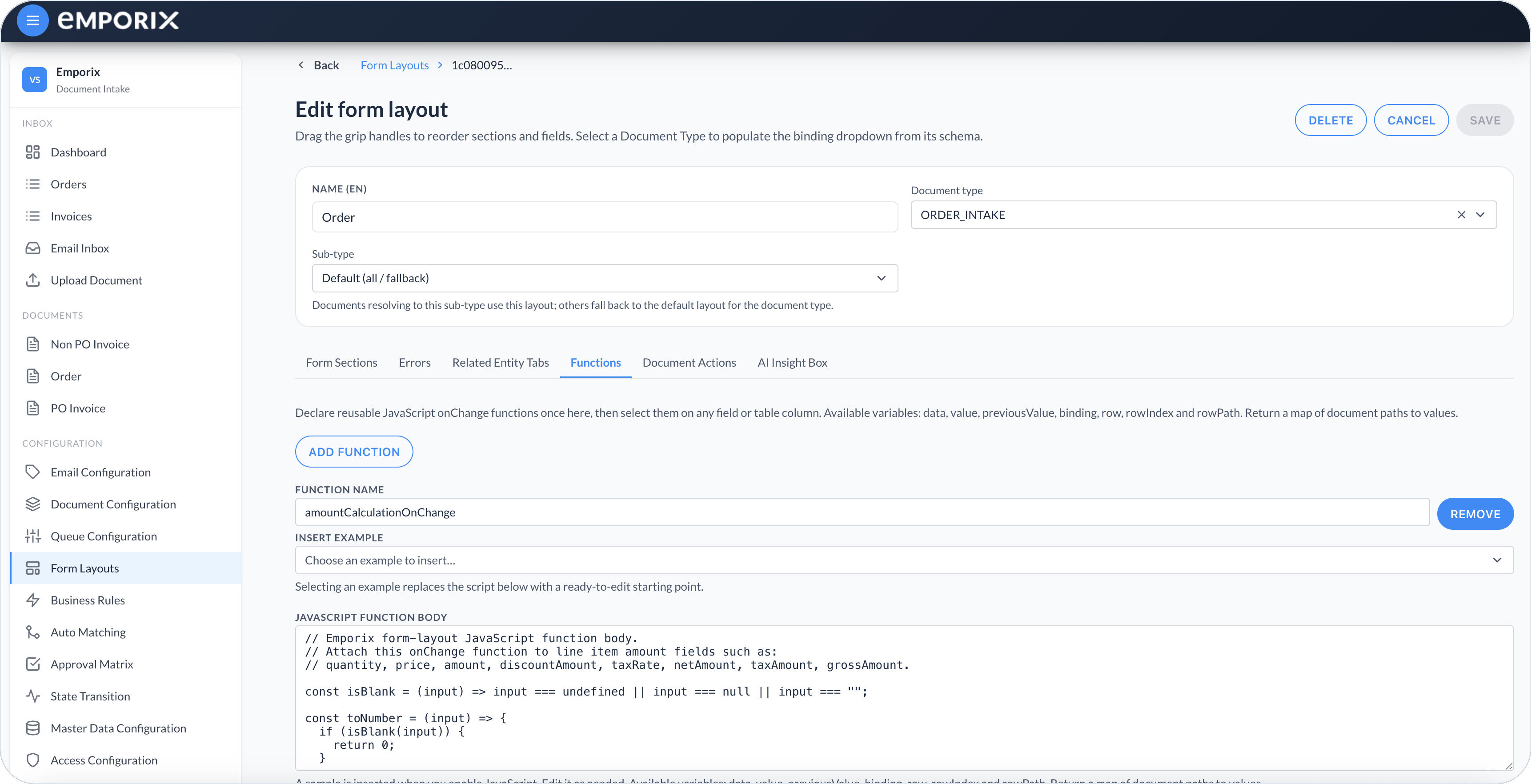
Use the **Functions** tab in [Form Layouts](/document-intake-cockpit/configuration/form-layouts.md) to define reusable JavaScript for fields in that layout. A field hook can call a shared function so the same behavior does not need to be repeated across field configurations.

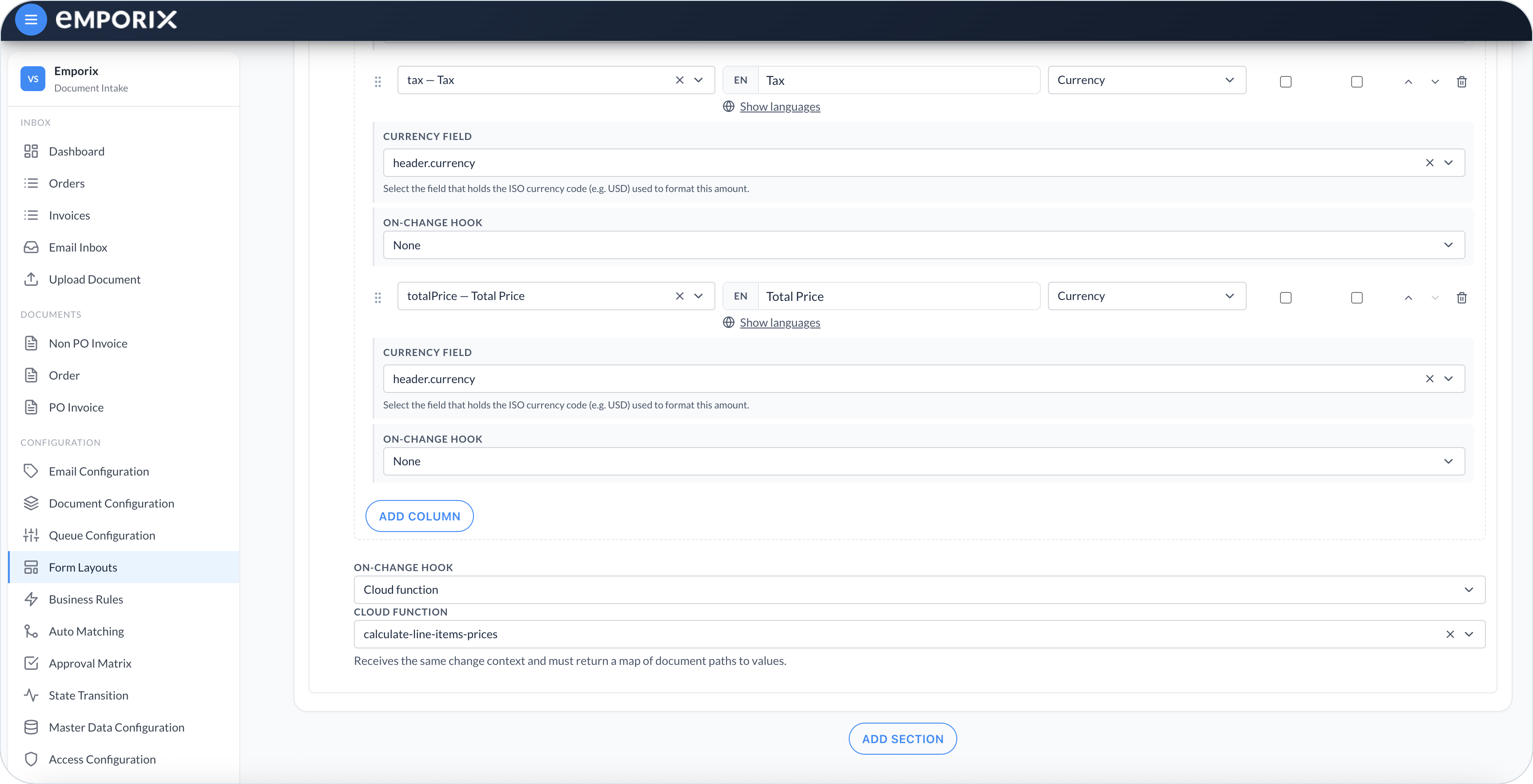
Leave **On-change hook** set to **None** unless changing the field must update related document values. When an update is required, select **JavaScript** to define logic on the field, **Shared function** to reuse logic from the **Functions** tab, or **Cloud function** to use a tenant function. For example, changing an amount can recalculate a related total on the form.

Text-like controls run their hook when the field loses focus. Boolean, enum, dropdown, and lookup controls run it immediately after selection. The hook receives the draft after the new value has been applied.

For **JavaScript**, edit the generated **JavaScript function body**. It can use:

* `data` – The complete primary-schema draft, including the changed value
* `value` – The new value of the changed field
* `previousValue` – A compatibility value that can already equal `value` when the control publishes the draft before the hook runs. Do not rely on it for change-history logic.
* `binding` – The full path of the changed field
* `row`, `rowIndex`, and `rowPath` – The current row details for a table or line-item field

Return an object that maps document paths to their new values.

Select **Insert example** in the hook editor to start from a generated pattern for a root field, header calculation, or line-item calculation, then replace its example paths with paths from your schema. Returned updates can target editable, read-only, or hidden fields in the primary schema.

### Normalize the changed value

Use `binding` when the hook updates the same field. For example, normalize a reference code after editing:

```javascript
return {
  [binding]: String(value ?? '').trim().toUpperCase()
}
```

### Recalculate header totals

Attach the same shared function to each field that can change the result:

```javascript
const header = data.header ?? {}
const net = Number(header.netAmount ?? 0)
const tax = Number(header.taxAmount ?? 0)
const freight = Number(header.freightAmount ?? 0)
const discount = Number(header.discountAmount ?? 0)

return {
  'header.totalAmount': net + tax + freight - discount
}
```

### Recalculate the current table row

Use `rowPath` so the returned paths point to the changed row. Add this as a shared function, then select it as the column **On-change hook** for the quantity, unit price, and tax-rate columns. The example treats `taxRate` as percentage points, so `20` means `20%` and is divided by 100:

```javascript
const quantity = Number(row?.quantity ?? 0)
const unitPrice = Number(row?.price ?? row?.unitPrice ?? 0)
const taxRate = Number(row?.taxRate ?? 0)
const netAmount = quantity * unitPrice
const taxAmount = (netAmount * taxRate) / 100

return {
  [`${rowPath}.netAmount`]: netAmount,
  [`${rowPath}.taxAmount`]: taxAmount,
  [`${rowPath}.amount`]: netAmount + taxAmount
}
```

For **Shared function**, first add a named function on **Functions**, then select it on each driver field. Shared functions receive and return the same values as inline JavaScript.

For **Cloud function**, enter the tenant **Cloud function ID**. The function receives the current document and the same change context. Return the path/value map under `updates`, for example:

```json
{
  "documentType": "INVOICE",
  "currentState": "START",
  "document": {
    "id": "document-123",
    "mixins": {
      "INVOICE": {
        "header": {
          "netAmount": 100,
          "taxAmount": 20
        }
      }
    }
  },
  "context": {
    "documentType": "INVOICE",
    "documentId": "document-123",
    "data": {
      "header": {
        "netAmount": 100,
        "taxAmount": 20
      }
    },
    "value": 20,
    "previousValue": 20,
    "binding": "header.taxAmount"
  }
}
```

The exact `documentType`, state, fields, and values come from the current document. Table and line-item calls also include `row`, `rowIndex`, and `rowPath` in `context`.

Return:

```json
{
  "updates": {
    "header.totalAmount": 125.5
  }
}
```

If the function fails or does not return updates, the changed driver value remains in the draft but the dependent values are not applied. Values returned by a hook do not trigger the target field's hook. Return every related update from the same function instead of expecting a chain of hooks. When an asynchronous hook returns after the draft has changed again, the cockpit discards its updates to avoid overwriting newer work.

Involve someone who can define and review the function behavior. Test hooks with empty, zero, and representative values before the layout is used for document review. Confirm the dependent fields, then save and reopen the document.

<figure><img src="https://1808414410-files.gitbook.io/~/files/v0/b/gitbook-x-prod.appspot.com/o/spaces%2FPBaf05o2vgbdikMFDTyz%2Fuploads%2Fgit-blob-e7dc2afe0845c62d756e91c06149ca6e3806ea60%2Fform_layouts_functions.png?alt=media" alt="Functions tab with Function name, Insert example, and JavaScript function body"><figcaption><p>Form layout editor with Functions</p></figcaption></figure>

## Tables

{% hint style="info" %}
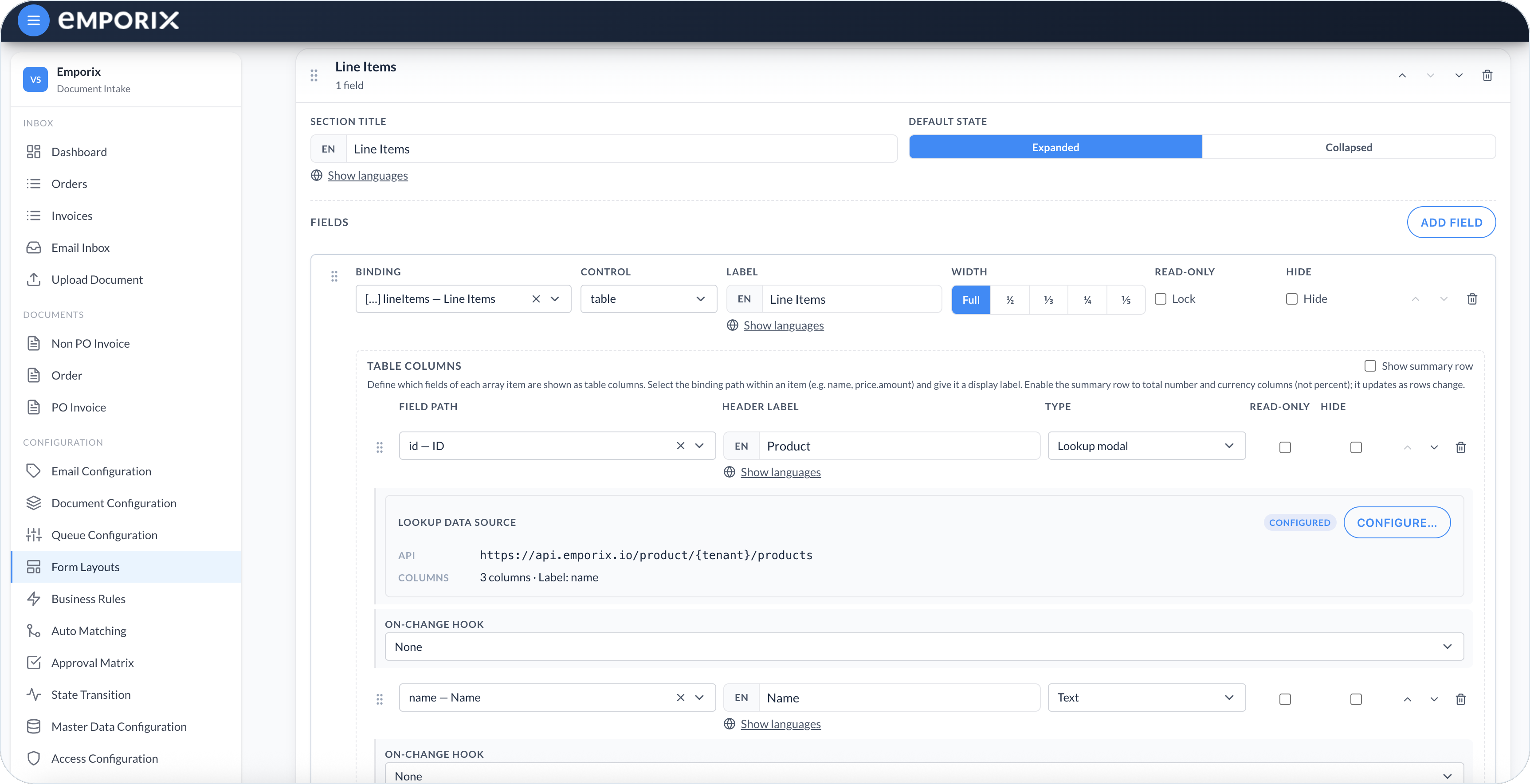
For a **table** control, define **Table Columns**. Each column has a **Field path**, **Header label**, **Type**, **Read-only**, and **Hide** setting. Column types include **Text**, **Number**, **Percent**, **Currency**, **Boolean**, **Date**, **Date & time**, **Enum**, **Dropdown**, and **Lookup modal**. Configure a dropdown or lookup on a table column the same way as a top-level field; see [Lookups and Dropdowns](/document-intake-cockpit/configuration/form-layouts/form-layout-lookups.md).
{% endhint %}

A table column can also populate sibling values in the selected row or run an on-change hook. A column hook takes precedence over a hook configured on the whole table field. Use row-relative targets such as `productName` in a populate mapping; the cockpit resolves them within the current row.

Use the move controls or drag handles to reorder columns. Enable **Show summary row** to total **number** and **currency** columns. Percent columns are not included in the summary.

Put identity and party data in a header section, keep line items in their own section, and place totals or payment fields below the lines. That order matches how the document preview is compared to extracted data.

<figure><img src="https://1808414410-files.gitbook.io/~/files/v0/b/gitbook-x-prod.appspot.com/o/spaces%2FPBaf05o2vgbdikMFDTyz%2Fuploads%2Fgit-blob-ce6240ce77c174b272038ff7f09896211c7a9253%2Fform_layouts_sections_hooks.png?alt=media" alt="Tax and Total Price currency columns with On-change hook None, and a table-level Cloud function hook"><figcaption><p>Table-level Cloud function on-change hook, with Tax and Total Price currency columns</p></figcaption></figure>

<figure><img src="https://1808414410-files.gitbook.io/~/files/v0/b/gitbook-x-prod.appspot.com/o/spaces%2FPBaf05o2vgbdikMFDTyz%2Fuploads%2Fgit-blob-7f7e39e8786c1ed72e6185d21575694f350a802c%2Fform_layouts_sections_table.png?alt=media" alt="Line Items table control with Table Columns, Lookup modal, and Configure"><figcaption><p>Table control with table columns, lookup modal, and configure</p></figcaption></figure>


---

# Agent Instructions
This documentation is published with GitBook. GitBook is the documentation platform designed so that both humans and AI agents can read, navigate, and reason over technical content effectively. Learn more at gitbook.com.

## Querying This Documentation
If you need additional information that is not directly available in this page, you can query the documentation dynamically by asking a question.

Perform an HTTP GET request on the current page URL with the `ask` query parameter, and the optional `goal` query parameter:

```
GET https://developer.emporix.io/document-intake-cockpit/configuration/form-layouts/form-layout-sections.md?ask=<question>&goal=<endgoal>
```

`ask` is the immediate question: it should be specific, self-contained, and written in natural language.
`goal` is optional and describes the broader end goal you are ultimately trying to accomplish on behalf of the user. GitBook uses it to tailor the answer towards what is most useful for that goal.

The response will contain a direct answer to the question and relevant excerpts and sources from the documentation.

Use this mechanism when the answer is not explicitly present in the current page, you need clarification or additional context, or you want to retrieve related documentation sections.