> For the complete documentation index, see [llms.txt](https://developer.emporix.io/llms.txt). Markdown versions of documentation pages are available by appending `.md` to page URLs; this page is available as [Markdown](https://developer.emporix.io/document-intake-cockpit/configuration/master-data.md).
# Master Data
Connect business objects and core services, then expose useful reference records under Additional Data in the Document Intake Cockpit.
Use **Master Data** to connect reference records to the Document Intake Cockpit and browse them under **Additional Data**. [Auto Matching](/document-intake-cockpit/configuration/auto-matching.md) can use a saved configuration by name. Document-form lookups need a **dropdown** or **lookupModal** control in [Lookups and Dropdowns](/document-intake-cockpit/configuration/form-layouts/form-layout-lookups.md). Saving a master data type does not enable those lookups by itself.
You define which data types appear in one place, and browse their records in the other:
* **Master Data Configuration** – Under **Configuration**, administrators define which data types appear and how they are displayed.
* **Additional Data** – In the side menu, records are browsed and opened for each configured type.
## Master data configuration
Open **Configuration** → **Master Data Configuration**.
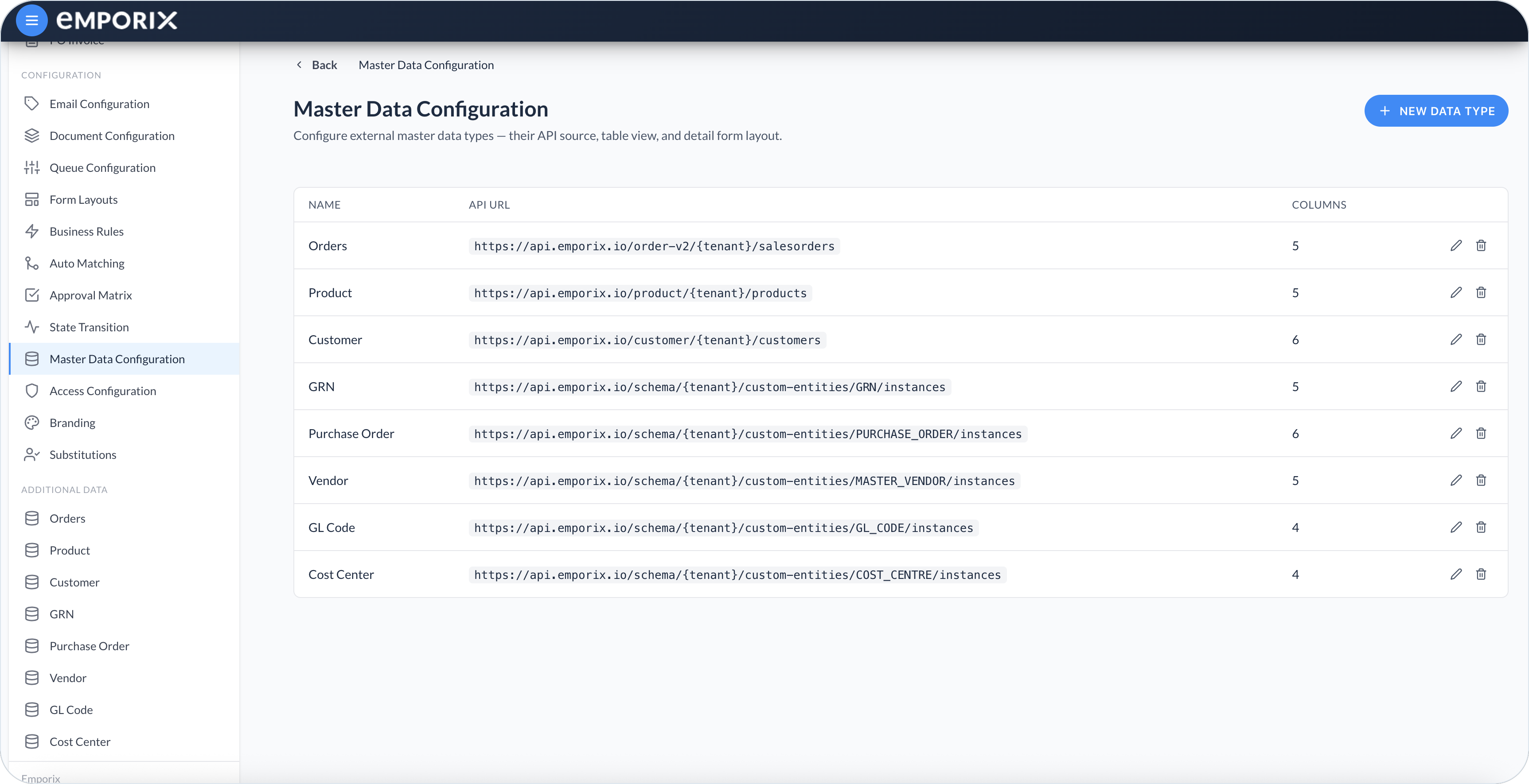
The list shows each configured data type with **Name**, **API URL**, and **Columns**. Select **New data type** to create a configuration, or use a row's edit or delete action.
After you save a configuration, it appears as its own entry under **Additional Data** in the side menu. You can also control who can open each **Additional Data** page in [Access Configuration](/document-intake-cockpit/configuration/access-configuration.md).
Master Data Configuration
{% hint style="warning" %}
Deleting a data type removes only its **Additional Data** configuration and menu entry, not its source records. First update [Auto Matching](/document-intake-cockpit/configuration/auto-matching.md) configurations that use this data type; matching cannot resolve a source when its configuration ID is missing. Form Layout lookups use their own API URLs and are not changed automatically.
{% endhint %}
## Creating or editing a data type
{% stepper %}
{% step %}
#### Start a new type or open an existing one
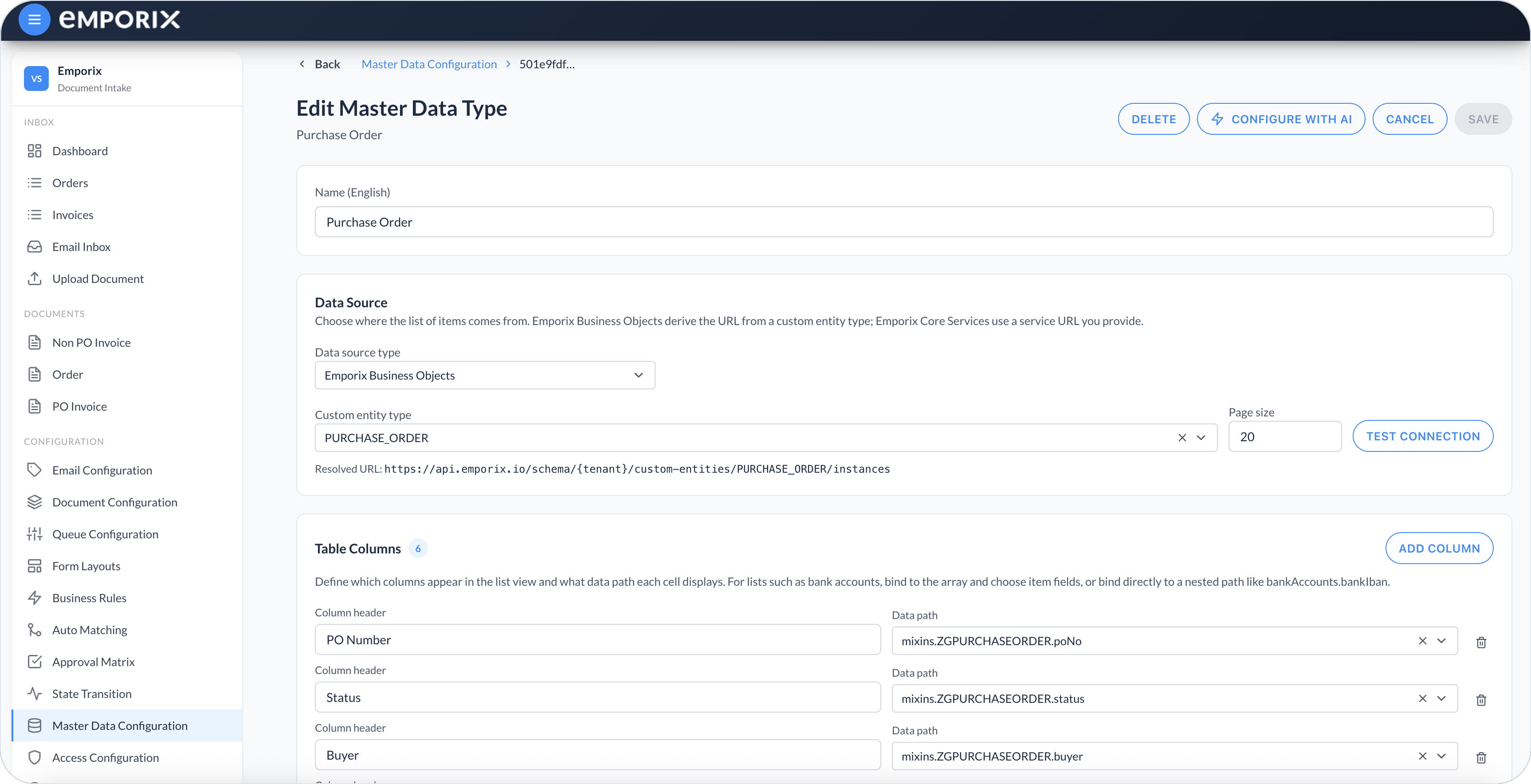
Select **New data type**, or use a row's edit action. The header actions are **Delete**, **Configure with AI**, **Cancel**, and **Save**. Enter a clear **Name (English)** – the **Additional Data** menu name (for example **Vendor**).
{% endstep %}
{% step %}
#### Choose the data source
Under **Data Source**, select a **Data source type**:
* **Emporix Business Objects** – Select a **Custom entity type**. The cockpit shows **Resolved URL**.
* **Emporix Core Services** – Select a **Service**. The cockpit shows **Resolved URL**.
**Emporix Business Objects** builds the URL from the custom entity type. **Emporix Core Services** uses the URL for the service you select.
Set **Page size**. The cockpit shows **Resolved URL** for the selected source. The resolved URL includes `{tenant}` where the tenant ID belongs.
Data source type
Emporix business objects
Emporix core services
{% endstep %}
{% step %}
#### Test and inspect the connection
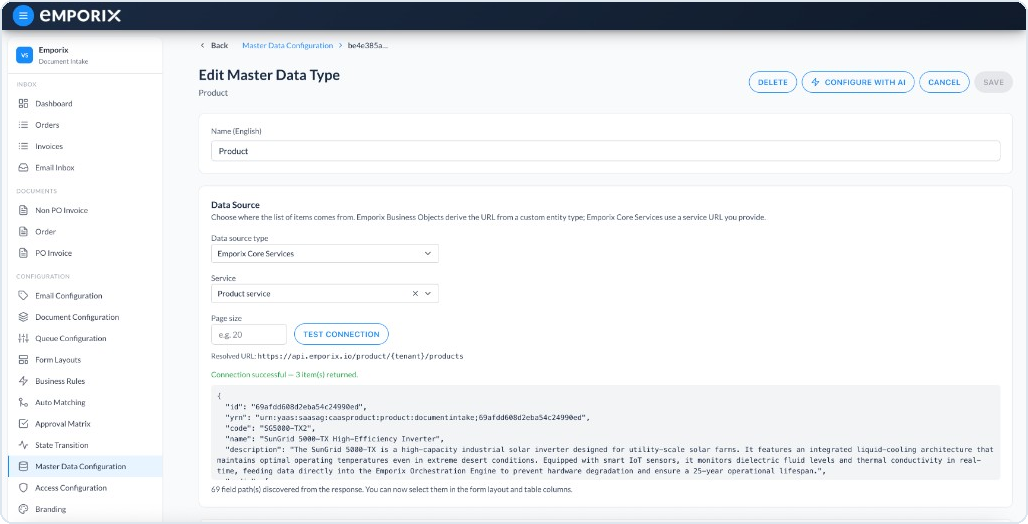
Select **Test connection** to confirm that the source returns data. The test shows the record count, first item, and discovered paths. Errors include the HTTP status and response text.
Connection test
{% endstep %}
{% step %}
#### Define table columns
Under **Table Columns**, select **Add column**. For each column, set a **Column header** and a **Data path**. The header is the column name in the list, and the path is the field shown in that cell. For a list such as bank accounts, bind the path to the array and choose the item fields, or use a nested path such as `bankAccounts.bankIban`. Prefer a small set of identifying columns, such as name, number, or status.
{% endstep %}
{% step %}
#### Configure the detail form
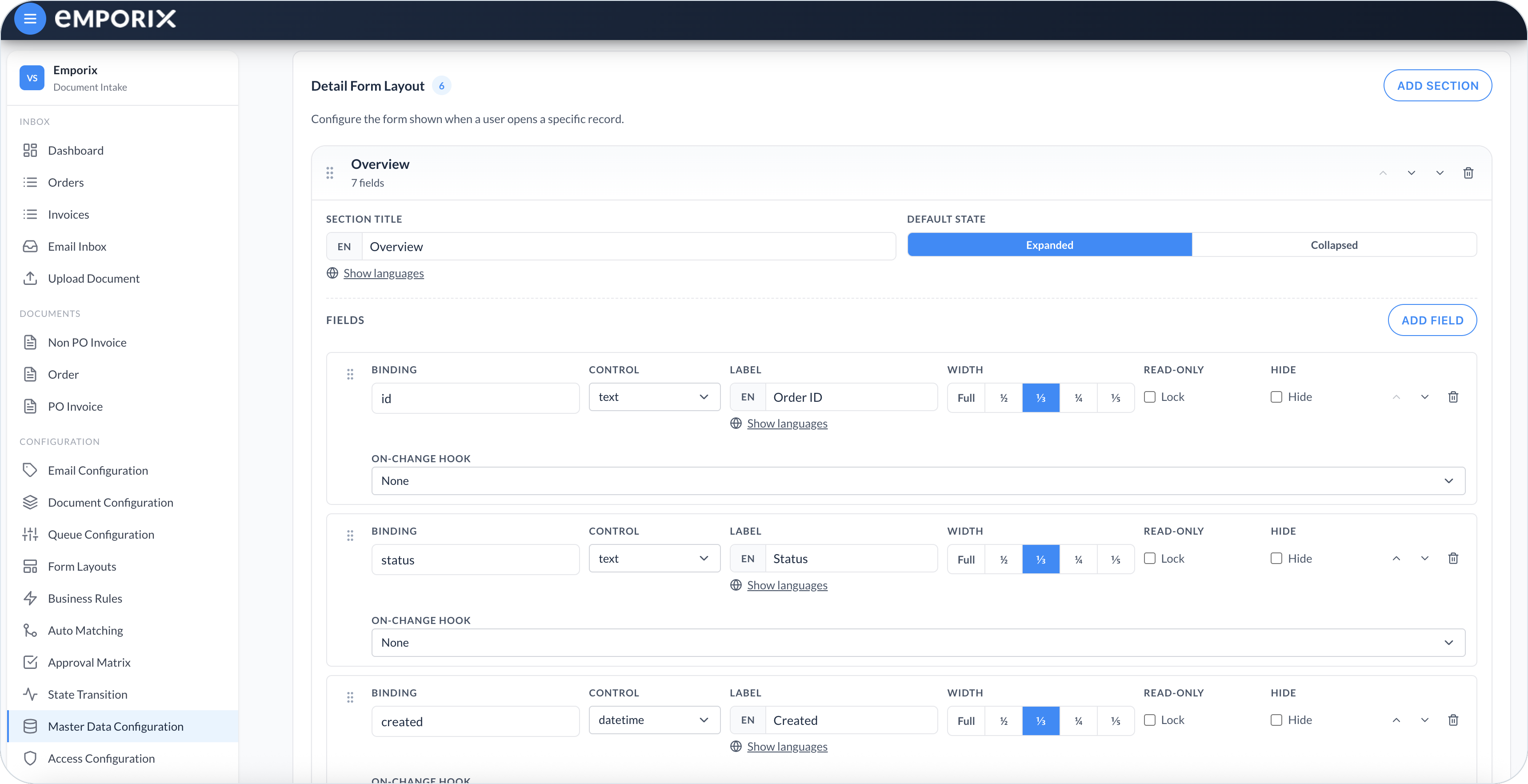
Under **Detail Form Layout**, select **Add section**, then **Add field**. For each section, set a **Section title** and **Default state** (**Expanded** or **Collapsed**). For each field, set **Binding** (the source field, such as `id` or `status`), **Control** (the example uses **text** and **datetime**), **Label**, **Width** (**Full**, **½**, **⅓**, or **¼**), and optionally **Read-only** (**Lock**) or **Hide**. The example **On-change hook** is **None**. Use **Show languages** when you need another locale on the title or label.
Detail form layout
{% endstep %}
{% step %}
#### Save the configuration
Select **Save**. The type is available under **Additional Data**.
{% endstep %}
{% endstepper %}
{% hint style="info" %}
Select **Configure with AI** to generate a starting set of columns and a detail form from discovered source data. Review the suggestion and adjust labels, bindings, or sections before you save.
{% endhint %}
## Browsing Additional Data
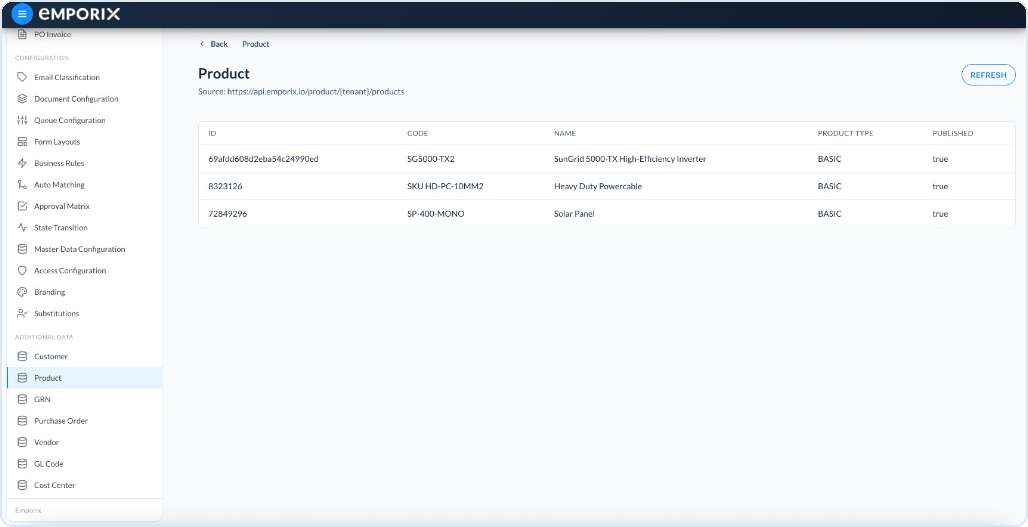
Use **Additional Data** to look up reference records without leaving the cockpit. Each configured type appears as its own menu entry, for example **Vendor**, **Product**, or **Customer**.
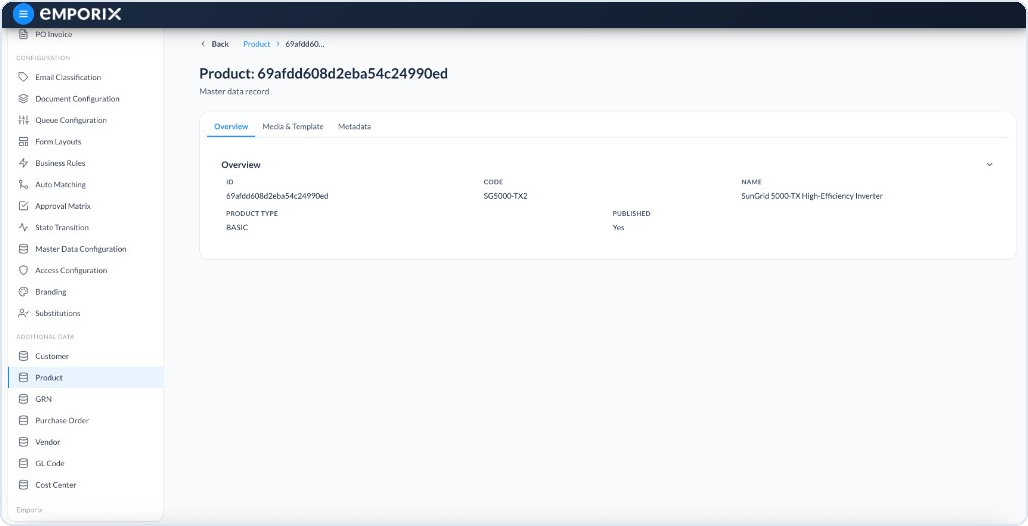
In the side menu, open the type you need under **Additional Data**. The page heading shows the type name. The **Source** subtitle is the data source URL for that type. Browse the records, then open a row to see the detail form configured for that type. When **Detail Form Layout** has more than one section, those section titles appear as tabs. Use the breadcrumb to return to the list.
Additional data list
Additional data record detail
## Master data in Document Intake
Use these records for document lookups and auto matching:
* **Lookups during review** – Saving a master data type does not enable document-form lookups. Master data can be searched in [Managing Documents](/document-intake-cockpit/cockpit-views/managing-a-document.md) only when that document field uses a **dropdown** or **lookupModal** control in [Lookups and Dropdowns](/document-intake-cockpit/configuration/form-layouts/form-layout-lookups.md).
* **Auto matching** – Matching configurations set **Master data type** to the Master Data configuration by name. That name is also the **Additional Data** menu label after you save.
{% hint style="info" %}
For matching setup, see [Auto Matching](/document-intake-cockpit/configuration/auto-matching.md). To control who can open each **Additional Data** page, see [Access Configuration](/document-intake-cockpit/configuration/access-configuration.md). See the [Order Intake Example](/document-intake-cockpit/configuration-examples/order-intake.md) for a worked tenant configuration in this cockpit.
{% endhint %}
---
# Agent Instructions
This documentation is published with GitBook. GitBook is the documentation platform designed so that both humans and AI agents can read, navigate, and reason over technical content effectively. Learn more at gitbook.com.
## Querying This Documentation
If you need additional information that is not directly available in this page, you can query the documentation by asking a question.
Perform an HTTP GET request on the following URL with the `ask` and `goal` query parameters:
```
GET https://developer.emporix.io/document-intake-cockpit/configuration/master-data.md?ask=&goal=
```
`ask` is the immediate question: it should be specific, self-contained, and written in natural language.
`goal` is what the user is ultimately trying to achieve, the reason they need the answer. Sharing it helps GitBook give you a better, more relevant answer. A goal is most helpful when it describes the outcome the user wants rather than restating the question. For example, with `ask=how do I create an API token`, a goal like `automate deployments from our CI pipeline` lets GitBook tailor the answer to that use case.
The response will contain a direct answer to the question and relevant excerpts and sources from the documentation.
Use this mechanism when the answer is not explicitly present in the current page, you need clarification or additional context, or you want to retrieve related documentation sections.