> For the complete documentation index, see [llms.txt](https://developer.emporix.io/llms.txt). Markdown versions of documentation pages are available by appending `.md` to page URLs; this page is available as [Markdown](https://developer.emporix.io/document-intake-cockpit/configuration/queue-configuration.md).
# Queue Configuration
Create Inbox queues so each saved configuration appears as its own side-menu item, with its own tabs, document scope, and table columns.
Use **Queue Configuration** to give reviewers focused inbox lists. Each saved queue becomes its own **Inbox** side-menu item under the **Menu name** you set, with its own tabs, document types, statuses, and columns. For how that list works day to day, see [Inbox Queues](/document-intake-cockpit/cockpit-views/inbox-queue.md).
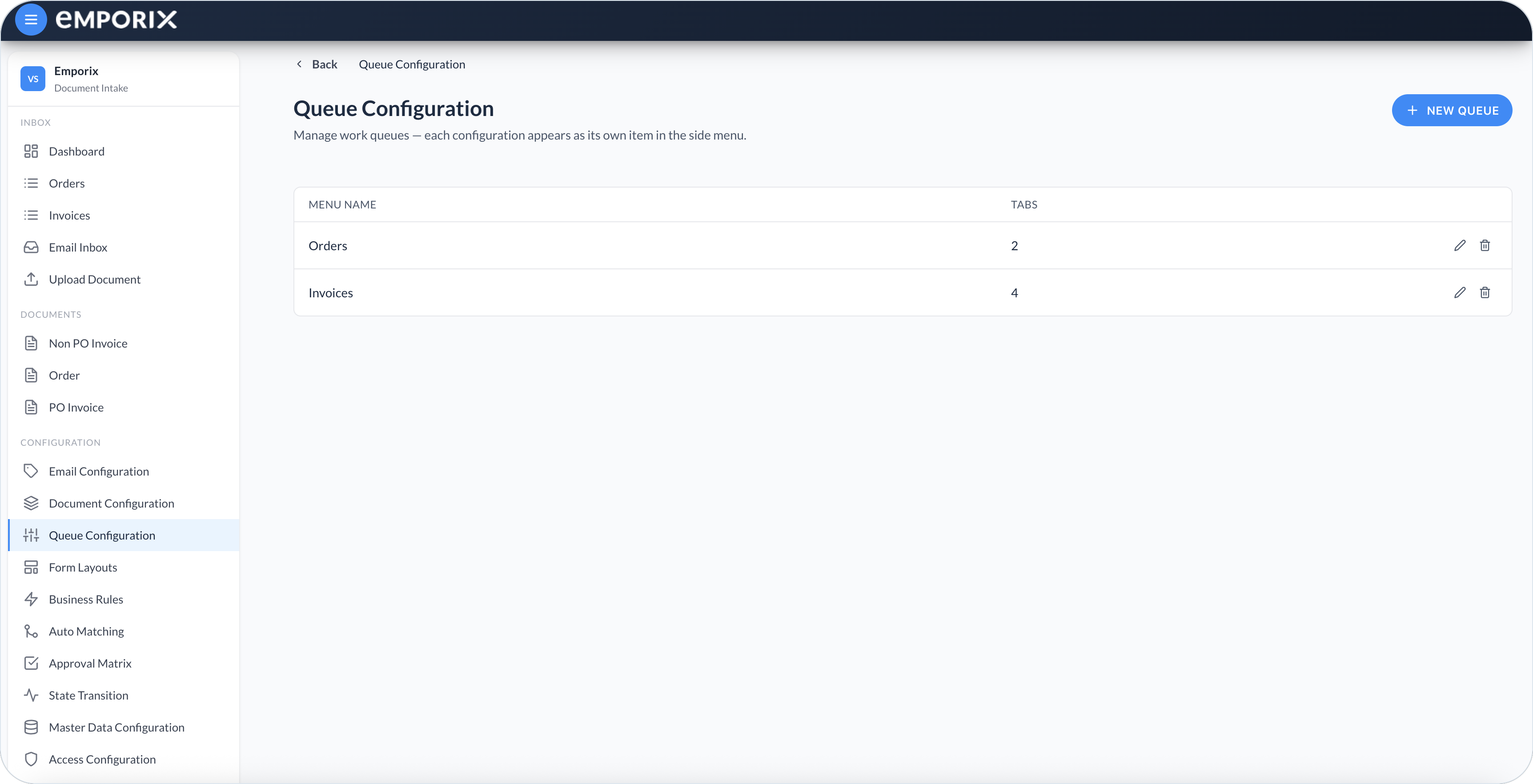
Open **Configuration** → **Queue Configuration** in the side menu. The list shows each queue with its **Menu name** and the number of **Tabs**. From here you can create a queue, open **Edit Queue** with a row's edit action, or delete a queue you no longer need.
Queue configuration
{% hint style="warning" %}
Deleting a queue removes it and its **Inbox** menu item. Documents are not deleted.
{% endhint %}
**New queue** already includes the built-in **Needs attention** and **All documents** tabs, default columns, and a **Menu name** prefilled as **Queue**.
## Creating or editing a queue
{% stepper %}
{% step %}
#### Start a new queue or open an existing one
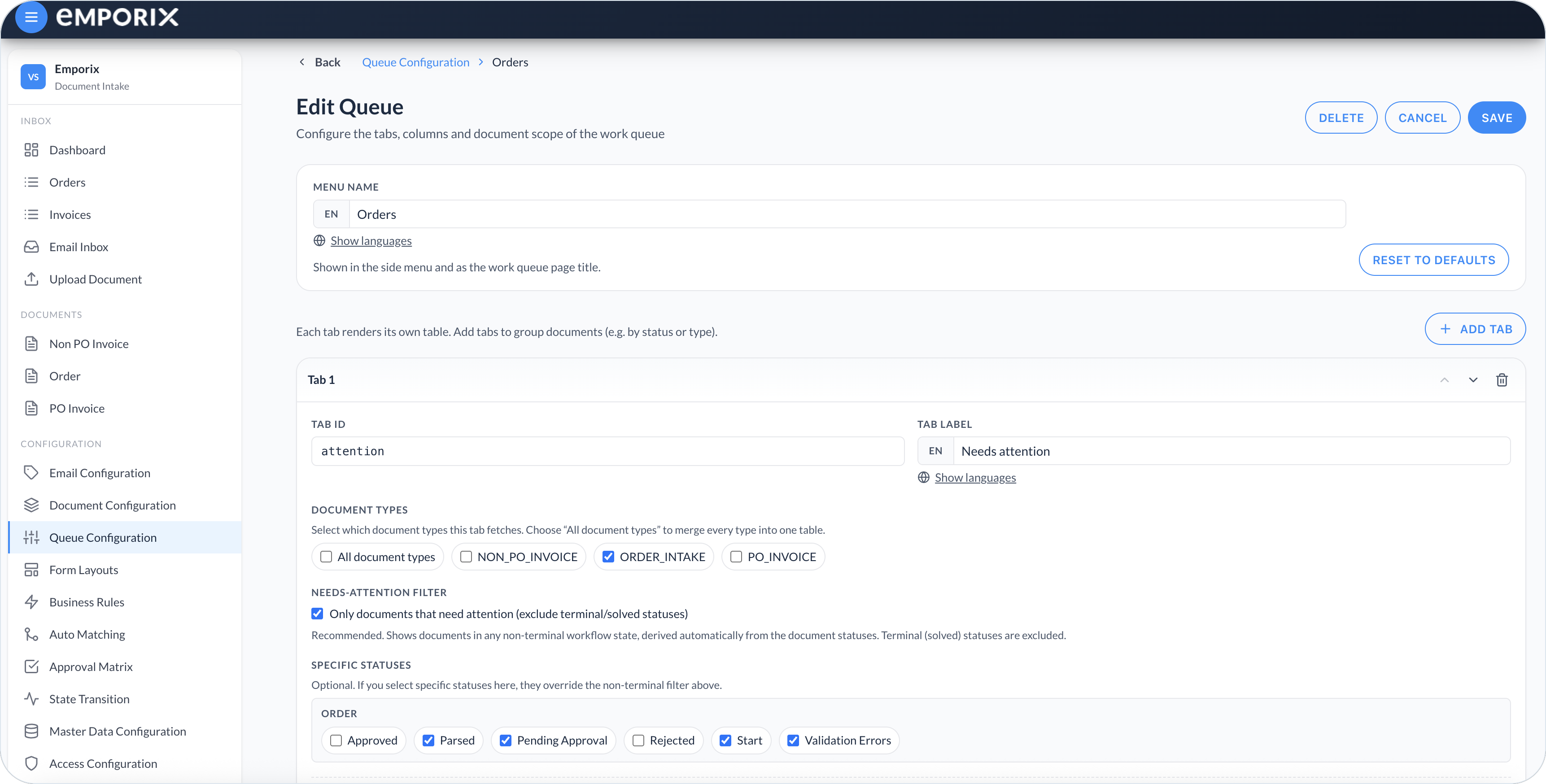
Select **New queue**, or use a row's edit action for an existing queue. Set the **Menu name**, for example, **Orders** or **Invoices**. That name becomes the **Inbox** side-menu label and the queue page title.
{% endstep %}
{% step %}
#### Add or adjust tabs
Use tabs to group work, for example by document type or by whether items still need attention. Select **Add tab** for each group, or keep the built-in tabs and edit them. Enter a short **Tab ID** you can keep and a **Tab label** shown in the queue. Select **Document types** by type ID (for example `ORDER_INTAKE`), or **All document types**. Use the move controls to reorder tabs. Use the delete action on a tab to remove a tab you do not need, for example, delete **All documents** to keep a single **Needs attention** tab. When a queue has only one tab defined, the table appears without a tab bar.
{% endstep %}
{% step %}
#### Choose document types and statuses
For each tab, choose which documents belong there. Enable **Only documents that need attention (exclude terminal/solved statuses)** to hide **Terminal** statuses from [State Transition](/document-intake-cockpit/configuration/state-transition.md). Add **Specific statuses** only when a type needs a different list, including a **Terminal** status. Leave both unset to list the selected **Document types** in any workflow status. See [Needs-attention filter](#needs-attention-filter).
{% endstep %}
{% step %}
#### Define columns
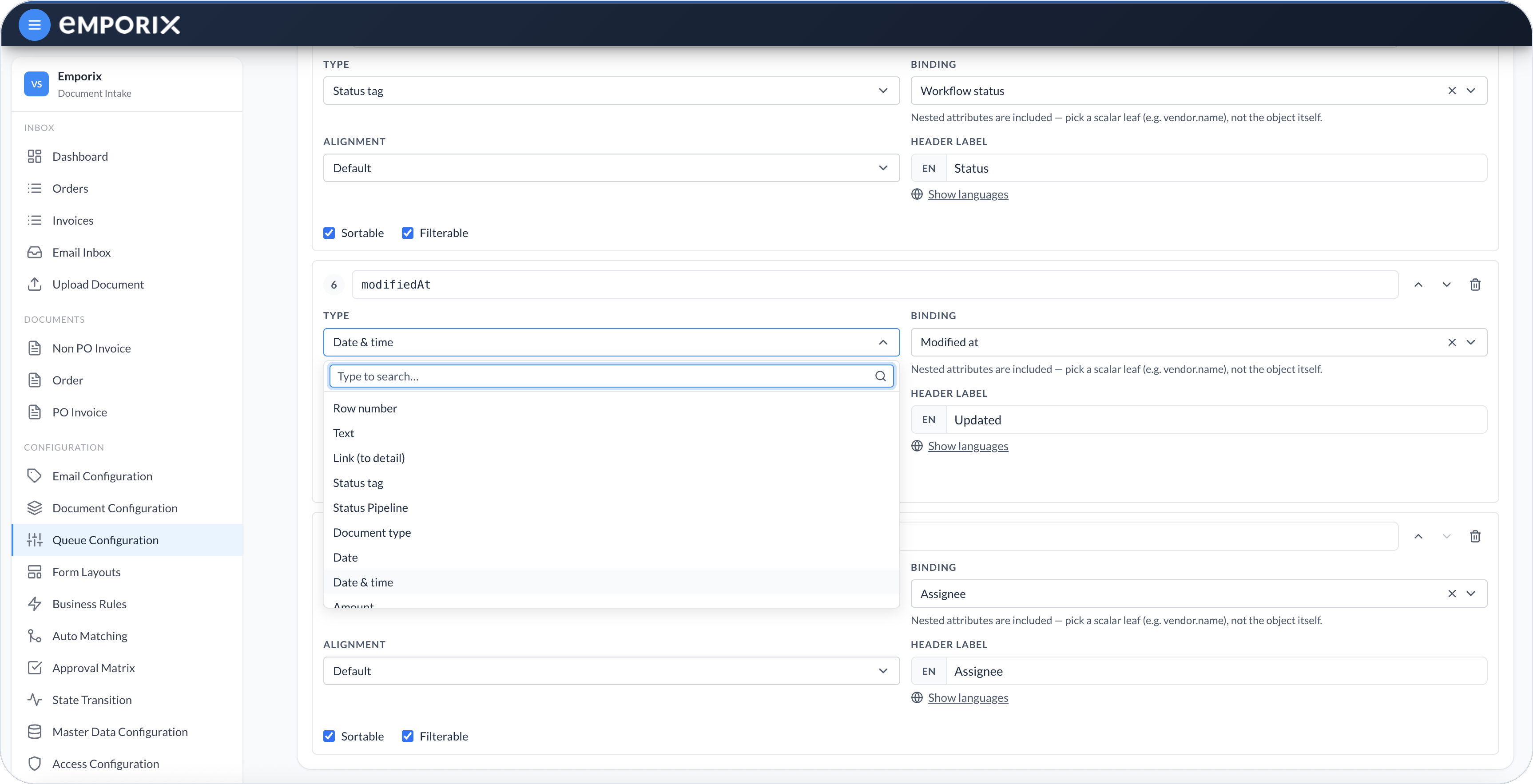
Under **Columns**, select **Add column** for each field the table must show. Set a stable, unique **Column key**, then **Type**, **Binding**, and **Header label**. Prefer a small set of identifying columns. Keep each **Column key** unchanged so browser customizations on [Inbox Queues](/document-intake-cockpit/cockpit-views/inbox-queue.md) continue to identify the same column. Use the move controls to set the column order. See [Columns](#columns).
{% endstep %}
{% step %}
#### Save the configuration
Select **Save**. A new queue appears under **Inbox** after you save. Updates to an existing queue appear the next time someone opens or refreshes that queue.
{% endstep %}
{% endstepper %}
Edit queue
{% hint style="info" %}
**Reset to defaults** replaces all tabs and columns with the built-in **Needs attention** and **All documents** tabs. It does not change **Menu name**. Select **Save** to store the restored tabs. That editor reset is not the same as **Reset to defaults** in **Customize queue view** on [Inbox Queues](/document-intake-cockpit/cockpit-views/inbox-queue.md).
{% endhint %}
{% hint style="info" %}
Provide translations for **Menu name**, **Tab label**, and **Header label** when the tenant has more than one language. Use **Show languages** on those fields. If a translation is missing, English or another filled value is shown. An empty **Tab label** falls back to **Tab ID**. Built-in tabs use Tab IDs `attention` and `all`.
{% endhint %}
## Needs-attention filter
The checkbox **Only documents that need attention (exclude terminal/solved statuses)** and **Specific statuses** work together. In this wording, “solved” means a status marked **Terminal** in [State Transition](/document-intake-cockpit/configuration/state-transition.md). **Specific statuses** lists checkboxes under a heading for each document type, including when **All document types** is selected.
* Checkbox on, **Specific statuses** empty – The tab lists the selected **Document types** in non-terminal statuses.
* Non-empty **Specific statuses** for a type – That list wins for that type, including **Terminal** statuses if you select them. Other types still follow the checkbox.
* Checkbox off and **Specific statuses** empty – The tab lists the selected **Document types** in any workflow status.
The built-in **All documents** tab uses that last case: all types, checkbox off, no specific statuses.
{% hint style="info" %}
After you change statuses in [State Transition](/document-intake-cockpit/configuration/state-transition.md), a tab with the needs-attention checkbox and no **Specific statuses** uses the current non-terminal statuses automatically. A non-empty **Specific statuses** list does not pick up new statuses until you edit the tab.
{% endhint %}
## Columns
Select **Add column** for each field needed in the table:
* **Column key** – Stable identity for browser customizations. Keep it unique and unchanged after people start customizing the queue.
* **Type** – Kind of cell, such as **Link (to detail)** or **Amount**.
* **Binding** – Document field the cell reads. Pick a scalar leaf such as `vendor.name`, not an object.
* **Header label** – Column name in the queue.
* **Alignment** – Left, center, or right.
* **Sortable** – Sort from the column header. The toolbar **Sort** appears only when the tab has no sortable columns.
* **Filterable** – Adds a **Filter…** field to the column header.
* **Link to side-by-side detail view** – For **Link (to detail)** columns. When selected, the cell opens the document.
* **Currency binding** – Formats an **Amount** with its currency. The amount still appears without it.
A typical identity column uses type **Link (to detail)**, binding **Title (computed)**, and header label **Document**. Toolbar **Assignee** and **Status** stay on [Inbox Queues](/document-intake-cockpit/cockpit-views/inbox-queue.md) regardless of the table columns.
Default columns match [Inbox Queues](/document-intake-cockpit/cockpit-views/inbox-queue.md): **#**, **Document**, **Type**, **Progress**, **Status**, **Updated**, and **Assignee**. In this editor, **#**, **Progress**, and **Status** use **Type** values **Row number**, **Status Pipeline**, and **Status tag**.
Tab columns
## Queues in Inbox
Each saved queue appears under **Inbox** with its **Menu name**. Tabs, columns, and document scope come from this page. If no queues are saved, **Inbox** shows one **Queue** item titled **Work Queue**.
{% hint style="info" %}
[Access Configuration](/document-intake-cockpit/configuration/access-configuration.md) can hide or disable each queue separately.
{% endhint %}
Personal **Customize queue view** layouts on [Inbox Queues](/document-intake-cockpit/cockpit-views/inbox-queue.md) are stored in the browser, so they do not change this admin page. A hidden tab stays hidden while its **Tab ID** is unchanged, and a hidden column stays hidden while its **Column key** is unchanged, even if you change **Header label**, **Binding**, **Type**, **Sortable**, or **Filterable**. When you add a new **Tab ID** or **Column key**, it appears the next time that queue is opened, after the current customized order. **Reset to defaults** in **Customize queue view** restores this admin layout for that browser.
## Example setups
Use these as examples of how to structure a queue. Adapt them to how your team finds and prioritizes work:
* **Single-tab** – One **Needs attention** tab with **All document types** and the needs-attention filter enabled.
* **Multi-tab** – One tab per document type with the needs-attention filter enabled, plus an optional **All documents** tab for lookup.
{% hint style="info" %}
See the [Order Intake Example](/document-intake-cockpit/configuration-examples/order-intake.md) for a worked tenant configuration in this cockpit, including an [Orders Queue](/document-intake-cockpit/configuration-examples/order-intake/queue.md).
{% endhint %}
---
# Agent Instructions
This documentation is published with GitBook. GitBook is the documentation platform designed so that both humans and AI agents can read, navigate, and reason over technical content effectively. Learn more at gitbook.com.
## Querying This Documentation
If you need additional information that is not directly available in this page, you can query the documentation dynamically by asking a question.
Perform an HTTP GET request on the current page URL with the `ask` query parameter, and the optional `goal` query parameter:
```
GET https://developer.emporix.io/document-intake-cockpit/configuration/queue-configuration.md?ask=&goal=
```
`ask` is the immediate question: it should be specific, self-contained, and written in natural language.
`goal` is optional and describes the broader end goal you are ultimately trying to accomplish on behalf of the user. GitBook uses it to tailor the answer towards what is most useful for that goal.
The response will contain a direct answer to the question and relevant excerpts and sources from the documentation.
Use this mechanism when the answer is not explicitly present in the current page, you need clarification or additional context, or you want to retrieve related documentation sections.