> For the complete documentation index, see [llms.txt](https://developer.emporix.io/llms.txt). Markdown versions of documentation pages are available by appending `.md` to page URLs; this page is available as [Markdown](https://developer.emporix.io/document-intake-cockpit/configuration/state-transition.md).

# State Transition

Define the lifecycle statuses and transitions for each document type. Status names appear throughout the cockpit.

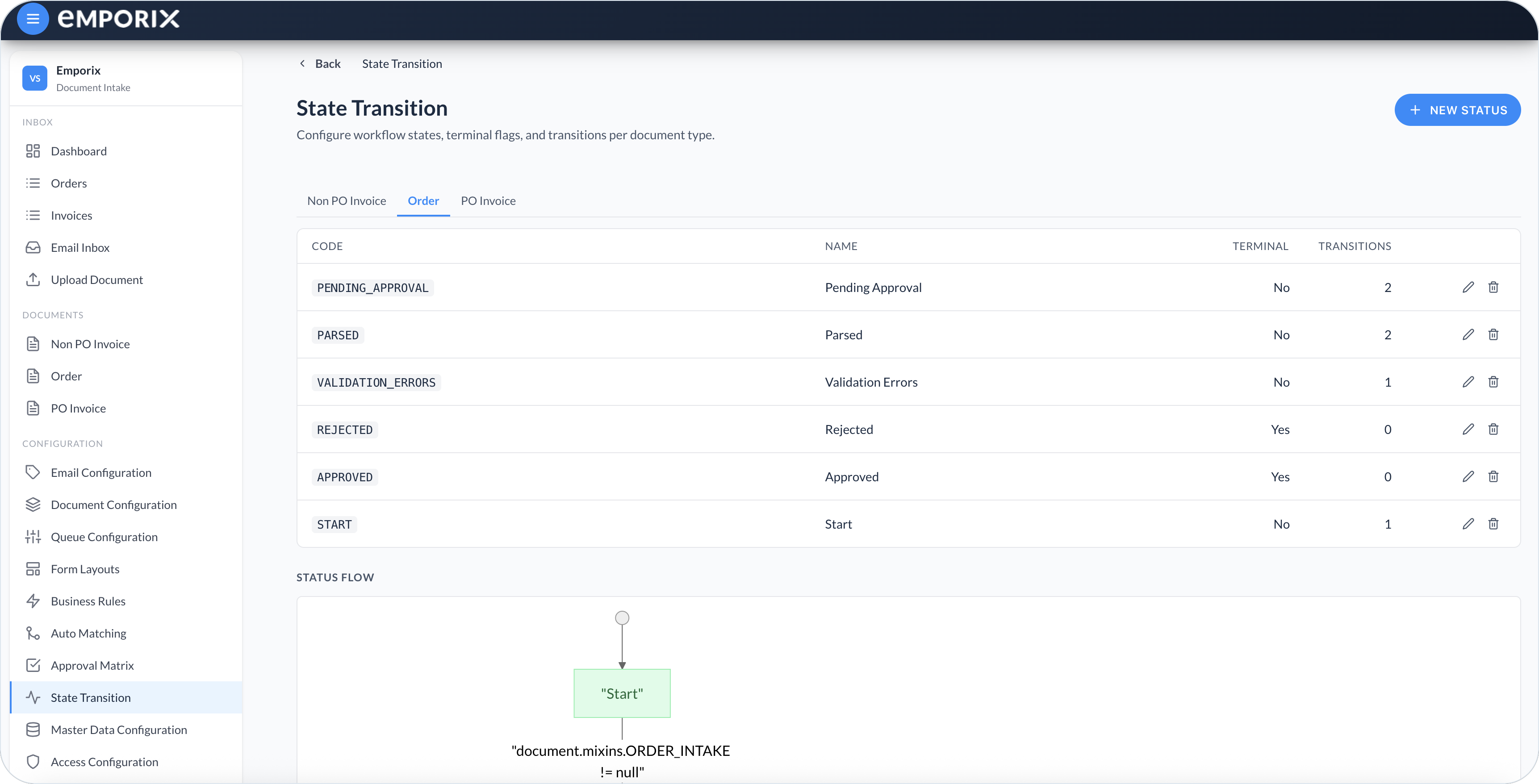
Use **State Transition** to define the workflow statuses that documents can move through for each document type. These names appear on documents, in [Inbox Queues](/document-intake-cockpit/cockpit-views/inbox-queue.md), and on the [Dashboard](/document-intake-cockpit/cockpit-views/dashboard.md).

Open **Configuration** → **State Transition** in the side menu.

<figure><img src="https://1808414410-files.gitbook.io/~/files/v0/b/gitbook-x-prod.appspot.com/o/spaces%2FPBaf05o2vgbdikMFDTyz%2Fuploads%2Fgit-blob-f8754d4e3c4d3585c3402665142f4234e1a6a32c%2Fstate_transition.png?alt=media" alt="State Transition Order tab with status list and Status flow"><figcaption><p>State Transition on the Order tab</p></figcaption></figure>

## Configuration lifecycle

Statuses and transitions are scoped to a document type. All sub-types of that document type share the same workflow; use transition conditions when sub-types need different paths.

Changes take effect as soon as you select **Save**. There is no draft or deployment step. Existing documents keep their current status until the state machine runs and moves them; saving a configuration does not reprocess documents.

## Status list

Statuses are grouped by document type tabs (for example **Non PO Invoice**, **Order**, or **PO Invoice**). For the selected type, the table shows:

* **Code** – Stable identifier for the status
* **Name** – Label shown in the cockpit
* **Terminal** – **Yes** if the status ends the workflow, otherwise **No**
* **Transitions** – Number of outgoing transitions from this status

Select **New status** to add a status for the active document type. Use the row's **Edit** or **Delete** action at the end of the row. **Status flow** appears below the table.

{% hint style="warning" %}
Before deleting a status, move documents out of it and remove incoming transitions from other statuses. The cockpit does not block deletion when documents or transitions use the status, and the confirmation does not list those dependencies. Outgoing transitions disappear with the status, while incoming references and document statuses remain. Later state-machine processing can return `STATE_NOT_FOUND`.
{% endhint %}

## Status flow

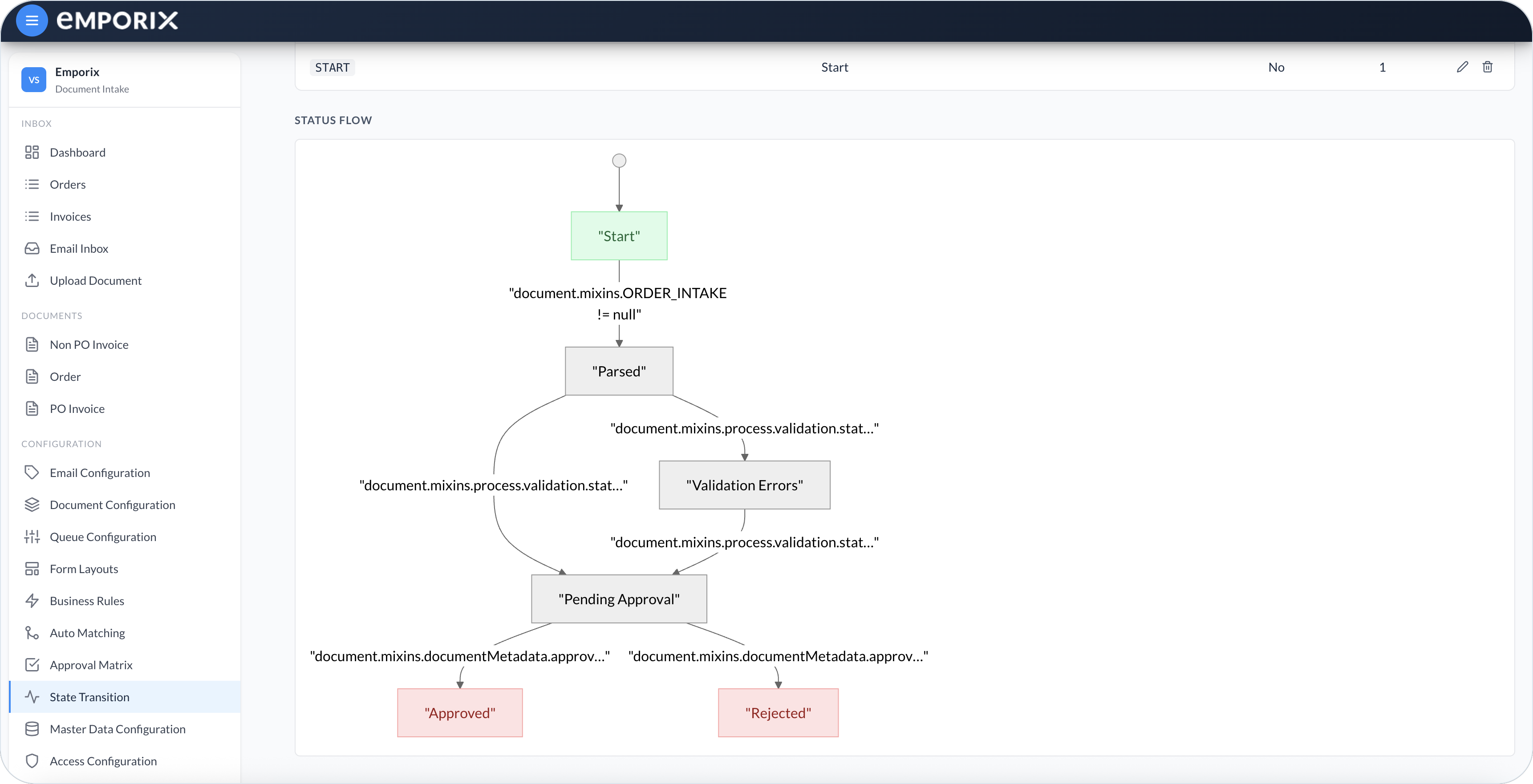
**Status flow** shows how statuses connect. The small circle at the top is a diagram element, not the runtime initial status. The diagram treats every status with no incoming transition as a root. Runtime initialization instead uses the status code `START`, whether or not that status is a diagram root. Each arrow can show a condition – the rule that decides whether that path applies. When the transition always applies, the arrow has no condition. Terminal statuses are highlighted.

{% hint style="warning" %}
Configure exactly one status with code `START`, and avoid a rootless or cyclic entry setup. The editor does not enforce these workflow constraints.
{% endhint %}

The example below is an **Order** flow: **Start** → **Parsed**, then **Validation Errors** or **Pending Approval**. From **Pending Approval**, the document can move to **Approved** or **Rejected**.

<figure><img src="https://1808414410-files.gitbook.io/~/files/v0/b/gitbook-x-prod.appspot.com/o/spaces%2FPBaf05o2vgbdikMFDTyz%2Fuploads%2Fgit-blob-7cb2122e16ab69677c91b7a053ee71d888c8883f%2Fstate_transition_flow.png?alt=media" alt="Status flow diagram for Order from Start through Parsed to Approved or Rejected"><figcaption><p>Status flow for Order</p></figcaption></figure>

## Creating or editing a status

{% stepper %}
{% step %}

#### Open the status editor

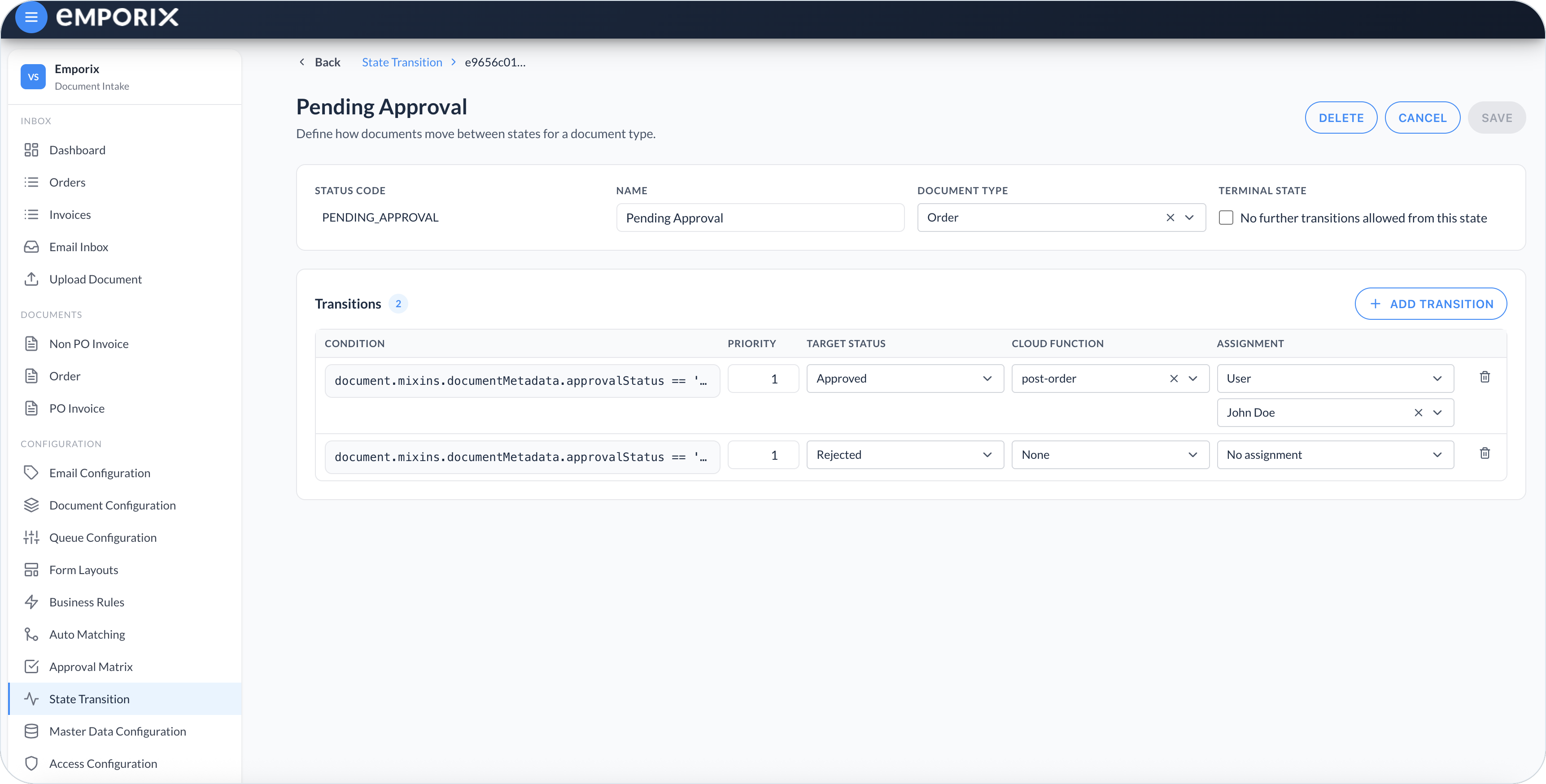
Select **New status**, or open an existing status to edit. The header actions are **Delete**, **Cancel**, and **Save**.

<figure><img src="https://1808414410-files.gitbook.io/~/files/v0/b/gitbook-x-prod.appspot.com/o/spaces%2FPBaf05o2vgbdikMFDTyz%2Fuploads%2Fgit-blob-52054524e9b1f6855a203691364d6a1fb05cea6e%2Fstate_transition_edit.png?alt=media" alt="Pending Approval editor with Status code, Name, Document type, Terminal state, and two transitions"><figcaption><p>Edit status for Pending Approval (Order)</p></figcaption></figure>

The example uses the same **Priority** on both rows. Use a unique value for each outgoing transition.
{% endstep %}

{% step %}

#### Set the basic details

Provide:

* **Status code** – Uppercase when you create the status. Read-only when you edit.
* **Name** – English display label shown in the cockpit.
* **Document type** – The type this status belongs to.

Each **Status code** must be unique within its document type. Choose a code you can keep because it cannot be changed after creation.

Avoid changing **Document type** on an existing status. The change does not retarget incoming transitions or documents that already use its code.
{% endstep %}

{% step %}

#### Mark terminal states

Enable **Terminal state** when this status ends the workflow (**No further transitions allowed from this state**).

The editor still lets you configure outgoing transitions on a terminal status, but the state machine does not evaluate them.

{% hint style="info" %}
Documents in non-terminal statuses can appear in Inbox queues as work that still needs attention, and on the Dashboard under **In workflow**. Every terminal status contributes to **Completed**, including outcomes such as **Rejected**.
{% endhint %}

{% hint style="warning" %}
The inbox-queue **Progress** column can distinguish a successful terminal goal only when the stored status has `isSuccess` set. The cockpit editor does not expose this setting, so ask the team that provisions your tenant to configure it through the API when **Approved** and **Rejected** must appear differently in **Progress**.
{% endhint %}
{% endstep %}

{% step %}

#### Add outgoing transitions

Under **Transitions**, select **Add transition** for each allowed next step. Configure the fields described in [Transition settings](#transition-settings).
{% endstep %}

{% step %}

#### Save the status

Select **Save**. Return to the document type tab to confirm the table and **Status flow** reflect the change.
{% endstep %}
{% endstepper %}

## Transition settings

Each outgoing transition sets when it applies, which status comes next, and whether a function or assignment follows:

* **Condition** – Empty when the transition always applies. Otherwise an expression.
* **Priority** – Evaluation order. The first matching condition wins.
* **Target status** – The next status.
* **Cloud function** – Optional tenant function that runs after the transition. **None** when the transition does not call a function.
* **Assignment** – Optional **User**, **Group**, or **Reference field**. **No assignment** leaves the current assignment unchanged.

A **Reference field** reads a non-empty user ID from the document at transition time, without checking IAM. Use a unique **Priority** for every outgoing transition. Transition order is controlled by these numbers, not drag handles. When priorities are equal, stored row order determines evaluation, but that order is not a safe workflow contract.

An empty condition always passes. If a condition cannot be parsed or evaluated, it is treated as not matched. Test conditions with representative document values.

The new status and assignment are saved before the transition's cloud function runs. A function failure does not roll back the status or assignment.

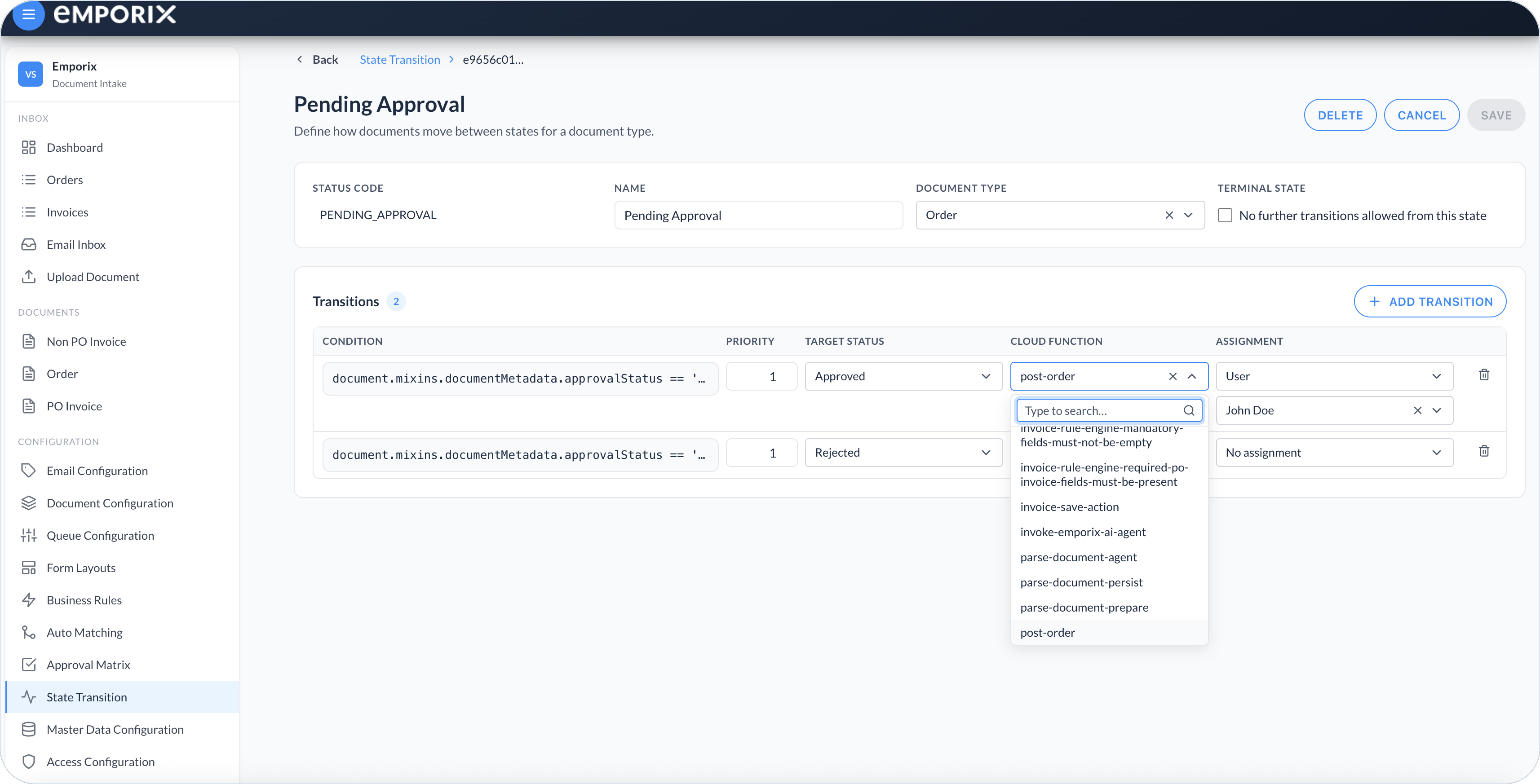
Under **Cloud function**, use **Type to search…** to find a tenant function.

<figure><img src="https://1808414410-files.gitbook.io/~/files/v0/b/gitbook-x-prod.appspot.com/o/spaces%2FPBaf05o2vgbdikMFDTyz%2Fuploads%2Fgit-blob-8a223cdff0c772eed76aff6ce7c29a62a1e563f8%2Fstate_transition_cloud_function.png?alt=media" alt="Cloud function dropdown with Type to search and tenant function names"><figcaption><p>Cloud function with type to search</p></figcaption></figure>

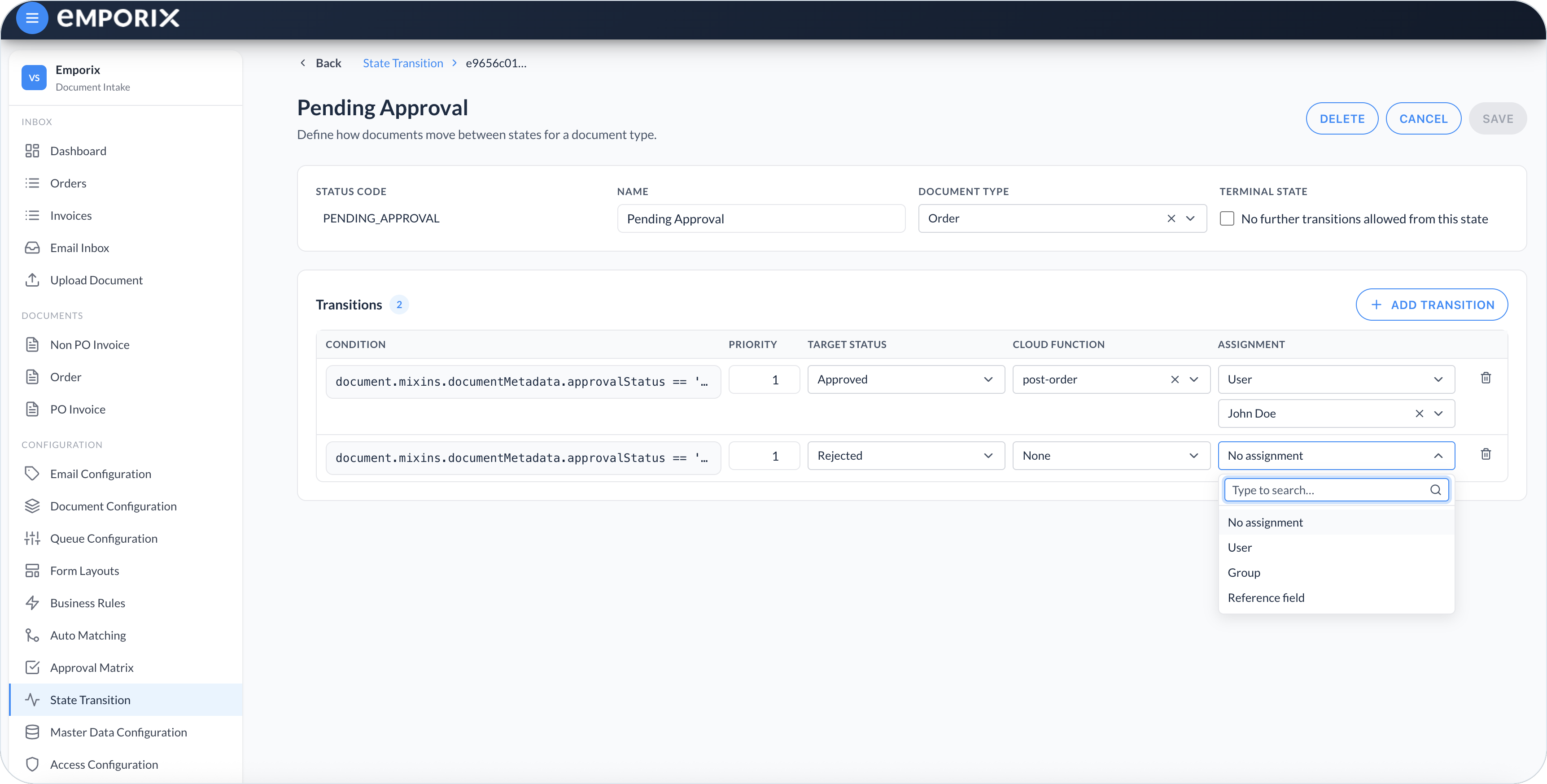
Under **Assignment**, choose **No assignment**, **User**, **Group**, or **Reference field**. Use **Type to search…** to filter this list. When the type is **User**, select the employee.

<figure><img src="https://1808414410-files.gitbook.io/~/files/v0/b/gitbook-x-prod.appspot.com/o/spaces%2FPBaf05o2vgbdikMFDTyz%2Fuploads%2Fgit-blob-f746b183933fb8a2d3049dca12113c242c6cb97e%2Fstate_transition_assignment.png?alt=media" alt="Assignment dropdown with No assignment, User, Group, and Reference field"><figcaption><p>Assignment with no assignment, user, group, and reference field</p></figcaption></figure>

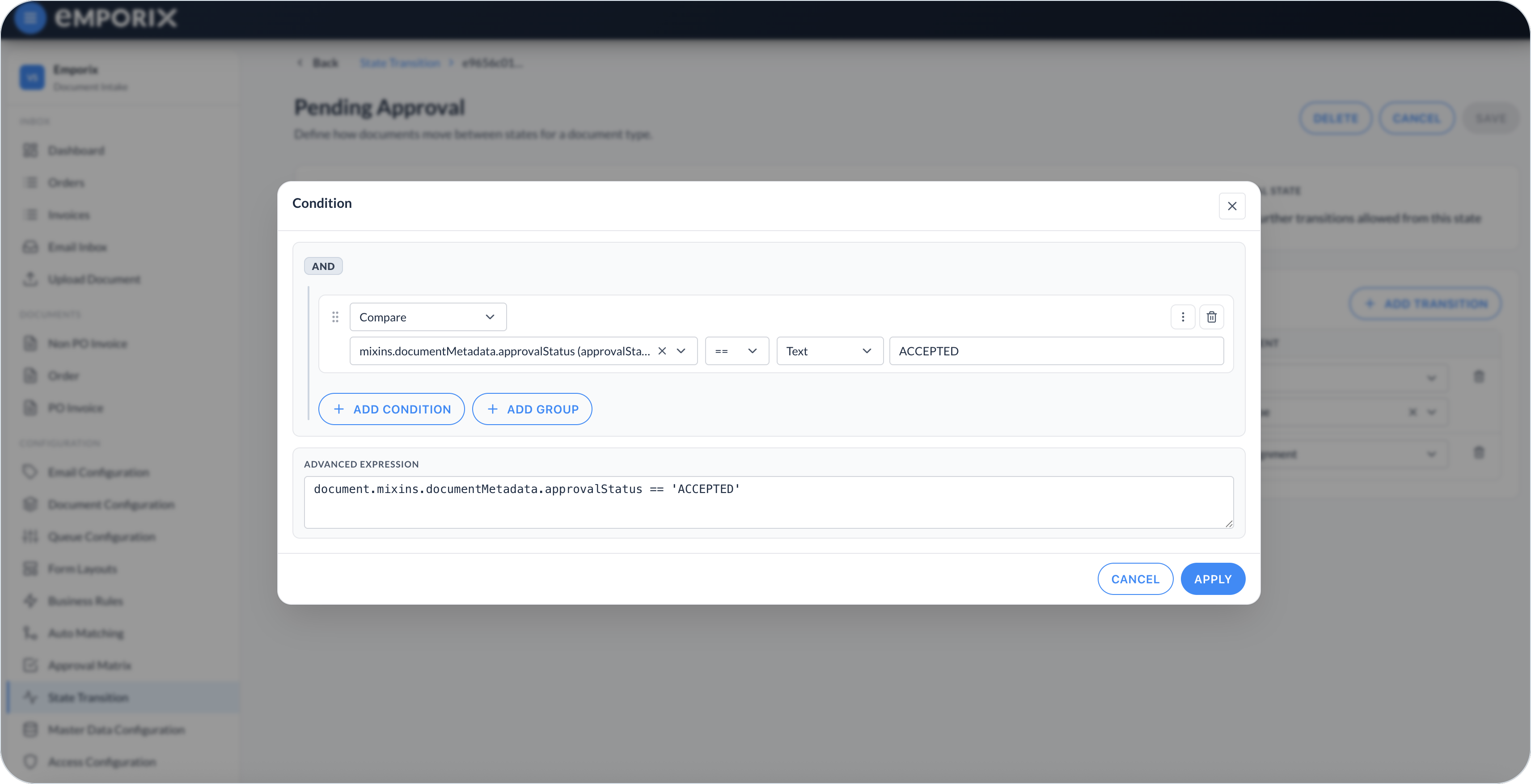
Open the **Condition** cell to build a rule with **Compare**, or enter it as an **Advanced expression**. Use **Add condition** and **Add group** to extend the rule. The dialog groups rows under **AND**. In the figure, **Compare** checks that `mixins.documentMetadata.approvalStatus` equals **ACCEPTED**, and **Advanced expression** shows `document.mixins.documentMetadata.approvalStatus == 'ACCEPTED'`. Select **Apply** to save the condition, or **Cancel** to discard it.

<figure><img src="https://1808414410-files.gitbook.io/~/files/v0/b/gitbook-x-prod.appspot.com/o/spaces%2FPBaf05o2vgbdikMFDTyz%2Fuploads%2Fgit-blob-3f4c8b8d70f3ce797029bf8607c9cf42fcadabf6%2Fstate_transition_condition.png?alt=media" alt="Condition dialog with Compare on approvalStatus ACCEPTED and Advanced expression"><figcaption><p>Condition dialog with compare and advanced expression</p></figcaption></figure>

{% hint style="info" %}
Transitions are evaluated only when the tenant invokes the `document-status-state-machine` cloud function. Add it as the last function in a [Document Action](/document-intake-cockpit/configuration/form-layouts/form-layout-actions.md) chain after validation or approval, call it from intake automation, or invoke it from another tenant function. The built-in **Save** action does not run the state machine.
{% endhint %}

Each invocation evaluates the current status and takes at most one outgoing transition. The first passing transition by **Priority** wins. If no transition matches, the status does not change. If a non-terminal status has no outgoing transitions, confirm that the workflow is intentionally parked.

{% hint style="warning" %}
When the state machine runs from a document action, the cockpit can show a successful action message even when no transition matched or a post-transition cloud function failed. Verify the status badge and **History**. If the status changed but a transition function did not complete, do not invoke the state machine again as a retry. It evaluates the new status. Ask the team that manages tenant functions to inspect logs and either retry the failed function when it is safe or apply the tenant's status-recovery procedure.
{% endhint %}

## Statuses in day-to-day work

The status you configure appears in the views used to track a document:

* As status badges on [Documents](/document-intake-cockpit/cockpit-views/documents.md) and in [Managing Documents](/document-intake-cockpit/cockpit-views/managing-a-document.md).
* In [Inbox Queues](/document-intake-cockpit/cockpit-views/inbox-queue.md) filters and the **Progress** column, when configured.
* In document **History**, under **Status history**.
* On the Dashboard, in **In workflow** and **Completed** summaries.

A document leaves a status such as **Parsed** when `document-status-state-machine` runs after the fields used by its conditions have been updated, and one outgoing transition passes. See [Managing Documents](/document-intake-cockpit/cockpit-views/managing-a-document.md).

{% hint style="info" %}
Create the main statuses for a document type before you rely on queue tabs that filter by status or on approval flows that expect specific lifecycle steps. Check the related setup in [Queue Configuration](/document-intake-cockpit/configuration/queue-configuration.md), [Document Configuration](/document-intake-cockpit/configuration/document-configuration.md), and [Approval Matrix](/document-intake-cockpit/configuration/approval-matrix.md). See also the [Order Intake Example](/document-intake-cockpit/configuration-examples/order-intake.md) for a worked tenant configuration in this cockpit.
{% endhint %}


---

# Agent Instructions
This documentation is published with GitBook. GitBook is the documentation platform designed so that both humans and AI agents can read, navigate, and reason over technical content effectively. Learn more at gitbook.com.

## Querying This Documentation
If you need additional information that is not directly available in this page, you can query the documentation dynamically by asking a question.

Perform an HTTP GET request on the current page URL with the `ask` query parameter, and the optional `goal` query parameter:

```
GET https://developer.emporix.io/document-intake-cockpit/configuration/state-transition.md?ask=<question>&goal=<endgoal>
```

`ask` is the immediate question: it should be specific, self-contained, and written in natural language.
`goal` is optional and describes the broader end goal you are ultimately trying to accomplish on behalf of the user. GitBook uses it to tailor the answer towards what is most useful for that goal.

The response will contain a direct answer to the question and relevant excerpts and sources from the documentation.

Use this mechanism when the answer is not explicitly present in the current page, you need clarification or additional context, or you want to retrieve related documentation sections.