> For the complete documentation index, see [llms.txt](https://developer.emporix.io/llms.txt). Markdown versions of documentation pages are available by appending `.md` to page URLs; this page is available as [Markdown](https://developer.emporix.io/document-intake-cockpit/configuration/substitutions.md).
# Substitutions
Set up user substitutions so colleagues can cover assigned document work and approvals during absences.
Use **Substitutions** so someone can cover another person's assigned document work and approvals while they are away, such as for vacation, illness, or any other period when assigned work must continue without reassigning every document.
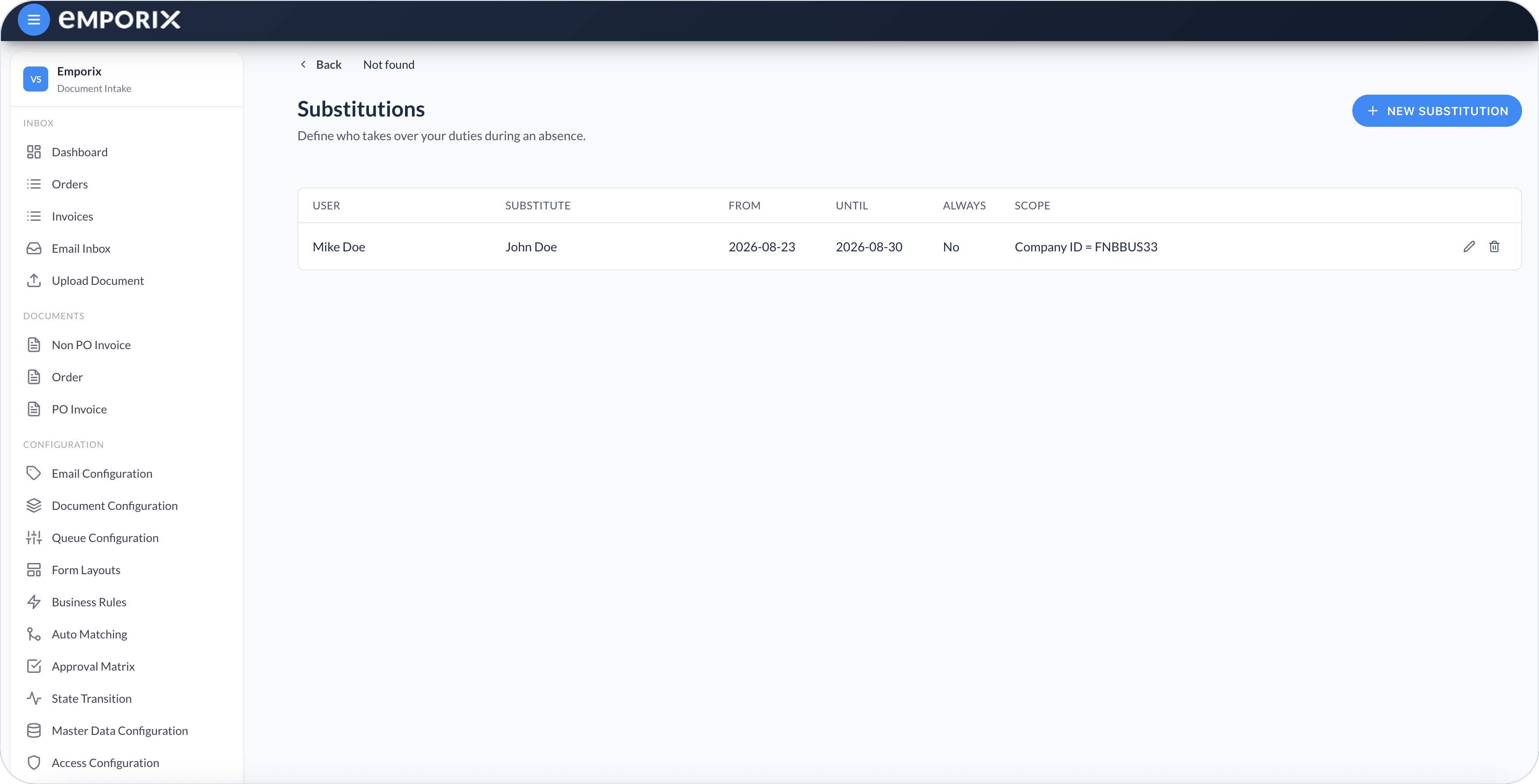
Open **Configuration** → **Substitutions** in the side menu. Each row shows who is covered, who covers them, and whether that coverage is ongoing or limited to dates. Select **New substitution** to add coverage.
Substitutions list
## Access to substitutions
Manage your own coverage, or coverage for any user:
* **Self-service** – Users with access to **Substitutions** can create and edit coverage where they are the **User**. The form shows **You can only manage substitutions for yourself**, locks **User** to their own account, and does not allow **Group**.
* **Manage all** – Users granted **Substitutions – manage all records** in [Access Configuration](/document-intake-cockpit/configuration/access-configuration.md) can view and maintain substitutions for any user. They can set **User** and **Substitute** to a person or to an Identity and Access Management (IAM) employee **Group**, using the **Select group…** field when needed.
{% hint style="warning" %}
Manage-all access is denied until an administrator assigns an access control on the **Substitutions – manage all records** row. If that row has no access control, nobody gets the manage-all view.
{% endhint %}
## Creating a substitution
{% stepper %}
{% step %}
#### Open New substitution
On the **Substitutions** page, select **New substitution**.
{% endstep %}
{% step %}
#### Choose who covers whom
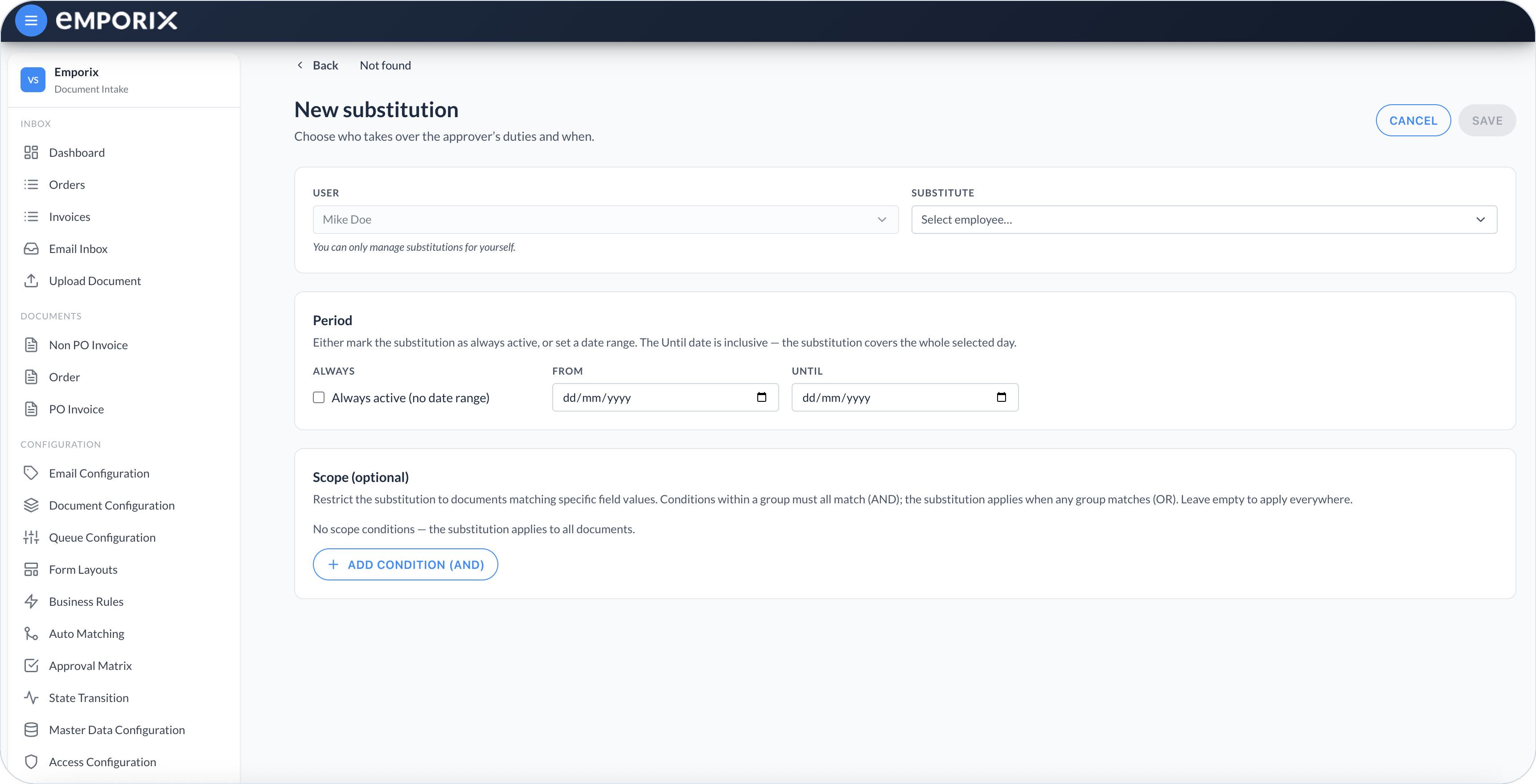
Choose who is covered, and who takes over:
* **User** – The person (or, for manage-all, the **Group**) whose duties are covered.
* **Substitute** – The person or group that takes over those duties.
**User** and **Substitute** must not be the same party. In self-service, **User** is fixed to you.
When **User** is a person, coverage applies to that person's direct assignments only, not their group assignments. When **User** is a **Group**, coverage applies to documents assigned to that group only, not members' personal assignments. When **Substitute** is a person, that employee acts. When **Substitute** is a **Group**, any current member of that group can act on matching covered assignments in Inbox queues, **Documents**, and **Dashboard**. All four pairs work for assignment and queue coverage.
{% endstep %}
{% step %}
#### Set the period
Under **Period**, set how long this coverage lasts:
* **Always active (no date range)** – Coverage stays on until you change or delete the record.
* **From** and **Until** – Coverage applies only between those dates. **Until** is inclusive and covers the whole selected day.
**Save** requires **Always active (no date range)** or both **From** and **Until**.
{% endstep %}
{% step %}
#### (Optional) Limit the scope
Under **Scope (optional)**, restrict coverage with extra field filters. Select **Add condition (AND)** and choose a field and value (the example uses **Company ID**). After a condition group exists, the group is labeled **Condition group 1** and **Add OR group** is available for an alternative group. Conditions in one group must all match (**AND**). Additional groups are alternatives (**OR**). Leave **Scope** empty when you do not need extra field filters. The substitution then applies to every document that matches the **User** assignment, not to every document in the cockpit.
{% endstep %}
{% step %}
#### Save the changes
Select **Save**. The substitution appears in the list and becomes active according to its period.
{% endstep %}
{% endstepper %}
New substitution with period and empty scope
## Coverage for the substitute
When a substitution is active, the substitute can work on matching documents assigned to the **User**. Matching means the assignment type plus any **Scope**: direct user assignments when **User** is a person, or documents assigned to that **Group** when **User** is a **Group**.
Find the work you cover in queues, documents, and the dashboard:
* [Inbox Queues](/document-intake-cockpit/cockpit-views/inbox-queue.md) and **Documents** – Use the **Assignee** filter **Delegated to me** to list only covered work.
* **Substituting for** – Covered items can show this tag with the **User**'s name so the origin of the work is clear.
* **Dashboard** – **Requires my attention** can include documents you cover through a substitution. See [Dashboard](/document-intake-cockpit/cockpit-views/dashboard.md).
{% hint style="info" %}
A person **User** substitution covers that person's direct assignments, not their group assignments. A **Group** substitution covers documents assigned to that **Group**.
{% endhint %}
## Approvals and queue work while substituting
Only a **User** → **User** substitution authorizes **Approve** and **Reject** in the **Approval** dialog, and only for the named next approver at one approval level. If **User** or **Substitute** is a **Group**, the substitute can still process matching Inbox queue and **Documents** work, but cannot complete those approval steps.
Approval chains stay defined in the [Approval Matrix](/document-intake-cockpit/configuration/approval-matrix.md). The substitution does not rewrite the matrix.
{% hint style="info" %}
Coverage is one level only. If A substitutes for B, and B substitutes for C, A does not automatically cover C's duties.
{% endhint %}
## Editing or ending a substitution
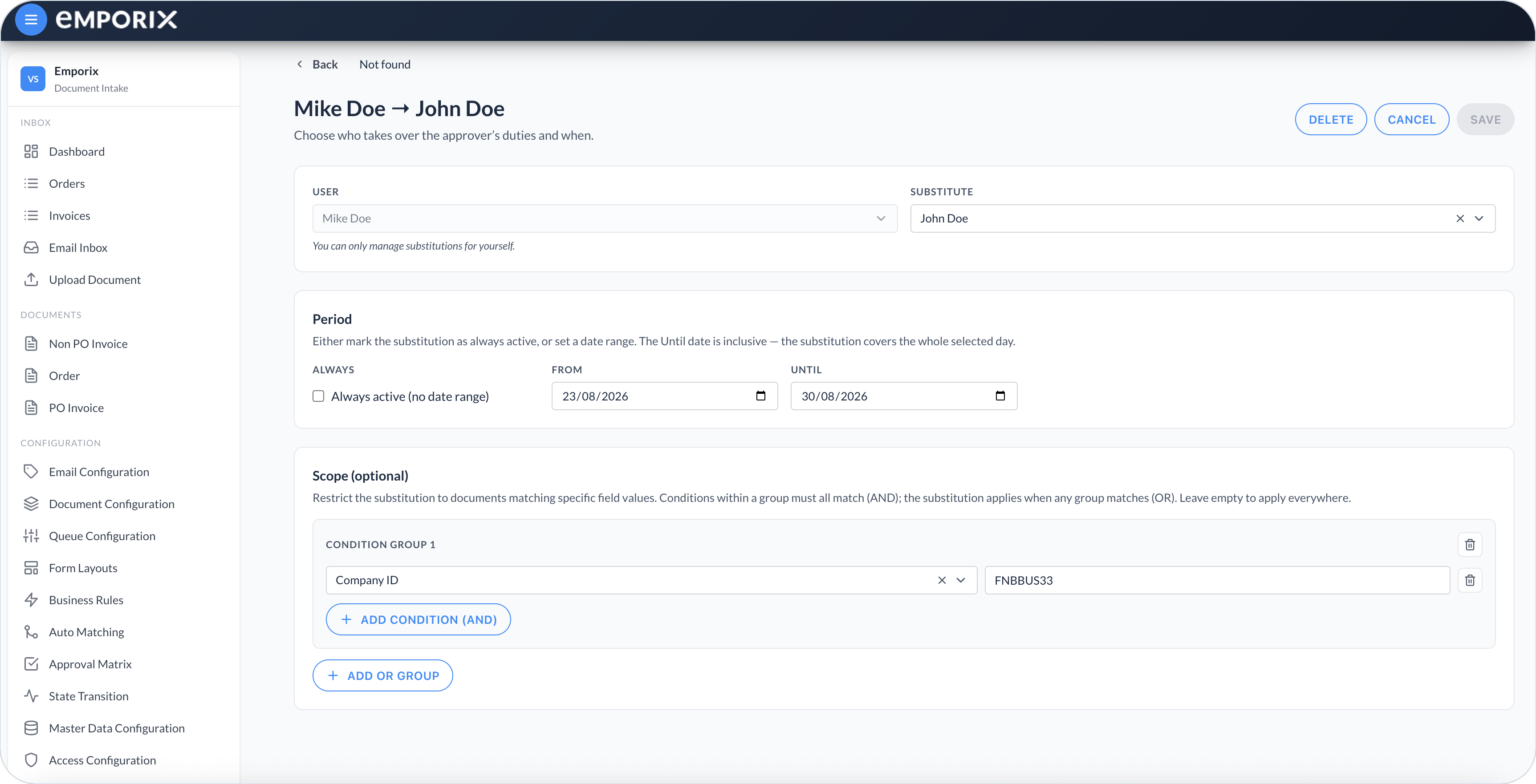
Open a row to change the **Substitute**, **Period**, or **Scope**, then select **Save**. The editor title shows **User → Substitute**. Header actions are **Delete**, **Cancel**, and **Save**.
Edit substitution with period and scope
Delete the substitution, or set the day coverage stops:
* Select **Delete** on the edit page, or use the delete action at the end of a list row, and confirm. Deletion is immediate and cannot be undone.
* Set **Until** to a day that has already ended and select **Save**. Coverage stops immediately after save.
* Set **Until** to today and select **Save**. Coverage continues through the end of today, then stops.
{% hint style="info" %}
Unsaved edits stay on the form only. If you leave without saving, the previous substitution settings remain in effect.
{% endhint %}
## Example: vacation coverage
This example follows one approver who sets a dated substitution before a vacation.
Alex is an invoice approver and will be away from August 12–23. Before leaving, Alex opens **Substitutions**, selects **New substitution**, keeps **User** as themselves, chooses Jordan as **Substitute**, sets **From** to August 12 and **Until** to August 23, and leaves **Scope** empty so there are no extra field filters. Jordan then covers Alex's direct assignments and, because this is a **User** → **User** substitution, approvals that name Alex for that period.
While Alex is away, Jordan filters an [Inbox Queues](/document-intake-cockpit/cockpit-views/inbox-queue.md) with **Delegated to me**, sees items tagged **Substituting for Alex**, and can approve documents that still list Alex in the approval step. After August 23 the substitution stops automatically. If Alex returns early, they open the record and select **Delete**, or set **Until** to a day that has already ended and select **Save**.
{% hint style="info" %}
Control who can manage substitutions, where covered work appears, and which approvals a substitute can complete:
* [Access Configuration](/document-intake-cockpit/configuration/access-configuration.md) – Restrict the Substitutions page and assign manage-all access.
* [Inbox Queues](/document-intake-cockpit/cockpit-views/inbox-queue.md) and [Dashboard](/document-intake-cockpit/cockpit-views/dashboard.md) – Find covered work.
* [Approval Matrix](/document-intake-cockpit/configuration/approval-matrix.md) – Define the approval chains a **User** → **User** substitute can complete.
{% endhint %}
---
# Agent Instructions
This documentation is published with GitBook. GitBook is the documentation platform designed so that both humans and AI agents can read, navigate, and reason over technical content effectively. Learn more at gitbook.com.
## Querying This Documentation
If you need additional information that is not directly available in this page, you can query the documentation dynamically by asking a question.
Perform an HTTP GET request on the current page URL with the `ask` query parameter, and the optional `goal` query parameter:
```
GET https://developer.emporix.io/document-intake-cockpit/configuration/substitutions.md?ask=&goal=
```
`ask` is the immediate question: it should be specific, self-contained, and written in natural language.
`goal` is optional and describes the broader end goal you are ultimately trying to accomplish on behalf of the user. GitBook uses it to tailor the answer towards what is most useful for that goal.
The response will contain a direct answer to the question and relevant excerpts and sources from the documentation.
Use this mechanism when the answer is not explicitly present in the current page, you need clarification or additional context, or you want to retrieve related documentation sections.