> For the complete documentation index, see [llms.txt](https://developer.emporix.io/llms.txt). Markdown versions of documentation pages are available by appending `.md` to page URLs; this page is available as [Markdown](https://developer.emporix.io/frontend-guides/commerce-examples/customer-segments.md).

# Personalized Commerce

Learn how customer segments and coupons create personalized storefront offers.

The B2B Commerce Frontend uses customer segments and coupons to provide personalized assortments and promotions. This example follows the merchant setup and the customer journey from signing in to applying a coupon at checkout.

## Customer segments

Customer segments let merchants make selected products and categories available to specific customers. When a segment member signs in, the storefront displays **Assigned Products** instead of **All Products**. The customer can browse only the products and categories assigned to their segment.

{% hint style="info" %}
If a segment member opens a direct link to the product details page of a product outside their assigned assortment, the storefront returns a 404 page.
{% endhint %}

### Prerequisites

* The customer account, products, and categories exist for the same site.
* If the customer belongs to multiple companies, you add them to the segment for the same company they will use in the storefront.

### Configure a customer segment

{% stepper %}
{% step %}

#### Create the segment

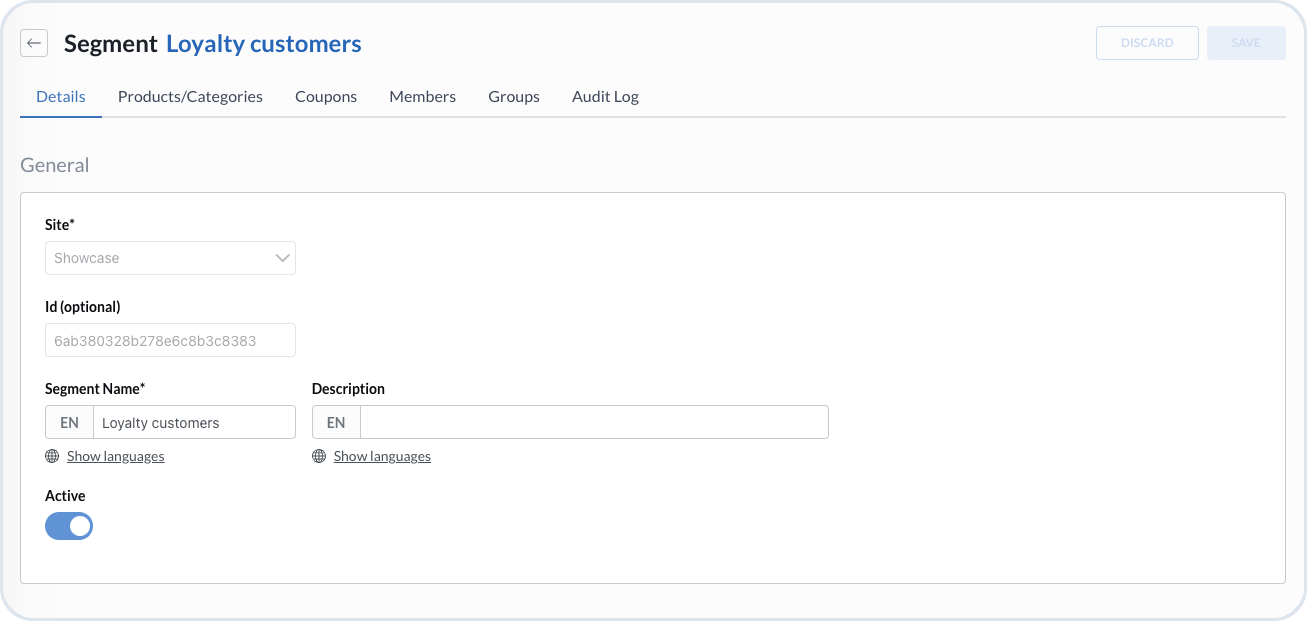
In the Management Dashboard, go to **Customer Management** → **Segments** and choose **Create New Segment**. Choose the site, enter a segment name, and turn on the **Active** toggle. Choose **Save**.

<figure><img src="https://4011296124-files.gitbook.io/~/files/v0/b/gitbook-x-prod.appspot.com/o/spaces%2FOgeoK7nW6gEh0q1ceUZP%2Fuploads%2Fgit-blob-99d59bbea43b958f224d4fccce91e3ecdc63cb51%2Fsegments_creation.png?alt=media" alt="Active Loyalty customers segment details"><figcaption><p>Creating and activating the Loyalty customers segment</p></figcaption></figure>
{% endstep %}

{% step %}

#### Add segment members

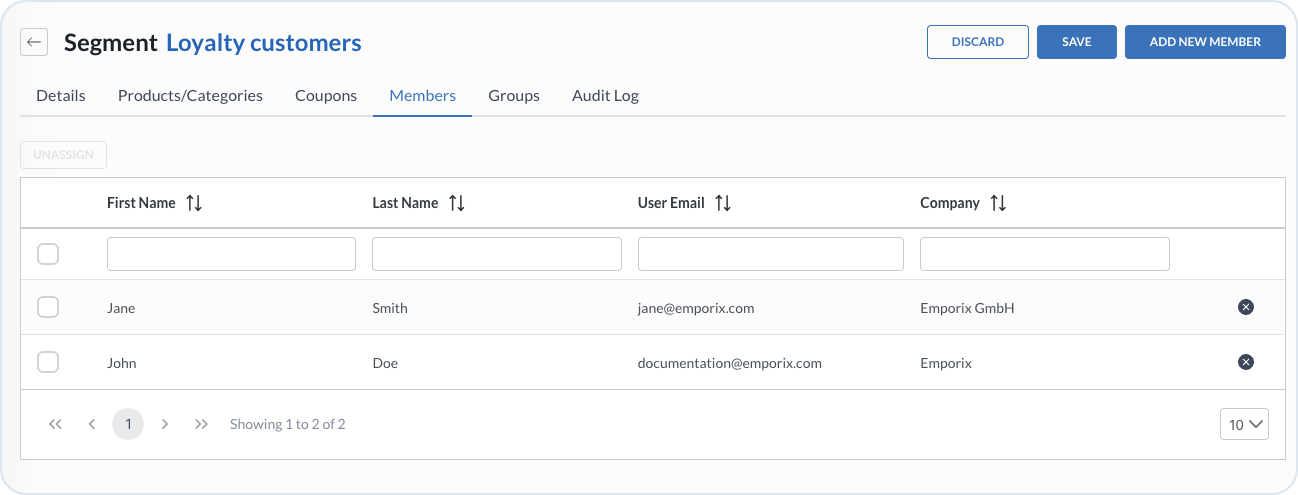
Open the **Members** tab and choose **Add New Member**. Choose the customers who receive the personalized offer, choose **Add Member**, and choose **Save**.

<figure><img src="https://4011296124-files.gitbook.io/~/files/v0/b/gitbook-x-prod.appspot.com/o/spaces%2FOgeoK7nW6gEh0q1ceUZP%2Fuploads%2Fgit-blob-339d18c89422ef96fc466e25e9c625d176b065ed%2Fsegments_members.png?alt=media" alt="Customers assigned as segment members"><figcaption><p>Adding customers to the Loyalty customers segment</p></figcaption></figure>
{% endstep %}

{% step %}

#### Assign products and categories

Open the **Products/Categories** tab. Choose the products and categories that belong to the personalized offer, then choose **Save**.

<figure><img src="https://4011296124-files.gitbook.io/~/files/v0/b/gitbook-x-prod.appspot.com/o/spaces%2FOgeoK7nW6gEh0q1ceUZP%2Fuploads%2Fgit-blob-14f8431c55a4e3d8d64716f7b2a8662f80529336%2Fsegments_assigned_products_categories.png?alt=media" alt="Products and categories assigned to a segment"><figcaption><p>Assigning products and categories to the segment</p></figcaption></figure>
{% endstep %}
{% endstepper %}

## Coupons

Customers can apply coupons during checkout. The coupon configuration determines which products and categories receive the discount. Coupons restricted to selected customer segments can be redeemed only by customers who belong to those segments.

### Configure a segment coupon

{% stepper %}
{% step %}

#### Create a coupon for the segment

Go to **Customer Management** → **Coupons** and choose **Add new coupon**. In the **General** tab, enter the coupon name and code. In the **Type** tab, choose **Percent** and set the discount value to 10%.

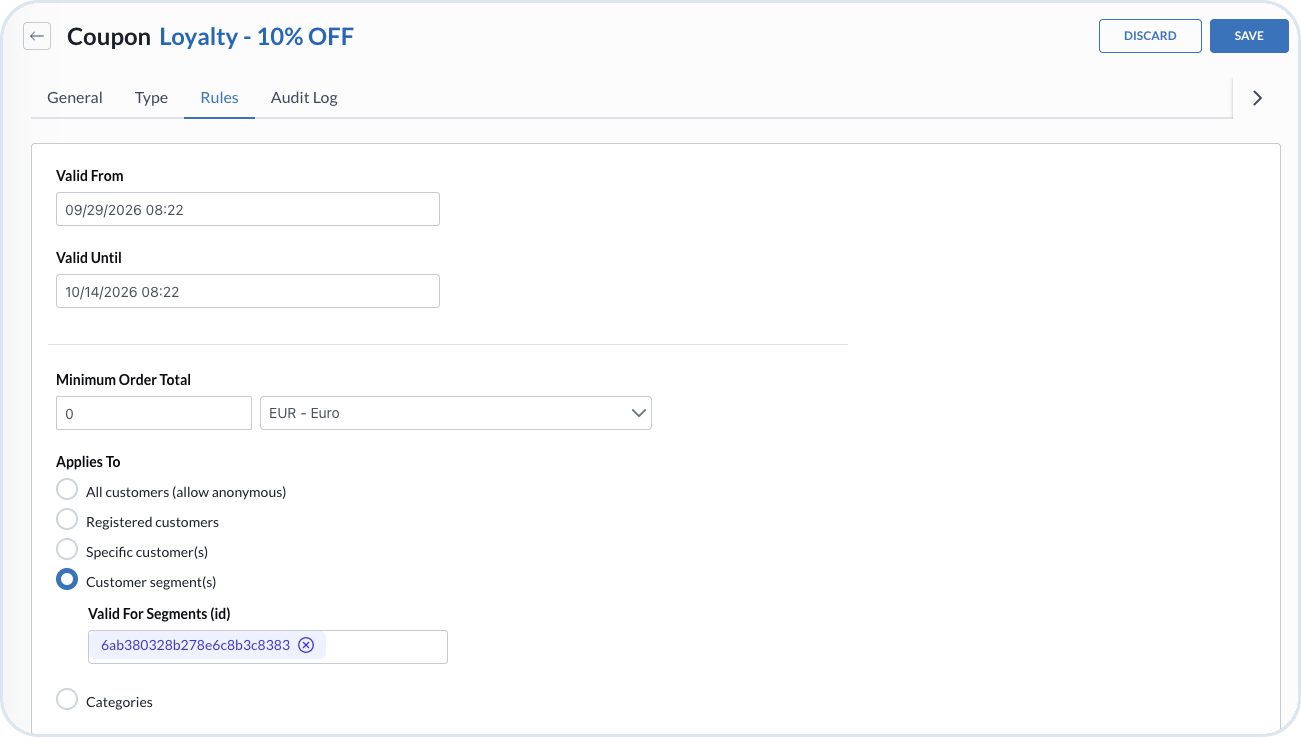
In the **Rules** tab, set the validity period and other required conditions. Under **Applies To**, choose **Customer segment(s)** and add the Loyalty customers segment. Choose **Save**.

<figure><img src="https://4011296124-files.gitbook.io/~/files/v0/b/gitbook-x-prod.appspot.com/o/spaces%2FOgeoK7nW6gEh0q1ceUZP%2Fuploads%2Fgit-blob-c1bf99fca965c8695e4d16a2365d0d3e066f27b6%2Fsegments_coupon_creation.png?alt=media" alt="Coupon rules restricted to a customer segment"><figcaption><p>Creating a 10% discount coupon for the Loyalty customers segment</p></figcaption></figure>
{% endstep %}

{% step %}

#### Confirm the coupon assignment

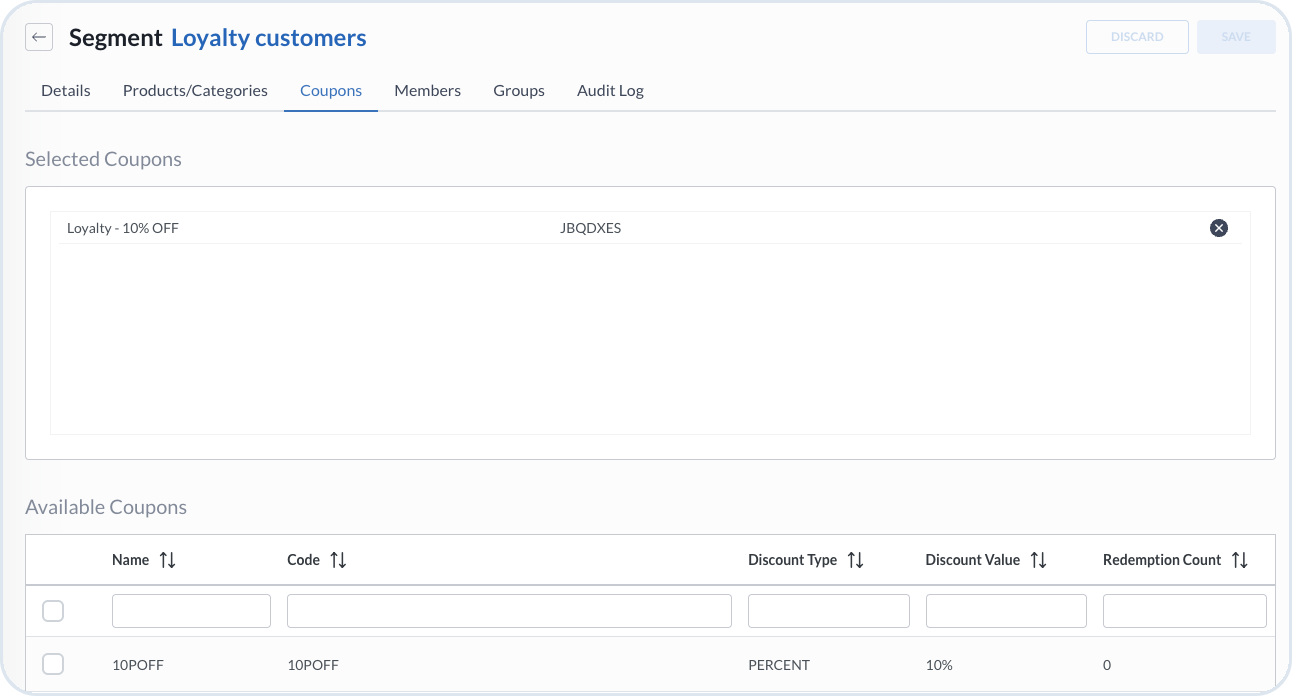
Return to the Loyalty customers segment and open the **Coupons** tab.

<figure><img src="https://4011296124-files.gitbook.io/~/files/v0/b/gitbook-x-prod.appspot.com/o/spaces%2FOgeoK7nW6gEh0q1ceUZP%2Fuploads%2Fgit-blob-4fb720c39eed882ac59666716d898abe47c258df%2Fsegments_coupon_assignement.png?alt=media" alt="Coupon assigned to the Loyalty customers segment"><figcaption><p>Confirming the 10% discount coupon assignment</p></figcaption></figure>

{% hint style="success" %}
To share the coupon code with a customer, use your dedicated communication channel.
{% endhint %}
{% endstep %}
{% endstepper %}

### Redeem the segment coupon

{% stepper %}
{% step %}

#### Sign in and add products to the cart

Sign in to the B2B Commerce Frontend as a customer who belongs to the Loyalty customers segment. Open **Assigned Products**, browse the segment assortment, then add eligible products to the cart.

<figure><img src="https://4011296124-files.gitbook.io/~/files/v0/b/gitbook-x-prod.appspot.com/o/spaces%2FOgeoK7nW6gEh0q1ceUZP%2Fuploads%2Fgit-blob-165ce1c1b3e95c5aa6c09f7d2fe76ca091843ff4%2Fsegments_coupon_cart_products.png?alt=media" alt="Segment products in the customer cart"><figcaption><p>Adding products from the personalized offer to the cart</p></figcaption></figure>
{% endstep %}

{% step %}

#### Apply the coupon at checkout

Continue to checkout. In the **Promo Code** field, enter the coupon code assigned to the segment and choose **Apply**.

The **Order Overview** displays the applied coupon and the discount. The customer can now accept the terms and conditions and choose **Submit Order**.

<figure><img src="https://4011296124-files.gitbook.io/~/files/v0/b/gitbook-x-prod.appspot.com/o/spaces%2FOgeoK7nW6gEh0q1ceUZP%2Fuploads%2Fgit-blob-865c7df0213f87baa0d668f09795c352fadf3279%2Fsegments_coupon_usage.png?alt=media" alt="Segment coupon applied in the order overview" width="360"><figcaption><p>Applying the segment coupon at checkout</p></figcaption></figure>
{% endstep %}
{% endstepper %}

The customer receives the discount because they belong to the segment and the cart contains products covered by the coupon. After the order is submitted, its details in [Order History](/frontend-guides/customer-account/dashboard-overview/order-history.md) show the applied coupon and its effect on the order total.

{% hint style="info" %}
Product prices can change when sale prices, quantity tiers, currency conversion, or tax settings apply. If you customize the storefront, consider showing both the original and effective product price so customers can understand the difference. For the relevant fields and calculation logic, see [Price Matching](/api-documentation/api-guides/prices-and-taxes/price-service/api-reference/price-matching.md).
{% endhint %}

{% hint style="info" %}
For complete configuration details, see [Segments](/user-guides/management-dashboard/customer-management/segments.md) and [Coupons](/user-guides/management-dashboard/customer-management/coupons.md) in the Management Dashboard documentation.
{% endhint %}


---

# Agent Instructions
This documentation is published with GitBook. GitBook is the documentation platform designed so that both humans and AI agents can read, navigate, and reason over technical content effectively. Learn more at gitbook.com.

## Querying This Documentation
If you need additional information that is not directly available in this page, you can query the documentation by asking a question.

Perform an HTTP GET request on the following URL with the `ask` and `goal` query parameters:

```
GET https://developer.emporix.io/frontend-guides/commerce-examples/customer-segments.md?ask=<question>&goal=<user_goal>
```

`ask` is the immediate question: it should be specific, self-contained, and written in natural language.
`goal` is what the user is ultimately trying to achieve, the reason they need the answer. Sharing it helps GitBook give you a better, more relevant answer. A goal is most helpful when it describes the outcome the user wants rather than restating the question. For example, with `ask=how do I create an API token`, a goal like `automate deployments from our CI pipeline` lets GitBook tailor the answer to that use case.

The response will contain a direct answer to the question and relevant excerpts and sources from the documentation.

Use this mechanism when the answer is not explicitly present in the current page, you need clarification or additional context, or you want to retrieve related documentation sections.