Quick Order
See how to place quick orders and how the whole flow works.
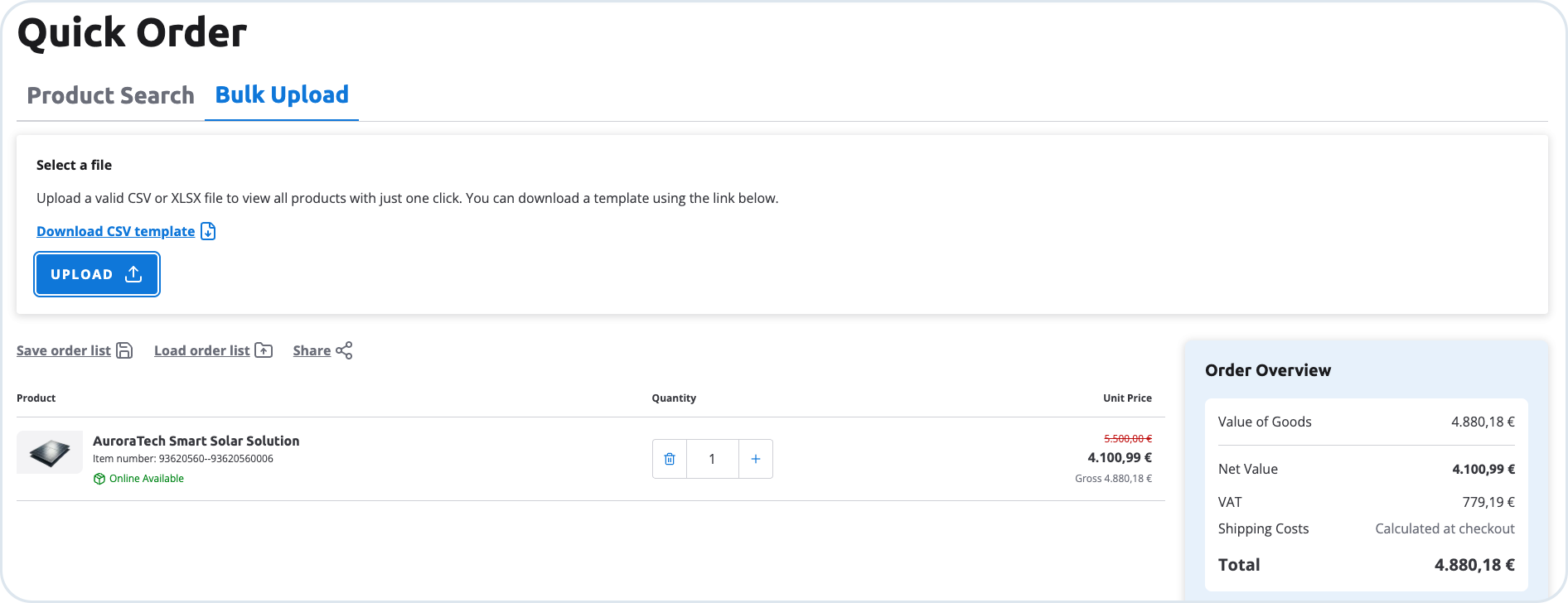
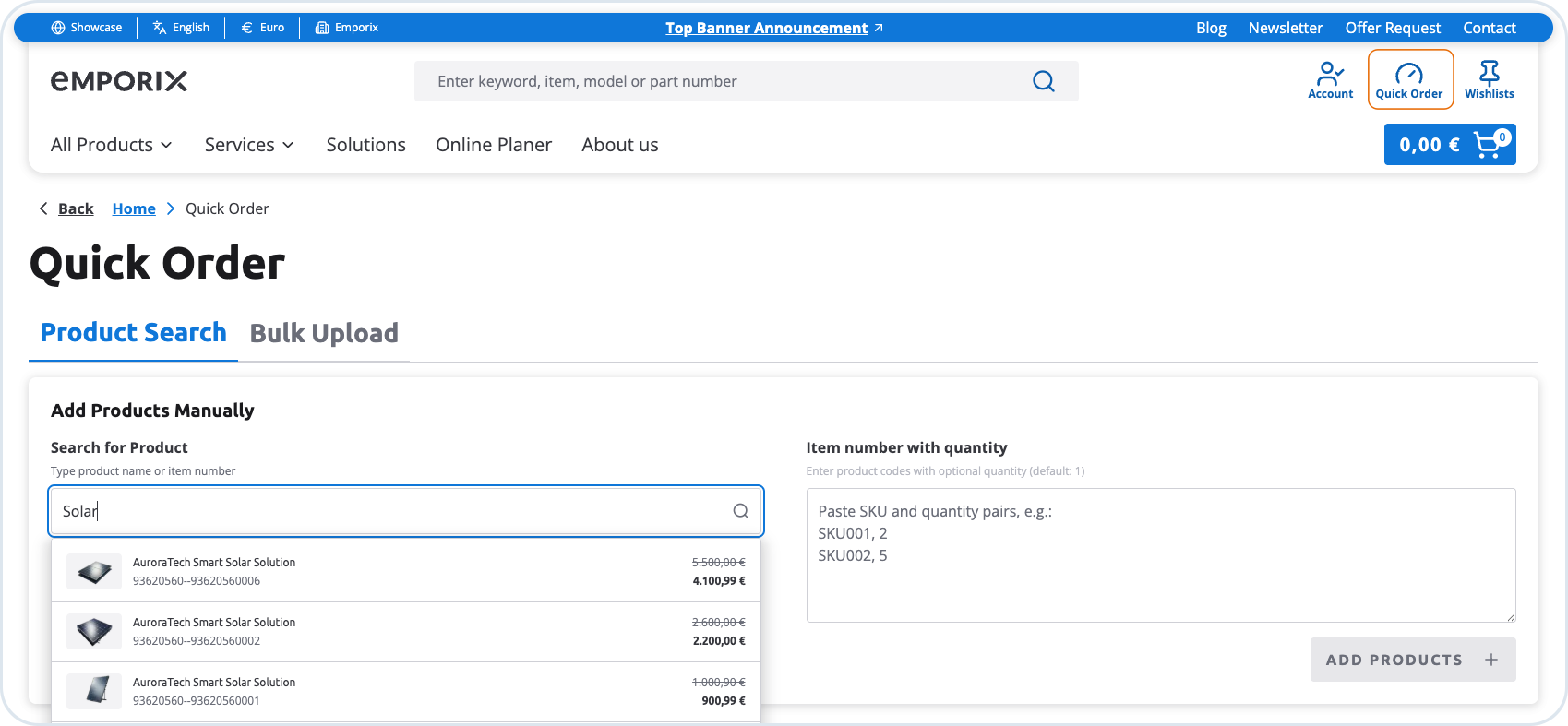
If a customer knows exactly what they want to buy, they can use the Quick Order option. It allows them to simply enter a valid product code or name to get automatic suggestions of related products. Customers can easily add selected products to their list or directly to the cart. Additionally, they can add items by entering product codes (SKUs) with quantities as a comma-separated list or upload product items in bulk using a .csv or .xlsx files.
Quick order works both for customers who are already logged in to their accounts and for guests who are just browsing the store.

If the customers want to use the bulk upload, they can download a .csv template for that to see how the file should look like.

Products added on the Quick Order page are kept in the Quick Order product list until the customer chooses Add to cart or Go to checkout. The customer can edit quantities or remove items before proceeding.
Checkout process
When a customer is ready to proceed, the following actions are available:
Add to cart — adds products from the Quick Order product list to the shopping cart. Checkout is not started. Only products that are added successfully are moved to the cart.
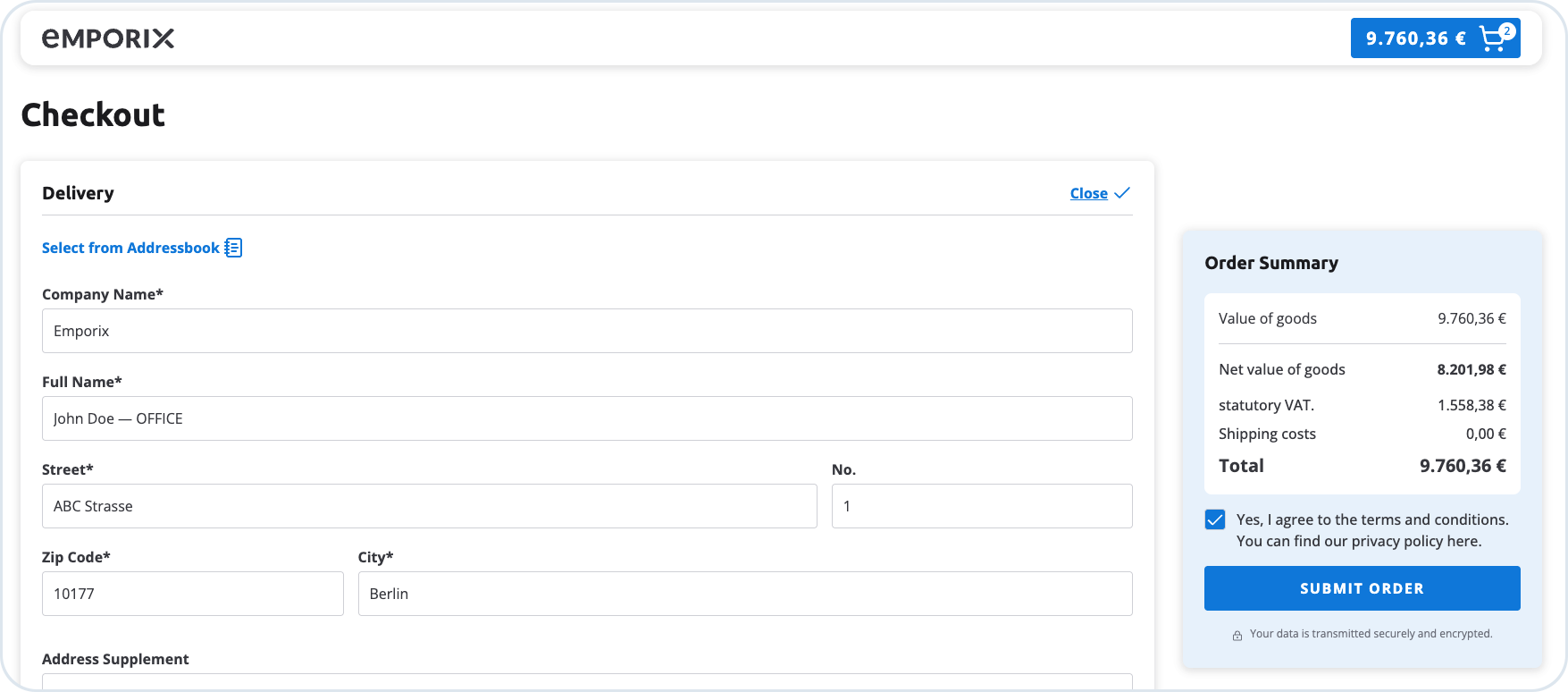
Go to checkout — goes directly to the checkout form and then submit the order; adding the products to cart happens automatically.
If adding the products succeeds:
Logged-in customers are taken to checkout.
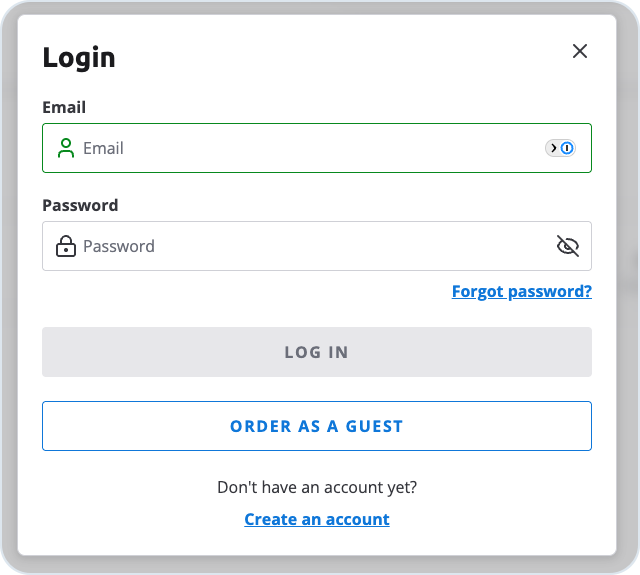
Anonymous customers see a popup where they can log in, register, or choose Order as a guest.
Request quote — available for logged-in customers only. For details, see Quote Process.
The checkout process has the following steps:
Providing the details of the shipping information
The shipping details are taken from:
the customer's address book - the default address is selected
the company locations tagged as
shipping- if the customer is assigned to the registered company
The taxes are applied according to the shipping location country.

Ordering as a guest
In the login popup shown after Go to checkout (for anonymous customers), the customer can choose Order as a guest to complete checkout without registering. After filling in the checkout form, they choose Submit Order and receive the same confirmation as logged-in customers.

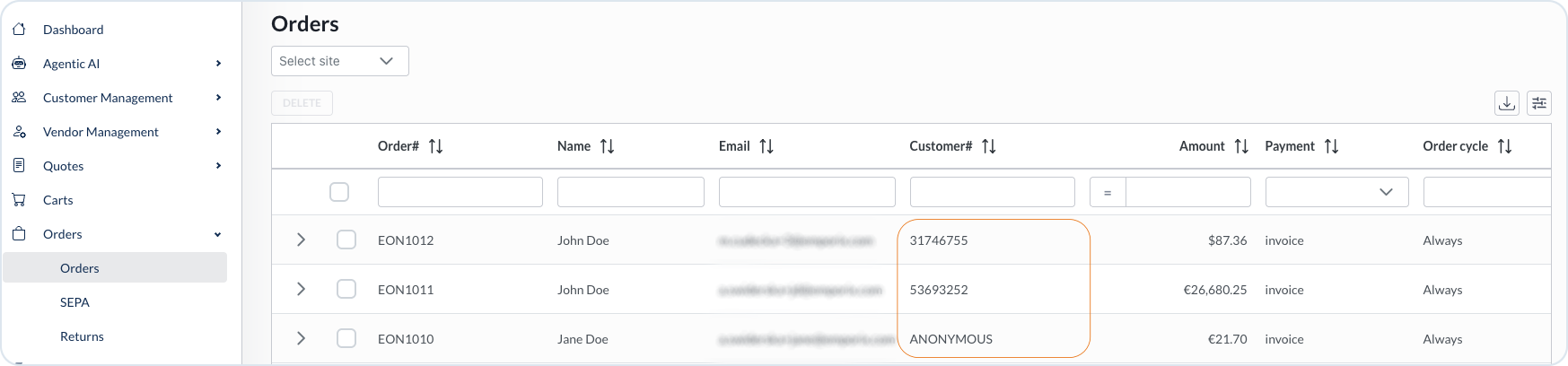
Successful checkout creates an order in Emporix Management Dashboard.
After the customer submits the order, it is created within the Management Dashboard. The employee can set the status of the order and the storefront is updated accordingly. In a real scenario, the updates are normally integrated from an ERP backend system.
In the Management Dashboard, for the orders that were created by guest users, the Customer # field is marked as Anonymous. If the guest customer later chooses to create an account, the value of the Customer # is replaced with the real customer ID.

Last updated
Was this helpful?