Quotes
Find out how a quote process looks like from start to end.
Very often customers want to negotiate the price regarding the products they want to buy. For such a process, it is important that an e-commerce platform supports a more sophisticated process. Requesting a quote is a common use case especially for B2B business model, but within the Emporix platform, the quotes for B2C customers are also supported.
Below you can see the general, simplified flow:
Not only the customer is able to request quotes, but also the merchant's employee or a sales manager can generate a quote on behalf of the customer. This is described step by step in the 2nd demo scenario - Employee creates quote on behalf of a customer.
Roles included:
B2B or B2C customer
Merchant employee who needs to accept or decline a quote request
A customer (B2B or B2C) requests a quote
This is a step-by-step description of the quoting process within the B2B Commerce Frontend and what to look for in detail.
Creating the quote
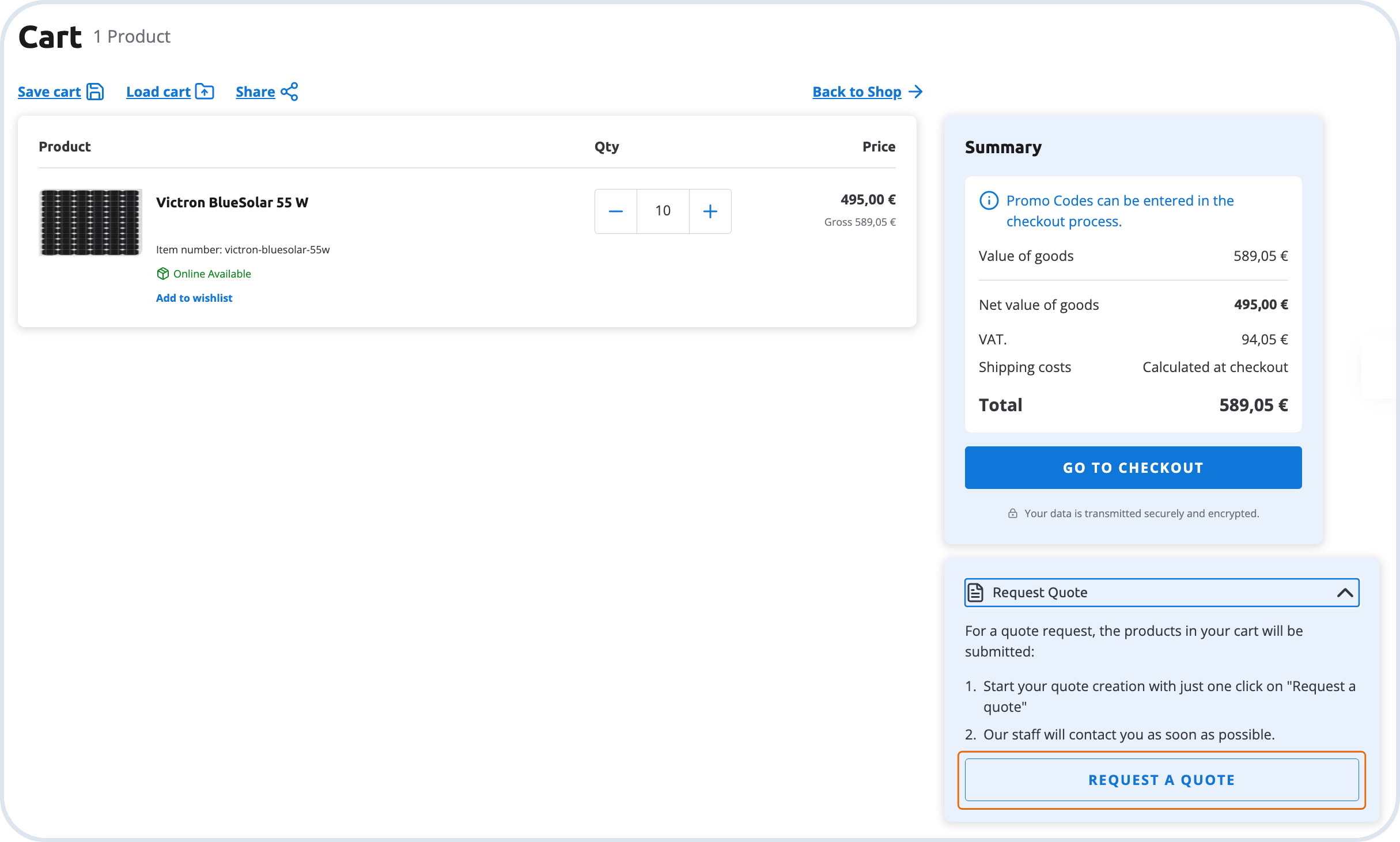
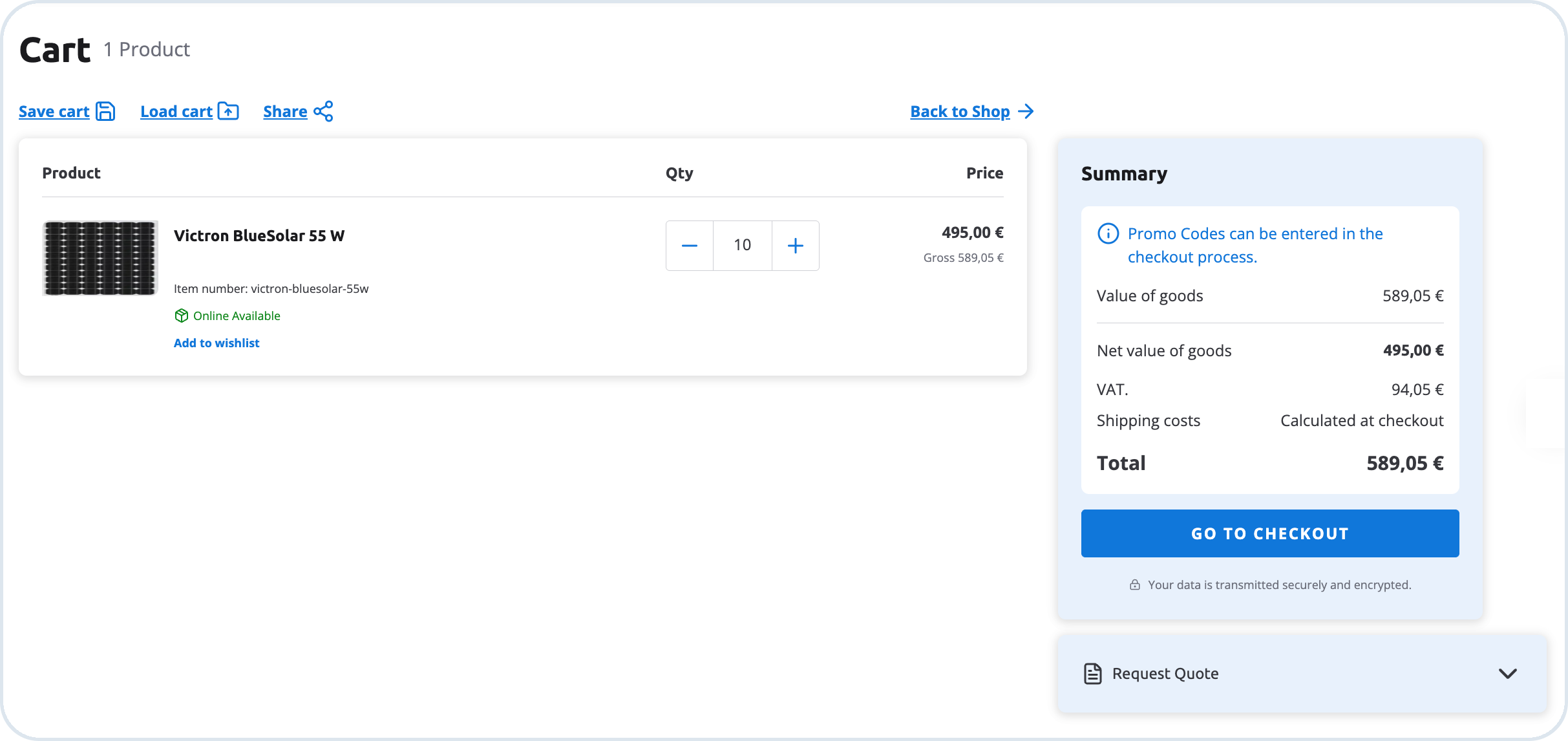
The customer chooses the Request quote button. They can provide custom quote reference name/number and additional comments that are relevant for merchants or approvers to process the quote.

Result: The customer gets a notification about a submitted request and the quote is already visible in their account.
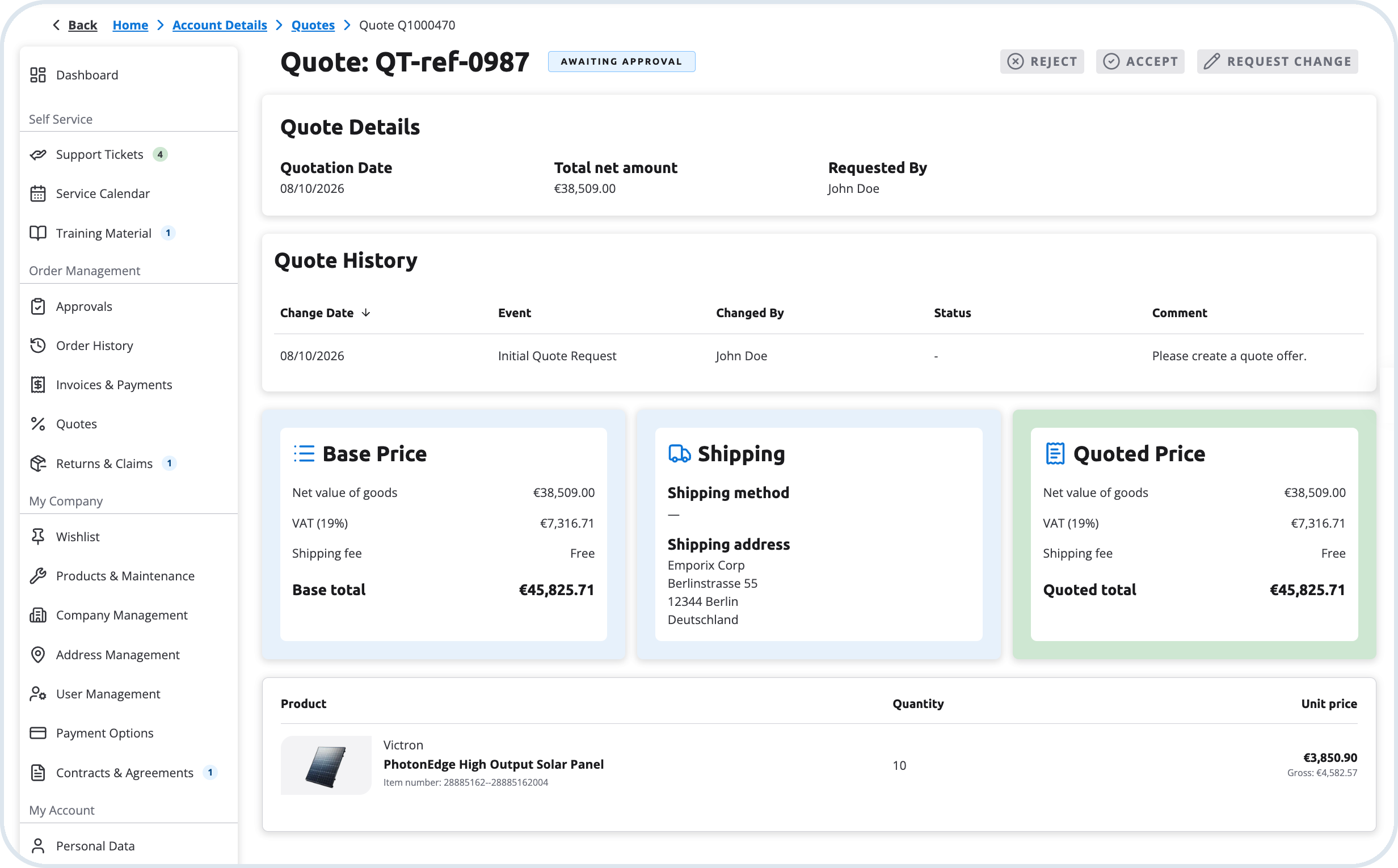
The quote is available in the Quotes view.

Reviewing by employee
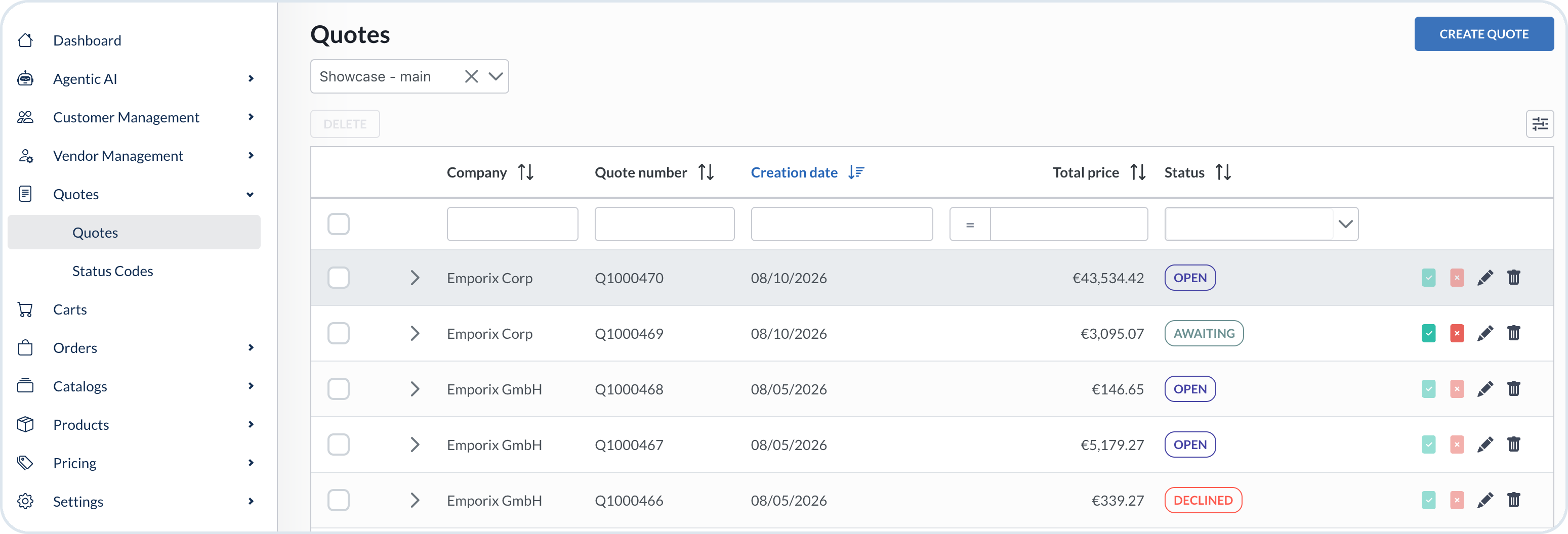
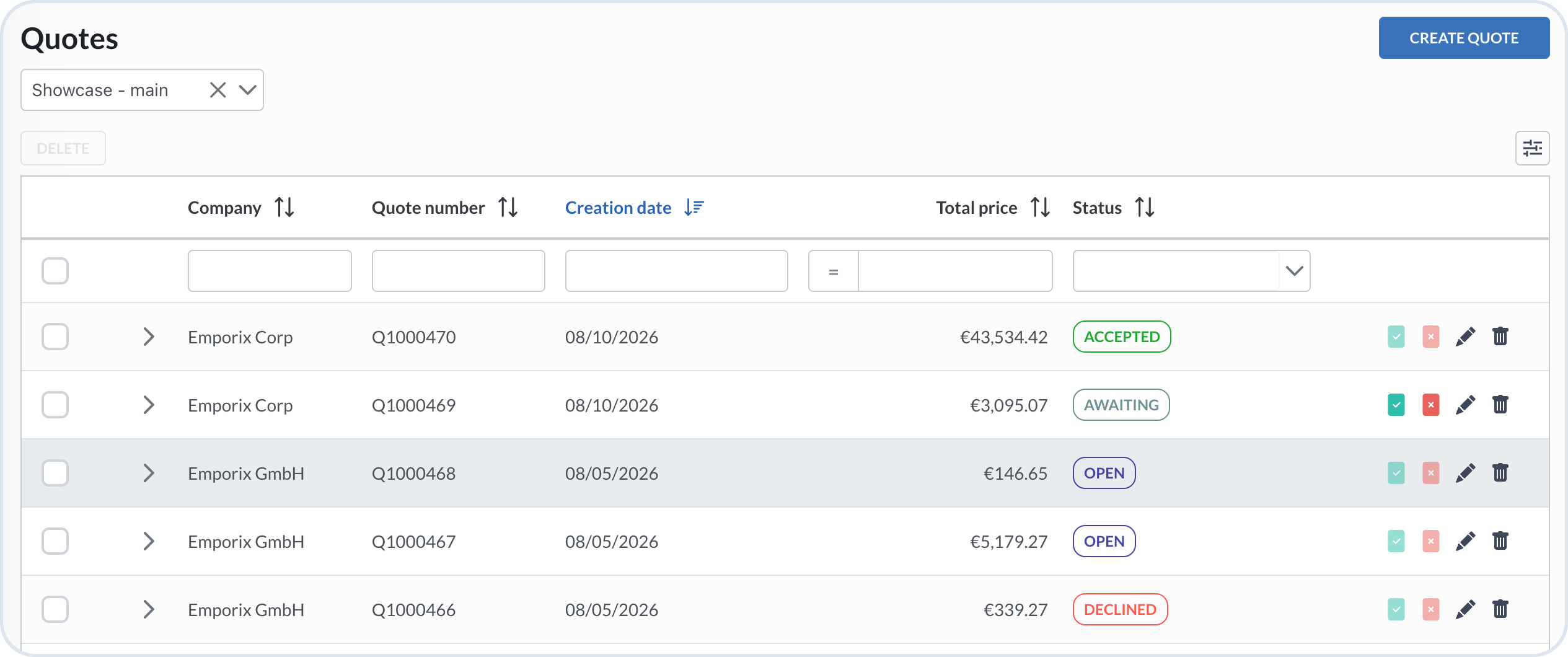
As an employee, open the Management Dashboard and go to Quotes. The quotes overview page is displayed.
The created quote is displayed with the Awaiting status.
The merchant employee is informed by email that a customer created a quote request. The corresponding sales representative or a customer service employee can then work on the quote request quickly.
Opening the quote
Check the quote details, prices and discounts. Go to the Approval tab and choose Approve quote to accept the quote. You can add a comment from a merchant perspective if needed.
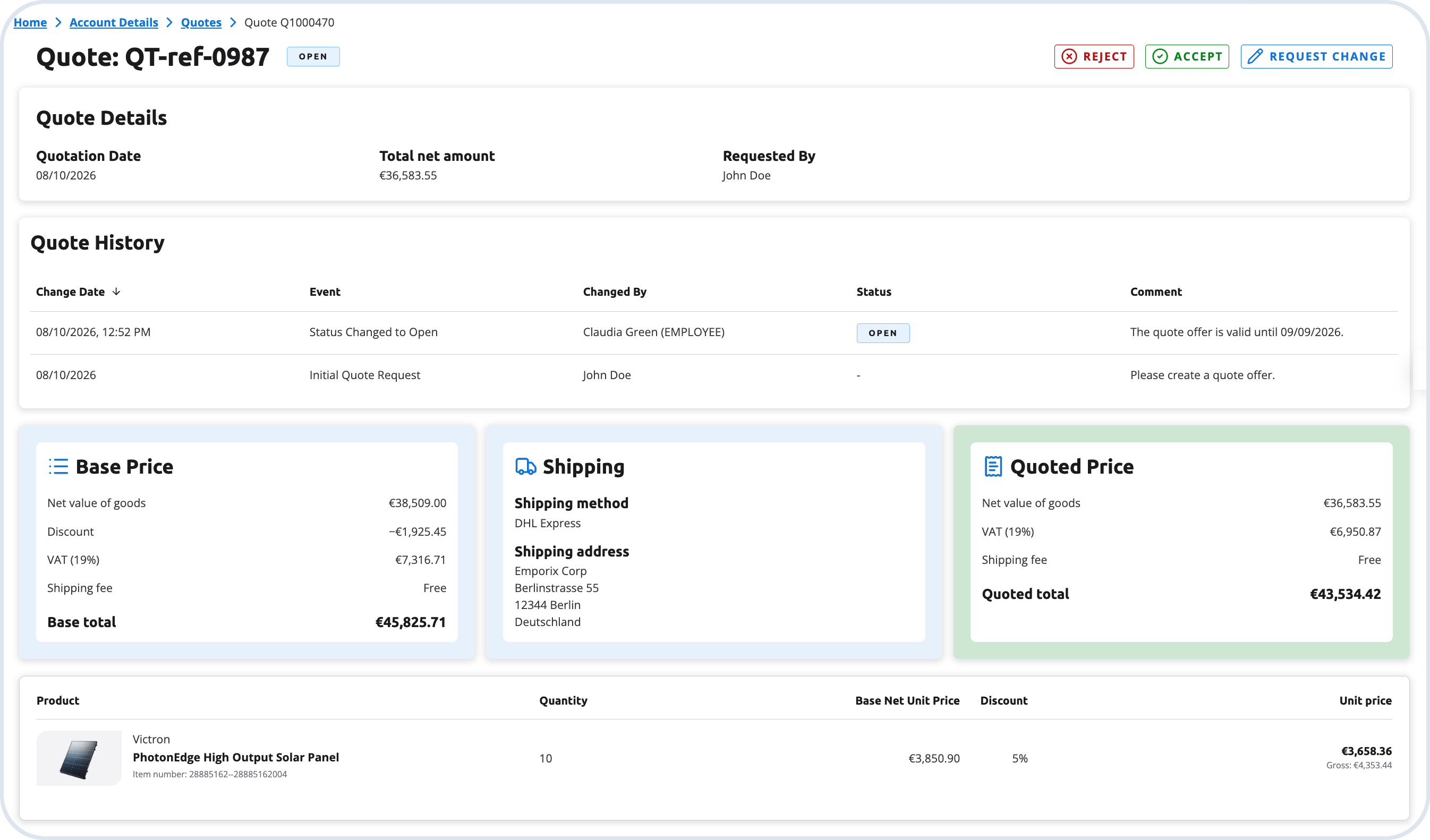
Result: The quote request from the customer is accepted by the merchant and the quote status changes from Awaiting to Open.

It is possible to work on quotes in Management Dashboard and to update them anytime needed. For details on how to work with quotes in MD, see Quotes documentation.
Accepting the quote by a customer
The customer goes to the Quotes view. The requested quote has the Open status as well.
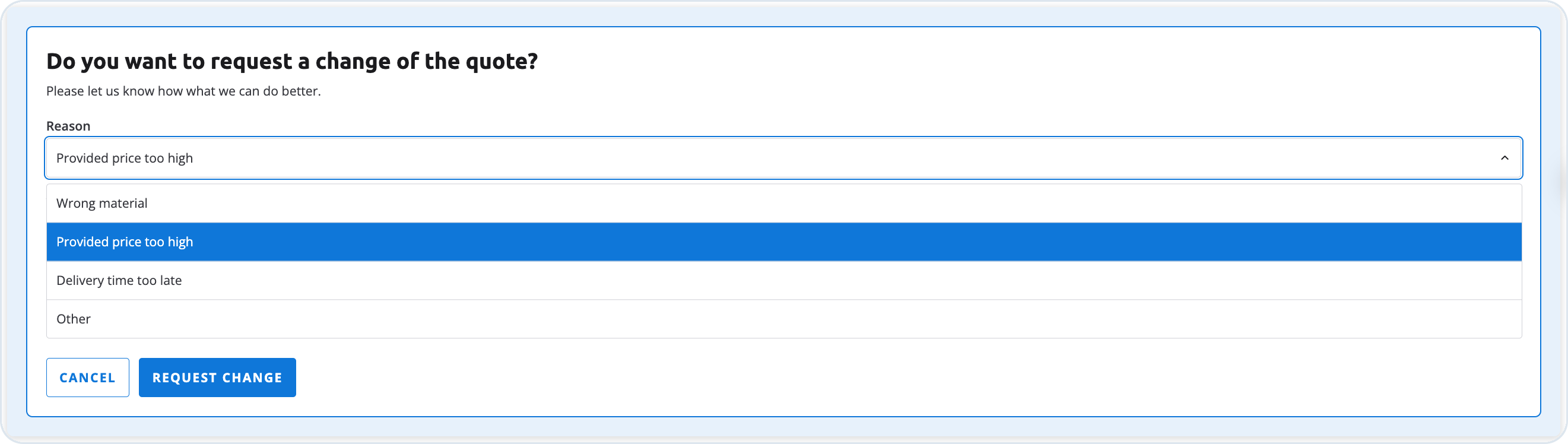
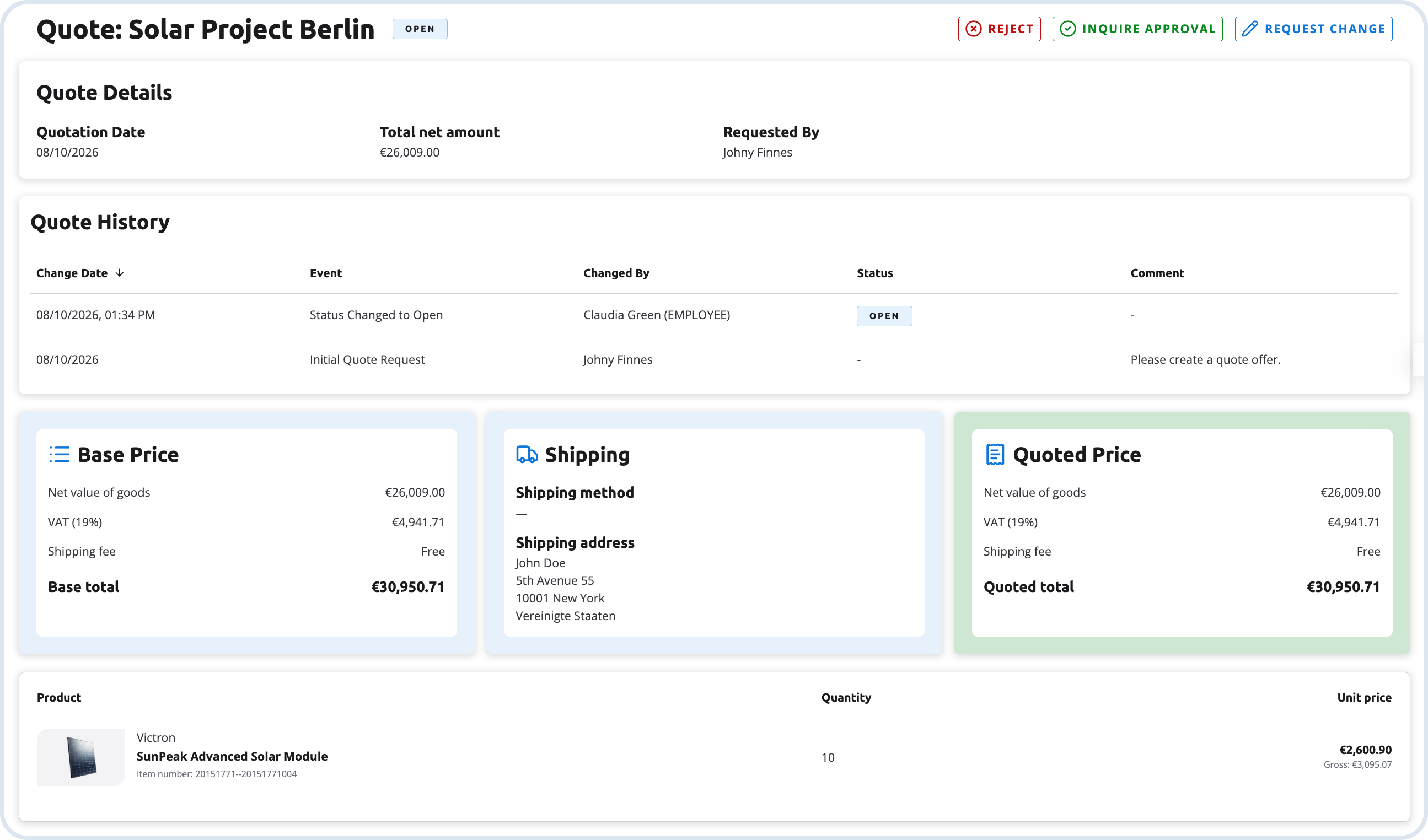
The customer opens the details of the quote and can decide if they want to accept the quote, decline it, or request changes.

In case they request a change or decline the quote, they have to select a change or decline reason with an additional explanation.

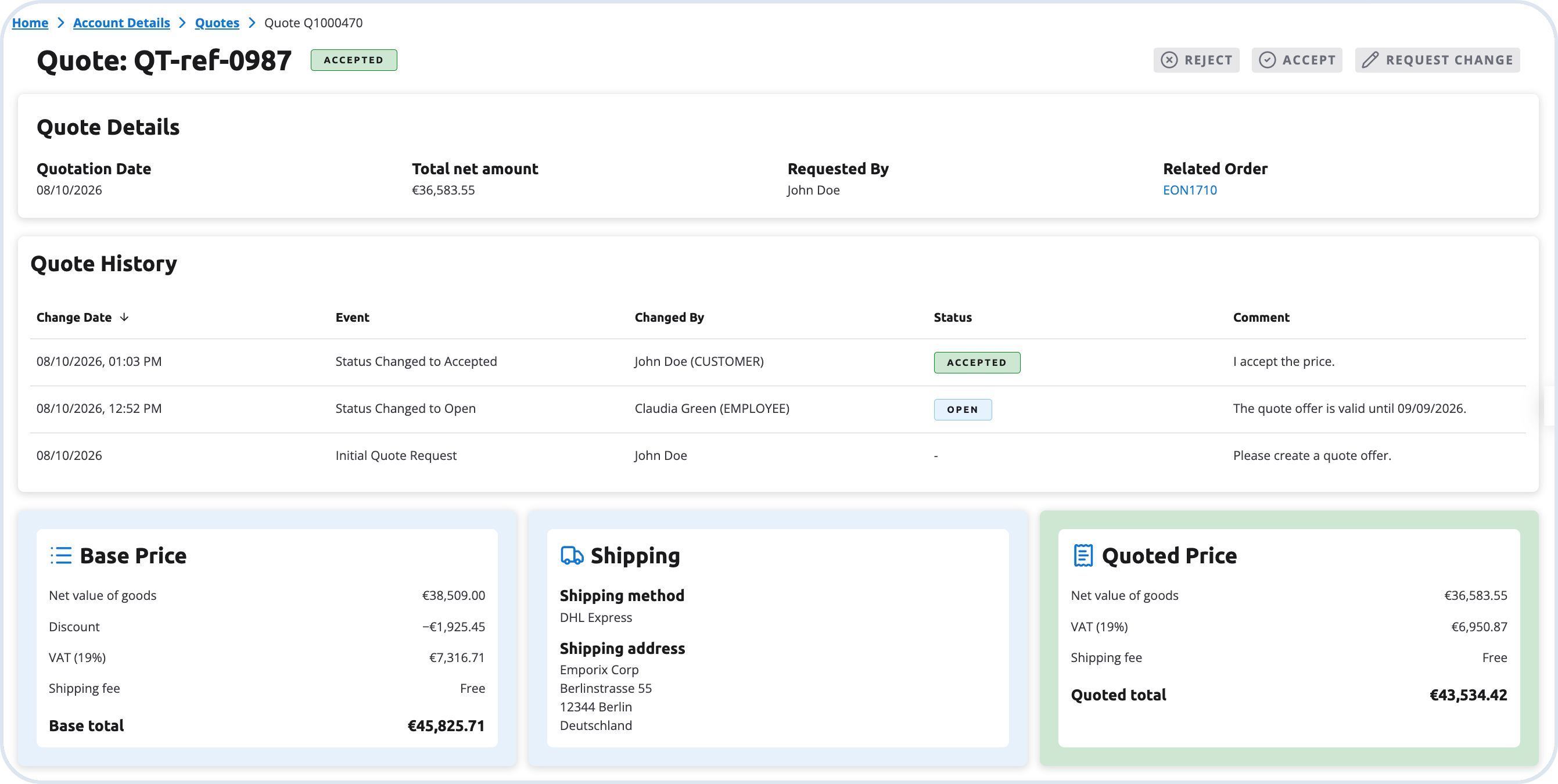
In case the customer accepts the quote, the status of the quote is updated within the frontend and also in the Management Dashboard and an order is created.
Frontend - customer account

Accepted quote view in customer account Backend status - Management Dashboard
Accepted quote view in Management Dashboard
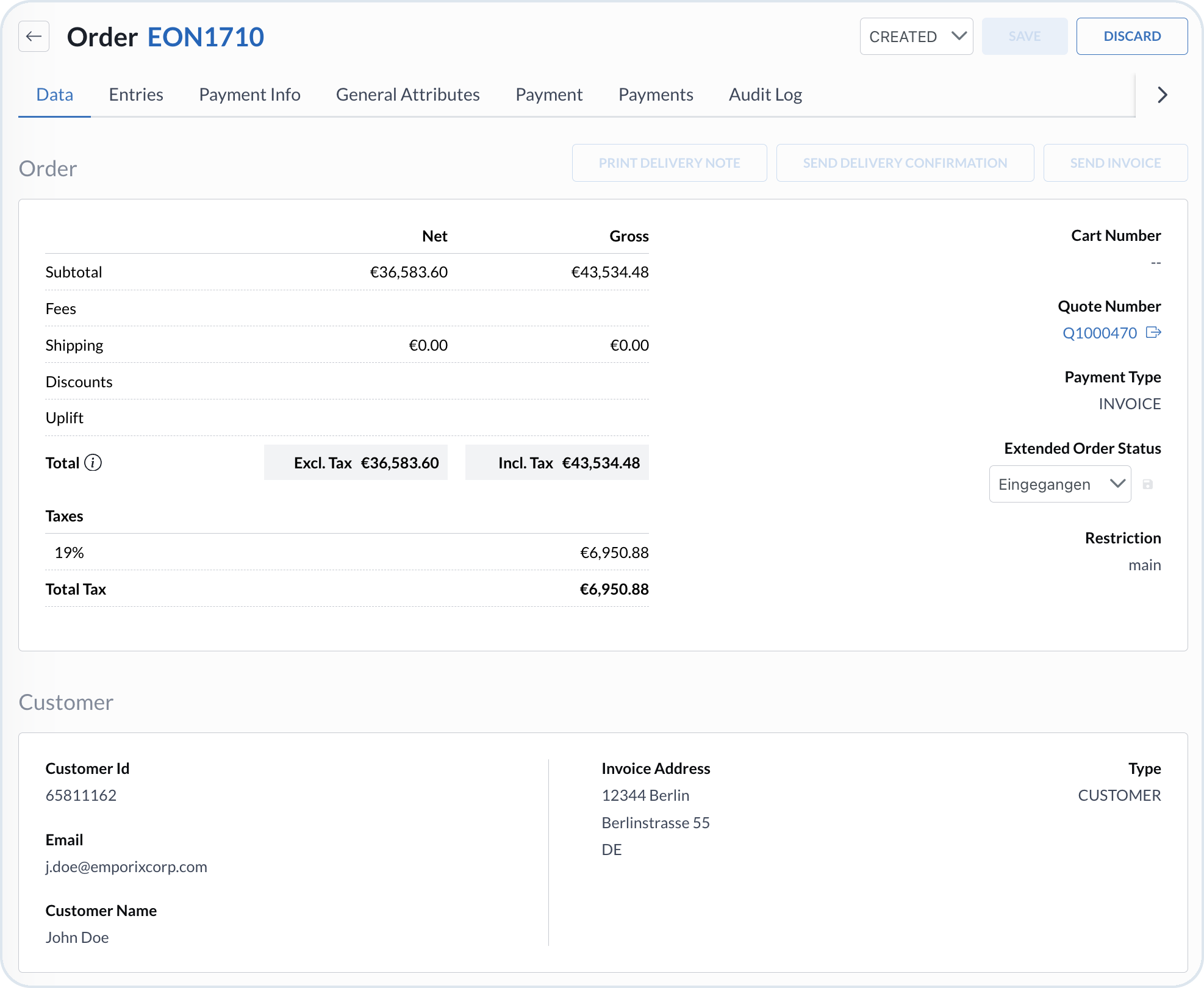
Result The accepted quote creates an order - the order link is visible in the details.

Employee creates quote on behalf of a customer
It is possible for you as an employee to create a quote on behalf of the customer in the Management Dashboard. For example, a customer calls a customer service department and asks for a specific quote. To create the quote on their behalf, you need to be logged in to the Management Dashboard as an employee and follow the steps described in the Quotes - Creating a quote guide.
Result: After you follow the steps and click the Create Quote button at the end, the quote is created with the Open status and a notification is sent to the customer by email, including the PDF with quote details. The customer can accept or decline the quote as described under Customer requests.
Quote Approval Process
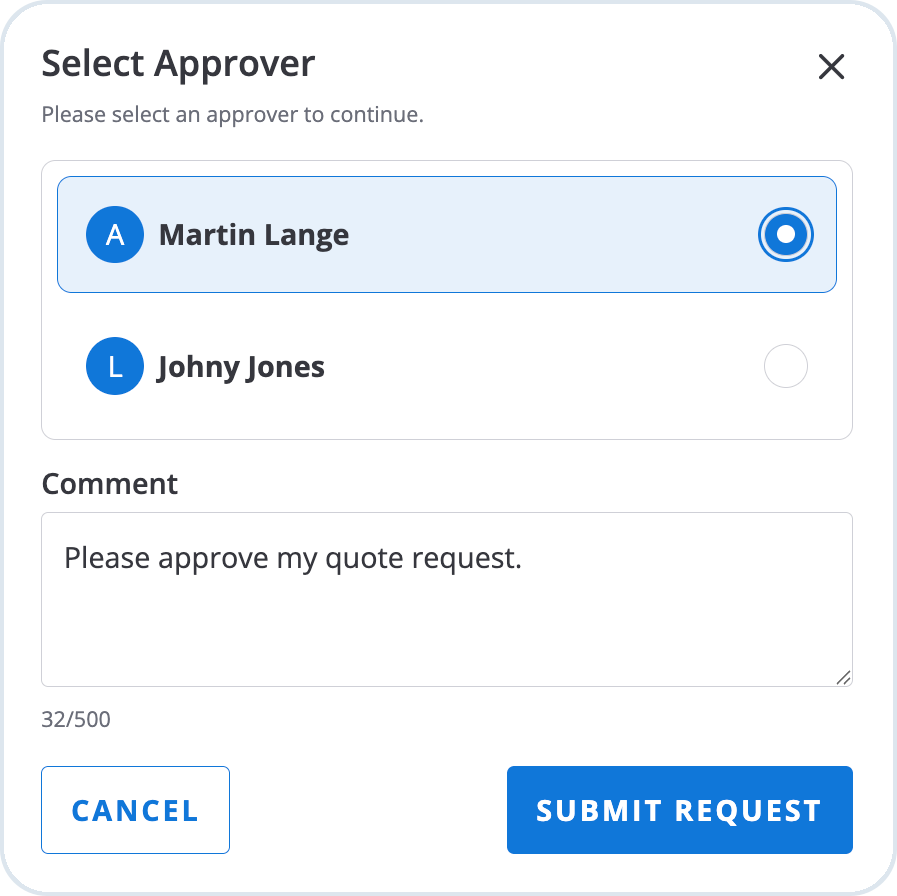
For B2B scenarios, you can enable the internal approval process for accepting quotes on the customer's side. When the quote approval flow is applied, then only authorized customers can accept open quotes. The approval flow is based on customer group assignment.
Requester – Cannot accept quotes independently. Always needs approval. If the quote total is within the company purchasing limit, a Buyer or Admin can approve; if it exceeds the limit, only an Admin can approve.
Buyer – Can accept quotes within the company purchasing limit. If the quote exceeds the limit, approval from an Admin is required.
Admin – Can accept any quote without additional approval.
Prerequisites
Make sure the customers have the right permissions level:
Assign customers to the correct groups (Admin, Buyer, Requester).
Configure company purchasing limits under Customer Management → Companies → Policies.
To enable the quote approval process, turn on the Enable quote approval process setting (
approval.enableQuoteApprovalProcess) under Settings -> System Preferences in the Management Dashboard.
Approval flow
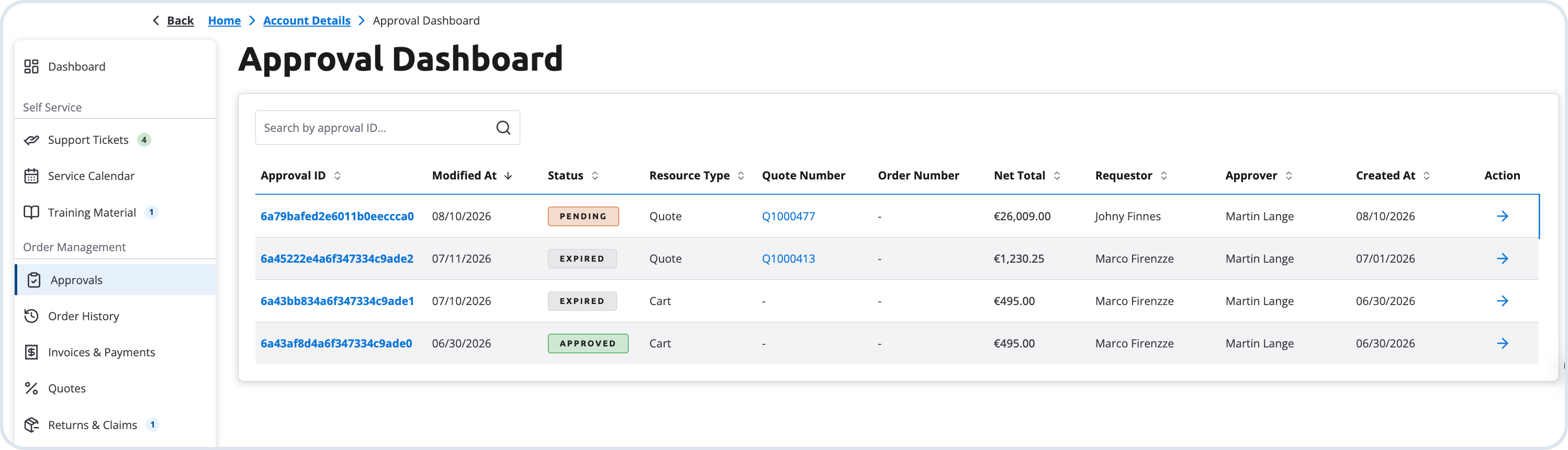
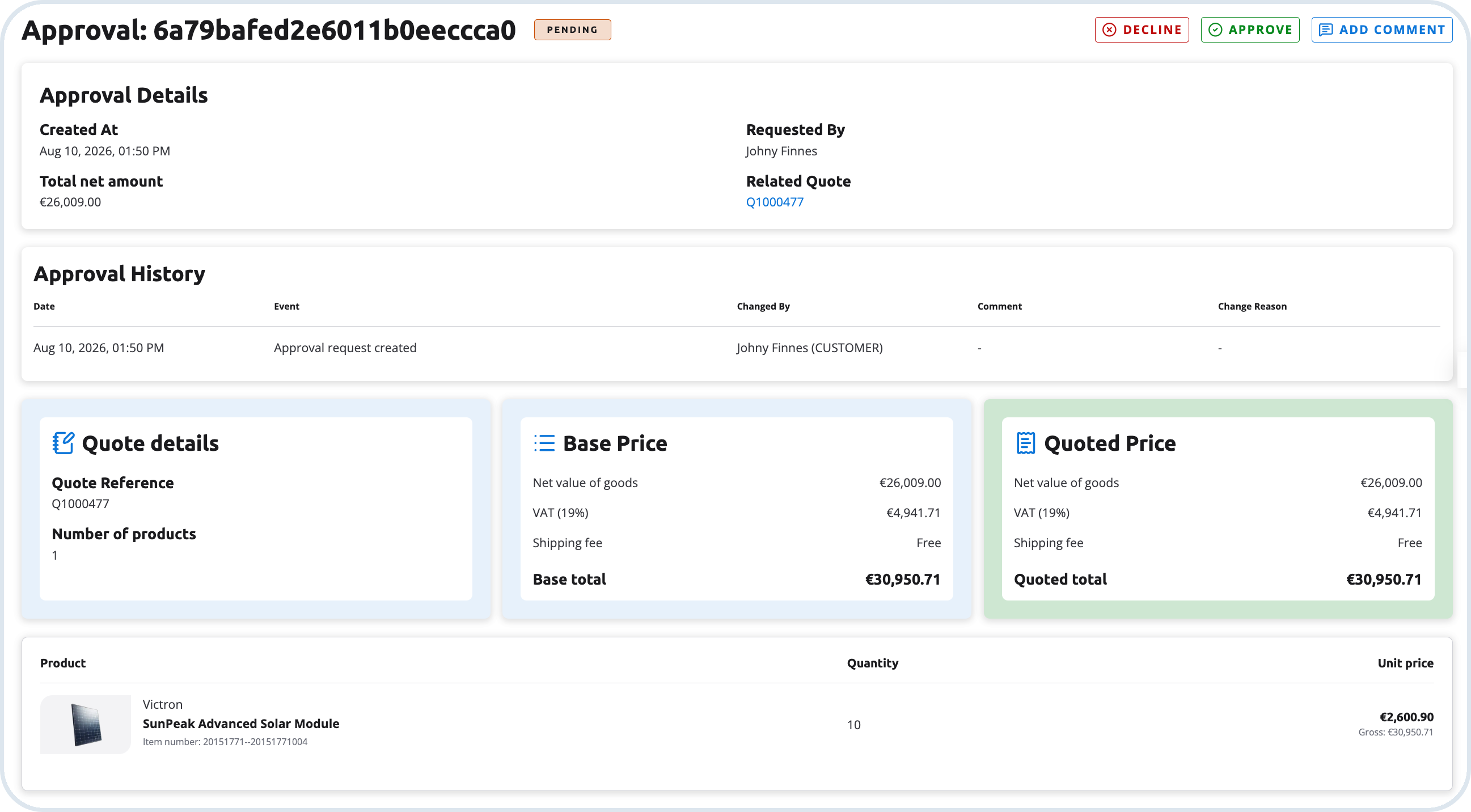
When quote approval is enabled, some quotes placed by Requestors or Buyers (depending on the company limits) require additional authorization from eligible customers. The flow below describes the path when approval from another person is required.
Last updated
Was this helpful?