> For the complete documentation index, see [llms.txt](https://developer.emporix.io/llms.txt). Markdown versions of documentation pages are available by appending `.md` to page URLs; this page is available as [Markdown](https://developer.emporix.io/frontend-guides/customer-account/dashboard-overview/quotes.md).
# Quotes
Request and track quotes from the cart, then accept and convert them into orders.
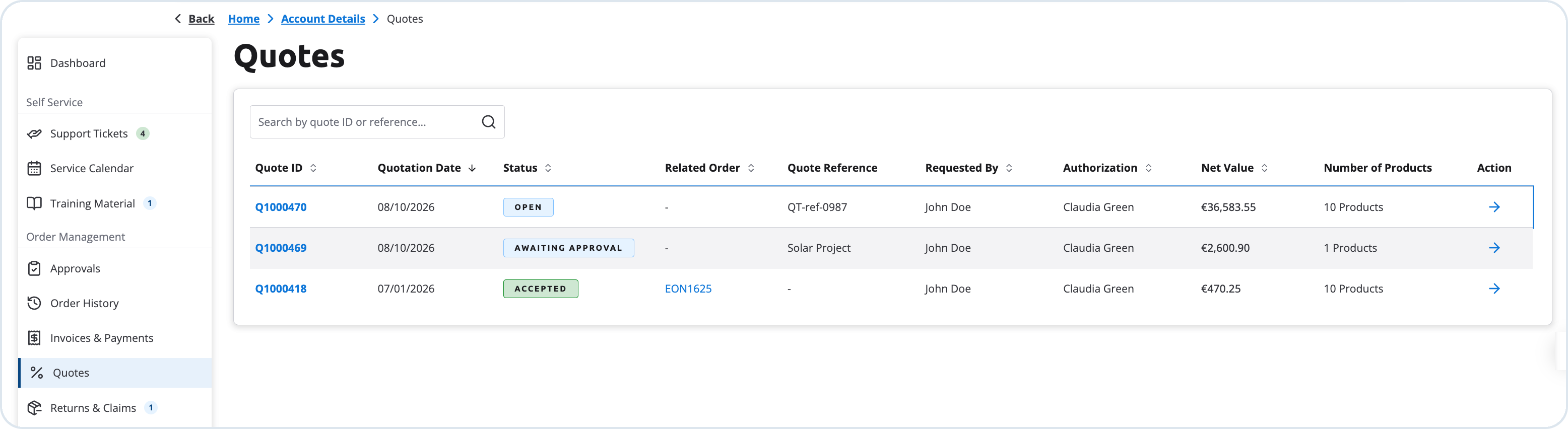
The **Quotes** section supports purchasing scenarios where pricing or order conditions may need to be negotiated. Customers can submit quote requests from the shopping cart and track them here. Each quote shows its current status and the proposed offer. After a merchant responds, the customer can review the proposal, accept it, request changes, or decline it. An accepted quote can be converted into an order and processed through the standard checkout flow.
Quotes list view
{% hint style="info" %}
For an example of the full quote lifecycle from cart to order, see [Quotes](/frontend-guides/commerce-examples/quote-process.md).
{% endhint %}
## Quote business model
Each quote is associated with a business model that must match the customer type:
* **Business customer** (assigned to a company) — **B2B**
* **Private customer** — **B2C**
The storefront and Management Dashboard use this alignment so quote data and pricing stay consistent for the customer who created or received the quote.
## Creating, updating, and accepting quotes
### B2B customers
A B2B customer who is assigned to one or more companies can create, update, and accept quotes from the storefront when logged in. Quote creation completes successfully, and the quote is linked to the company (legal entity) the customer is acting on behalf of.
In the Management Dashboard, the quote shows the related company, so merchant employees can see which legal entity the request belongs to when reviewing and approving it.
If the customer is assigned to multiple companies, they use the **company switcher** on the dashboard to select the company before requesting or managing quotes for that organization.
The selected company is part of the customer's [B2B token](/api-documentation/quickstart/authentication-and-authorization/tokens-and-scopes.md#b2b-token). Because each B2B quote is linked to a company, the **Quotes** list shows only the quotes of the selected company, and the list changes when the customer selects another company. If a quote is missing from the list or can't be opened, check which company is selected in the company switcher.
When the quote approval process is enabled, only authorized customers can accept open quotes directly. Others must request approval from a company approver. Approval permissions are checked for the company selected in the switcher, which is the company the quote belongs to. For details, see [Approvals](/frontend-guides/customer-account/dashboard-overview/approvals.md) and the [Quote Approval Process](/frontend-guides/commerce-examples/quote-process.md#quote-approval-process) example.
### B2C customers
A B2C customer (private customer, not assigned to a company) can create, update, and accept quotes from the storefront when logged in. The quote uses the B2C business model and is linked to the individual customer account rather than a company.
In the Management Dashboard, the quote is associated with the customer record. No company is displayed, because the request is not tied to a legal entity.
### Logged-out users
Quote actions require an authenticated session. When the user is not logged in, the **Request a Quote** button in the cart is unavailable. The customer must sign in before they can request a quote from the storefront or access the **Quotes** section in their account.
---
# Agent Instructions
This documentation is published with GitBook. GitBook is the documentation platform designed so that both humans and AI agents can read, navigate, and reason over technical content effectively. Learn more at gitbook.com.
## Querying This Documentation
If you need additional information that is not directly available in this page, you can query the documentation by asking a question.
Perform an HTTP GET request on the following URL with the `ask` and `goal` query parameters:
```
GET https://developer.emporix.io/frontend-guides/customer-account/dashboard-overview/quotes.md?ask=&goal=
```
`ask` is the immediate question: it should be specific, self-contained, and written in natural language.
`goal` is what the user is ultimately trying to achieve, the reason they need the answer. Sharing it helps GitBook give you a better, more relevant answer. A goal is most helpful when it describes the outcome the user wants rather than restating the question. For example, with `ask=how do I create an API token`, a goal like `automate deployments from our CI pipeline` lets GitBook tailor the answer to that use case.
The response will contain a direct answer to the question and relevant excerpts and sources from the documentation.
Use this mechanism when the answer is not explicitly present in the current page, you need clarification or additional context, or you want to retrieve related documentation sections.