> For the complete documentation index, see [llms.txt](https://developer.emporix.io/llms.txt). Markdown versions of documentation pages are available by appending `.md` to page URLs; this page is available as [Markdown](https://developer.emporix.io/frontend-guides/customer-account/dashboard-overview/user-management.md).
# User Management
Create and manage company users and assign roles from the customer account.
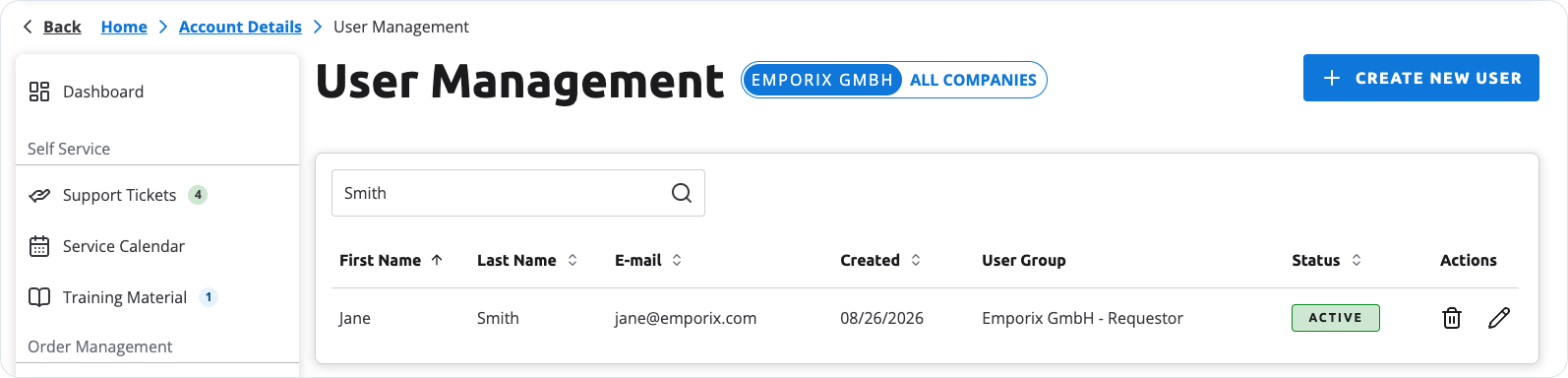
The **User Management** section lets customers with the Admin role manage users for the company they currently have Admin rights in. From this view, they can create users, assign a company user group, activate or deactivate accounts, and search the user list.
Managing users requires Admin permissions in the selected company. If the logged-in user has Admin rights in more than one company, a company switcher is available so they can switch the organization they are managing. If they switch to a company where they do not have Admin rights, **User Management** is hidden from the menu. If they are already on the User Management page, they see an error message.
Company users in the storefront User Management view
## Company setup
When a new customer registers on the storefront, the registration data is reflected in the Emporix account. This includes company data such as address and contact information. The customer's email address is used as the login.
By default, the first customer is created with the Admin role and becomes a primary contact for the company if no other primary contact exists.
{% hint style="warning" %}
Add security measures in your implementation for creating new B2B customers on the storefront. In the showcase setup, the new customer gets admin rights by default, which is not the desired behavior for a production storefront.
{% endhint %}
{% hint style="info" %}
For the registration steps, see [Account Creation](/frontend-guides/customer-account/user-registration.md).
{% endhint %}
## Creating a user
An Admin customer creates users for the currently selected company. After the user is created, they receive an email notification to set their account password.
{% stepper %}
{% step %}
#### Open User Management
Go to **Account Details** → **User Management**.
{% endstep %}
{% step %}
#### Create a new user
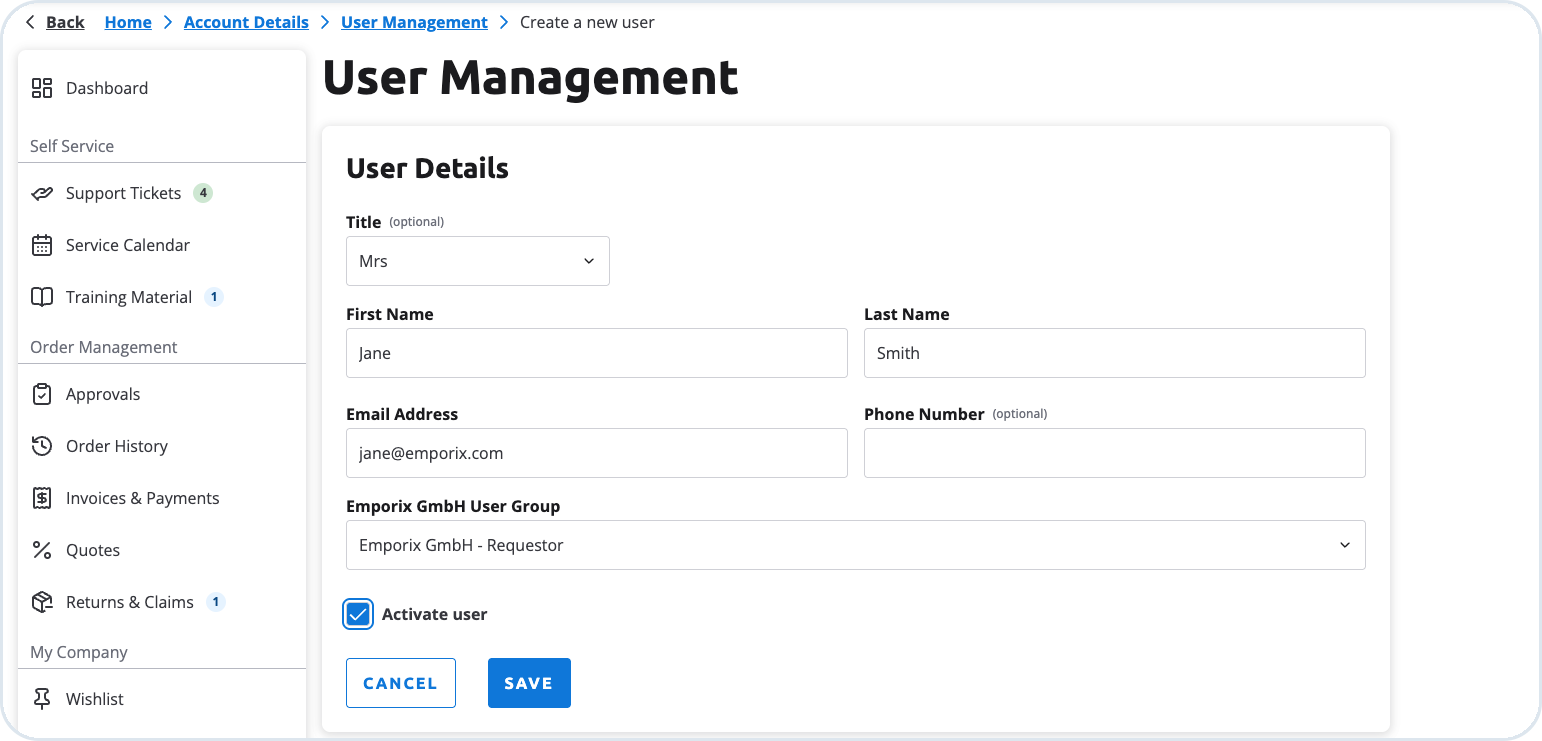
Select **Create new user**, enter all the user details and assign a user role.
* **Admin** – manages users, creates orders, and approves orders from Buyer and Requester users
* **Buyer** – creates orders within the company purchasing limit and can approve orders from Requesters
* **Requester** – creates order requests for a Buyer or Admin to review and approve
You can select or change the user group only for the company that is currently selected in the **company switcher**.
Creating a new user and assigning a company user group
{% endstep %}
{% step %}
#### Activate and save
Select **Activate user** if the account should be active immediately and **Save** your configuration.
{% endstep %}
{% endstepper %}
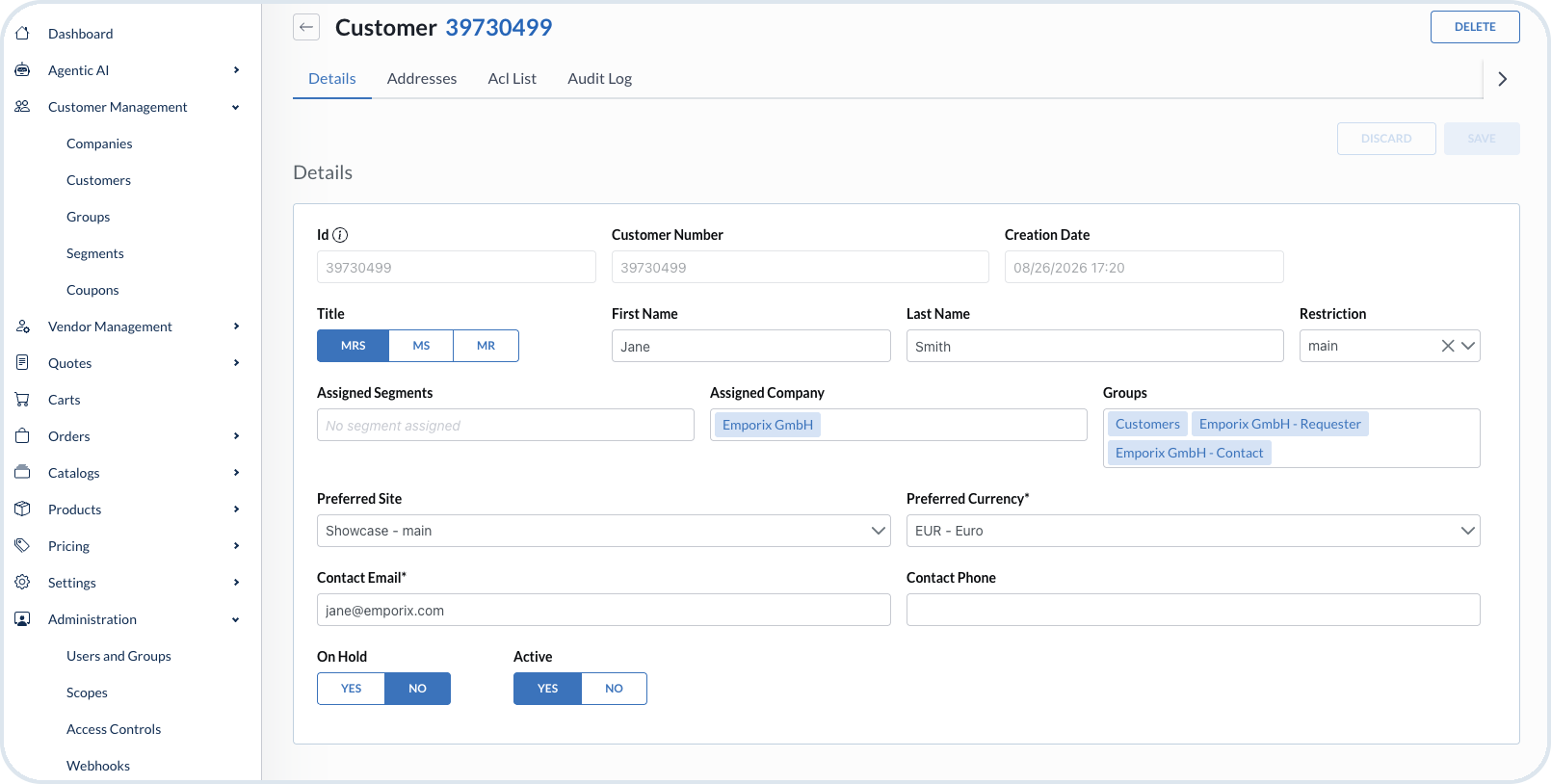
The new user is assigned to the currently selected company. In the Management Dashboard, go to **Customer Management** → **Customers** and open the customer. The **Assigned Company** and **Groups** fields show the company and the matching groups, for example **Requester** and **Contact**.
The same user as the merchant sees it in the Management Dashboard
## Editing a user across companies
If the Admin has Admin rights in more than one company, they can grant the same user permissions in additional companies.
To add another company, switch to that company in the **company switcher** and **Edit** the user again. The **User group** selector applies only to the currently selected company. User groups from other companies appear as static information under the selector. Use **User group** to grant the role for the selected company, then save.
## Deleting a user
**Delete** is available only in the current company context. It is not available when **All companies** is selected in the company switcher.
{% hint style="info" %}
User roles control who can place orders and who must request approval. For the approval flow in the storefront, see [Approvals](/frontend-guides/customer-account/dashboard-overview/approvals.md) and the [User Management and Approvals](/frontend-guides/commerce-examples/user-management-approvals.md) example.
{% endhint %}
---
# Agent Instructions
This documentation is published with GitBook. GitBook is the documentation platform designed so that both humans and AI agents can read, navigate, and reason over technical content effectively. Learn more at gitbook.com.
## Querying This Documentation
If you need additional information that is not directly available in this page, you can query the documentation by asking a question.
Perform an HTTP GET request on the following URL with the `ask` and `goal` query parameters:
```
GET https://developer.emporix.io/frontend-guides/customer-account/dashboard-overview/user-management.md?ask=&goal=
```
`ask` is the immediate question: it should be specific, self-contained, and written in natural language.
`goal` is what the user is ultimately trying to achieve, the reason they need the answer. Sharing it helps GitBook give you a better, more relevant answer. A goal is most helpful when it describes the outcome the user wants rather than restating the question. For example, with `ask=how do I create an API token`, a goal like `automate deployments from our CI pipeline` lets GitBook tailor the answer to that use case.
The response will contain a direct answer to the question and relevant excerpts and sources from the documentation.
Use this mechanism when the answer is not explicitly present in the current page, you need clarification or additional context, or you want to retrieve related documentation sections.