For the complete documentation index, see llms.txt. This page is also available as Markdown.

Overview

Get a quick tour of the storefront UI, including homepage navigation, category browsing, product filtering, and the product details page.

When a customer arrives at the storefront, the homepage acts as the starting point for the shopping journey. At the top of the page, the customer sees a navigation bar with quick links to all the main areas, from browsing categories and viewing new collections to checking the account and cart. A search bar is always within reach, so the customer can find specific products instantly. As the customer scrolls down the page, the navigation bar remains visible but transitions to a more compact format to avoid disrupting the shopping experience.

At the front, there is also a dynamic banner showing current promotions, new arrivals, or seasonal offers. Depending on tenant customization settings, these displays can also function as featured product sections. For example, a customer can quickly scan each item along with its image, name, and price. From there, the customer can either select an item to see more details or add it directly to the cart or wishlist.

A customer can also find personalized recommendations on the homepage. These suggestions are based on previous browsing activity and interactions. It is an easy way to discover relevant items without searching.

Default product filtering with category filter and sorting
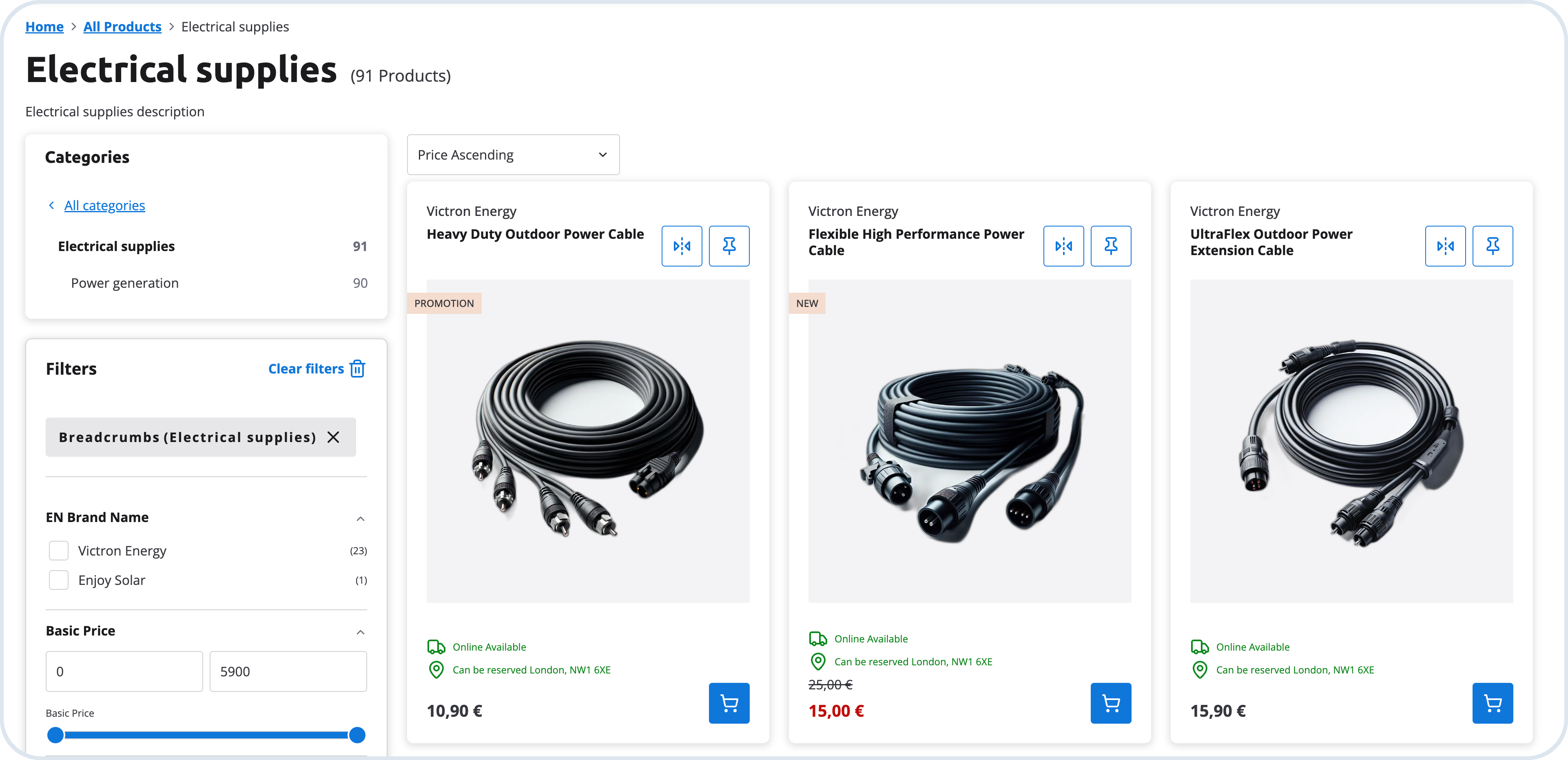
Products are organized in a hierarchical category structure that customers can browse through the main navigation menu. Customers can navigate through categories and subcategories, and use the breadcrumb trail at the top of the page to see the current location and navigate back to previous levels. The frontend also includes a search bar that allows customers to quickly find products by product name, item number, or keywords.

Browsing by category and filtering

By default, customers can filter by category and sort the product list — for example, by product name in ascending or descending order. When BatteryIncluded is configured as the active indexing provider, the storefront renders category pages from live catalog data indexed in BatteryIncluded. The main navigation menu dynamically reflects the current category structure, so developers do not need to build and maintain a separate menu from static data.

On a category page, customers see the category name, product count, and description at the top, along with a breadcrumb trail for quick navigation back to parent levels. A sidebar lists the category hierarchy — including subcategories with product counts — so customers can drill down from broad categories into more specific ones. Selecting a subcategory updates the product list and active filters without leaving the page.

Category page with sidebar navigation, breadcrumbs, and facet filters

The same category navigation is available on product list and search results pages, helping customers move from a wide product listing or search query into a focused category view rather than scrolling through an unfiltered flat list.

On product listing and search results pages, customers can narrow down the results using filters and sorting options. The available filtering and search experience depends on whether a search provider is configured for the tenant.

When BatteryIncluded is configured as the active indexing provider, the storefront exposes advanced facet filtering on product listing pages. Customers can browse categories in a sidebar, apply multiple filters at once, such as brand, price range, and product highlights. They can also clear all active filters with one action. Filter options reflect the product attributes indexed in BatteryIncluded, including custom mixin fields configured through the Indexing Service.

Advanced product filtering with BatteryIncluded facets
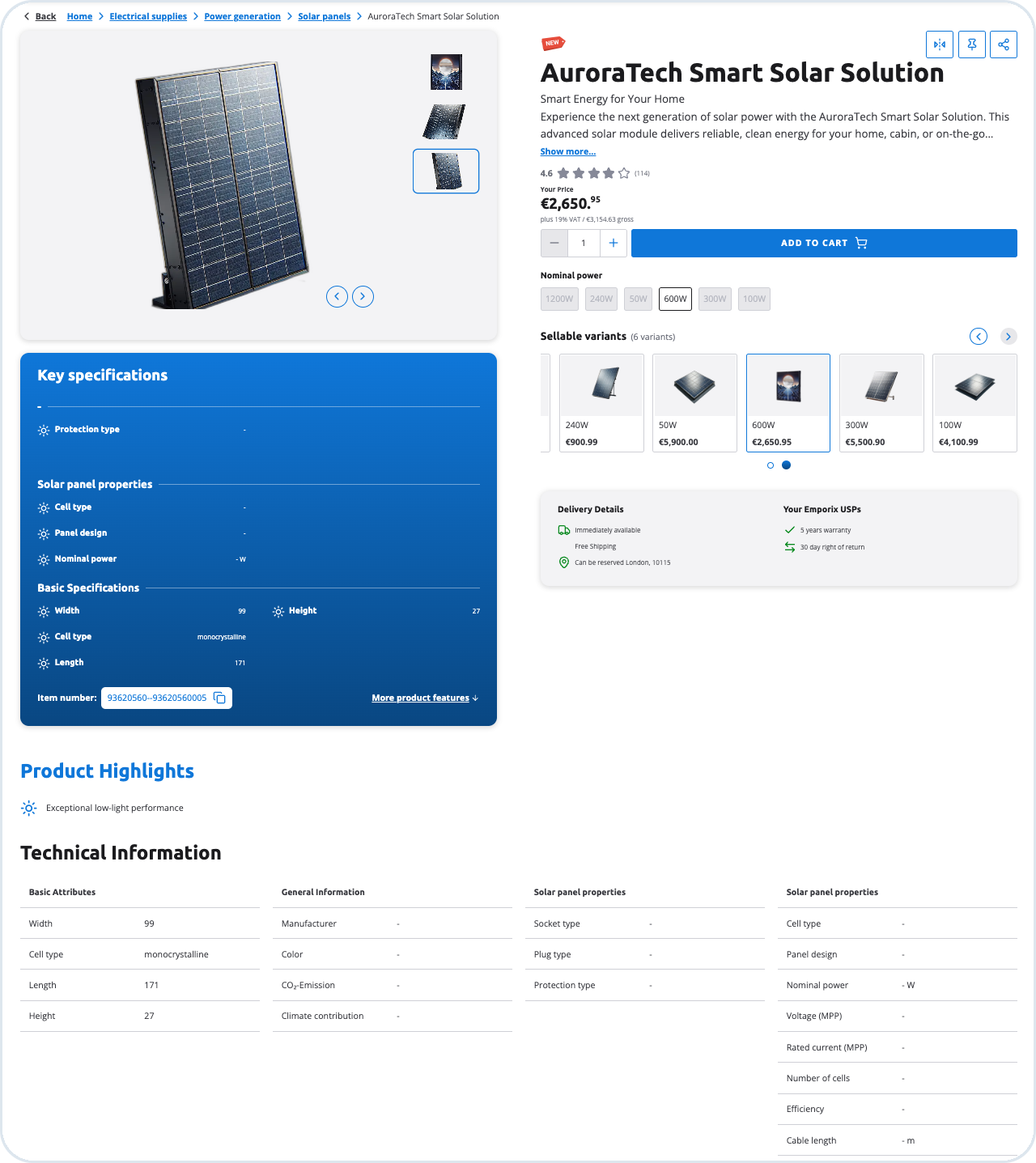
To configure BatteryIncluded for the B2B Commerce Frontend, see the BatteryIncluded Search Provider guide. It covers native Indexing Service setup, portal configuration (variables, searchable fields, synonyms, and facets), and how those settings appear in storefront search.

For background on integration paths and indexing strategies, see also Search and Indexing Service.

Tenants can also integrate Algolia or other search engine providers. BatteryIncluded is the recommended native integration for facet-based product discovery in the B2B Commerce Frontend.

Product details page

Product details page with images, pricing, and specifications
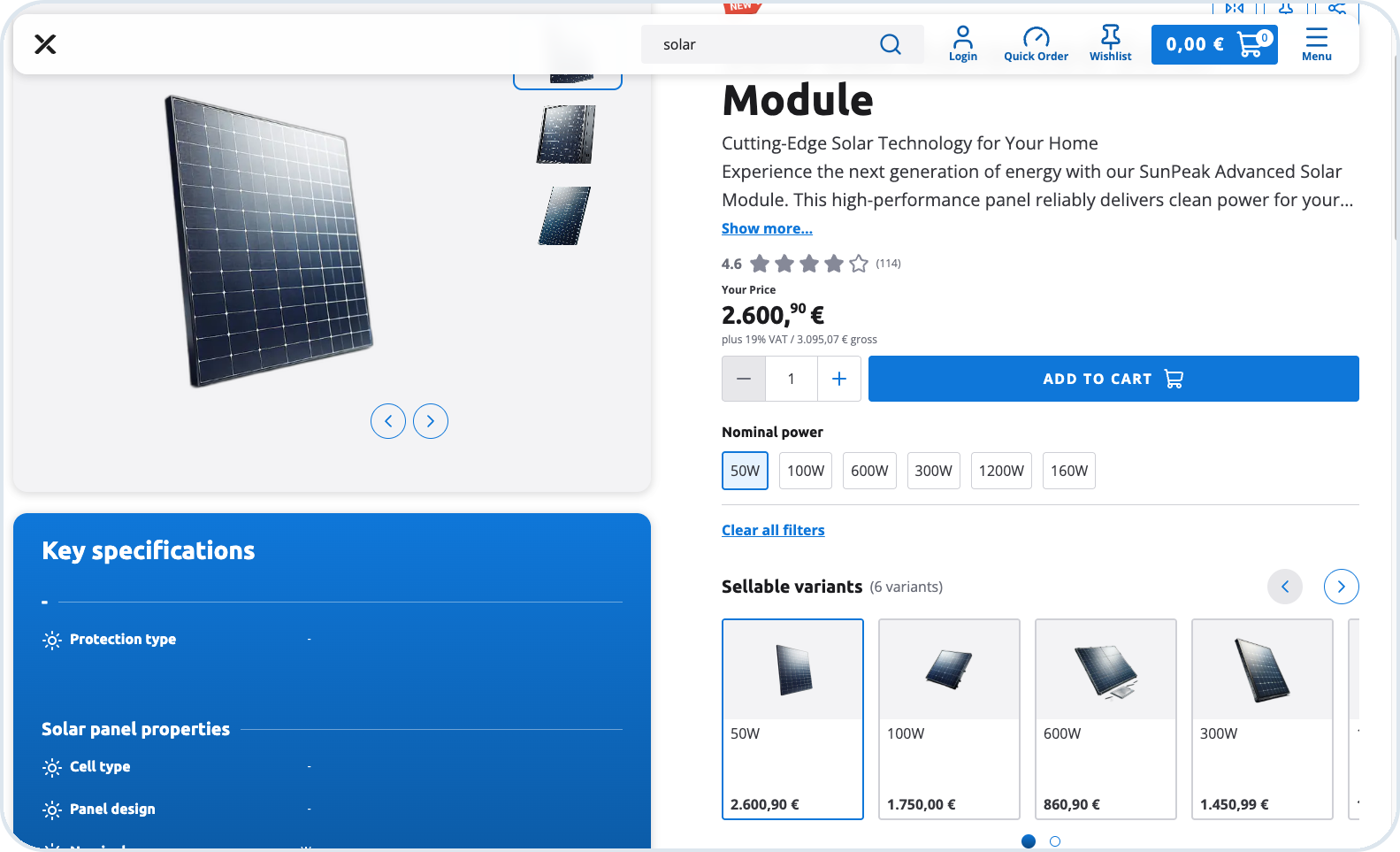

When a customer selects a product, they are taken to the product details page. The page shows multiple product images, the product title, item number, and promotion badges, along with customer ratings and pricing details with a VAT breakdown. Customers can copy the item number in one action for reuse in search, quick order, or internal workflows.

The page also shows availability status, shipping costs, and reservation options, plus trust indicators such as warranty information and return policies. Customers can add the product to the cart, set the quantity, and review supporting content below the main purchase area — including key features, product highlights, and technical information.

If a product has variants from a product template or a dynamic variant hierarchy, the attribute selector and sellable variants list help customers choose the right variant. Both are available whether the customer opens the parent product or a specific variant. Customers select attribute values to filter the list, and can later reset all the filters.

Attribute values that do not match the current selection stay visible but are disabled. A variant that cannot be bought is also disabled, and adding the product to cart is unavailable.

Product details page with attribute options and sellable variants
Choosing a product variant on the product details page
To create variants, see Create a product variant from a product template and Create dynamic variant hierarchy in the Management Dashboard documentation.

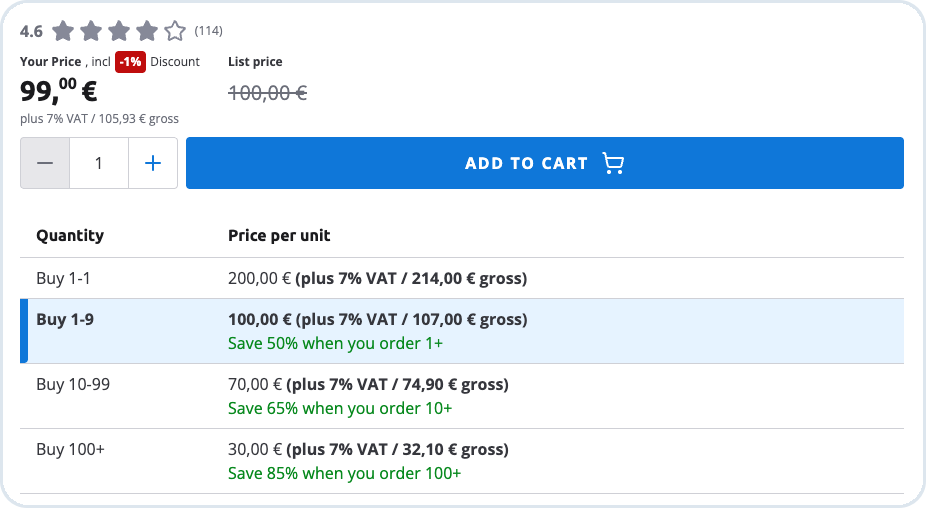
If tier- or volume-based discounts are configured for the product, the page displays those pricing breaks so customers can see how the unit price changes with quantity and make a more informed buying decision.

Product details page displaying volume-based pricing

Product comparison

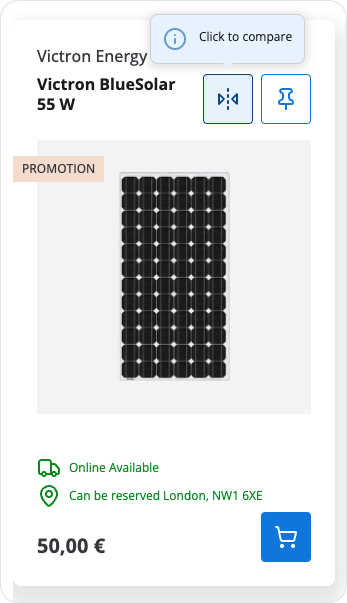
From product listing and product details views, customers can add products to a comparison list and then open the comparison page to review specifications side-by-side. Rows with differences between compared products (for example, Price) are highlighted in bold so they are easier to spot.

Adding products to comparison from product listing
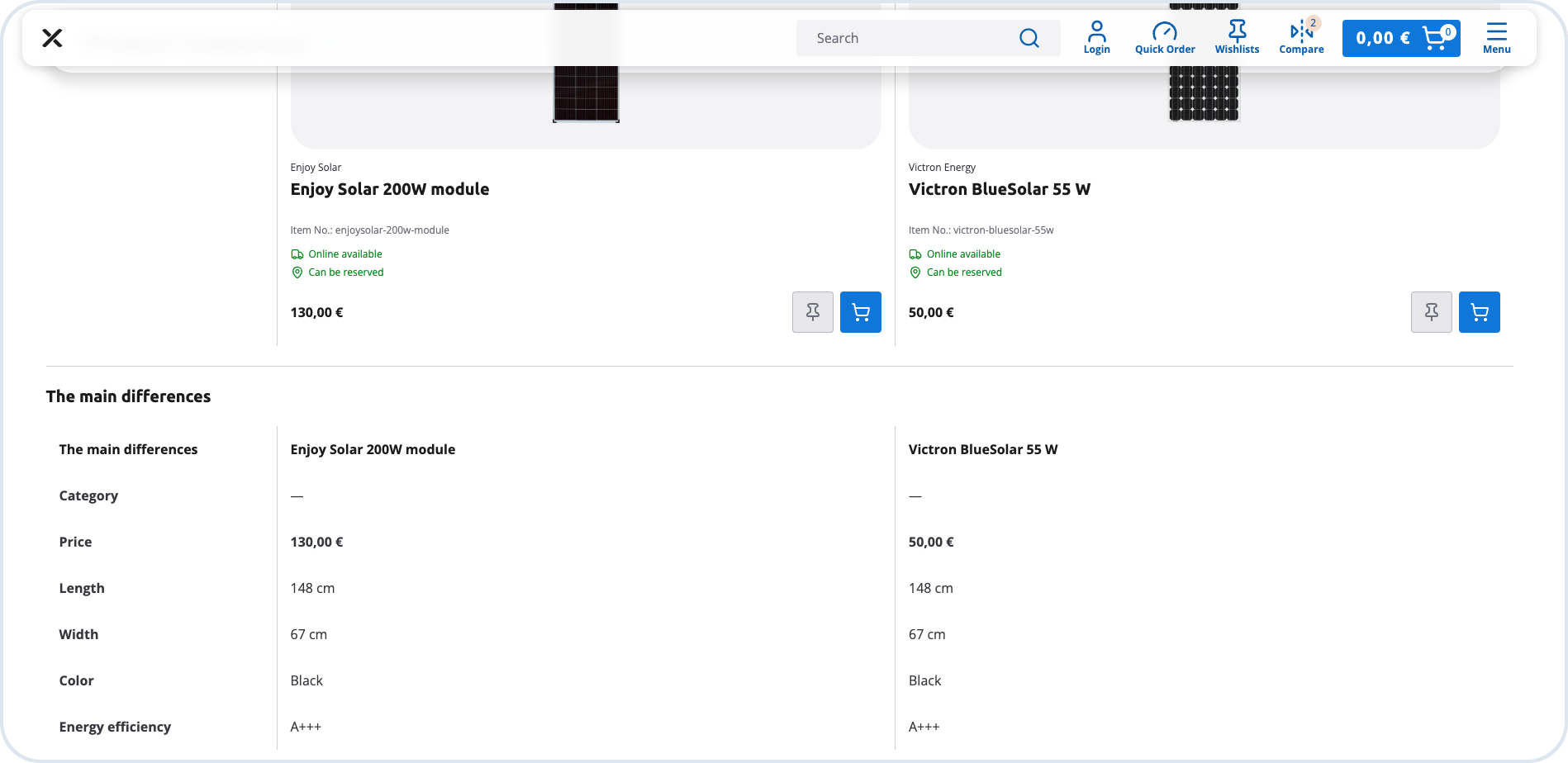
Product comparison view with side-by-side specifications
Ordering and checkout

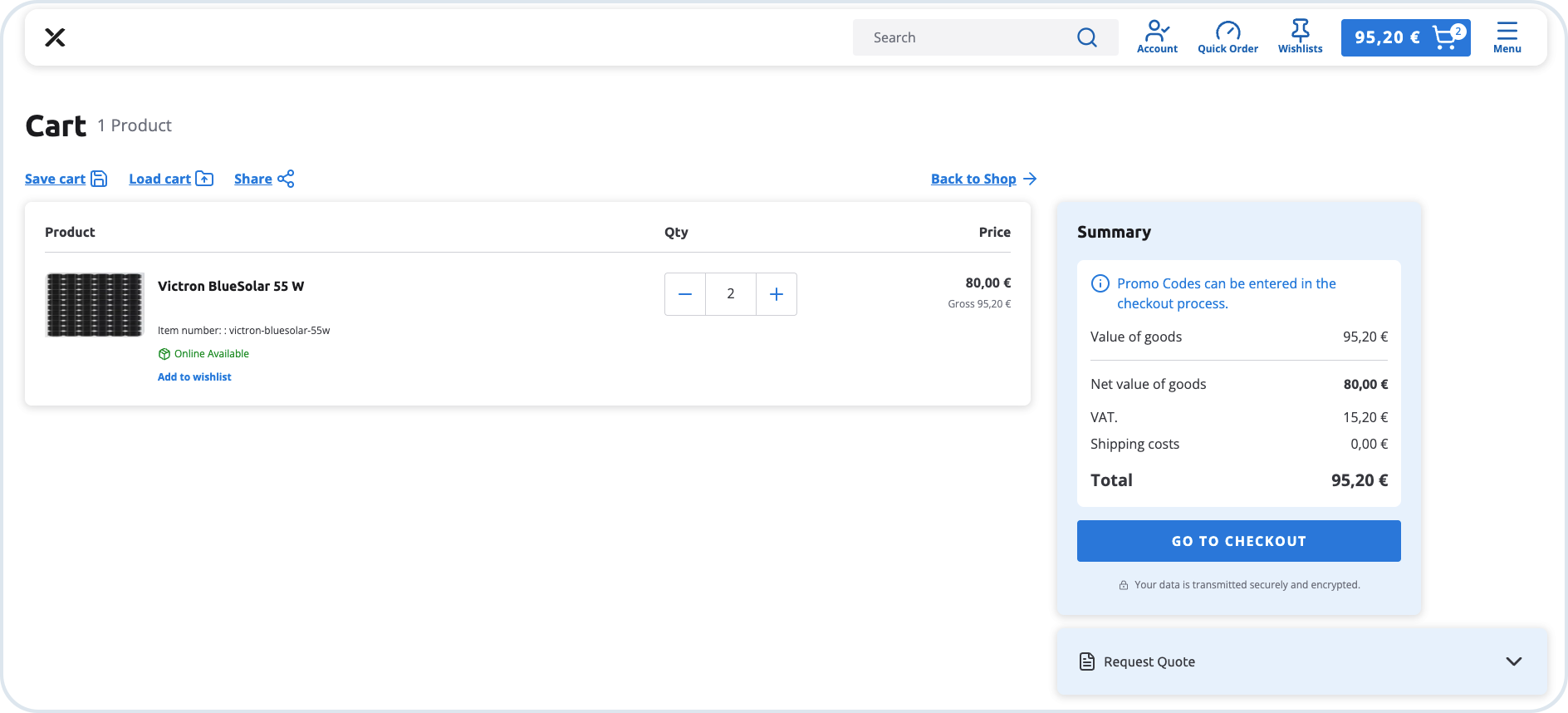
As customers add products, items appear in the shopping cart where selections can be reviewed before placing an order. Customers can update quantities, remove items, and review totals at any time.

Cart view

Customers can proceed to checkout either as registered users or as guests. Guest checkout allows customers to place orders without creating an account, while still generating an order record that the merchant can process in the management dashboard.

During checkout, customers provide shipping and billing details, choose delivery and payment options, and review the final order summary. Promo or coupon codes can be applied during this step, with updated totals displayed immediately.

For B2B scenarios, additional purchasing flows are available. Customers can request a quote directly from the cart, allowing merchants to review the request and respond with a negotiated offer. Some organizations may also use approval-based purchasing, where an order is submitted internally for approval before it is finalized.

Once the order is confirmed, it becomes visible to both the customer and the merchant, marking the completion of the storefront journey.

Last updated

Was this helpful?