> For the complete documentation index, see [llms.txt](https://developer.emporix.io/llms.txt). Markdown versions of documentation pages are available by appending `.md` to page URLs; this page is available as [Markdown](https://developer.emporix.io/import-tool/import-setup-and-jobs/connections.md).

# Connections

Set up and manage source connections in the Import Tool so you can import data from external systems.

A connection links the Import Tool to an external source system. You must create a connection before you can configure and run a stream. Within the **Connections** view, you add the connections, their credentials, configure source-specific catalog or location settings when available, and test that the source is reachable.

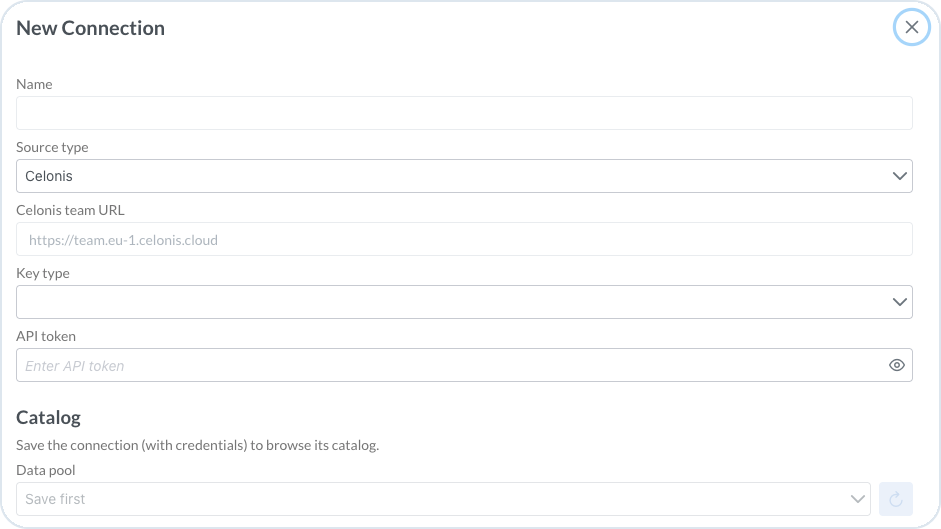
<figure><img src="https://2637457592-files.gitbook.io/~/files/v0/b/gitbook-x-prod.appspot.com/o/spaces%2F9VS91qn3Ylwd58YivX1A%2Fuploads%2Fgit-blob-2c6a52dc3a0b3709edcb6a861ab530ff02aa5595%2Fit_connections.png?alt=media" alt="Connections page listing configured sources with credential status"><figcaption><p>Connections page with configured sources, credential status, and Test, Edit, and Delete actions</p></figcaption></figure>

{% hint style="info" %}
Complete the [Prerequisites](/import-tool/import-setup-and-jobs/prerequisites.md) before you set up a connection. Source systems also need their own permissions before you import data. For examples, see [Importing from Celonis](/import-tool/import-configuration-examples/celonis-example.md) and [Importing Using HTTP](/import-tool/import-configuration-examples/http-example.md).
{% endhint %}

## Create a connection

{% stepper %}
{% step %}

#### Open the Import Tool

In **Management Dashboard**, open the **Import Tool** perspective.
{% endstep %}

{% step %}

#### Open Connections

In the sidebar, choose **Connections**.
{% endstep %}

{% step %}

#### Start a new connection

Choose **+ New connection**.
{% endstep %}

{% step %}

#### Enter connection details

Provide a **Name** for the connection, then choose the **Source type**. Supported source types include **Celonis** and **HTTP / REST API**.

Enter the credentials and other settings required for the selected source. The fields depend on the source type. The following sections explain the **HTTP / REST API** and **Celonis** settings.
{% endstep %}

{% step %}

#### Save and test the connection

Choose **Save**, then choose **Test connection** to verify that the Import Tool can reach the source with the stored credentials.

The connection appears in the list. When credentials are saved successfully, the **Credential** column shows **Stored**.
{% endstep %}
{% endstepper %}

After the connection is stored and tested, open [Imports](/import-tool/import-setup-and-jobs/imports.md) and [create a stream](/import-tool/import-setup-and-jobs/imports/creating-streams.md) that uses this connection as its source.

{% hint style="success" %}
Use a clear connection name that identifies the source system and environment. You have to select this connection later when you create a stream.
{% endhint %}

## HTTP / REST API

Use **HTTP / REST API** when the source exposes records over HTTP.

<figure><img src="https://2637457592-files.gitbook.io/~/files/v0/b/gitbook-x-prod.appspot.com/o/spaces%2F9VS91qn3Ylwd58YivX1A%2Fuploads%2Fgit-blob-3b46f5cf5ce8e130ead1b2075297b6f11aa8e9a8%2Fit_connection_http.png?alt=media" alt="Edit Connection dialog for HTTP / REST API with field discovery"><figcaption><p>HTTP / REST API connection with base URL, authentication, sampling, and connection test</p></figcaption></figure>

On **New Connection**, set:

* **Name** – a label for the connection
* **Source type** – **HTTP / REST API**
* **Base URL** – the API root, for example `https://api.example.com/v1`
* **Authentication** – the authentication method, for example **Bearer token**

### Field discovery

Field discovery tells the mapping editor how to find the fields of this API:

* **Auto-sample the live API (poll a few pages)** – retrieves sample records directly from the API. If the **Base URL** does not point to the records endpoint, enter the remaining endpoint path in **Sample path**. Then select **Sample now**.
* To use an API specification, choose the matching format: **OpenAPI / JSON Schema**, **WSDL**, **XSD**, **OData EDMX**, or **GraphQL**. The Import Tool reads the field definitions from the specification.

Save the connection before you discover fields from a specification.

{% hint style="success" %}
After you save the HTTP connection, configure the request on the stream **HTTP endpoint** tab. See [HTTP endpoint](/import-tool/import-setup-and-jobs/imports/configuring-streams.md#http-endpoint). For a full walkthrough, see [Importing Using HTTP](/import-tool/import-configuration-examples/http-example.md).
{% endhint %}

## Celonis

Use **Celonis** when the source is a Celonis Knowledge Model.

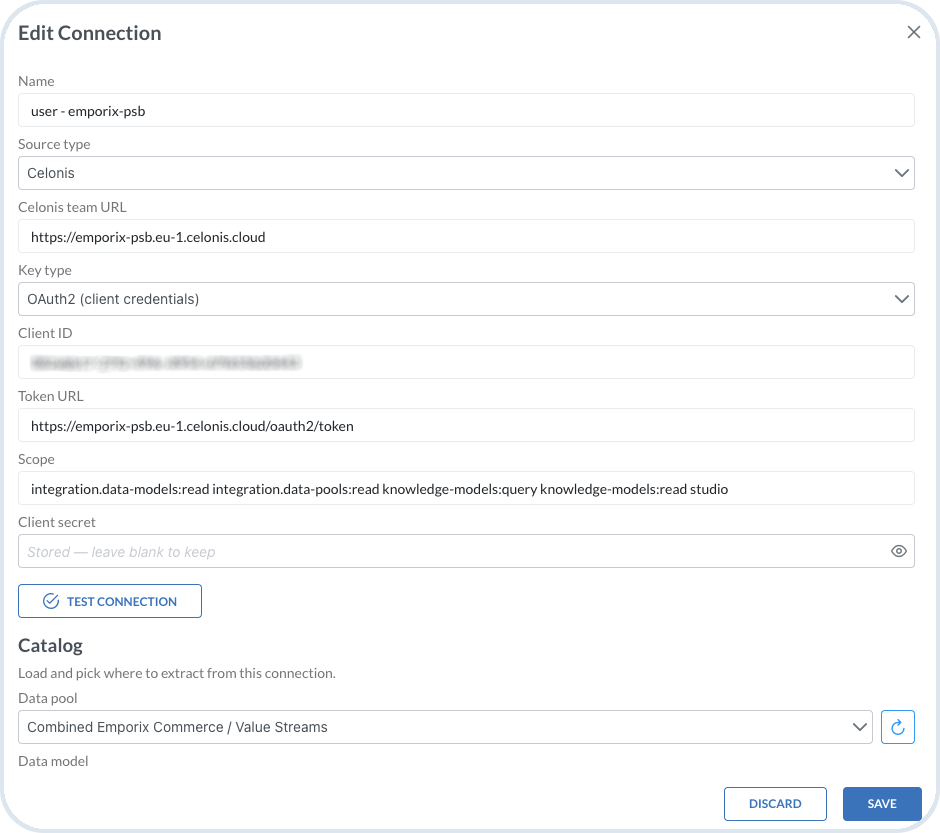
<figure><img src="https://2637457592-files.gitbook.io/~/files/v0/b/gitbook-x-prod.appspot.com/o/spaces%2F9VS91qn3Ylwd58YivX1A%2Fuploads%2Fgit-blob-d069184450e132216e79a081cd6a86e0882ffd61%2Fit_connection_celonis.png?alt=media" alt="New Connection dialog for Celonis with API token and catalog"><figcaption><p>New Celonis connection with key type, API token, and catalog fields that stay disabled until you save credentials</p></figcaption></figure>

On **New Connection**, set:

* **Name** – a label for the connection
* **Source type** – **Celonis**
* **Celonis team URL** – the team URL for your environment, for example `https://team.eu-1.celonis.cloud`
* **Key type** – **API token** or **OAuth2 (client credentials)**

For **API token**, enter the token in **API token**.

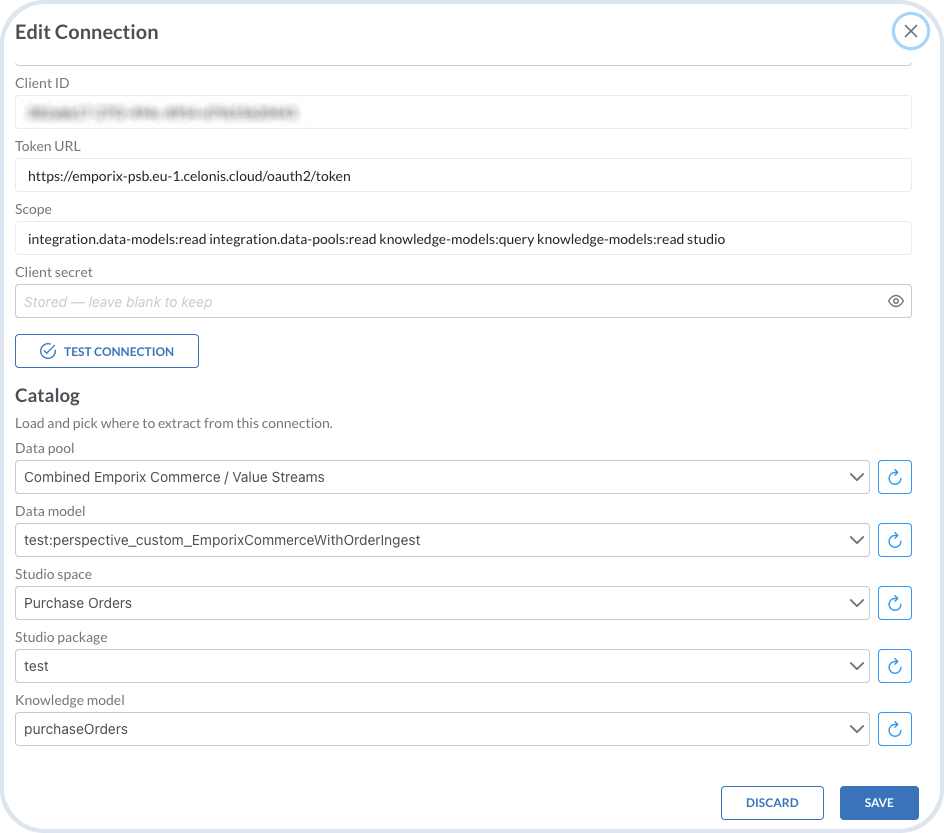
For **OAuth2 (client credentials)**, enter:

* **Client ID**
* **Token URL**
* **Scope**
* **Client secret**

The OAuth client must include the following scopes for catalog access:

```
integration.data-models:read integration.data-pools:read knowledge-models:query knowledge-models:read studio
```

{% hint style="warning" %}
Select **Save** after you provide the connection details. Otherwise, you cannot configure the catalog.
{% endhint %}

<figure><img src="https://2637457592-files.gitbook.io/~/files/v0/b/gitbook-x-prod.appspot.com/o/spaces%2F9VS91qn3Ylwd58YivX1A%2Fuploads%2Fgit-blob-3fadb1840af214f04298614bfae950775090c532%2Fit_user_connection.png?alt=media" alt="Edit connection dialog with Celonis OAuth2 client credentials and scopes"><figcaption><p>Celonis connection with OAuth2 client credentials, token URL, and required scopes</p></figcaption></figure>

### Catalog

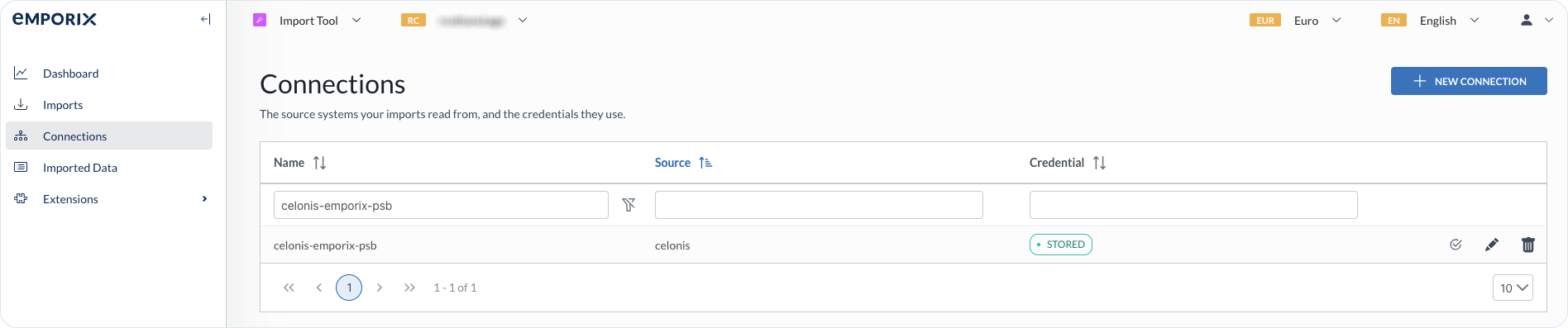
After you save the connection and its credentials, the catalog fields become available. Select the catalog details from top to bottom because each selection makes the next field available. For example, select a **Data pool** before you can select a **Data model**.

1. **Data pool**
2. **Data model**
3. **Studio space**
4. **Studio package**
5. **Knowledge model**

When the catalog selection is complete, select **Save**.

<figure><img src="https://2637457592-files.gitbook.io/~/files/v0/b/gitbook-x-prod.appspot.com/o/spaces%2F9VS91qn3Ylwd58YivX1A%2Fuploads%2Fgit-blob-93e4b168c31bbbdfe86a50382c25f8fa29c1fda2%2Fit_catalog_connection.png?alt=media" alt="Edit connection dialog showing Catalog fields for data pool, data model, Studio space, package, and knowledge model"><figcaption><p>Catalog configuration for a Celonis connection, with data pool, data model, Studio space, package, and knowledge model selected</p></figcaption></figure>

For Celonis Studio and data-pool permissions, see [Importing from Celonis](/import-tool/import-configuration-examples/celonis-example.md).

## Managing connections

From the **Connections** list you can:

* **Test connection** – verify that the connection still works with the stored credentials.
* **Edit** – update the name, credentials, or source-specific settings.
* **Delete** – remove a connection that you no longer need.

{% hint style="warning" %}
Before you delete a connection, check that no streams still use it as their source. Update or remove those streams first.
{% endhint %}


---

# Agent Instructions
This documentation is published with GitBook. GitBook is the documentation platform designed so that both humans and AI agents can read, navigate, and reason over technical content effectively. Learn more at gitbook.com.

## Querying This Documentation
If you need additional information that is not directly available in this page, you can query the documentation dynamically by asking a question.

Perform an HTTP GET request on the current page URL with the `ask` query parameter, and the optional `goal` query parameter:

```
GET https://developer.emporix.io/import-tool/import-setup-and-jobs/connections.md?ask=<question>&goal=<endgoal>
```

`ask` is the immediate question: it should be specific, self-contained, and written in natural language.
`goal` is optional and describes the broader end goal you are ultimately trying to accomplish on behalf of the user. GitBook uses it to tailor the answer towards what is most useful for that goal.

The response will contain a direct answer to the question and relevant excerpts and sources from the documentation.

Use this mechanism when the answer is not explicitly present in the current page, you need clarification or additional context, or you want to retrieve related documentation sections.