> For the complete documentation index, see [llms.txt](https://developer.emporix.io/llms.txt). Markdown versions of documentation pages are available by appending `.md` to page URLs; this page is available as [Markdown](https://developer.emporix.io/import-tool/import-setup-and-jobs/imported-data.md).
# Imported Data
Review and filter the import ledger written by the Import Tool, including the mapping of Source ID and Emporix IDs, the import outcome, and last import date.
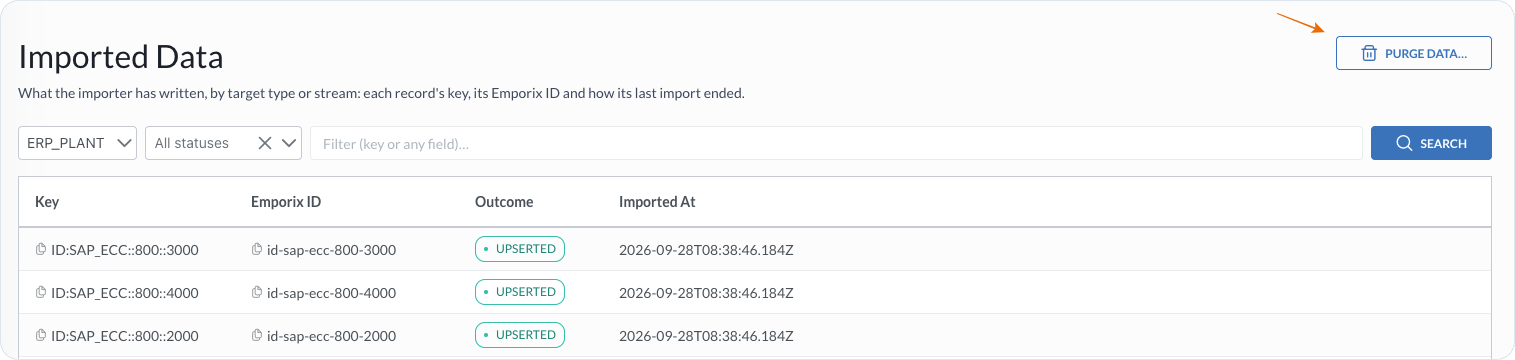
Use **Imported Data** to review what the Import Tool has written. The view shows each record's source key, Emporix ID, latest import outcome, and import time.
Imported Data with target type, status, search, and record results
## Open Imported Data
{% stepper %}
{% step %}
#### Open the Import Tool
In **Management Dashboard**, open the **Import Tool** perspective.
{% endstep %}
{% step %}
#### Open Imported Data
In the sidebar, choose **Imported Data**.
{% endstep %}
{% endstepper %}
## Filtering and searching records
Use the controls above the table to narrow the results:
* **Target type** – select the target entity type whose records you want to review.
* **Status** – select an import outcome, or keep **All statuses**.
* **Filter** – enter a key or field value, then select **Search**.
* **Purge data...** – open the purge action for the current view.
## Reviewing the results
The results table includes:
* **Key** – source key used to identify the record
* **Emporix ID** – identifier of the target entity in Emporix
* **Outcome** – result of the latest import operation for the record
* **Imported At** – date and time of the latest import operation
Use the copy action next to a key or Emporix ID when you need the value for troubleshooting.
{% hint style="info" %}
**Imported Data** shows records written by a full or delta run. Dry runs do not create rows here. The **Emporix ID** is the `id` of the target instance, for example a **Custom Instances** record.
{% endhint %}
## Purging imported data
Use **Purge data** to reset import tracking or remove target instances for the selected target type across the tenant.
Choose one of the following options:
* **Forget import ledger (keep target)** – clear the Import Tool's record of imported instances and reset the delta watermark without deleting target instances. The next run processes every source record again while preserving data managed outside the Import Tool. Target instances for records that no longer exist in the source remain.
* **Full – also delete target instances** – clear the import ledger and delete target instances created by the Import Tool. The next run recreates records from the source, so only entities still present in the source remain in the target. Attributes managed outside the Import Tool are not preserved.
* **Sweep – delete ALL instances of this type** – clear the import ledger and delete every target instance of the selected type, including instances that were not created by the Import Tool.
Purge data options for resetting the import ledger or deleting target instances
{% hint style="warning" %}
Forgetting the import ledger removes the record of which target instances were imported. A later **Full** purge cannot find those instances. To delete them after the ledger is forgotten, you must use **Sweep**. If you intend to remove target instances, select **Full** or **Sweep** before you confirm the purge.
{% endhint %}
{% stepper %}
{% step %}
#### Choose a target type
In **Imported Data**, choose the target type you want to purge.
{% endstep %}
{% step %}
#### Open the purge dialog
Choose **Purge data...**.
{% endstep %}
{% step %}
#### Choose the purge scope
Choose **Forget import ledger (keep target)**, **Full – also delete target instances**, or **Sweep – delete ALL instances of this type** after reviewing its effect.
{% endstep %}
{% step %}
#### Confirm the target type
Enter the target type name shown in the dialog, then choose the confirmation action for that option. For **Forget import ledger (keep target)**, choose **Forget ledger**.
{% endstep %}
{% endstepper %}
## Reviewing the ledger for one stream
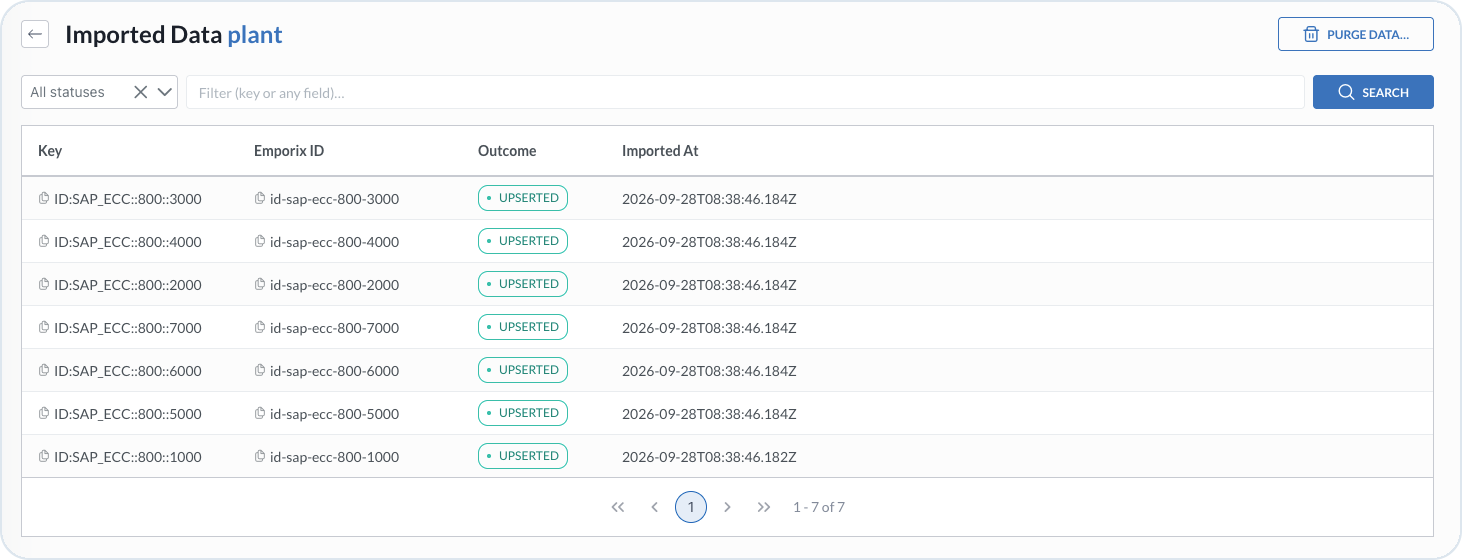
To review records from one stream, open the import in [Imports](/import-tool/import-setup-and-jobs/imports.md), open the three-dot stream actions menu, and select **View imported data**. The stream-scoped view provides status and search filters without requiring you to select a target type.
Imported data scoped to one stream
{% hint style="warning" %}
If records are missing or have an unexpected outcome, open the import's [Run history](/import-tool/import-setup-and-jobs/imports/running-imports.md#run-history). Review the per-stream logs and errors, then use **Check schema** and [Field Mapping](/import-tool/import-setup-and-jobs/imports/field-mapping.md) to verify the source and target configuration.
{% endhint %}
---
# Agent Instructions
This documentation is published with GitBook. GitBook is the documentation platform designed so that both humans and AI agents can read, navigate, and reason over technical content effectively. Learn more at gitbook.com.
## Querying This Documentation
If you need additional information that is not directly available in this page, you can query the documentation by asking a question.
Perform an HTTP GET request on the following URL with the `ask` and `goal` query parameters:
```
GET https://developer.emporix.io/import-tool/import-setup-and-jobs/imported-data.md?ask=&goal=
```
`ask` is the immediate question: it should be specific, self-contained, and written in natural language.
`goal` is what the user is ultimately trying to achieve, the reason they need the answer. Sharing it helps GitBook give you a better, more relevant answer. A goal is most helpful when it describes the outcome the user wants rather than restating the question. For example, with `ask=how do I create an API token`, a goal like `automate deployments from our CI pipeline` lets GitBook tailor the answer to that use case.
The response will contain a direct answer to the question and relevant excerpts and sources from the documentation.
Use this mechanism when the answer is not explicitly present in the current page, you need clarification or additional context, or you want to retrieve related documentation sections.