> For the complete documentation index, see [llms.txt](https://developer.emporix.io/llms.txt). Markdown versions of documentation pages are available by appending `.md` to page URLs; this page is available as [Markdown](https://developer.emporix.io/import-tool/import-setup-and-jobs/imports/running-imports.md).

# Running and Monitoring Imports

Schedule, run, and monitor imports, then review run history, stream dependencies, and imported records.

After you [configure streams](/import-tool/import-setup-and-jobs/imports/configuring-streams.md) and publish their [field mappings](/import-tool/import-setup-and-jobs/imports/field-mapping.md), run the import on demand or schedule automated runs.

{% hint style="warning" %}
Publish the stream mapping before a real run. If Field Mapping shows **Never published**, that stream is not imported when you use **Run options**. You can still use **Dry run** with **Draft** mappings to preview before you publish.
{% endhint %}

## Schedule an import

{% stepper %}
{% step %}

#### Open the schedule

At the top of the import details view, choose the schedule summary.
{% endstep %}

{% step %}

#### Configure the schedule

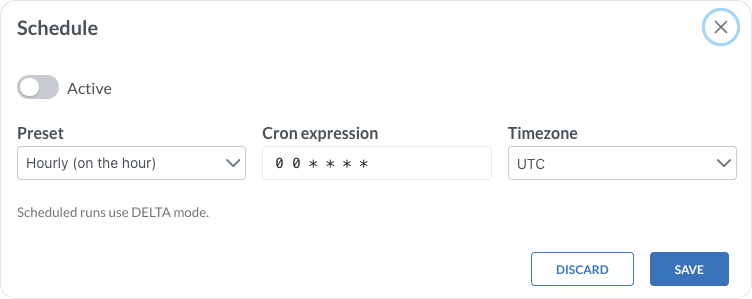
In the **Schedule** dialog, turn on **Active**, then set:

* **Preset** – choose a schedule preset, for example **Hourly (on the hour)**
* **Cron expression** – define or adjust the schedule with a cron expression
* **Timezone** – set the timezone for the schedule
  {% endstep %}

{% step %}

#### Save the schedule

Choose **Save**. The schedule summary shows the preset, cron expression, and timezone.
{% endstep %}
{% endstepper %}

<figure><img src="https://2637457592-files.gitbook.io/~/files/v0/b/gitbook-x-prod.appspot.com/o/spaces%2F9VS91qn3Ylwd58YivX1A%2Fuploads%2Fgit-blob-4dec1c95a8c2fdb4064091a730f41319b1bdfa85%2Fit_streams_schedule.png?alt=media" alt="Schedule dialog with Active, Preset, Cron expression, and Timezone" width="600"><figcaption><p>Schedule configuration for automated DELTA runs</p></figcaption></figure>

{% hint style="success" %}
Scheduled runs always use **DELTA** mode.
{% endhint %}

## Run an import

{% stepper %}
{% step %}

#### Optionally preview the import

Choose **Dry run** to preview how the data will be mapped without writing it to Emporix. Choose a sample size, then select which mappings to preview:

* **Draft** – preview the saved draft before you publish
* **Published** – preview the last published version that real runs use

Choose **Run dry run**.

{% hint style="info" %}
After a dry run finishes, open **Dry run** again and choose **View mapped sample** to review the mapped output. **View mapped sample** is unavailable until you run a dry run first. Dry runs do not write target records.
{% endhint %}
{% endstep %}

{% step %}

#### Open the run options

Choose **Run options**.
{% endstep %}

{% step %}

#### Choose the run mode and start the run

Choose the required mode:

* **Delta** – run all enabled streams and import only records that changed, based on each stream's delta field
* **Full** – run all enabled streams and respect any configured record limit
* **Full, Force** – run a full import and rewrite every record, even when unchanged

Confirm the stream selection, then choose **Run streams**.
{% endstep %}
{% endstepper %}

Runs follow the sequence defined by **Depends on** and **Run order**. Select **Refresh** in [Imports](/import-tool/import-setup-and-jobs/imports.md) after a run to update status, last run time, next run time, and error counts. Use the [Dashboard](/import-tool/dashboard.md) to monitor health and failures across imports.

## Run history

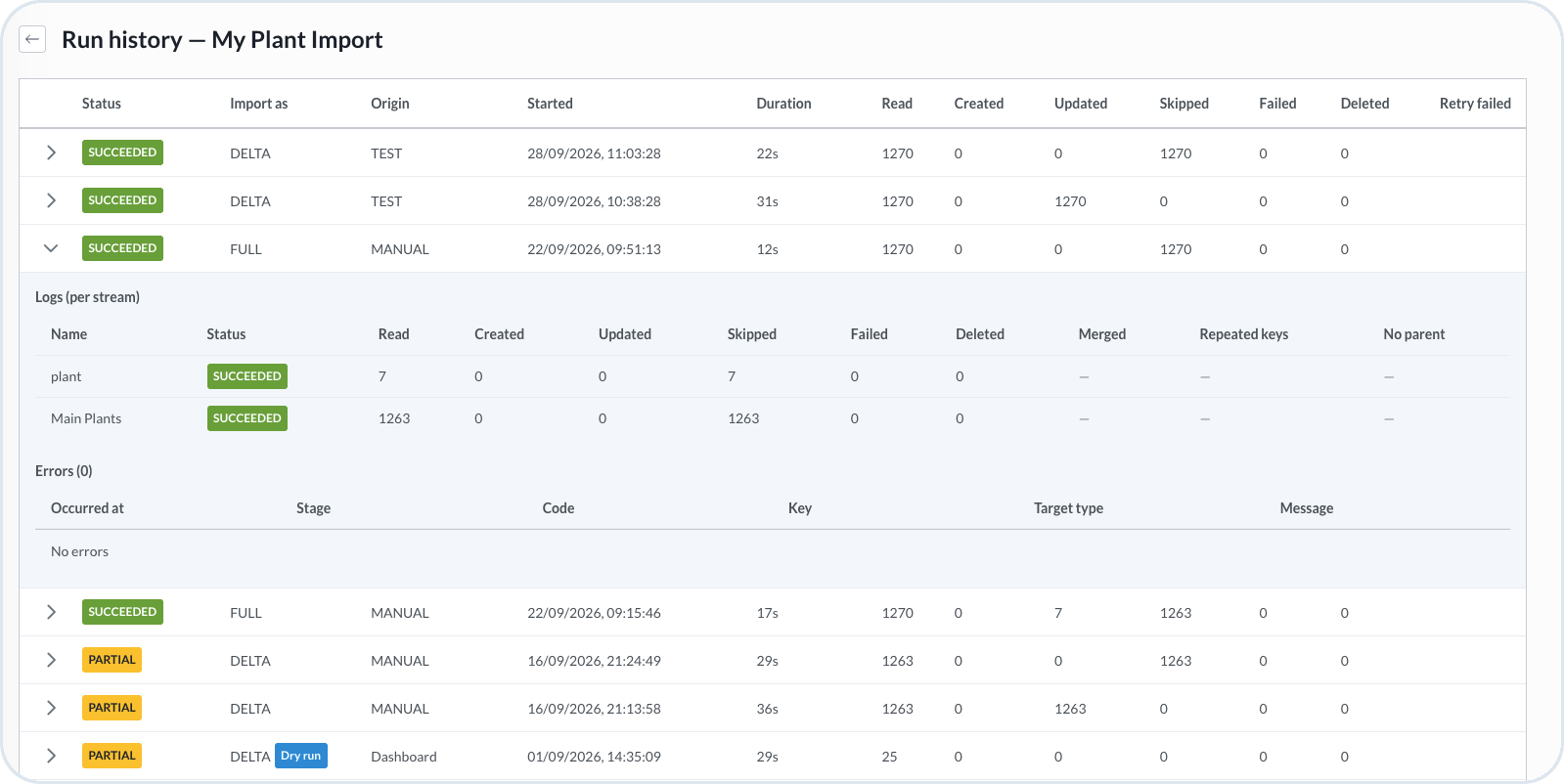
Open **Run history** from the import actions menu to review previous runs. Each row shows **Status**, **Import as**, **Origin**, **Started**, **Duration**, and counts for **Read**, **Created**, **Updated**, **Skipped**, **Failed**, and **Deleted** records. The table also includes a **Retry failed** column.

Expand a row to review per-stream logs and errors for that run.

<figure><img src="https://2637457592-files.gitbook.io/~/files/v0/b/gitbook-x-prod.appspot.com/o/spaces%2F9VS91qn3Ylwd58YivX1A%2Fuploads%2Fgit-blob-1d7a7fdeee3c9c9245d8a3422419fe2720e47828%2Fit_imports_run_history.png?alt=media" alt="Run history with statuses, modes, record counts, stream logs, and errors"><figcaption><p>Run history for an import with an expanded run and per-stream results</p></figcaption></figure>

## Run order and dependencies

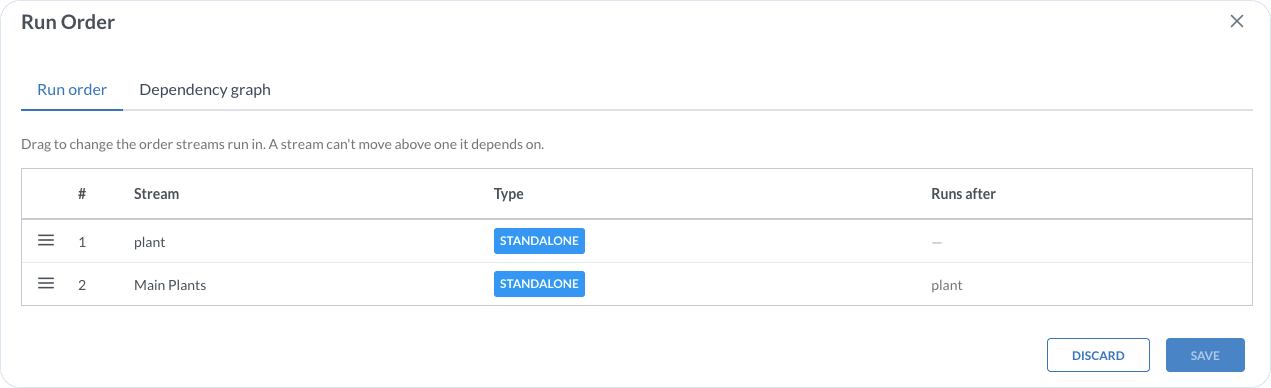
Open **Run order** from the import actions menu. The dialog has two tabs:

* **Run order** – shows the sequence, stream type, and the preceding stream in **Runs after**. Drag streams to adjust their order. A stream cannot move above a stream on which it depends.
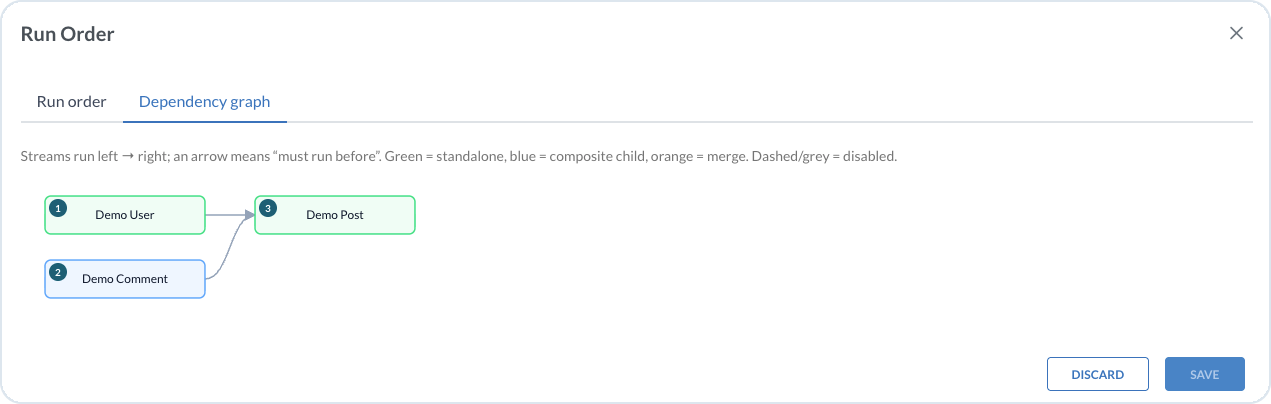
* **Dependency graph** – visualizes the same relationships. Streams run left to right. An arrow means one stream must run before another. Green is standalone, blue is composite child, orange is merge, and dashed or grey is disabled.

Set stream dependencies on the **Target** tab with **Depends on**, or through composite parent and child links. Confirm the resulting sequence here before you run.

<figure><img src="https://2637457592-files.gitbook.io/~/files/v0/b/gitbook-x-prod.appspot.com/o/spaces%2F9VS91qn3Ylwd58YivX1A%2Fuploads%2Fgit-blob-6cc1e91beacc618bb91f86065fdadd3ddd8c5b03%2Fit_imports_run_order.png?alt=media" alt="Run Order dialog with stream sequence and dependencies"><figcaption><p>Run order with stream types and dependency sequence</p></figcaption></figure>

<figure><img src="https://2637457592-files.gitbook.io/~/files/v0/b/gitbook-x-prod.appspot.com/o/spaces%2F9VS91qn3Ylwd58YivX1A%2Fuploads%2Fgit-blob-6ce938f6297d852205a7e68fea4f907a0f0b9e18%2Fit_lp_graph.png?alt=media" alt="Run Order dialog Dependency graph tab with stream nodes and arrows"><figcaption><p>Dependency graph tab showing which streams must run before others</p></figcaption></figure>

## Review imported data

After a run, select **View imported data** for the stream to inspect record outcomes. See [Imported Data](/import-tool/import-setup-and-jobs/imported-data.md) for filters, result fields, and troubleshooting.

{% hint style="warning" %}
If a run or stream fails, check **Run history** and error counts. Follow the troubleshooting guidance in [Imported Data](/import-tool/import-setup-and-jobs/imported-data.md), then review the stream configuration before you run again. Use the [Dashboard](/import-tool/dashboard.md) to see which streams are unhealthy.
{% endhint %}


---

# Agent Instructions
This documentation is published with GitBook. GitBook is the documentation platform designed so that both humans and AI agents can read, navigate, and reason over technical content effectively. Learn more at gitbook.com.

## Querying This Documentation
If you need additional information that is not directly available in this page, you can query the documentation by asking a question.

Perform an HTTP GET request on the following URL with the `ask` and `goal` query parameters:

```
GET https://developer.emporix.io/import-tool/import-setup-and-jobs/imports/running-imports.md?ask=<question>&goal=<user_goal>
```

`ask` is the immediate question: it should be specific, self-contained, and written in natural language.
`goal` is what the user is ultimately trying to achieve, the reason they need the answer. Sharing it helps GitBook give you a better, more relevant answer. A goal is most helpful when it describes the outcome the user wants rather than restating the question. For example, with `ask=how do I create an API token`, a goal like `automate deployments from our CI pipeline` lets GitBook tailor the answer to that use case.

The response will contain a direct answer to the question and relevant excerpts and sources from the documentation.

Use this mechanism when the answer is not explicitly present in the current page, you need clarification or additional context, or you want to retrieve related documentation sections.