> For the complete documentation index, see [llms.txt](https://developer.emporix.io/llms.txt). Markdown versions of documentation pages are available by appending `.md` to page URLs; this page is available as [Markdown](https://developer.emporix.io/import-tool/import-setup-and-jobs/prerequisites.md).

# Prerequisites

Set up Emporix access so you can use the Import Tool to import data from external systems.

Before you use the Import Tool, prepare Emporix access: create a user group with the required access controls and grant that group access to the Import Tool perspective in the Management Dashboard.

{% hint style="info" %}
Source systems also need their own permissions before you import data. For an example based on Celonis configuration, see [Importing from Celonis](/import-tool/import-configuration-examples/celonis-example.md).
{% endhint %}

## Access controls

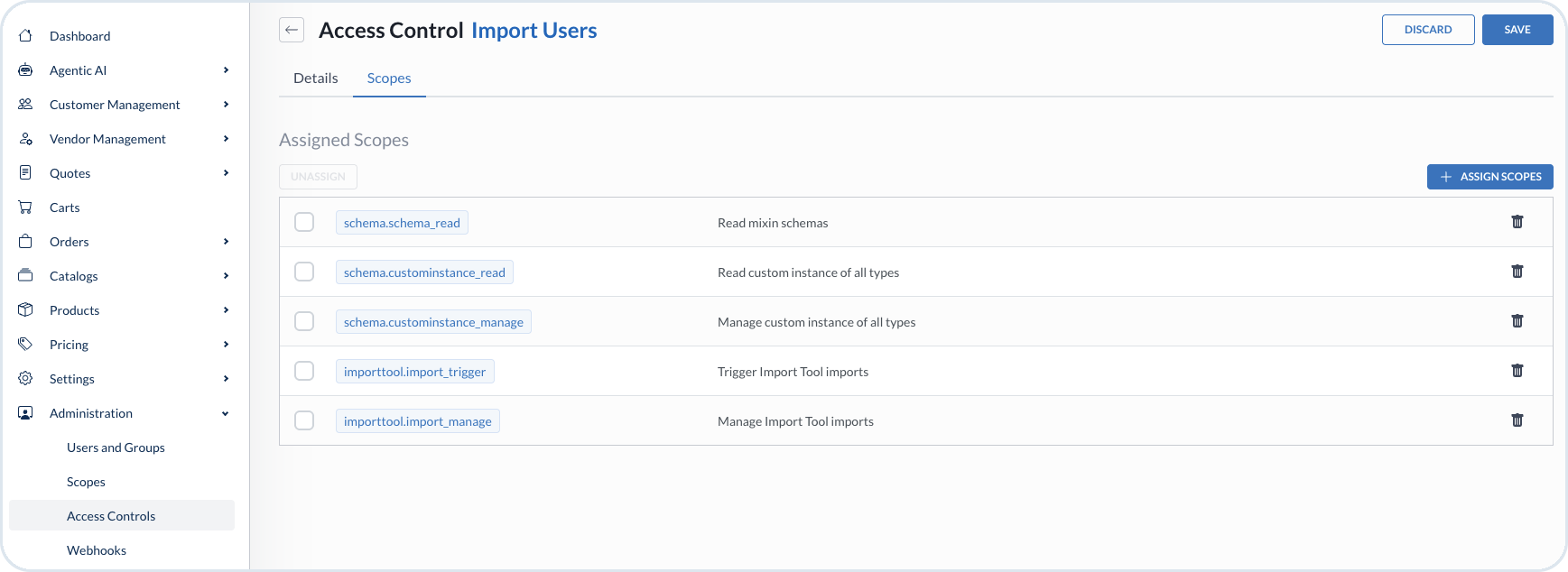
Create an access control, or update an existing one, that includes the scopes the Import Tool needs. For example, when you import data related to custom entities, include the following scopes:

| Scope ID                       | Description                         |
| ------------------------------ | ----------------------------------- |
| `schema.schema_read`           | Read mixin schemas                  |
| `schema.custominstance_read`   | Read custom instance of all types   |
| `schema.custominstance_manage` | Manage custom instance of all types |
| `importtool.import_trigger`    | Trigger Import Tool imports         |
| `importtool.import_manage`     | Manage Import Tool imports          |

{% stepper %}
{% step %}

#### Open Access Controls

In **Management Dashboard**, go to **Administration** -> **Access Controls**.
{% endstep %}

{% step %}

#### Create or edit an access control

Create a new access control, or open an existing one that you want to use for imports.
{% endstep %}

{% step %}

#### Assign scopes

On the **Scopes** tab, choose **+ Assign Scopes** and add the scopes your import use case requires. Then choose **Save**.
{% endstep %}
{% endstepper %}

<figure><img src="https://2637457592-files.gitbook.io/~/files/v0/b/gitbook-x-prod.appspot.com/o/spaces%2F9VS91qn3Ylwd58YivX1A%2Fuploads%2Fgit-blob-473b429ba2a657751a6212e28b83fb855d2667c4%2Fit_access_controls.png?alt=media" alt="Access Control Scopes tab with Import Tool and schema scopes assigned"><figcaption><p>Scopes assigned to the Import Users access control, including Import Tool and schema permissions</p></figcaption></figure>

## User group

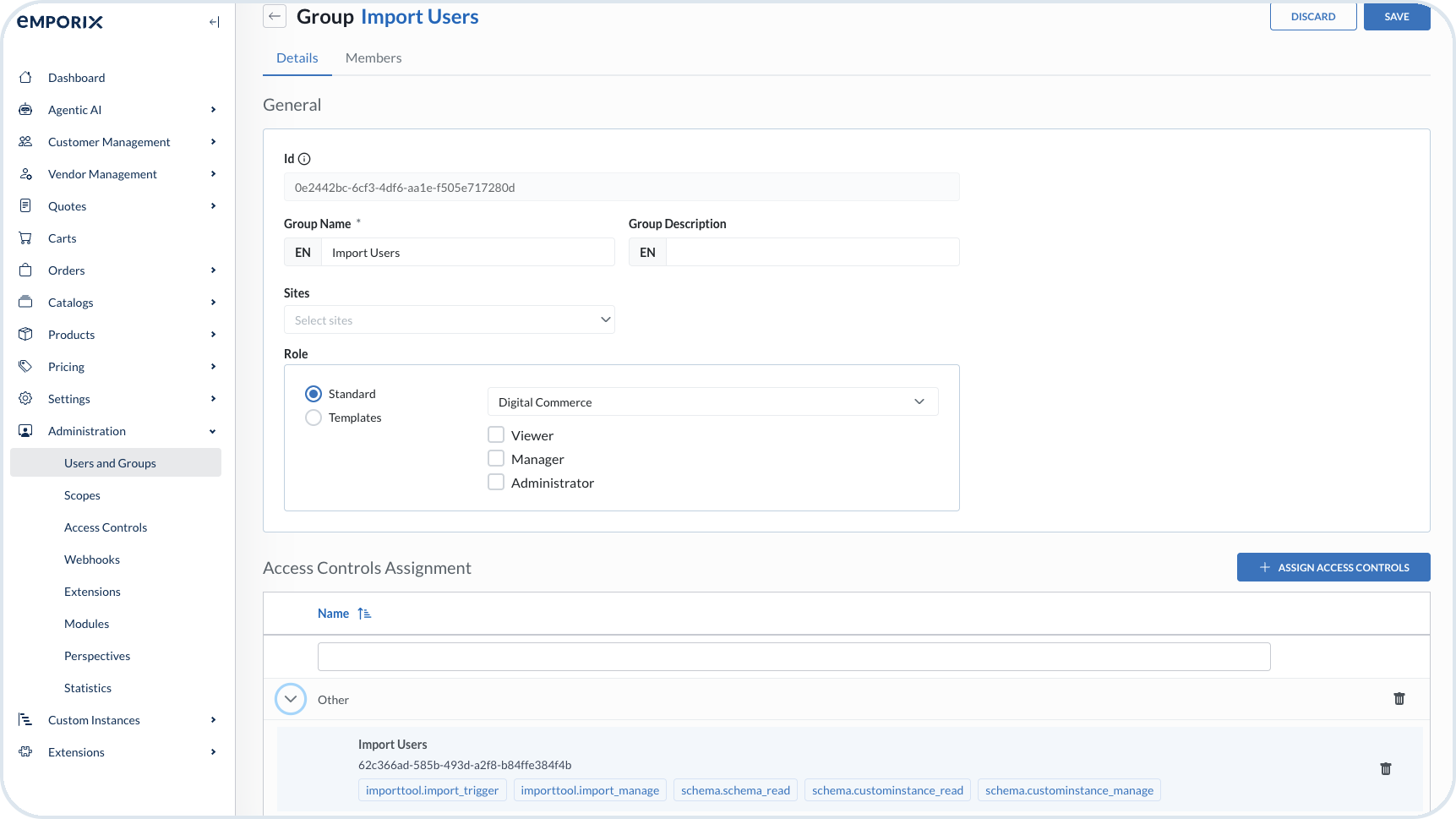
Create a user group with the import access controls, or update an existing group by assigning the additional access controls for the Import Tool.

{% stepper %}
{% step %}

#### Open Users and Groups

In **Management Dashboard**, go to **Administration** -> **Users and Groups** and open the **Groups** tab.
{% endstep %}

{% step %}

#### Create or edit a group

Create a new group, or open an existing group that can run imports.
{% endstep %}

{% step %}

#### Assign access controls

In **Access Controls Assignment**, choose **+ Assign Access Controls** and add the access control that contains the Import Tool scopes. Then choose **Save**.
{% endstep %}

{% step %}

#### Assign members

On the **Members** tab, add the users who can use the Import Tool.
{% endstep %}
{% endstepper %}

<figure><img src="https://2637457592-files.gitbook.io/~/files/v0/b/gitbook-x-prod.appspot.com/o/spaces%2F9VS91qn3Ylwd58YivX1A%2Fuploads%2Fgit-blob-067688c3e75bb4083d34dddefa542571d752efcb%2Fit_user_group.png?alt=media" alt="Import Users group with assigned Import Tool access controls"><figcaption><p>The Import Users group with the Import Tool and schema access controls assigned</p></figcaption></figure>

## Import Tool perspective

Grant the relevant user group access to the Import Tool perspective so members can open the Import Tool in the Management Dashboard.

{% stepper %}
{% step %}

#### Open Perspectives

In **Management Dashboard**, go to **Administration** -> **Perspectives**.
{% endstep %}

{% step %}

#### Edit the Import Tool perspective

Open the **Import Tool** perspective.
{% endstep %}

{% step %}

#### Assign the user group

In **Allowed Groups**, add the user group that has the Import Tool access controls. Confirm that the perspective is **Active**, then choose **Save**.
{% endstep %}
{% endstepper %}

<figure><img src="https://2637457592-files.gitbook.io/~/files/v0/b/gitbook-x-prod.appspot.com/o/spaces%2F9VS91qn3Ylwd58YivX1A%2Fuploads%2Fgit-blob-a64ec09202a35eb2989abf59a10bacc781892820%2Fit_perspective.png?alt=media" alt="Edit Perspective dialog for Import Tool with Import Users in Allowed Groups"><figcaption><p>The Import Tool perspective with the Import Users group added under Allowed Groups</p></figcaption></figure>

{% hint style="info" %}

* To learn more about access controls, see [Access Controls](/user-guides/management-dashboard/administration/access-controls.md).
* To learn more about managing users and groups, see [Users and Groups](/user-guides/management-dashboard/administration/usersandgroups.md).
* To learn more about perspectives, see [Perspectives](/user-guides/management-dashboard/administration/perspectives.md).
  {% endhint %}


---

# Agent Instructions
This documentation is published with GitBook. GitBook is the documentation platform designed so that both humans and AI agents can read, navigate, and reason over technical content effectively. Learn more at gitbook.com.

## Querying This Documentation
If you need additional information that is not directly available in this page, you can query the documentation dynamically by asking a question.

Perform an HTTP GET request on the current page URL with the `ask` query parameter, and the optional `goal` query parameter:

```
GET https://developer.emporix.io/import-tool/import-setup-and-jobs/prerequisites.md?ask=<question>&goal=<endgoal>
```

`ask` is the immediate question: it should be specific, self-contained, and written in natural language.
`goal` is optional and describes the broader end goal you are ultimately trying to accomplish on behalf of the user. GitBook uses it to tailor the answer towards what is most useful for that goal.

The response will contain a direct answer to the question and relevant excerpts and sources from the documentation.

Use this mechanism when the answer is not explicitly present in the current page, you need clarification or additional context, or you want to retrieve related documentation sections.