> For the complete documentation index, see [llms.txt](https://developer.emporix.io/llms.txt). Markdown versions of documentation pages are available by appending `.md` to page URLs; this page is available as [Markdown](https://developer.emporix.io/order-intake-cockpit/cockpit-views/documents.md).
# Documents
The Documents view shows processing statuses of order intakes, and enables correcting exceptions and continuing processing.
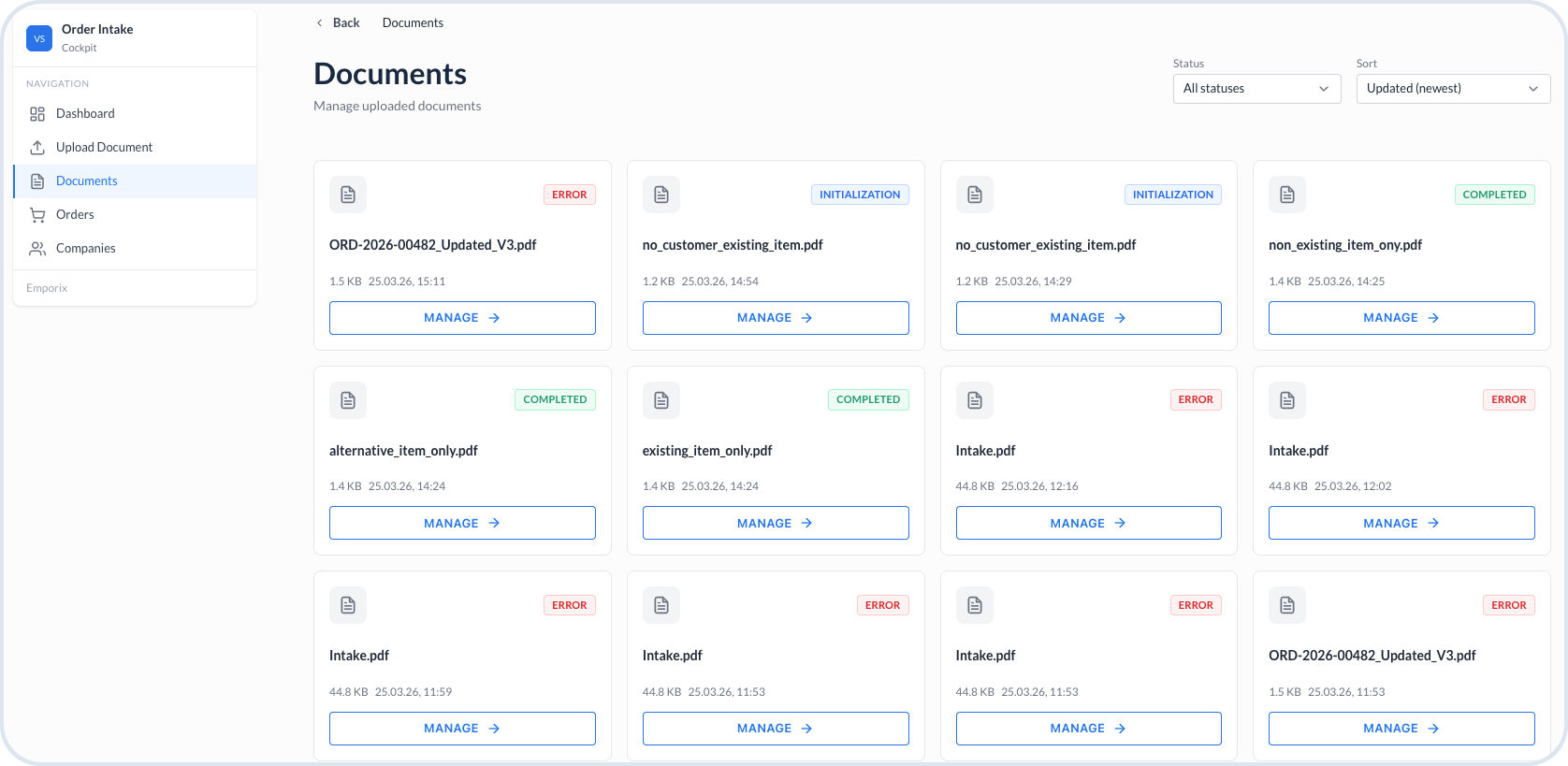
The **Documents** view provides a list of all incoming orders submitted to your company’s order inbox, either by email or through file upload. Both events trigger the Order Intake Value Stream, and the document view serves as a log of these incoming orders.
On this page, you can manage uploaded documents. Use the **Status** filter, for example: all statuses, and **Sort** options such as last updated or newest first, to refine and organize the list according to your needs.
Each card represents one uploaded file and displays key details, including the file name, file size, last updated timestamp, and a status badge. Document statuses include:
* **Initialization** - the Order Intake value stream has started for this upload, extraction and validation are in progress.
* **Processed** - no blocking errors were found, the intake is ready for review and the order can be submitted.
* **Completed** - processing finished and the order was submitted successfully.
* **Error** - processing stopped because required data is missing or invalid, or another failure occurred, you can fix the issues after choosing the **Manage** option.
* **Skipped** - the intake was rejected by the user and the *skipped* option was used in the document **Manage** view.
Documents — cockpit order intakes
## Managing the uploaded documents
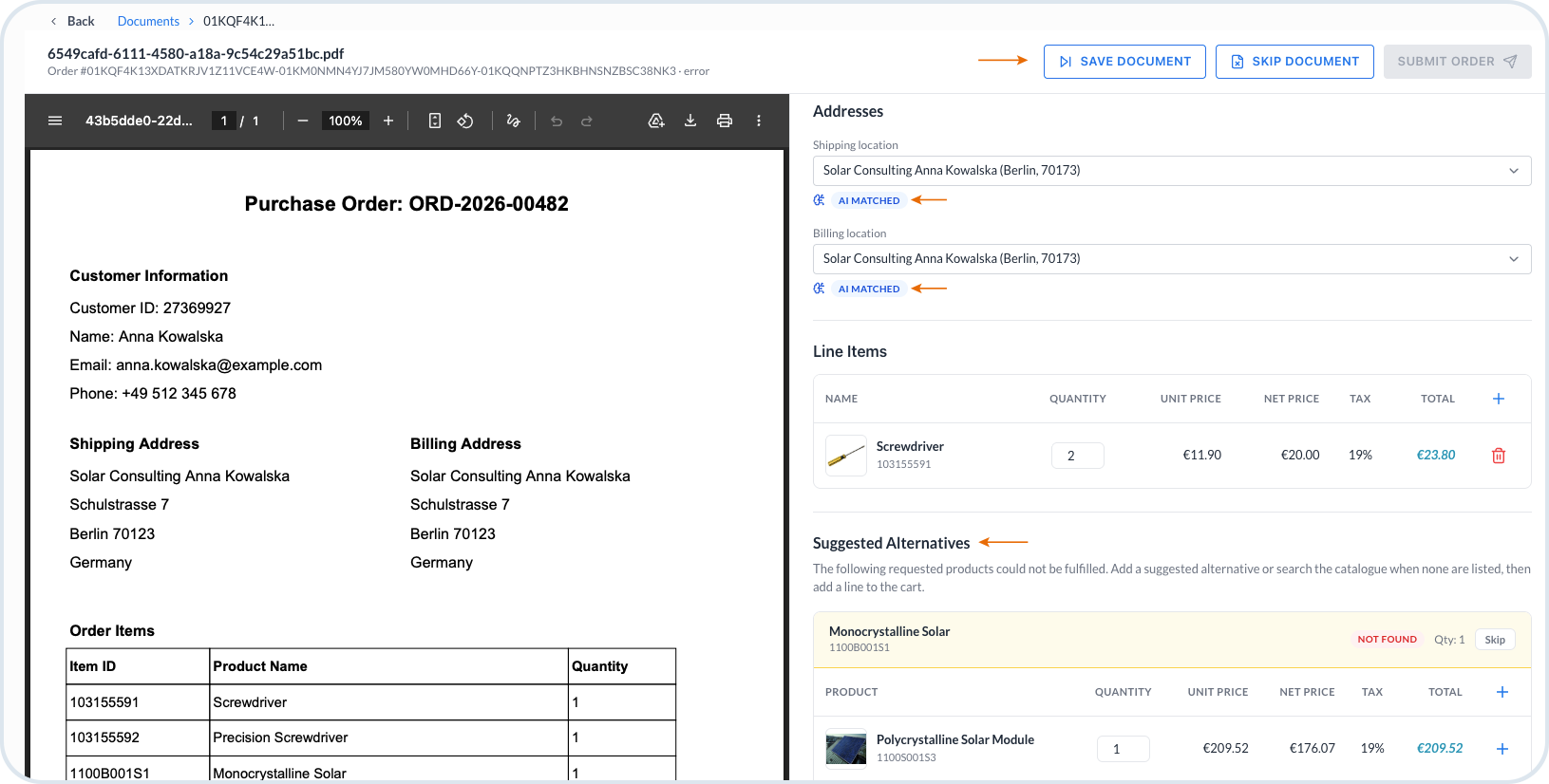
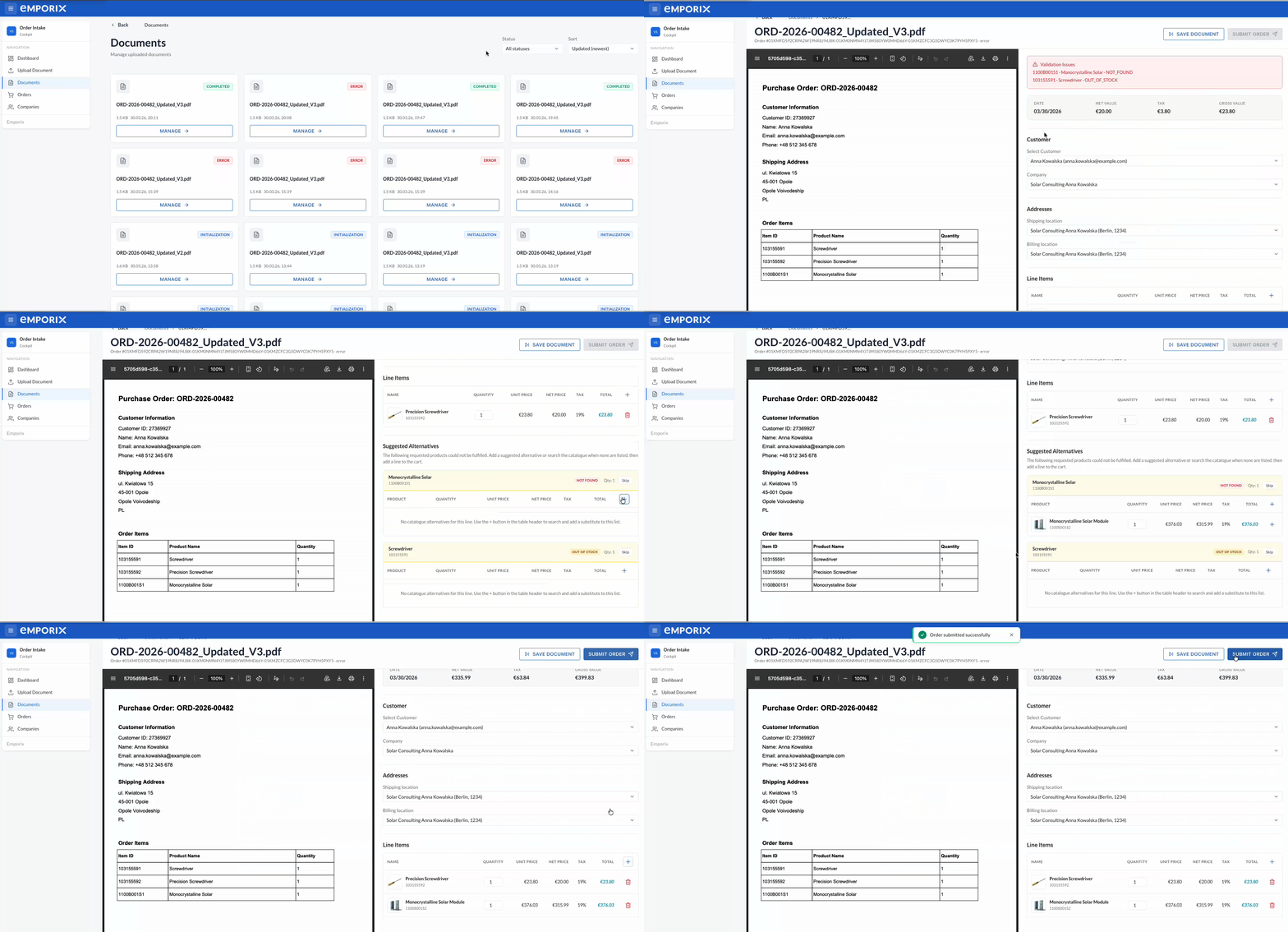
You can manage all the files that were uploaded to the cockpit. To open a specific file, choose the **Manage** action on the card. You can review the extracted content and the processing status for a single order intake case. Use this view to correct issues found during initialization or validation, for example missing customer/address data, and to manage not-found or out-of-stock products so the intake can be completed once the required information is available. With the document management, you can add alternative products and include them in the cart, or skip items that do not need to be ordered.
Order intake - Document view
When your work on the document is finished, you can save it for later, skip it, or submit the order right away. Additionally, in each of the documents, you can see the fields that were validated and matched by AI.
Purchase Order document management
---
# Agent Instructions
This documentation is published with GitBook. GitBook is the documentation platform designed so that both humans and AI agents can read, navigate, and reason over technical content effectively. Learn more at gitbook.com.
## Querying This Documentation
If you need additional information that is not directly available in this page, you can query the documentation by asking a question.
Perform an HTTP GET request on the following URL with the `ask` and `goal` query parameters:
```
GET https://developer.emporix.io/order-intake-cockpit/cockpit-views/documents.md?ask=&goal=
```
`ask` is the immediate question: it should be specific, self-contained, and written in natural language.
`goal` is what the user is ultimately trying to achieve, the reason they need the answer. Sharing it helps GitBook give you a better, more relevant answer. A goal is most helpful when it describes the outcome the user wants rather than restating the question. For example, with `ask=how do I create an API token`, a goal like `automate deployments from our CI pipeline` lets GitBook tailor the answer to that use case.
The response will contain a direct answer to the question and relevant excerpts and sources from the documentation.
Use this mechanism when the answer is not explicitly present in the current page, you need clarification or additional context, or you want to retrieve related documentation sections.