# Purchase Component

Extend the ACE platform capabilities by purchasing a component from the Partner Library.

To purchase a component, follow these steps.

{% stepper %}
{% step %}

#### Select and review a component

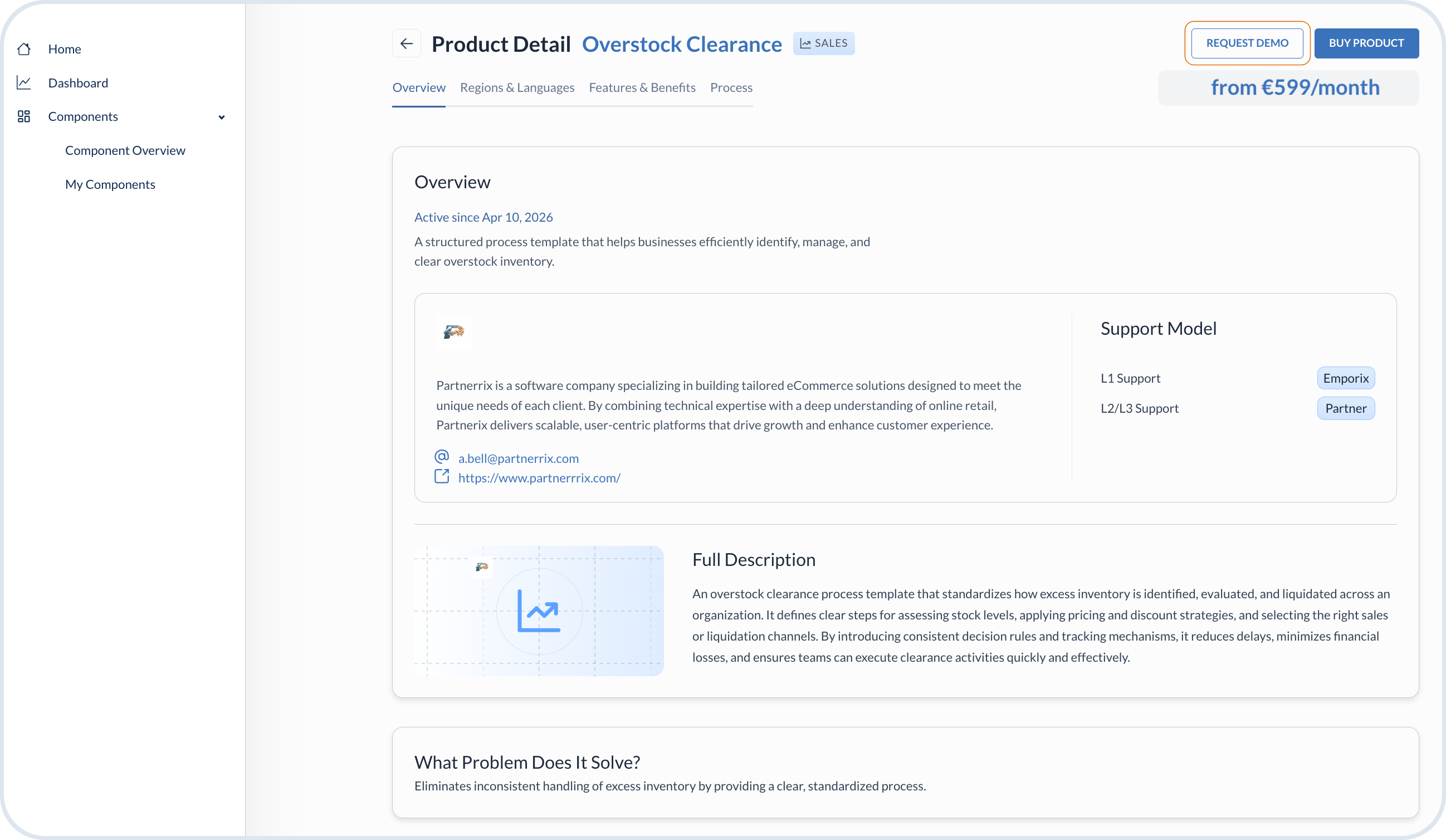
In the **Partner Library**, from the **Component Overview** go to the selected component to view its details. Review the information about what is supported and what the payment plan is.

{% hint style="info" %}
At the bottom of the component details page, there is an outline of the purchase process so that you know what to expect. Typically, the process takes up to a few days to complete and involves a Sales Representative contacting you to finalize the contract details and grant a regulatory licence.
{% endhint %}
{% endstep %}

{% step %}

#### Optional: Request a demo

If you're interested but need more details before making a decision, you can request a demo of the component. Choose the **Request Demo** option.

<figure><img src="/files/ZGb797jrJJKkupehf27Q" alt="Purchase component - request demo"><figcaption><p>Purchase component - request demo</p></figcaption></figure>

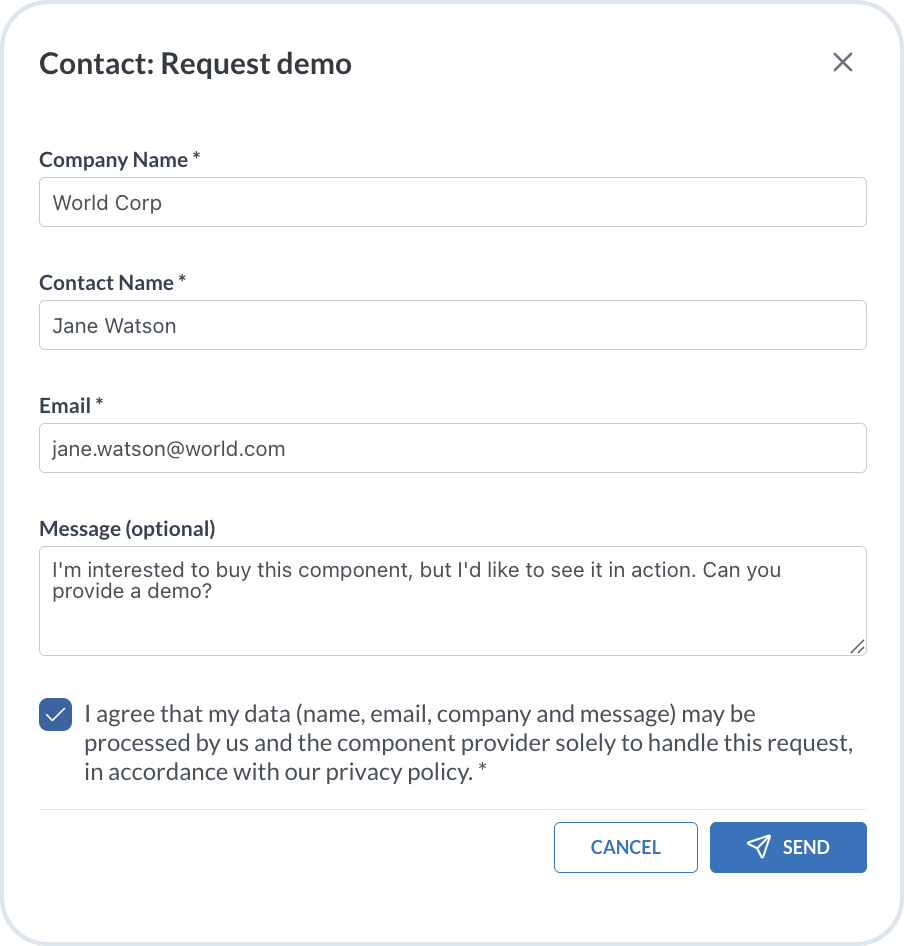
Leave your contact details so that the Partner Team can contact you to schedule the demo meeting.

<figure><img src="/files/jkT7lEdVpUCUorvNRrpA" alt="Purchase component - provide contact details for demo" width="400"><figcaption><p>Purchase component - provide contact details for demo</p></figcaption></figure>
{% endstep %}

{% step %}

#### Buy a component

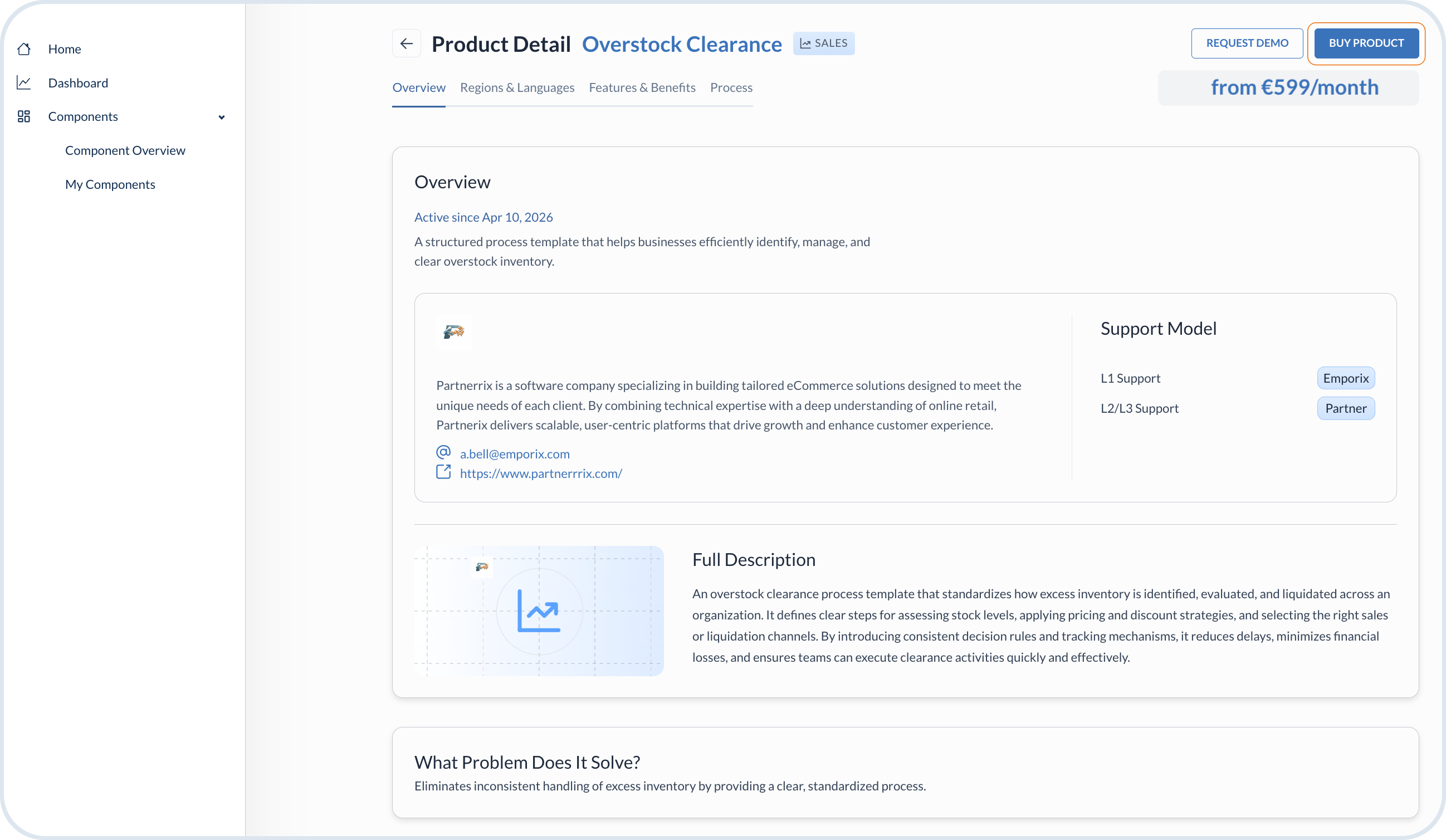
When you're ready to purchase, choose the **Buy product** option.

<figure><img src="/files/yZMPvgzB1IBeThr0LRBp" alt="Purchase component - buy"><figcaption><p>Purchase component - buy</p></figcaption></figure>

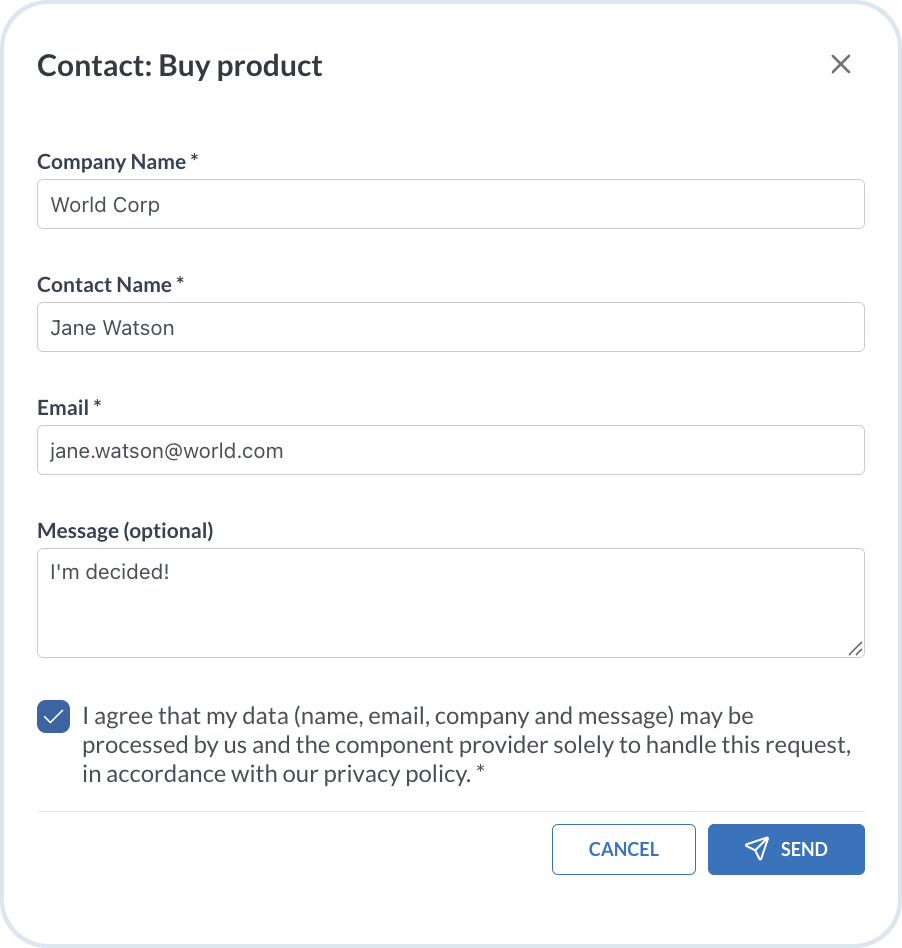
Provide contact details to allow Emporix to contact you in order to sign the necessary contract.

<figure><img src="/files/bG8MxN1mspNw7h1XM7Zn" alt="Purchase component - provide contact details" width="400"><figcaption><p>Purchase component - provide contact details</p></figcaption></figure>
{% endstep %}

{% step %}

#### Obtain a licence

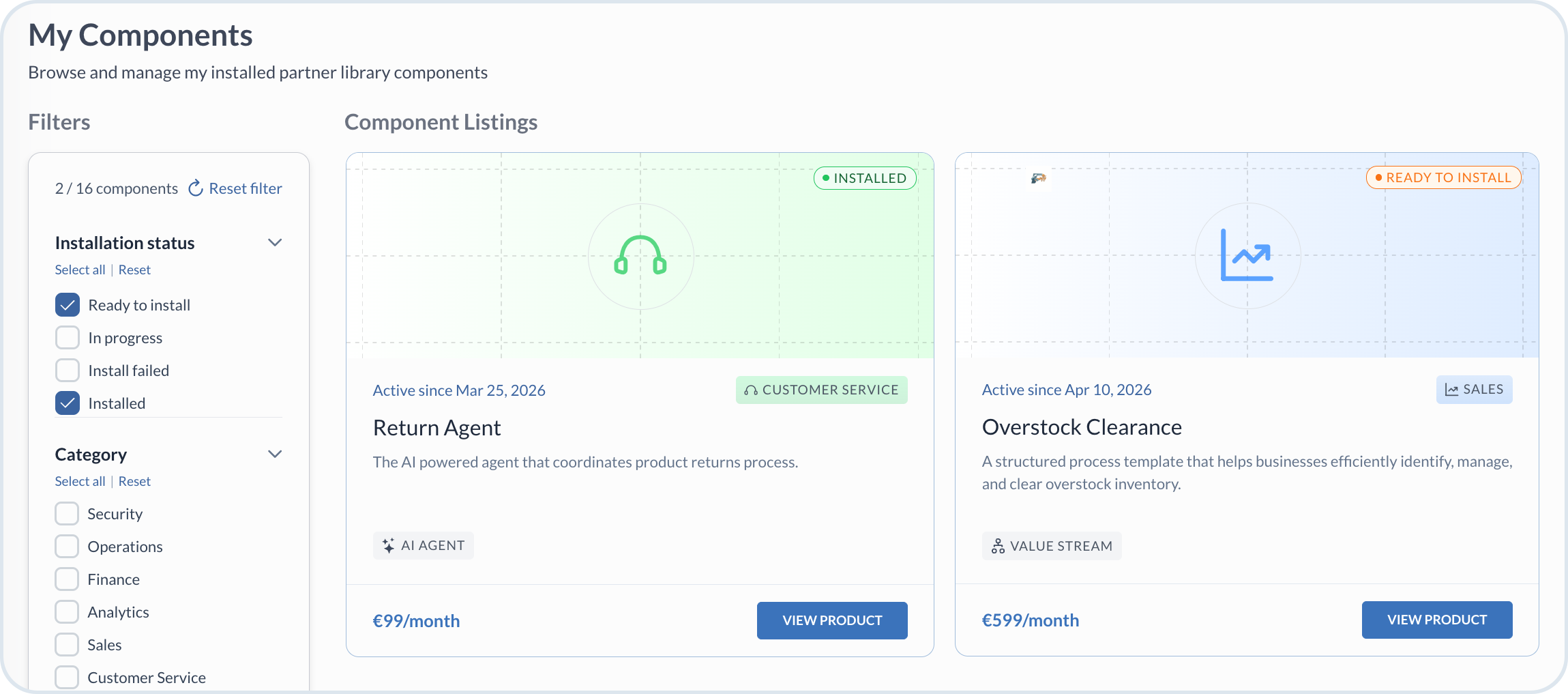
After the contract is signed and payment is processed, Emporix issues a licence for the requested tenant(s). Then, the component appears in the list of your purchased components with the `Ready to install` status and you get email notification about it.

<figure><img src="/files/jhSdupjJCsWDL0MNNyFC" alt="Purchase component - ready to install"><figcaption><p>Purchase component - ready to install</p></figcaption></figure>
{% endstep %}

{% step %}

#### Install a component

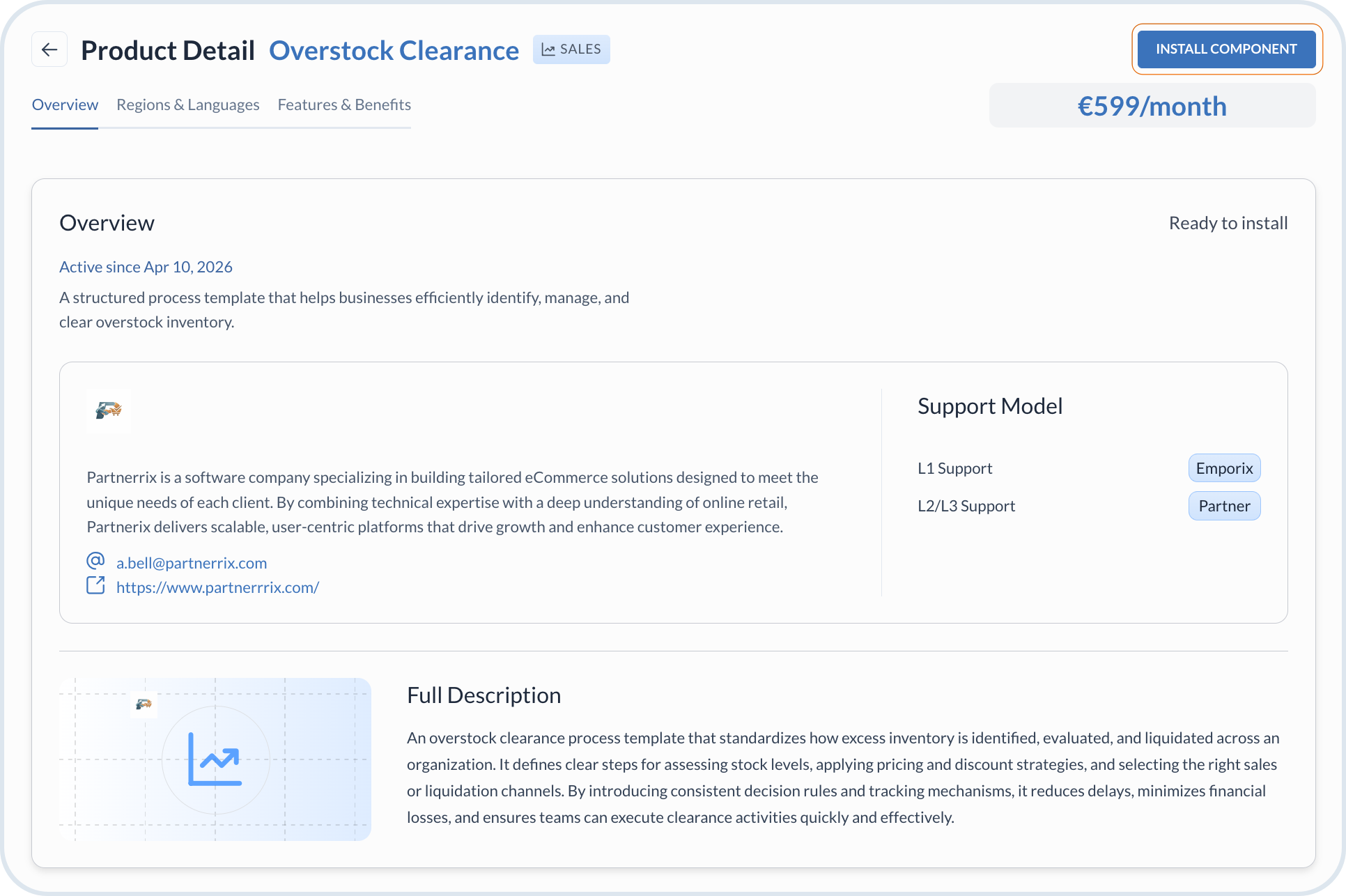
Go to the component details and choose to install the component.

<figure><img src="/files/tDBzWkYmb6BOLkHSnNEZ" alt="Purchase component - install"><figcaption><p>Purchase component - install</p></figcaption></figure>

The status of the component changes to `In progress`.

After the installation is successfully completed, the component status changes to `Installed` and it is ready to use and configure in the relevant part of the Management Dashboard: AI Agents, Value Streams, Extensions, Perspectives. Configure and enable the purchased components to benefit from their functionalities.
{% endstep %}
{% endstepper %}


---

# Agent Instructions: Querying This Documentation

If you need additional information that is not directly available in this page, you can query the documentation dynamically by asking a question.

Perform an HTTP GET request on the current page URL with the `ask` query parameter:

```
GET https://developer.emporix.io/partner-library/customers-flow/purchase-component.md?ask=<question>
```

The question should be specific, self-contained, and written in natural language.
The response will contain a direct answer to the question and relevant excerpts and sources from the documentation.

Use this mechanism when the answer is not explicitly present in the current page, you need clarification or additional context, or you want to retrieve related documentation sections.