> For the complete documentation index, see [llms.txt](https://developer.emporix.io/llms.txt). Markdown versions of documentation pages are available by appending `.md` to page URLs; this page is available as [Markdown](https://developer.emporix.io/search-cockpit/search.md).
# Search
Run a search against a ready index by choosing a schema type, building queries and filters, or loading a saved search.
The **Search** view runs a query against one ready index for a custom schema type. You can build queries and filters on the page, or load a [saved search](/search-cockpit/saved-searches.md) and supply new query text.
## Choose a type and index
Open **Search** from the side menu. Choose a specific **Schema type**, and an associated **Index**.
Use an index with status **Ready**. Indexes that are still building are not ready for search.
## Build queries and filters
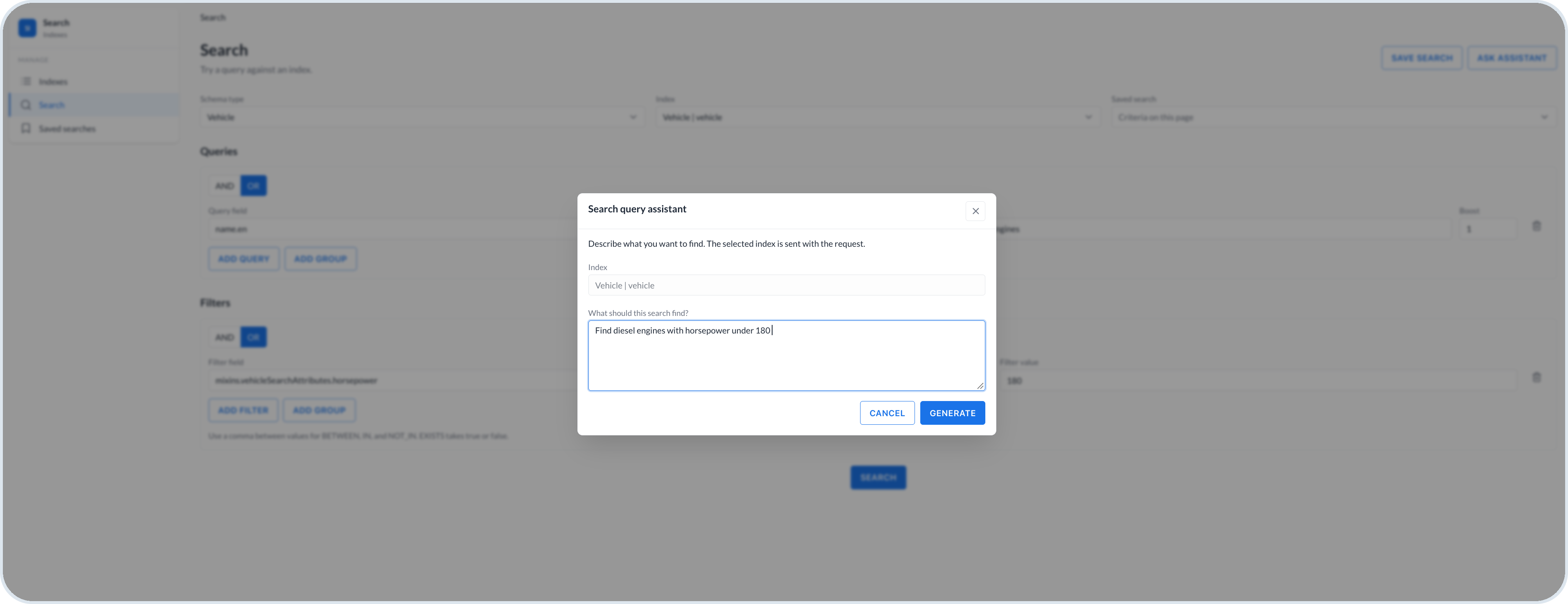
Use **Ask assistant** to build the search. Describe what you want to find, and the assistant adds the relevant queries and filters for the selected index. Review the result, edit it if needed, then run the search.
{% hint style="info" %}
The search query assistant is an AI agent that Support enables in the Agentic AI view when they set up the Search Cockpit.
{% endhint %}
Search query assistant
You can also build the criteria yourself. Use a single query or filter when one condition is enough. Use a group when you need several clauses combined with **AND** or **OR**, including nested groups. You need at least one query or filter before you run a search. Changing a query or filter clears the current results.
### Queries
Under **Queries**, select **Add query** for one text match, or **Add group** to combine several queries. Each query defines a **Query field**, **Query type**, and **Query** text. Optionally, set **Boost** to a whole number from 1 to 10. Boost multiplies the score for matches on that clause, so you can rank hits that match an important field higher than hits that match a less important one.
You can choose between the following query types:
* **TEXT** – match analyzed tokens; supports fuzzy matching.
* **PHRASE** – match adjacent words in the same order.
* **AUTOCOMPLETE** – match according to the field autocomplete option.
* **WILDCARD** – match a case-sensitive pattern (`*` for any characters, `?` for one).
### Filters
Under **Filters**, select **Add filter** for one condition, or **Add group** to combine several filters. Each filter defines a **Filter field**, **Operator**, and **Filter value**. Equality, range, list, and existence filters need an **Exact** field on the index. **CONTAINS** needs a **Text** field.
You can choose between the following operators:
* **EQ**, **NEQ** – equal or not equal to one value.
* **GT**, **GTE**, **LT**, **LTE** – greater than, greater than or equal, less than, or less than or equal to one value.
* **BETWEEN** – inclusive range; separate the two values with a comma.
* **IN**, **NOT\_IN** – match or exclude a list of values; separate values with a comma.
* **EXISTS** – field is present or absent; use `true` or `false`.
* **CONTAINS** – case- and diacritic-insensitive substring match.
## Run the search
Select **Search**. Matching custom instances appear with ID, score, and document details. The score ranks how well each hit matches the query. Use **Previous** and **Next** when the result spans more than one page.
To keep the definition for later, select **Save search**. Provide an **Id**, **Name**, and **Description**. This creates the same kind of definition as **New saved search** on the Saved searches view. Saving a search does not rebuild the index.
## Use a saved search
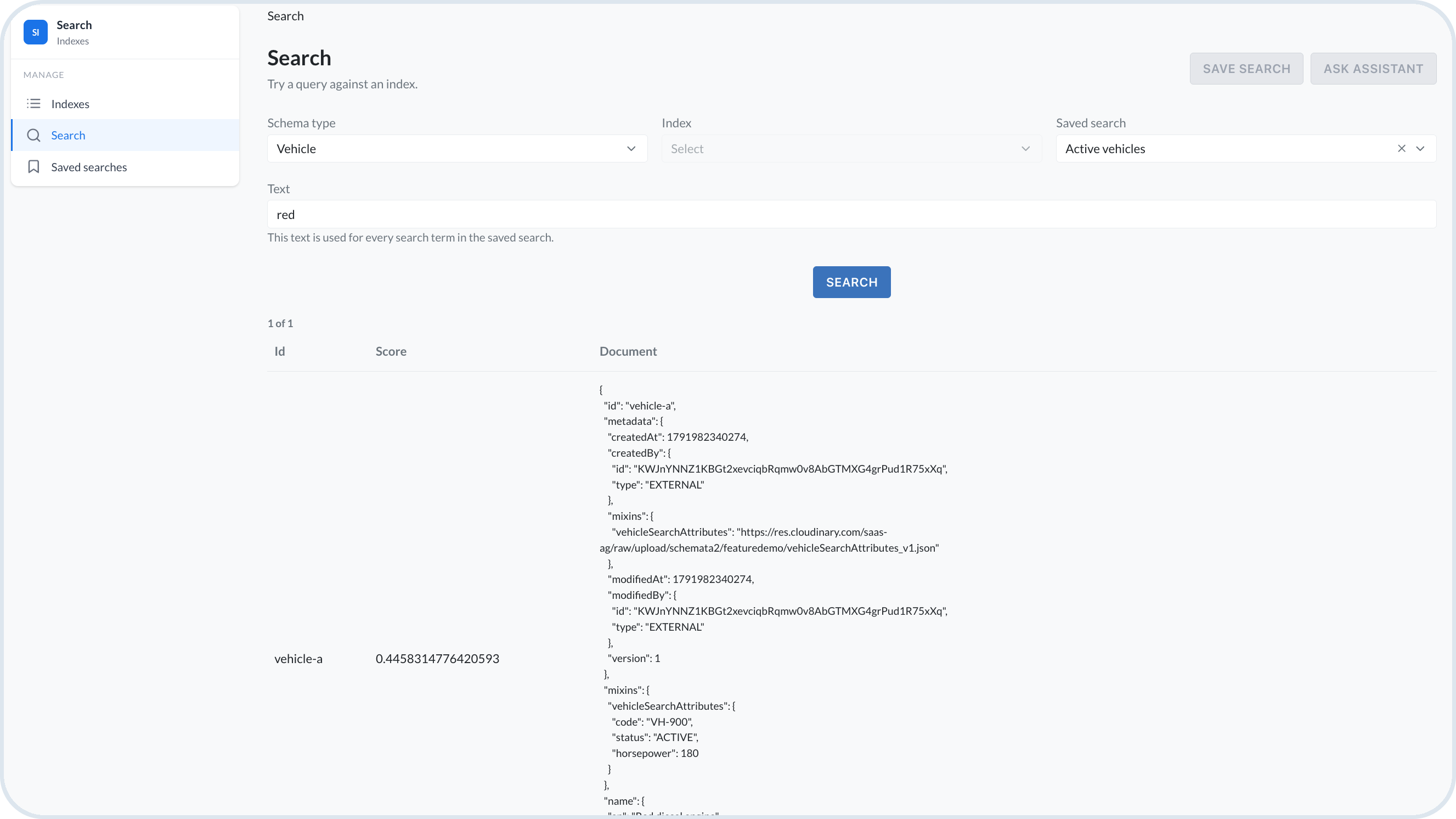
Choose a **Saved search** on the Search page, then enter **Text** for the query terms stored in that definition. That single text value replaces the text of every stored query term when you run the search. Filters and other settings from the saved definition stay in place unless you change them on the page. You can still adjust filters and run **Search** as usual.
Searching with a saved search
---
# Agent Instructions
This documentation is published with GitBook. GitBook is the documentation platform designed so that both humans and AI agents can read, navigate, and reason over technical content effectively. Learn more at gitbook.com.
## Querying This Documentation
If you need additional information that is not directly available in this page, you can query the documentation by asking a question.
Perform an HTTP GET request on the following URL with the `ask` and `goal` query parameters:
```
GET https://developer.emporix.io/search-cockpit/search.md?ask=&goal=
```
`ask` is the immediate question: it should be specific, self-contained, and written in natural language.
`goal` is what the user is ultimately trying to achieve, the reason they need the answer. Sharing it helps GitBook give you a better, more relevant answer. A goal is most helpful when it describes the outcome the user wants rather than restating the question. For example, with `ask=how do I create an API token`, a goal like `automate deployments from our CI pipeline` lets GitBook tailor the answer to that use case.
The response will contain a direct answer to the question and relevant excerpts and sources from the documentation.
Use this mechanism when the answer is not explicitly present in the current page, you need clarification or additional context, or you want to retrieve related documentation sections.