> For the complete documentation index, see [llms.txt](https://developer.emporix.io/llms.txt). Markdown versions of documentation pages are available by appending `.md` to page URLs; this page is available as [Markdown](https://developer.emporix.io/user-guides/management-dashboard/administration/hosting.md).

# Hosting

Custom-built Management Dashboard extensions and cloud functions can be hosted by Emporix. Use the central management space to set up, deploy, and monitor the external components.

Custom Management Dashboard extensions and cloud functions extend the Emporix platform with tailored logic and integrations. To deploy and run these solutions, you need a reliable hosting environment — Emporix provides exactly that with its built-in, scalable hosting functionality.

{% hint style="danger" %}
Hosting of the extensions and cloud functions is not included in standard billing plans and is billed separately on a pay-as-you-go basis. If you're interested in getting access to the feature, contact the [Sales Team](mailto:support@emporix.com).
{% endhint %}

The **Hosting** view of the Management Dashboard provides a single touchpoint to manage anything related to the hosting of extensions and cloud functions. Instead of running your own cloud infrastructure, use this view to create a hosting project, define how the extension / cloud function is exposed, deploy new versions, delete cloud functions, and monitor usage and activity. Everything is handled within the Emporix environment, based on a standardized, secure hosting model.

## Create a project

When you want to host any resource on the Emporix side, first you need to initialize a project as a one-time action.

{% stepper %}
{% step %}

#### Set up a project

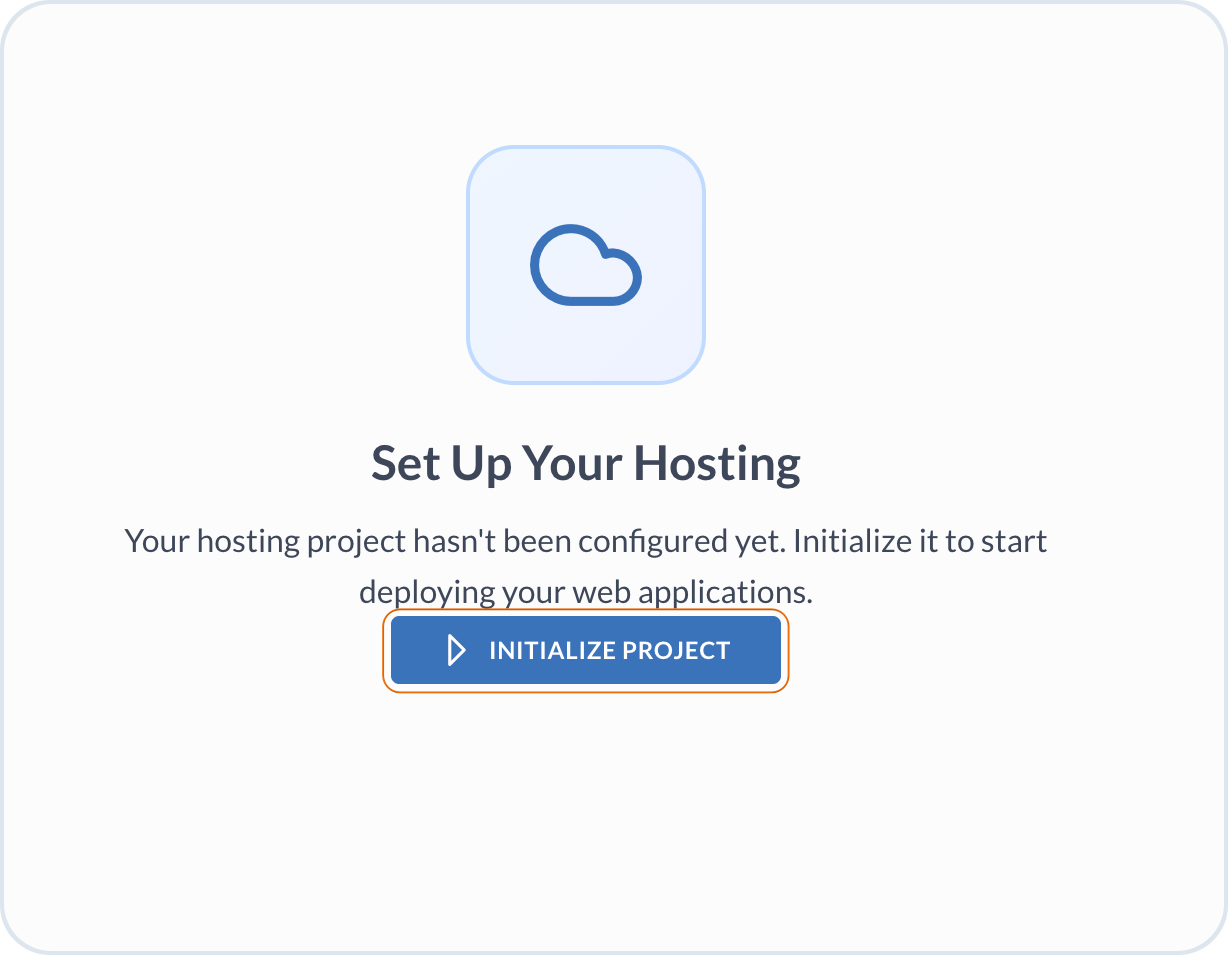
Go to the **Administration** -> **Hosting** to start your project configuration. Choose the **Initialize project** action.

<figure><img src="https://3057647601-files.gitbook.io/~/files/v0/b/gitbook-x-prod.appspot.com/o/spaces%2FbTY7EwZtYYQYC6GOcdTj%2Fuploads%2Fgit-blob-03607611f19ecc9f5e2e1bebb8d5c50bf7f335a7%2Fhost_initial.png?alt=media" alt="Hosting project initialization" width="300"><figcaption><p>Initialize a hosting project</p></figcaption></figure>

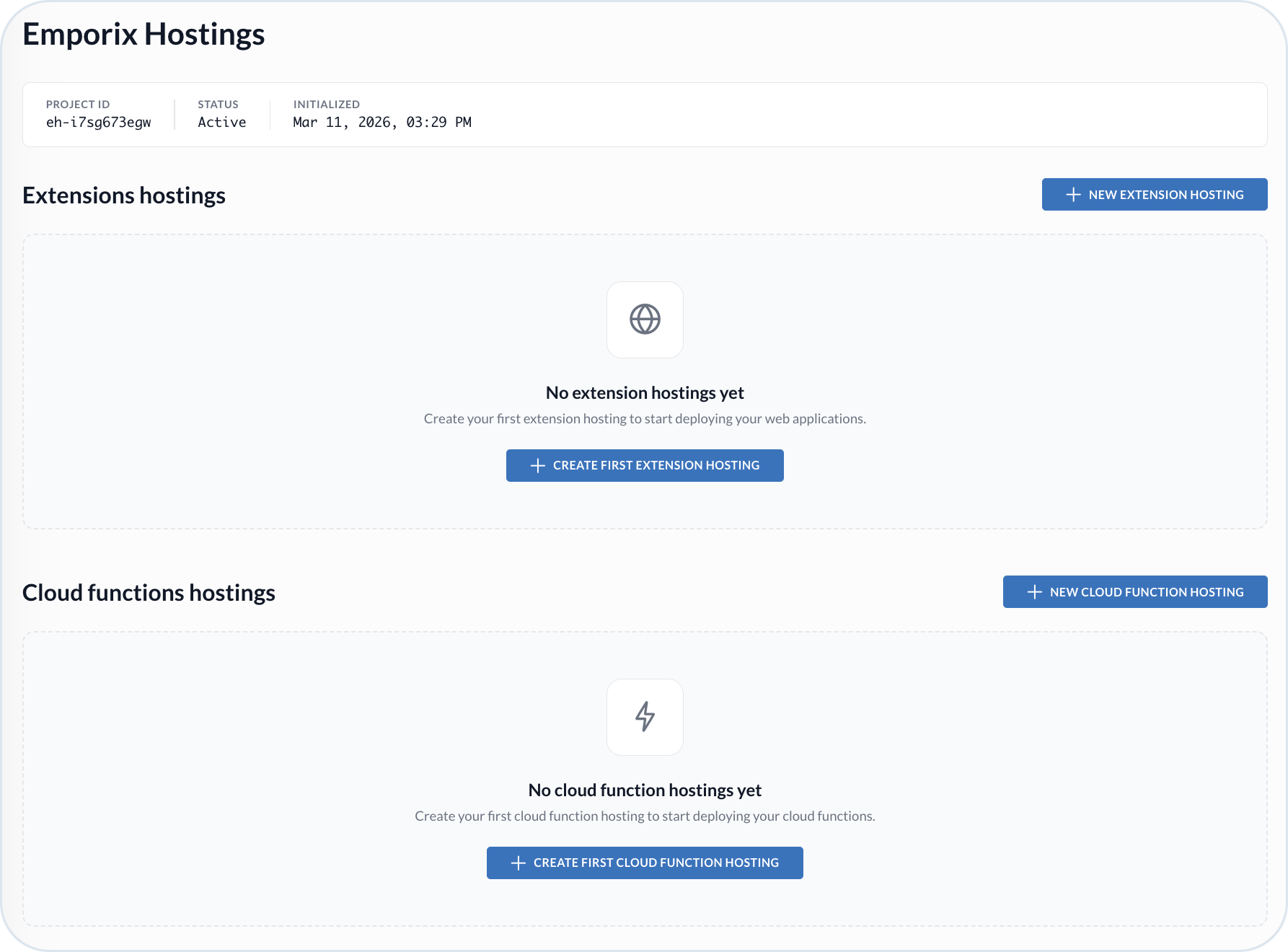
The initialization takes a few minutes to complete. When the process is done, the project gets assigned with a unique **Project ID**. You can now start adding custom extensions and cloud functions to be hosted by Emporix.

<figure><img src="https://3057647601-files.gitbook.io/~/files/v0/b/gitbook-x-prod.appspot.com/o/spaces%2FbTY7EwZtYYQYC6GOcdTj%2Fuploads%2Fgit-blob-511fcbdb9341ad7bdac27f257ec21b006b638d9c%2Fhost_initial_complete.png?alt=media" alt="Hosting initialized"><figcaption><p>Initialized empty hosting project</p></figcaption></figure>
{% endstep %}
{% endstepper %}

## Managing extensions hosting

Extensions are custom add-ons that extend the Emporix Management Dashboard with new modules or perspectives. Use the **Hosting** view to deploy, manage, and monitor your extensions directly within the Emporix environment.

{% hint style="warning" %}
The Emporix infrastructure allows you to host up to 20 extensions.
{% endhint %}

### Prerequisites

Ensure your extension is built in a format compatible with the Emporix Management Dashboard. Extensions must follow the MD extension template that is based on the module federation concept to be accepted by the hosting environment. For more information, refer to the [MD Module Template](https://github.com/emporix/md-module-template) repository.

### Host an extension

Follow these steps to host a custom extension.

{% stepper %}
{% step %}

#### Start a new extension hosting

In the **Administration** -> **Hosting** view, choose the **New extension hosting**.
{% endstep %}

{% step %}

#### Configure the hosting details

Provide the hosting details:

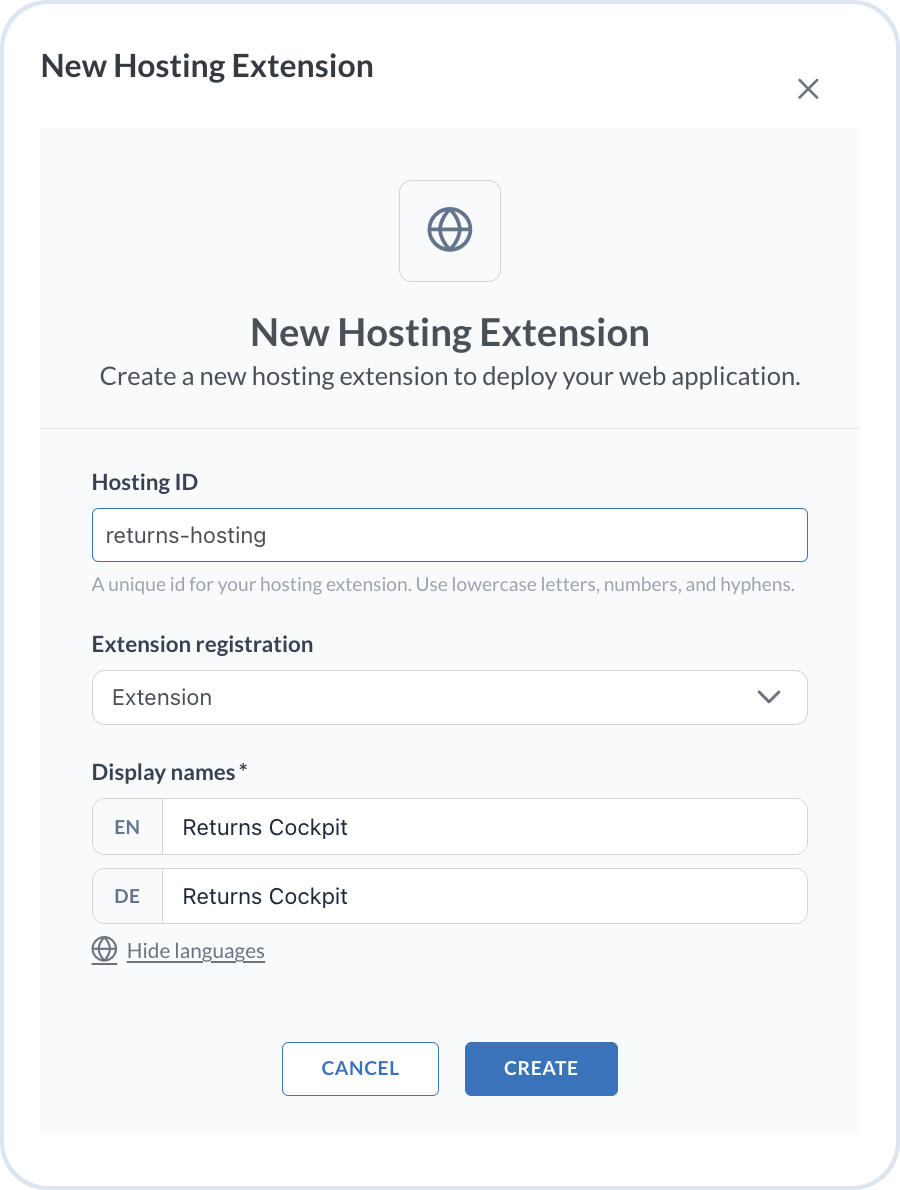
* **Hosting ID** - Provide a unique identifier of the hosting. The ID becomes part of the hosting URL and is limited to 41 characters. The tenant name, a hyphen, and this ID together must remain within the 63-character limit for a hostname label .
* **Extension registration** - Choose where to place the extension - it can be available either as an extension (module) or as a perspective in the Management Dashboard.
* **Display names** - Enter the localized names for the extension to display in the UI.
* **Path URL** - (For *perspectives* only) Define the URL path where the extension is available at; it starts with the `/`.

<figure><img src="https://3057647601-files.gitbook.io/~/files/v0/b/gitbook-x-prod.appspot.com/o/spaces%2FbTY7EwZtYYQYC6GOcdTj%2Fuploads%2Fgit-blob-6a0d570562417ed31191d4b511a0969e6621e53c%2Fhost_new_ext.png?alt=media" alt="Extension hosting configuration" width="400"><figcaption><p>Extension hosting configuration</p></figcaption></figure>

When done, choose **Create** to save the configuration.
{% endstep %}

{% step %}

#### Go to the hosting details

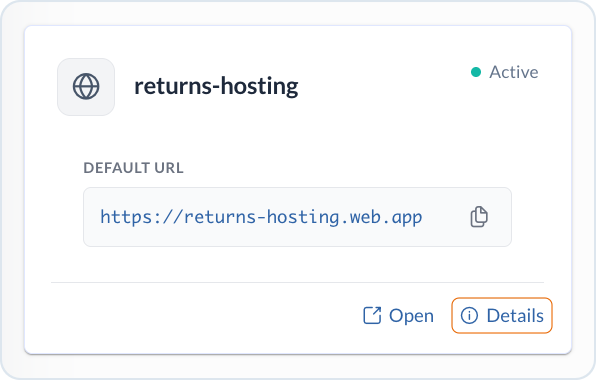
Open the card with the details of the created hosting.

<figure><img src="https://3057647601-files.gitbook.io/~/files/v0/b/gitbook-x-prod.appspot.com/o/spaces%2FbTY7EwZtYYQYC6GOcdTj%2Fuploads%2Fgit-blob-db12164b4a71b661cb943ce15711db1f04896352%2Fhost_det.png?alt=media" alt="Extension hosting details" width="400"><figcaption><p>Extension hosting details</p></figcaption></figure>

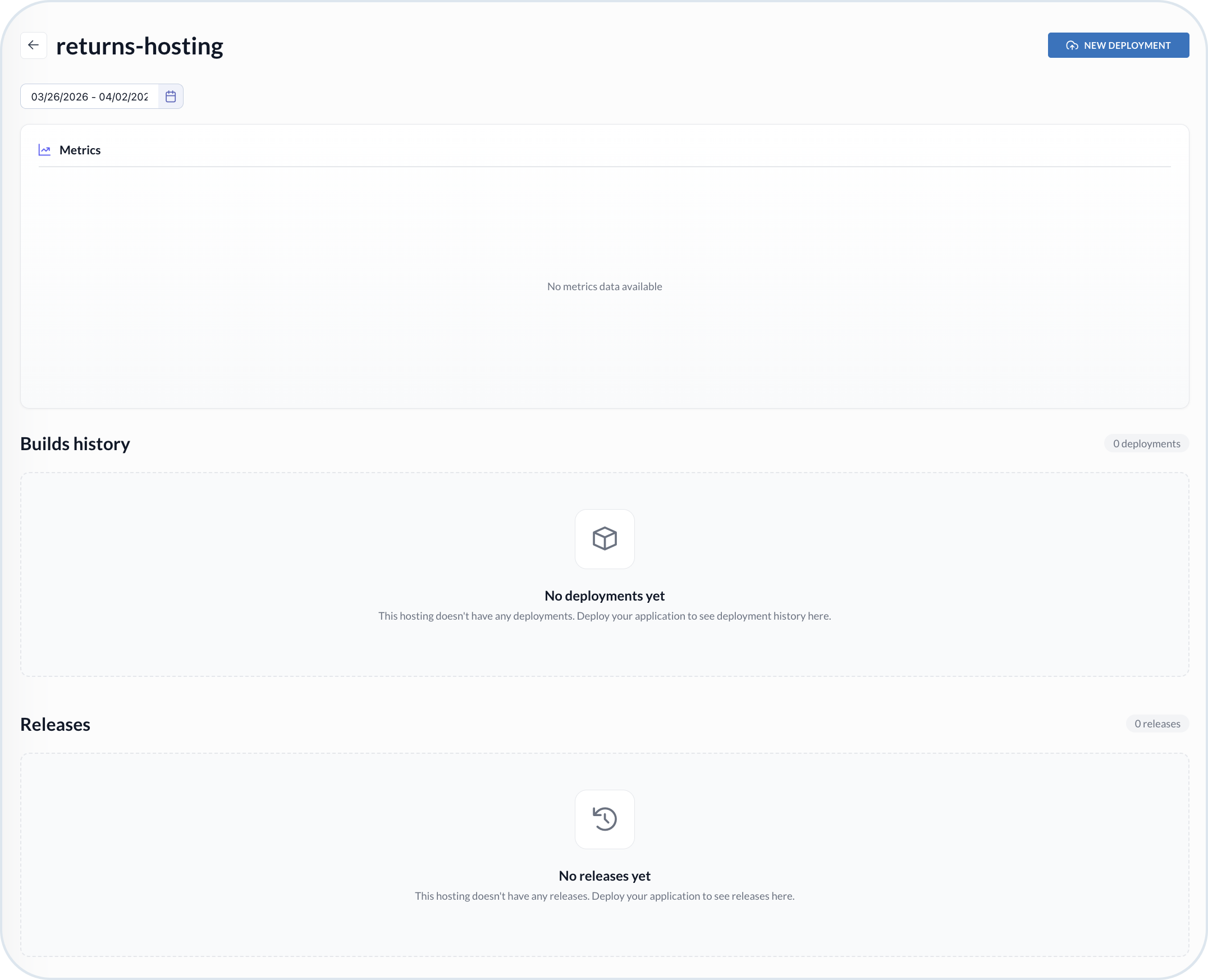
The details view allows you to monitor the extensions usage metrics as well as to check the build details and upload new versions. The first time you come here, the view is empty.

<figure><img src="https://3057647601-files.gitbook.io/~/files/v0/b/gitbook-x-prod.appspot.com/o/spaces%2FbTY7EwZtYYQYC6GOcdTj%2Fuploads%2Fgit-blob-d449b1f405edbfa1b565bd22b749b3572bc4dbf8%2Fext_details.png?alt=media" alt="Extension hosting details view"><figcaption><p>Extension hosting details view</p></figcaption></figure>
{% endstep %}

{% step %}

#### Deploy the extension

Choose the **New deployment** to upload the extension. You have a few options for adding the extension:

* **GitHub** - Deploy from a repository.
  * Provide the URL, token and relevant branch.
* **Upload** - Attach and upload an archive with the extension.
  * Select `zip` or `tar.gz` from your device.

Confirm the extension upload with the **Deploy** action.
{% endstep %}

{% step %}

#### Build an extension

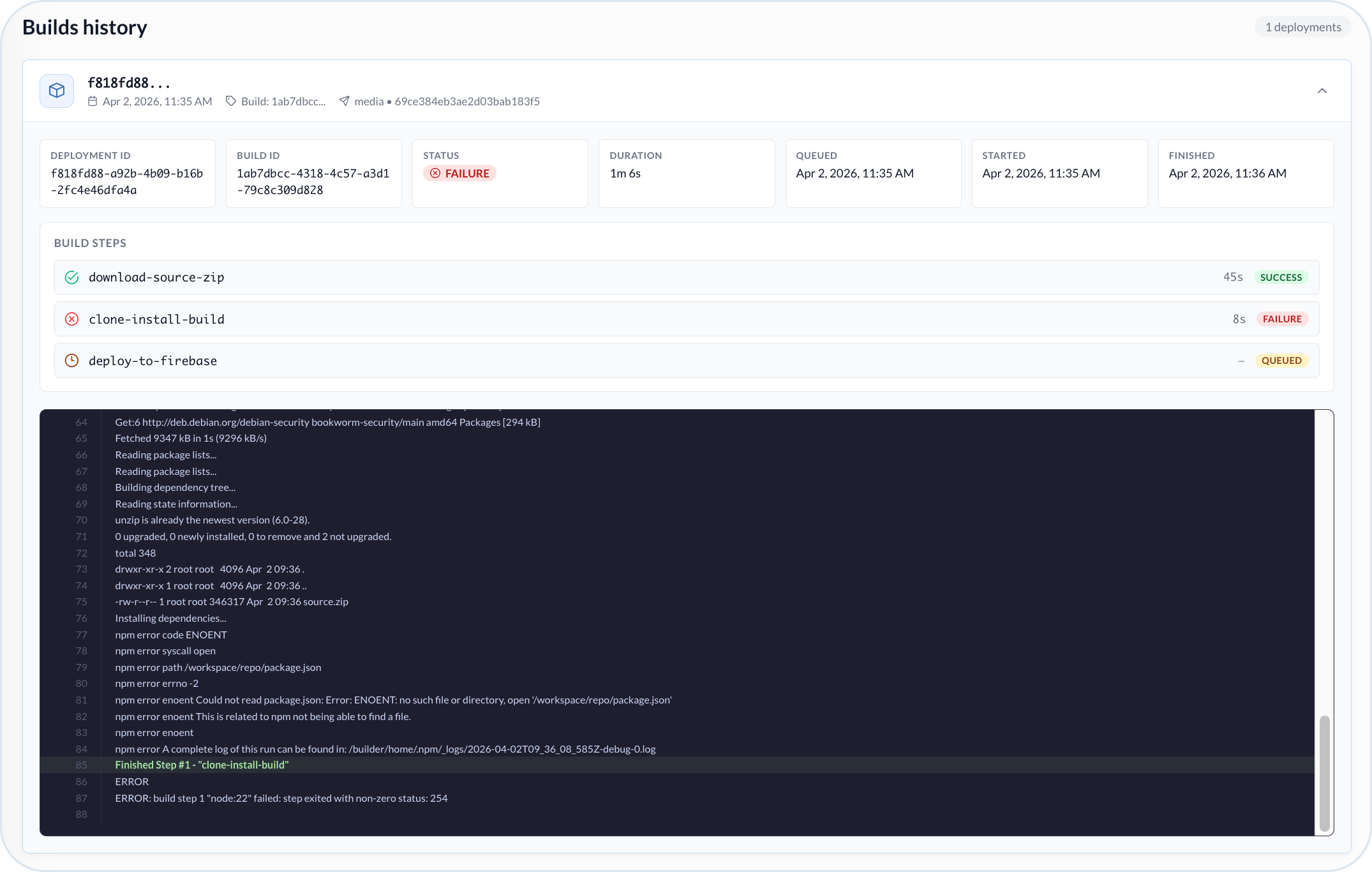
After the upload, the system triggers the extension build process. You can monitor the progress of the build steps.

If there is any technical obstacle, the build fails.

<figure><img src="https://3057647601-files.gitbook.io/~/files/v0/b/gitbook-x-prod.appspot.com/o/spaces%2FbTY7EwZtYYQYC6GOcdTj%2Fuploads%2Fgit-blob-ad4bc36cfc45e03080794047ce71a890895215ba%2Fext_build_fail.png?alt=media" alt="Extension deployment failed"><figcaption><p>Extension deployment failed</p></figcaption></figure>

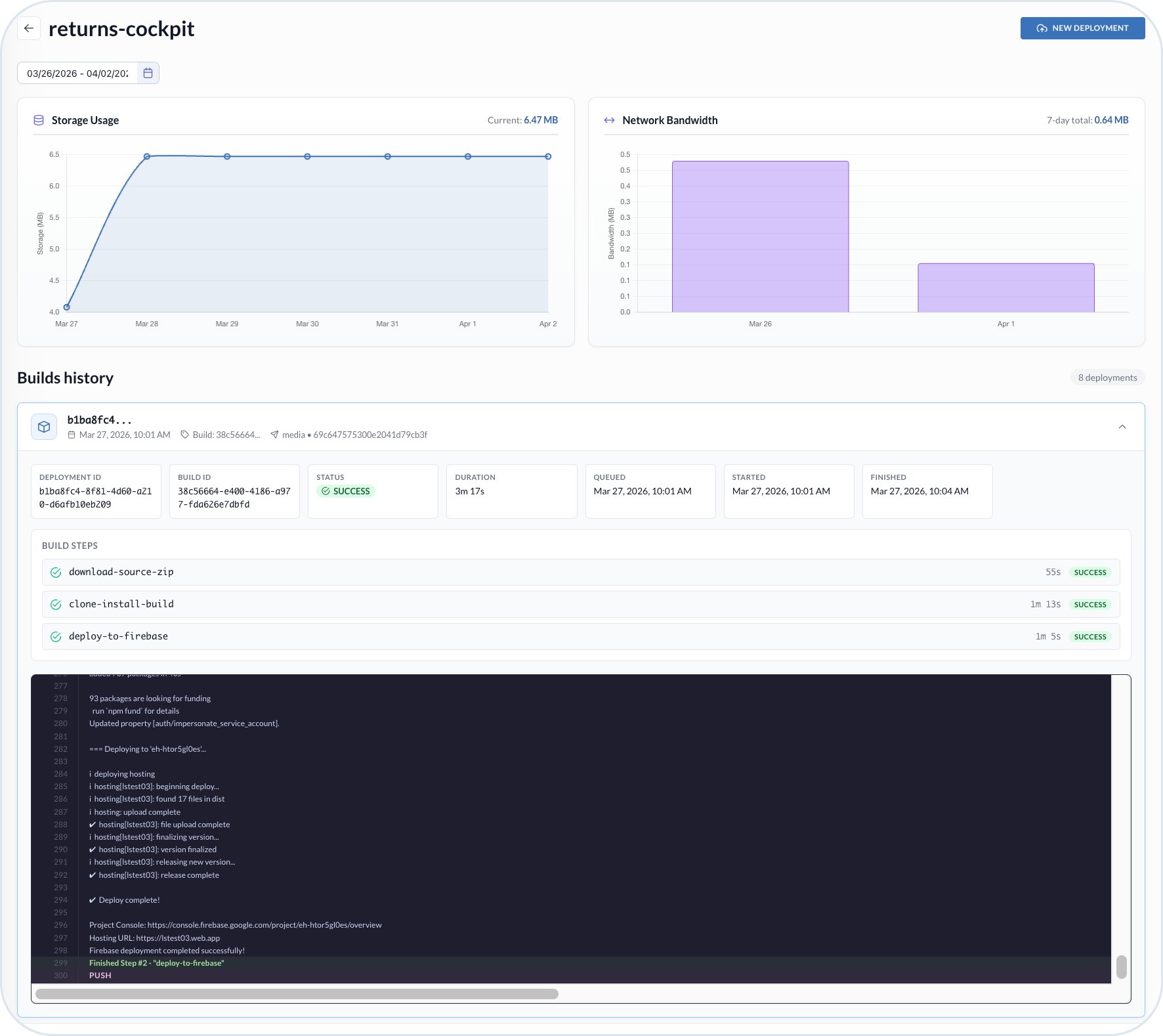
When everything is correct, the build ends successfully.

<figure><img src="https://3057647601-files.gitbook.io/~/files/v0/b/gitbook-x-prod.appspot.com/o/spaces%2FbTY7EwZtYYQYC6GOcdTj%2Fuploads%2Fgit-blob-424d17fed5048d6af1b1a9e209e34520c5536143%2Fext_build_pass.png?alt=media" alt="Successful extension deployment"><figcaption><p>Successful extension deployment</p></figcaption></figure>

You can see the details such as the Deployment ID and timeline.

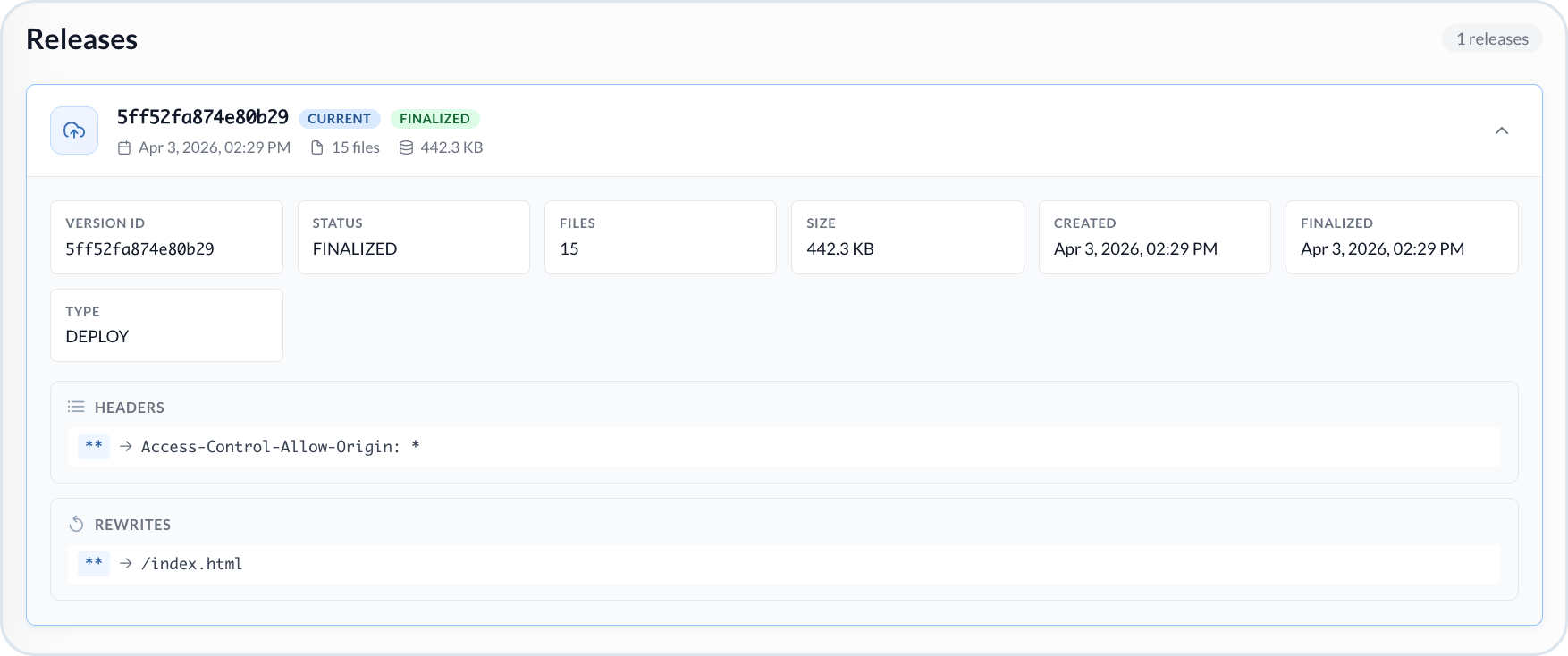
The successful build pushes the extension to the release state — you see that the version appears under the **Releases** section labelled as `Current` and `Finalized`.

<figure><img src="https://3057647601-files.gitbook.io/~/files/v0/b/gitbook-x-prod.appspot.com/o/spaces%2FbTY7EwZtYYQYC6GOcdTj%2Fuploads%2Fgit-blob-a7f0c9539b98fb7e34e58103485bf9fc9e4b92e7%2Fext_release.png?alt=media" alt="Extension release"><figcaption><p>Extension release</p></figcaption></figure>

The release results in pushing the extension to the Management Dashboard **Extensions** module or **Perspectives** — depending on your initial setup. You can start using the hosted extension straightaway.
{% endstep %}
{% endstepper %}

### Deployment lifecycle

To update your custom extension with new logic or provide technical fixes, deploy a new version.

Go to the selected extension hosting details and choose the **New deployment**. Then, upload the updated file either from a GitHub repository or directly from your device.

Each time you deploy a new version of an extension, a build is triggered. All the builds are visible in the **Build History**. Build details include deployment ID, build ID, status, and timeline.

{% hint style="success" %}
**Extensions Rollback**

Each time you deploy a new version of an extension, the previous versions remain visible in the **Releases** panel. Each published version shows the details such as version ID, status, and timeline. If for any reason you need to return to the previous version of the deployed extension, you can use the **Rollback** option. This triggers a build and release of that version.
{% endhint %}

### Monitor extensions metrics

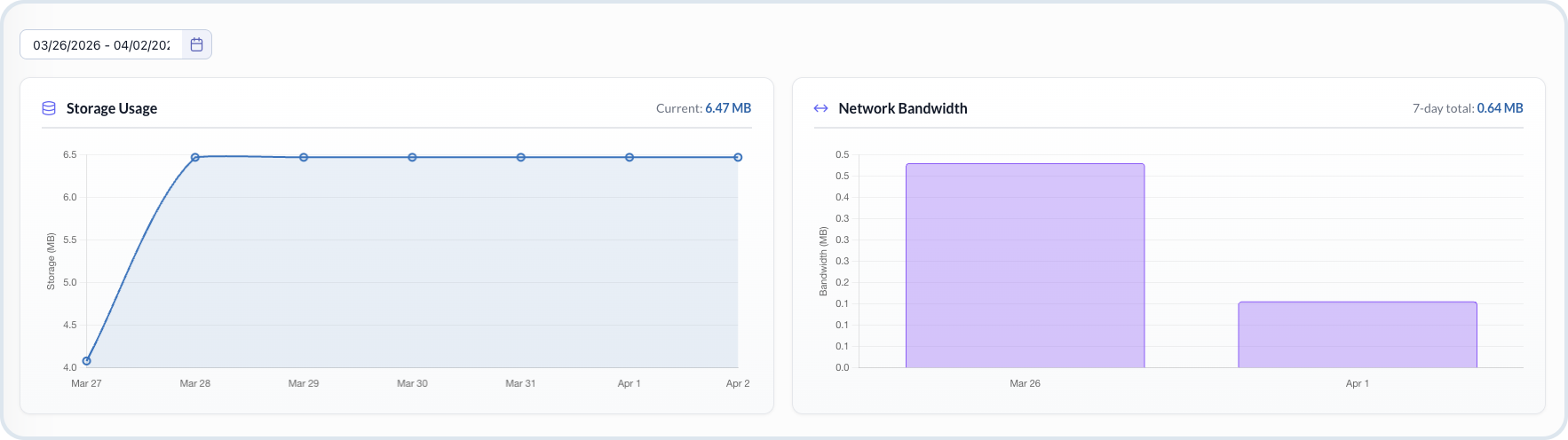
The **Hosting** view allows you to control the usage related to hosting extensions. The usage is a basis for the hosting costs calculation. You get insights into the following data:

* **Storage usage** - Total storage volume (in MB) currently used by your hosted extensions.
* **Network bandwidth** - Total data transfer volume (in MB) related to network usage.

<figure><img src="https://3057647601-files.gitbook.io/~/files/v0/b/gitbook-x-prod.appspot.com/o/spaces%2FbTY7EwZtYYQYC6GOcdTj%2Fuploads%2Fgit-blob-3118a44b01d03d8d17ca1ffed95b88765d585671%2Fext_metrics.png?alt=media" alt="Extensions metrics"><figcaption><p>Extensions metrics</p></figcaption></figure>

## Managing cloud functions hosting

Cloud functions are serverless pieces of custom logic that can be triggered by events, APIs, or other platform processes. Use the **Hosting** view to deploy, manage, and monitor your cloud functions directly within the Emporix environment. You can also use hosted cloud functions as tools on a [dynamic MCP server](/agentic-commerce-intelligence/agentic-intelligence/configuration/custom-mcp.md#configuring-a-dynamic-mcp-server), so AI agents can call your custom business logic.

{% hint style="info" %}
To expose a hosted cloud function as an agent tool, create a dynamic MCP server in **Agentic AI** -> **AI MCP** and map each tool to a **Cloud Function ID**. This value is the same as **Function ID** on the **New Cloud Function Hosting** form and the hosting card. For details, see [Configuring a dynamic MCP server](/agentic-commerce-intelligence/agentic-intelligence/configuration/custom-mcp.md#configuring-a-dynamic-mcp-server).
{% endhint %}

### Prerequisites

Prepare a cloud function that contains the business logic corresponding to your needs. To see the example of a cloud function structure, refer to the [Extension and Cloud Function Hosting](/user-guides/extensibility-and-integrations/extensibility-cases/extension-hosting.md#cloud-functions).

### Hosting list

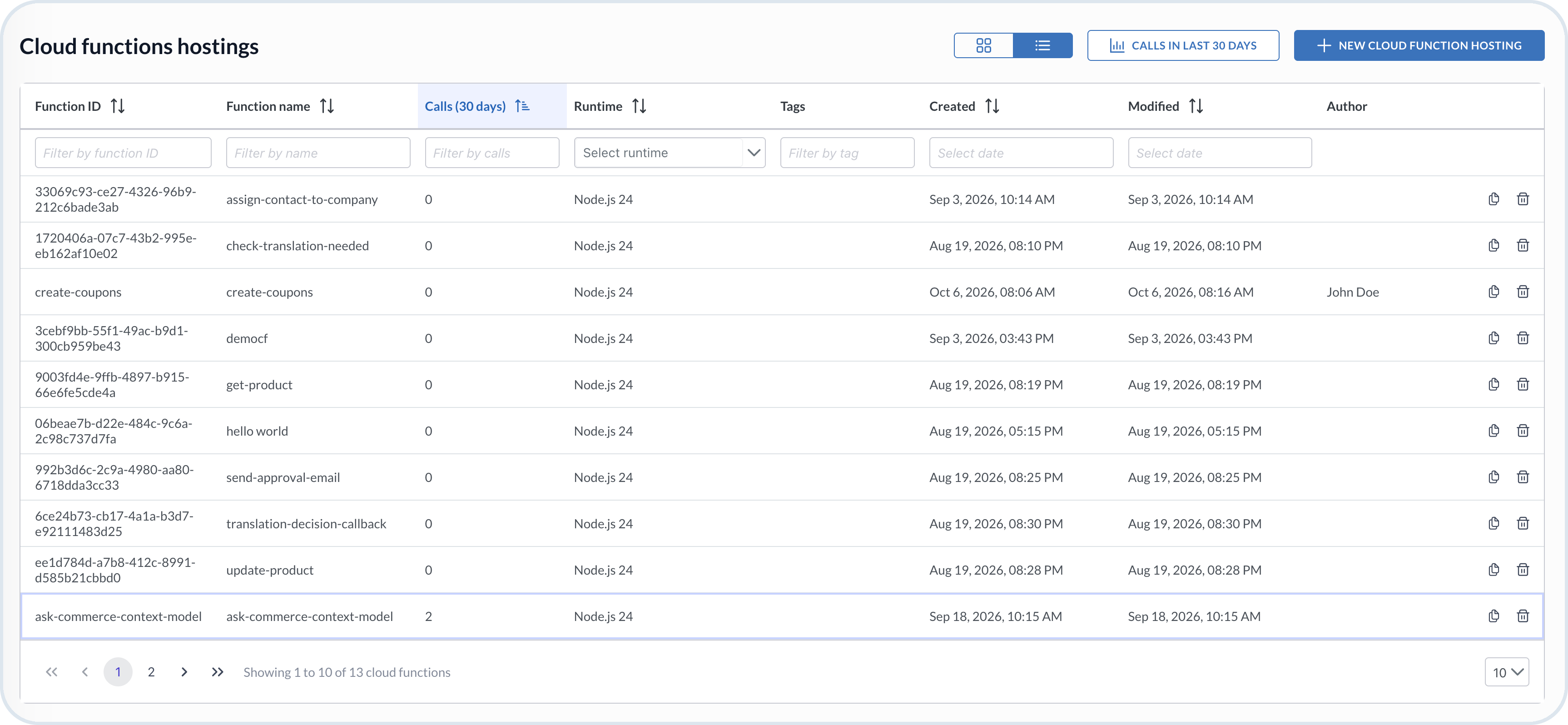
Hosted cloud functions and extensions appear as cards by default. Select **Table view** when you need to sort or filter a longer list. For cloud functions, the browser address keeps the table layout. If you open a function, select **Back to hostings list** to return to the same table. Select **Card view** to return to cards. Card view does not keep the table layout in the browser address.

The **Author** column shows who created the function. Select **Calls in last 30 days** to switch to **Table view** and add a **Calls (30 days)** column. The column shows how many times each function was called in the last 30 days. The column starts with the lowest counts. Select the column header to reverse the order. In **Filter by calls**, enter an exact count. `0` shows functions with no calls. Open a row to go to the details view.

<figure><img src="https://3057647601-files.gitbook.io/~/files/v0/b/gitbook-x-prod.appspot.com/o/spaces%2FbTY7EwZtYYQYC6GOcdTj%2Fuploads%2Fgit-blob-89f9a6758d320eae0859822d9a80306a040d014d%2Fcf_calls_scan.png?alt=media" alt="Cloud functions table"><figcaption><p>Cloud functions table</p></figcaption></figure>

### Host a cloud function

Follow these steps to host a custom cloud function.

{% stepper %}
{% step %}

#### Start a new cloud function hosting

In the **Administration** -> **Hosting** view, choose the **New Cloud Function Hosting**.
{% endstep %}

{% step %}

#### Configure the hosting details

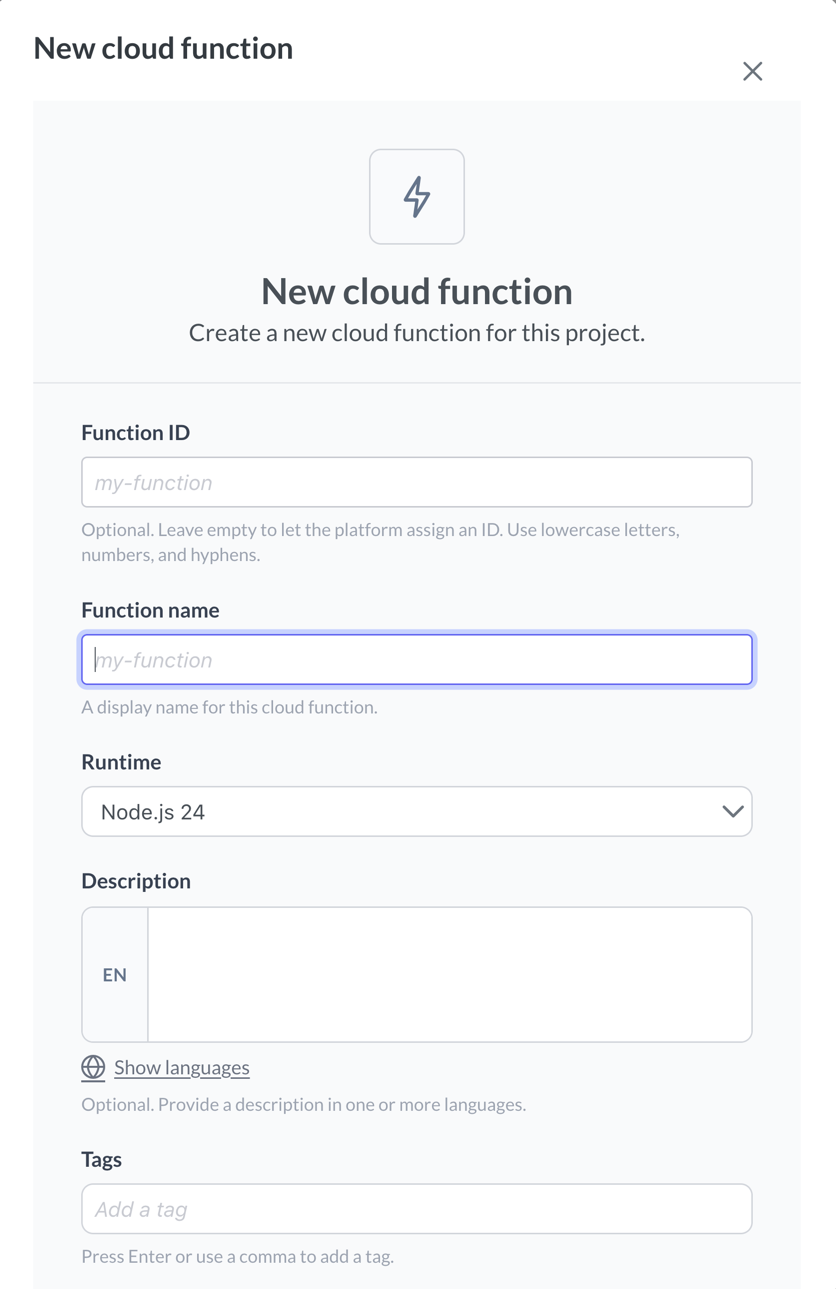
Provide the hosting details:

* **Function ID** – Enter a custom ID if you want to define one. Use only lowercase letters, numbers, and hyphens.
* **Function name** – Enter a display name. This field is required. The hosting details view shows this value as **Display name**.
* **Runtime** – Select an available runtime.
* **Description** – (Optional) Enter a localized description of the function.
* **Tags** – (Optional) Add tags to help find the function later. Tags use letters, digits, hyphen, and underscore, and cannot contain spaces. The hosting list table includes a **Tags** column.

{% hint style="info" %}
**Function ID** is optional. If you leave it empty, the platform assigns an ID. Use **Function ID**, not **Function name**, to invoke the function or map a tool.
{% endhint %}

<figure><img src="https://3057647601-files.gitbook.io/~/files/v0/b/gitbook-x-prod.appspot.com/o/spaces%2FbTY7EwZtYYQYC6GOcdTj%2Fuploads%2Fgit-blob-56ec3f086a0f081fe733f86420e675ad3932ddfe%2Fhost_new_cf.png?alt=media" alt="New cloud function dialog" width="400"><figcaption><p>New cloud function</p></figcaption></figure>

When done, choose **Create** to save the configuration.
{% endstep %}

{% step %}

#### Open the hosting details

Open the card for the created cloud function. The card and the details view show **Function ID** and **Display name** as separate fields. Copy **Function ID** before you invoke the function or map a tool. The first time you open the details view, no custom code is uploaded yet. Use the details view to monitor the hosted cloud function and upload the custom code.

<figure><img src="https://3057647601-files.gitbook.io/~/files/v0/b/gitbook-x-prod.appspot.com/o/spaces%2FbTY7EwZtYYQYC6GOcdTj%2Fuploads%2Fgit-blob-f0e11473055420c212bf2bd65e95e7dca301cf50%2Fcf_details.png?alt=media" alt="Cloud function hosting details"><figcaption><p>Cloud function hosting details</p></figcaption></figure>

On the details view you can also edit or clear the **Description** and **Tags**. **Display name** and **Runtime** stay as they were set when you created the function. **Display name** comes from **Function name** when you create the function. Use **Discard** to cancel unsaved changes, or **Save** to keep them.

<figure><img src="https://3057647601-files.gitbook.io/~/files/v0/b/gitbook-x-prod.appspot.com/o/spaces%2FbTY7EwZtYYQYC6GOcdTj%2Fuploads%2Fgit-blob-cc4106923162b14cef22b62ebf30d01080ee08b0%2Fcf_details_meta.png?alt=media" alt="Cloud function details with description and tags"><figcaption><p>Cloud function details</p></figcaption></figure>
{% endstep %}

{% step %}

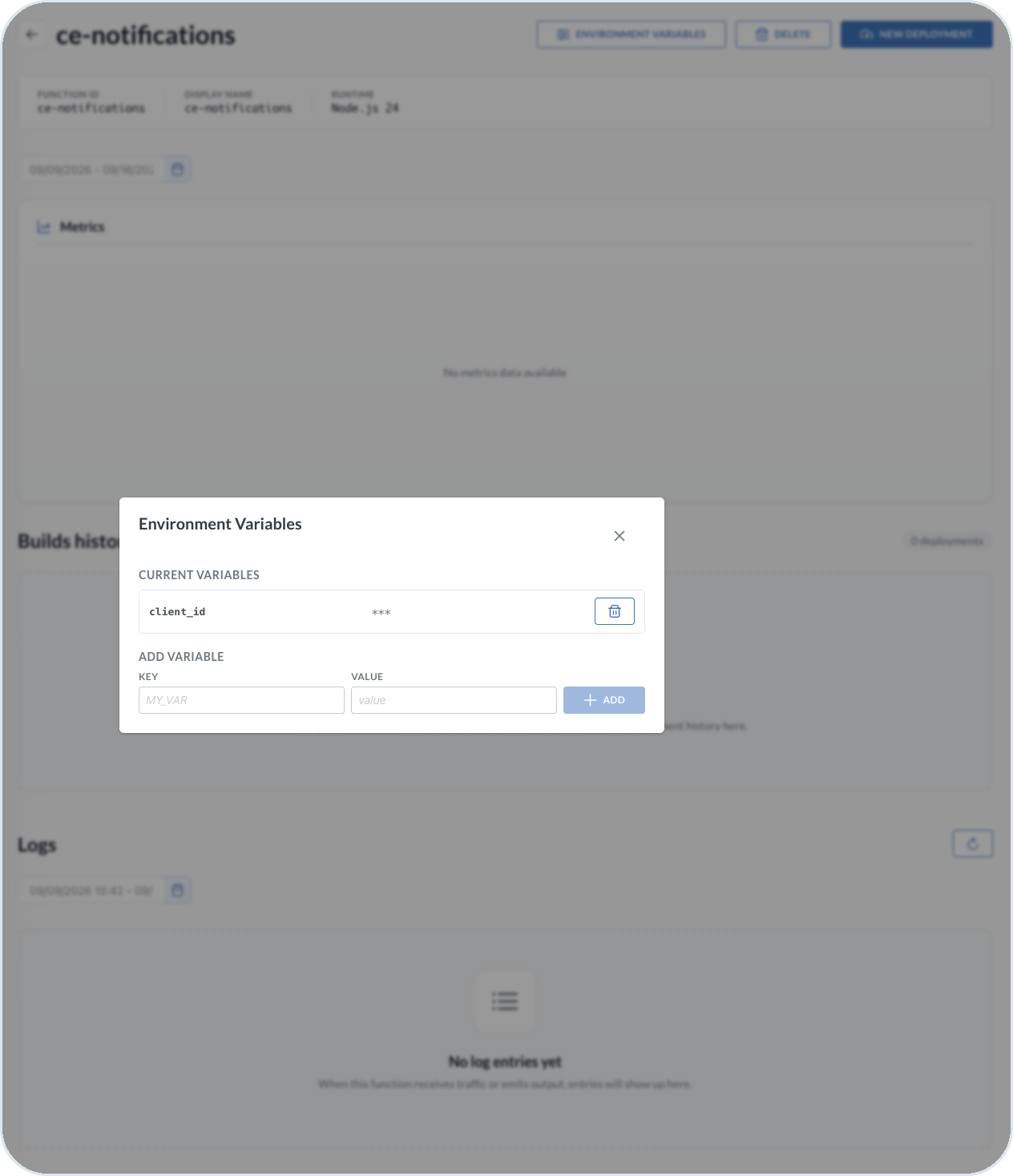
#### (Optional) Set variables

You can define custom environment variables that are used in the cloud function to decode credentials data. Choose the **Environment variables** and provide key-value pairs.

<figure><img src="https://3057647601-files.gitbook.io/~/files/v0/b/gitbook-x-prod.appspot.com/o/spaces%2FbTY7EwZtYYQYC6GOcdTj%2Fuploads%2Fgit-blob-00bd046fa93b37f6f2cc9fe92c9389e06897a14b%2Fcf_variables.png?alt=media" alt="Cloud function environment variables"><figcaption><p>Setting environment variables for a cloud function</p></figcaption></figure>
{% endstep %}

{% step %}

#### Deploy a cloud function

Choose the **New deployment** option to add the cloud function code. You have a few options for adding the cloud function:

* **GitHub** - Deploy from a repository.
  * Provide the URL, access token and relevant branch.
* **Upload** - Attach and upload an archive with the cloud function.
  * Select `zip` or `tar.gz` from your device.
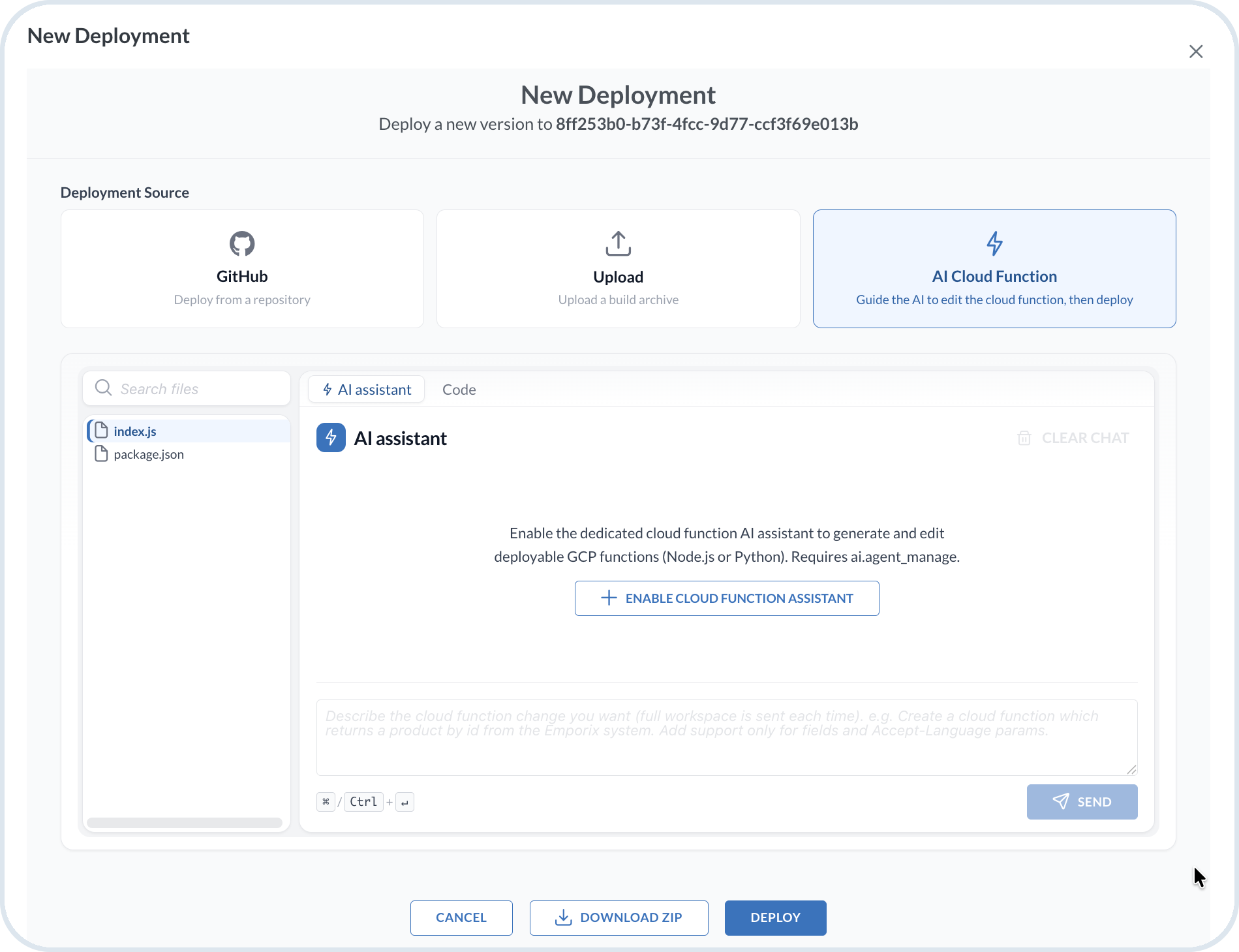
* **AI Cloud Function** – Select this source to generate or edit the function with the **Cloud Function Assistant**.

This option uses the [Cloud Function Assistant](/agentic-commerce-intelligence/agentic-intelligence/agent-library/cloud-function-agent.md) helper agent. If the assistant is not enabled yet, the first time you select **AI Cloud Function**, you are prompted to enable it. Select **Enable Cloud Function Assistant**. You need the `ai.agent_manage` permission. You can also enable it from **Predefined Agents** in the [AI Agent Library](/agentic-commerce-intelligence/agentic-intelligence/agent-library.md). Once enabled, the assistant remains available in the library.

<figure><img src="https://3057647601-files.gitbook.io/~/files/v0/b/gitbook-x-prod.appspot.com/o/spaces%2FbTY7EwZtYYQYC6GOcdTj%2Fuploads%2Fgit-blob-889225ef9c6f3d4293e7f070ddd169fde57bf341%2Fhosting_new_deploy.png?alt=media" alt="Enable Cloud Function Assistant"><figcaption><p>Enabling the Cloud Function Assistant</p></figcaption></figure>

After the assistant is enabled, describe the function in the **AI assistant** tab, then choose **Send**. Open the **Code** tab to review the generated files before you deploy.

{% hint style="warning" %}
Output from this assistant is generated by AI and can be wrong or incomplete. Verify the result before you apply, deploy, or act on it.
{% endhint %}

{% hint style="info" %}
The assistant is suited to straightforward Cloud Functions. For more complex logic, review and extend the generated code before you deploy.
{% endhint %}

<figure><img src="https://3057647601-files.gitbook.io/~/files/v0/b/gitbook-x-prod.appspot.com/o/spaces%2FbTY7EwZtYYQYC6GOcdTj%2Fuploads%2Fgit-blob-736c2506a83e43829c2d87d6d1c4e0885bd0d8d4%2Fhosting_cf_ai-generation.png?alt=media" alt="Generate a Cloud Function with the AI assistant"><figcaption><p>Generating a Cloud Function with the AI assistant</p></figcaption></figure>

For a Node.js package, you can select **Test** before you deploy. In the **Test cloud function** dialog, set the **HTTP method** and optional **Headers**, **Query params**, **Path params**, and **Body**, then select **Run**. The run uses the package in a browser sandbox. It is not a live invocation of the hosted function.

{% hint style="info" %}
**Test** is available for Node.js packages only. The package must contain `index.js`.
{% endhint %}

<figure><img src="https://3057647601-files.gitbook.io/~/files/v0/b/gitbook-x-prod.appspot.com/o/spaces%2FbTY7EwZtYYQYC6GOcdTj%2Fuploads%2Fgit-blob-7b8fc4d21aa0a4b8067bfa21494571c636b57b31%2Fcf_test_before_deploy.png?alt=media" alt="Test a Node.js cloud function before deploy"><figcaption><p>Test before deploy</p></figcaption></figure>

Confirm the deployment with **Deploy**.
{% endstep %}

{% step %}

#### Build a cloud function

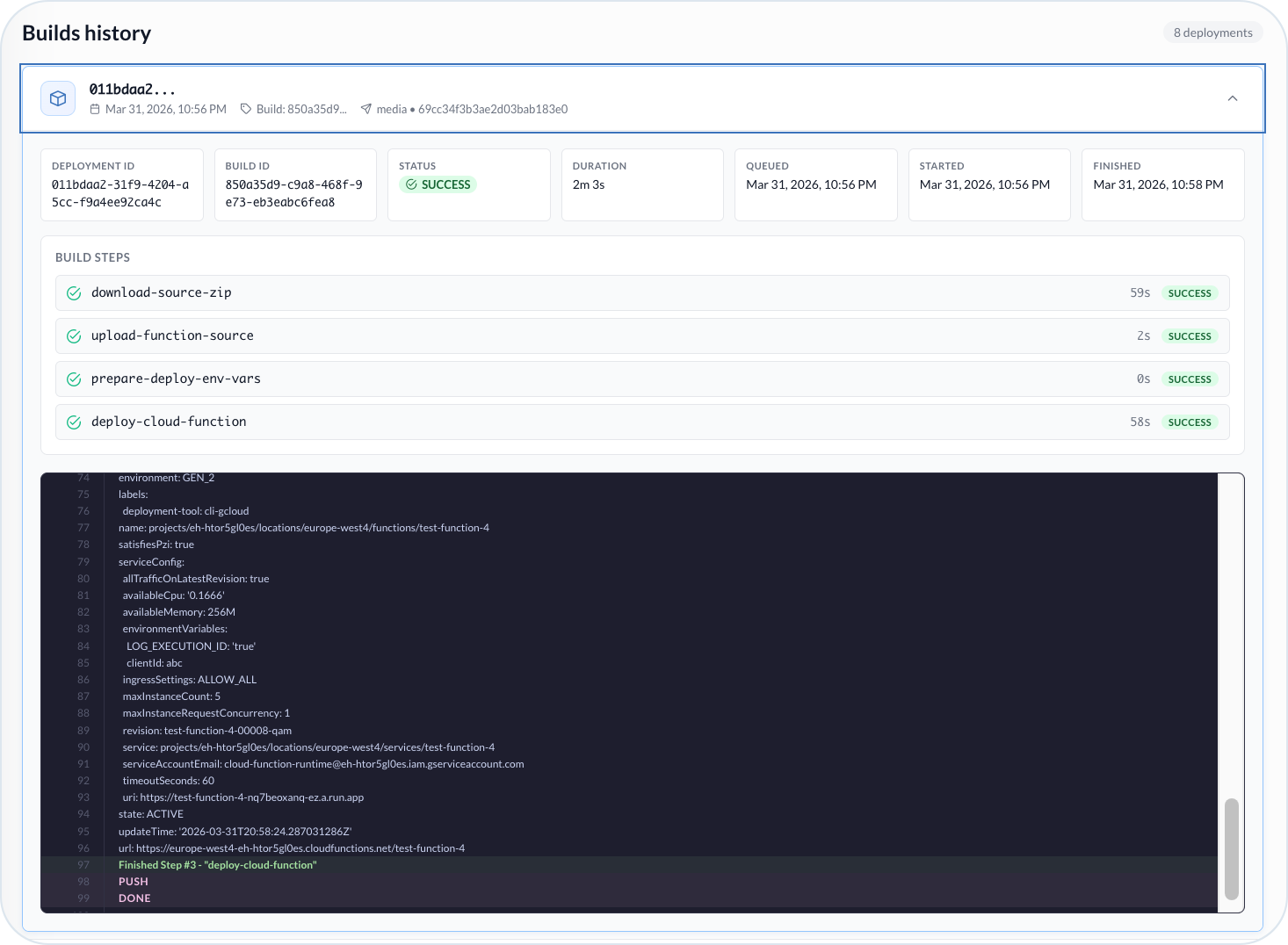
After the upload, the system triggers the cloud function build process. You can monitor the progress of the build steps in real-time. The successful build ends after a few minutes.

<figure><img src="https://3057647601-files.gitbook.io/~/files/v0/b/gitbook-x-prod.appspot.com/o/spaces%2FbTY7EwZtYYQYC6GOcdTj%2Fuploads%2Fgit-blob-55a6f2a199abeafd0376bdaa80fc35c6c875b168%2Fcf_deploy.png?alt=media" alt="Successful cloud function deployment"><figcaption><p>Successful cloud function deployment</p></figcaption></figure>

You can see the details such as the Deployment ID and timeline of the steps.

{% hint style="info" %}
To add a new version of the cloud function, follow the same steps and deploy a new file. The build history shows all previous deployment details.
{% endhint %}

The successful build prepares the cloud function to be exposed in the Partner Library, used within custom integrations through an API, or attached as a tool on a dynamic MCP server.

{% hint style="success" %}
Learn more about how to invoke the hosted cloud function in the [Invoking cloud functions](/user-guides/extensibility-and-integrations/extensibility-cases/extension-hosting.md#invoking-cloud-functions).
{% endhint %}
{% endstep %}
{% endstepper %}

### Deployment lifecycle

To update your custom cloud function with new logic or provide technical fixes, deploy a new version.

Go to the selected hosting details and choose the **New deployment**, then upload the updated file either from a GitHub repository or directly from your device.

Each time you deploy a new version of a cloud function, a build is triggered. All the builds are visible in the **Build History**. Build details include deployment ID, build ID, status, timeline, and the deployer's first and last name when that name is available.

For an uploaded package:

* **Redeploy** – On the build row. Confirm to create a new deployment from the same package. The original row stays.
* **Preview** – After you expand the row, open a read-only file tree and source.
* **Download** – After you expand the row, download the package.

<figure><img src="https://3057647601-files.gitbook.io/~/files/v0/b/gitbook-x-prod.appspot.com/o/spaces%2FbTY7EwZtYYQYC6GOcdTj%2Fuploads%2Fgit-blob-c20de67b44bd8a57d156cb2a6bec7b8b0db793d1%2Fcf_build_actions.png?alt=media" alt="Expanded build with preview and download"><figcaption><p>Build actions for an uploaded package</p></figcaption></figure>

<figure><img src="https://3057647601-files.gitbook.io/~/files/v0/b/gitbook-x-prod.appspot.com/o/spaces%2FbTY7EwZtYYQYC6GOcdTj%2Fuploads%2Fgit-blob-49b5c8fb6dbae0875c5fae56a00fe7fe6f50f926%2Fcf_package_preview.png?alt=media" alt="Package preview"><figcaption><p>Preview package</p></figcaption></figure>

For a GitHub deployment, **Redeploy** is disabled. **Download** and **Preview** are not offered on GitHub rows.

Extensions continue to use **Rollback** from **Releases**. Cloud functions do not support rollback from **Releases**. To deploy a previous version of a cloud function, use **Redeploy** on the corresponding uploaded package.

### Delete a cloud function

To remove a hosted cloud function you no longer need, choose **Delete** on the cloud function card (next to **Copy function ID**) or in the details view (next to **Environment variables**). Confirm the deletion in the dialog that shows the function name. After you confirm, the function is no longer on the hosting list.

{% hint style="danger" %}
Deleting a cloud function cannot be undone. Emporix removes that function from this hosting project and deletes the corresponding Google Cloud function. The deployments are removed as well. The tenant hosting project remains. You complete the action in **Hosting**.
{% endhint %}

### Monitor cloud function resources usage

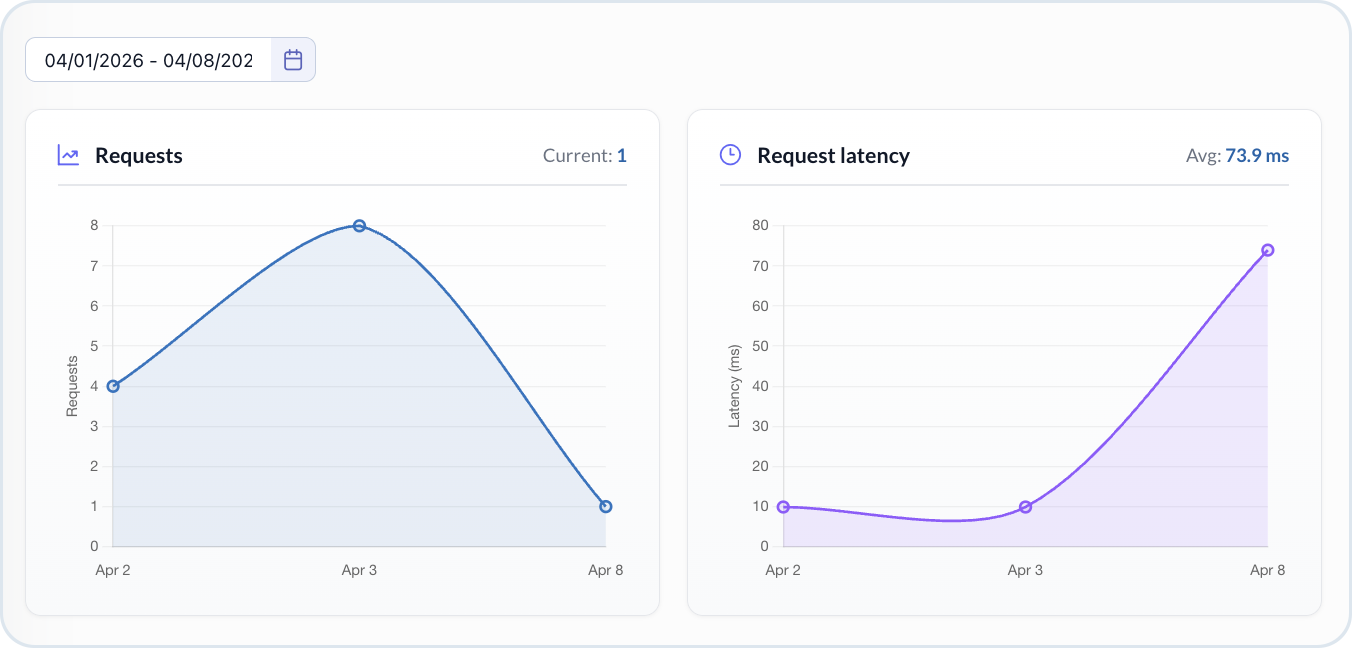
Overall hosting costs for cloud functions are calculated based on the usage metrics below. In the **Hosting** view, you see the following charts:

* **Requests** - Number of requests triggered by the cloud function.
* **Request latency** - Average latency time (in milliseconds).

<figure><img src="https://3057647601-files.gitbook.io/~/files/v0/b/gitbook-x-prod.appspot.com/o/spaces%2FbTY7EwZtYYQYC6GOcdTj%2Fuploads%2Fgit-blob-b55f0cabd181558812e5af91a23ed73d7b2b463b%2Fcf_metrics.png?alt=media" alt="Cloud function metrics"><figcaption><p>Cloud function metrics</p></figcaption></figure>

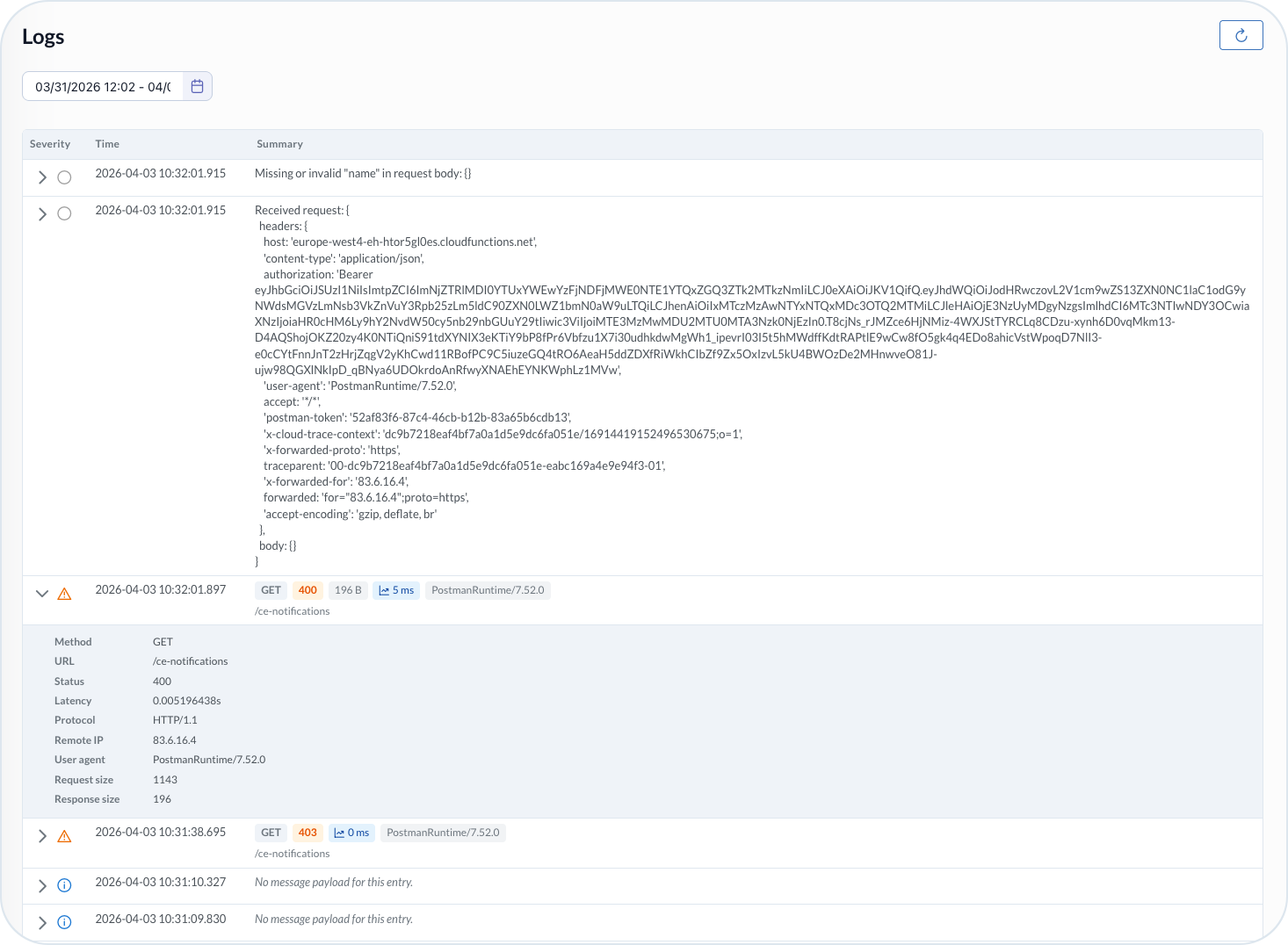
#### Logs

The hosting details of a particular cloud function show the full logs of how and when it is being invoked in the system. You can monitor the operations with the cloud function and see their outcomes.

<figure><img src="https://3057647601-files.gitbook.io/~/files/v0/b/gitbook-x-prod.appspot.com/o/spaces%2FbTY7EwZtYYQYC6GOcdTj%2Fuploads%2Fgit-blob-4cd6fa530a51d6c66cc79bc5e38816fdd2c4c56a%2Fcf_logs.png?alt=media" alt="Cloud function logs"><figcaption><p>Cloud function logs</p></figcaption></figure>

{% hint style="info" %}
See also the [Extension and Cloud Function Hosting](/user-guides/extensibility-and-integrations/extensibility-cases/extension-hosting.md).
{% endhint %}


---

# Agent Instructions
This documentation is published with GitBook. GitBook is the documentation platform designed so that both humans and AI agents can read, navigate, and reason over technical content effectively. Learn more at gitbook.com.

## Querying This Documentation
If you need additional information that is not directly available in this page, you can query the documentation by asking a question.

Perform an HTTP GET request on the following URL with the `ask` and `goal` query parameters:

```
GET https://developer.emporix.io/user-guides/management-dashboard/administration/hosting.md?ask=<question>&goal=<user_goal>
```

`ask` is the immediate question: it should be specific, self-contained, and written in natural language.
`goal` is what the user is ultimately trying to achieve, the reason they need the answer. Sharing it helps GitBook give you a better, more relevant answer. A goal is most helpful when it describes the outcome the user wants rather than restating the question. For example, with `ask=how do I create an API token`, a goal like `automate deployments from our CI pipeline` lets GitBook tailor the answer to that use case.

The response will contain a direct answer to the question and relevant excerpts and sources from the documentation.

Use this mechanism when the answer is not explicitly present in the current page, you need clarification or additional context, or you want to retrieve related documentation sections.