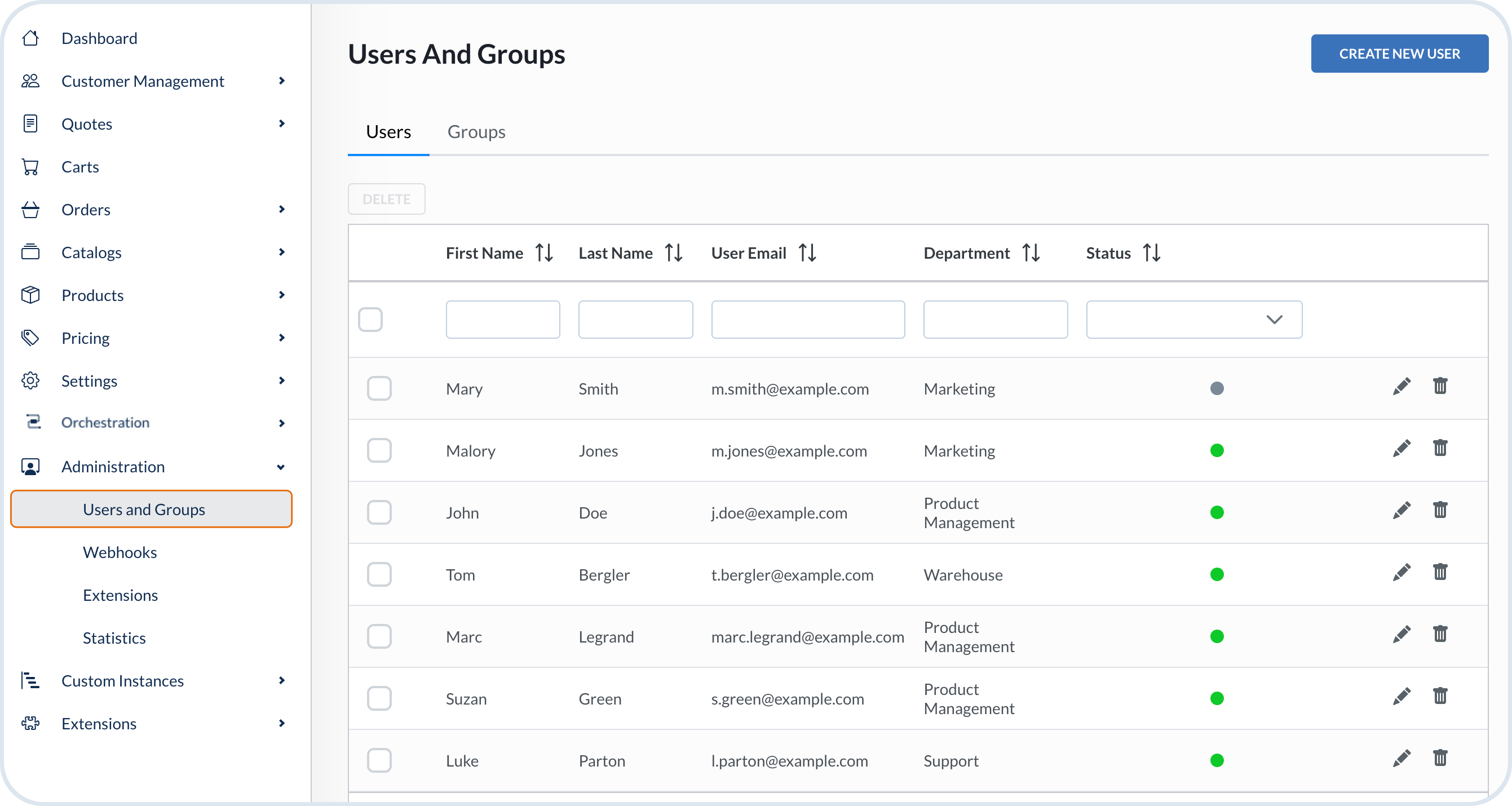
Users view
Users view
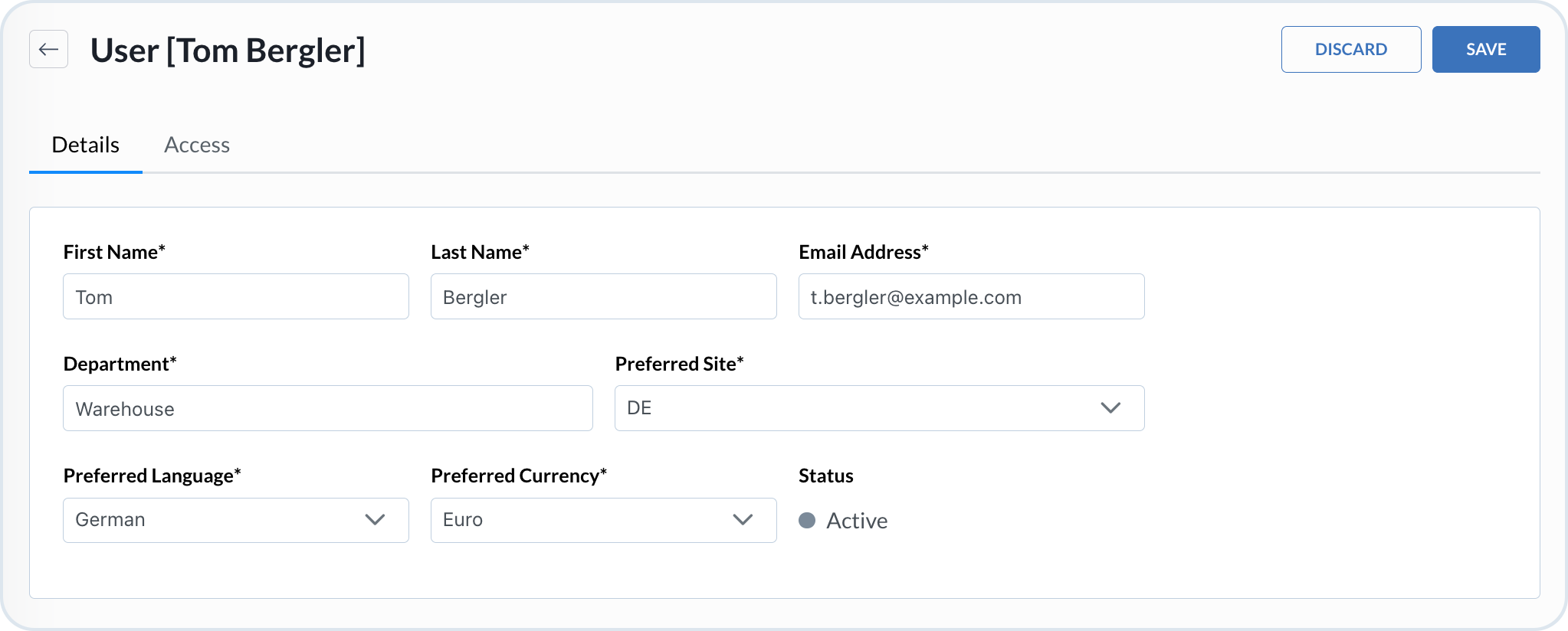
Add user
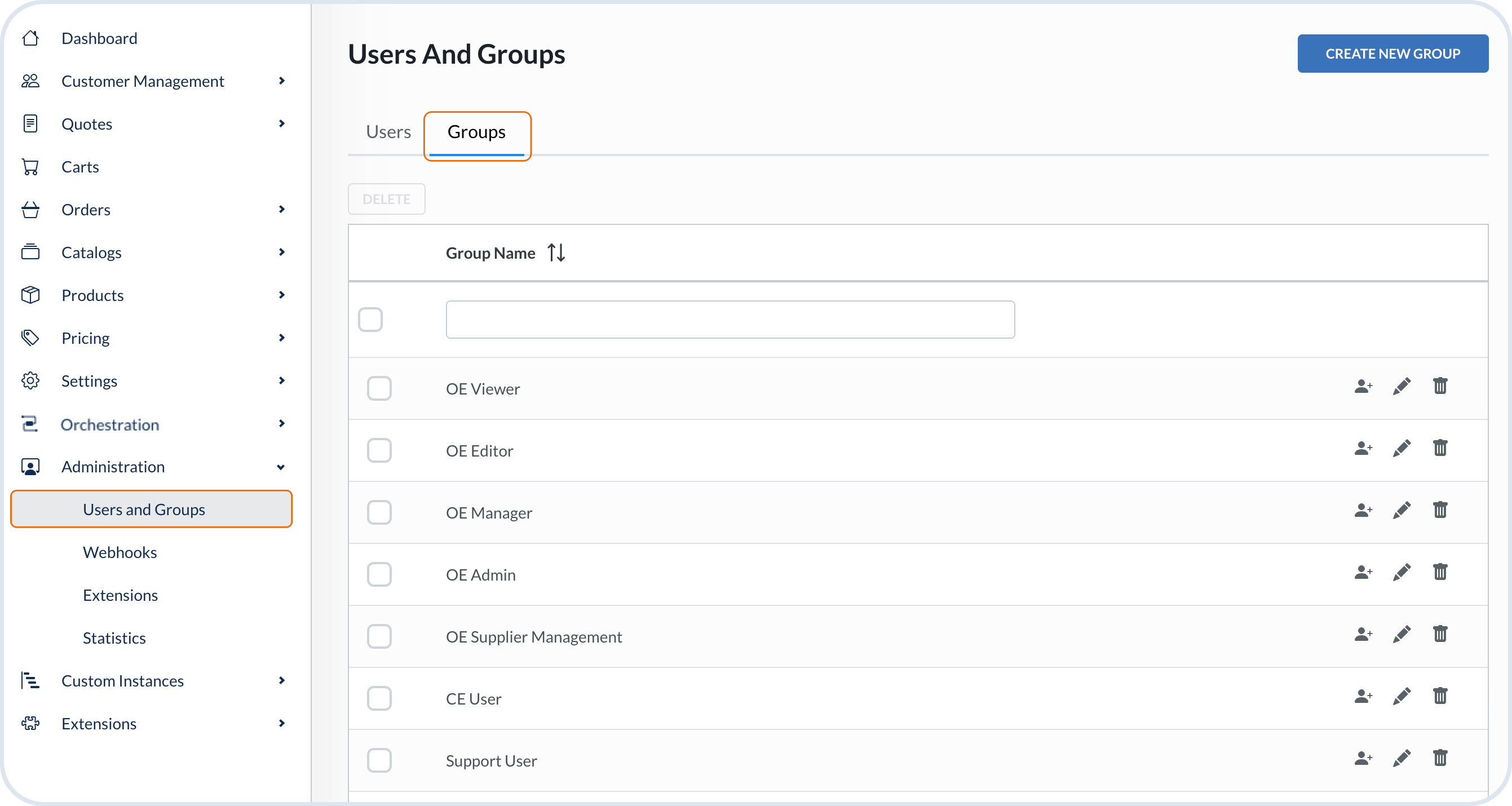
Groups view
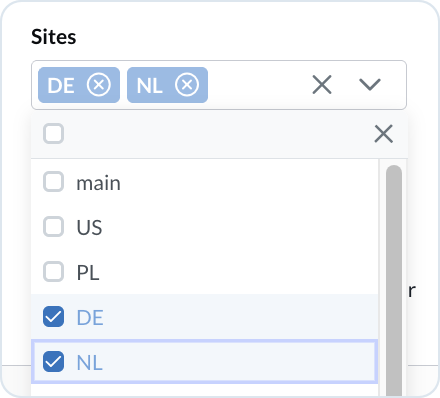
Group site permissions
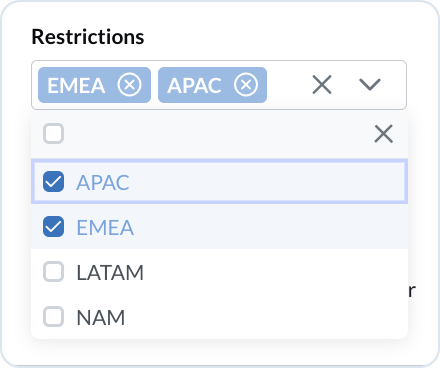
Group restrictions
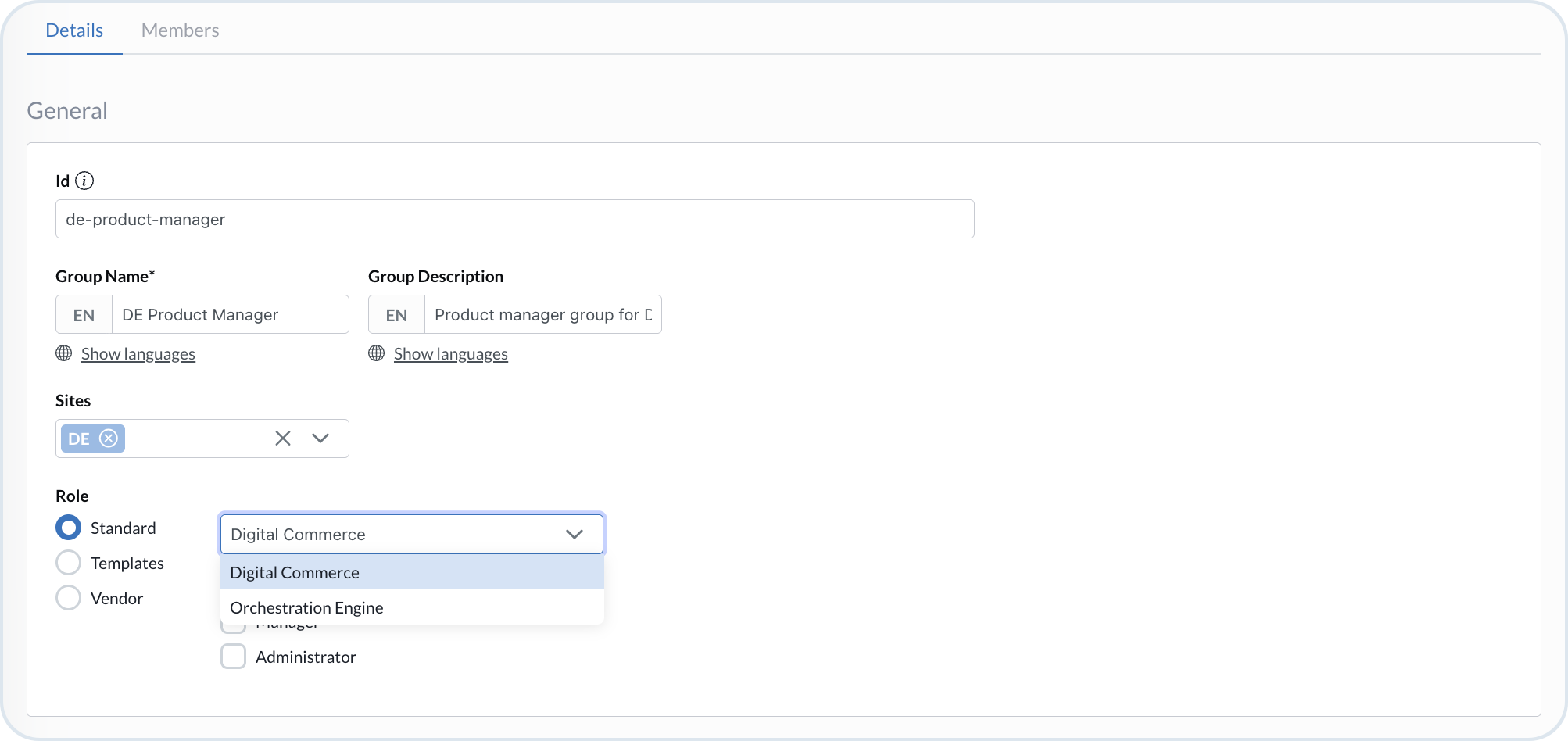
Product switcher
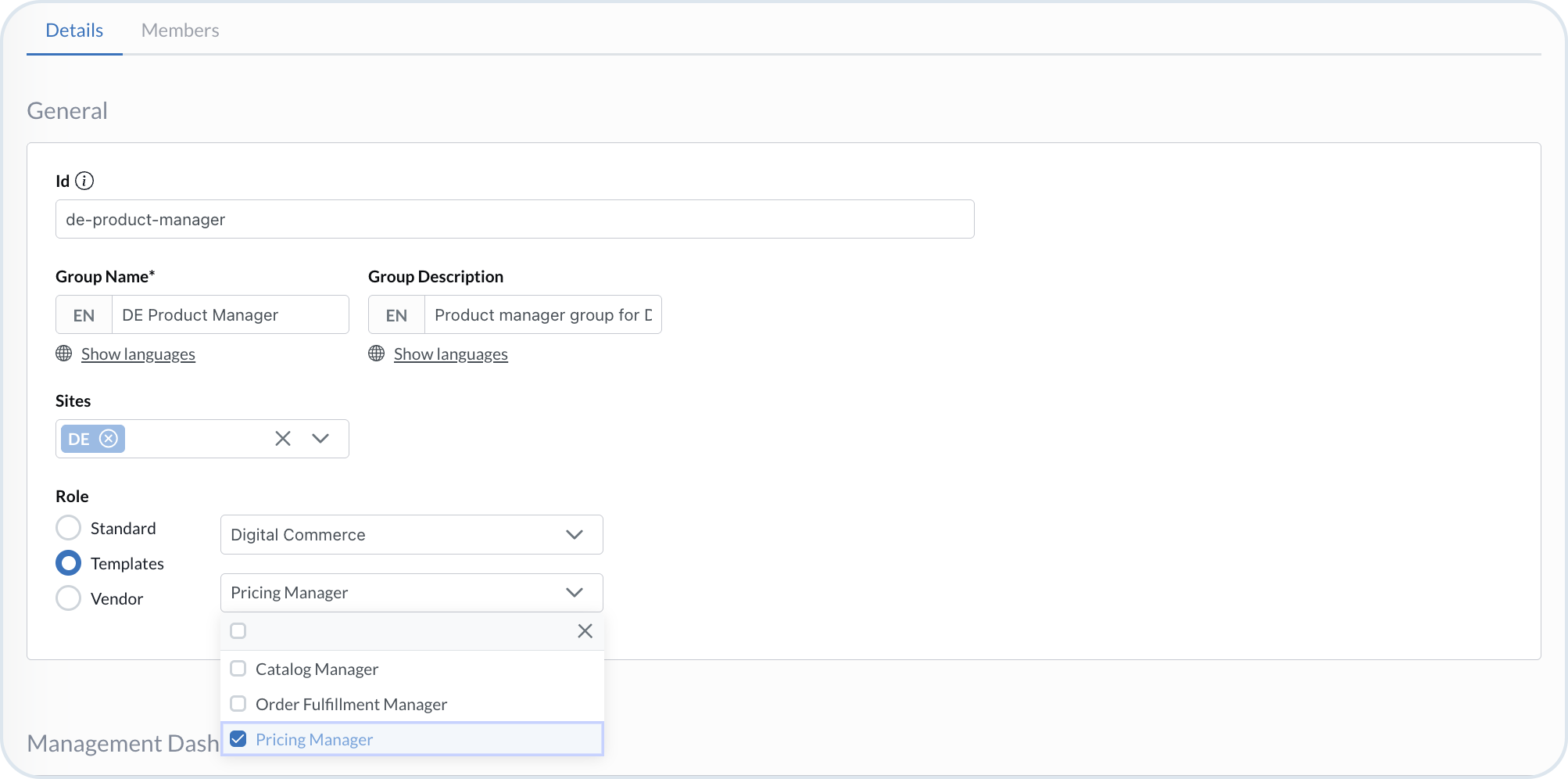
Role templates
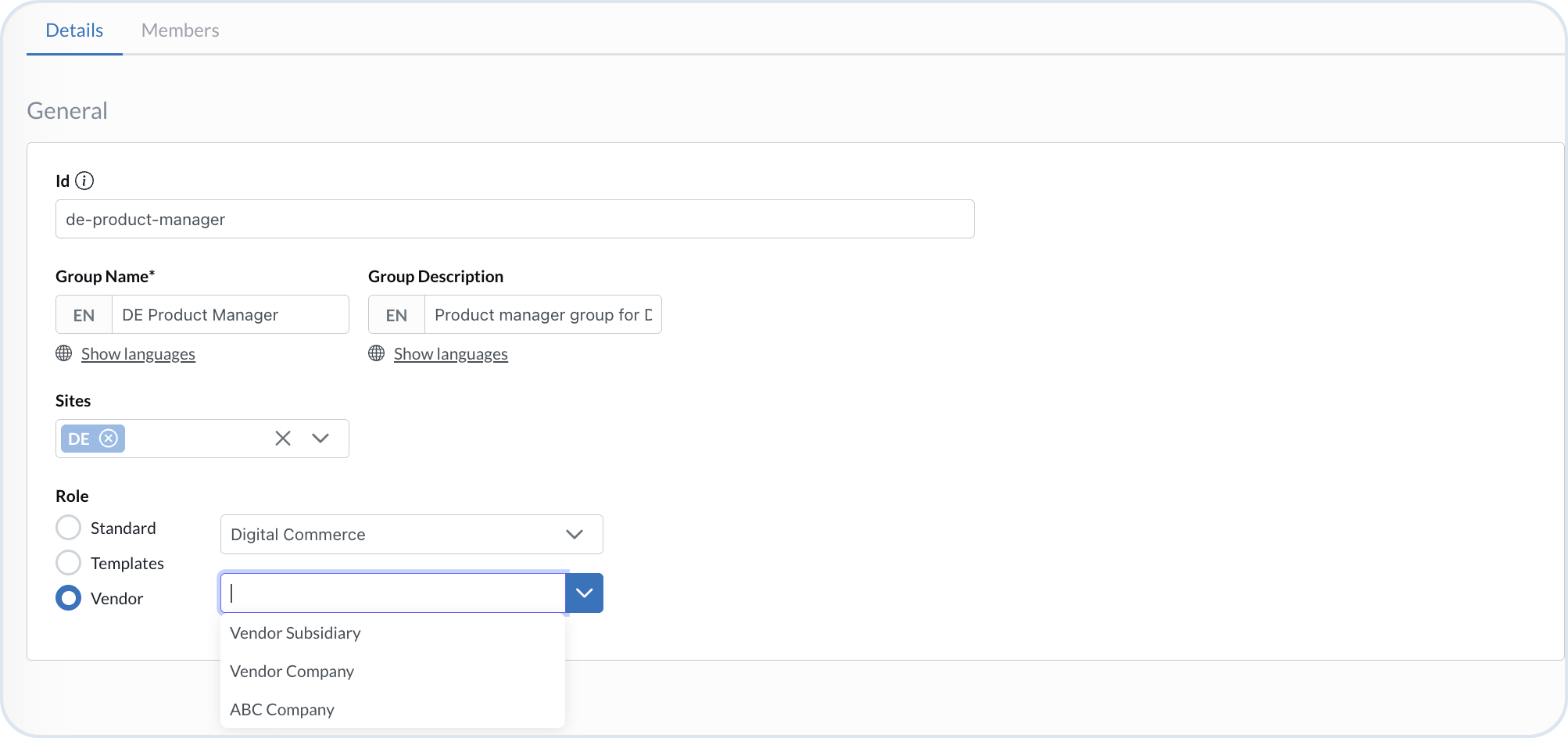
Vendor roles
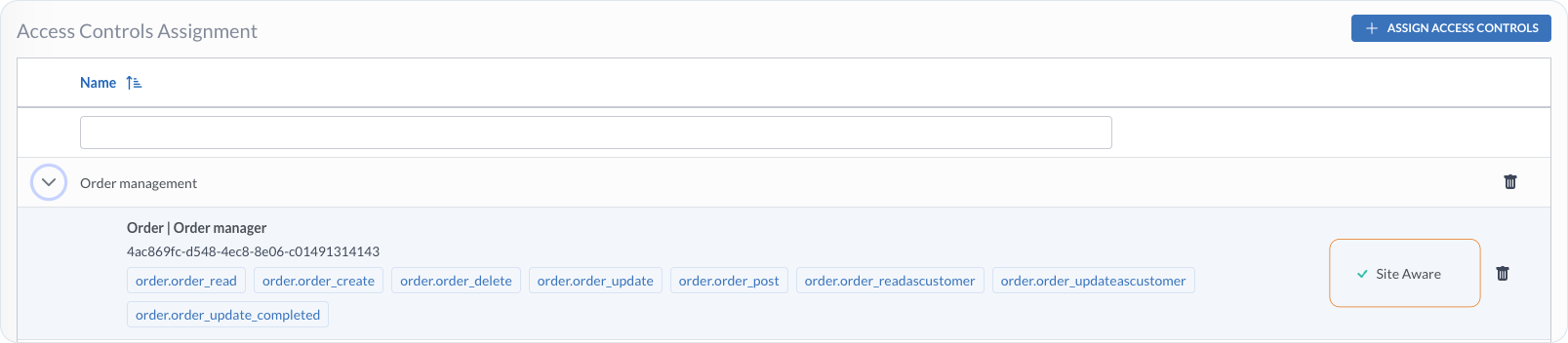 {% endhint %}
{% endstep %}
{% step %}
#### Confirm with **Save**
{% endstep %}
{% endstepper %}
{% hint style="danger" %}
Setting permissions
There are some resource types within CE that you access through other resources only and that don't have a separate view in the Management Dashboard, for example media, or payment gateway. For Category Manager, Category Viewer, Product Manager, and Product Viewer access controls, the system automatically assigns the matching Media Manager or Media Viewer access control—you do not need to add media permissions separately. For other resources (for example payment gateway), access may still depend on permissions defined for the parent entity.
There are also resources that do have a separate view in the Management Dashboard but you also access them through other entities, for example categories in products. Access to such resources depends on the permissions you define at a group level for the particular resource. For example, if a group has `manage` access for products and `read` access for categories, the users are able to edit products, but not the categories within products. Or, if a group has `manage` access to products but no access to categories, the users don't have permission to see categories assigned to products. In that case, the users see `No permissions` message on a particular field.
For more information, see [Permissions](#permissions).
{% endhint %}
{% endstep %}
{% step %}
#### Confirm with **Save**
{% endstep %}
{% endstepper %}
{% hint style="danger" %}
Setting permissions
There are some resource types within CE that you access through other resources only and that don't have a separate view in the Management Dashboard, for example media, or payment gateway. For Category Manager, Category Viewer, Product Manager, and Product Viewer access controls, the system automatically assigns the matching Media Manager or Media Viewer access control—you do not need to add media permissions separately. For other resources (for example payment gateway), access may still depend on permissions defined for the parent entity.
There are also resources that do have a separate view in the Management Dashboard but you also access them through other entities, for example categories in products. Access to such resources depends on the permissions you define at a group level for the particular resource. For example, if a group has `manage` access for products and `read` access for categories, the users are able to edit products, but not the categories within products. Or, if a group has `manage` access to products but no access to categories, the users don't have permission to see categories assigned to products. In that case, the users see `No permissions` message on a particular field.
For more information, see [Permissions](#permissions).
 {% endhint %}
## Assign users to a group
To allow a user to work within the tenant, assign the user to a user group with a set of specific access rights. You can do it in two ways: from the user perspective and from the user group perspective.
### From the user perspective
{% stepper %}
{% step %}
#### Go to users view
In the **Administration** module, go to **Users and Groups** -> **Users**.
{% endstep %}
{% step %}
#### Choose the user
To open the edit mode, select the relevant user row.
{% endstep %}
{% step %}
#### Assign the user group
Go to the **Access** tab and select the relevant user group.
{% endstep %}
{% step %}
#### Save your changes
Choose **Save** to keep your configuration.
{% endhint %}
## Assign users to a group
To allow a user to work within the tenant, assign the user to a user group with a set of specific access rights. You can do it in two ways: from the user perspective and from the user group perspective.
### From the user perspective
{% stepper %}
{% step %}
#### Go to users view
In the **Administration** module, go to **Users and Groups** -> **Users**.
{% endstep %}
{% step %}
#### Choose the user
To open the edit mode, select the relevant user row.
{% endstep %}
{% step %}
#### Assign the user group
Go to the **Access** tab and select the relevant user group.
{% endstep %}
{% step %}
#### Save your changes
Choose **Save** to keep your configuration.
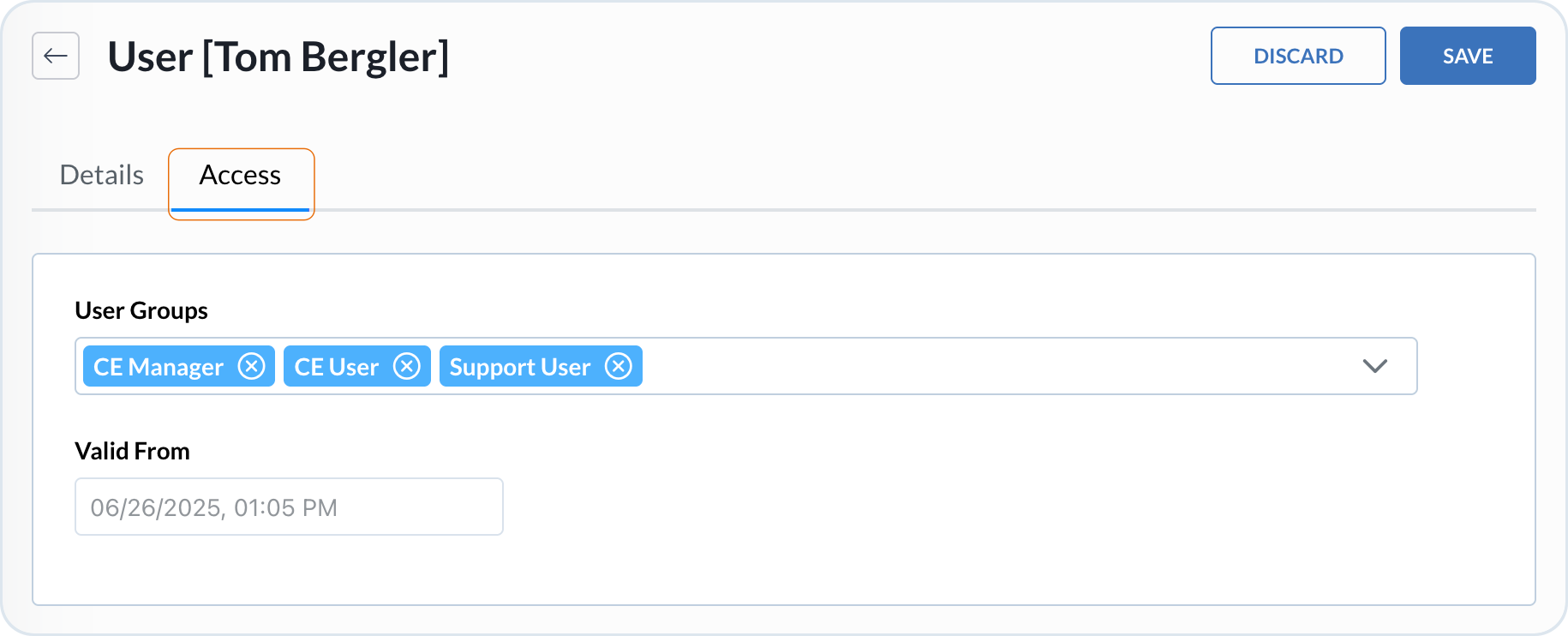
User access groups
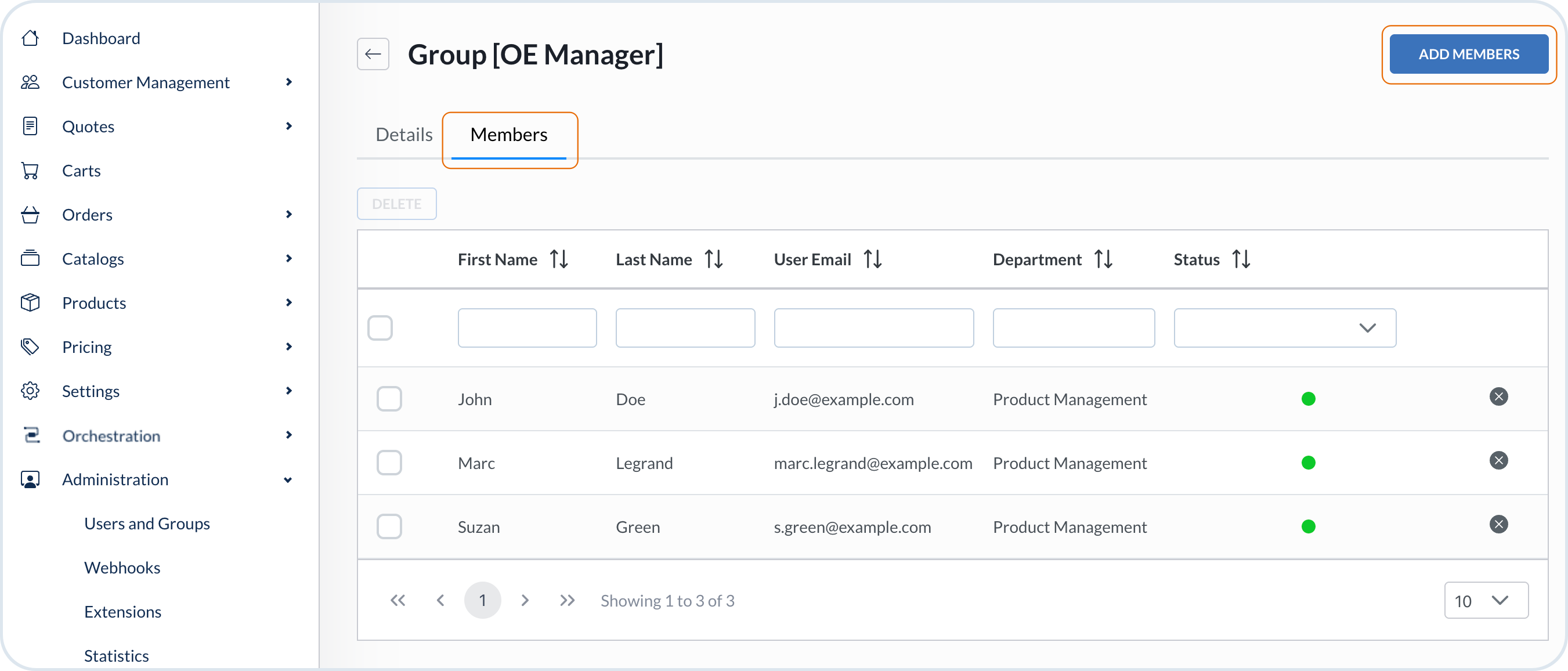
Group members
Customer
Management
Customer
Management
Customer
Management
Customer
Management
 {% endhint %}
{% hint style="info" %}
For more information about the access controls, see the [Identity and Access Management](/user-guides/system-management/authentication-and-authorization/authorization/iam.md) tutorial related to the Emporix API IAM Service.
{% endhint %}
### User-specific roles configuration
In addition to using the predefined set of roles and permissions, you can build your own user roles and assign them to relevant users or groups. This is done by defining scopes and grouping them in the access controls you can assign to users and user groups.
{% hint style="info" %}
First define the permissions you need as [scopes](/user-guides/management-dashboard/administration/scopes.md), then combine scopes into [access controls](/user-guides/management-dashboard/administration/access-controls.md) and assign those access controls to user groups.
{% endhint %}
Check the examples matrix below to see how scopes, access controls, and roles can fit together.
{% endhint %}
{% hint style="info" %}
For more information about the access controls, see the [Identity and Access Management](/user-guides/system-management/authentication-and-authorization/authorization/iam.md) tutorial related to the Emporix API IAM Service.
{% endhint %}
### User-specific roles configuration
In addition to using the predefined set of roles and permissions, you can build your own user roles and assign them to relevant users or groups. This is done by defining scopes and grouping them in the access controls you can assign to users and user groups.
{% hint style="info" %}
First define the permissions you need as [scopes](/user-guides/management-dashboard/administration/scopes.md), then combine scopes into [access controls](/user-guides/management-dashboard/administration/access-controls.md) and assign those access controls to user groups.
{% endhint %}
Check the examples matrix below to see how scopes, access controls, and roles can fit together.

Enable sites and restrictions sync setting
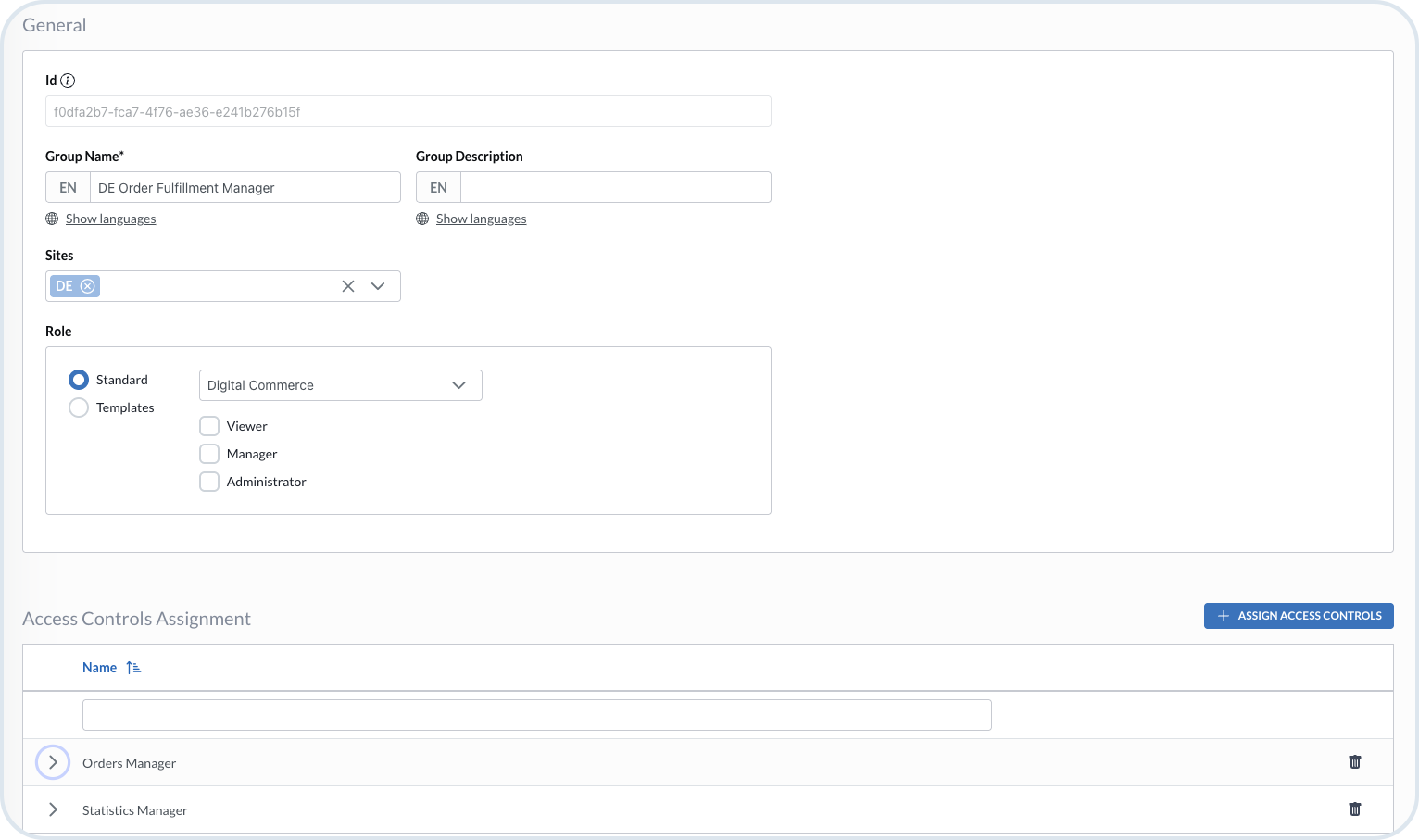
Group with DE site permissions
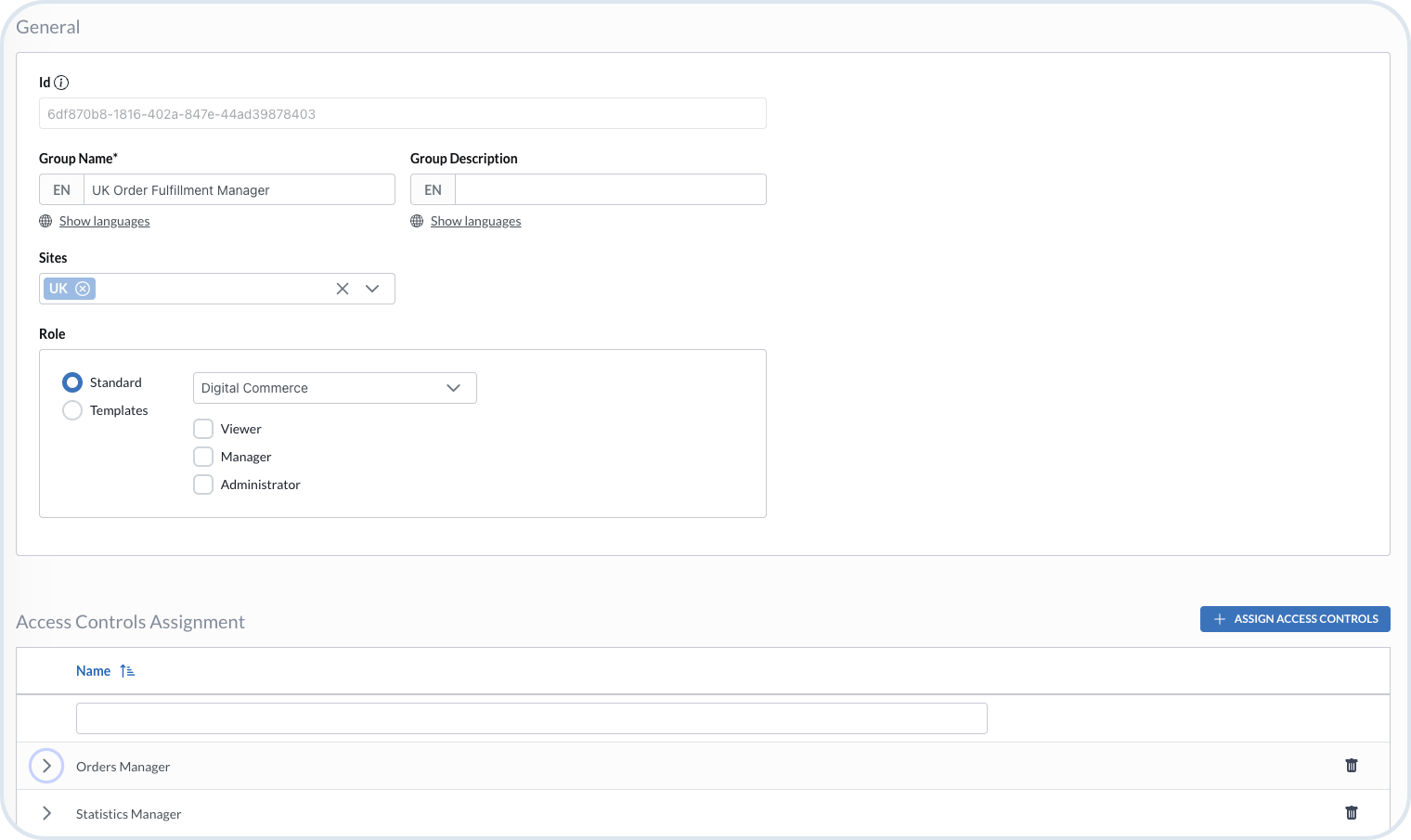
Group with UK site permissions
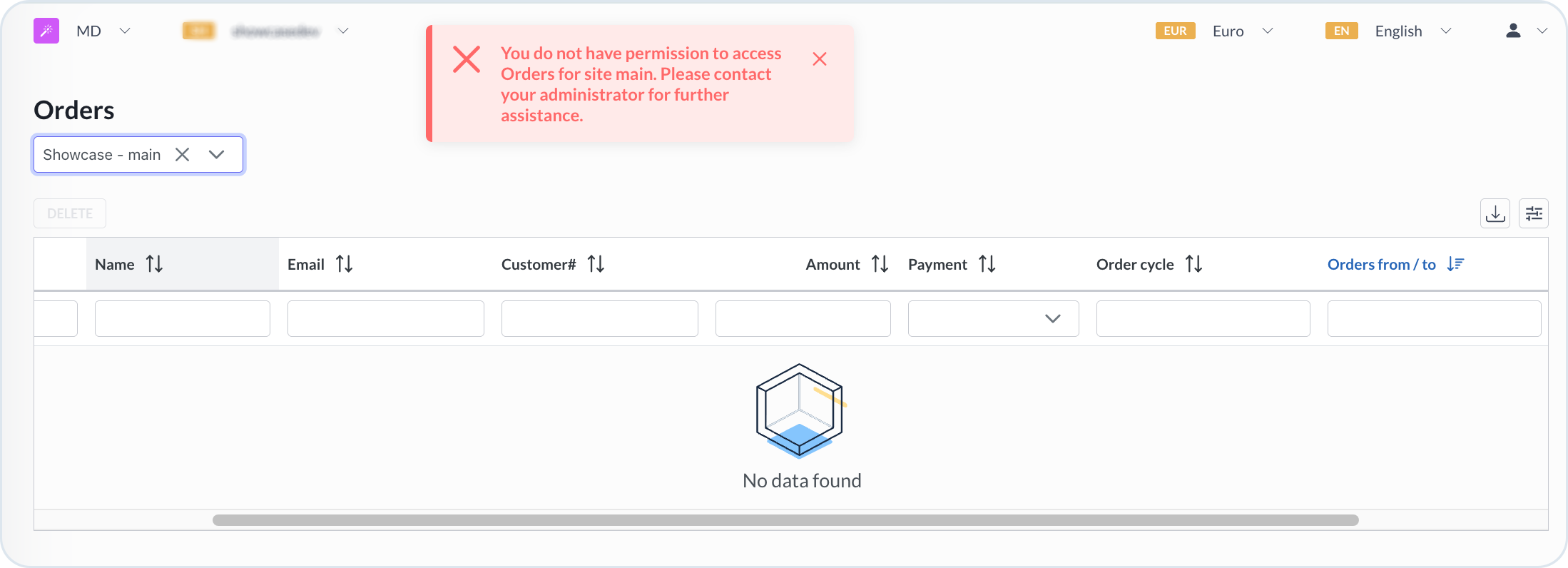
User's view with restricted order access

Sites and restrictions sync off setting

List of custom restrictions list setting
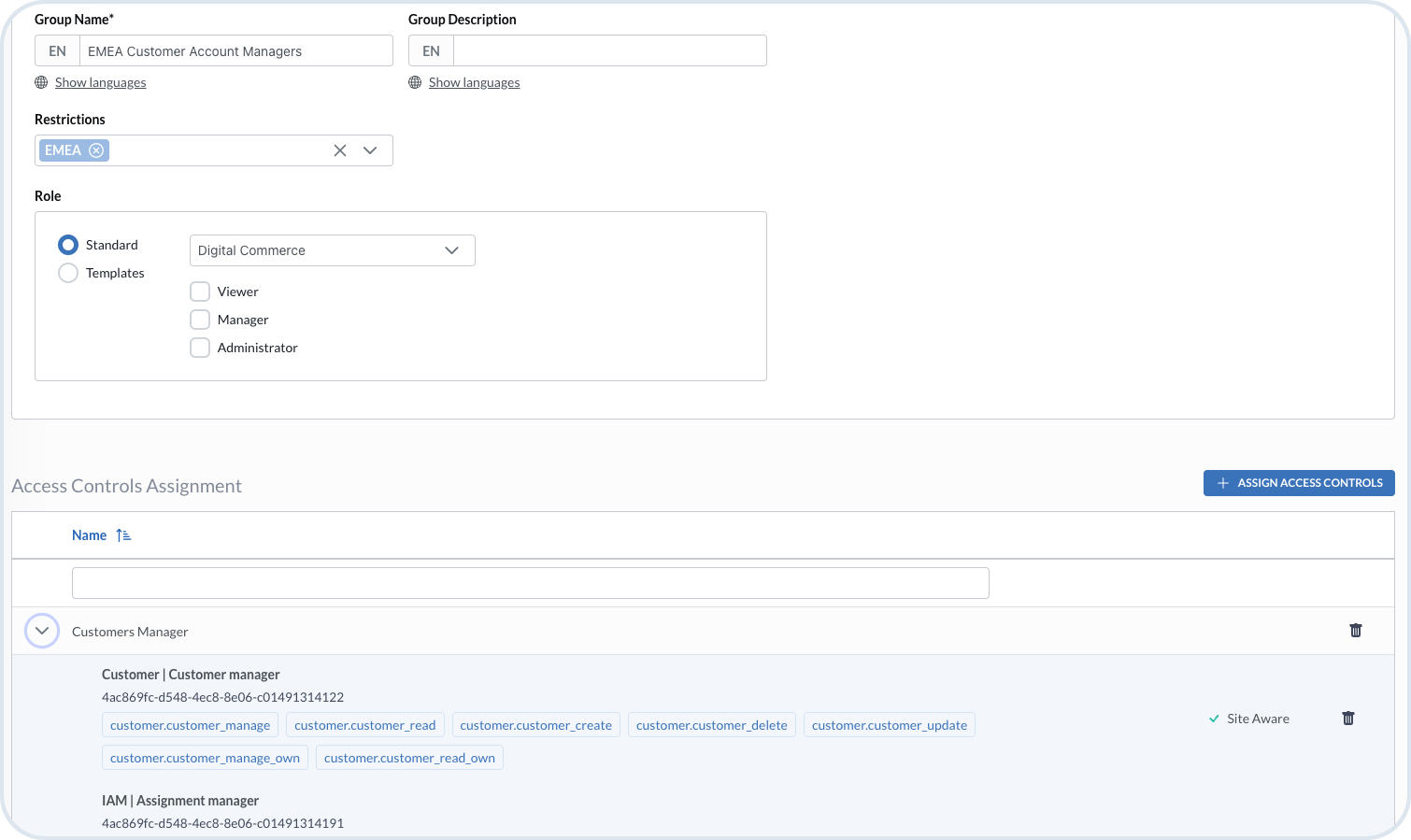
Group with custom restrictions
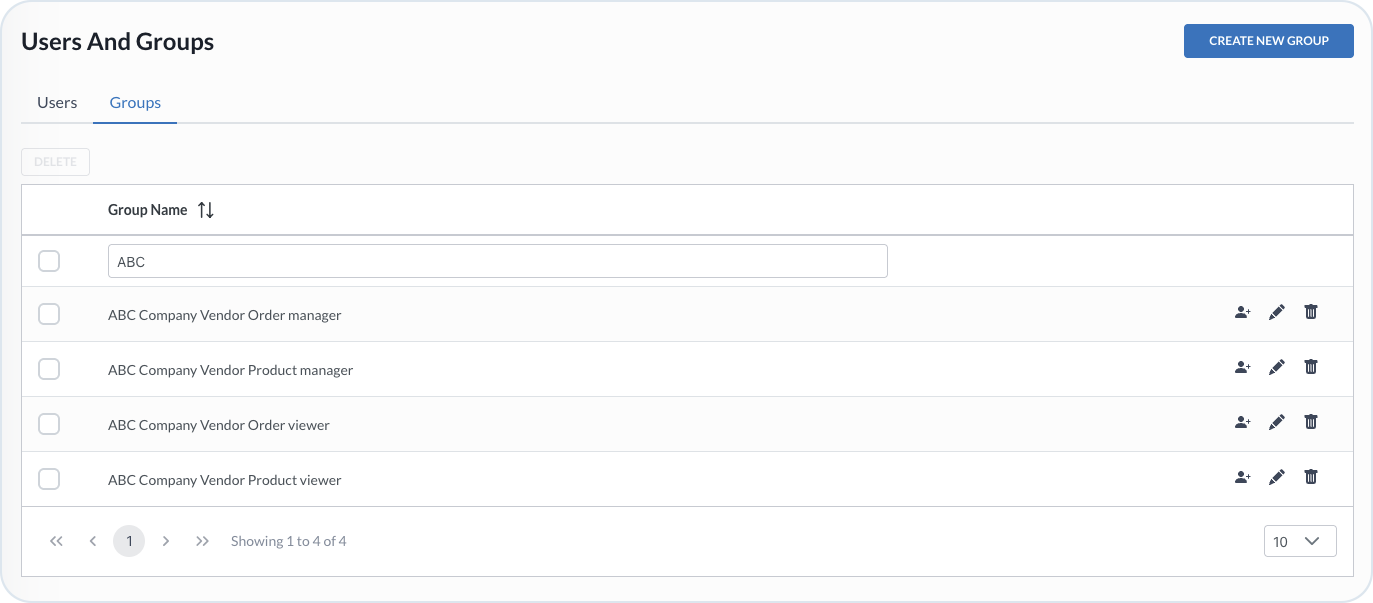
Vendor users
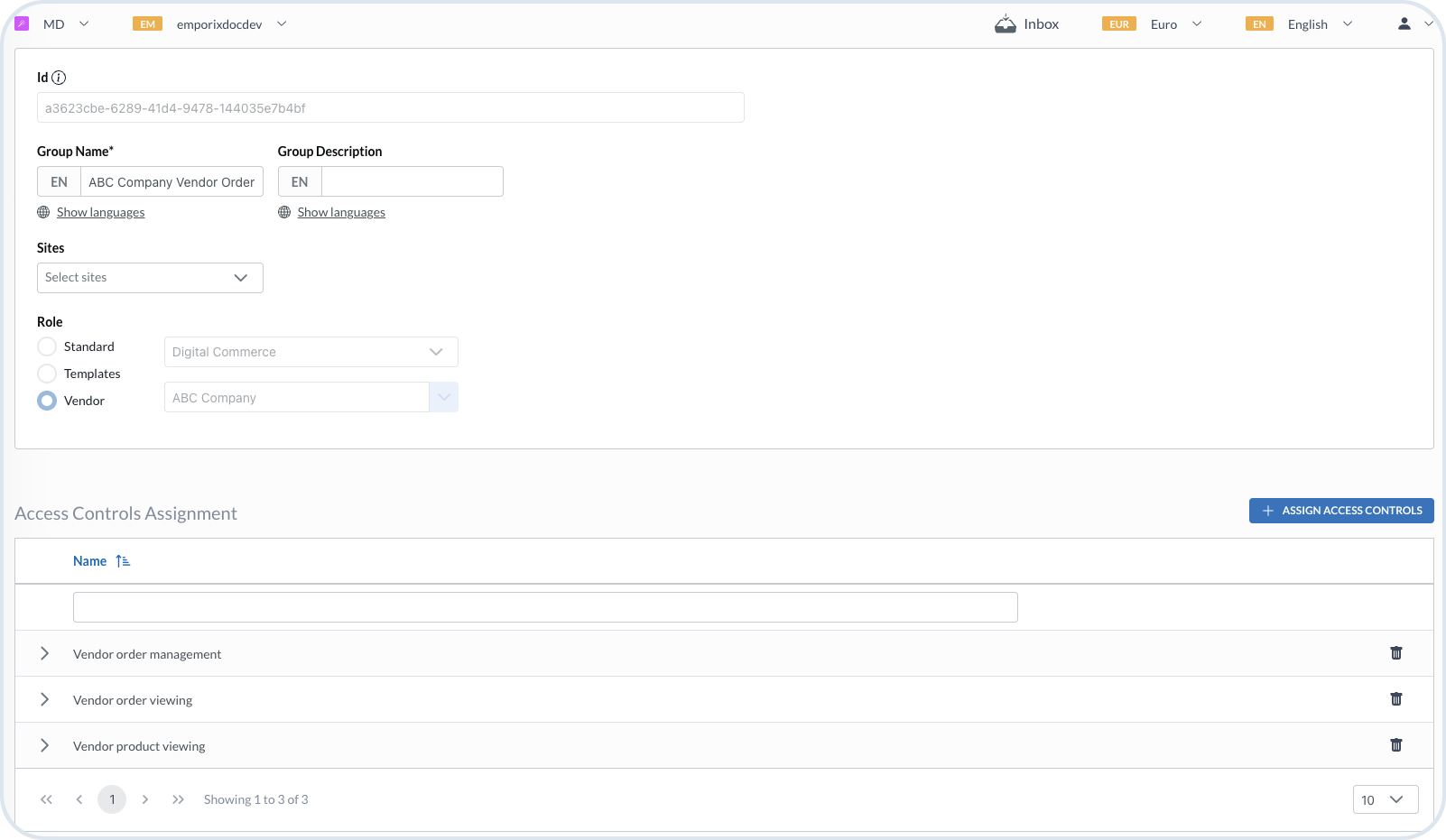
Vendor users
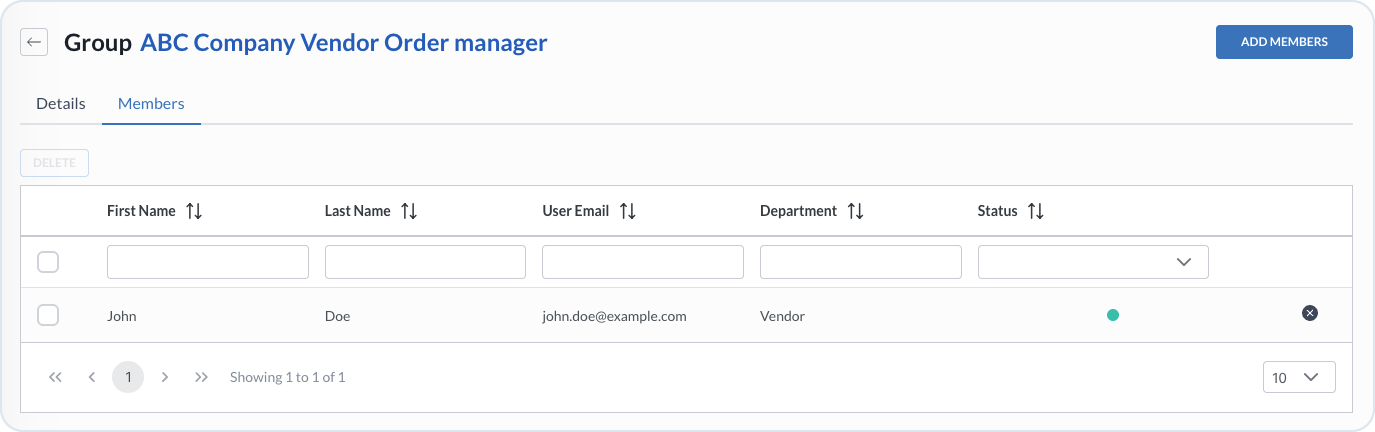
Vendor users
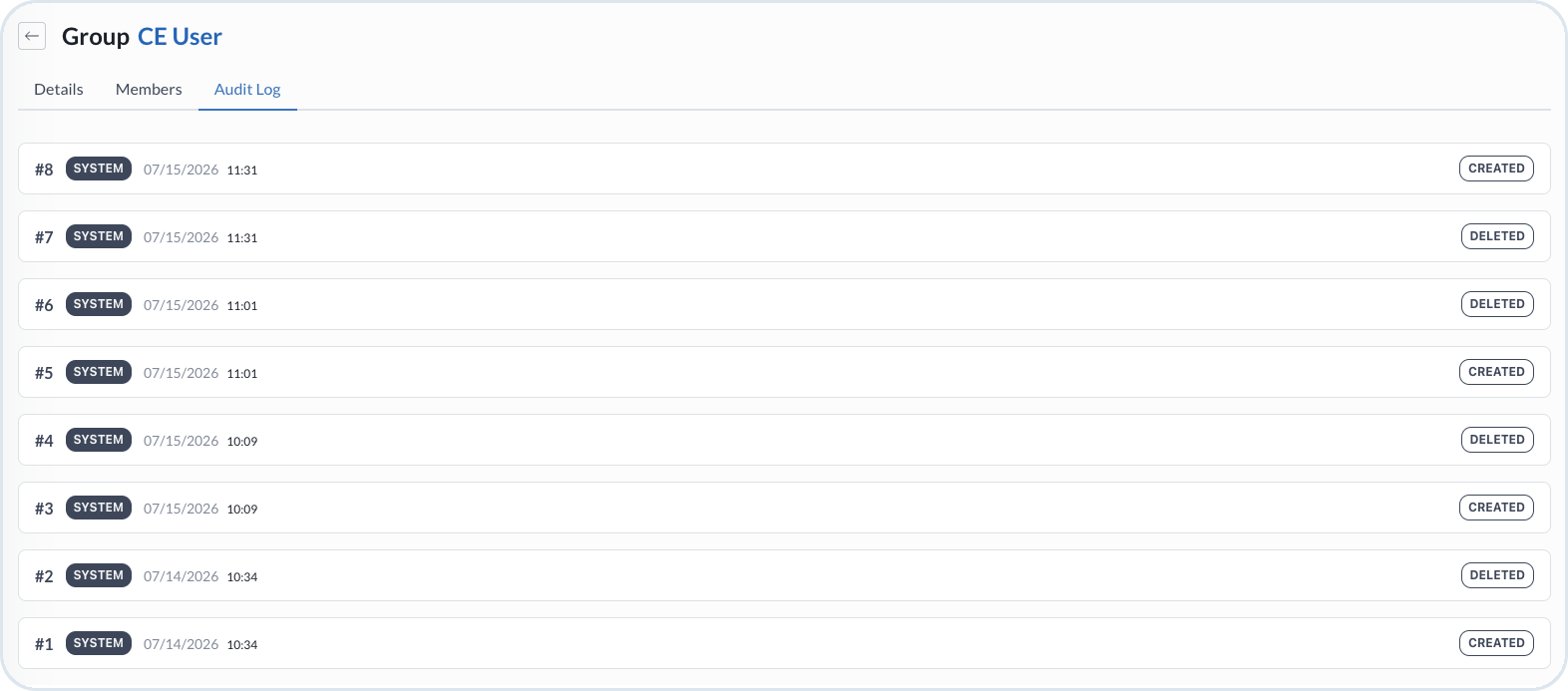
User group Audit Logs tab