> For the complete documentation index, see [llms.txt](https://developer.emporix.io/llms.txt). Markdown versions of documentation pages are available by appending `.md` to page URLs; this page is available as [Markdown](https://developer.emporix.io/user-guides/management-dashboard/catalogs-module/categories.md).
# Categories
Manage product categories.
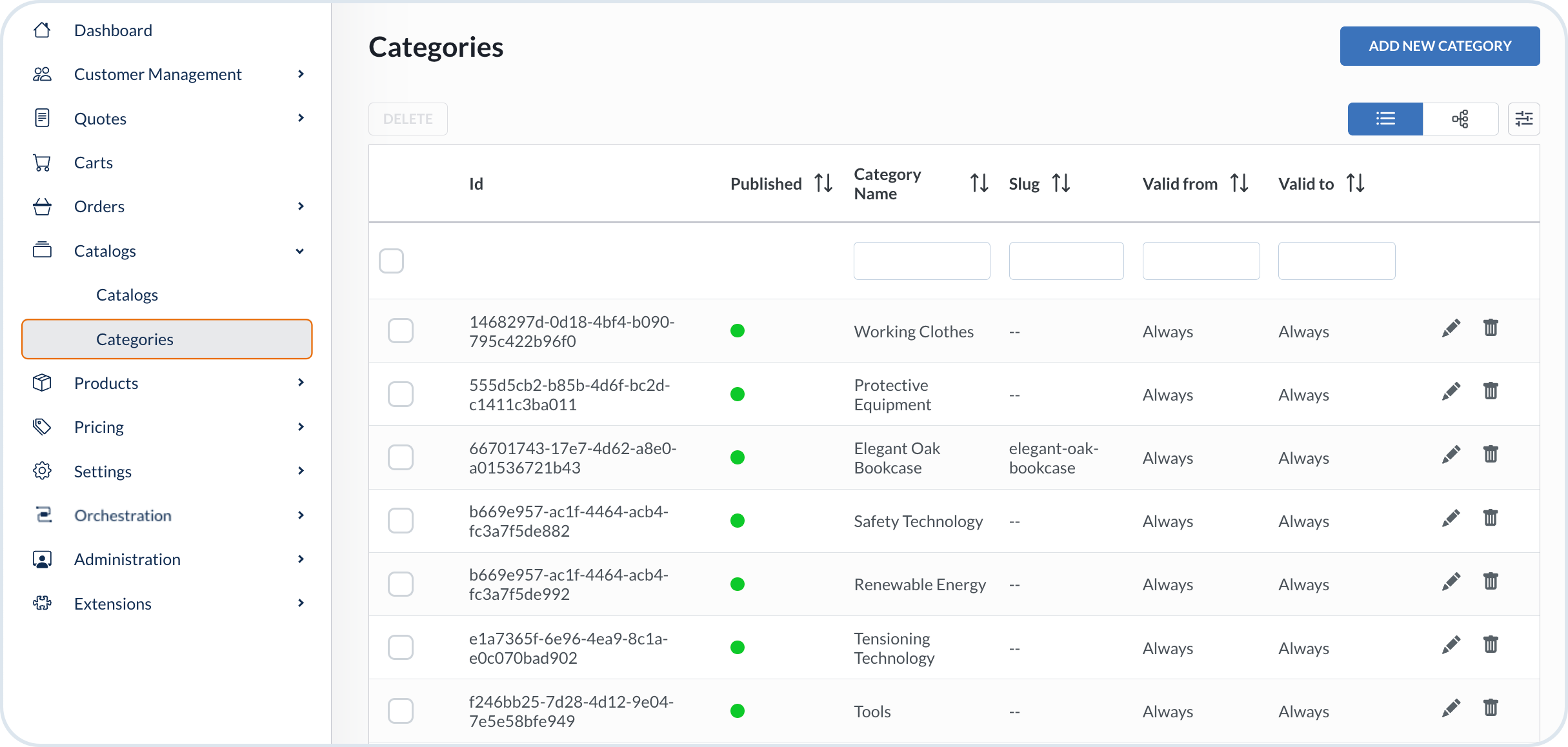
In the **Categories** section, you can see a list of the catalogs in your system.
For viewing convenience, filter them with the search bar or sort by id, publication, name, slug name or validity dates.
{% hint style="success" %}
*Searching for categories using date filters*
* **Valid from** displays categories with the valid from date that is **the same as** or comes **after** the selected date.
* **Valid to** displays categories with the validity end date that is **earlier than** than or **the same as** the selected date.
* Using both **Valid from** and **Valid to** results in filtering the categories that are valid between the selected dates range.
The categories that are *always* or *never* valid, are omitted in the date search.
{% endhint %}
You can also change the default view by using the options available under the orchestration icon.
{% hint style="info" %}
With the table orchestration, you can add custom columns to the list view, by adding **mixin** fields as columns.\
If you have already defined mixin schema for the entity, you'd be able to select the defined mixin fields to display them in the main view.
See example how to do it in the [Displaying mixins in entity list view](/user-guides/management-dashboard/settings/mixin-schemas.md#displaying-mixins-in-entity-list-view) documentation.
{% endhint %}
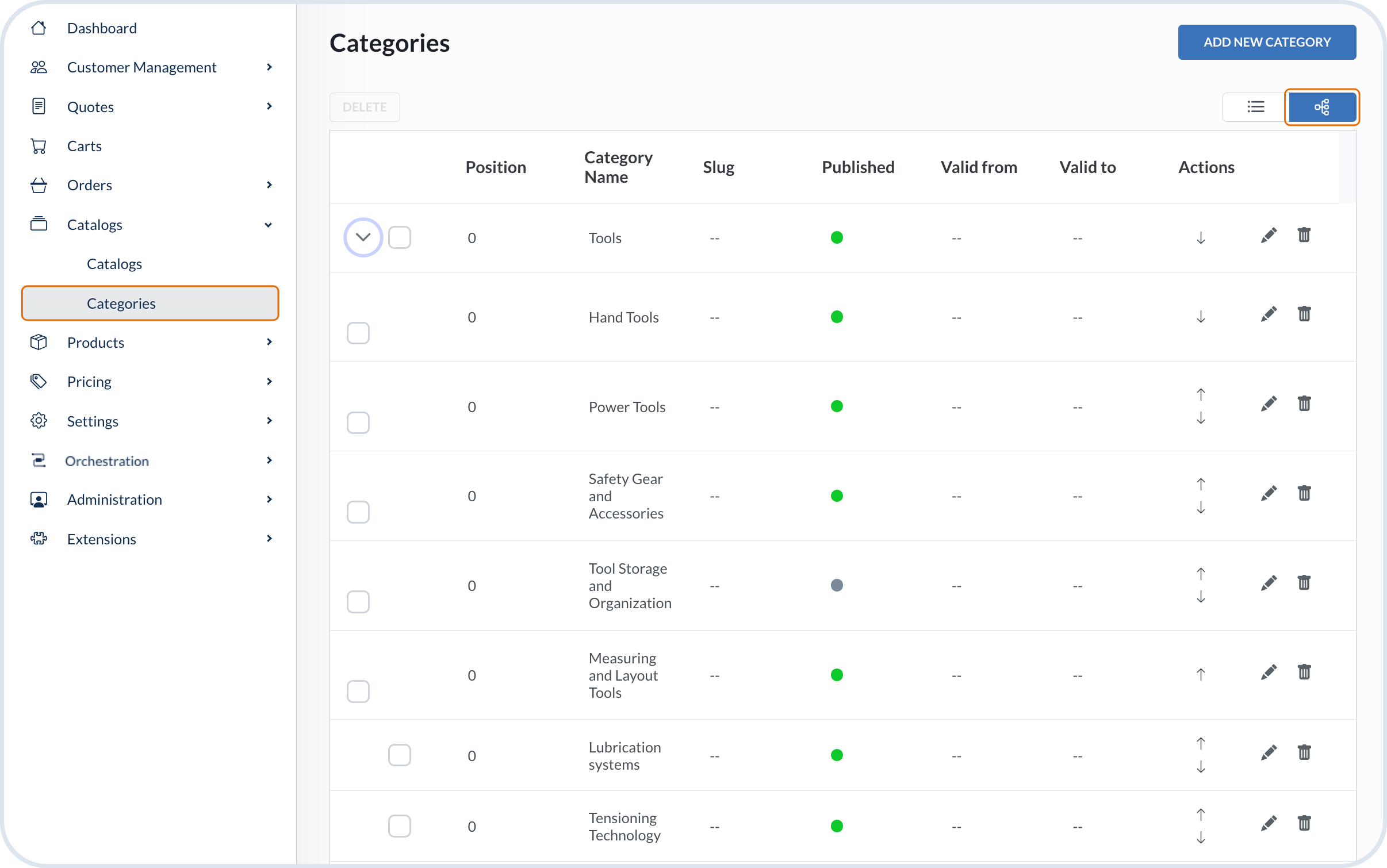
You can switch to categories tree view to see categories hierarchy.
In the categories tree view, you can sort the categories and reorder them according to your needs. By using arrows ↑↓ move a category up or down to change its position against another category. The category position is recalculated based on the move.\
Moving the categories is possible only within the same level, for example you can sort the subcategories within the same parent category, and you can reorder categories at the parent level.
{% hint style="warning" %}
It is not possible to reorder categories that have the same value defined for the position attribute. If a `Category A` is at the position `"0"` and a `Category B` is at the position `"0"`, reordering the two categories does not take any effect as the index is generated based on the position. If this happens, make sure you provide unique position values.
{% endhint %}
To remove a category, you can delete a single item from the list with Delete icon, or delete multiple items. To delete multiple items at once, select the chosen categories and then choose **Delete** button.
{% hint style="warning" %}
Using Management Dashboard, you can only delete up to 30 items at once. 30 is the maximum number of items that can be displayed on one page.
{% endhint %}
## Creating a category
1. Go to **Catalogs** -> **Categories** and choose **Add New Category**.
2. Fill out the relevant information about the catalog by switching to subsequent tabs. In **Details**, provide some basic information about the category:
* **Id**: an identifier of the category
* **Name**: (mandatory) category
* **Code**: an additional identifier that can serve as unique Id
* **Slug**: a localized category name or code without diacritics or special symbols
* **Description**: a description of what the category contains
* **ECNs**: electronic communication network to match with the category. You can provide multiple ECNs.
{% hint style="warning" %}
Only the **Name** is mandatory for a category creation. You can decide to edit other details later.\
You can also set up a custom category ID in the **Id** field. Otherwise, a unique ID is automatically generated when the category is created.
{% endhint %}
3. In **Path** tab, specify the parent category, if any, and the position at which the category is to be displayed. The position is taken into account when sorting the categories in the tree view.
4. In **Validity** tab, define when you want to use the category and if you want to publish it.
5. Confirm category creation with **Save**.
6. In **Media** tab, add an image or images associated with the category.
{% hint style="danger" %}
Before proceeding to the **Media** tab, make sure to save the category details. You have to save the category first so that the system assigns a category ID, which is required to associate any media items.
{% endhint %}
## Editing a category
1. From the list view, select a category row you want to edit or choose Edit icon. From the category view, choose Edit icon.
2. Modify the relevant details.
3. When you're done, choose **Save**. To revert to the previous state, choose **Discard**.
---
# Agent Instructions
This documentation is published with GitBook. GitBook is the documentation platform designed so that both humans and AI agents can read, navigate, and reason over technical content effectively. Learn more at gitbook.com.
## Querying This Documentation
If you need additional information that is not directly available in this page, you can query the documentation by asking a question.
Perform an HTTP GET request on the following URL with the `ask` and `goal` query parameters:
```
GET https://developer.emporix.io/user-guides/management-dashboard/catalogs-module/categories.md?ask=&goal=
```
`ask` is the immediate question: it should be specific, self-contained, and written in natural language.
`goal` is what the user is ultimately trying to achieve, the reason they need the answer. Sharing it helps GitBook give you a better, more relevant answer. A goal is most helpful when it describes the outcome the user wants rather than restating the question. For example, with `ask=how do I create an API token`, a goal like `automate deployments from our CI pipeline` lets GitBook tailor the answer to that use case.
The response will contain a direct answer to the question and relevant excerpts and sources from the documentation.
Use this mechanism when the answer is not explicitly present in the current page, you need clarification or additional context, or you want to retrieve related documentation sections.