> For the complete documentation index, see [llms.txt](https://developer.emporix.io/llms.txt). Markdown versions of documentation pages are available by appending `.md` to page URLs; this page is available as [Markdown](https://developer.emporix.io/user-guides/management-dashboard/customer-management/coupons.md).
# Coupons
Manage coupons.
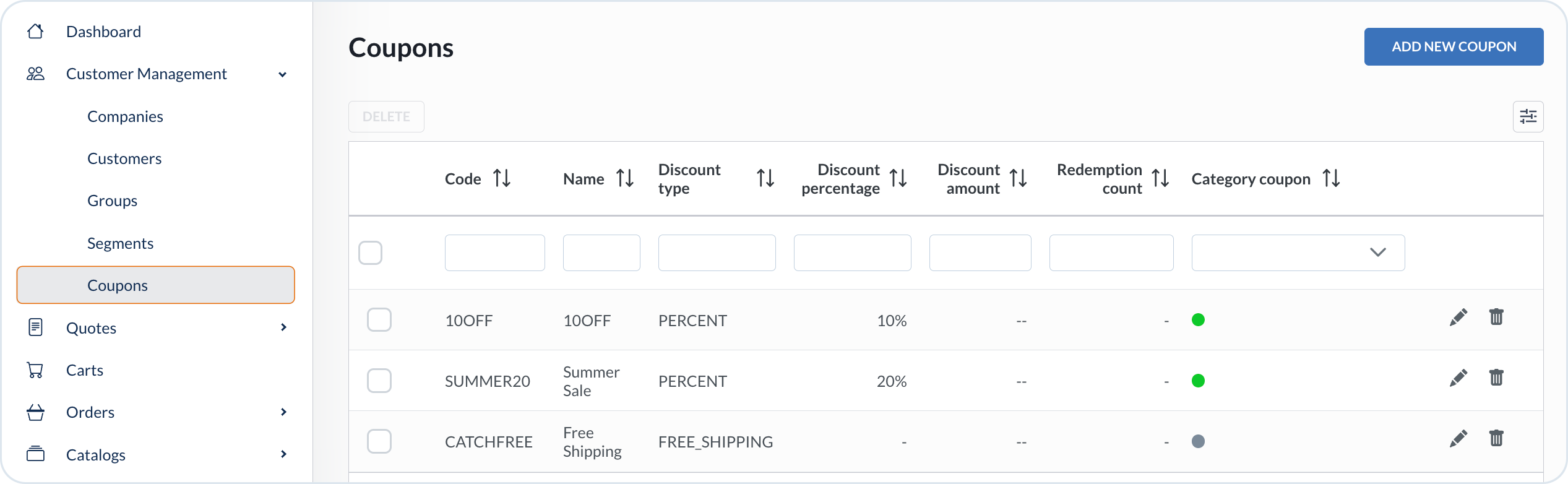
The **Coupons** dashboard is designed to help you manage coupons for your business customers.
You can also change the default view by using the options available under the orchestration icon.
{% hint style="info" %}
With the table orchestration, you can add custom columns to the list view, by adding **mixin** fields as columns.\
If you have already defined mixin schema for the entity, you'd be able to select the defined mixin fields to display them in the main view.
See example how to do it in the [Displaying mixins in entity list view](/user-guides/management-dashboard/settings/mixin-schemas.md#displaying-mixins-in-entity-list-view) documentation.
{% endhint %}
You can use the dashboard to perform the following actions:
* Create coupons
* Edit coupons
The Coupons section is located in the **Customer Management** module of the Emporix Management Dashboard.
### Creating a coupon
To create a coupon, follow these steps:
{% stepper %}
{% step %}
#### Choose Add new coupon
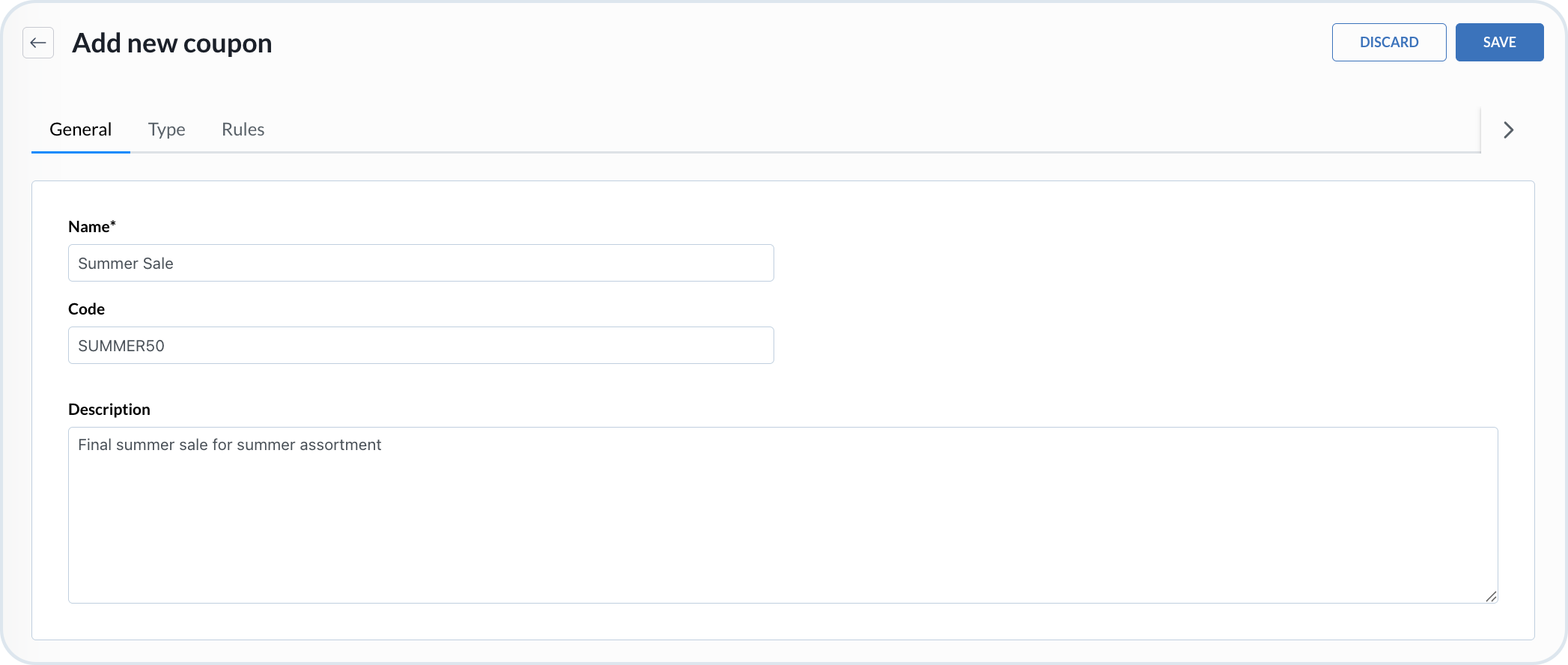
In **Customer management** -> **Coupons**, choose **Add new coupon**.
{% endstep %}
{% step %}
#### Provide general details
In the **General** tab, provide the name of the coupon and define **Code** and description.
{% endstep %}
{% step %}
#### Choose coupon type
In the **Type** tab, choose the coupon type and provide relevant values based on that selection:
* **Percent** – the coupon provides a percentage discount on the order value (such as 10% off)
* **Free shipping** – the coupon deducts delivery costs from the total order value
* **Amount** – the coupon provides an absolute discount on the order value (such as $5 off)
For **Percent** and **Amount** coupons, you can decide how to calculate the discount in the **Calculation base** field – whether the discount is deducted from the total or subtotal net order values:
* **subtotal** – calculated net sum of prices for all the products in a cart
* **total** – calculated net sum including the subtotal order value, delivery costs, and additional fees
{% endstep %}
{% step %}
#### Set rules
In the **Rules** tab, set when the coupon is valid and how redemption is limited:
* **Valid From** and **Valid Until** – the coupon's validity period
* **Minimum Order Total** – the minimum order value (and currency) required to apply the coupon
* **Applies to** – one audience or category scope for the coupon:
* **All customers** – anyone can redeem it, including anonymous shoppers
* **Registered customers** – only signed-in customers with an account
* **Specific customer(s)** – individual customer accounts that can use this coupon; use this for a personal discount for one or more named customers
* **Customer segment(s)** – selected customer segments; the coupon code appears in the segment details as soon as you choose **Save**
* **Categories** – limit the coupon to products in selected categories instead of a customer audience. You can include specific categories in the coupon, or exclude specific categories from it.
* **Vendor specific** – optional restriction to selected vendors, in addition to the **Applies to** option you chose. For how vendor-restricted coupons work, see [Vendor-specific coupons](https://github.com/emporix/emporix-documentation-portal/tree/master/content/user-guides/management-dashboard/vendors/vendors.md#vendor-specific-coupons).
Coupon Rules tab
{% hint style="warning" %}
**Categories** is available only for the **Percent** and **Amount** coupon types.\
Under **Applies to**, choose either a customer audience or **Categories** – you cannot combine category limits with customer segment limits.
{% endhint %}
{% hint style="info" %}
To target a whole segment from the segment itself, see [Adding coupons](/user-guides/management-dashboard/customer-management/segments.md#adding-coupons). To limit a coupon to named accounts, choose **Specific customer(s)** here.
{% endhint %}
{% endstep %}
{% step %}
#### Save the coupon
Choose **Save** to activate the coupon.
{% hint style="info" %}
The coupon is active within the defined validity period when the rules are met.
{% endhint %}
{% endstep %}
{% endstepper %}
### Editing a coupon
To edit an existing coupon, find it on the coupon list and select its row. Modify the coupon per your needs and preferences and choose **Save**.
{% hint style="warning" %}
You cannot change the coupon code.
{% endhint %}
## Audit Logs
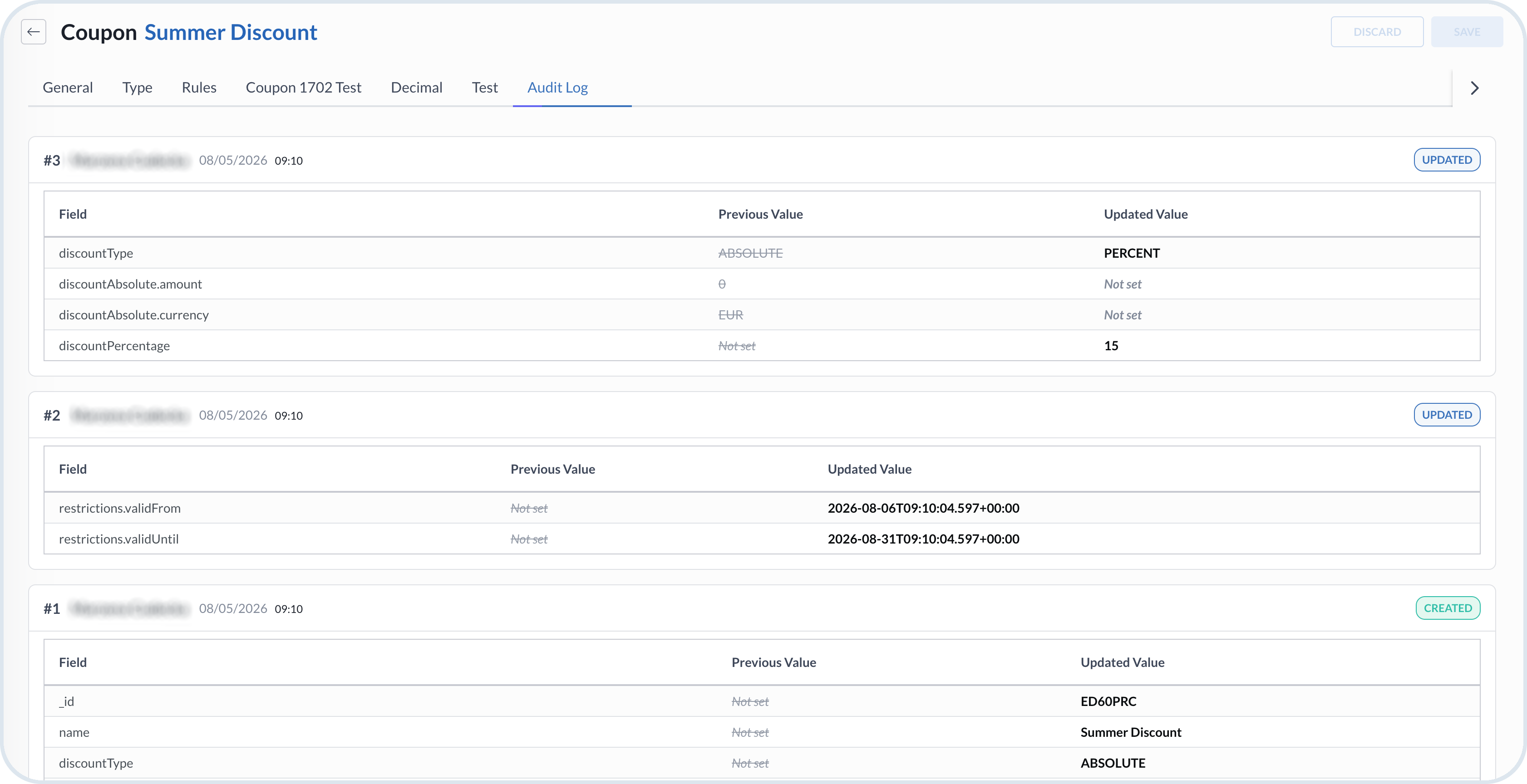
The **Audit Logs** tab shows the history of changes for this coupon, including what changed and when, with field-level previous and updated values. Actors can include named users, anonymous storefront activity, or system actions.
Coupon Audit Logs tab
{% hint style="info" %}
For the tenant-wide audit history, see [Audit Logs](/user-guides/management-dashboard/administration/audit-logs.md).
{% endhint %}
---
# Agent Instructions
This documentation is published with GitBook. GitBook is the documentation platform designed so that both humans and AI agents can read, navigate, and reason over technical content effectively. Learn more at gitbook.com.
## Querying This Documentation
If you need additional information that is not directly available in this page, you can query the documentation by asking a question.
Perform an HTTP GET request on the following URL with the `ask` and `goal` query parameters:
```
GET https://developer.emporix.io/user-guides/management-dashboard/customer-management/coupons.md?ask=&goal=
```
`ask` is the immediate question: it should be specific, self-contained, and written in natural language.
`goal` is what the user is ultimately trying to achieve, the reason they need the answer. Sharing it helps GitBook give you a better, more relevant answer. A goal is most helpful when it describes the outcome the user wants rather than restating the question. For example, with `ask=how do I create an API token`, a goal like `automate deployments from our CI pipeline` lets GitBook tailor the answer to that use case.
The response will contain a direct answer to the question and relevant excerpts and sources from the documentation.
Use this mechanism when the answer is not explicitly present in the current page, you need clarification or additional context, or you want to retrieve related documentation sections.