> For the complete documentation index, see [llms.txt](https://developer.emporix.io/llms.txt). Markdown versions of documentation pages are available by appending `.md` to page URLs; this page is available as [Markdown](https://developer.emporix.io/user-guides/management-dashboard/customer-management/customer-groups.md).
# Groups
Learn how to create and manage customer groups and assign access permissions in Management Dashboard.
The **Customer Groups** feature serves as a B2B user management tool. With customer groups, you define the relevant access permissions for your end customers from the same organization.
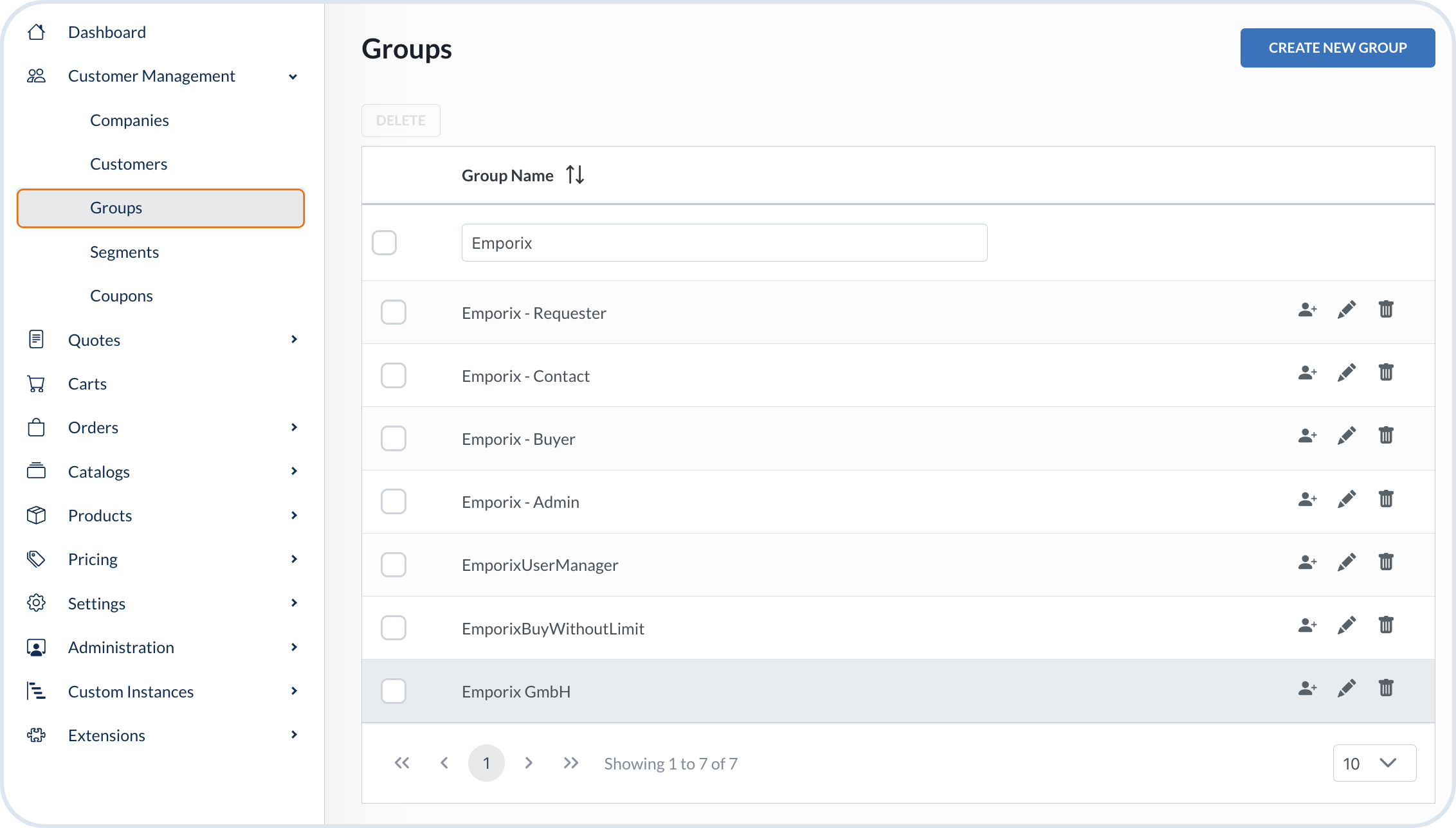
When you create a company in the system, the predefined customer groups are created simultaneously by default:
* *Admin* – has manage rights for users and checkout data, as well as read rights for orders data.
* *Contact* – is assigned to the company as a contact person.
* *Buyer* – can make their purchases up to the account limit defined for the legal entity; purchases above the limit have to be approved by the Admin user.
* *Requester* – all their purchases have to be approved - the purchases up to the account limit have to be approved by the Buyer or Admin users; the purchases exceeding the account limit have to be approved by the Admin users.
To disable automatic creation of these groups, set `predefinedLegalEntityGroupsCreationDisabled` to `true` in [System Preferences](/user-guides/management-dashboard/settings/system-preferences.md).
{% hint style="warning" %}
You can also create an **approval group** for a company in Management Dashboard. When an approval group is defined and has members, it overrides the standard approver roles (*Buyer* and *Admin*). Only approval group members can approve approval requests for that company. Users in the *Buyer* or *Admin* groups who are not approval group members are no longer eligible approvers.
When a customer selects an approver during checkout or quote acceptance, only approval group members appear in the approver list. This applies to both orders and quotes.
{% endhint %}
{% hint style="danger" %}
You cannot modify the predefined customer groups. You can only add or remove members in the predefined groups. In case you need different permissions, create a new customer group with the relevant settings.
{% endhint %}
Predefined customer group notification
When you create a new customer in MD or on the storefront, and assign them to the company, the person is automatically assigned to the *Contact* group.
The *Admin* customer group users can manage other users associated with the same organization directly from the storefront, ensuring the right members of their organization have the right permissions.
Management Dashboard allows you to create and manage customer groups to respond more adequately to your needs and those of your customers. You can view the groups that are assigned to each company on the company level. Navigate to the **Customer Management** -> **Company**, and view the **Customer groups** tab.
As customer groups are legal-entity-aware, the information relevant to the company (legal entity) can be read by the customer group.
You can also assign a customer group to a [segment](/user-guides/management-dashboard/customer-management/segments.md). Group members then inherit the segment's products, categories, and coupons automatically.
Customer groups view
## Creating a customer group and managing access permissions
{% stepper %}
{% step %}
#### Choose to create group
In the Management Dashboard, go to the **Customer Management -> Groups** and choose **Create new group**.
{% endstep %}
{% step %}
#### Provide group details
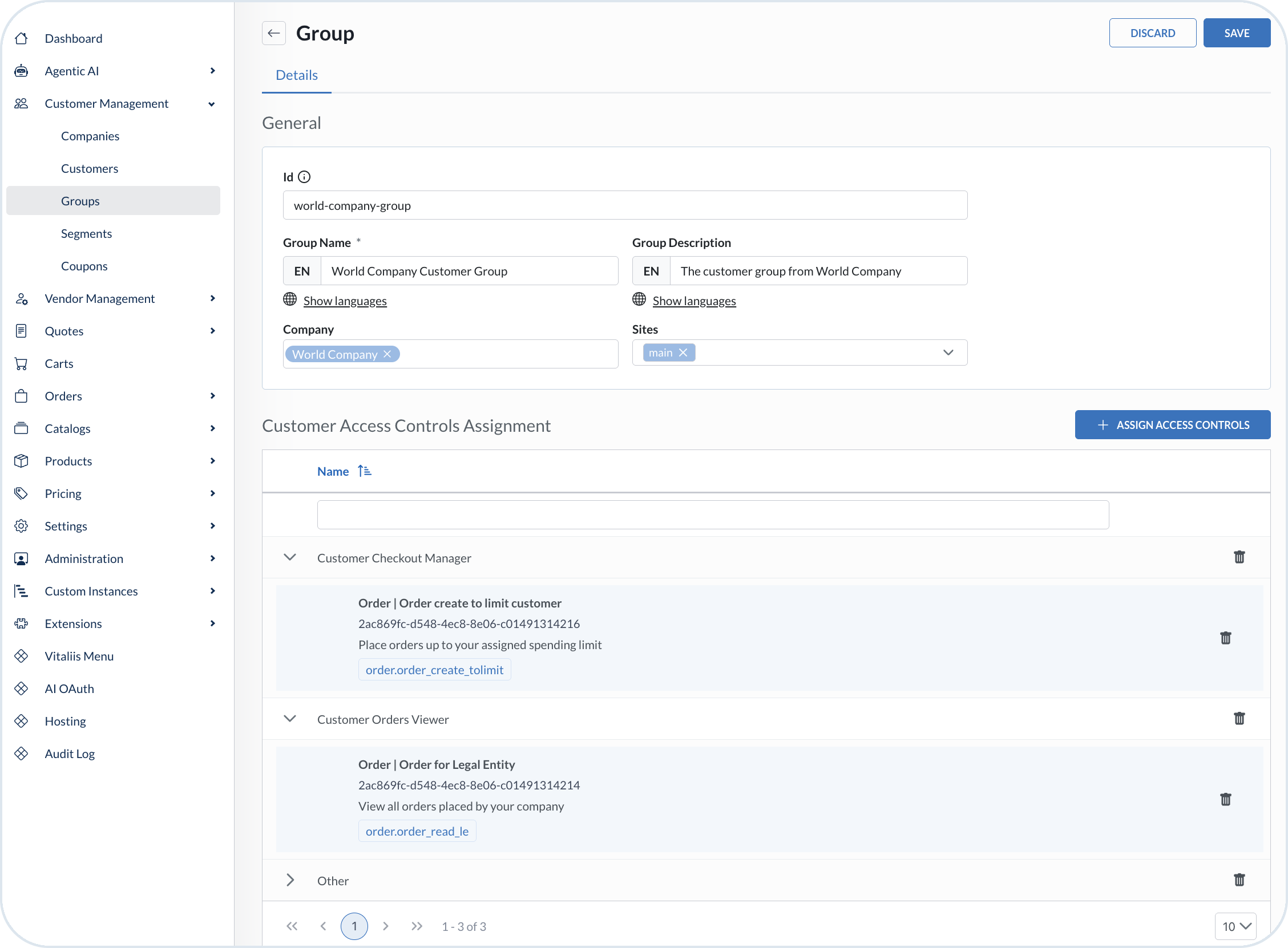
In the **Details** tab, provide the basic information about the group, such as its ID, name, and description.
{% endstep %}
{% step %}
#### Assign company
Select the company you are creating the group for.
{% endstep %}
{% step %}
#### Select site
Choose one or more sites that the group assignment is vald for.
{% endstep %}
{% step %}
#### Set permissions
In the **Customer Access Controls Assignment** section, set the access level to the particular entities. Select the relevant access controls and choose **Save** to create the group in the system.
Create a customer group
{% endstep %}
{% step %}
#### Assign group members
Go to the **Members** tab to assign customers to the group. Choose **Add members** and select the relevant people. The group members get access to the specified entities with the specified scopes.
{% endstep %}
{% endstepper %}
## Customer assignment rules
The Emporix platform enforces rules when assigning customers to predefined groups to ensure role assignments remain valid and avoid conflicts. Within a single company, a user can belong to only one predefined group. Validation applies within the scope of a single company (legal entity) only. It does not extend across different companies or any subsidiaries.
For example:
* If a customer is already assigned to one predefined group (for example, Emporix Admin Group), then it's not possible to assign that same customer to another predefined group within the same company.
* If a customer is assigned to an *Admin* group in one company (for example, Company A), then the same customer may also be assigned to an *Admin* group in another company (for example, Company B).
* If a customer is assigned to an *Admin* group in a parent company (for example, Company A), then that same customer may also be assigned to another role such as *Buyer* in the parent company’s subsidiary.
{% hint style="success" %}
The exception is the *Contact* group, which can always be assigned.
{% endhint %}
### Company contact propagation
As a part of the group assignment you can decide how the contact assignments are shared within a company hierarchy. You can choose from the following options:
* **UPWARD** – Contacts assigned to a subsidiary are also visible at the parent company level. This is a default setting.
* **DOWNWARD** – Contacts assigned to a parent company are also visible in all subsidiaries.
* **DISABLED** – Contacts remain only in the company where they were assigned, with no propagation.
Propagation happens only at the moment of assignment - creating the contact in the selected company also creates corresponding contacts in related companies according to the chosen direction.
To choose the behaviour, choose the right `companyContactPropagation` setting in the [System Preferences](/user-guides/management-dashboard/settings/system-preferences.md).
This setting ensures flexibility in how contacts are managed across parent companies and their subsidiaries.
{% hint style="info" %}
To see the example use case of a customer group, see the [Company Related Orders and Customer Groups](/user-guides/customer-use-cases/scenarios-introduction/shared-orders.md).
{% endhint %}
## Audit Logs
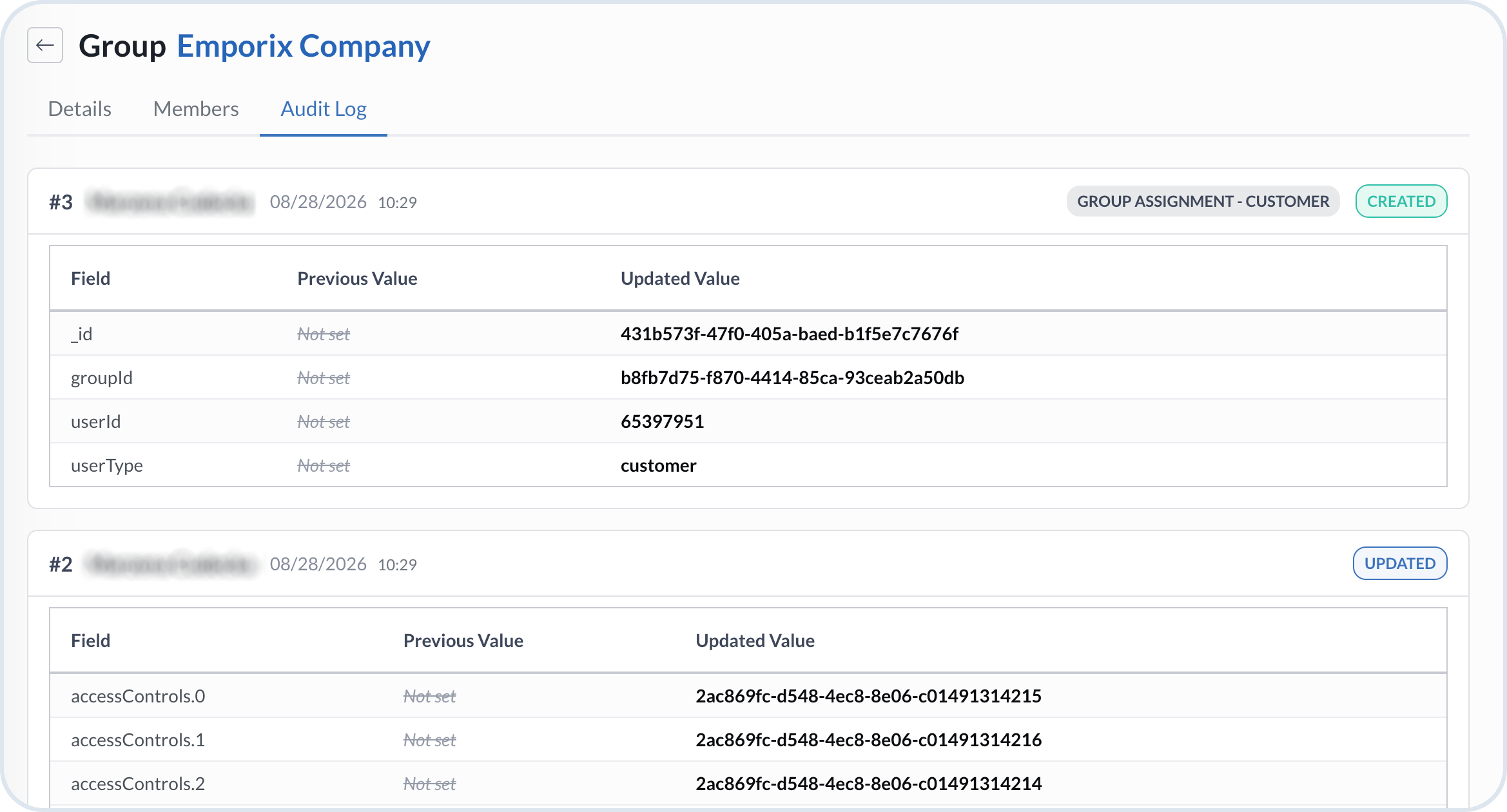
The **Audit Logs** tab shows the history of changes for this group, including what changed and when, with field-level previous and updated values. Actors can include named users, anonymous storefront activity, or system actions.
Group Audit Logs tab
{% hint style="info" %}
For the tenant-wide audit history, see [Audit Logs](/user-guides/management-dashboard/administration/audit-logs.md).
{% endhint %}
---
# Agent Instructions
This documentation is published with GitBook. GitBook is the documentation platform designed so that both humans and AI agents can read, navigate, and reason over technical content effectively. Learn more at gitbook.com.
## Querying This Documentation
If you need additional information that is not directly available in this page, you can query the documentation by asking a question.
Perform an HTTP GET request on the following URL with the `ask` and `goal` query parameters:
```
GET https://developer.emporix.io/user-guides/management-dashboard/customer-management/customer-groups.md?ask=&goal=
```
`ask` is the immediate question: it should be specific, self-contained, and written in natural language.
`goal` is what the user is ultimately trying to achieve, the reason they need the answer. Sharing it helps GitBook give you a better, more relevant answer. A goal is most helpful when it describes the outcome the user wants rather than restating the question. For example, with `ask=how do I create an API token`, a goal like `automate deployments from our CI pipeline` lets GitBook tailor the answer to that use case.
The response will contain a direct answer to the question and relevant excerpts and sources from the documentation.
Use this mechanism when the answer is not explicitly present in the current page, you need clarification or additional context, or you want to retrieve related documentation sections.