> For the complete documentation index, see [llms.txt](https://developer.emporix.io/llms.txt). Markdown versions of documentation pages are available by appending `.md` to page URLs; this page is available as [Markdown](https://developer.emporix.io/user-guides/management-dashboard/orders-module/orders.md).
# Orders
Manage orders.
The **Orders** dashboard is where you can view a list of the orders placed at your store. You can either view all of the orders, or limit the view per site.
## Order visibility by user role
The orders displayed in the **Orders** module depend on your user role:
**Non-vendor users**
* Always see orders with suborders
* Can view both master orders and their associated suborders
**Vendor users**
* Always see only their own vendor suborders
* Master orders are not displayed
* Only orders assigned to the vendor's vendor ID are visible
## Orders list view
In the orders view, you can check and filter the results by any column.
You can also change the default view by using the options available under the orchestration icon.
{% hint style="info" %}
With the table orchestration, you can add custom columns to the list view, by adding **mixin** fields as columns. If you have already defined mixin schema for the entity, you'd be able to select the defined mixin fields to display them in the main view.
See example how to do it in the [Displaying mixins in entity list view](/user-guides/management-dashboard/settings/mixin-schemas.md#displaying-mixins-in-entity-list-view) documentation.
{% endhint %}
If you expand the view of a specific order in the dashboard, you can also see a summary of the **products** that were ordered, their **quantity** and **price**.
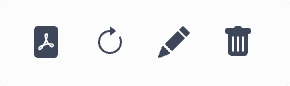
Additionally, use the icons on the left to:
* View and download an invoice for the order
* Change the order status
* Open a specific order and view its details
* Delete an order
The statuses used in orders are:
* **Created** - a new order that was placed
* **Completed** - realized order request
* **Declined** - for orders that could not be realized
* **In-checkout** - awaiting invoice payment
* **Confirmed** - paid order that should be realized
* **Shipped** - order that has been dispatched and sent to the customer
Possible order status transitions in Management Dashboard:
* **Created** → **Confirmed**, or **Declined**
* **In-checkout** → **Created**, or **Declined**
* **Confirmed** → **Declined**, or **Completed**
* **Shipped** → **Completed**
* **Declined** and **Completed** cannot be changed (no further transitions)
{% hint style="info" %}
You can also perform the **Confirmed** → **Shipped** transition through the Order Service API. To use the `CONFIRMED` → `SHIPPED` transition, append shipment details to the order first, then change the status to `SHIPPED`. For details, see the [Order Service Tutorial](/api-documentation/api-guides/orders/order/order.md).
{% endhint %}
If you need to export the list of orders, you can download a `.csv` file with orders that are currently displayed in the list. Choose the download option to get the `.csv` file and then select the time frame for the list.
{% hint style="warning" %}
For the orders that were created by guest users, the **Customer Number** field is marked as **Anonymous**. If the guest customer later chooses to create an account, the customer number **Anonymous** is replaced with the real customer ID. Also, since the guest orders are associated with the email address provided at checkout, if a guest customer chooses to register, they are able to view the created orders under **My Account -> Order Overview**.
{% endhint %}
## Orders details
When you open a specific order view, you can check detailed information related to the order in different tabs. There are tabs that are main ones and are visible for every order, but depending on the mixins set up of the ordered products, you can also see some additional tabs with more order and product details.
### Main tabs
**Data**
The **Data** tab includes all of the general information. You can check the following:
* **Order** - Details with information about the order number, status, payments with detailed information about the pricing calculations.
* **Customer** - Data with ID, name and contact details of the customer that placed the order.
* **Delivery** - Address to which the order should be delivered and details of the delivery date and time.
* **Invoice Address** - Company address that should be visible in the invoice.
This tab allows you to perform a variety of actions for each order, including
* **Print a delivery note** - You can download a PDF file with a summary of the ordered products and acknowledgment of receipt to be signed by the customer. By signing the delivery note customers also commit to pay an invoice within the specified time period.
* **Send delivery confirmation** - When you click the button, a delivery confirmation is sent to the customer by email.
* **Create and send invoice** - When you click the button, a job starts that processes the creation of the invoice and sends it to the customer by email.
You can also see the **Cart Number** which relates to the order the cart created by the customer, to see the cart's details simply click the number - it opens the cart view in MD.
If you have configuration for site permissions or for custom restrictions, you might also have the **Restriction** value. The restriction is either inherited from a customer or applied programmatically by the storefront (depending on your configuration). If an order shows **Restriction**, it means that it can be seen only by the employees that have proper access scopes connected to a specific site (or custom restriction).
Order restriction
{% hint style="info" %}
For more information about site permissions, see the [Site permissions](/user-guides/system-management/authentication-and-authorization/authorization/site-permissions.md).
{% endhint %}
**Entries**
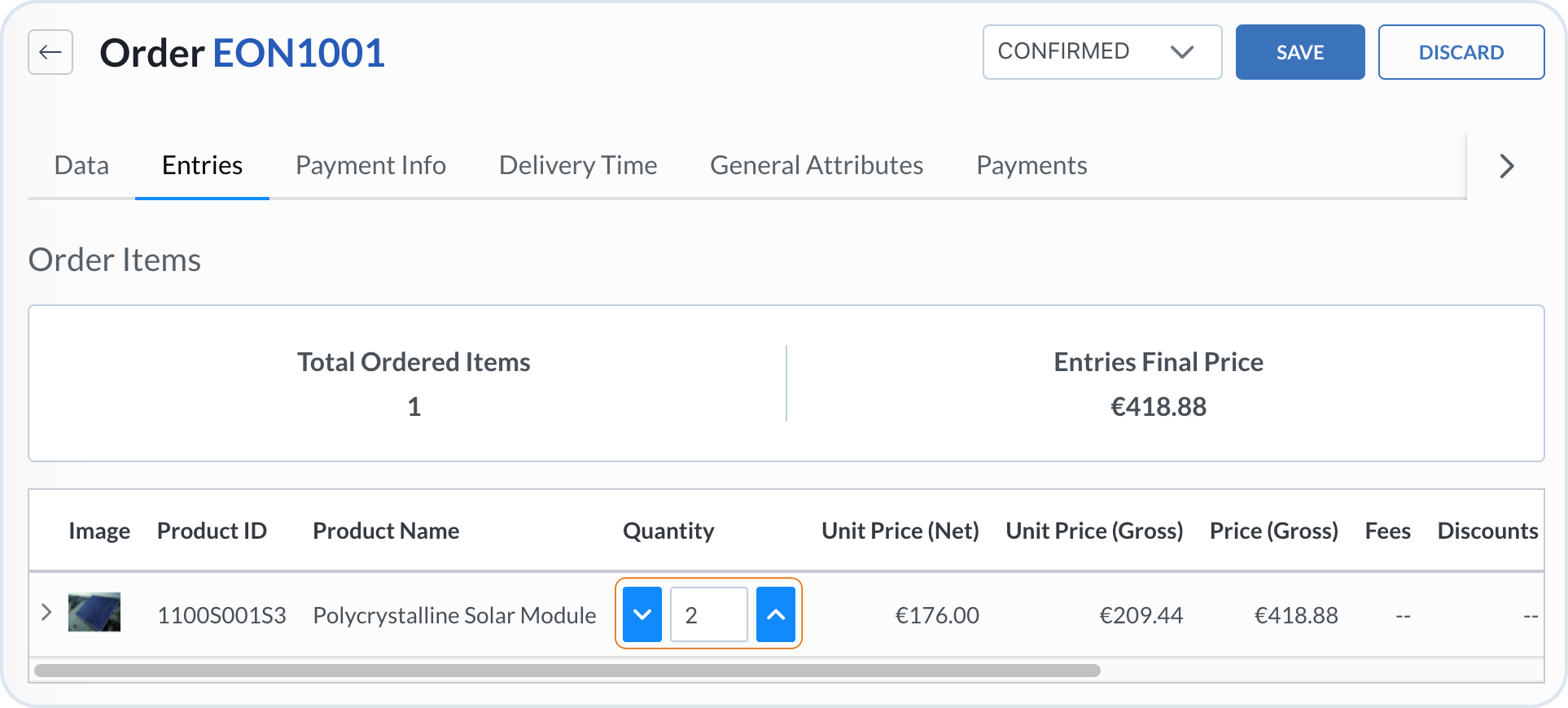
The **Entries** tab includes information about the products that were ordered. You can see a basic summary which contains a product name, quantity and all the pricing details.
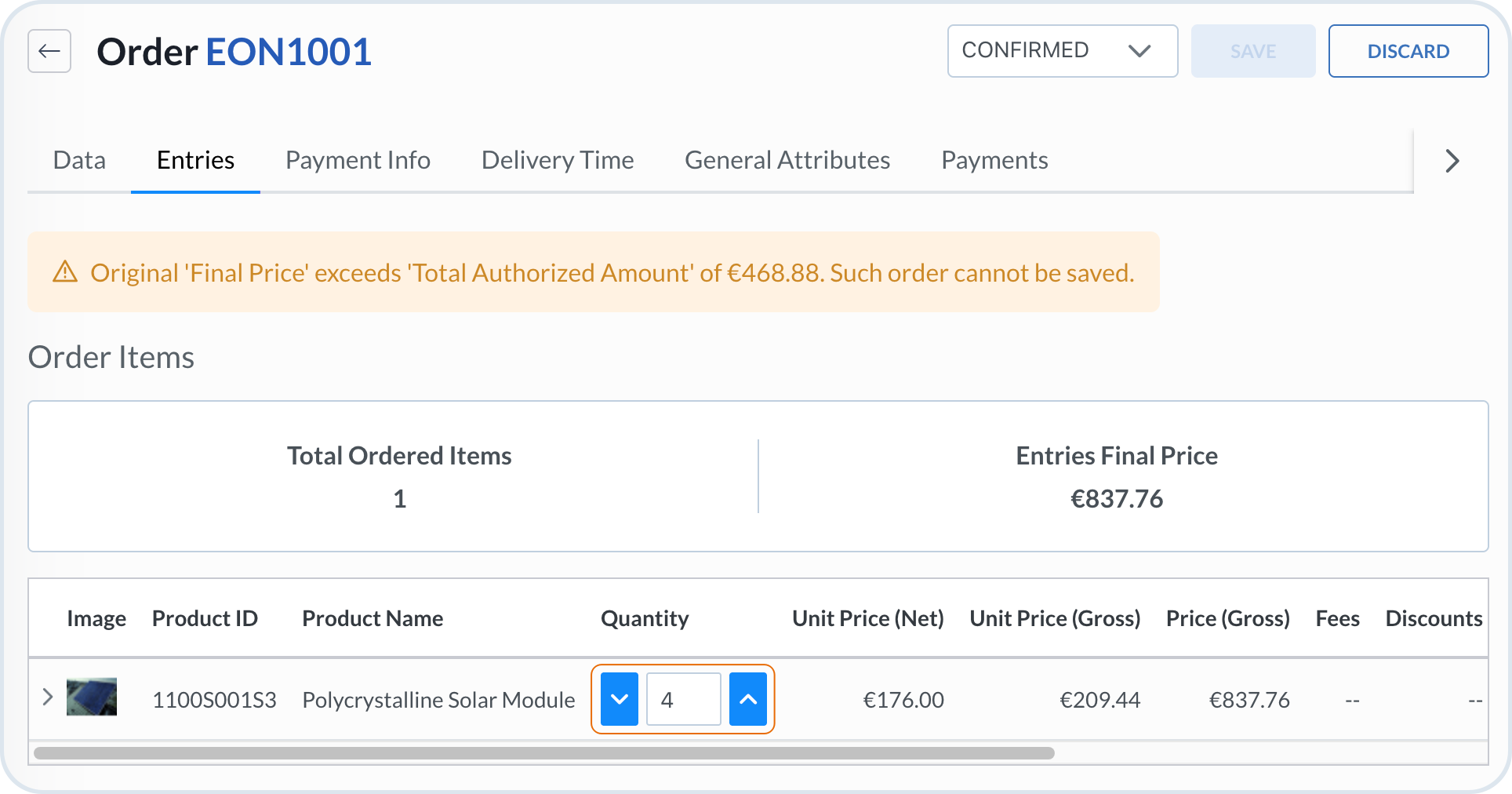
The tab allows you to modify the list of products that were ordered by a customer. You can modify the order by changing the amount of entries or adding new ones to the list. The changes in the order are possible as long as the total sum does not exceed the total authorized amount. Changes are allowed only if the modified order is of equal or lesser value. If the modified order exceeds the previous value, you get a notification that the changes cannot be saved. For example:
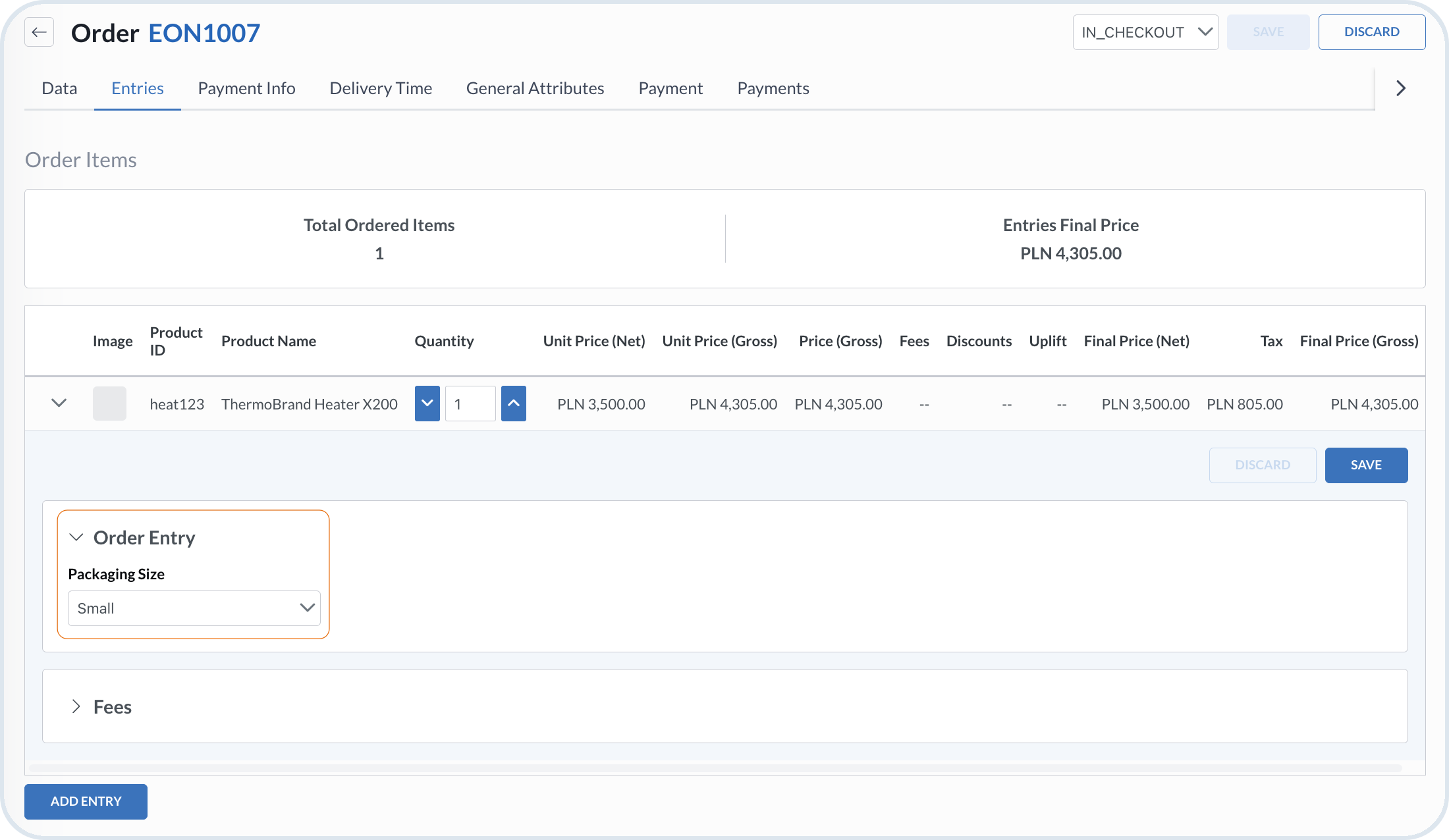
You can expand each entry to see the details. If defined, you can also edit mixin fields related to the order entries.
Order entry details with mixin fields
{% hint style="info" %}
For more information, see the [Mixin Schemas](/user-guides/management-dashboard/settings/mixin-schemas.md).
{% endhint %}
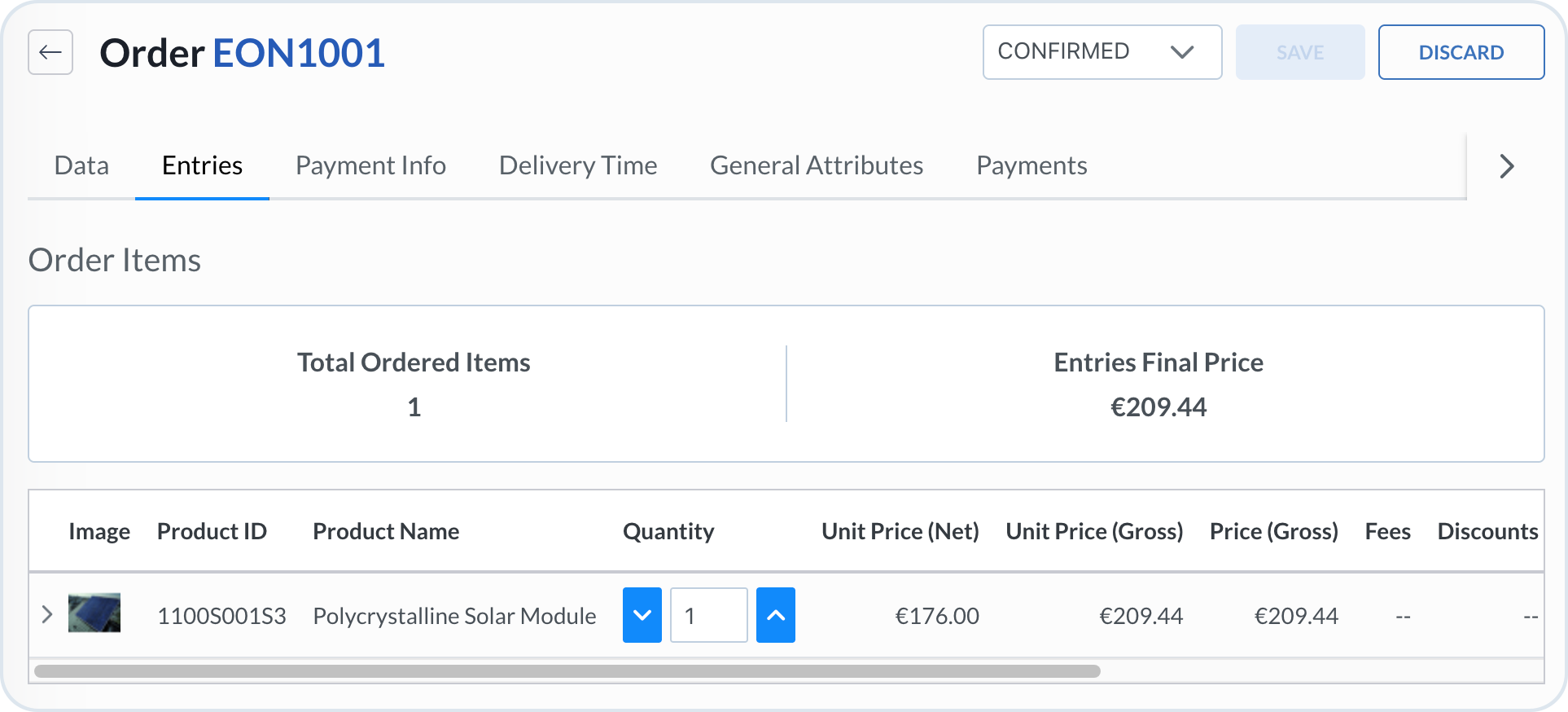
Original order:
Original order entries
Order modification that is not allowed as it exceeds the original total price:
Not approved order entries modification
Order modification that is allowed and can be saved:
Approved order entries modification
If the order was already paid, it cannot be modified. The **Add entry** button is disabled.
**Payment Info**
This tab has all the details related to payment methods and transactions.
**General Attributes**
Includes a summary of basic order information together with coupon and feedback invitation sent to the customer.
**Payments**
Check the total payment information including taxes.
### Additional tabs
Depending on your configuration, you can have some additional tabs in the orders view, for example:
**Delivery Options**
Check and define the details of the delivery packaging, pickup or holding time. You can also mark if the product can be substituted by a different one, or not.
**Delivery Times**
Check and define the details of delivery time like with a confirmation of a delivery cost.
**Payment**
Includes payment details with account and bank information, card and payment details.
## Vendors order splitting
When the customer completes the checkout, a single order is created containing all the selected products. Each order entry retains the vendor information and is a standard order but with vendor details.
{% hint style="warning" %}
* Only orders in the CREATED status can be split.
* Orders that are already suborders or have been split before cannot be split again.
* Orders with discounts cannot be split.
{% endhint %}
### Order split example
Check how the order splitting flow works on the example:
1. A vendor creates a product → it’s automatically assigned to their vendor ID.
2. A customer adds products to the cart → vendor info stays with each product.
3. Checkout creates a single combined order.
4. Calling /split transforms it into:
* One master order (ORD5001)
* Multiple suborders (ORD5002, ORD5003) — one per vendor and one for non-vendor items.
Vendors can only view and manage their own suborders.
If a master order was split, you can view the split details in Management Dashboard. The split icon indicates the order was divided per vendor and when you click on it you can see the split details.
The split details are also visible in the order details view as suborders:
When you open the suborder, you can see to which vendor it was assigned and the master order relation:
{% hint style="info" %}
For more details about vendors, see the following guides:
* [Vendor Products](/user-guides/management-dashboard/products-module/products.md#vendor-related-products)
* [Vendor User Groups](/user-guides/management-dashboard/administration/usersandgroups.md#vendor-groups)
* [Vendor Service](/api-documentation/api-guides/companies-and-customers/vendor-service.md)
* [Vendor API Tutorial](/api-documentation/api-guides/companies-and-customers/vendor-service.md)
{% endhint %}
## Audit Logs
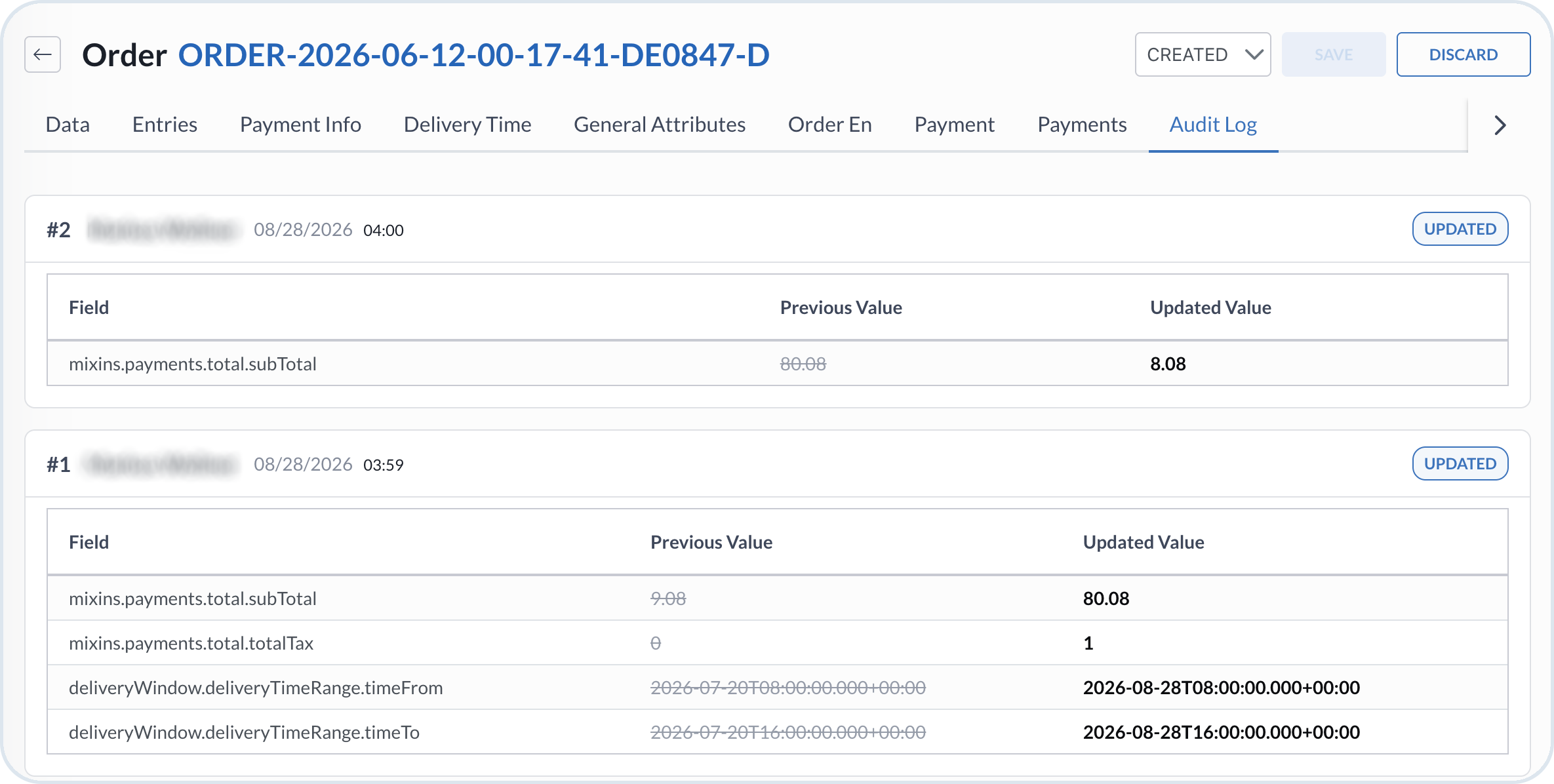
The **Audit Logs** tab shows the history of changes for this order, including what changed and when, with field-level previous and updated values. Actors can include named users, anonymous storefront activity, or system actions.
Order Audit Logs tab
{% hint style="info" %}
For the tenant-wide audit history, see [Audit Logs](/user-guides/management-dashboard/administration/audit-logs.md).
{% endhint %}
---
# Agent Instructions
This documentation is published with GitBook. GitBook is the documentation platform designed so that both humans and AI agents can read, navigate, and reason over technical content effectively. Learn more at gitbook.com.
## Querying This Documentation
If you need additional information that is not directly available in this page, you can query the documentation by asking a question.
Perform an HTTP GET request on the following URL with the `ask` and `goal` query parameters:
```
GET https://developer.emporix.io/user-guides/management-dashboard/orders-module/orders.md?ask=&goal=
```
`ask` is the immediate question: it should be specific, self-contained, and written in natural language.
`goal` is what the user is ultimately trying to achieve, the reason they need the answer. Sharing it helps GitBook give you a better, more relevant answer. A goal is most helpful when it describes the outcome the user wants rather than restating the question. For example, with `ask=how do I create an API token`, a goal like `automate deployments from our CI pipeline` lets GitBook tailor the answer to that use case.
The response will contain a direct answer to the question and relevant excerpts and sources from the documentation.
Use this mechanism when the answer is not explicitly present in the current page, you need clarification or additional context, or you want to retrieve related documentation sections.