Products
Create and manage different product types.
In the Products section, you can see the list of products, along with their images. They can be filtered by name, ID, and price, and can be displayed in ascending or descending order.

Products list view
You can manage the products view by using the options available under the orchestration icon.

If you want to view the products by the way they are classified, you can open the category-tree view.

In this view, you can download a .csv file with products belonging to the catalog that is currently displayed in the list. Choose the download option to get the .csv file.

To remove your products, you can either delete single items from the list, or delete multiple items. To delete multiple items at once, select the chosen items and then click Batch Delete.
Create a product
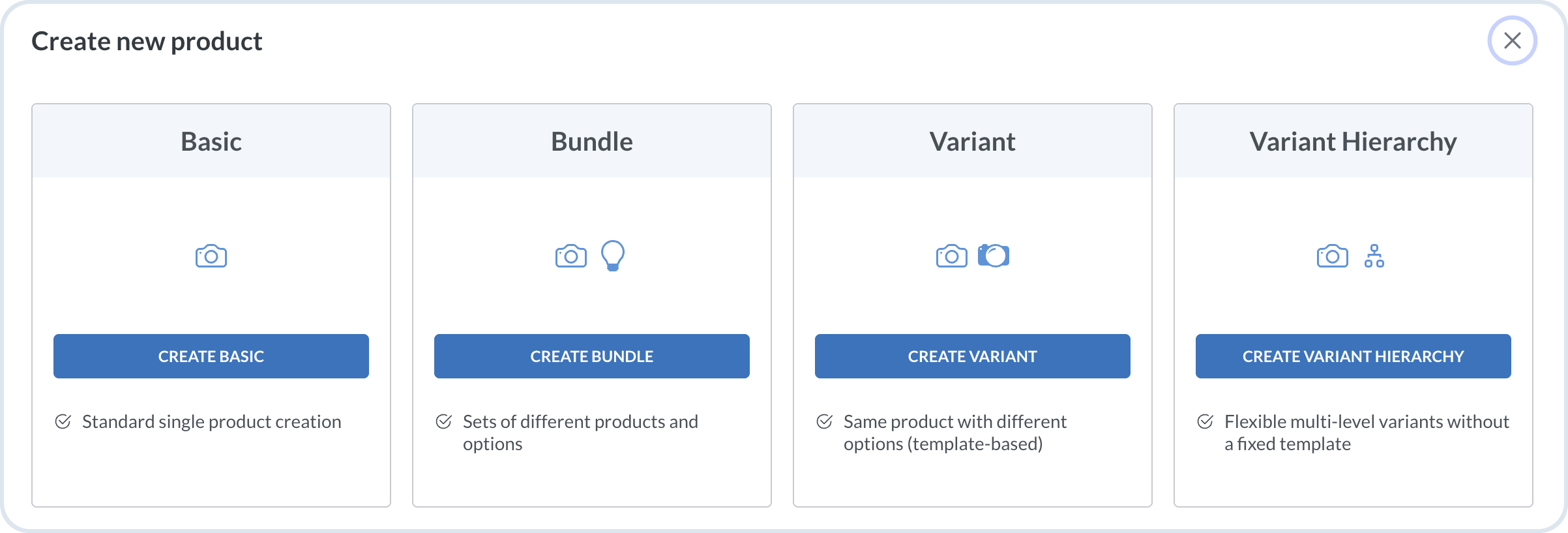
You create new products in the Products -> Products view. After choosing the Add new product, you have several options to choose from:
Basic – Create a single basic product.
Bundle – Create a package of products sold together.
Variant – Create different versions of the same product using a product template. Variant products share the same attributes as their parent product but can differ in size, color or other specifications.
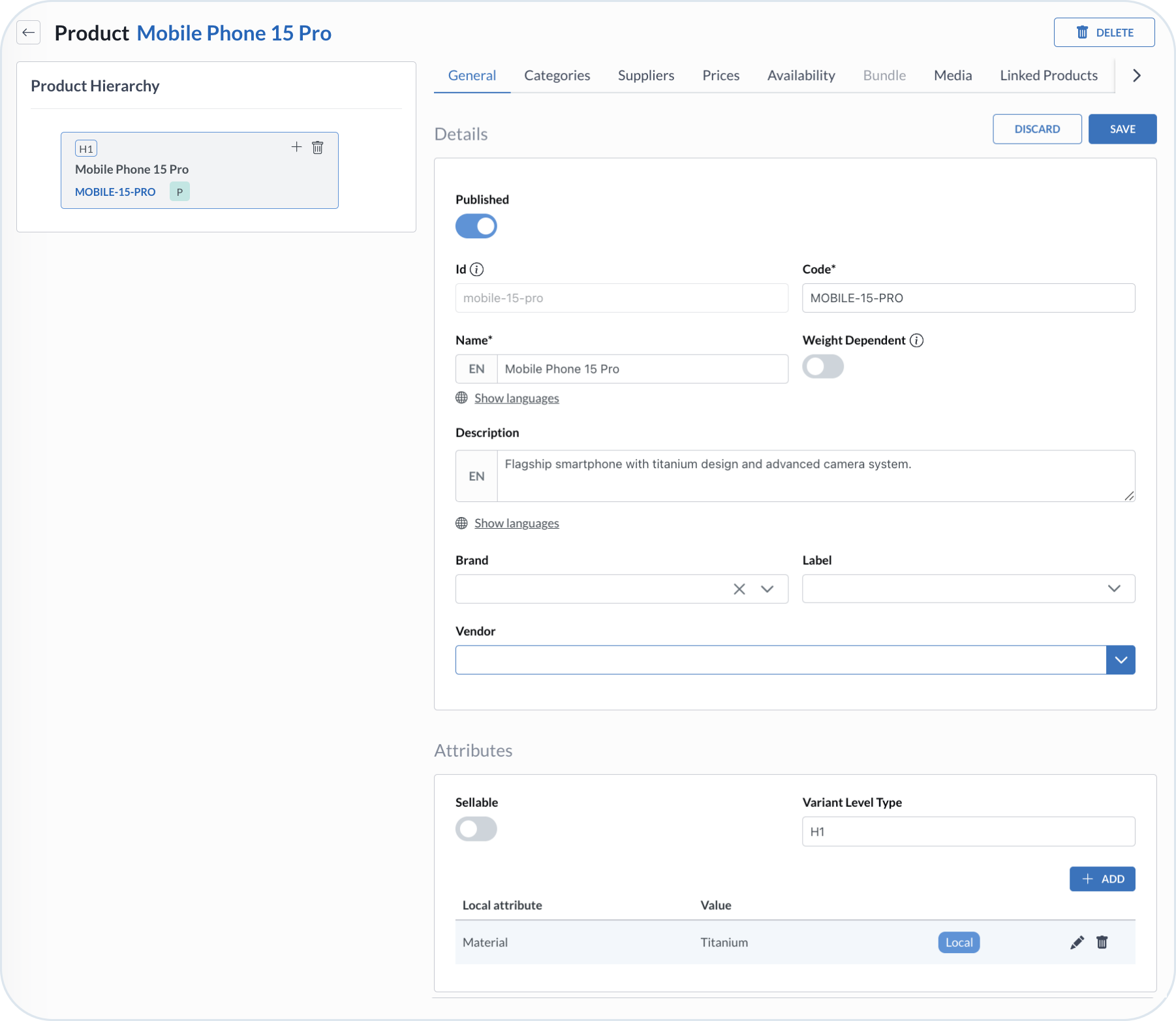
Variant Hierarchy – Create flexible multi-level variants on the fly without any template.

Create a basic product
Provide the required data
In the General tab, provide all the mandatory data that is needed to create a product. The mandatory fields are marked with an asterix (Name and Code).
You can also choose a product template to add customized product attributes. If you choose a Product template, you can see the list of attributes available in the template and the available template versions.
Before proceeding to the next tabs, choose Create to save the product details in the General tab. The product is added to the database and the product ID is automatically assigned.
The ID is needed in other parts of the product data configuration.
Assign a product to a category
To improve organization and navigation, assign your product to a category – either a standard category or a classification category. You can assign both types in the Category tab within the product view.
Assign the category by going to the Categories tab and selecting the chosen category from the drop-down list. You can select multiple categories for one product.

Classification categories can be assigned the same way as the standard ones. When you assign a product to a classification category, the product automatically receives all classification mixins defined for that category and its parent hierarchy. Those mixins add standardized attributes to the product, for example, technical specifications or warranty fields, so the product has a consistent structure and can be validated according to the classification schema.

Whenever the mixin schema for the product's classification category changes, you receive a notification and see highlights of what changed. You can keep the old version or switch to the new one. To see these version notifications, you must have the classification mixin schema Saved in the Classification tab in the product view.

If the schema is not saved there, the Classification tab in the product view always takes the latest Classification category version automatically.

Set up the product pricing
In the Prices tab, choose the tax configuration for the product: a country and a tax class related to the chosen country.
After saving the tax configuration, add a pricing model to a product. A pricing model defines a pricing strategy set up for a product together with the product units.
Additionally, you can define a discount associated with the product, choose the Discount Type:
percent - percentage that you want to lower the price by
amount - the exact amount that you want to lower the price by

Set up availability information
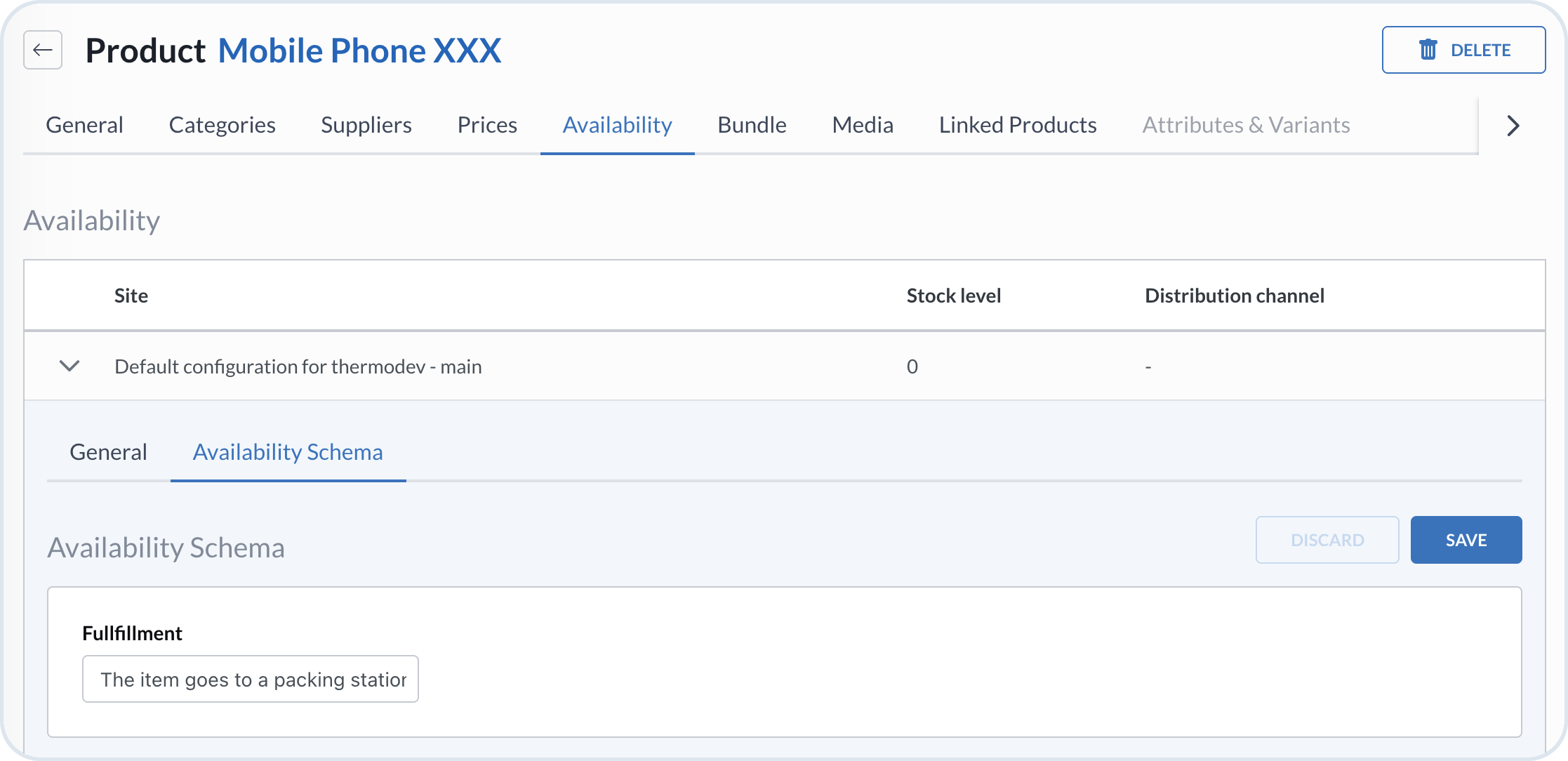
Set the product's stock levels and distribution channel in the Availability tab. You can choose between three distribution channels:
Assortment
Home delivery
Pickup
Expand a site row to edit its details. The expanded row has General and Availability Schema tabs. Use Availability Schema to view and save mixin fields for that site availability record.

To create an availability mixin schema, see Mixin Schemas.
Add product media
Add images to your product by going to the Media tab and uploading new files.
Select the files, either by the Choose images icon or by using the drag and drop functionality
Upload the images using the Upload icon
If you decide not to upload the selected files, use the Clear icon to remove the selection

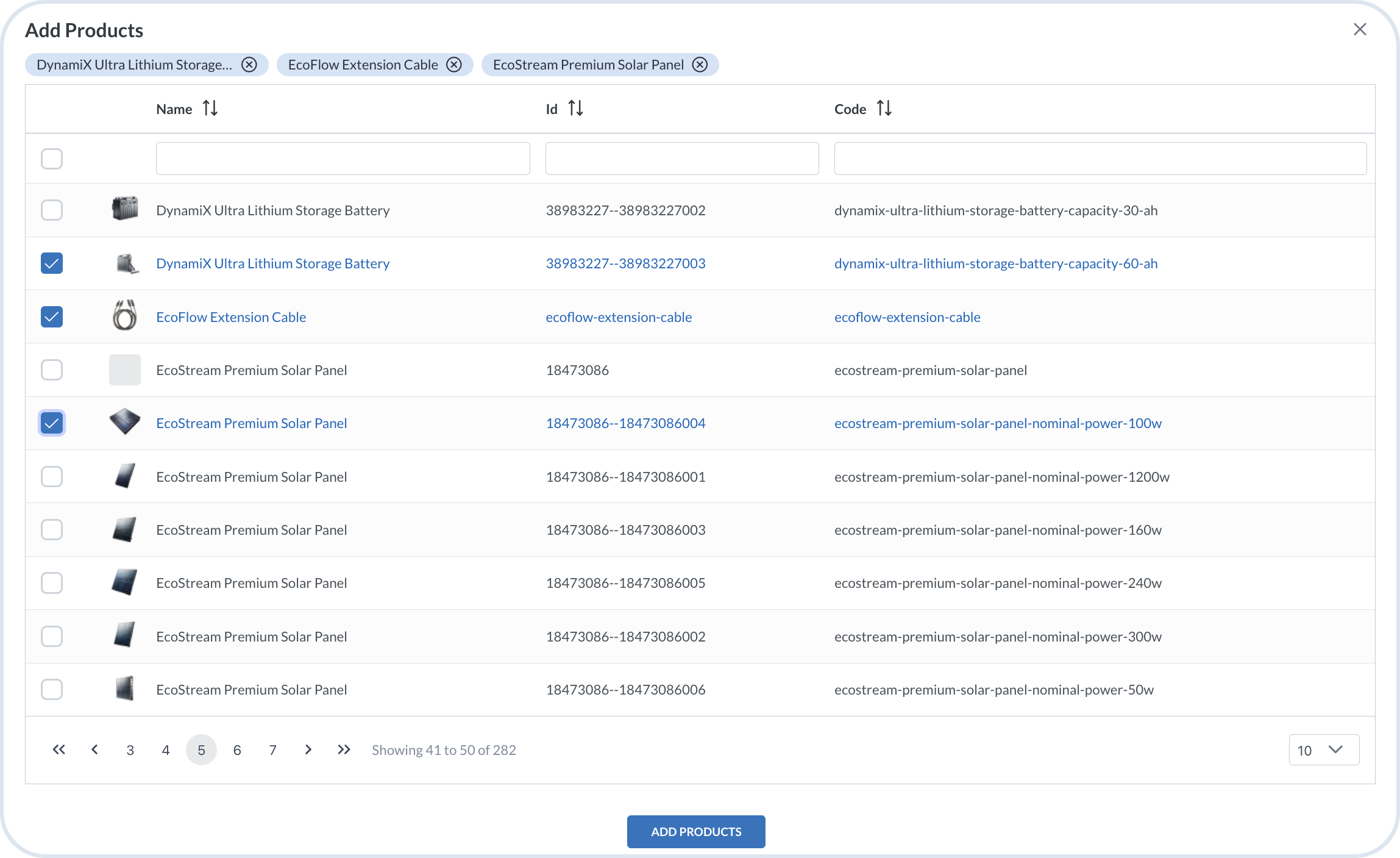
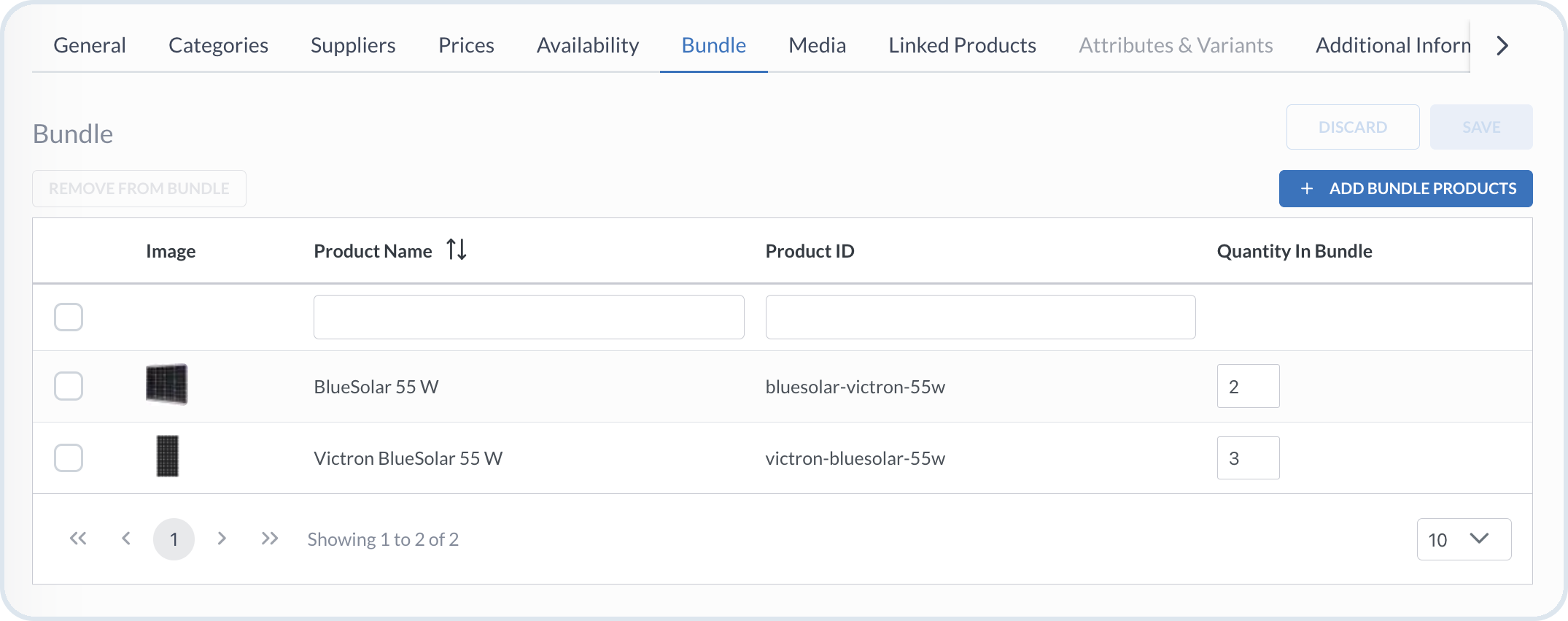
Create a bundle
Create products bundled together.
Create a product variant from a product template
Use a product template to create a parent product and its variants – each with the selected combination of defined variant attributes. This option is useful for fixed, more predictable attribute sets, like size or color.
Create dynamic variant hierarchy
Variant hierarchy is recommended when you need more depth in your product catalog structure and when product dimensions are more likely to change over time. Variant hierarchy allows you to define variant attributes and hierarchy levels on the fly without any predefined product template.
Build product hierarchy
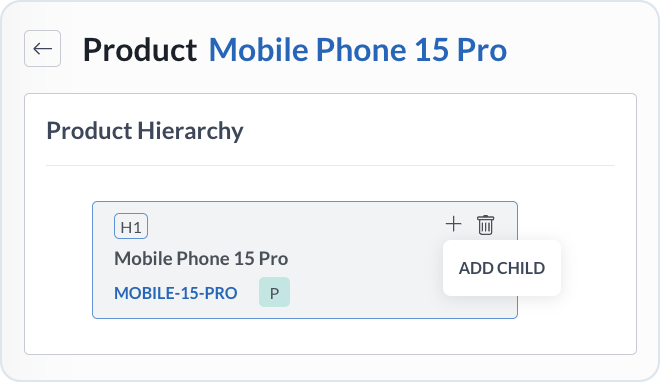
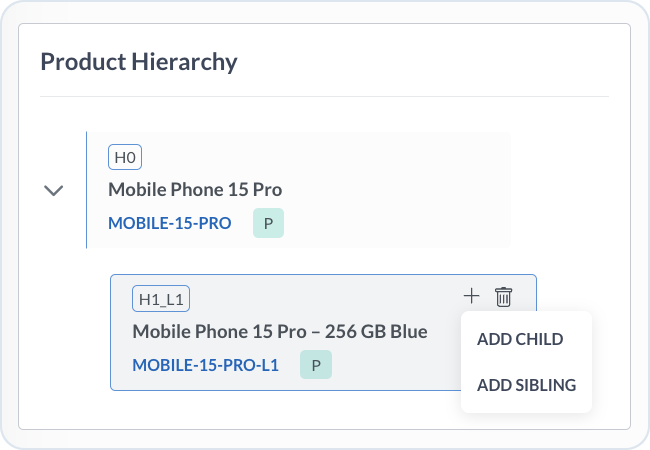
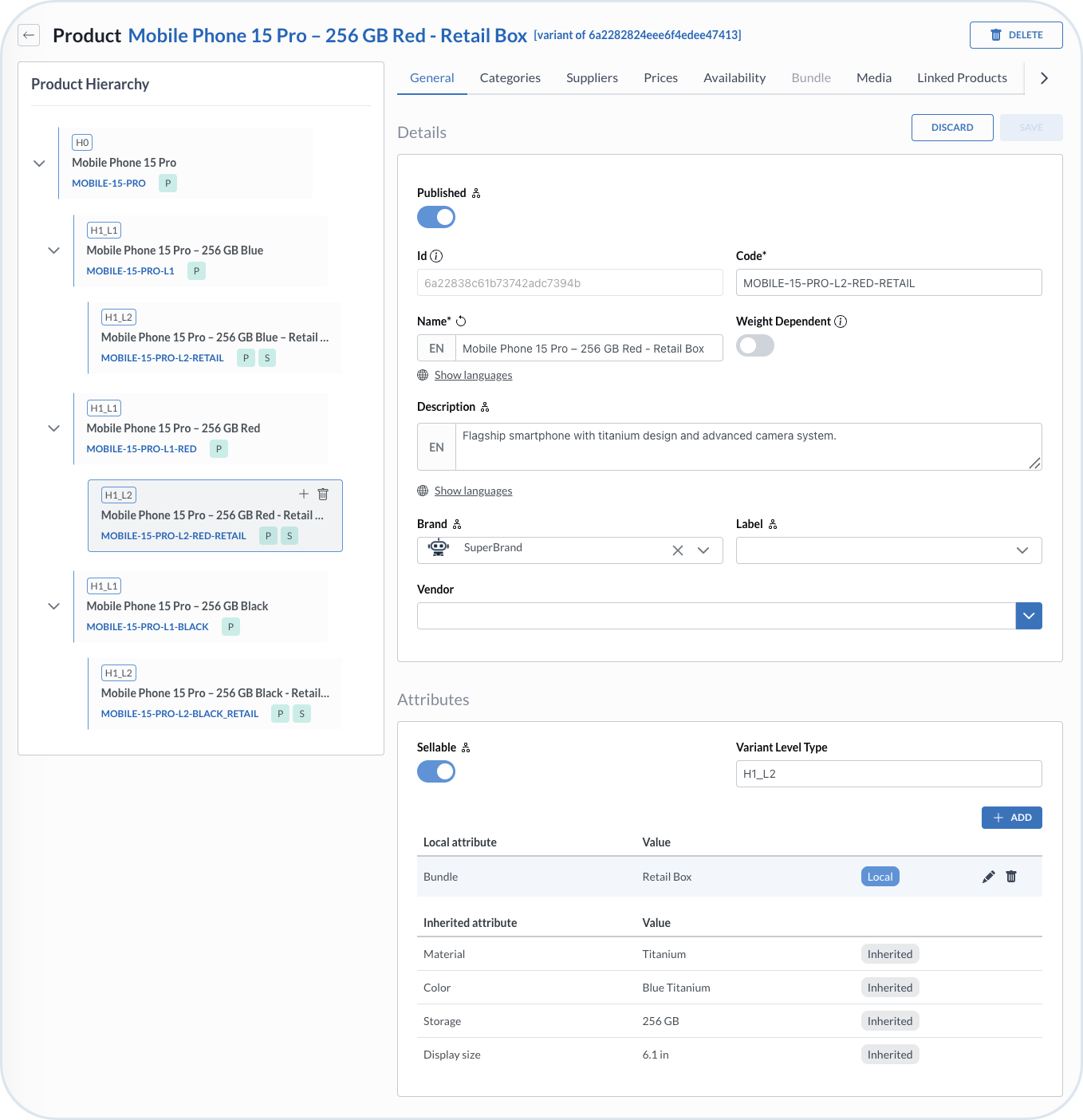
Once you have the defined parent product, you can build child levels. From the root level in the hierarchy tree, choose the + and Add child to add a variant product definition. From lower levels, you can choose if you want to Add child or Add sibling level. A child inherits all attributes defined in the entire chain. A sibling means that the system creates a copy of the selected product with all its attributes at the same level of inheritance.


At each hierarchy level, define the properties that constitute a variant level in the Attributes section. Variant attributes are inheritable by child levels and copied over to sibling levels. You can define a flexible attribute model that can help you represent product features in your storefront. You can modify the values when you create a particular level variant.
You can add as many inheritance levels as needed. The hierarchy tree displayed on the side allows you easy navigation and modification of each variant.

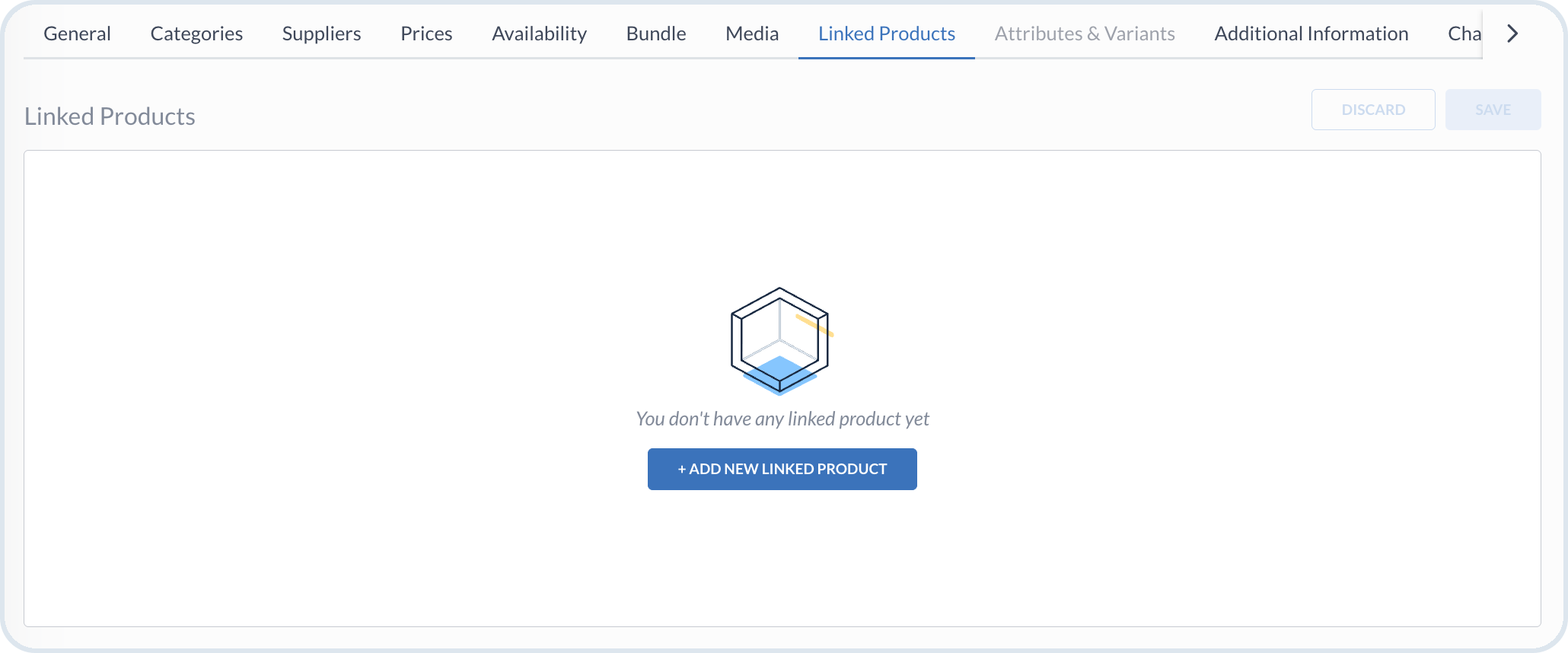
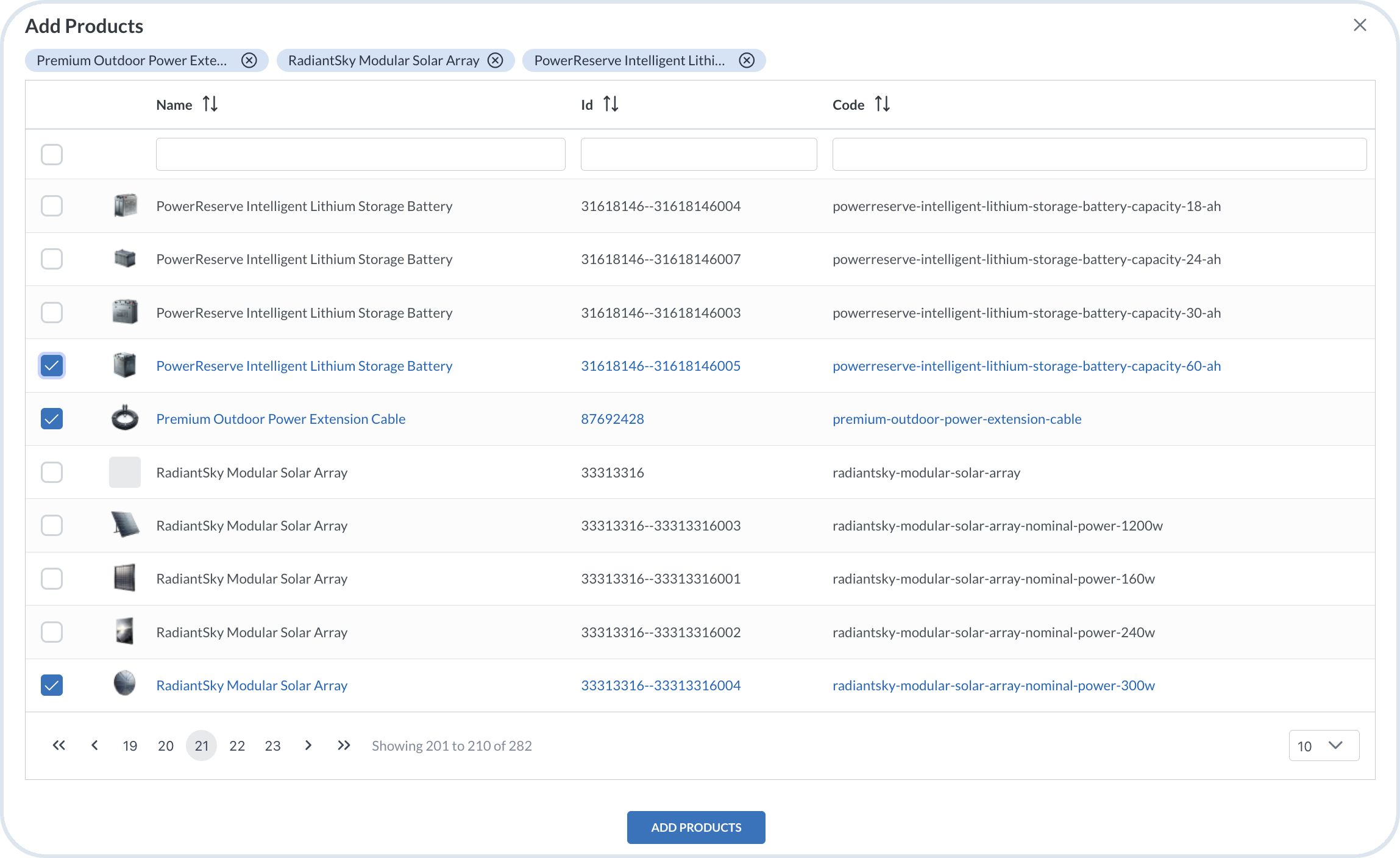
Linking products
Linking products to other products can facilitate selling matching accessories, related consumables, or items that your customers might also like to buy together.
Making products buyable on the storefront
Configuring a product in the steps above is not always enough for customers to add it to the cart on the storefront. In addition to product data, the site must have matching tax, shipping, and currency settings.
On the product level, ensure:
The product is published and assigned to a category in a catalog published to the site.
Prices have the tax class, price model, amount, site, currency, and country set.
Availability has the stock level and distribution channel set for the site.
For how site settings connect to product configuration, see Products on the storefront.
Vendor related products
Whenever a new product is created by a user who is assigned to one of the vendor user groups, the product is visible only for the specific vendor and the permissions related to viewing/managing the product for the users depend on the vendor group they belong to.
It's also possible to assign existing products to a vendor by editing the General tab of the product view.

Updating a product price by vendor
Products available to vendors display the default pricing model to vendor product managers. To change the pricing model for the product:
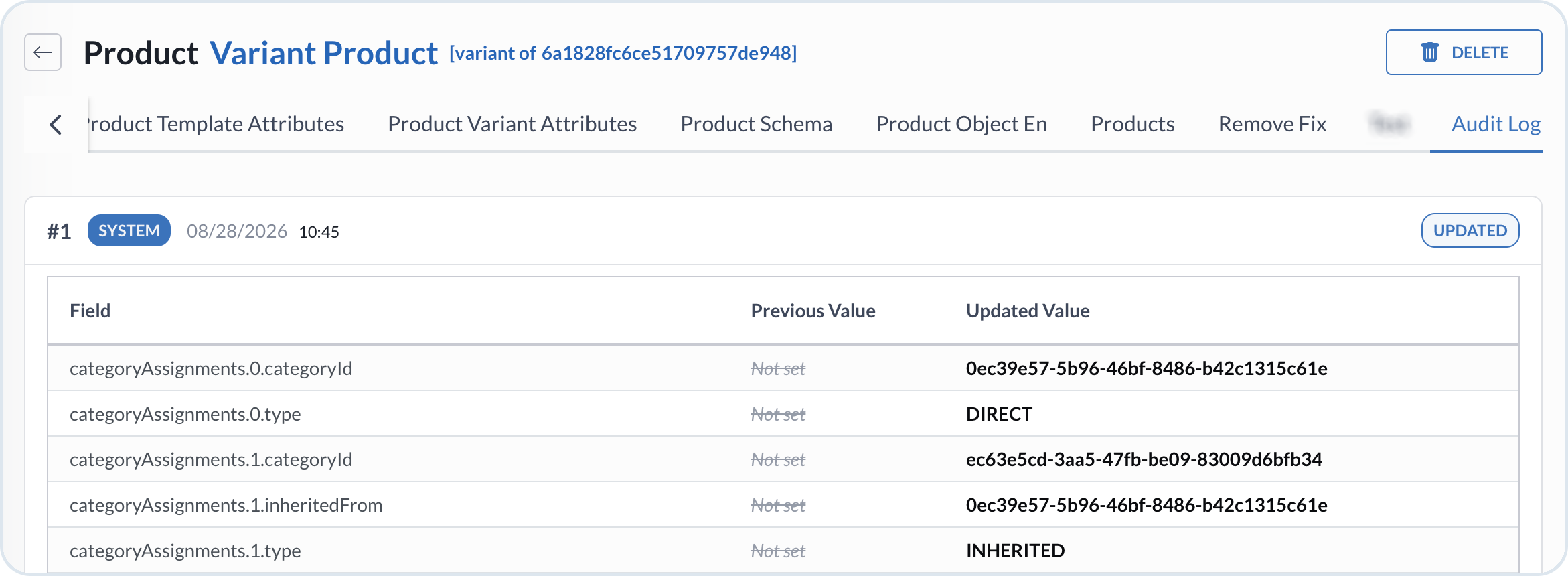
Audit Logs
The Audit Logs tab shows the history of changes for this product, including what changed and when, with field-level previous and updated values. Actors can include named users, anonymous storefront activity, or system actions.

Last updated
Was this helpful?