> For the complete documentation index, see [llms.txt](https://developer.emporix.io/llms.txt). Markdown versions of documentation pages are available by appending `.md` to page URLs; this page is available as [Markdown](https://developer.emporix.io/user-guides/management-dashboard/quotes/quotes-view.md).

# Quotes

Create and manage quote prices for your customers.

## Introduction

You can view all of the quotes in the Quotes dashboard. The view shows all the quotes in the system, including quotes for both B2B and B2C customers. The B2C customer quotes are those without a linked company.

<figure><img src="https://3057647601-files.gitbook.io/~/files/v0/b/gitbook-x-prod.appspot.com/o/spaces%2FbTY7EwZtYYQYC6GOcdTj%2Fuploads%2Fgit-blob-a21a9bec5605a5aa14e45d8ee72ba26799186386%2Fquote_board.png?alt=media&amp;token=6e2dbcdc-f1c1-47fb-a4e5-6009c27acab3" alt="Quotes"><figcaption><p>Quotes</p></figcaption></figure>

To narrow the list of your quotes you can filter the quotes by the available columns. The possible status types are:

* **Creating** - the quote is in preparation
* **Open** - the quote was prepared and is awaiting approval
* **Accepted** - the customer approved the quote
* **Pending** - the customer requested a change in the quote
* **Declined** - the customer rejected the quote
* **Expired** - the validity period for the quote is over
* **Declined by Merchant** - the quote was cancelled by an employee

You can also change the default view by using the options available under the orchestration icon.

<div align="left"><img src="https://3057647601-files.gitbook.io/~/files/v0/b/gitbook-x-prod.appspot.com/o/spaces%2FbTY7EwZtYYQYC6GOcdTj%2Fuploads%2Fgit-blob-7cfcfdf2cec4c375b7575ad6c176c07374395af1%2Forchestration.png?alt=media&amp;token=d77f5975-f1a8-4f9a-97cc-e0cab4e04a6a" alt=""></div>

{% hint style="info" %}
With the table orchestration, you can add custom columns to the list view, by adding **mixin** fields as columns.\
If you have already defined mixin schema for the entity, you'd be able to select the defined mixin fields to display them in the main view.

See example how to do it in the [Displaying mixins in entity list view](/user-guides/management-dashboard/settings/mixin-schemas.md#displaying-mixins-in-entity-list-view) documentation.
{% endhint %}

If you want to edit a quote, use the edit icon.

<div align="left"><figure><img src="https://3057647601-files.gitbook.io/~/files/v0/b/gitbook-x-prod.appspot.com/o/spaces%2FbTY7EwZtYYQYC6GOcdTj%2Fuploads%2Fgit-blob-bc4cab84e11a826c8e7cc69d0a6580a917d11d44%2Fedit.png?alt=media" alt="Edit quote" width="28"><figcaption><p>Edit quote</p></figcaption></figure></div>

{% hint style="info" %}

* Looking for business guides? Check out the [Quote Management](/user-guides/core-commerce/quote-management.md) guides.
* Looking for code tutorials and API reference? Check out the [Quotes API](/api-documentation/api-guides/quotes/quote.md) documentation.
  {% endhint %}

### Prerequisites

To start working with quotes, you need to:

* Enter the details related to companies, contacts and customers in the **Customer Management** module. Location and contact person settings are needed to create quotes.
* Have products prepared that can be added to the quote.

## Creating a quote

{% stepper %}
{% step %}

#### Create a quote

Go to the **Quotes** module and choose **Create Quote**.

The configuration of a new quote takes place in main sections located in different tabs:

* **General**
* **Products**
* **Preview**
* **Approval**
  {% endstep %}

{% step %}

#### Provide general information

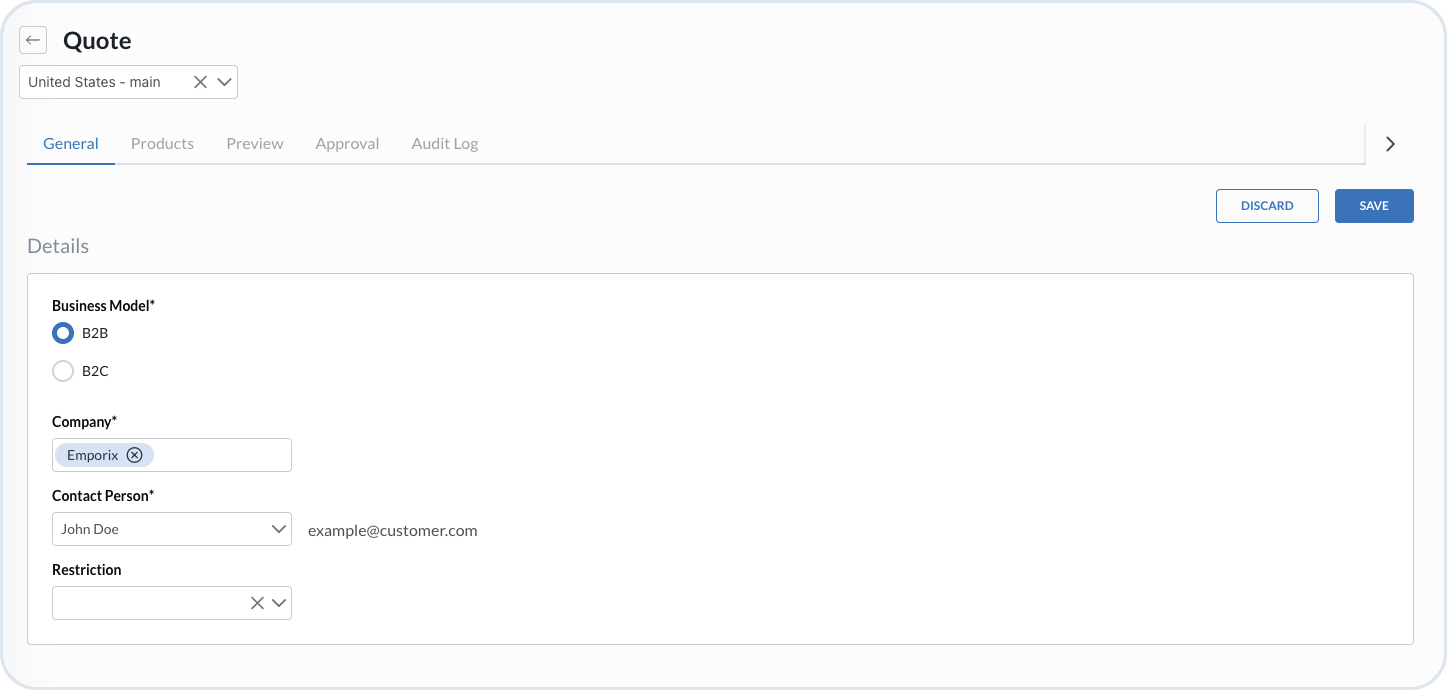
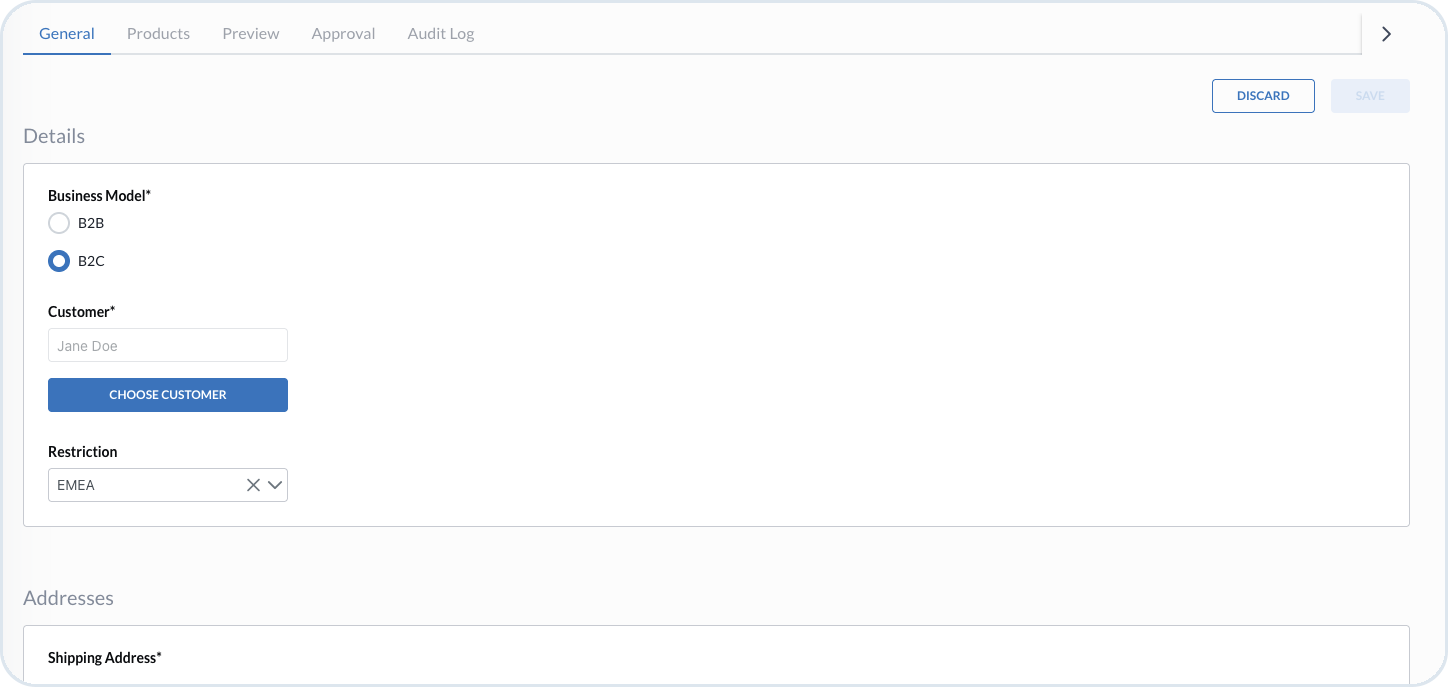
In the **General** tab, first choose if the quote is for a B2B or B2C customer. Based on your selection, you get further options to provide the main information about the new quote.

* For B2B:

  * **Company** - choose the company for which you're creating the quote. The quote stays linked to this company.
  * **Contact Person** - choose the contact person that is responsible for the quote on the customer side
  * **Restrictions** - view a site restriction associated with the quote. Modifying the value is possible only when the quote is in the "Creating" or "Open" status, otherwise it's read-only
  * **Locations** - choose the shipping and billing addresses to use for the quote. You can select only locations that belong to the chosen company.

  <figure><img src="https://3057647601-files.gitbook.io/~/files/v0/b/gitbook-x-prod.appspot.com/o/spaces%2FbTY7EwZtYYQYC6GOcdTj%2Fuploads%2Fgit-blob-3b0397a195162dcd65d93891c5f15c422a125844%2Fquote_general.png?alt=media" alt="B2B Quote"><figcaption><p>B2B Quote</p></figcaption></figure>

  <div data-gb-custom-block data-tag="hint" data-style="info" class="hint hint-info"><p>When you change the <strong>Company</strong> of a B2B quote, the <strong>Contact Person</strong> and <strong>Locations</strong> are cleared. Choose them again for the new company. If you switch the quote from B2B to B2C, the link to the company is removed.</p></div>
* For B2C:

  * **Customer**
  * **Restrictions** - view a site restriction associated with the quote; modifying the value is possible only when the quote is in the "Creating" or "Open" status, otherwise it's read-only
  * **Addresses**

  <figure><img src="https://3057647601-files.gitbook.io/~/files/v0/b/gitbook-x-prod.appspot.com/o/spaces%2FbTY7EwZtYYQYC6GOcdTj%2Fuploads%2Fgit-blob-1768ecda8ea864a5098efa5e6e776bfdf0ad86a7%2Fquote_b2c.png?alt=media" alt="B2C Quote"><figcaption><p>B2C Quote</p></figcaption></figure>

{% hint style="warning" %}
The list of sites or restriction values depends on the specific user's restrictions to the site-aware (or restriction-aware) entities assigned through an employee group.

For more information about site permissions, see the [Site permissions](/user-guides/system-management/authentication-and-authorization/authorization/site-permissions.md).
{% endhint %}

When the first step is done, you can already save the quote and keep it for editing in the future. The status of the quote is set up as **Creating**.
{% endstep %}

{% step %}

#### Add products

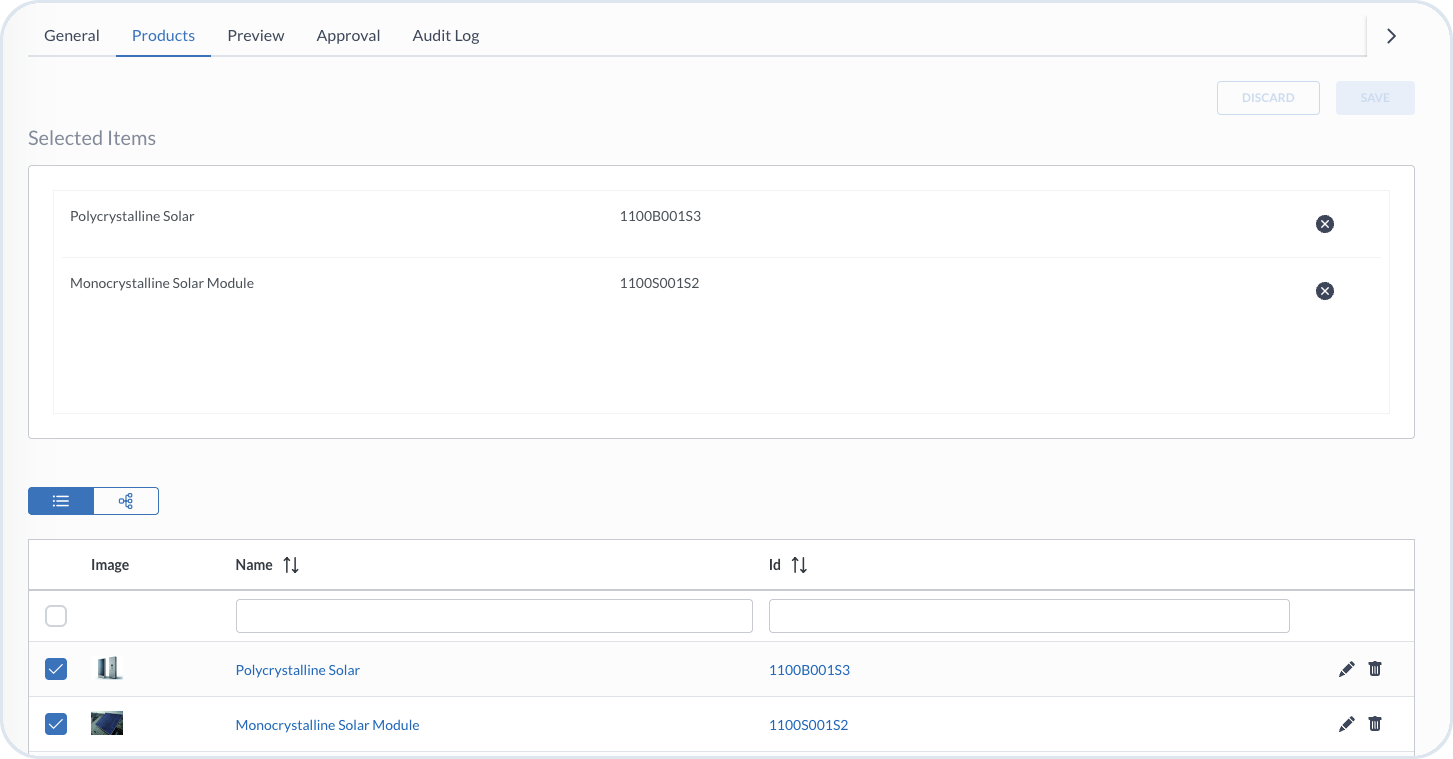
To select products that should be included in the quote, go to the **Products** tab and choose the items that you want to add. After you make the selection, you can see a summary of the products and check it before saving the changes.

<figure><img src="https://3057647601-files.gitbook.io/~/files/v0/b/gitbook-x-prod.appspot.com/o/spaces%2FbTY7EwZtYYQYC6GOcdTj%2Fuploads%2Fgit-blob-2a31c83d542d9a04baa2af9070bba1b70143f9ed%2Fquote_products.png?alt=media" alt="Quote products tab"><figcaption><p>Quote products tab</p></figcaption></figure>
{% endstep %}

{% step %}

#### Review prices, shipping and quote details

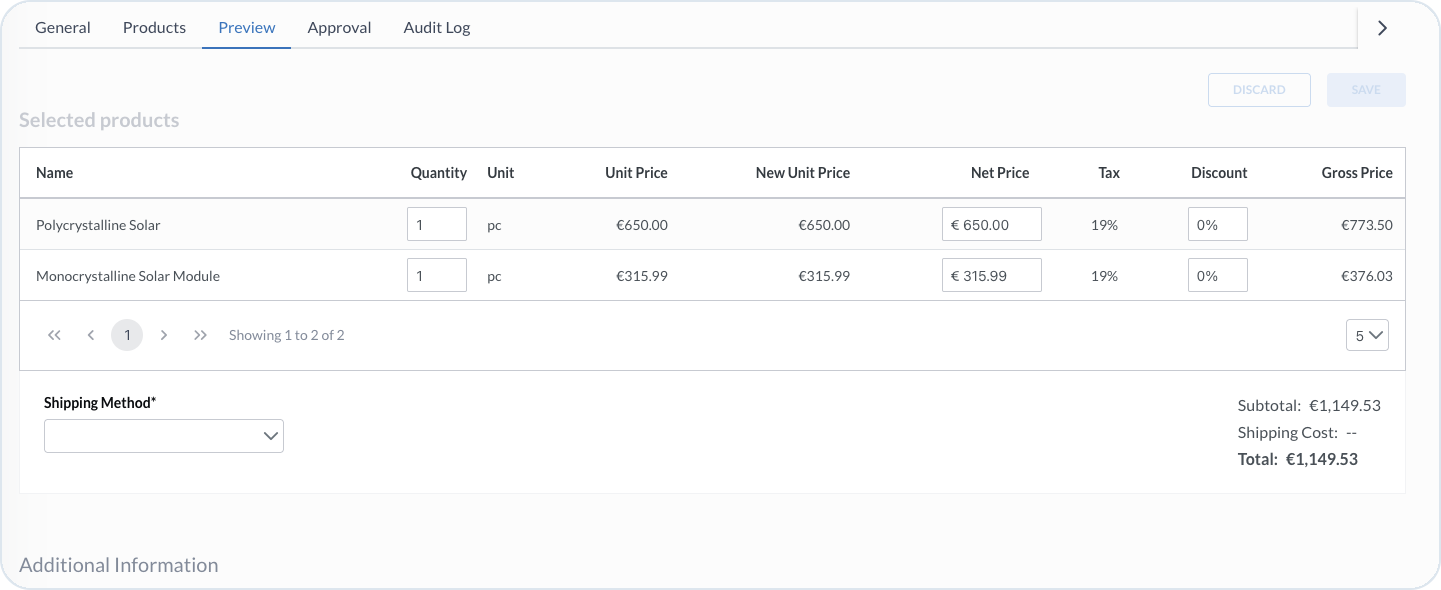
Go to the **Preview** tab to check the summary of products with their prices and shipping information. In this view, you can change the **Quantity** of every product, amend its **Net Price** or add a **Discount**, as well as change the **Shipping Zone** and **Shipping Method**.

<figure><img src="https://3057647601-files.gitbook.io/~/files/v0/b/gitbook-x-prod.appspot.com/o/spaces%2FbTY7EwZtYYQYC6GOcdTj%2Fuploads%2Fgit-blob-d18def7addb7241c0e314a24925437e35b6b33c2%2Fquote_preview.png?alt=media" alt="Quote preview tab"><figcaption><p>Quote preview tab</p></figcaption></figure>

In this tab you can also customize the time after which the quote expires. By default, it's 30 days, but you can change the time in the **Validity** field, under **Additional Information**.

The **Preview** tab also shows any customer-supplied context, such as a quote reference name/number (for example, PO number or project reference name) or additional quote-related comments submitted by the customer on the storefront.

After updating the quote, make sure to **Save** your changes.
{% endstep %}

{% step %}

#### Send for approval

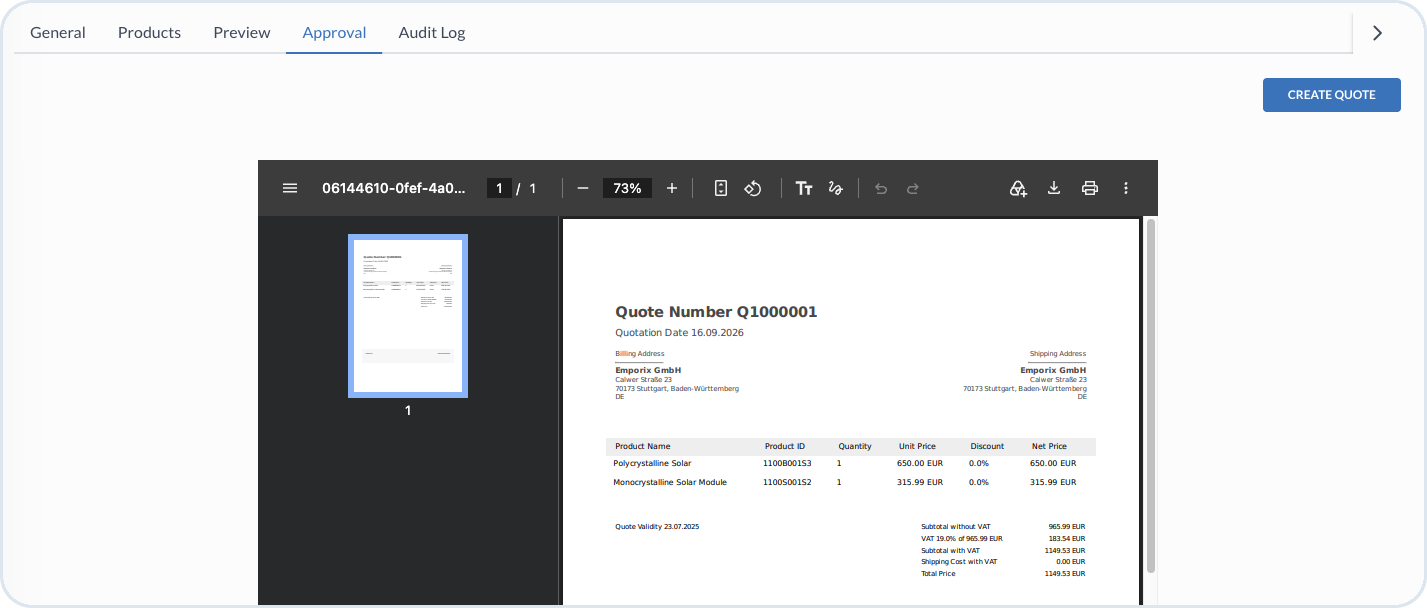
To start the quote approval process, go to the **Approval** tab where you have the pdf document visible with your newly created quote.

<figure><img src="https://3057647601-files.gitbook.io/~/files/v0/b/gitbook-x-prod.appspot.com/o/spaces%2FbTY7EwZtYYQYC6GOcdTj%2Fuploads%2Fgit-blob-d66d2242bd984ef955603c3f24f848092afa6e38%2Fquote_approval.png?alt=media" alt="Quote approval tab"><figcaption><p>Quote approval tab</p></figcaption></figure>

Choosing **Create quote** sets the quote's status as **Open** and the request for approval is sent to the customer who requested the quote. The customer is notified by email that the quote is awaiting and it has to be approved, declined, or a change can be requested. Otherwise, the quote expires after the time that was set.

In the Management Dashboard, the employees can approve the quote, or decline it in the **Approval** tab. When choosing to decline it, it's necessary to select a reason for the decision. The reasons, called status codes, are managed in the Management Dashboard under **Quotes** -> **Status Codes**.
{% endstep %}
{% endstepper %}

{% hint style="info" %}
To learn more about the decline and change reasons management, check out the [Status Codes](/user-guides/management-dashboard/quotes/status-change-reasons.md) guide.
{% endhint %}

## Audit Logs

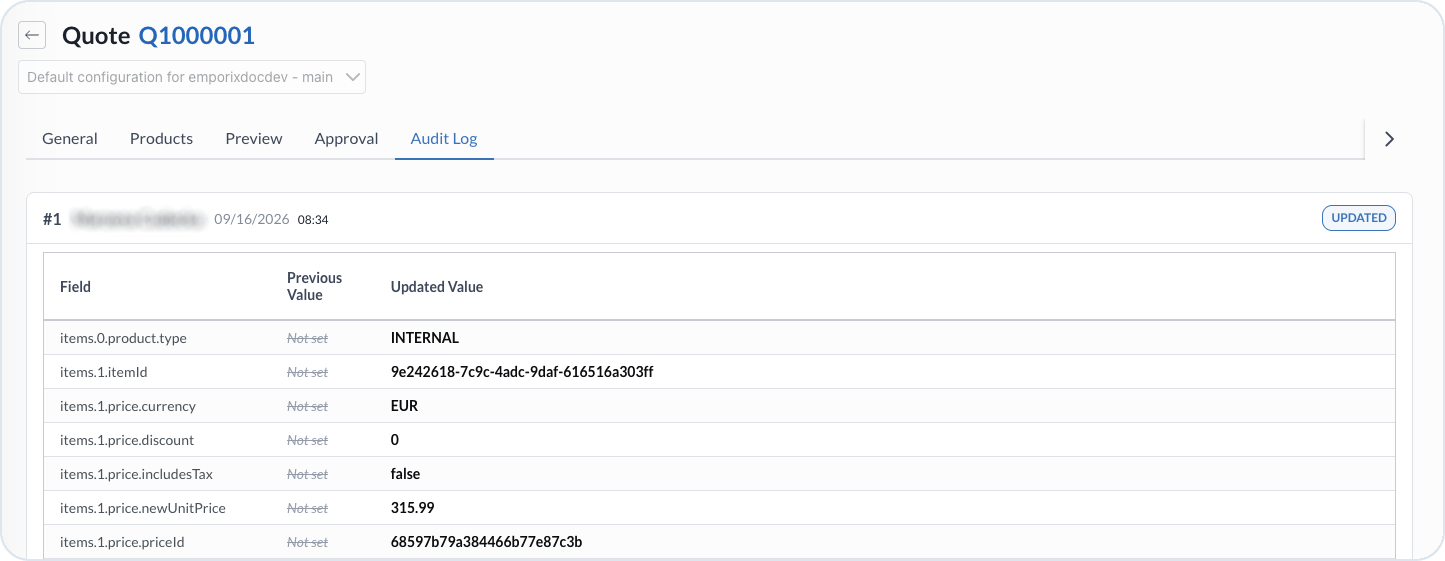
The **Audit Logs** tab shows the history of changes for this quote, including what changed and when, with field-level previous and updated values. Actors can include named users, anonymous storefront activity, or system actions.

<figure><img src="https://3057647601-files.gitbook.io/~/files/v0/b/gitbook-x-prod.appspot.com/o/spaces%2FbTY7EwZtYYQYC6GOcdTj%2Fuploads%2Fgit-blob-35c3942ebea411bcb159ad3ad7363dbf7951efc8%2Fal_quote.png?alt=media" alt="Quote Audit Logs tab"><figcaption><p>Quote Audit Logs tab</p></figcaption></figure>

{% hint style="info" %}
For the tenant-wide audit history, see [Audit Logs](/user-guides/management-dashboard/administration/audit-logs.md).
{% endhint %}


---

# Agent Instructions
This documentation is published with GitBook. GitBook is the documentation platform designed so that both humans and AI agents can read, navigate, and reason over technical content effectively. Learn more at gitbook.com.

## Querying This Documentation
If you need additional information that is not directly available in this page, you can query the documentation by asking a question.

Perform an HTTP GET request on the following URL with the `ask` and `goal` query parameters:

```
GET https://developer.emporix.io/user-guides/management-dashboard/quotes/quotes-view.md?ask=<question>&goal=<user_goal>
```

`ask` is the immediate question: it should be specific, self-contained, and written in natural language.
`goal` is what the user is ultimately trying to achieve, the reason they need the answer. Sharing it helps GitBook give you a better, more relevant answer. A goal is most helpful when it describes the outcome the user wants rather than restating the question. For example, with `ask=how do I create an API token`, a goal like `automate deployments from our CI pipeline` lets GitBook tailor the answer to that use case.

The response will contain a direct answer to the question and relevant excerpts and sources from the documentation.

Use this mechanism when the answer is not explicitly present in the current page, you need clarification or additional context, or you want to retrieve related documentation sections.