> For the complete documentation index, see [llms.txt](https://developer.emporix.io/llms.txt). Markdown versions of documentation pages are available by appending `.md` to page URLs; this page is available as [Markdown](https://developer.emporix.io/user-guides/management-dashboard/settings/mixin-schemas.md).

# Mixin Schemas

Create schemas for custom mixin properties.

The **Mixin Schemas** section allows extending entities in Management Dashboard, for example a product, with customized fields of different types.

To keep shared mixin values and override selected values for individual sites on products or custom instances, see [Site-aware mixins](#site-aware-mixins).

<figure><img src="https://3057647601-files.gitbook.io/~/files/v0/b/gitbook-x-prod.appspot.com/o/spaces%2FbTY7EwZtYYQYC6GOcdTj%2Fuploads%2Fgit-blob-c995d084313ba9dd5b0ba85e1d43cf888464e0f6%2Fmixinschemas.png?alt=media" alt="Mixin Schemas overview in Management Dashboard"><figcaption><p>Mixin Schemas overview in Management Dashboard</p></figcaption></figure>

## Creating a mixin schema

There are two ways to define a new schema in Management Dashboard:

* defining a schema manually
* uploading a JSON file

{% hint style="info" %}
In Management Dashboard, you can extend the data model for the following entities: availability, cart, cart item, category, classification, company, coupon, custom entity, customer, customer address, location, order, order entry, price list, product, quote, return, site and vendor.
{% endhint %}

### Defining a schema manually

{% stepper %}
{% step %}

#### Choose to add a mixin schema

Go to **Settings** -> **Mixin Schemas** and choose **Add new mixin schema**.
{% endstep %}

{% step %}

#### Choose the entity

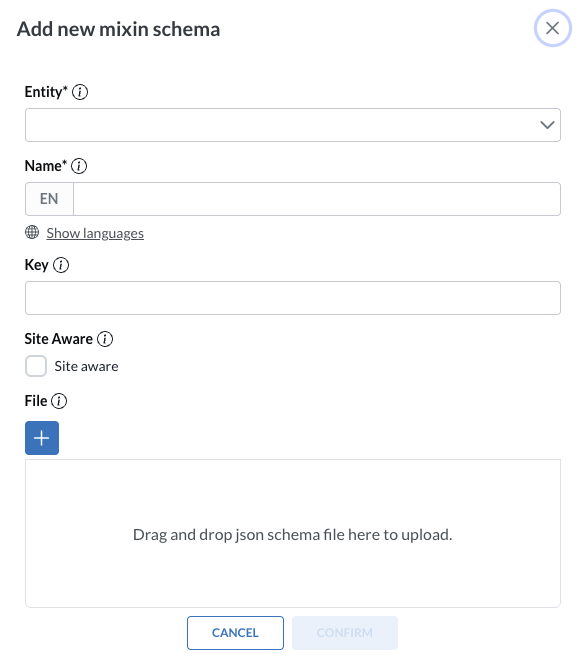
Select an entity or multiple entities that you want to customize from the dropdown menu and enter the name for the schema.\
You can also provide a key value for your new schema, which then works as its unique identifier. If you don't provide the key value on your own, it's generated automatically.

<figure><img src="https://3057647601-files.gitbook.io/~/files/v0/b/gitbook-x-prod.appspot.com/o/spaces%2FbTY7EwZtYYQYC6GOcdTj%2Fuploads%2Fgit-blob-1cab5ed08c839682d4dc13205566da0b2e07c61a%2Fcreatemixin.png?alt=media" alt="Choosing an entity and naming a new mixin schema"><figcaption><p>Choosing an entity and naming a new mixin schema</p></figcaption></figure>

{% hint style="warning" %}
The localized name you define for the schema later appears as a separate tab in the modified entity.
{% endhint %}
{% endstep %}

{% step %}

#### Save your configuration

Choose the **Confirm** button.
{% endstep %}

{% step %}

#### Define mixin fields

Go to **Fields** tab and choose **+** icon to add a mixin field.

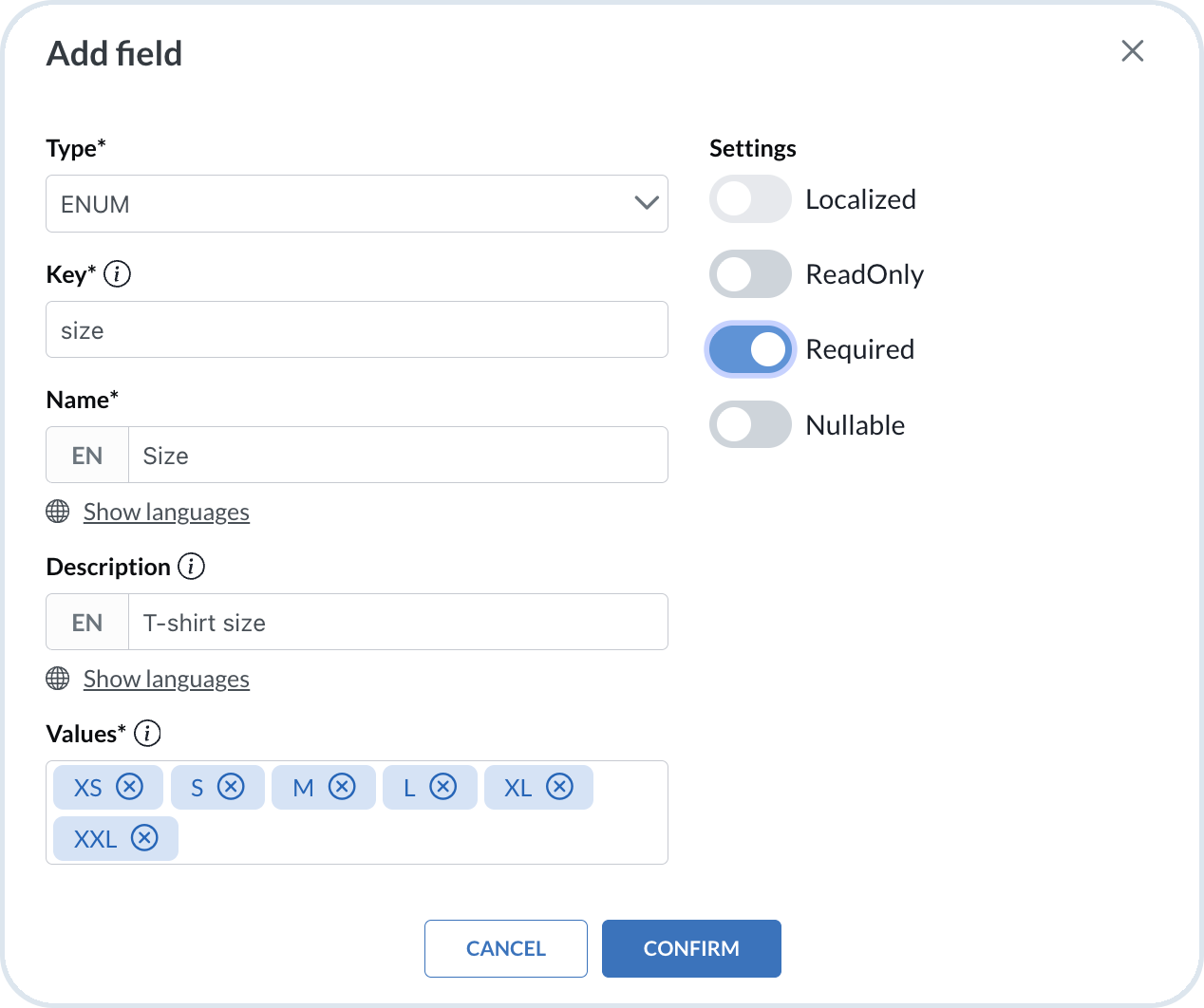
* **Type** – Select a field type relevant to its purpose.

{% hint style="success" %}
The following field types are supported: array, boolean, date, date\_time, decimal, enum, integer, object, text, and time.

The **array** mixin types support values of different types as well: boolean, date, date\_time, decimal, enum, integer, object, text, and time.

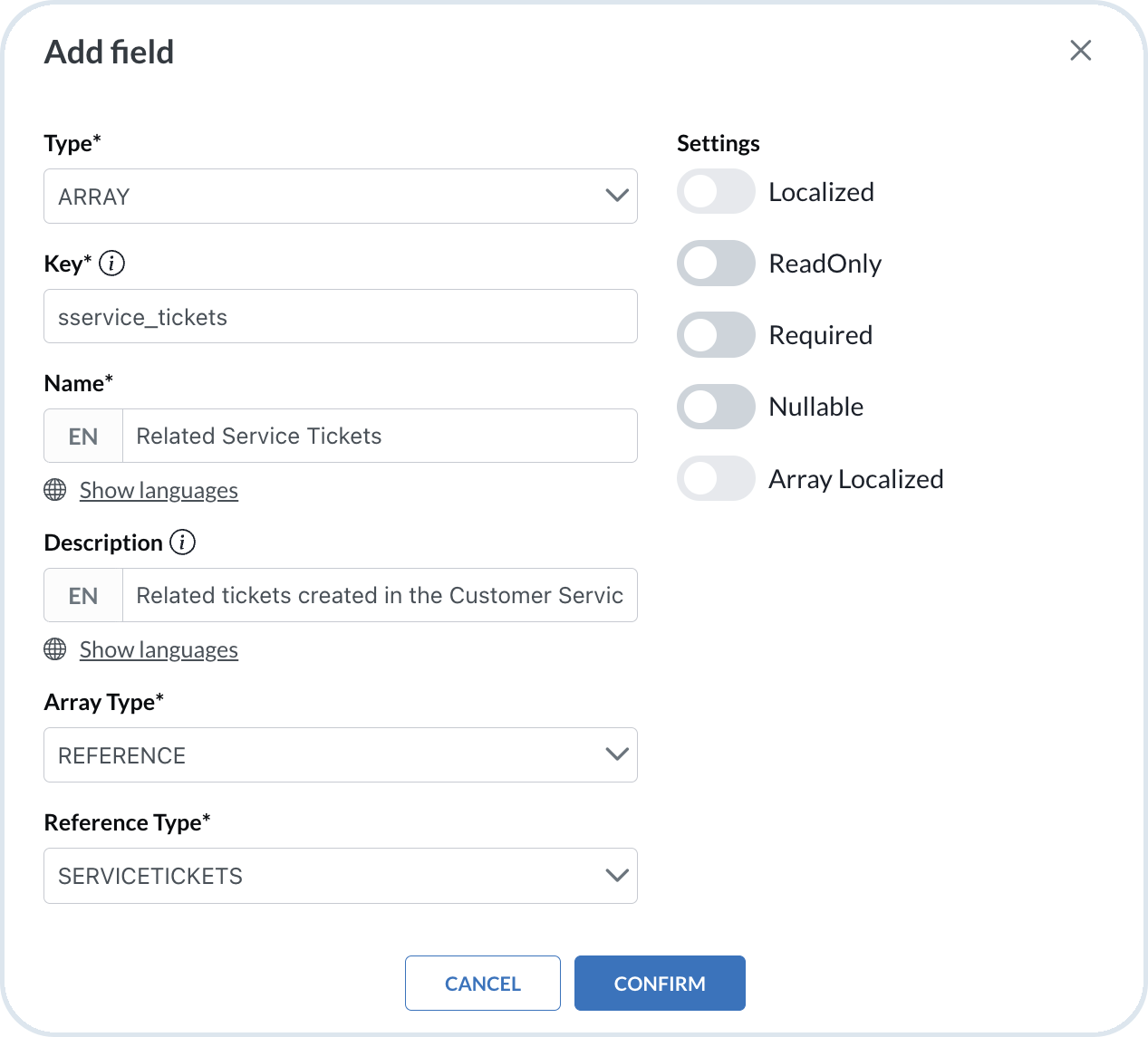
Additionally, mixin schemas for **Custom Entities** support reference field types for establishing one-to-one relationship, and array of references for one-to-many relationships. The reference can point to any other custom entity type or to the following Emporix types: cart, category, customer, customer segment, classification, legal entity, media, order, price list, and product. When you create or edit a specific instance of such custom entity, you can select instances of referenced types.
{% endhint %}

* **Key** – Define the name of the field.
* **Name** – Provide the display name and its translations in the desired languages.
* **Description** – Enter the field description.
* **Array Type** (only for the **Array** type) – Choose the relevant type of values in an array.
* **Values** (only for **Enum** type) – Define the default values for the field. Confirm each value with the **Enter** key.
* **Reference Type** (only for **Reference** type and **Reference** in **Array Type**, and only in mixin schemas for **Custom Entities**) – Select the entity you want to establish a reference to.
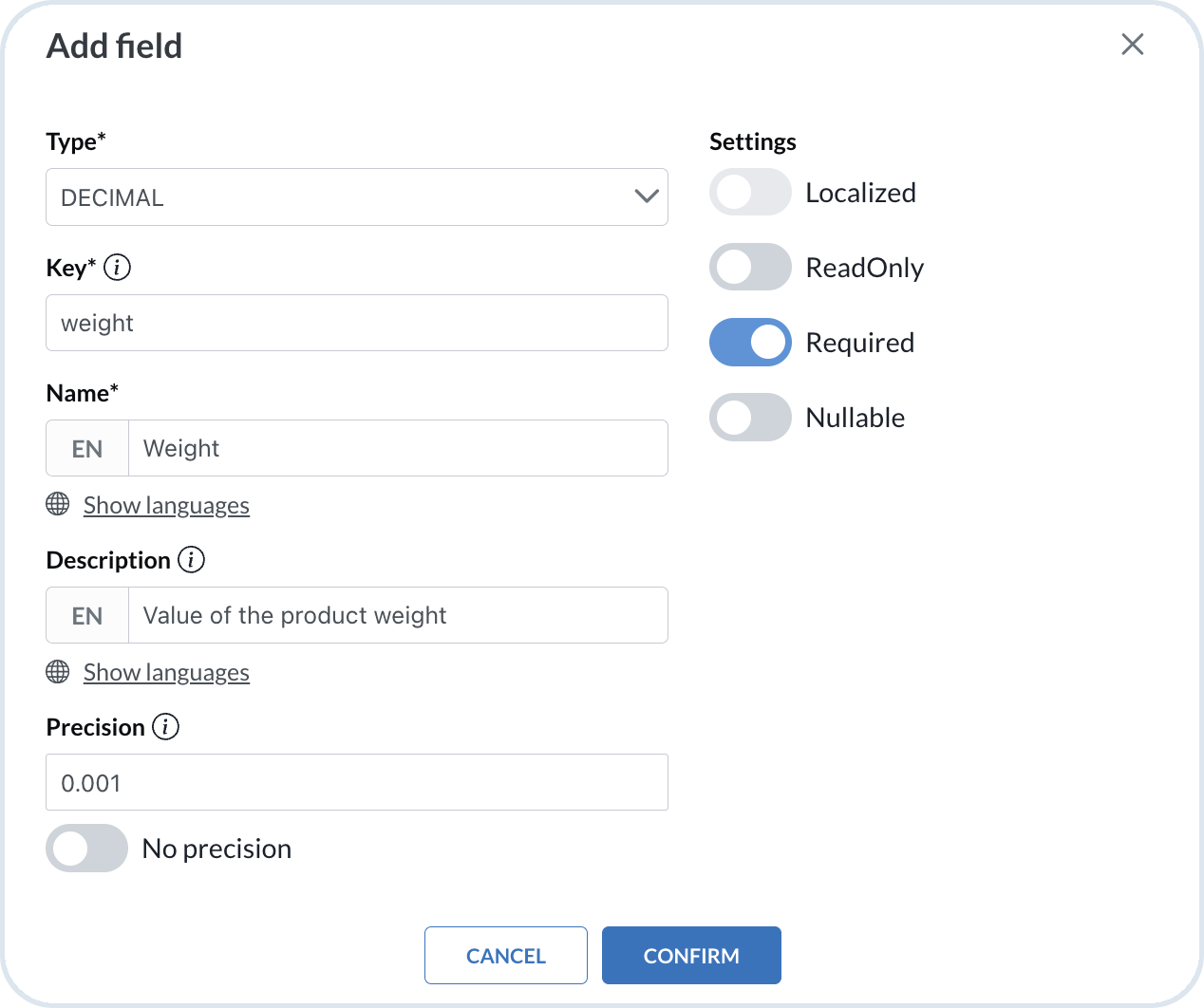
* **Precision** (only for the **Decimal** type) – Define the allowed decimal step for field values. Use values such as `0.1`, `0.01`, `0.001`, and further steps of the form `10^-n` (for example `0.0001`). If you do not set a precision for a decimal field, the default step `0.01` is applied. Choose a finer step for measurements, conversion factors, or other precision-sensitive values; `0.01` is typically suitable for prices and similar monetary amounts.
* **No precision** (only for the **Decimal** type) – Enable this option to accept decimal values without a step constraint. When enabled, the **Precision** field is disabled. Use this when stored values must not be restricted to a fixed decimal increment.
* Provide relevant configuration in **Settings**:
  * **Localized** (only for **Text** type) – Decide whether the field is translated to other languages.
  * **ReadOnly** – Decide whether the field is non-editable.
  * **Required** (except for **Boolean** type) – Decide whether the field is mandatory.
  * **Nullable** – Decide whether the field can accept `null` values.
  * **Array Localized** (only for **Text** in **Array Type**) – Decide whether texts within the array are localized.
  * **Array Values** (only for **Enum** in **Array Type**) – Define the default values for the field. Confirm each value with the **Enter** key.

<figure><img src="https://3057647601-files.gitbook.io/~/files/v0/b/gitbook-x-prod.appspot.com/o/spaces%2FbTY7EwZtYYQYC6GOcdTj%2Fuploads%2Fgit-blob-4b5107662841ffd7a2a0ca8a04222b254ef50699%2Fmixin_addfield.png?alt=media" alt="Configuring basic settings for a mixin field" width="360"><figcaption><p>Configuring basic settings for a mixin field</p></figcaption></figure>

<figure><img src="https://3057647601-files.gitbook.io/~/files/v0/b/gitbook-x-prod.appspot.com/o/spaces%2FbTY7EwZtYYQYC6GOcdTj%2Fuploads%2Fgit-blob-e43763e662a9139974a515051cb3399ebc1a89a2%2Fmixin_addfield_ref.png?alt=media" alt="Configuring reference settings for a mixin field" width="360"><figcaption><p>Configuring reference settings for a mixin field</p></figcaption></figure>

<figure><img src="https://3057647601-files.gitbook.io/~/files/v0/b/gitbook-x-prod.appspot.com/o/spaces%2FbTY7EwZtYYQYC6GOcdTj%2Fuploads%2Fgit-blob-17f6b2617078ef3949796def927fc16149f614d4%2Fmixin_addfield_decimal.png?alt=media" alt="Configuring decimal settings for a mixin field" width="360"><figcaption><p>Configuring decimal settings for a mixin field</p></figcaption></figure>
{% endstep %}

{% step %}

#### Save the fields

Save a field with **Confirm** button.

Repeat these steps to add as many fields as you require for the given entity.
{% endstep %}

{% step %}

#### Optional: Define object fields

If you've added fields of **object** type or of **array of objects** type, choose **+** icon within the given row to define the object's fields (only for **object** and **array of objects** types).

<figure><img src="https://3057647601-files.gitbook.io/~/files/v0/b/gitbook-x-prod.appspot.com/o/spaces%2FbTY7EwZtYYQYC6GOcdTj%2Fuploads%2Fgit-blob-9d389d5eec126174ba959d0a5389dd0f9dbe1687%2Fmixin_addfields.png?alt=media" alt="Defining nested fields for object and array of objects mixin types"><figcaption><p>Defining nested fields for object and array of objects mixin types</p></figcaption></figure>
{% endstep %}

{% step %}

#### Save the schema

When you're done with defining mixin schema fields, confirm schema creation with **Save**. This action generates the schema for a particular entity or entities. You can already view the schema details in the Management Dashboard. If you need the JSON schema file, choose **Open Generated JSON** to access it.

<figure><img src="https://3057647601-files.gitbook.io/~/files/v0/b/gitbook-x-prod.appspot.com/o/spaces%2FbTY7EwZtYYQYC6GOcdTj%2Fuploads%2Fgit-blob-927b4b11000eac9d86a34de91b2cc1401c80f9d3%2Fmixin_schema_preview.png?alt=media" alt="Schema editor with a link to the generated JSON"><figcaption><p>Schema editor with generated JSON link</p></figcaption></figure>
{% endstep %}
{% endstepper %}

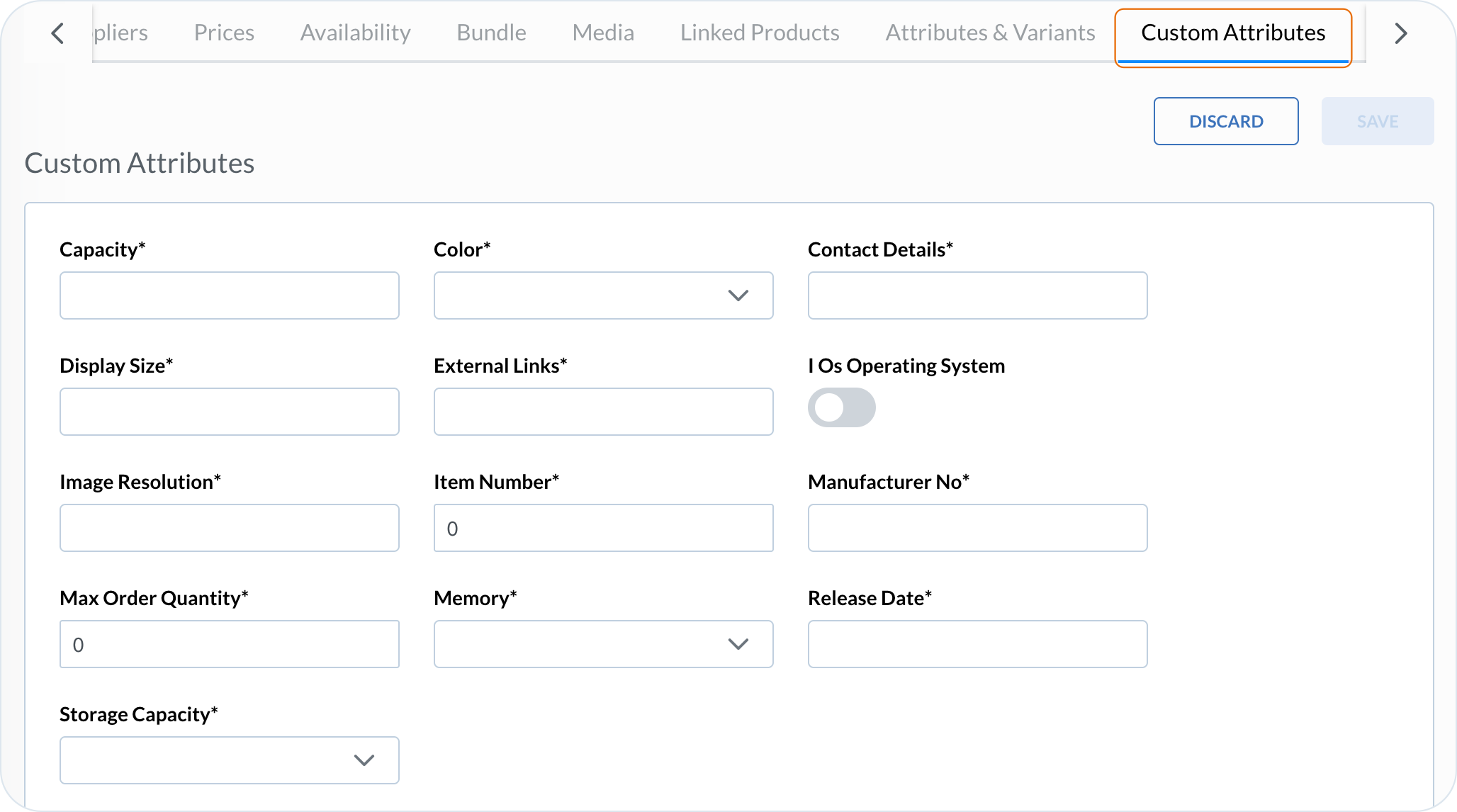
**Result**: The new schema is in use. It means that if, for example, you've created a schema called *Size* for a product entity, next time you create or edit a product, the new fields are available in a *Size* tab.

<figure><img src="https://3057647601-files.gitbook.io/~/files/v0/b/gitbook-x-prod.appspot.com/o/spaces%2FbTY7EwZtYYQYC6GOcdTj%2Fuploads%2Fgit-blob-41c4f64eac569f971908e1d4c3570a38a3fb0852%2Fproduct_mixin.png?alt=media" alt="Product detail view showing fields from an assigned mixin schema"><figcaption><p>Product detail view showing fields from an assigned mixin schema</p></figcaption></figure>

The schemas of **object** type display the defined objects as nested within a hierarchical structure:

<figure><img src="https://3057647601-files.gitbook.io/~/files/v0/b/gitbook-x-prod.appspot.com/o/spaces%2FbTY7EwZtYYQYC6GOcdTj%2Fuploads%2Fgit-blob-609e710b21f7de5972a1d4738c9f1a9969180597%2Fproduct_objectmixin.png?alt=media" alt="Product mixin schema with object-type fields displayed as a hierarchy"><figcaption><p>Product mixin schema with object-type fields displayed as a hierarchy</p></figcaption></figure>

The schemas of **array of objects** type also allow for adding objects with the defined fields:

<figure><img src="https://3057647601-files.gitbook.io/~/files/v0/b/gitbook-x-prod.appspot.com/o/spaces%2FbTY7EwZtYYQYC6GOcdTj%2Fuploads%2Fgit-blob-c8fa34fcdf4891244434677c673216d93c4793fc%2Fproduct_arraymixin.png?alt=media" alt="Product mixin schema with an array of objects and their defined fields"><figcaption><p>Product mixin schema with an array of objects and their defined fields</p></figcaption></figure>

### Uploading a JSON file

Upload a JSON file when you already have a schema definition and want to use it as the starting point for a new mixin schema.

{% hint style="info" %}
If you want to learn how to create JSON schema file, see [Prepare a JSON schema definition](/api-documentation/api-guides/utilities/schema/schema.md#prepare-a-json-schema-definition).
{% endhint %}

{% stepper %}
{% step %}

#### Start a mixin schema

Go to **Settings** → **Mixin Schemas** and select **Add new mixin schema**.
{% endstep %}

{% step %}

#### Provide the schema details

Select one or more entity types and enter the schema name. You can also provide a key.
{% endstep %}

{% step %}

#### Upload the file

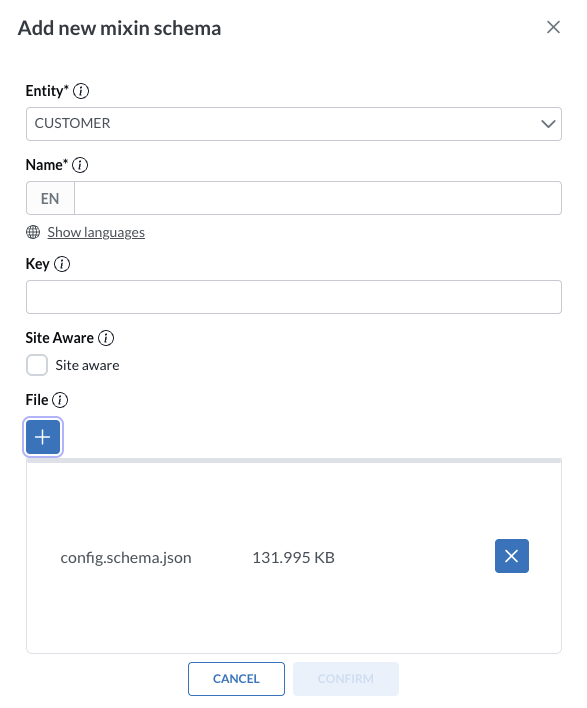
Choose the schema file from your device or drag it to the upload area. If the schema requires per-site values on products or custom instances, select **Site aware**. Select **Confirm** to open the schema editor.

<figure><img src="https://3057647601-files.gitbook.io/~/files/v0/b/gitbook-x-prod.appspot.com/o/spaces%2FbTY7EwZtYYQYC6GOcdTj%2Fuploads%2Fgit-blob-b2380952b66a6ec80ff9144081fbd3a0987a117b%2Fmixins_json.png?alt=media" alt="Uploading a JSON file to create a mixin schema" width="463"><figcaption><p>Creating a mixin schema from an uploaded file</p></figcaption></figure>
{% endstep %}

{% step %}

#### Review and save the schema

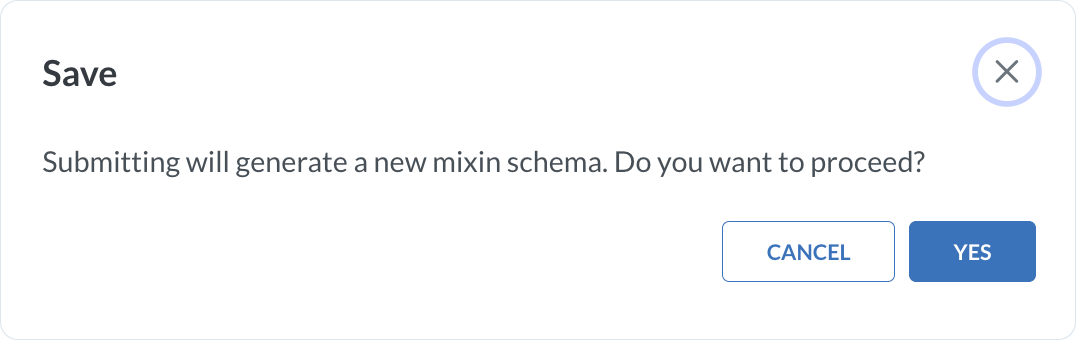
Review the imported fields on the **Fields** tab, then select **Save** and confirm the creation.
{% endstep %}
{% endstepper %}

**Result:** The new schema is available for its assigned entity types. For example, a product schema adds a tab named after the schema when you create or edit a product.

## Editing mixin schemas

{% stepper %}
{% step %}

#### Choose to edit a schema

Go to **Settings** -> **Mixin Schemas** and select the schema you want to change. Choose the Edit icon to modify it.
{% endstep %}

{% step %}

#### Make the changes

Make changes to the schema or to particular fields in the schema:

* In **Schema** tab, you can select or unselect entities types you want to apply the schema to.
* In **Fields** tab, you can change settings for particular fields, add more or remove fields from the schema.
  {% endstep %}

{% step %}

#### Save your configuration

Confirm your changes with **Save** and confirm you want to update the existing schema.

<figure><img src="https://3057647601-files.gitbook.io/~/files/v0/b/gitbook-x-prod.appspot.com/o/spaces%2FbTY7EwZtYYQYC6GOcdTj%2Fuploads%2Fgit-blob-50bc05f40f43261b9d2eb58834cdf12c49655c80%2Fmixin_newversion.png?alt=media" alt="Confirmation dialog for saving a new version of a mixin schema" width="375"><figcaption><p>Confirmation dialog for saving a new version of a mixin schema</p></figcaption></figure>
{% endstep %}
{% endstepper %}

{% hint style="warning" %}
Each time you edit a schema, you generate its new version. This behavior is to prevent validation errors for the objects that were created/edited earlier and use the older schema versions. The latest schema version is always applied by default.
{% endhint %}

**Result:** A new schema version is created. New entities use it automatically. Existing entities with saved values keep their current version until you review and apply the update.

{% hint style="info" %}
If you have a schema applied to multiple entities, it is possible to modify the schema for each entity separately. You need to select the entities you want your changes to apply to when editing the schema. Then, the new schema version is in use only for the selected entities while the other ones still use the previous version.
{% endhint %}

### Mixin schema versioning

When you edit a mixin schema that is already assigned to an entity, your changes become visible in the entity view.

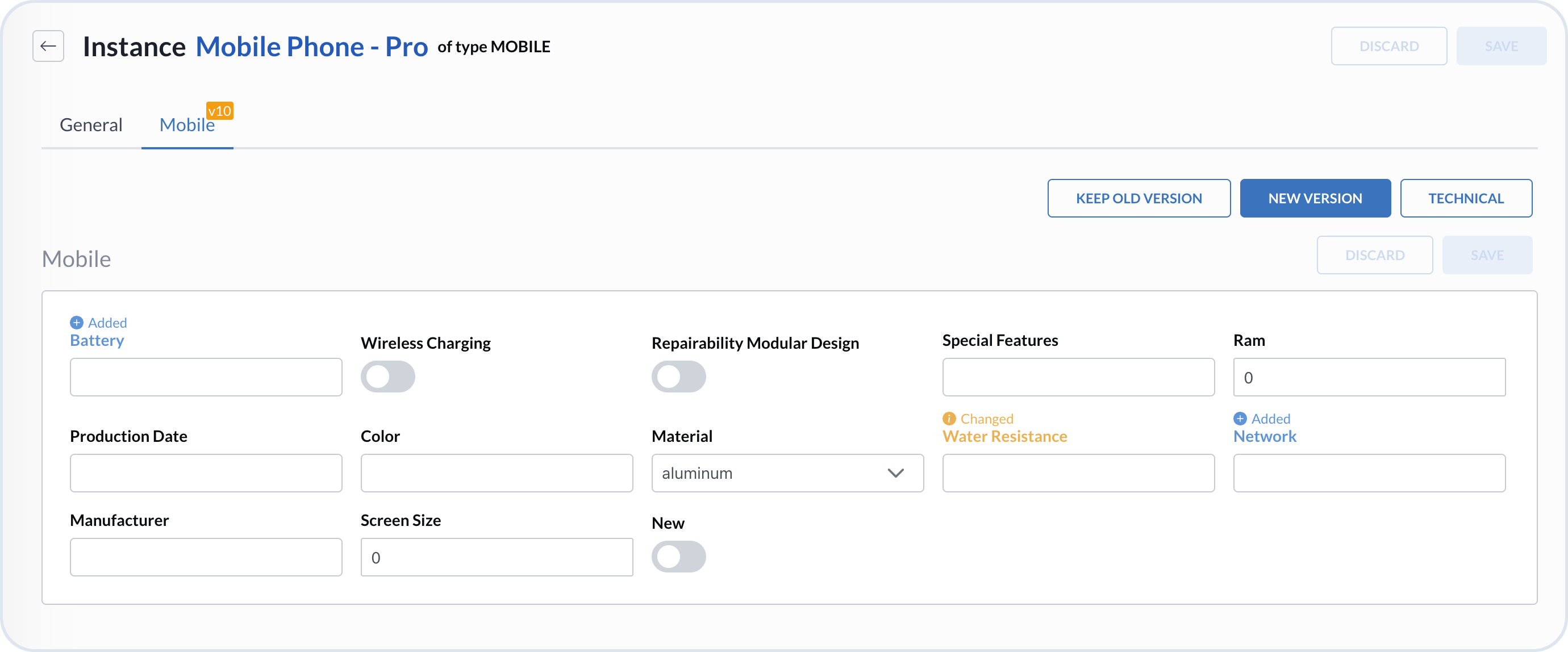
For example, suppose you have a custom instance schema for mobile phones. If you add fields or modify field types, Management Dashboard presents those changes for review when you open an instance that has values saved against the older version.

When a mixin schema is used in an entity, an indicator in the view displays the mixin schema version number.

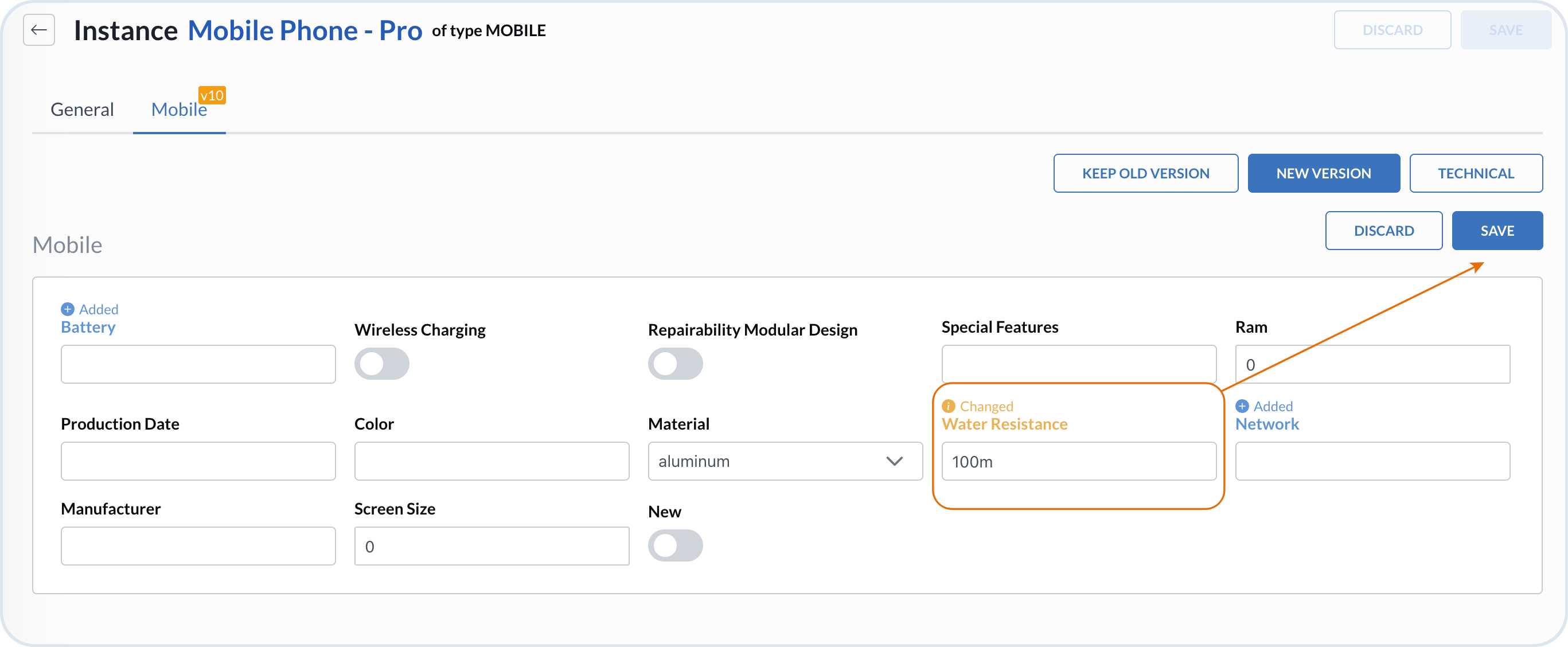
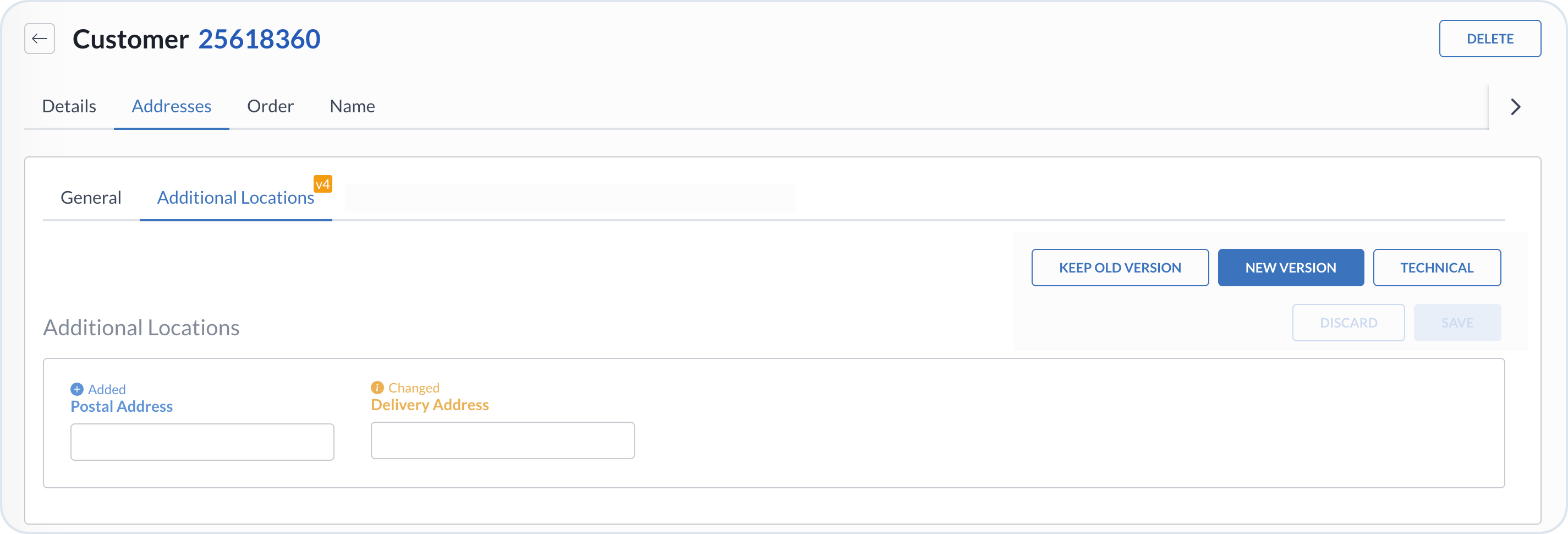
Each time you update the mixin schema and open the entity that uses it, you can see which fields were added or modified. For instance, in the mobile phone instance schema below, the newly added and updated fields are highlighted accordingly - blue for new, yellow for the changed ones.

<figure><img src="https://3057647601-files.gitbook.io/~/files/v0/b/gitbook-x-prod.appspot.com/o/spaces%2FbTY7EwZtYYQYC6GOcdTj%2Fuploads%2Fgit-blob-4e409d1a34488c9178c2804e322183baff58ae41%2Fmixins_version_1.png?alt=media" alt="Entity view showing newly added (blue) and modified (yellow) mixin fields"><figcaption><p>Entity view showing newly added (blue) and modified (yellow) mixin fields</p></figcaption></figure>

In this view, you can compare the current mixin schema version with the new one. You can either keep the old version, or decide to use the new one.

<figure><img src="https://3057647601-files.gitbook.io/~/files/v0/b/gitbook-x-prod.appspot.com/o/spaces%2FbTY7EwZtYYQYC6GOcdTj%2Fuploads%2Fgit-blob-68dfdbb86a07f9a98d3da246b18078bc88765eff%2Fmixins_version_save.png?alt=media" alt="Preview and confirmation screen for applying an updated mixin schema version"><figcaption><p>Preview and confirmation screen for applying an updated mixin schema version</p></figcaption></figure>

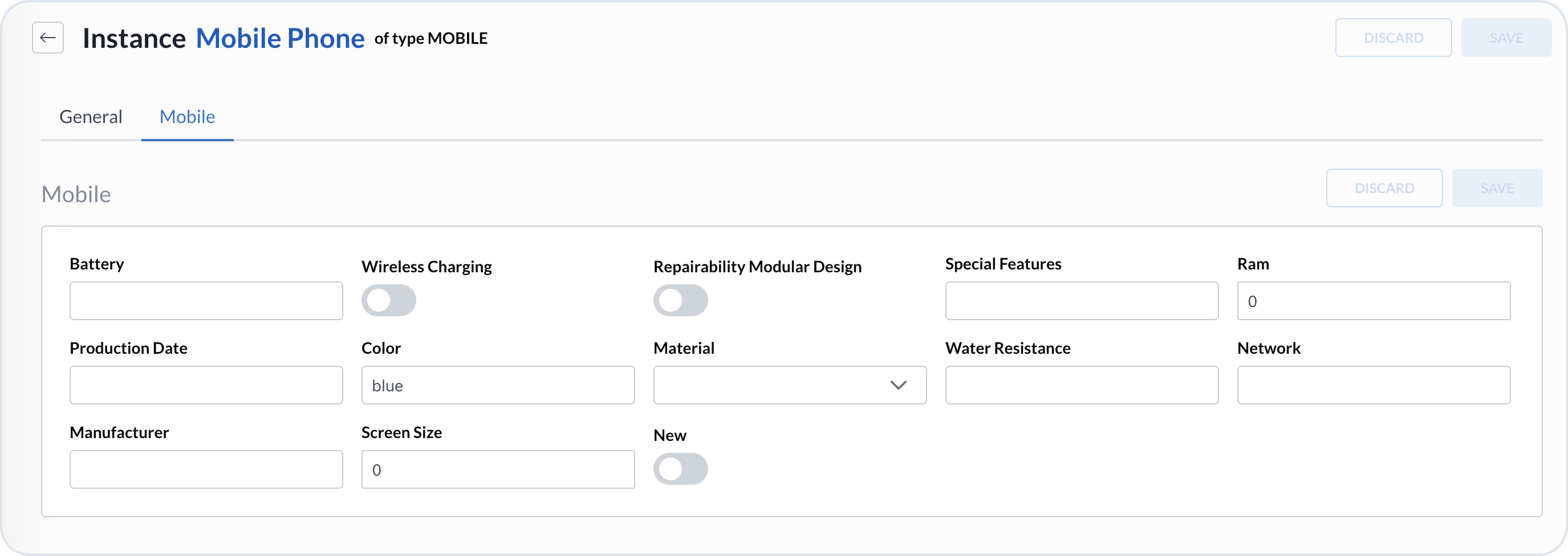
New fields and updates are highlighted when the entity has mixin values saved against an older schema version. You can keep the current version or apply the new one. If the entity has no saved values for that schema, it uses the latest version automatically without displaying a preview:

<figure><img src="https://3057647601-files.gitbook.io/~/files/v0/b/gitbook-x-prod.appspot.com/o/spaces%2FbTY7EwZtYYQYC6GOcdTj%2Fuploads%2Fgit-blob-f1643db1ba92b397b321920861afdc337257d124%2Fmixins_version_empty.png?alt=media" alt="Entity using a mixin schema without previously saved values, automatically updated to the latest version"><figcaption><p>Entity using a mixin schema without previously saved values, automatically updated to the latest version</p></figcaption></figure>

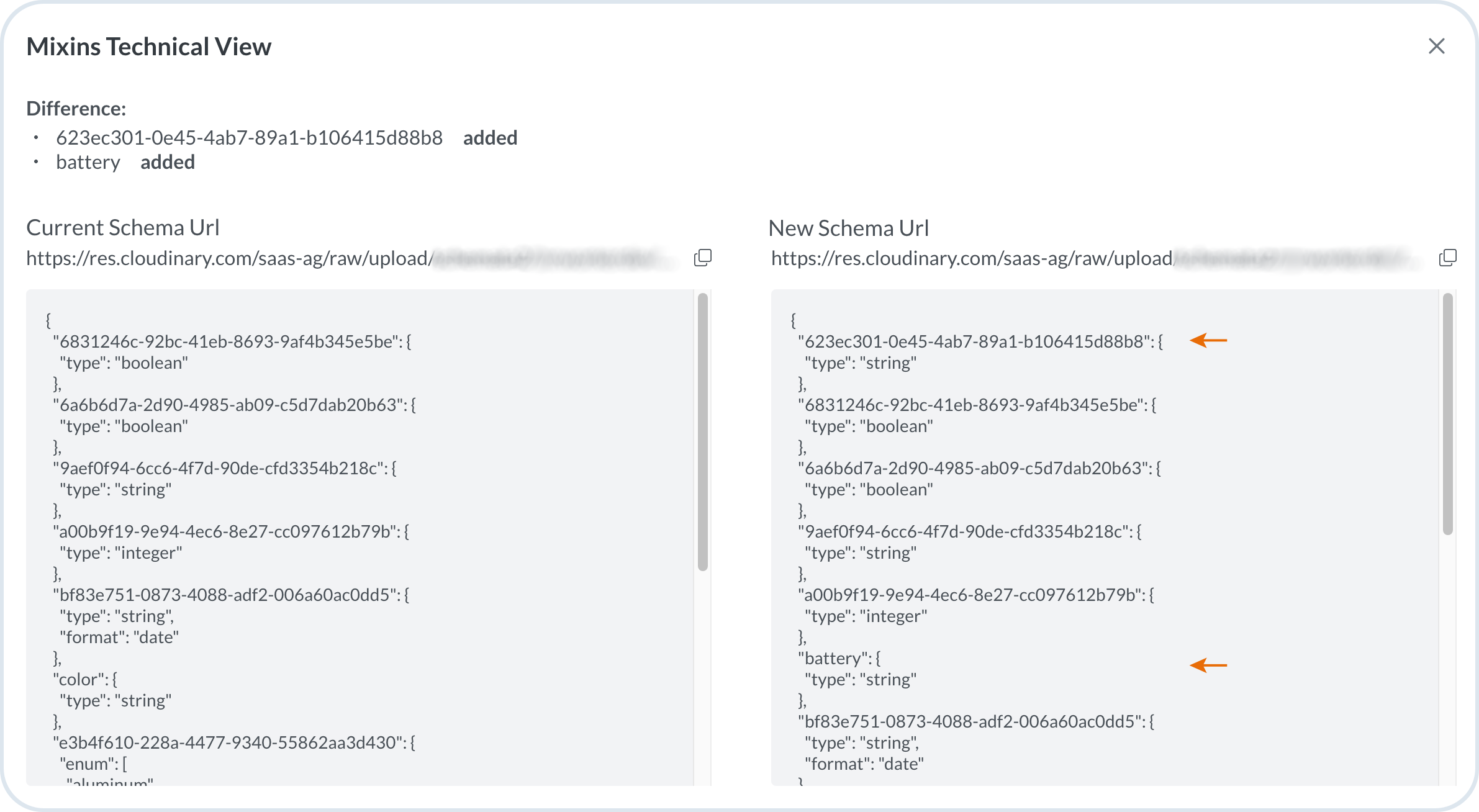
If you need a more detailed, technical comparison of all your changes, choose the **Technical** button. This opens a side-by-side comparison of the current and updated schemas in a JSON format. At the top, you can see a list of differences showing the unique keys of the newly added fields. The format of these keys depends on whether they were custom-defined or auto-generated.

<figure><img src="https://3057647601-files.gitbook.io/~/files/v0/b/gitbook-x-prod.appspot.com/o/spaces%2FbTY7EwZtYYQYC6GOcdTj%2Fuploads%2Fgit-blob-d408de75b0954592f8e4e06a944a321003e710e9%2Fmixins_version_technical.png?alt=media" alt="Technical JSON diff view comparing current and updated mixin schemas"><figcaption><p>Technical JSON diff view comparing current and updated mixin schemas</p></figcaption></figure>

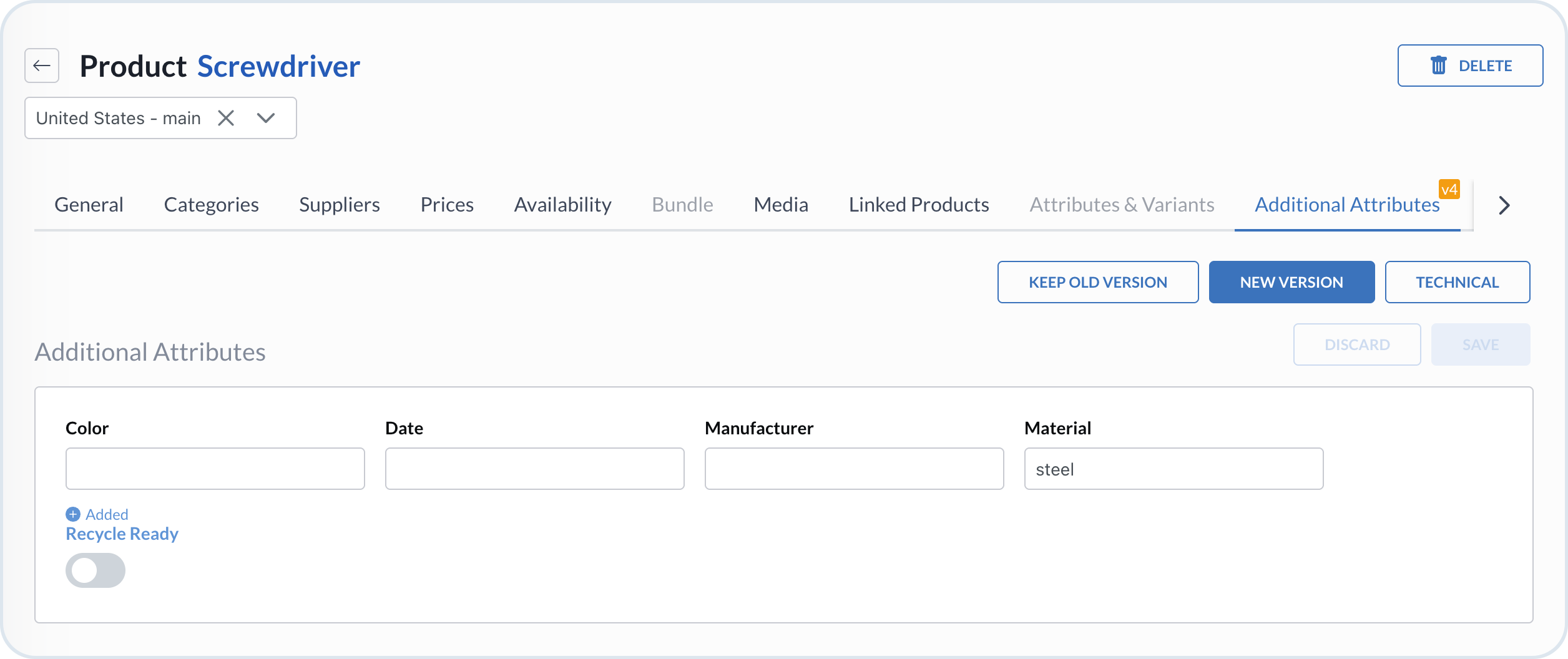
See other examples for Product and Customer entities:

<figure><img src="https://3057647601-files.gitbook.io/~/files/v0/b/gitbook-x-prod.appspot.com/o/spaces%2FbTY7EwZtYYQYC6GOcdTj%2Fuploads%2Fgit-blob-dc34f8163745bda13e4637aa00a9c9a816b76e72%2Fmixins_version_product.png?alt=media" alt="Example of mixin schema versioning for a Product entity"><figcaption><p>Example of mixin schema versioning for a Product entity</p></figcaption></figure>

<figure><img src="https://3057647601-files.gitbook.io/~/files/v0/b/gitbook-x-prod.appspot.com/o/spaces%2FbTY7EwZtYYQYC6GOcdTj%2Fuploads%2Fgit-blob-bb4217f8003f3886a4dc522cb4154df3f9712b31%2Fmixins_version_customer.png?alt=media" alt="Example of mixin schema versioning for a Customer entity"><figcaption><p>Example of mixin schema versioning for a Customer entity</p></figcaption></figure>

## Site-aware mixins

Site-aware mixins let a product or custom instance keep shared mixin values and override selected values for individual sites. Use them when the same entity is available across sites but some attributes differ by market or storefront.

In Management Dashboard, mark the mixin schema as **Site aware**, then maintain its **Default** values and site-specific overrides on the product or custom instance.

{% hint style="warning" %}
Site-aware mixin editing is available for products and custom instances. Assign the schema to **Product**, a custom entity type, or both. Schemas are assigned to custom entity types, while override values are edited on instances of those types. See [Custom Entities](/user-guides/management-dashboard/settings/custom-entities.md) and [Custom Instances](/user-guides/management-dashboard/custom-instances.md).

This feature is separate from the mixin fields on a product **Availability** row. Those fields belong to an availability mixin schema. See [Products](/user-guides/management-dashboard/products-module/products.md).
{% endhint %}

Site-aware mixins are useful in the following situations:

* The same product or custom instance is sold or used across multiple sites.
* Most mixin attributes are shared, and only some values must differ by site.
* API clients need one merged set of values for the requested site.

If every attribute is the same on all sites, a standard mixin schema is enough.

### Creating a site-aware mixin schema

{% stepper %}
{% step %}

#### Start a mixin schema

Go to **Settings** → **Mixin Schemas** and select **Add new mixin schema**. Choose **Product**, a custom entity type, or both. Enter the schema name and, if needed, a key. Select **Confirm** to open the schema editor.

To update an existing schema, open it from the list.
{% endstep %}

{% step %}

#### Enable site awareness

On the **Schema** tab, select **Site aware**.

<figure><img src="https://3057647601-files.gitbook.io/~/files/v0/b/gitbook-x-prod.appspot.com/o/spaces%2FbTY7EwZtYYQYC6GOcdTj%2Fuploads%2Fgit-blob-e69bda43bdab3e8d27418f72baa87f7f76808e49%2Fsite_aware_mixin_configure.png?alt=media" alt="Mixin schema with Product type and Site aware selected"><figcaption><p>Configuring a site-aware mixin schema</p></figcaption></figure>
{% endstep %}

{% step %}

#### Define fields and save

On the **Fields** tab, add the attributes you need, then select **Save**. Field setup follows the same rules as a standard mixin schema. See [Creating a mixin schema](#creating-a-mixin-schema).

Saving changes to an existing schema creates a new version. Apply the new version to products or custom instances as described in [Mixin schema versioning](#mixin-schema-versioning).
{% endstep %}
{% endstepper %}

**Result:** Products or custom instances that use the schema show a site context panel on the mixin tab.

You can also enable **Site aware** when you upload a JSON schema file. Follow [Uploading a JSON file](#uploading-a-json-file) and choose **Site aware** before you confirm the upload.

### Setting default and site-specific values

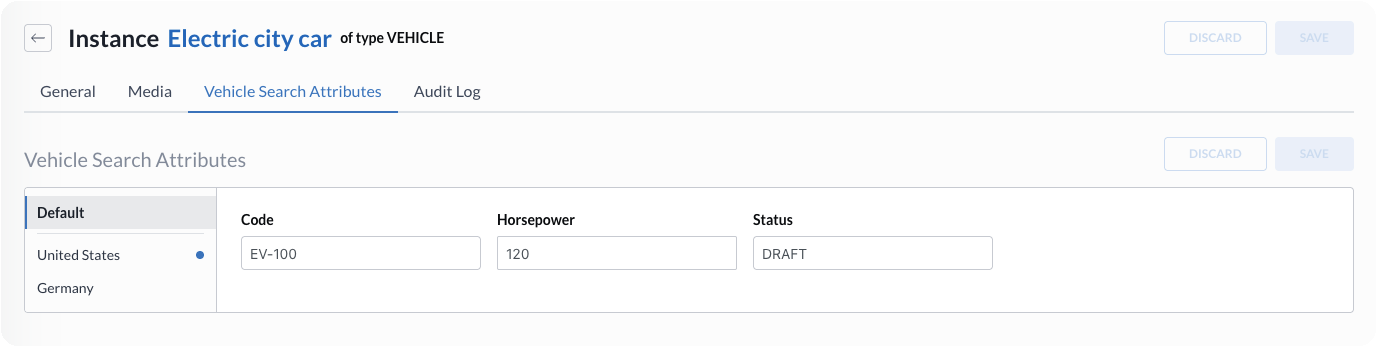
The following example uses a site-aware **Vehicle search attributes** schema on a vehicle instance.

<figure><img src="https://3057647601-files.gitbook.io/~/files/v0/b/gitbook-x-prod.appspot.com/o/spaces%2FbTY7EwZtYYQYC6GOcdTj%2Fuploads%2Fgit-blob-8a9570b0e18e981ed8e7b19d6a0b39b23673be43%2Fsite_aware_vehicle_mixin.png?alt=media" alt="Vehicle search attributes mixin schema with Site aware enabled"><figcaption><p>Site-aware Vehicle search attributes schema</p></figcaption></figure>

{% stepper %}
{% step %}

#### Open the entity

Open a product or a custom instance whose entity type is assigned to the site-aware schema. Open the mixin tab named after your schema.
{% endstep %}

{% step %}

#### Set Default values

In the site context panel, choose **Default** and enter the values shared by all sites.

Complete every required field in **Default**. Management Dashboard does not save the schema values until the required default fields are complete.

<figure><img src="https://3057647601-files.gitbook.io/~/files/v0/b/gitbook-x-prod.appspot.com/o/spaces%2FbTY7EwZtYYQYC6GOcdTj%2Fuploads%2Fgit-blob-59818689eacf0439093f8c23157d4752747ed67e%2Fsite_aware_default_mixin.png?alt=media" alt="Site context panel with Default selected on a vehicle instance"><figcaption><p>Default mixin values on a vehicle instance</p></figcaption></figure>
{% endstep %}

{% step %}

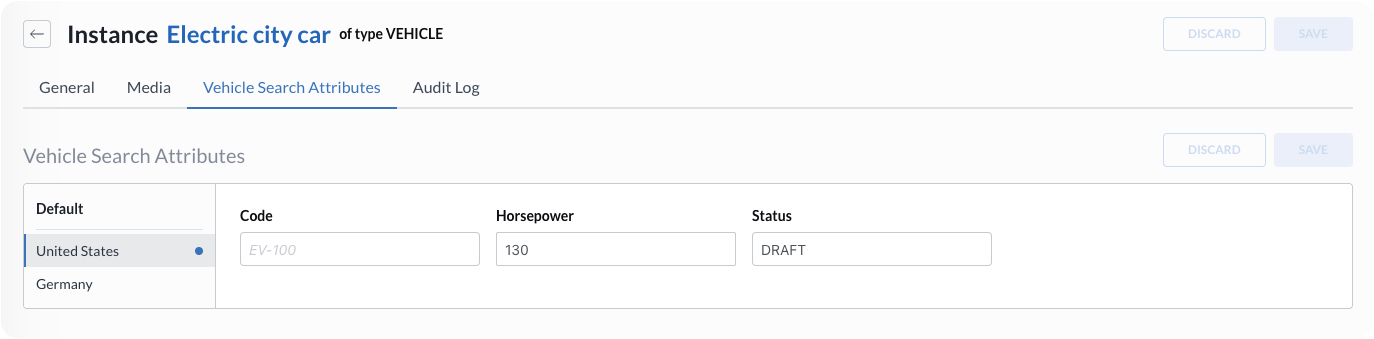
#### Add site-specific values

Choose a site in the site context panel. Fields without an override show the corresponding **Default** value. Enter only the values that must differ for this site.

To remove an override, choose **Use default** for that field.

<figure><img src="https://3057647601-files.gitbook.io/~/files/v0/b/gitbook-x-prod.appspot.com/o/spaces%2FbTY7EwZtYYQYC6GOcdTj%2Fuploads%2Fgit-blob-31ab4a4117598c6b3c91bb26459cab5b08210c8b%2Fsite_aware_custom_mixin.png?alt=media" alt="Site context panel with United States selected and overridden mixin values"><figcaption><p>Site-specific mixin values for the United States site</p></figcaption></figure>
{% endstep %}

{% step %}

#### Save all contexts

Choose **Save**. Management Dashboard stores the **Default** values and every site-specific override changed in the current session. **Discard** reverts unsaved changes in all site contexts for this schema.
{% endstep %}
{% endstepper %}

**Result:** The product or custom instance keeps shared **Default** values and optional overrides. API clients that request the entity with a site context receive the combined values for that site.

### How site context works

Use the site context panel to choose which values you are editing and to clear leftover overrides after a site is deleted from the tenant.

The panel includes the following contexts:

* **Default** – shared mixin values for all sites
* **Site** – each site configured for your tenant, shown with the site name when available, otherwise the site code
* Removed site – after you delete a site from the tenant, its context stays on the product or custom instance for as long as site-specific mixin values remain stored for that site code

To clear leftover values, open the removed site context and choose **Use default** for every overridden field, then choose **Save**. When no site-specific values remain, the removed site context disappears.

The following indicators help you track values while editing:

* An asterisk next to a context – that context has unsaved changes
* A marker on a site – that site already has site-specific values stored

Switching between **Default** and sites does not save by itself. Unsaved work stays in the form until you choose **Save** or **Discard**.

## Displaying mixins in entity list view

You can add a mixin field as a column in the list view of a selected entity. The mixin field can serve as a filter so that you can find the items of your interest.

{% stepper %}
{% step %}

#### Choose to customize your view

Go to the selected entity view and choose the **Orchestration** icon.

<div align="left"><figure><img src="https://3057647601-files.gitbook.io/~/files/v0/b/gitbook-x-prod.appspot.com/o/spaces%2FbTY7EwZtYYQYC6GOcdTj%2Fuploads%2Fgit-blob-7cfcfdf2cec4c375b7575ad6c176c07374395af1%2Forchestration.png?alt=media&amp;token=d77f5975-f1a8-4f9a-97cc-e0cab4e04a6a" alt="Orchestration icon for customizing the entity list view"><figcaption><p>Orchestration icon for customizing the entity list view</p></figcaption></figure></div>
{% endstep %}

{% step %}

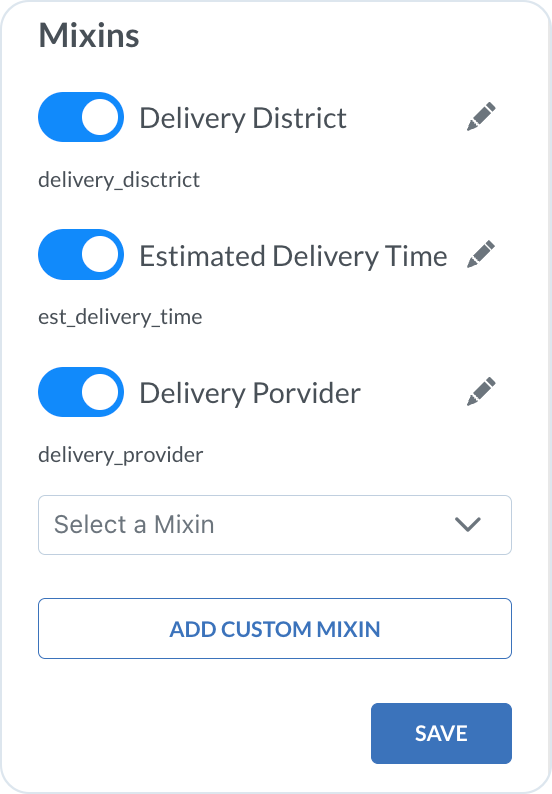
#### Choose the mixins

In the **Mixins** section, look for the mixin fields you want to add as filter columns. Or, choose **Add custom mixin** to add a new mixin field.

<figure><img src="https://3057647601-files.gitbook.io/~/files/v0/b/gitbook-x-prod.appspot.com/o/spaces%2FbTY7EwZtYYQYC6GOcdTj%2Fuploads%2Fgit-blob-c433ed7b39d60d69c753ad11a8ff56865dd83344%2Forders_mixins.png?alt=media" alt="Selecting mixin fields to add as list view columns and filters" width="200"><figcaption><p>Selecting mixin fields to add as list view columns and filters</p></figcaption></figure>

The selected mixin fields appear in the orchestration panel, where you can enable or edit them.

<figure><img src="https://3057647601-files.gitbook.io/~/files/v0/b/gitbook-x-prod.appspot.com/o/spaces%2FbTY7EwZtYYQYC6GOcdTj%2Fuploads%2Fgit-blob-4a1f7da64ce70180d02b74b17709bf63aeab12f4%2Fcolumns_mixins.png?alt=media" alt="Selected mixin fields in the orchestration panel" width="200"><figcaption><p>Selected mixin fields in the orchestration panel</p></figcaption></figure>
{% endstep %}

{% step %}

#### Adjust the way how the columns are displayed

Use the **Edit** icon. You can edit the displayed label of the mixin column.

<figure><img src="https://3057647601-files.gitbook.io/~/files/v0/b/gitbook-x-prod.appspot.com/o/spaces%2FbTY7EwZtYYQYC6GOcdTj%2Fuploads%2Fgit-blob-5fa1f615b2be7e17f81b7b627c21d98454ae7b0f%2Fmixin_column_edit.png?alt=media" alt="Editing the label of a mixin field column in the list view" width="375"><figcaption><p>Editing the label of a mixin field column in the list view</p></figcaption></figure>
{% endstep %}

{% step %}

#### Save the selection

Select **Save**. The selected mixin fields appear as columns in the entity list view and can be used as filters.
{% endstep %}
{% endstepper %}

{% hint style="warning" %}
Only fields from mixin schemas managed in **Settings** → **Mixin Schemas** appear in the column selector. A mixin added directly to an entity through its API does not appear unless its schema is registered for that entity type. Create or assign the schema in **Mixin Schemas** first.

Adding mixins as column filters is possible for the following entities: cart, cart item, category, classification, company, coupon, custom entity, customer, customer address, order, order entry, price list, product, quote, return, site, and vendor.
{% endhint %}

## Unassigning a schema

If you no longer want to apply the latest version of a schema to an entity, you can unassign it.

{% stepper %}
{% step %}

#### Select the schema

Go to **Settings** -> **Mixin Schemas** and select the schema you want to remove from an entity.
{% endstep %}

{% step %}

#### Choose **Unassign** icon

Choose the icon to remove the connection between the latest schema version and entity.

<div align="left"><figure><img src="https://3057647601-files.gitbook.io/~/files/v0/b/gitbook-x-prod.appspot.com/o/spaces%2FbTY7EwZtYYQYC6GOcdTj%2Fuploads%2Fgit-blob-22aed7e260f3935b6fd14ff56104630f6dec3cb2%2Funassign_icon.png?alt=media" alt="Unassign icon used to detach a schema from an entity" width="111"><figcaption><p>Unassign icon used to detach a schema from an entity</p></figcaption></figure></div>
{% endstep %}

{% step %}

#### Confirm the action

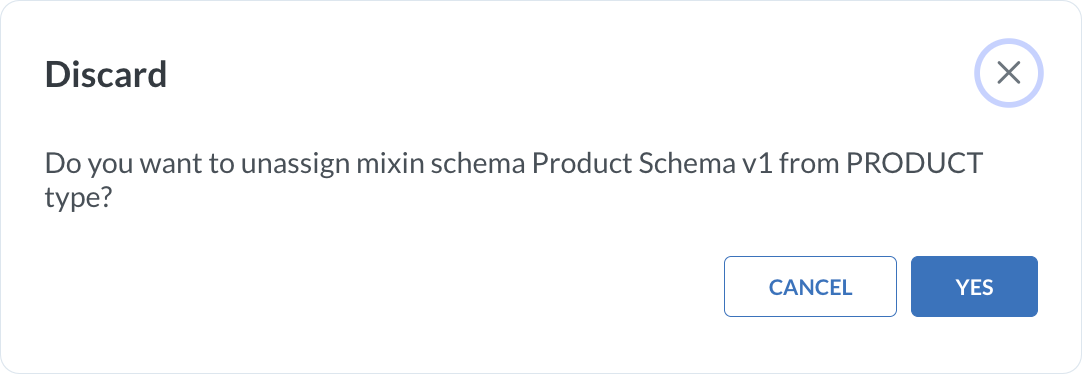
Choose **Yes** to confirm, or **Cancel** to keep the assignment.

<figure><img src="https://3057647601-files.gitbook.io/~/files/v0/b/gitbook-x-prod.appspot.com/o/spaces%2FbTY7EwZtYYQYC6GOcdTj%2Fuploads%2Fgit-blob-a0640d805e865b3d86d70142d4db015ca9f7228c%2Fmixin_unassign.png?alt=media" alt="Confirmation dialog for unassigning a schema from an entity" width="375"><figcaption><p>Confirmation dialog for unassigning a schema from an entity</p></figcaption></figure>
{% endstep %}
{% endstepper %}

**Result**: The particular entity uses the previous version of the schema that exists in the database. If you had only one schema version and you unassign it from an entity, the schema tab is no longer visible when you create or edit objects of that type.

{% hint style="warning" %}
The unassigned schemas are not displayed in the Management Dashboard. To retrieve, edit or delete an unassigned schema, use API mechanism. See more in [Schema Service](/api-documentation/api-guides/utilities/schema.md).
{% endhint %}


---

# Agent Instructions
This documentation is published with GitBook. GitBook is the documentation platform designed so that both humans and AI agents can read, navigate, and reason over technical content effectively. Learn more at gitbook.com.

## Querying This Documentation
If you need additional information that is not directly available in this page, you can query the documentation by asking a question.

Perform an HTTP GET request on the following URL with the `ask` and `goal` query parameters:

```
GET https://developer.emporix.io/user-guides/management-dashboard/settings/mixin-schemas.md?ask=<question>&goal=<user_goal>
```

`ask` is the immediate question: it should be specific, self-contained, and written in natural language.
`goal` is what the user is ultimately trying to achieve, the reason they need the answer. Sharing it helps GitBook give you a better, more relevant answer. A goal is most helpful when it describes the outcome the user wants rather than restating the question. For example, with `ask=how do I create an API token`, a goal like `automate deployments from our CI pipeline` lets GitBook tailor the answer to that use case.

The response will contain a direct answer to the question and relevant excerpts and sources from the documentation.

Use this mechanism when the answer is not explicitly present in the current page, you need clarification or additional context, or you want to retrieve related documentation sections.