> For the complete documentation index, see [llms.txt](https://developer.emporix.io/llms.txt). Markdown versions of documentation pages are available by appending `.md` to page URLs; this page is available as [Markdown](https://developer.emporix.io/user-guides/management-dashboard/settings/sites.md).
# Sites
Create and manage sites where you sell your goods.
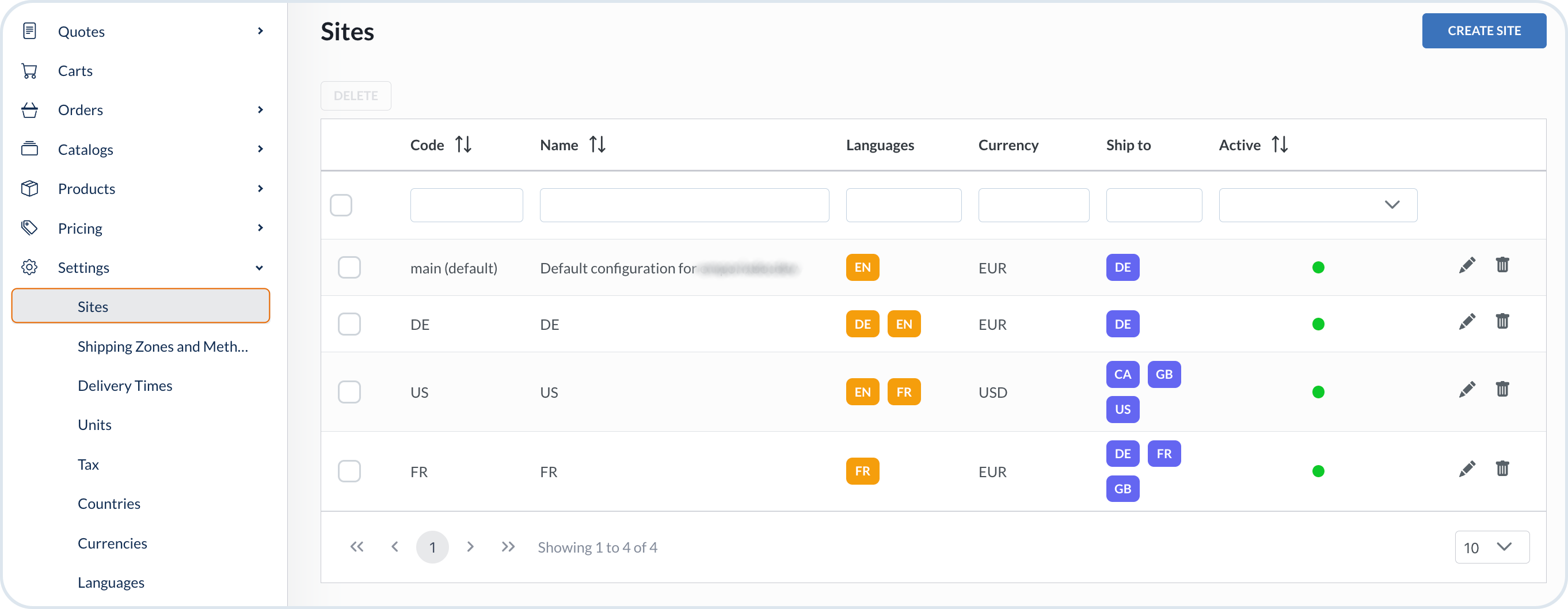
The **Sites** section allows you to manage all the configurations related to your sites.
Site settings view
## General information
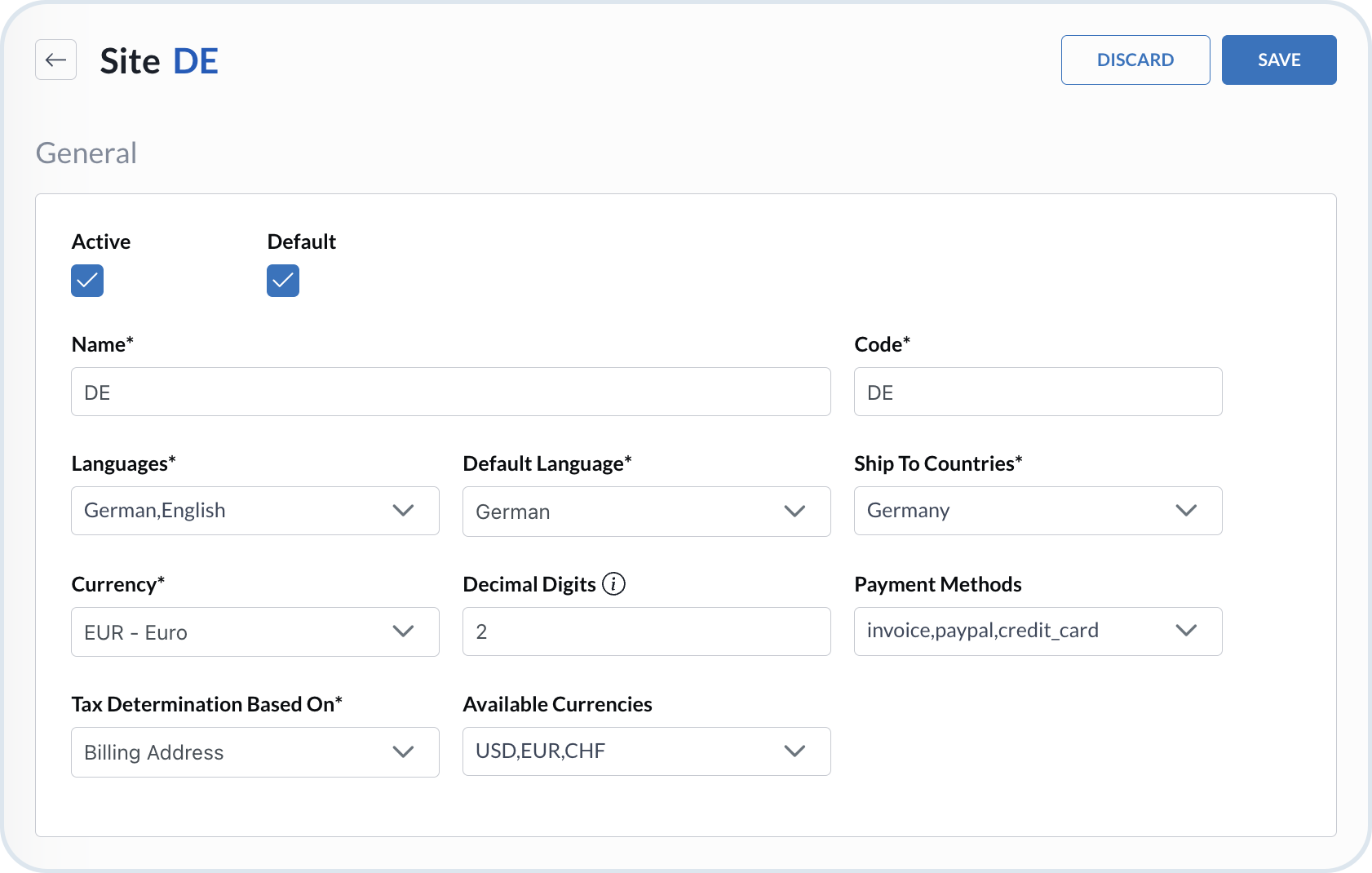
When you create or edit a site, you enter the site details view. The general settings panel allows you to provide the basic site configuration that is essential for the storefront operations.
Site details
Refer to the table for the configuration details.
| **Property** | **Description** |
| -------------------------- | ----------------------------------------------------------------------------------------------------------------------------------------------------------------------------------------------------------------------------------- |
| Active | The activation flag enables a site on your webshop storefront when the configuration is ready. |
| Default | There can be only one site marked as default for a tenant. The default site appears as the first one when customers enter the store's URL. |
| Name | The site's name that displays in the store. |
| Code | The technical name of the site that you can use in the API requests. |
| Languages | The set of languages that you want to use on the site. The languages list corresponds to the languages enabled for the tenant. In the storefront, customers are able to use a language switcher to select their preferred language. |
| Default Language | The default language that displays as the first one on the storefront and is used when no language is specified in API requests. |
| Ship to countries | The countries that you want to enable delivery to for the site. The countries list corresponds to the countries enabled in the tenant. |
| Currency | The code of the default currency on the site. |
| Decimal digits | The number of decimal points used in calculation of prices in the shopping cart. The property must be zero or a positive value. |
| Payment methods | The payment methods you want to enable on the site. The list of payment methods corresponds to the methods available in the tenant. |
| Tax determination based on | The configuration of tax calculation base. Decide whether you want to use a customer's shipping or billing address when determining the relevant tax rates. |
| Available currencies | The list of currency codes that you support payments with on the site. |
{% hint style="info" %}
**Tax determination**
To determine the relevant location to calculate proper taxes, the cart and checkout services read the **Tax determination based on** setting for the site. This setting determines the proper location by the `countryCode` from the relevant address.\
The default setting for a site is the **billing address**.
If you set the tax determination as **shipping address**, the country for calculating tax is determined in the following order:
1. For the cart service:
a. the cart's `countryCode`
b. if the `countryCode` is not provided for a cart, a customer's default shipping address `countryCode`
c. if a customer doesn't have a default shipping address, the first customer's shipping address `countryCode` on the list
d. if a customer doesn't have any shipping addresses, the default `countryCode` from the site settings
2. For the checkout service:
a. a shipping address `countryCode`, provided during checkout
b. if a shipping address is not provided, a customer's billing address `countryCode` is taken as a fallback
{% endhint %}
## Products on the storefront
A product can appear on the storefront even when it is not ready to purchase. Customers may browse product details, but **Add to cart** is only available when product data and site configuration align for the customer's site, country, and currency.
Search and catalog browsing use a broader set of data than the cart service. That is why a product can be **viewable** on the storefront but not **buyable**.
```mermaid
---
config:
layout: fixed
theme: base
look: classic
themeVariables:
background: transparent
lineColor: "#9CBBE3"
arrowheadColor: "#9CBBE3"
edgeLabelBackground: "#FFC128"
edgeLabelTextColor: "#4C5359"
---
flowchart TD
SITE(["Site - Ship to country - Payment methods"])
CURRENCY(["Currency"])
AVAIL(Availability)
PRODUCT("Product Published = true")
PRICE(Price)
TAX(Tax Class)
COUNTRY(Country)
PM(Price Model)
SZ(Shipping Zone)
SM("Shipping Method Active = true")
AVAIL --> PRODUCT
PRICE --> PRODUCT
TAX --> PRICE
PM --> PRICE
COUNTRY --> TAX
PM --> COUNTRY
SZ --> COUNTRY
SM --> SZ
PM --> SITE
PM --> CURRENCY
SZ --> SITE
SM --> SITE
SITE -->|Available currencies| CURRENCY
SITE@{ shape: rounded }
CURRENCY@{ shape: rounded }
PRODUCT@{ shape: rounded }
SM@{ shape: rounded }
SITE:::contextNode
CURRENCY:::contextNode
AVAIL:::siteNode
PRICE:::siteNode
TAX:::siteNode
PM:::siteNode
COUNTRY:::siteNode
SZ:::siteNode
PRODUCT:::productNode
SM:::productNode
classDef contextNode fill:#A1BDDC,stroke:#4C5359
classDef siteNode fill:#DDE6EE,stroke:#4C5359
classDef productNode fill:#F2F6FA,stroke:#E86C07
```
### Checklist
Before a customer can add a product to the cart, verify:
* Site is Active; Ship to countries, Currency, and Available currencies match the product prices and shipping setup.
* [Tax](/user-guides/management-dashboard/settings/tax.md) rates and tax classes exist for the relevant countries.
* Active [shipping zones and methods](/user-guides/management-dashboard/settings/shipping-methods.md) cover the customer's country and currency.
* [Price models](/user-guides/management-dashboard/pricing/price-models.md) are configured for the site.
* Product is published in a [catalog](/user-guides/management-dashboard/catalogs-module/catalogs.md) assigned to the site.
* Product Prices tab — tax class, price model, site, currency, and country.
* Product Availability tab — stock level and distribution channel for the site.
For product-level setup, see [Making products buyable on the storefront](/user-guides/management-dashboard/products-module/products.md#making-products-buyable-on-the-storefront).
## Home base address
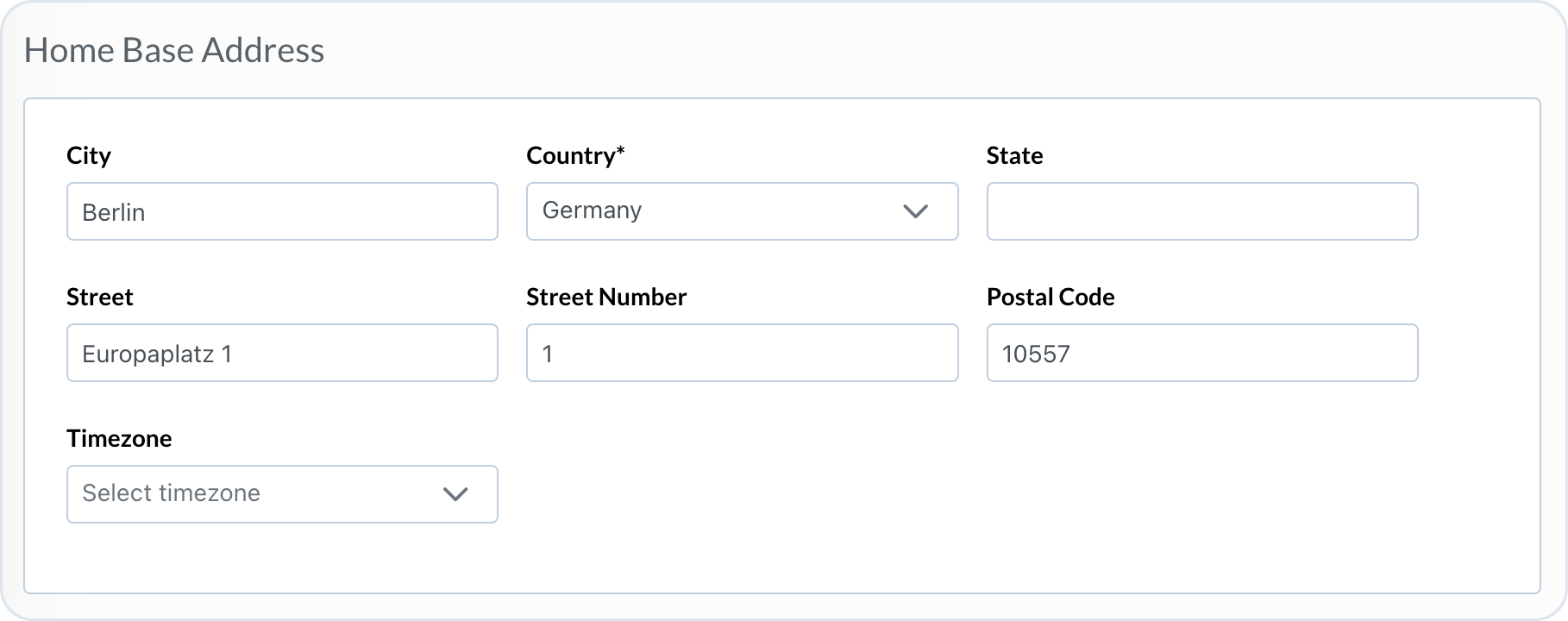
Provide your business's address information.
Site home address
{% hint style="info" %}
The **Country** and **Timezone** fields determine the computation of values for the defined sequential ID placeholders. The value you set in the **Country** field determines the country code value that replaces the country placeholder, while the selected site's **Timezone** determines all the date-and-time-related values.\
For example, if you use date and time placeholders for computing values in the order number sequential ID schema, the values for the date and time are generated based on the selected timezone. If the timezone is not set, the default system value is used (GMT/UTC-0).\
Or, if you wish to include a country code in the quote number pattern, the country placeholder takes the value that you have chosen for the home address country. If the **Country** is not set, the default system value is used (DE).\
To learn more how to define sequential ID schemas, refer to the [Sequential ID Service Tutorial](/api-documentation/api-guides/utilities/sequential-id/sequentialid.md).
{% endhint %}
## Location coordinates
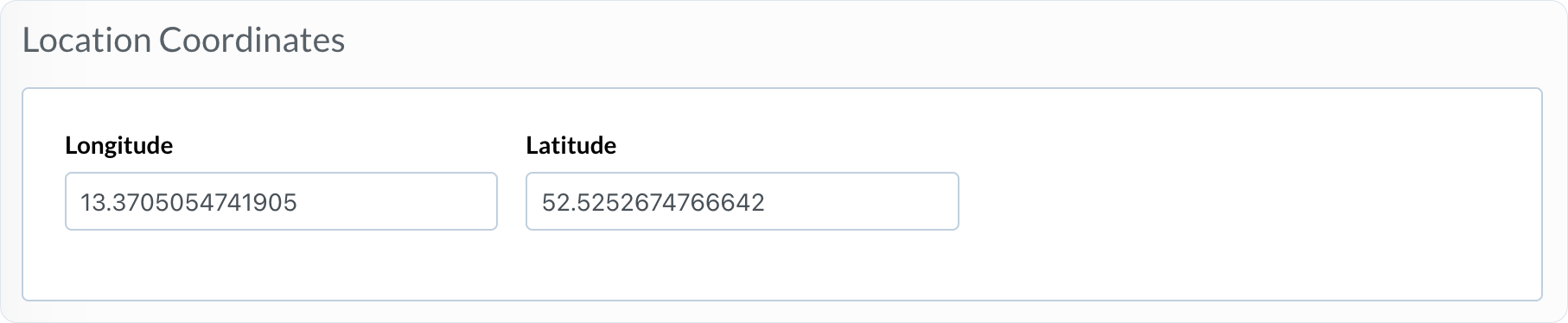
Provide a longitude and latitude for the home base address.
Site location
## Assisted buying
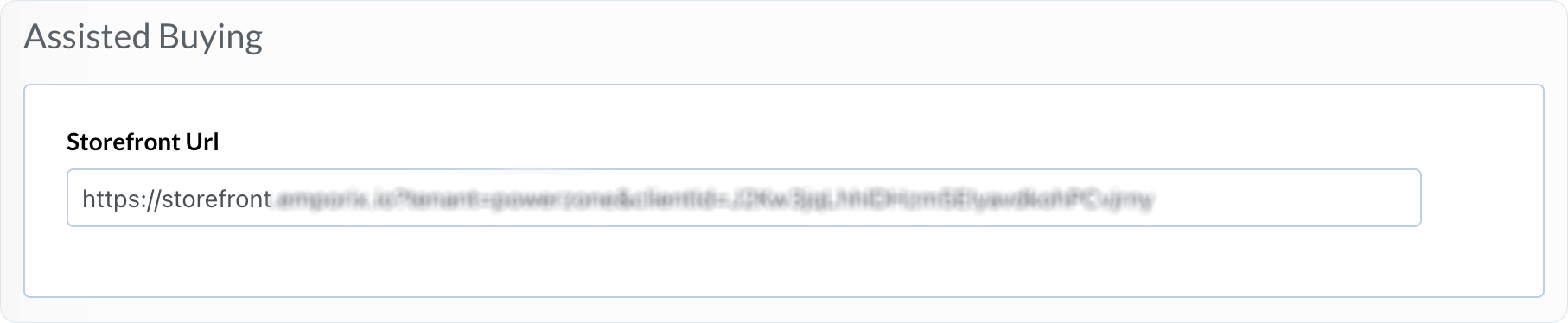
To enable using the assisted buying feature, enter the storefront URL in the corresponding field of the site settings.
Assisted buying
If the authorization is successful, the following query parameters are added to the URL:
* `customerToken` - It's a customer authorization token.
* `customerTokenExpiresIn` - It indicates a validity period for the token.
* `saasToken` - It's a customer SaaS token. It contains information about the employee who generated the token, therefore it's crucial to send the `saas-token` header with the value in every HTTP request sent by a customer.
After enabling the feature for a specific site, you can now log in as a customer and perform the requested actions on their behalf. In the [Customers](/user-guides/management-dashboard/customer-management/customers.md) view in Management Dashboard, choose the site that you want to use. It opens a new browser tab with the storefront. You can now make any purchases or take any actions that were requested by the customer.
## Audit Logs
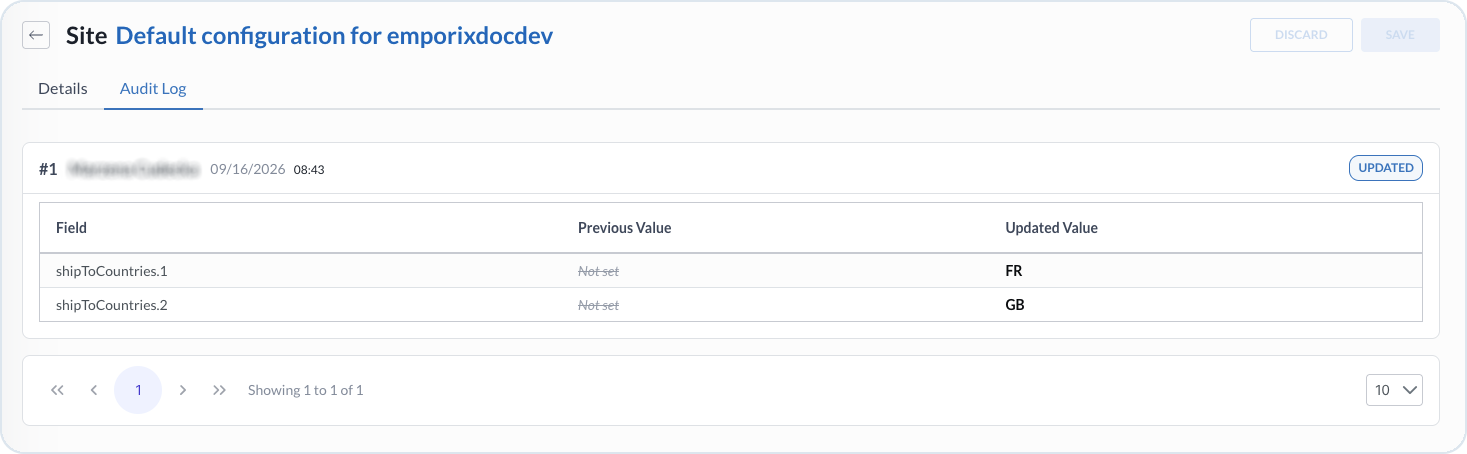
The **Audit Logs** tab shows the history of changes for this site, including what changed and when, with field-level previous and updated values. Actors can include named users, anonymous storefront activity, or system actions.
Site Audit Logs tab
{% hint style="info" %}
For the tenant-wide audit history, see [Audit Logs](/user-guides/management-dashboard/administration/audit-logs.md).
{% endhint %}
{% hint style="info" %}
To learn more about sites, see [Sites](/user-guides/core-commerce/sites.md) business documentation and [Site Settings Service](/api-documentation/api-guides/configuration/site-settings-service/site-settings.md) API guide.
{% endhint %}
---
# Agent Instructions
This documentation is published with GitBook. GitBook is the documentation platform designed so that both humans and AI agents can read, navigate, and reason over technical content effectively. Learn more at gitbook.com.
## Querying This Documentation
If you need additional information that is not directly available in this page, you can query the documentation by asking a question.
Perform an HTTP GET request on the following URL with the `ask` and `goal` query parameters:
```
GET https://developer.emporix.io/user-guides/management-dashboard/settings/sites.md?ask=&goal=
```
`ask` is the immediate question: it should be specific, self-contained, and written in natural language.
`goal` is what the user is ultimately trying to achieve, the reason they need the answer. Sharing it helps GitBook give you a better, more relevant answer. A goal is most helpful when it describes the outcome the user wants rather than restating the question. For example, with `ask=how do I create an API token`, a goal like `automate deployments from our CI pipeline` lets GitBook tailor the answer to that use case.
The response will contain a direct answer to the question and relevant excerpts and sources from the documentation.
Use this mechanism when the answer is not explicitly present in the current page, you need clarification or additional context, or you want to retrieve related documentation sections.