> For the complete documentation index, see [llms.txt](https://developer.emporix.io/llms.txt). Markdown versions of documentation pages are available by appending `.md` to page URLs; this page is available as [Markdown](https://developer.emporix.io/user-guides/system-management/authentication-and-authorization/authentication/user-authentication/sso.md).
# Emporix Single Sign-On (SSO)
Integrate single sign-on mechanism.
Thanks to the Single sign-on functionality, working with Emporix Commerce Engine is even easier for your employees.
## Purpose
Single sign-on is an authentication scheme that allows users to log in to different business applications with a single ID without the need to re-enter authentication credentials. Enabling SSO enhances the user experience, bolsters security measures and simplifies identity management within your organization. As the SSO ensures standardized integration for backend logins, the employees can access Emporix Management Dashboard of Commerce Engine with the same login they use for other systems you've integrated with your identity provider.\
The Emporix SSO functionality has been implemented flexibly for you to integrate with an identity provider of your choice. The identity provider has to be compatible with OpenID Connect (OIDC). For example, you can integrate with Microsoft Entra ID, Google, Keycloak, or other.
{% hint style="info" %}
To use Microsoft Entra ID as the source of employee login, group membership, and tenant access, see [Microsoft Entra ID Access](/user-guides/system-management/authentication-and-authorization/authentication/user-authentication/entra-id.md). That path maps Entra ID groups to Emporix IAM groups at login and does not require a prior invitation for mapped employees.
{% endhint %}
## Features
| Business Aspect | Description |
| ---------------------- | ----------------------------------------------------------------------------------------------------------------------------------------------------------------------------------------------------------- |
| **No coding required** | Pure configuration of the identity provider to integrate with the Commerce Engine. |
| **One login only** | Only one authentication login for all the different internal applications on the merchant side. |
| **OIDC standard** | Integrating with an identity provider compatible with OpenID Connect ensures secure authentication. |
| **SSO enforcement** | Possibility to configure additional security measures to allow logging in only for the accounts set up in your IDP through SSO functionality. If you want to enable this option, get in touch with Emporix. |
## Overview
The following diagram presents the general process:
```mermaid
---
config:
layout: fixed
theme: base
themeVariables:
primaryColor: '#DDE6EE'
primaryTextColor: '#4C5359'
primaryBorderColor: '#4C5359'
actorBkg: '#DDE6EE'
actorBorder: '#4C5359'
actorTextColor: '#4C5359'
actorLineColor: '#4C5359'
signalColor: '#E86C07'
signalTextColor: '#7B8B99'
lineColor: '#9CBBE3'
arrowheadColor: '#E86C07'
noteBkgColor: '#FFC128'
noteTextColor: '#4C5359'
noteBorderColor: '#4C5359'
activationBkgColor: '#A1BDDC'
activationBorderColor: '#4C5359'
background: transparent
---
sequenceDiagram
actor USER
participant WEBSITE
participant SSO
participant AUTH as AUTHENTICATION SERVER
USER->>SSO: 1. SSO Login page
USER->>WEBSITE: 2. Enter credentials
WEBSITE->>SSO: 3. Credentials sent to SSO
SSO->>AUTH: 4. Request authentication
AUTH-->>SSO: 5. Pass authentication data
SSO-->>WEBSITE: Authentication result
WEBSITE-->>USER: Access granted
```
## Configuration
Emporix SSO functionality enables integration of external identity providers (IDP) with the Emporix authentication system. You can choose any identity provider that is compatible with OpenID Connect (OIDC) standard.
As a customer, you have to configure the IDP system of your choice and provide the required credentials to Emporix so that we can enable SSO for your tenants.
As the IDP configuration is tool-specific and dependent on your needs, we don't impose any configuration steps.\
Once you have the application registered in your identity provider, provide the credential details to Emporix. Depending on your IDP, these may be called differently, but should be equivalent to a unique identifier (for example \`Application ID\`) and secret password (for example \`client secret\`). These details are essential to enable the SSO functionality on the Emporix side.
### Redirect URI
In your IDP system, register a redirect URI with a callback function: `https://auth.emporix.io/oauth2/v1/authorize/callback`.\
The URL is where the identity platform redirects a user's client and sends security tokens after authentication.
## Login page
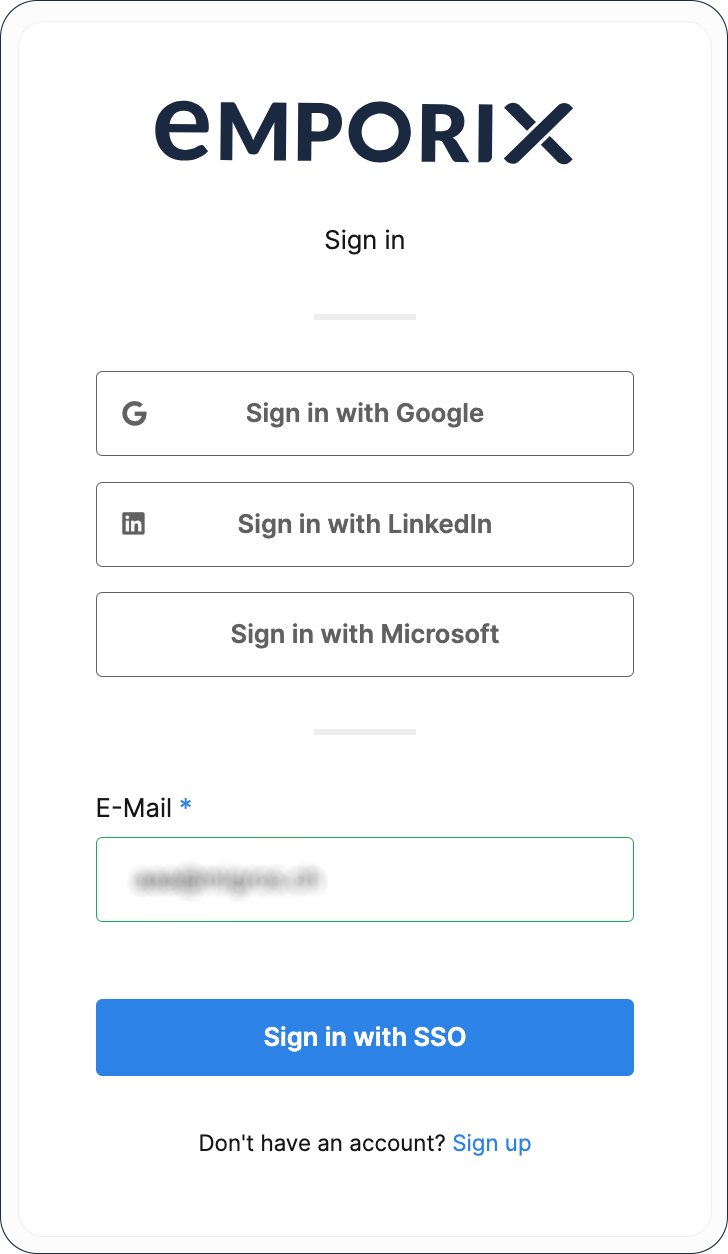
The login page contains the option to log in to Emporix systems using Single sign-on once you enter the configured email address:
If your email domain is configured to use SSO, once you enter it, the option to **Login with SSO** appears, and you get redirected to the IDP provider to verify your credentials. Once you are logged in, you don't have to re-enter the password to log in to the Emporix Management Dashboard.
{% hint style="warning" %}
For generic OpenID Connect SSO, only already activated user accounts can log in to Emporix tools. Newly created user accounts need to be activated first. A new user receives an invitation email with a link to set a temporary password. When the password is set, the user can log in and link the account with an OIDC account. To link the Emporix account with the external OIDC account, the temporary password is necessary.
Temporary password can only be used for linking the account with external providers. The option to log in to the system using temporary password is blocked.
This invitation flow does not apply to [Microsoft Entra ID Access](/user-guides/system-management/authentication-and-authorization/authentication/user-authentication/entra-id.md) after group mapping is in place. Mapped employees receive access at first login.
{% endhint %}
## SSO connection
After the SSO has been properly configured on IDP and Emporix, the authentication happens in the background. See how it works together on the following diagram:
```mermaid
---
config:
layout: fixed
theme: base
themeVariables:
primaryColor: '#DDE6EE'
primaryTextColor: '#4C5359'
primaryBorderColor: '#4C5359'
actorBkg: '#DDE6EE'
actorBorder: '#4C5359'
actorTextColor: '#4C5359'
actorLineColor: '#4C5359'
signalColor: '#E86C07'
signalTextColor: '#7B8B99'
lineColor: '#9CBBE3'
arrowheadColor: '#E86C07'
noteBkgColor: '#FFC128'
noteTextColor: '#4C5359'
noteBorderColor: '#4C5359'
activationBkgColor: '#A1BDDC'
activationBorderColor: '#4C5359'
background: transparent
---
sequenceDiagram
actor EMPLOYEE
participant APPS as DEVELOPER PORTAL / MANAGEMENT DASHBOARD
participant AUTH as EMPORIX USER AUTHENTICATION SOLUTION
participant IDP as IDP
EMPLOYEE->>APPS: Log in
APPS->>AUTH: Request with IdP ID
AUTH->>IDP: Communicates with IDP
IDP-->>AUTH: Token
AUTH-->>APPS: Token
APPS-->>EMPLOYEE: Access granted
```
Each time an employee logs in to the Developer Portal or Emporix Management Dashboard system, a request is sent to the Emporix user authentication solution with the proper IDP ID. The solution communicates with the Identity Provider system. The IDP returns a token that allows the user to log in to the Emporix Management Dashboard.
{% hint style="info" %}
To learn more how you can configure an external identity provider system, see the Microsoft Entra ID example - [Quickstart: Register an application with the Microsoft identity platform](https://learn.microsoft.com/en-us/entra/identity-platform/quickstart-register-app). For group synchronization and tenant access based on Entra ID groups, see [Microsoft Entra ID Access](/user-guides/system-management/authentication-and-authorization/authentication/user-authentication/entra-id.md).
{% endhint %}
---
# Agent Instructions
This documentation is published with GitBook. GitBook is the documentation platform designed so that both humans and AI agents can read, navigate, and reason over technical content effectively. Learn more at gitbook.com.
## Querying This Documentation
If you need additional information that is not directly available in this page, you can query the documentation by asking a question.
Perform an HTTP GET request on the following URL with the `ask` and `goal` query parameters:
```
GET https://developer.emporix.io/user-guides/system-management/authentication-and-authorization/authentication/user-authentication/sso.md?ask=&goal=
```
`ask` is the immediate question: it should be specific, self-contained, and written in natural language.
`goal` is what the user is ultimately trying to achieve, the reason they need the answer. Sharing it helps GitBook give you a better, more relevant answer. A goal is most helpful when it describes the outcome the user wants rather than restating the question. For example, with `ask=how do I create an API token`, a goal like `automate deployments from our CI pipeline` lets GitBook tailor the answer to that use case.
The response will contain a direct answer to the question and relevant excerpts and sources from the documentation.
Use this mechanism when the answer is not explicitly present in the current page, you need clarification or additional context, or you want to retrieve related documentation sections.